Organizing and Navigating
The Gantt chart provides tools to organize tasks and navigate large timelines. Group by assignee, filter by status, add data columns, and zoom between day, week, and month views.
Grouping
Group tasks by any column to organize them into sections. Grouping works in both the Gantt chart and the Grid.
How to group tasks
Use the dedicated grouping control in the toolbar:
- Open the Group by control.
- Select any column to group by — all columns except Criteria are available (Assignee, Status, Type, Reporter, Parent Name, Epic Link, and any custom fields your board has).
Tasks split into sections with a header showing the field value and task count (e.g., "To Do — 8 tasks", "In Progress — 3 tasks").
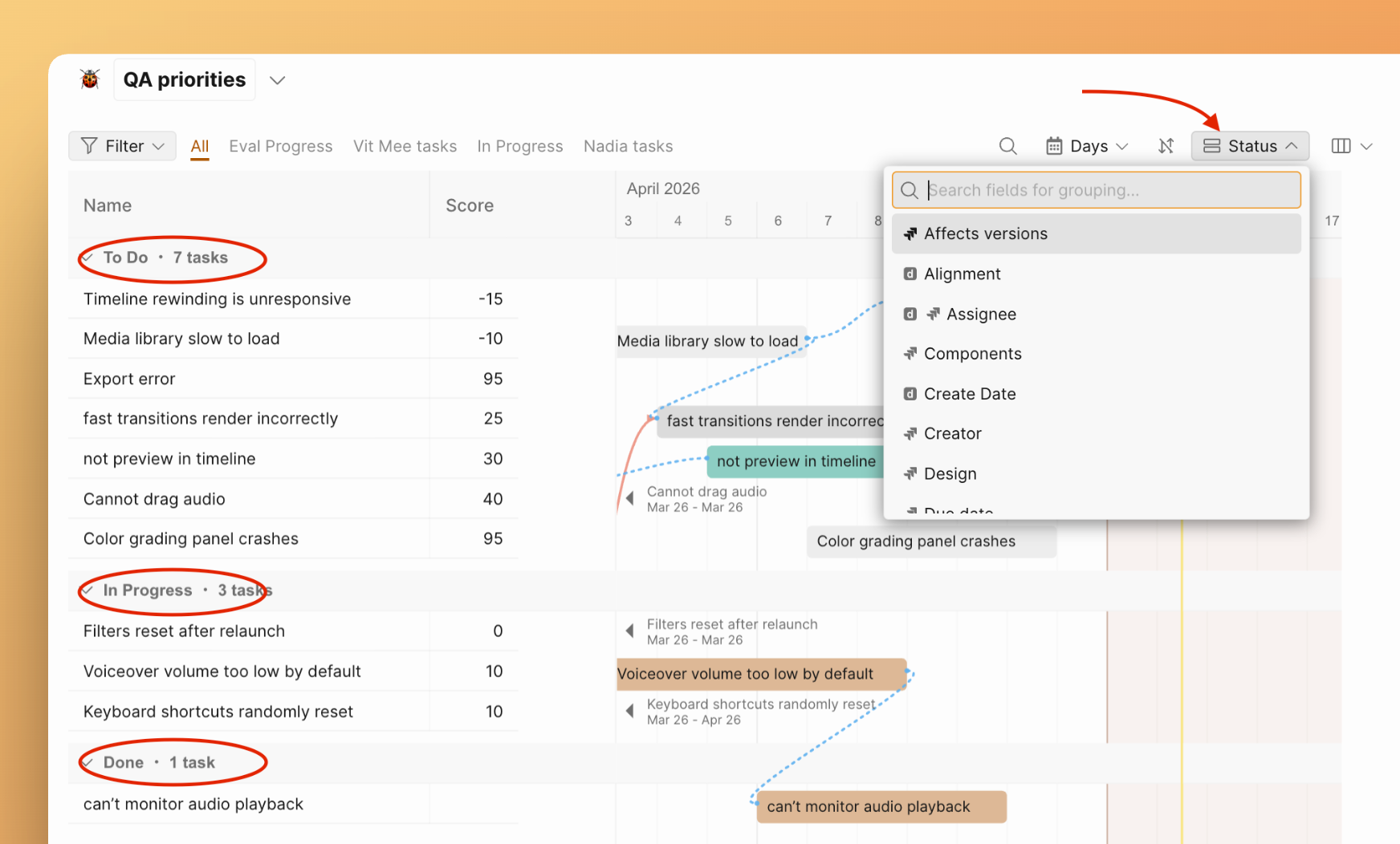
You can also group directly from a column header: click the header and select Group by this field.
Remove grouping
Open the Group by control and select the active field to deselect it. Or click the same column header and deselect the grouping option.
Filters and search
The Gantt chart uses the same filter system as the Backlog and Evaluation grids.
- Filter — click the Filter button in the toolbar, choose parameters (Reporter, Status, Assignee, etc.). Non-matching tasks are hidden.
- Saved presets — if your Board has saved filter presets (e.g., Active & Future Sprint, Low Back), they appear as tabs above the chart. Click a tab to apply instantly.
- Search — click the search icon in the toolbar and type a task name or keyword.
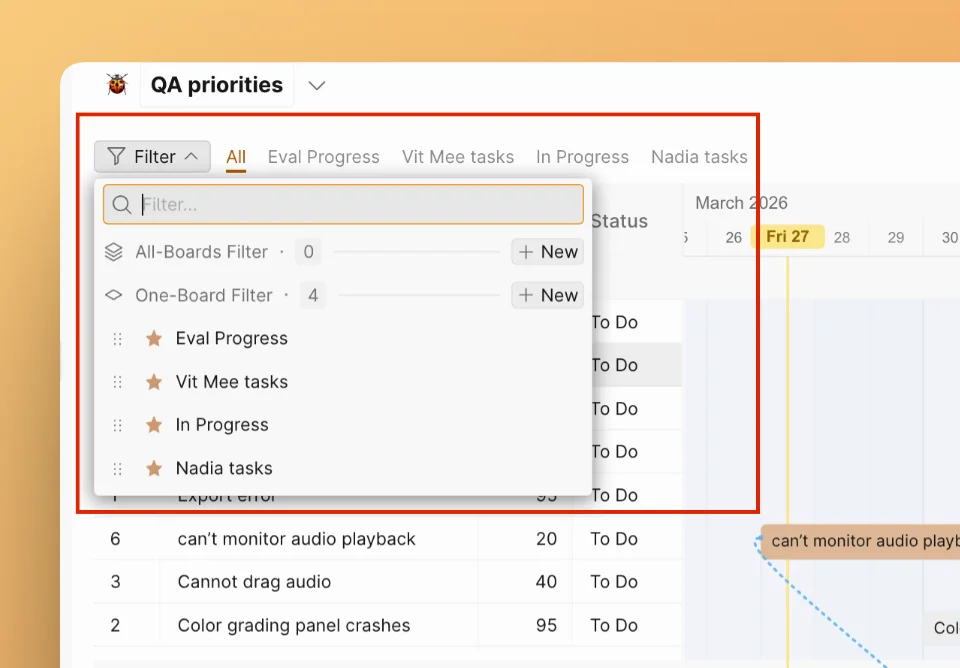
For detailed filter documentation, see Filters.
Columns
The table panel on the left shows Name and Score by default. You can add more columns to see relevant data alongside the timeline.
Click the column configuration icon in the table header and toggle fields on or off: Assignee, Status, Type, Reporter, and other fields from your Board.
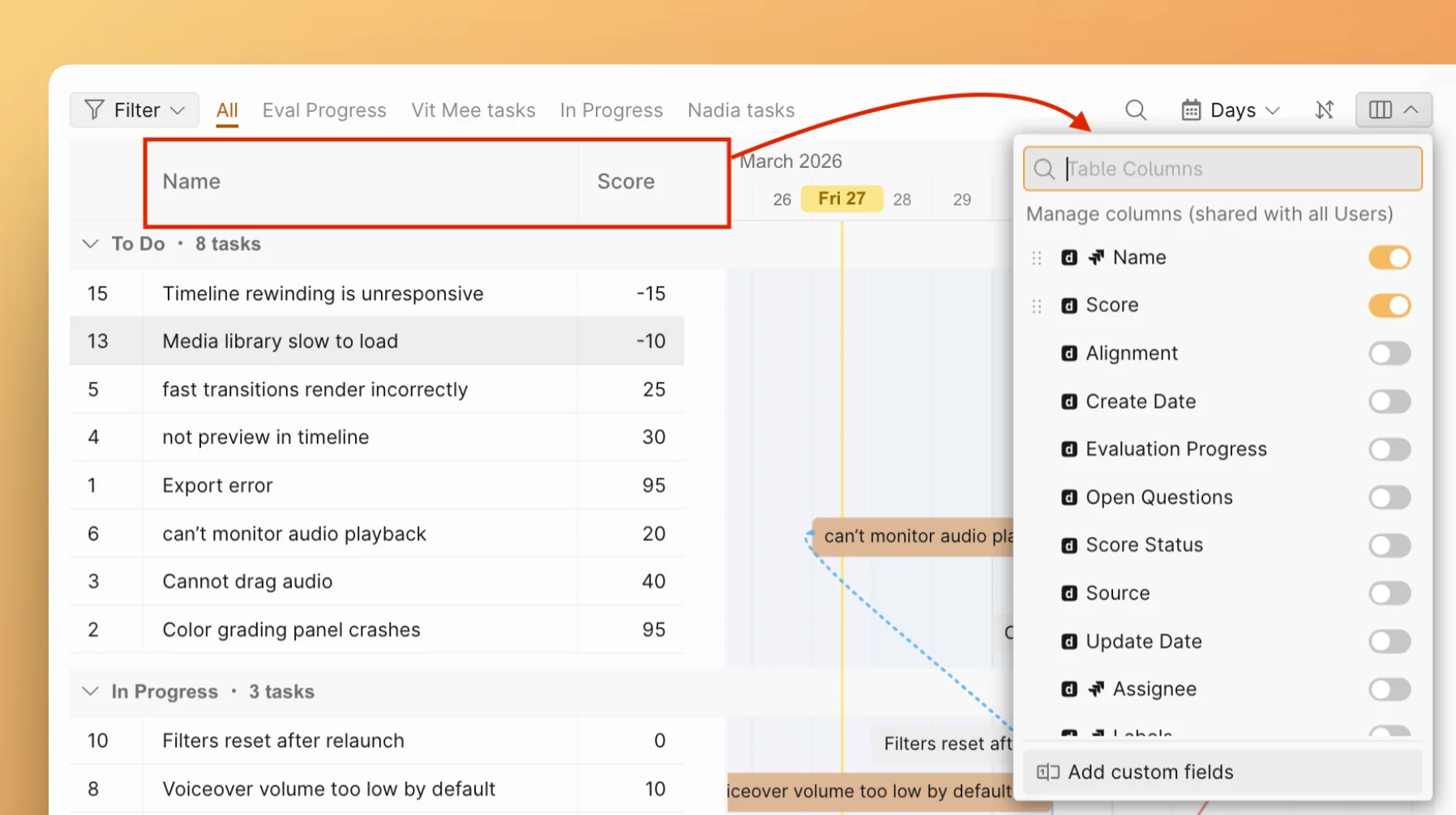
Gantt chart columns are read-only. They display data but cannot be edited directly. To change a task's assignee or status, open the task card or update it in your task tracker.
Timeline navigation
- Zoom levels — click the zoom selector to switch between Days, Weeks, and Months. Choose the scale that matches your planning horizon.
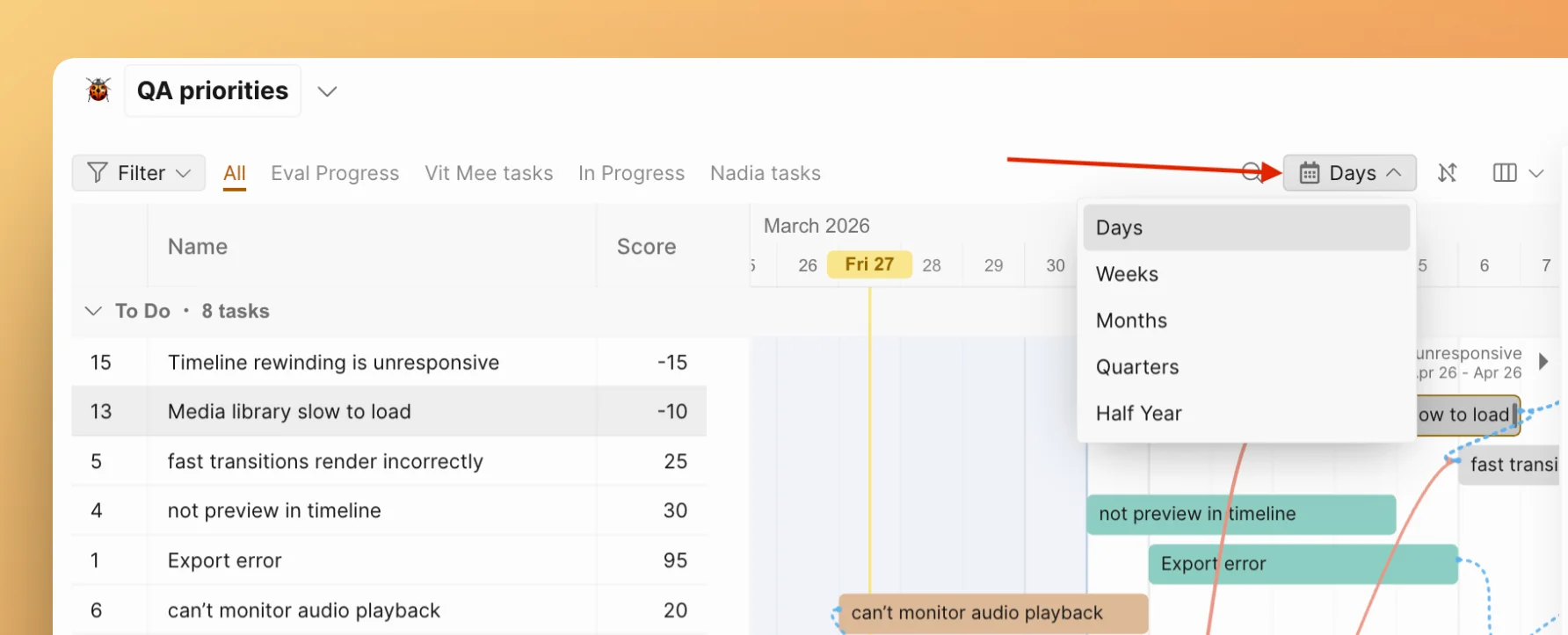
- Mouse scroll zoom — use the scroll wheel over the timeline to zoom in and out.
- Today button — click Today to scroll the timeline to the current date.
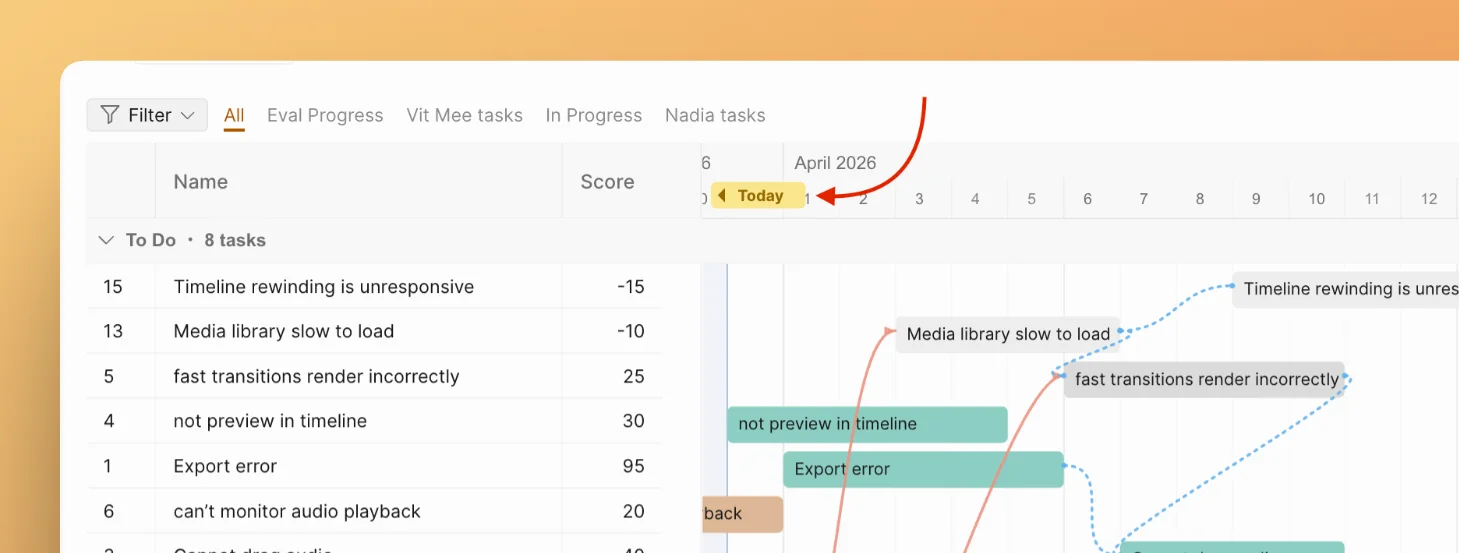
- Jump to a task — click a task row in the table panel to scroll the timeline to its bar.
Related articles
- Adding and scheduling tasks — Add tasks and set dates on the timeline
- Dependencies — Create links and scheduling constraints between tasks
- Gantt Chart Overview — How the Gantt chart fits into the prioritization workflow