AI Assistant Overview
The AI Assistant turns your Ducalis account context into action. It lives inside Ducalis, understands your issues, ideas, and scores, and can act on your behalf through agents.
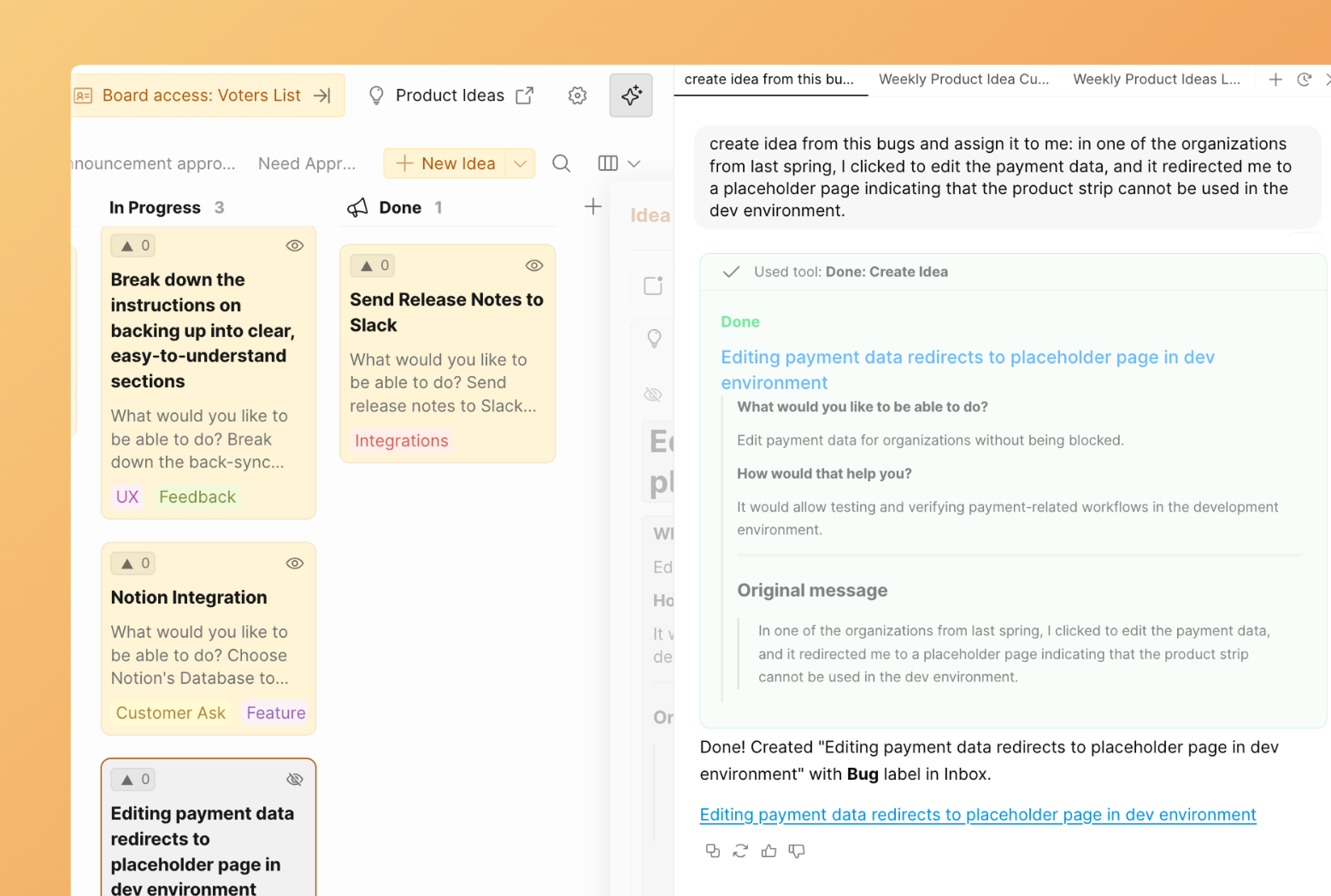
You can ask it to:
- Create and update issues, ideas, criteria, and comments
- Summarize and analyze prioritization results and customer requests
- Answer questions about your boards' data
- Make bulk actions, like adding labels, moving issues, or creating issues, ideas, and boards
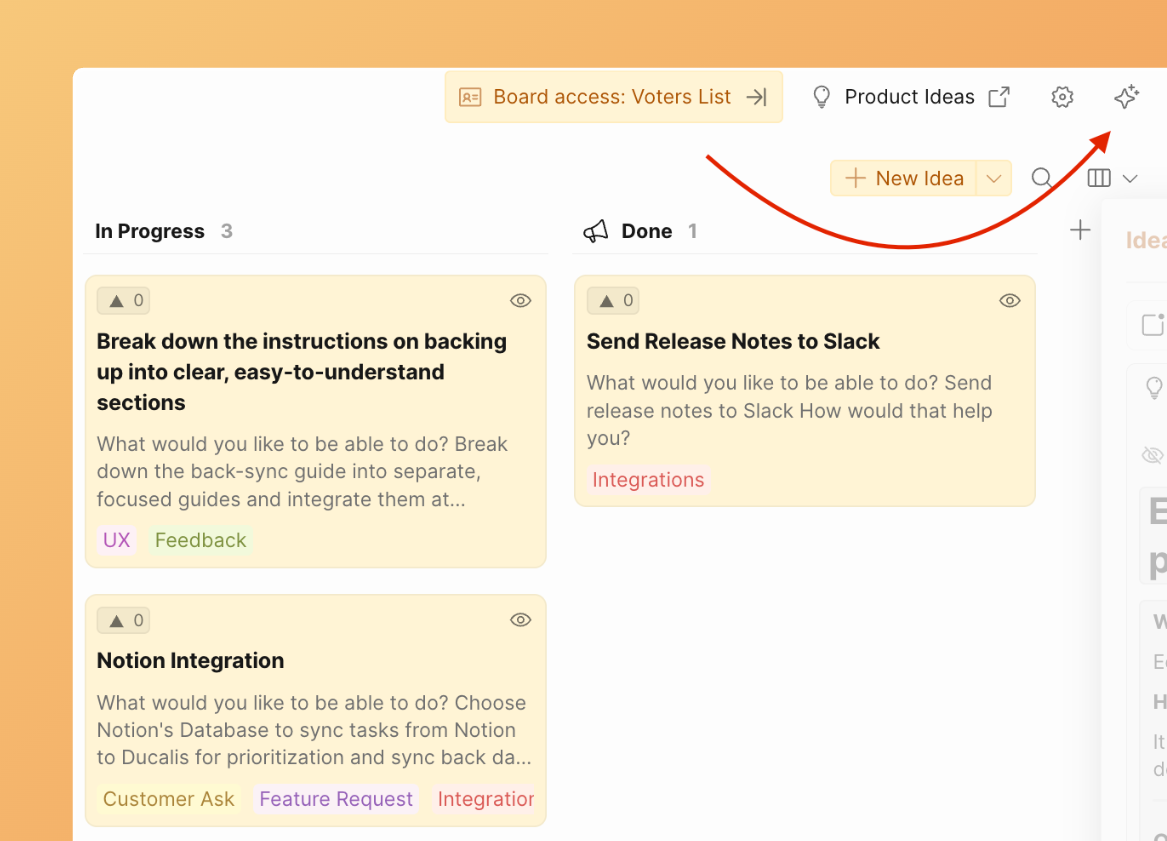
Open the AI Assistant chat from the top-right corner of any page.
Setup
The AI Assistant is available by default in your account. You get free Ducalis credits to start using it.
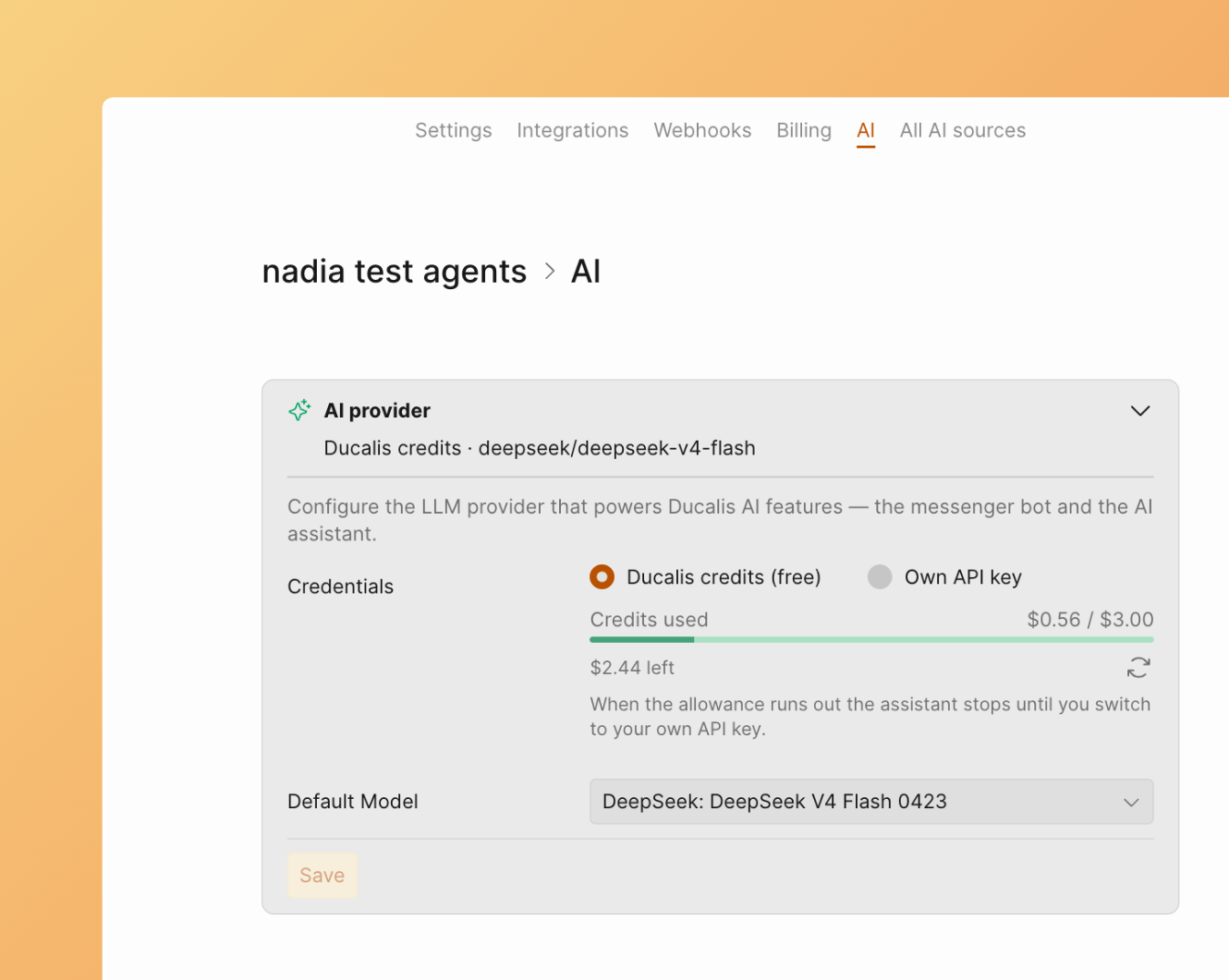
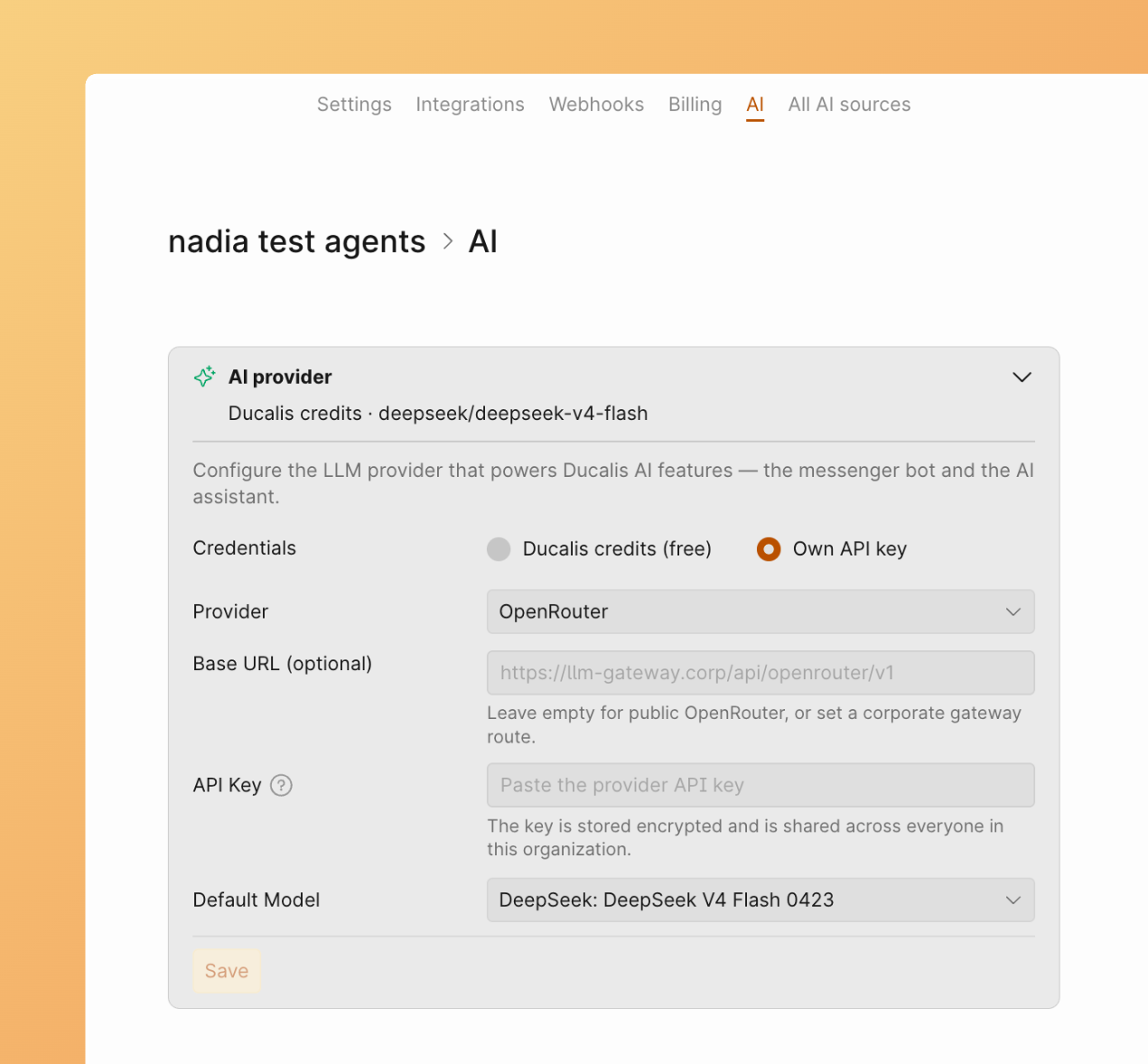
Once your credits run out, add your own API key to keep using the AI Assistant.
How the AI Assistant works
The AI Assistant works with your existing account data, including boards, ideas, issues and their dependencies, comments, and activity history.
It uses this context to understand how your work is organized, and to:
- Answer questions
- Summarize activity
- Make updates in the right places
The AI Assistant operates within your existing permissions. It can only reference or change content you already have access to.
Context window
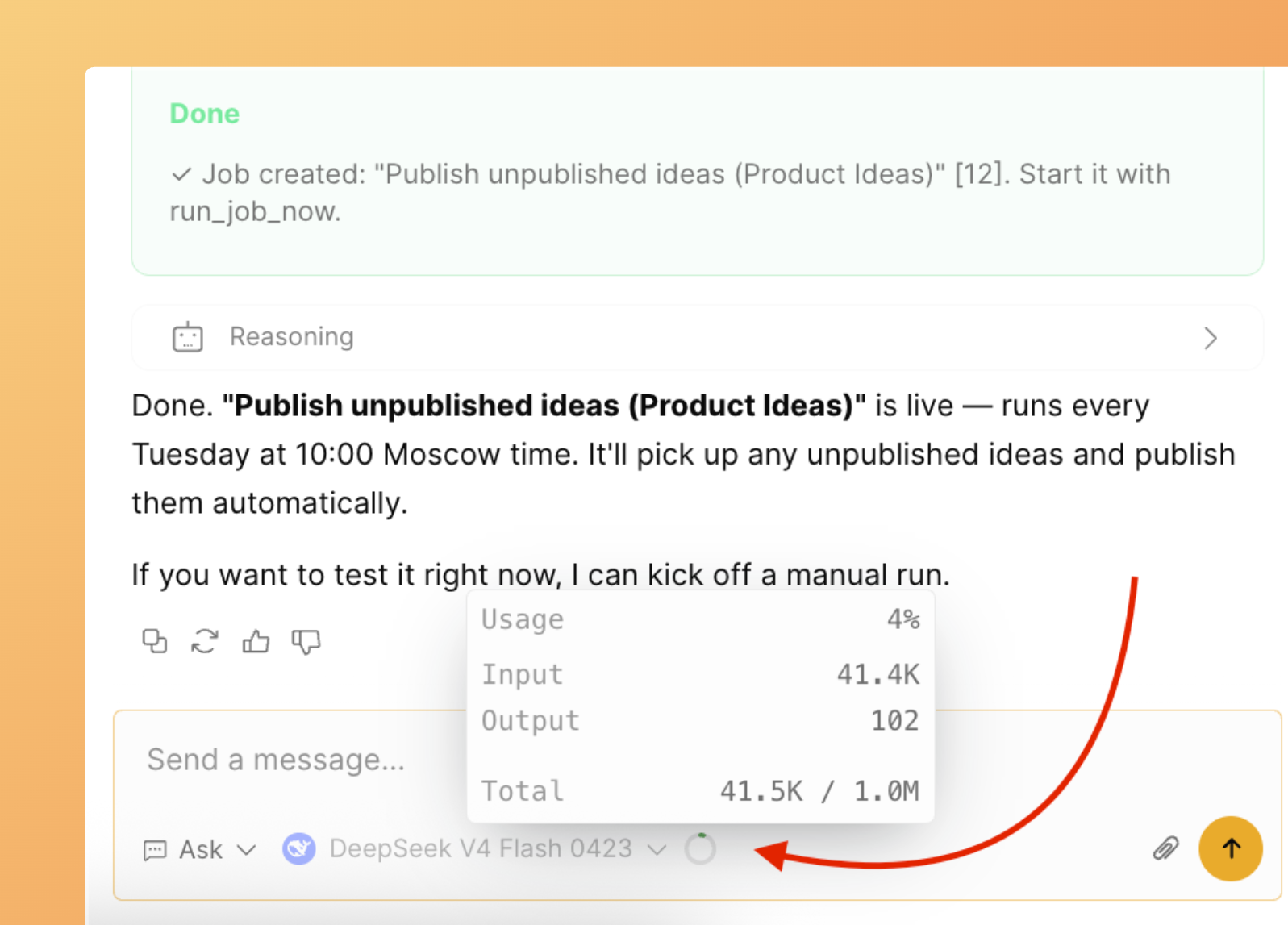
A context window indicator sits at the bottom of the chat. It shows how much of the available context the current chat has used so far.
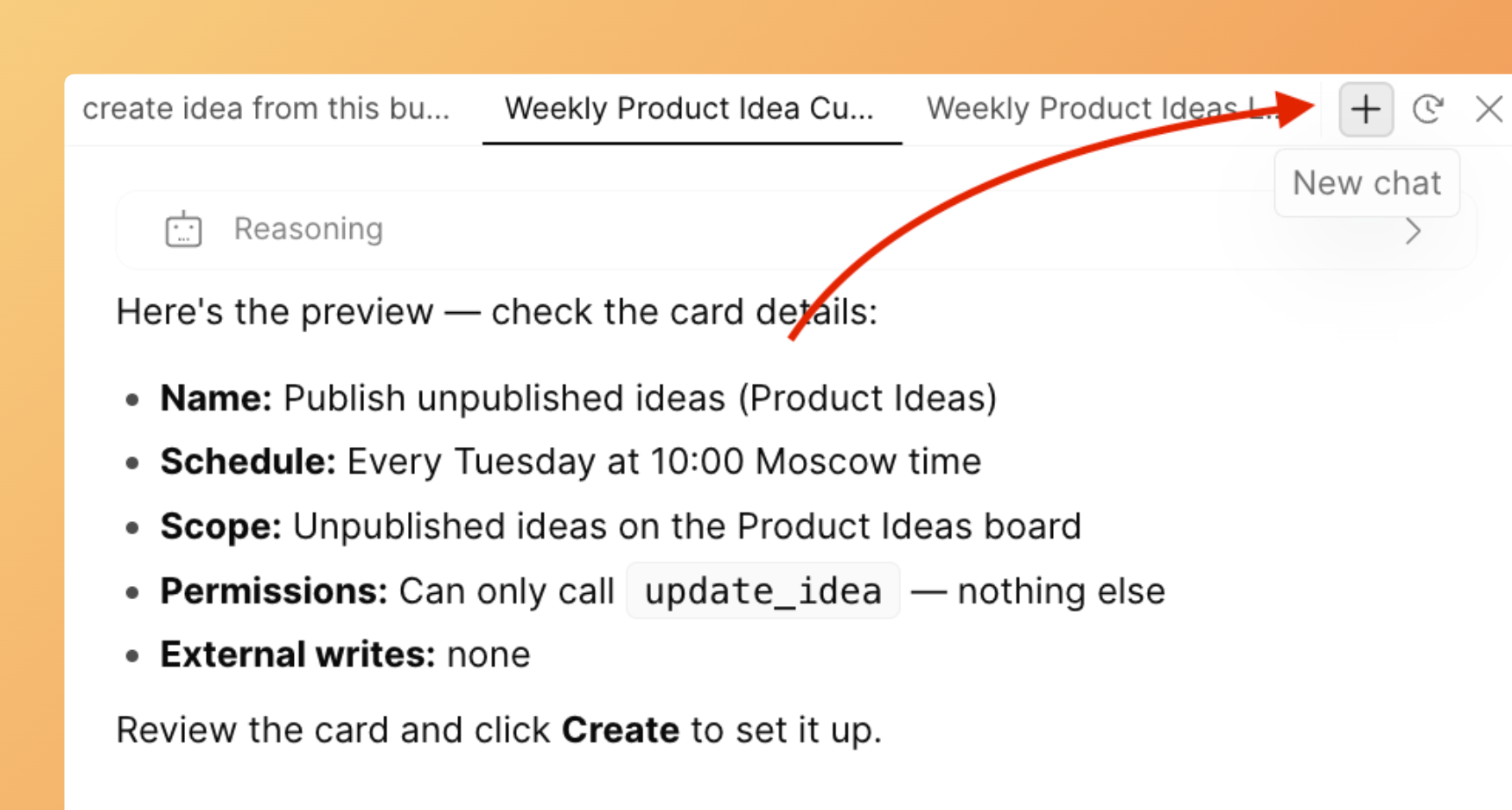
Start a new chat
Start a new chat whenever you want a clean slate—when you switch to a different topic, issue, or project scope, or when you want to avoid the assistant reusing context from an earlier thread.
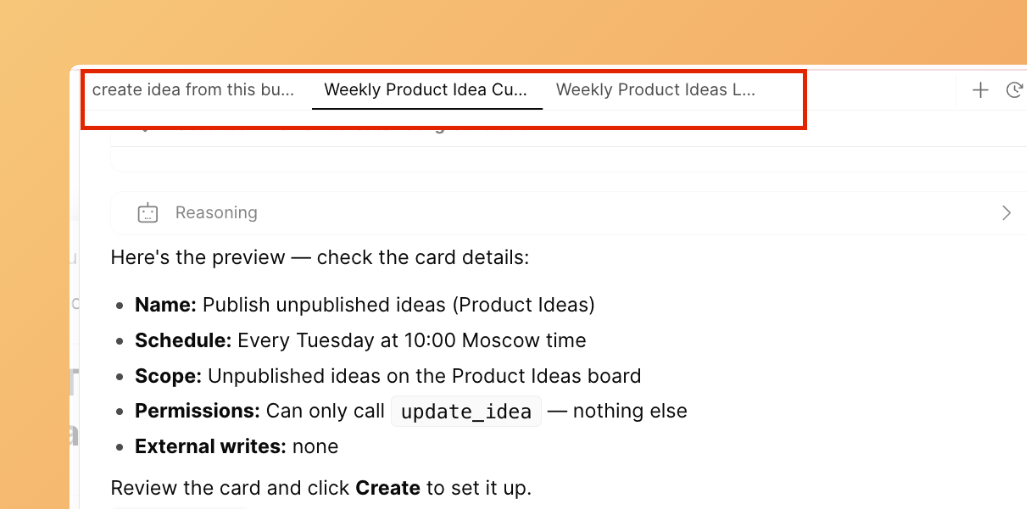
If you prefer to multitask, work in multiple open chats at once. Each open chat appears as a tab in the toolbar with a short label, so you can switch between topics without losing context.
Example prompts
Try prompting the AI Assistant to:
- "Create three boards named Product Backlog, Customer Requests, and Tech Debt."
- "Turn on the Voting Board for all boards in the workspace."
- "Add the Bug label to the Ideas in the Top Priority column on the 'Linear ↔ Ducalis' Voting board."
- "Create UX, Onboarding, and Time criteria for the Product Improvements board."
- "Delete all Issues that have 'test' in their names on the Product Improvements board."
Chat history
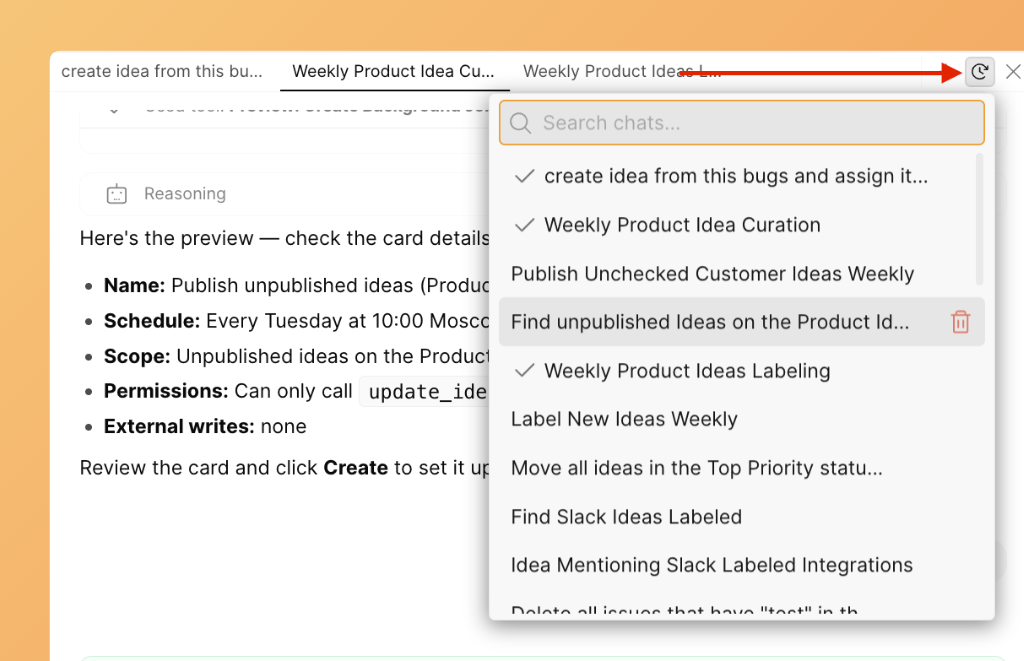
Ducalis keeps a history of your past chats so you can return to them later instead of starting over. Open Chat history in the assistant toolbar to browse previous conversations. Chats appear in a list with their names.
Skills
When a conversation with the AI Assistant yields a great result, create that workflow as a reusable skill.
Skills help you save time, get more consistent results, and avoid rewriting the same instructions for repeated prompts or workflows.
To create a skill:
- Open a new chat.
- Click Add custom skill.
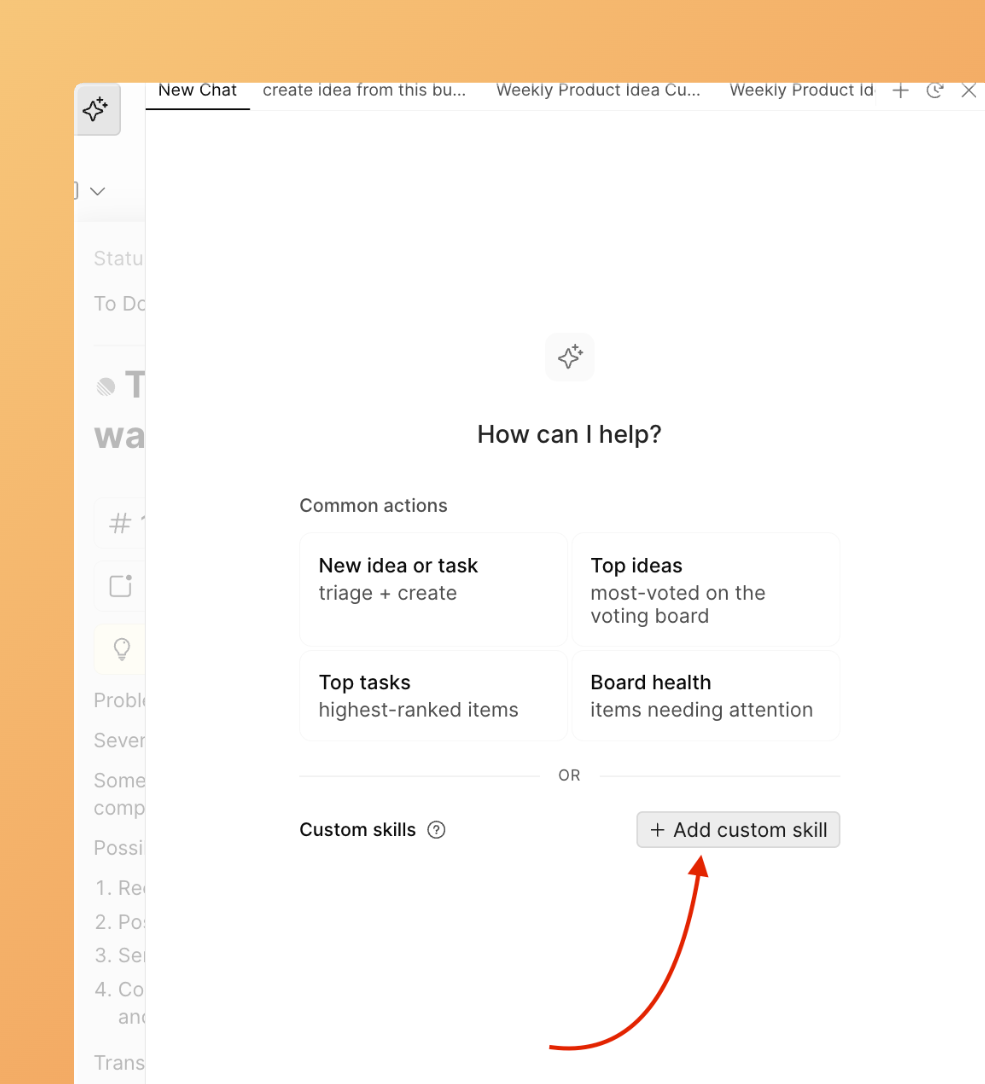
- Upload the
.mdfile with the prompt you want to reuse.
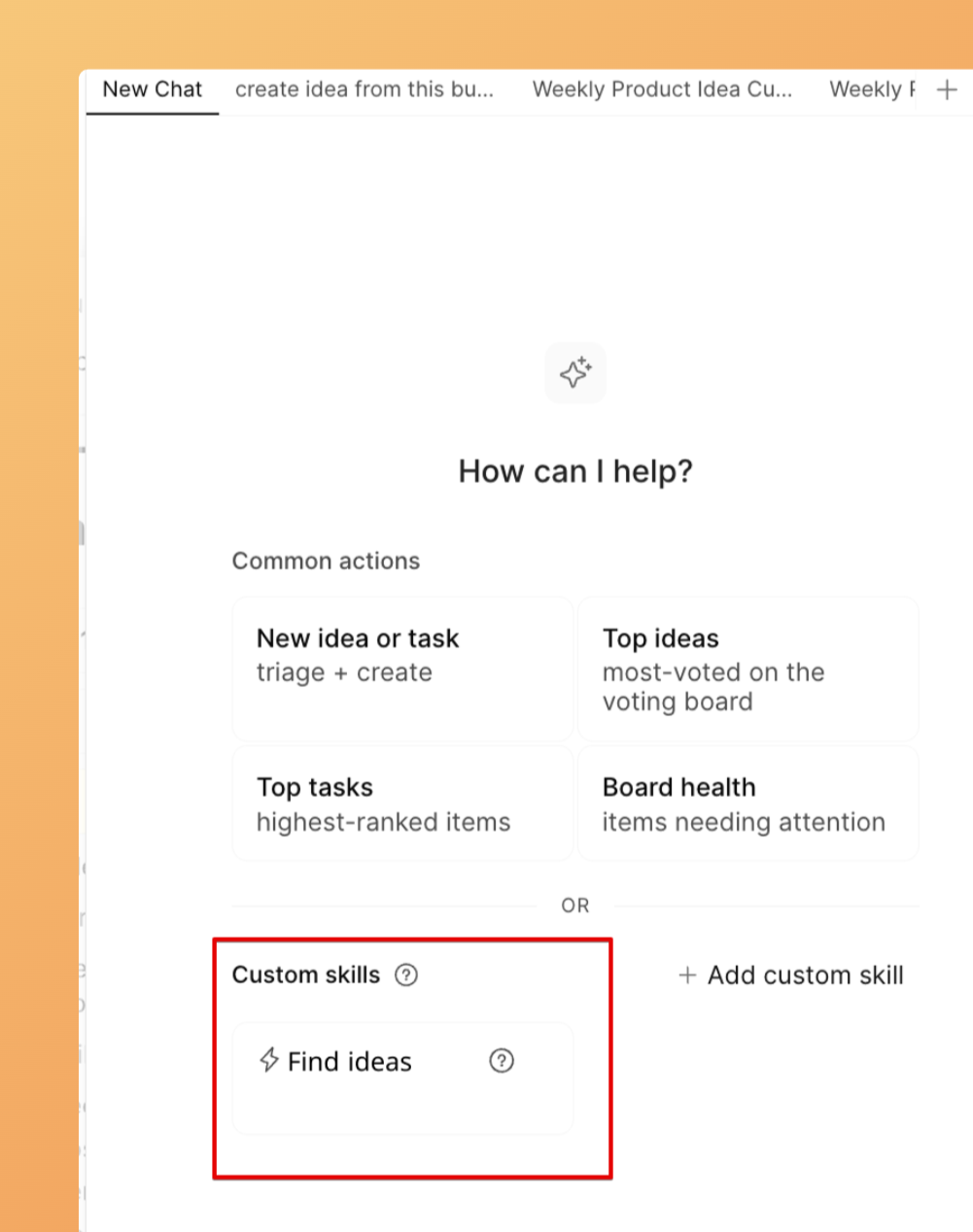
All skills are available in the list when you open a new chat.
Automate recurring workflows
If you find yourself asking the AI Assistant to do the same kind of task regularly, turn it into an agent instead. Agents let you describe a task once and set a schedule, so AI repeats it automatically without you asking again each time.
See Agents Overview to learn how to set one up, or explore some use cases to get started.