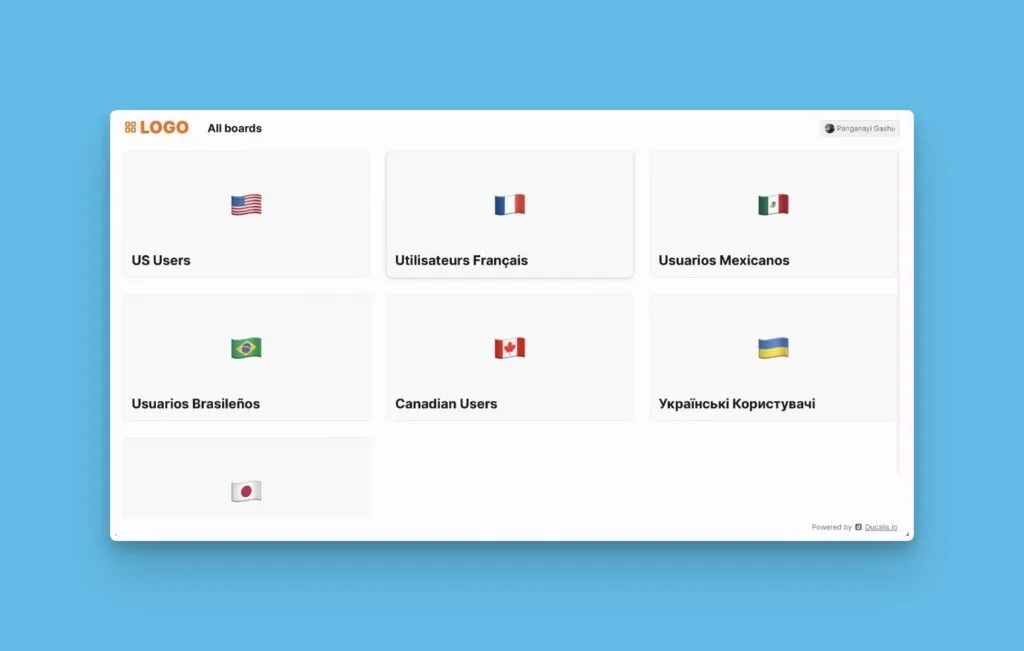
Privacy
Control who can access your Voting Board using four privacy methods: public access for anyone, sign-in requirements, restricted access by domain or email list, and direct links for specific users.
Privacy options overview
Choose from four access methods:
- Public access - Anyone can view without signing in
- Sign-in required - Voters must authenticate to view the board
- Restricted access - Limit to specific domains or email addresses
- Direct link access - Share boards via private links
Configure privacy settings
-
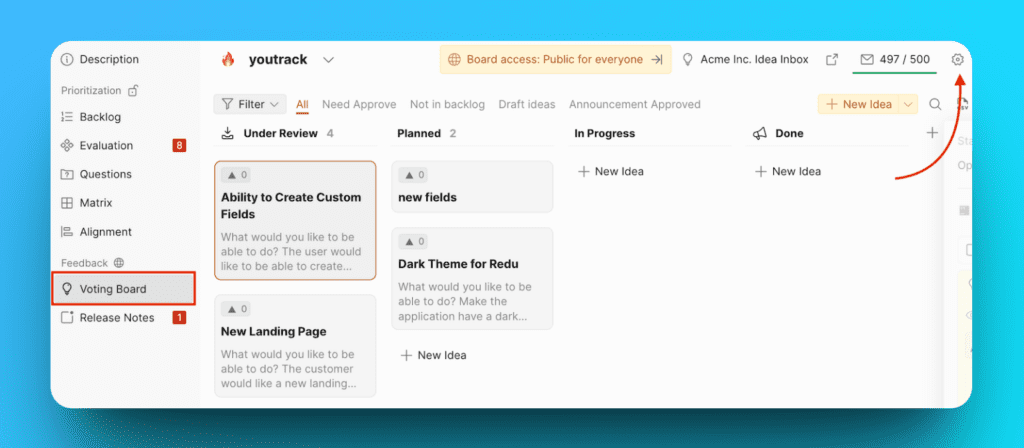
Open your Ducalis Board and go to Voting board > Settings.
-
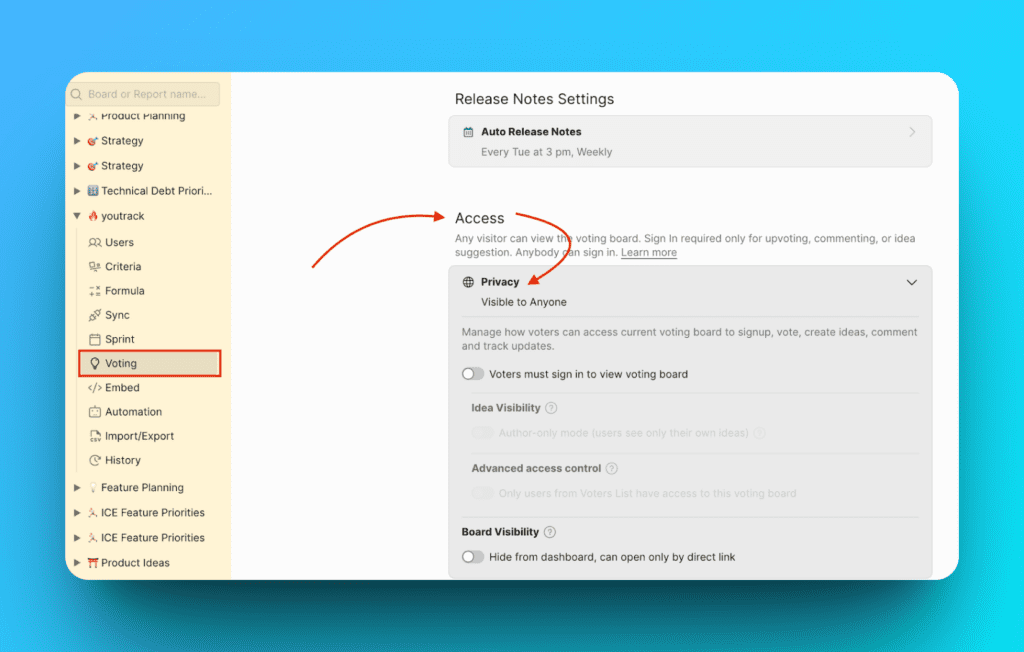
In the left menu, select Voting.
-
Expand the Privacy section under Access.
Visible to Anyone
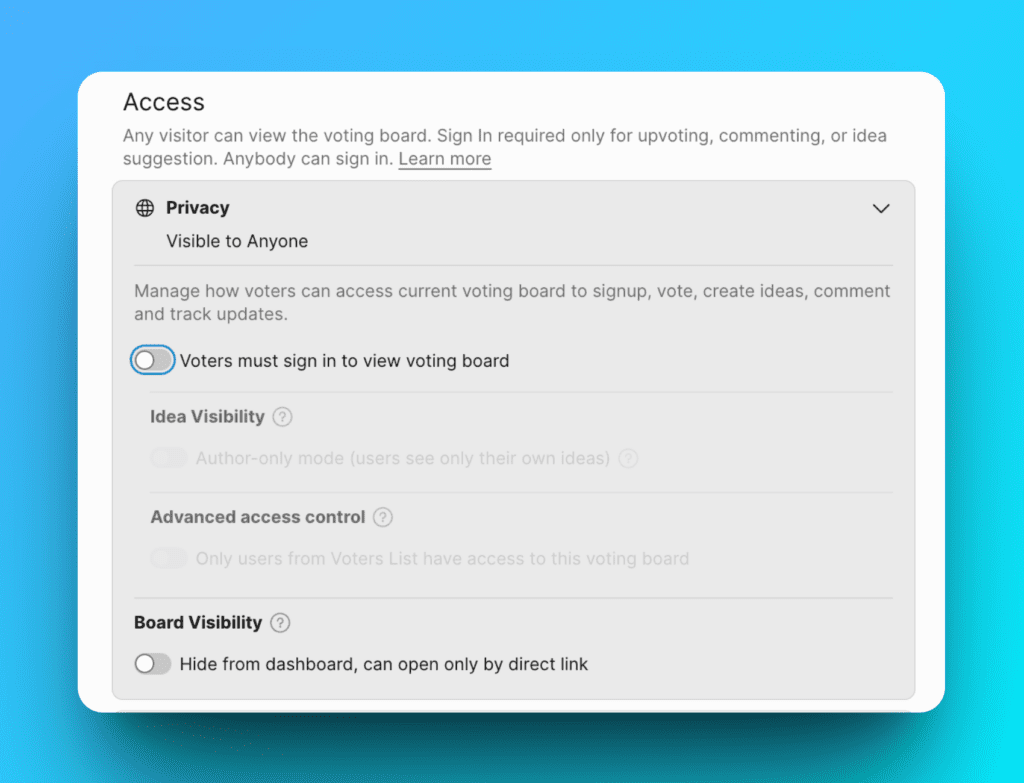
Make your Voting Board public so anyone can browse Ideas without signing in. Voters only need to sign in when they want to upvote, submit Ideas, or comment.
Turn off all privacy toggles to enable public access.
Sign-in required
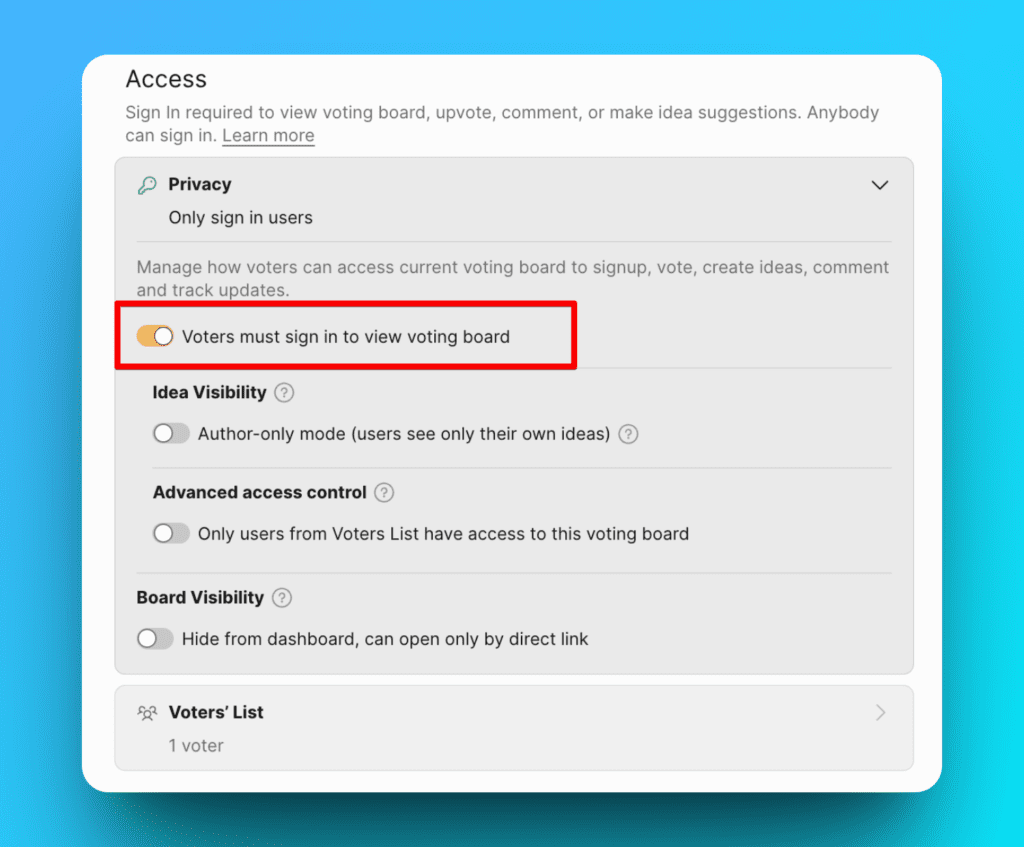
Require all visitors to sign in before viewing your Voting Board.
Enable the Sign in required toggle.
Author-only mode
Restrict Voters to see only their own submitted Ideas. Other Voters' Ideas remain hidden.
-
Enable Sign in required.
-
Enable Author-only mode.
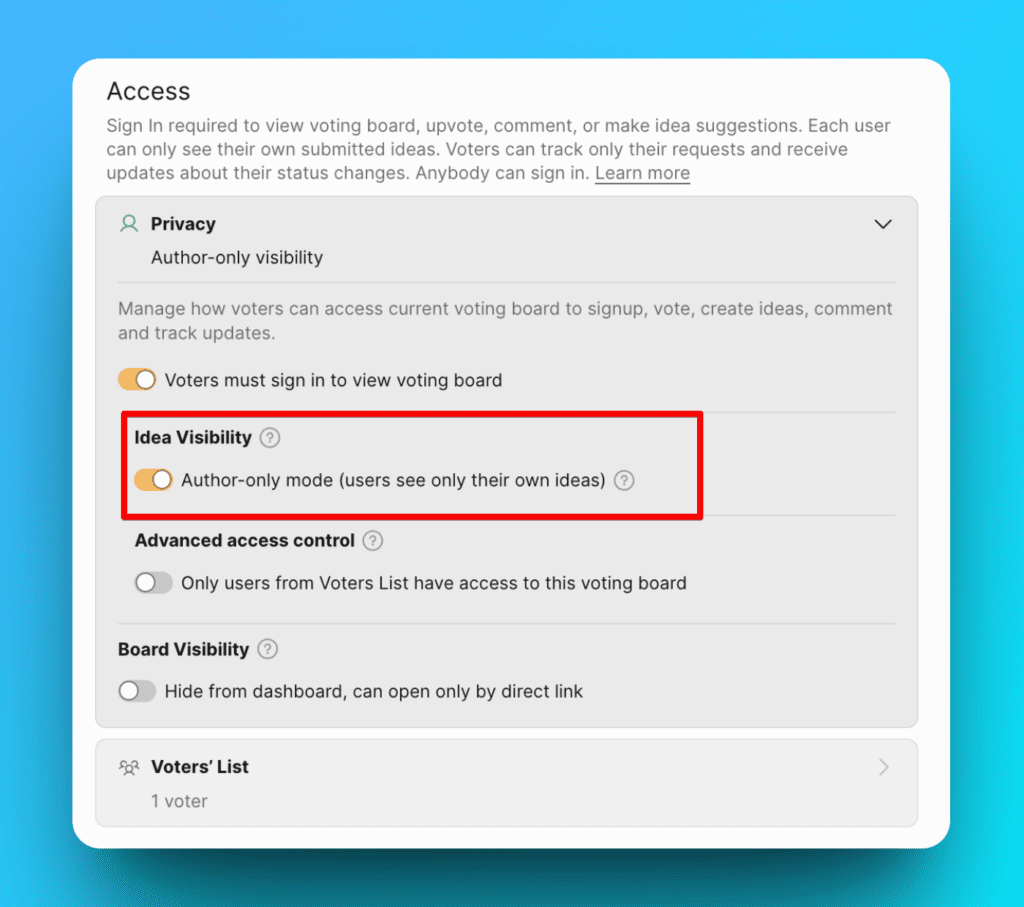
With these settings, Voters must sign in and will only see Ideas they created.
Restrict by domain or email
Limit access to Voters with specific email domains or addresses.
Allow specific domains
Grant access to anyone with an approved email domain.
-
Enable Sign in required.
-
Enable Only Voters from the list.
-
Enter allowed domains (e.g.,
yourcompany.io).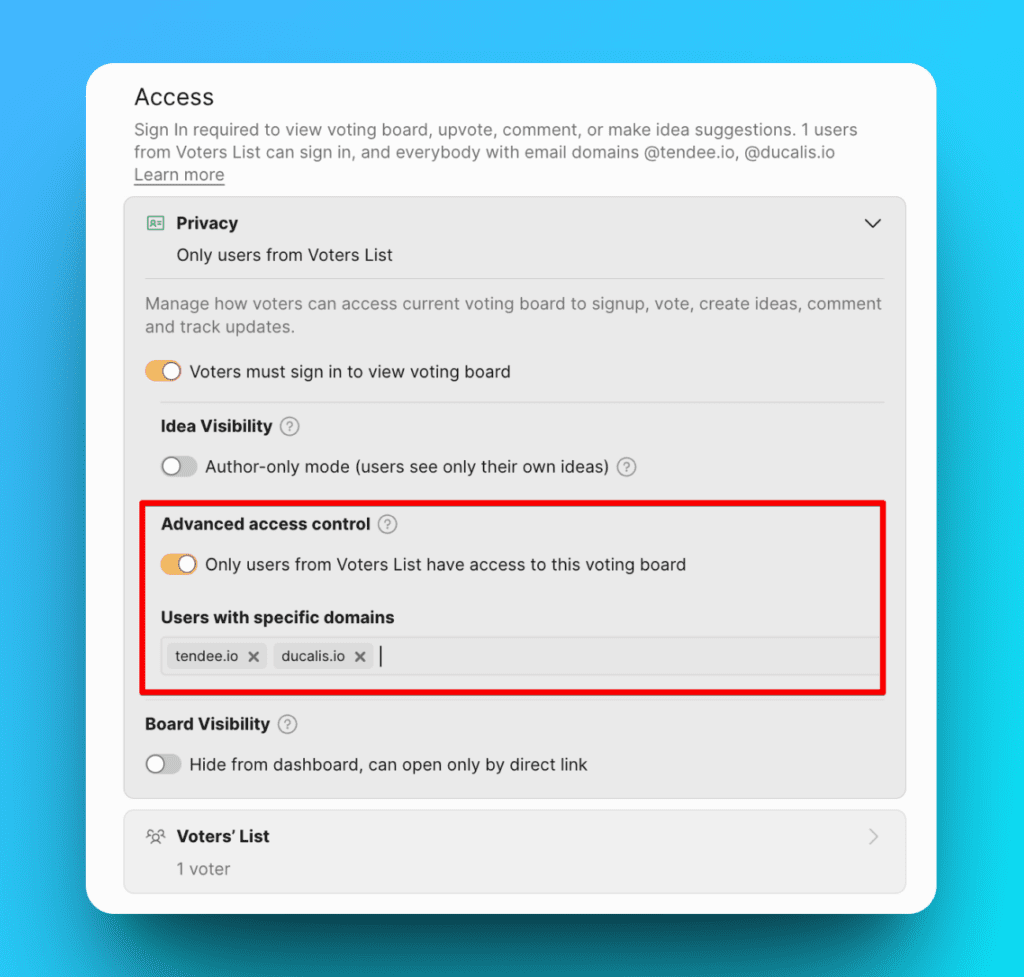
With these settings, only Voters with email addresses from the specified domains can view the board.
Allow specific email addresses
Grant access to individual Voters by email address.
Import from CSV:
-
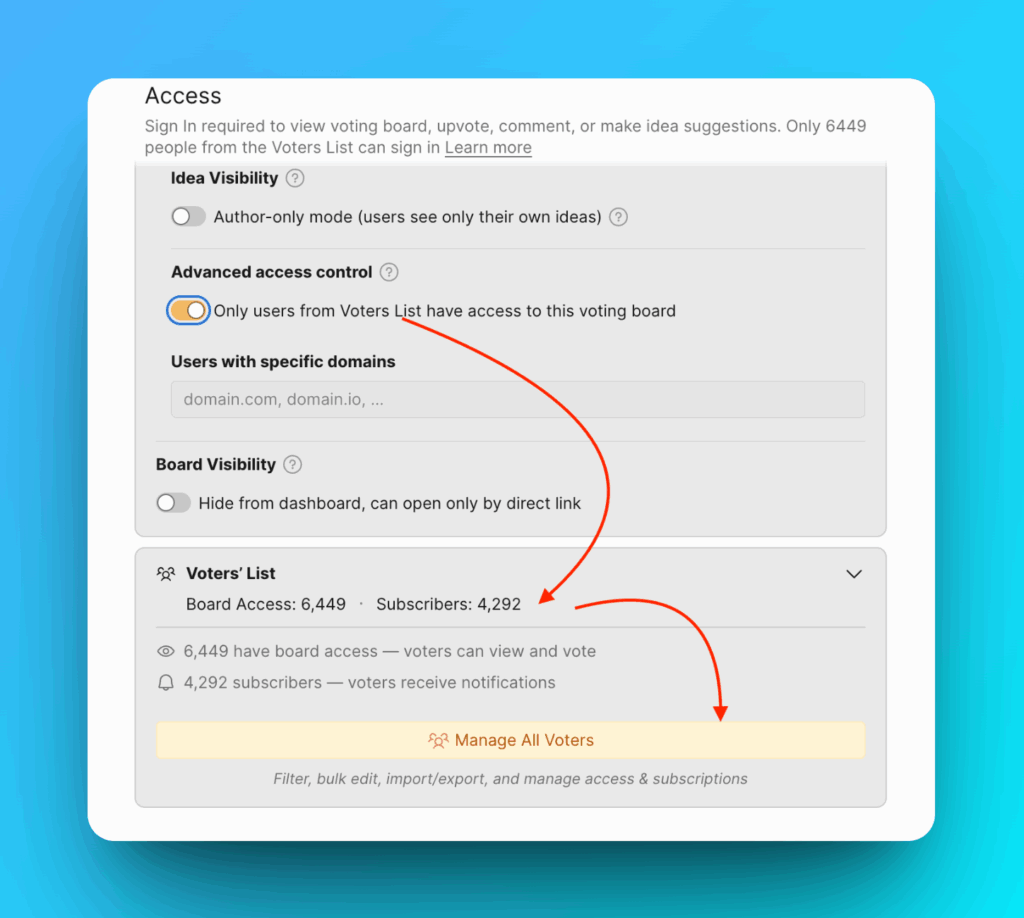
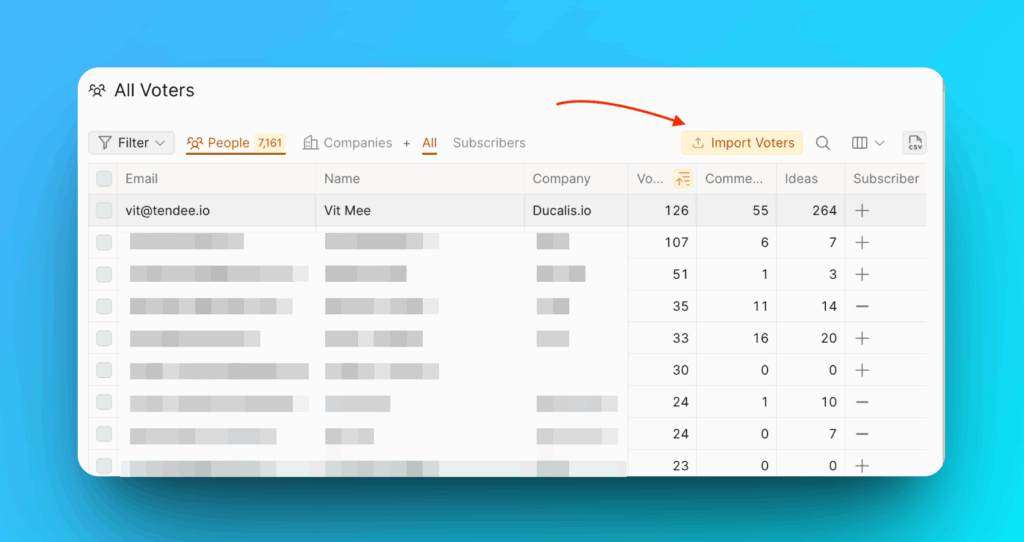
Click Manage All Voters to open the All Voters section.
-
Click Import Voters.
-
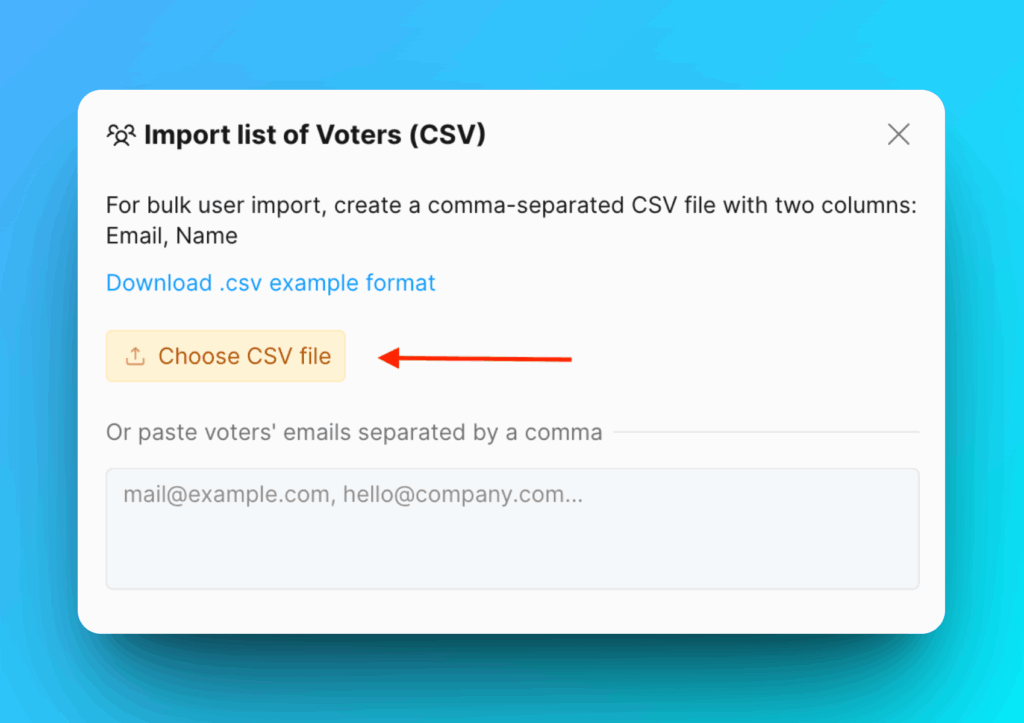
Click Choose csv file and select your file.
Add manually:
-
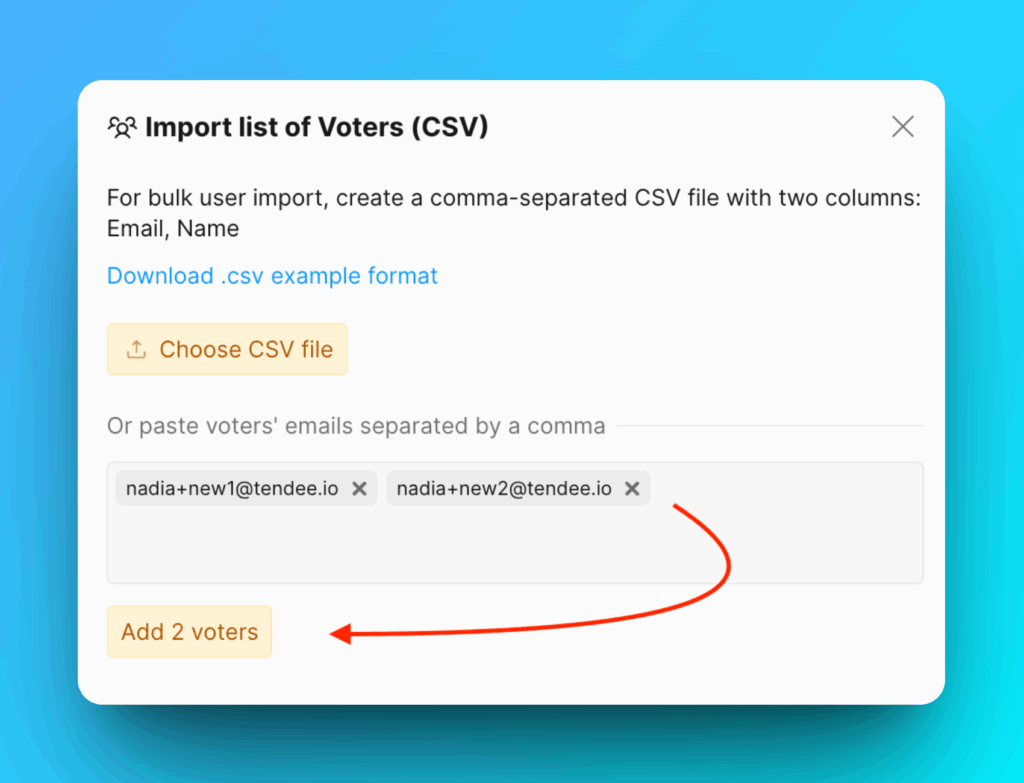
In the Privacy settings, enter email addresses in the Voters list field.
-
Click Add voters when finished.
Subscribe Voters to notifications:
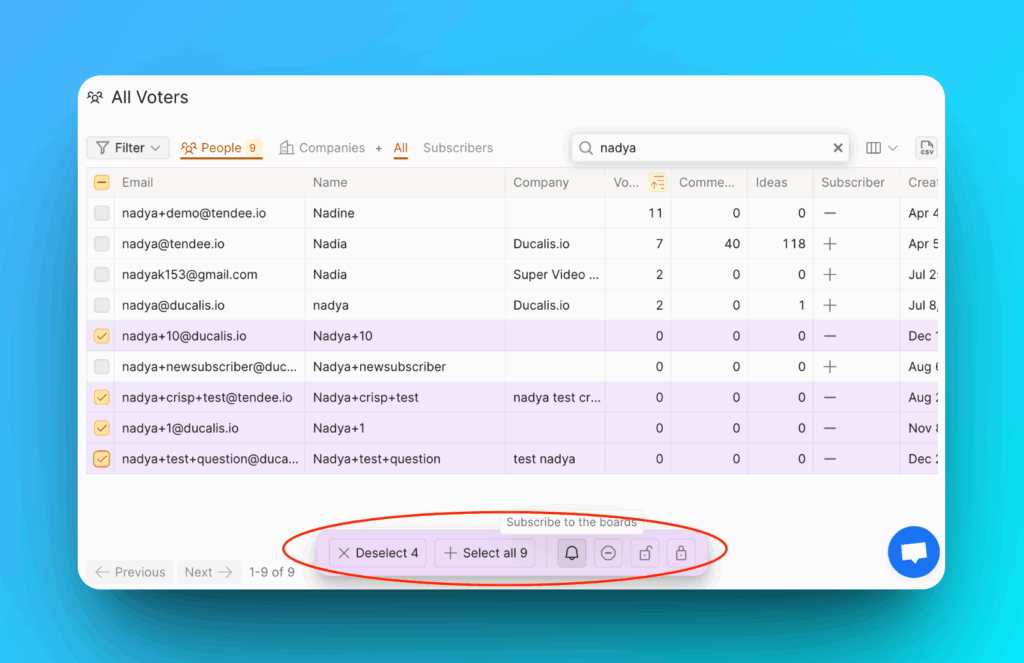
Use the All Voters management section to subscribe Voters to email notifications.
Learn more about Subscribers.
Direct link access
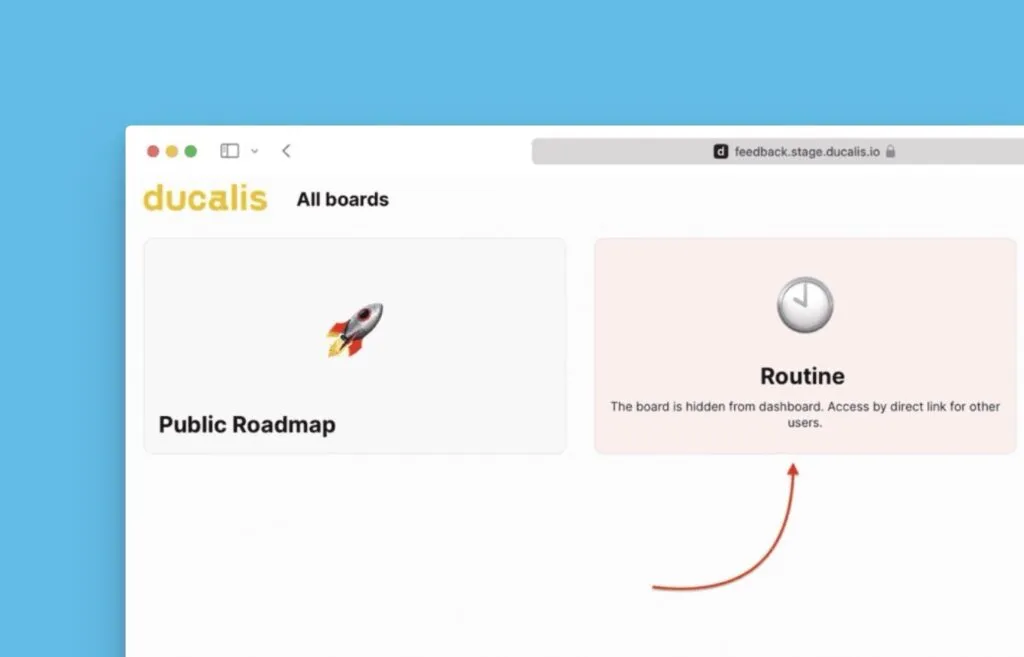
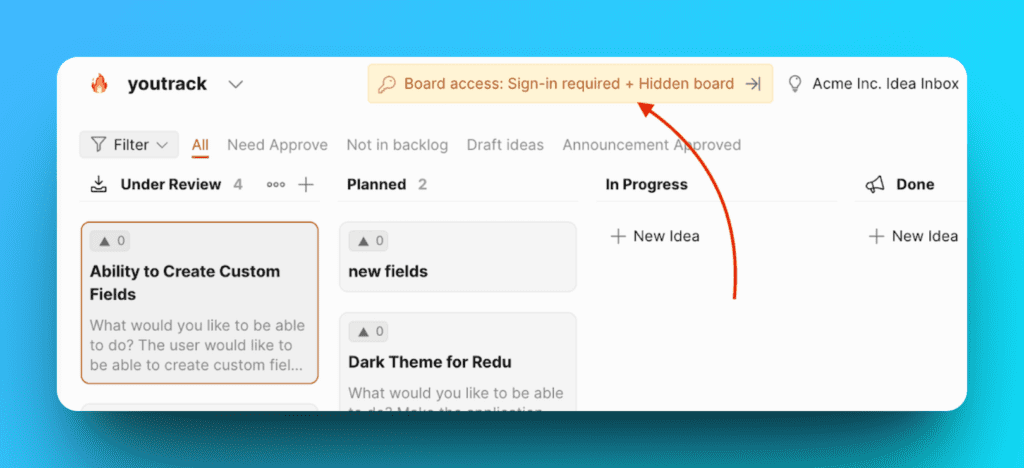
Share Voting Boards via private links. Only users with the direct link can access the board, even if they're Organization members.
This helps organizations with multiple user groups provide customized views and hide irrelevant boards from user dashboards.
-
Enable the Direct link access toggle.
-
Copy the generated link.
-
Share the link with your Voters.
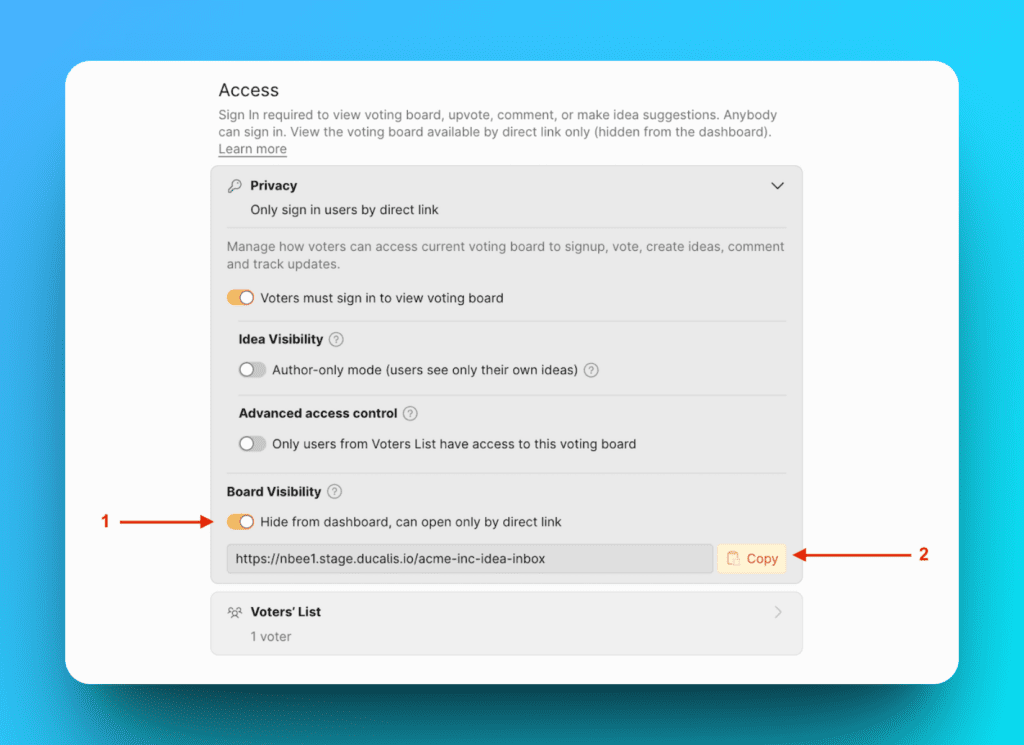
Admins without the direct link cannot access these boards.
Combine privacy settings
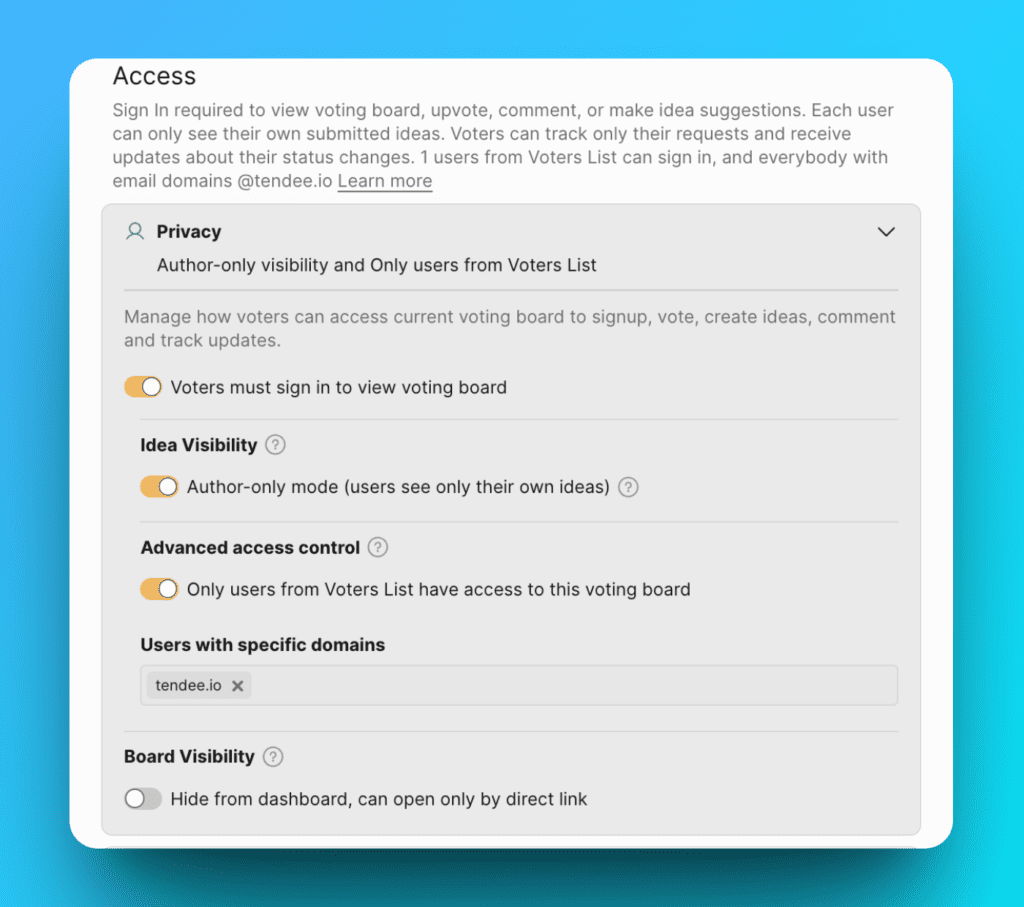
You can enable multiple privacy options simultaneously.
Example configuration:
With all three settings enabled:
- Voters must sign in to view the board, AND
- Voters must have an email address with the
@tendee.iodomain, AND - Voters only see Ideas they created
Related articles