Avaliar o backlog
Este guia ajuda Admins e Membros convidados a começar a pontuar Itens do backlog.
Se os seus colegas o convidaram e não tem a certeza por onde começar, este guia explica o essencial.
Aceder aos Boards de priorização
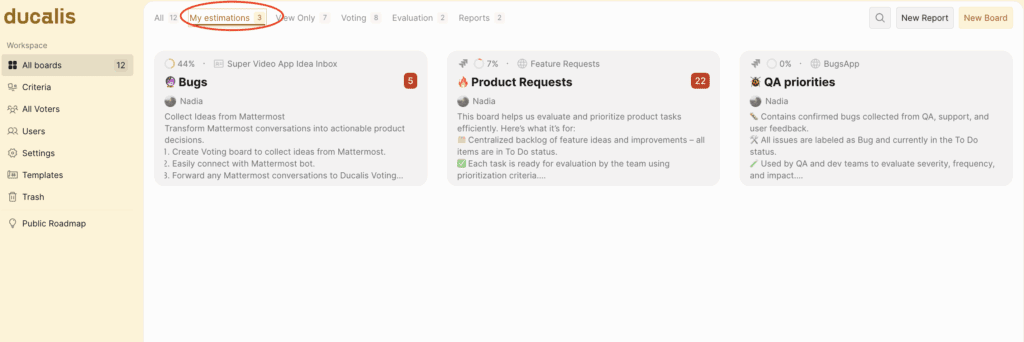
No Dashboard, selecione o Board para o qual foi convidado. Pode ser adicionado a tantos Boards quantos necessários. Filtre-os usando o filtro rápido My estimations (As minhas avaliações).
Ver a lista de Itens
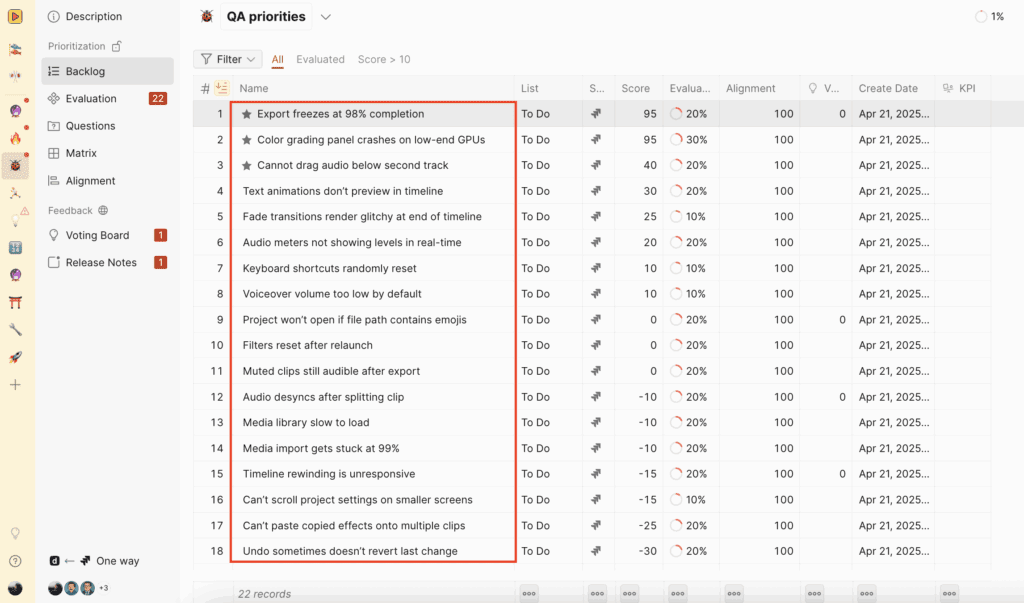
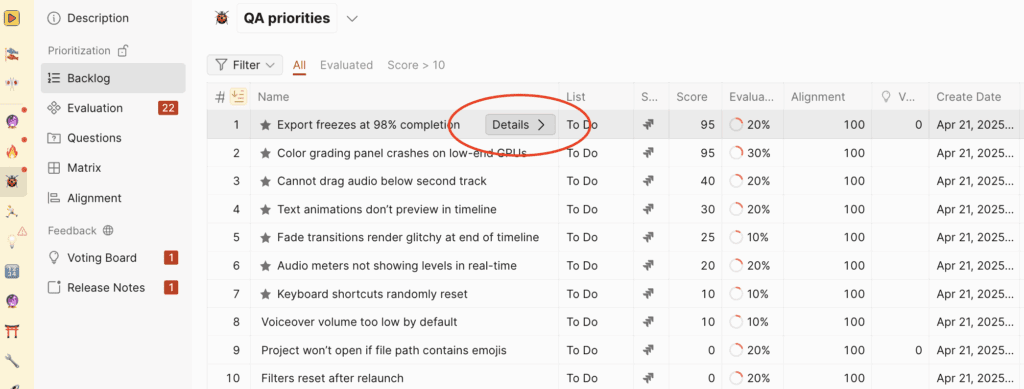
No Board, em Backlog, verá uma lista de Itens adicionados pelos seus colegas. Os Itens podem ter sido criados manualmente em Ducalis ou importados do gestor de tarefas corporativo.
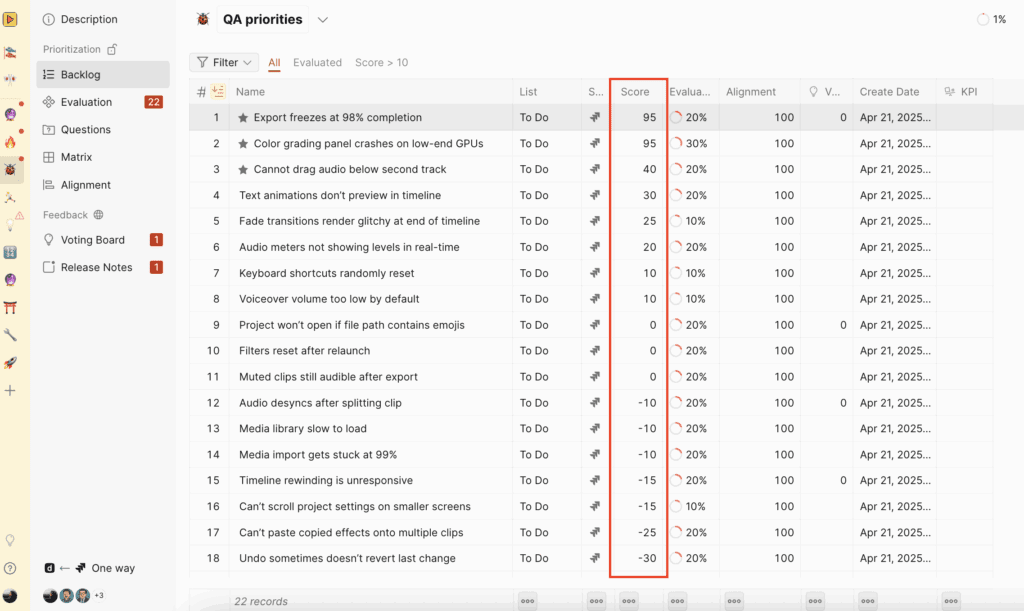
Se outros Membros do Board já avaliaram os Itens, eles estarão ordenados por ordem de prioridade. A pontuação total de cada Item aparece no extremo direito.
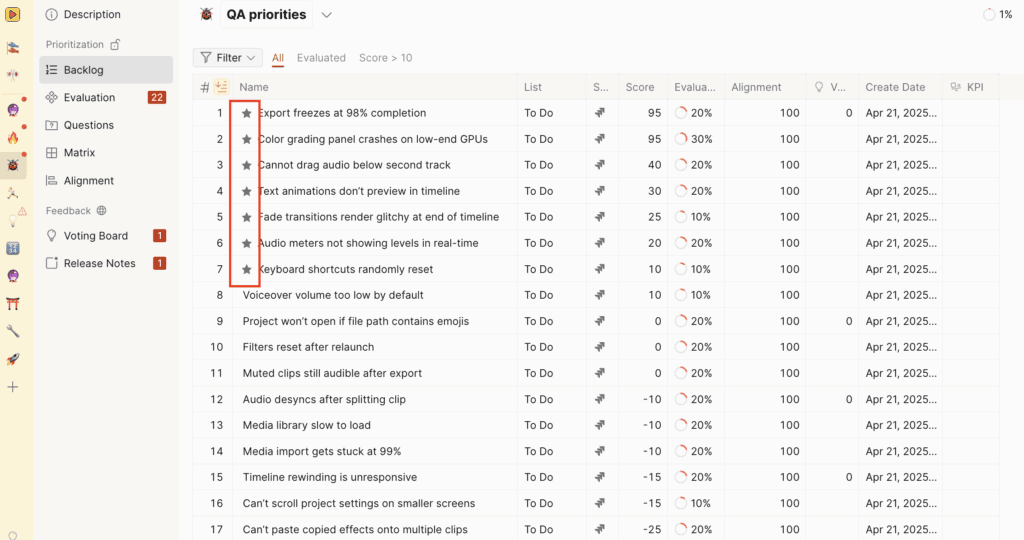
Os Itens de maior prioridade são os assinalados com estrela.
Clique num Item para obter uma descrição detalhada.
Avaliar Itens
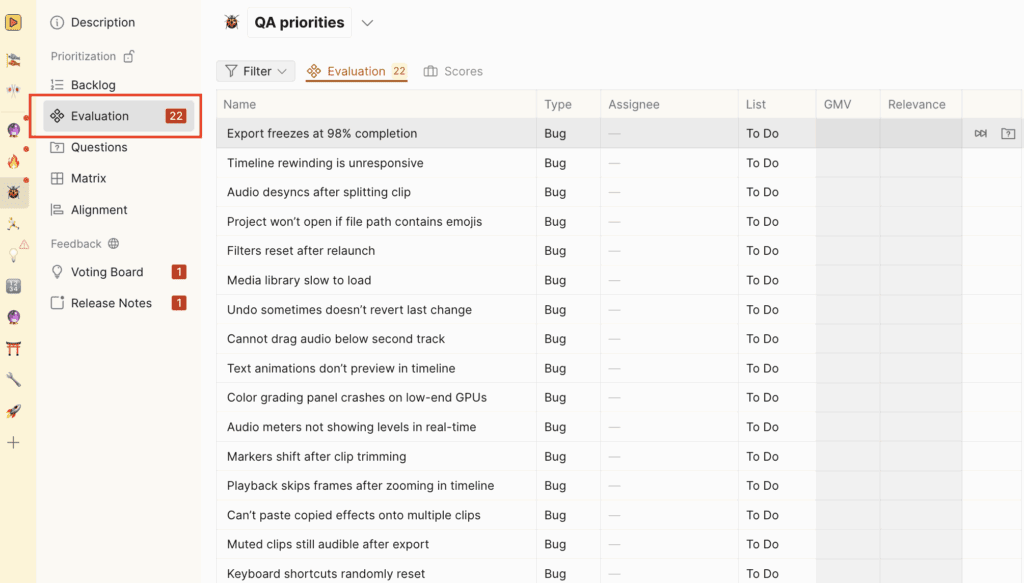
Para começar a avaliar Itens para priorização, selecione o separador Evaluation (Avaliação).
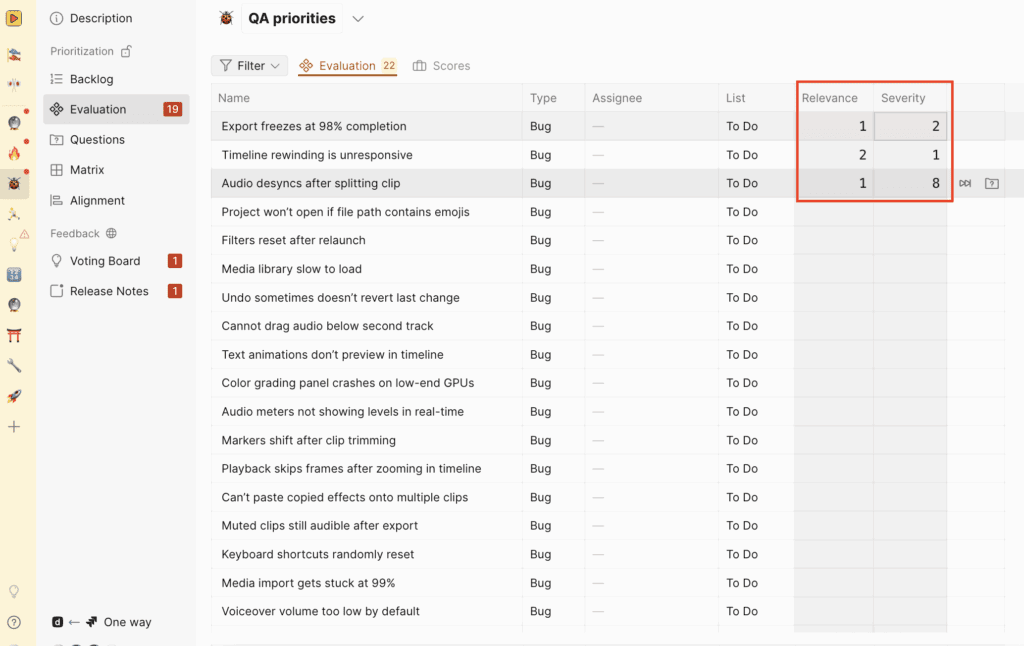
Avalie os Itens usando os Critérios definidos pelo seu Admin. Por exemplo, considere quão relevante é um Item e quão importante é.
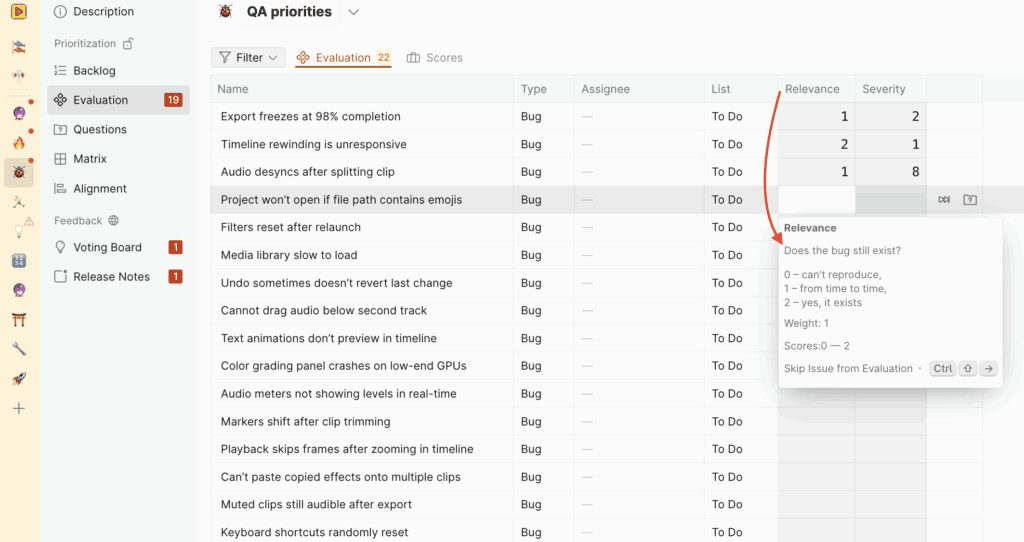
Use a descrição dos Critérios como guia e coloque uma pontuação na célula sob cada Critério.
Fazer uma pergunta
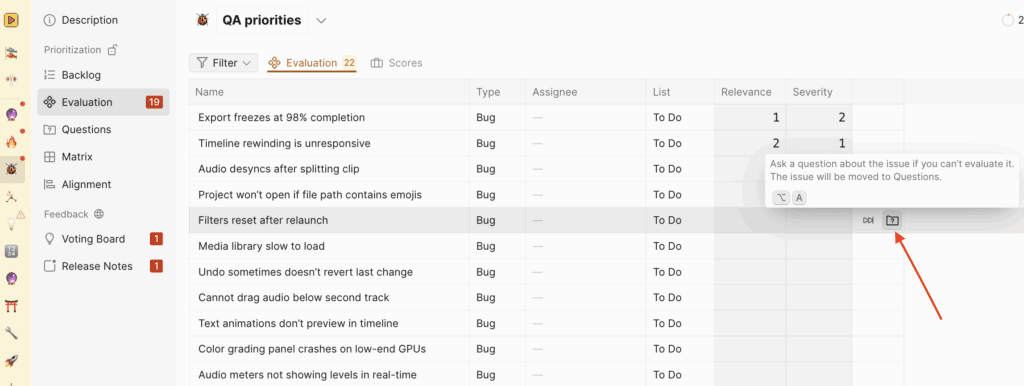
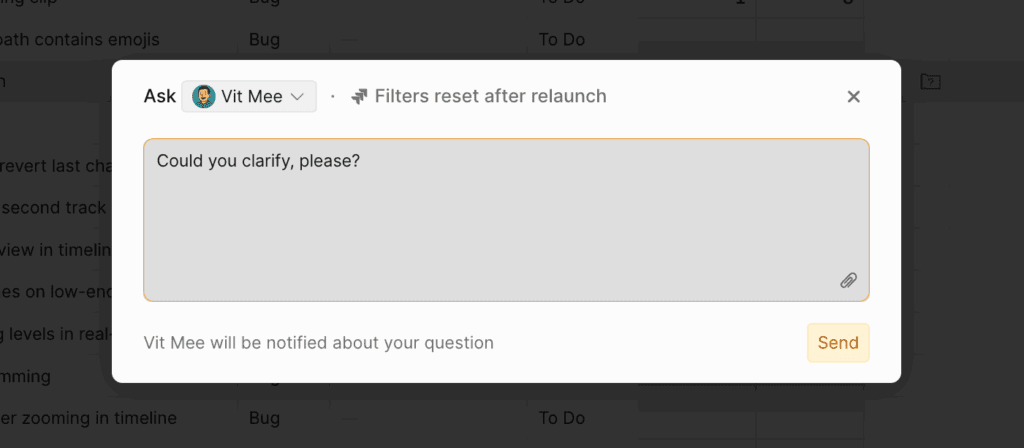
Ao avaliar, pode fazer uma pergunta sobre um Item ou um Critério sobre o qual pretende esclarecimentos. Por exemplo, se não compreende uma tarefa:
- Clique no ícone de pergunta.
- Escolha um utilizador e escreva a sua pergunta a um colega.
A pessoa a quem dirige a pergunta será notificada imediatamente.
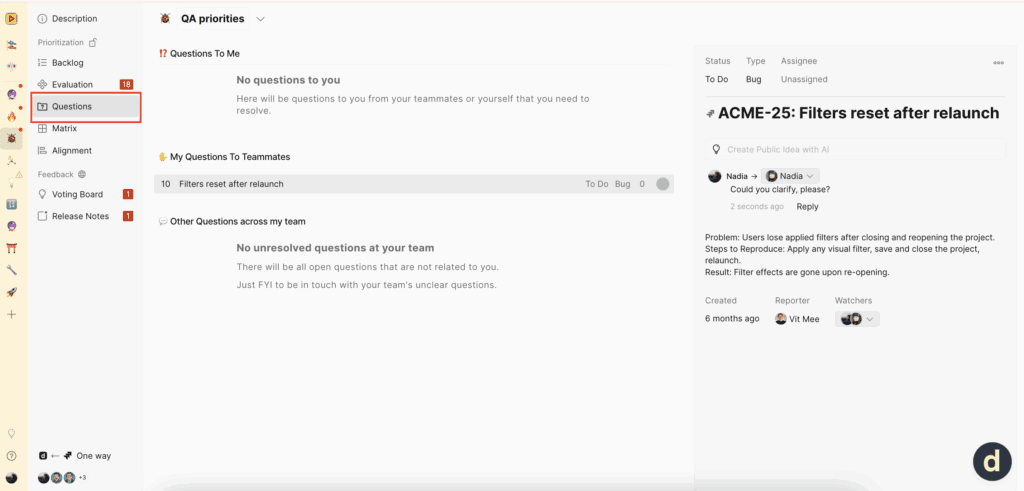
Se houver Perguntas feitas ou discussões no Board, pode visualizá-las em Questions (Perguntas).
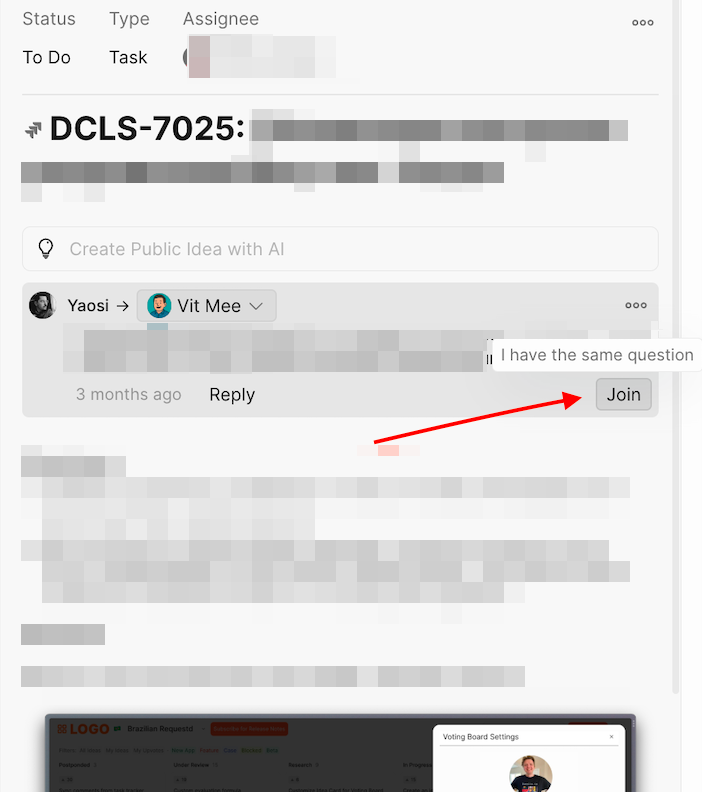
Pode participar numa discussão se tiver uma pergunta semelhante.
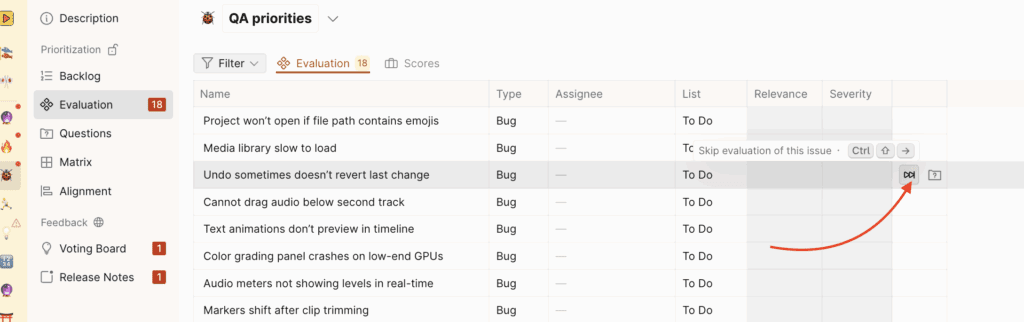
Ignorar a pontuação de um Item
Pode ignorar a avaliação de um Item se não o compreende ou não tem informação suficiente sobre ele.
Clique no ícone de ignorar. O Item será movido para o separador Scores (Pontuações).
Alterar as pontuações dos Itens
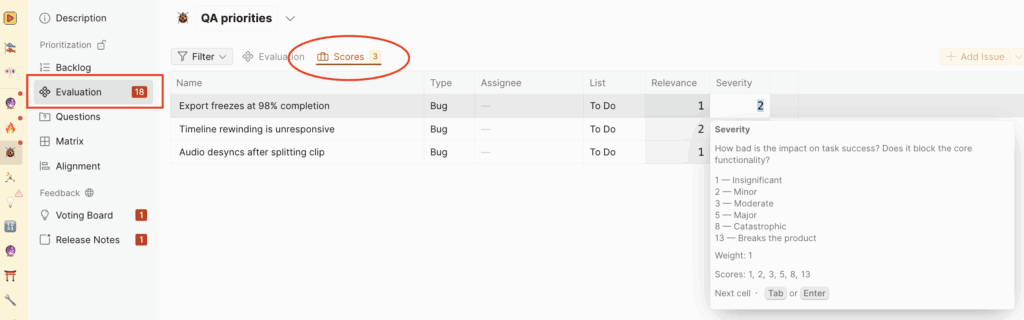
Aceda a Evaluation → Scores (Avaliação → Pontuações) para ver as tarefas que avaliou e reavaliar se necessário.
E agora
A priorização em Ducalis é um ciclo contínuo. Para se manter no caminho certo, configure notificações para receber lembretes para avaliar tarefas, alertas sobre novas Perguntas e atualizações sobre o que está a acontecer no Board.