Passo 1. Duração do Sprint
Configure a duração do Sprint, agendamentos de revelação e definições de sincronização para gerir o fluxo de trabalho de planeamento do Sprint da sua equipa.
Aceder às definições do Sprint
-
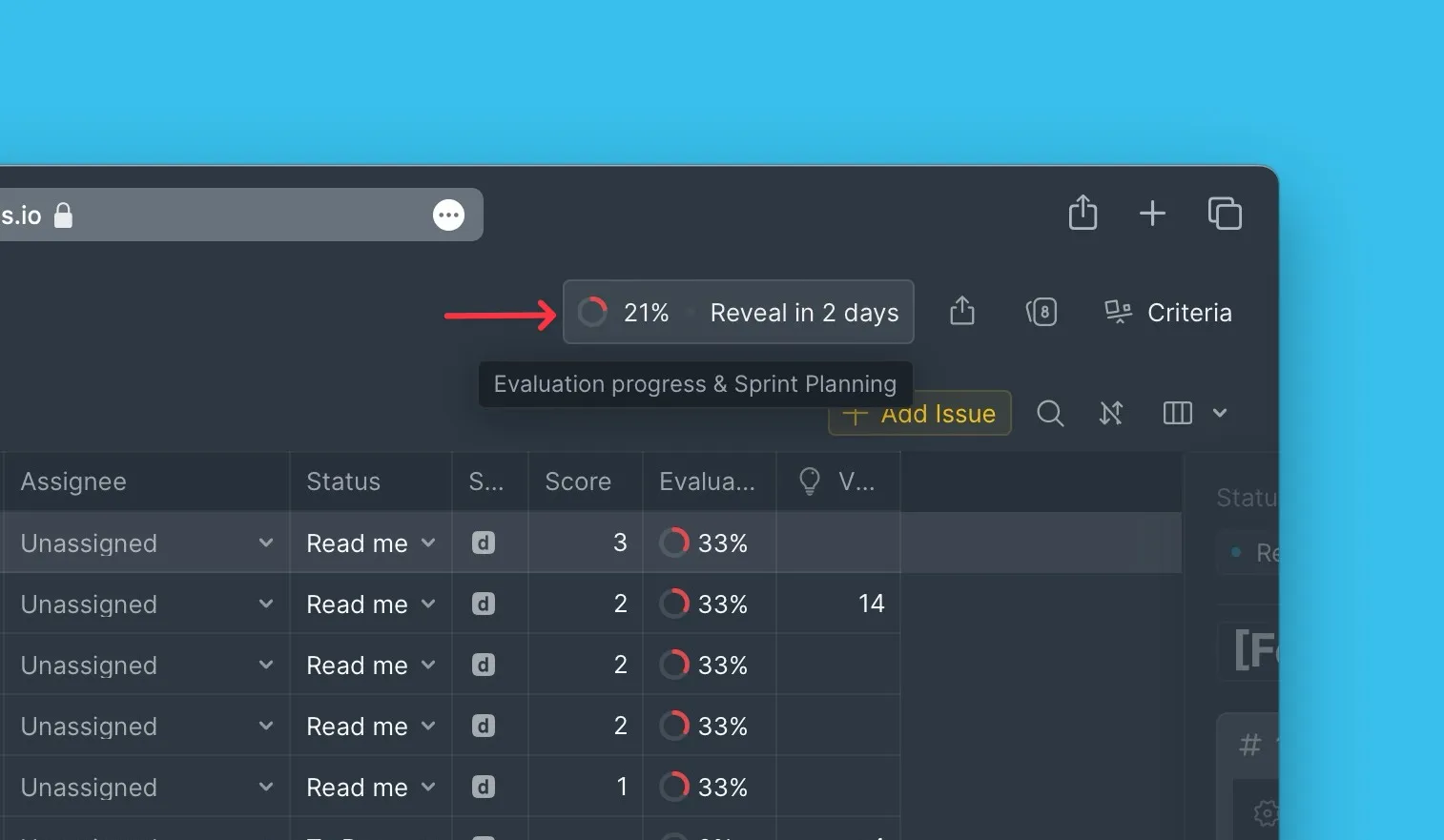
Navegue para Evaluation Progress & Sprint Planning (Progresso de Avaliação e Planeamento de Sprints).
Selecionar o modo de Sprint
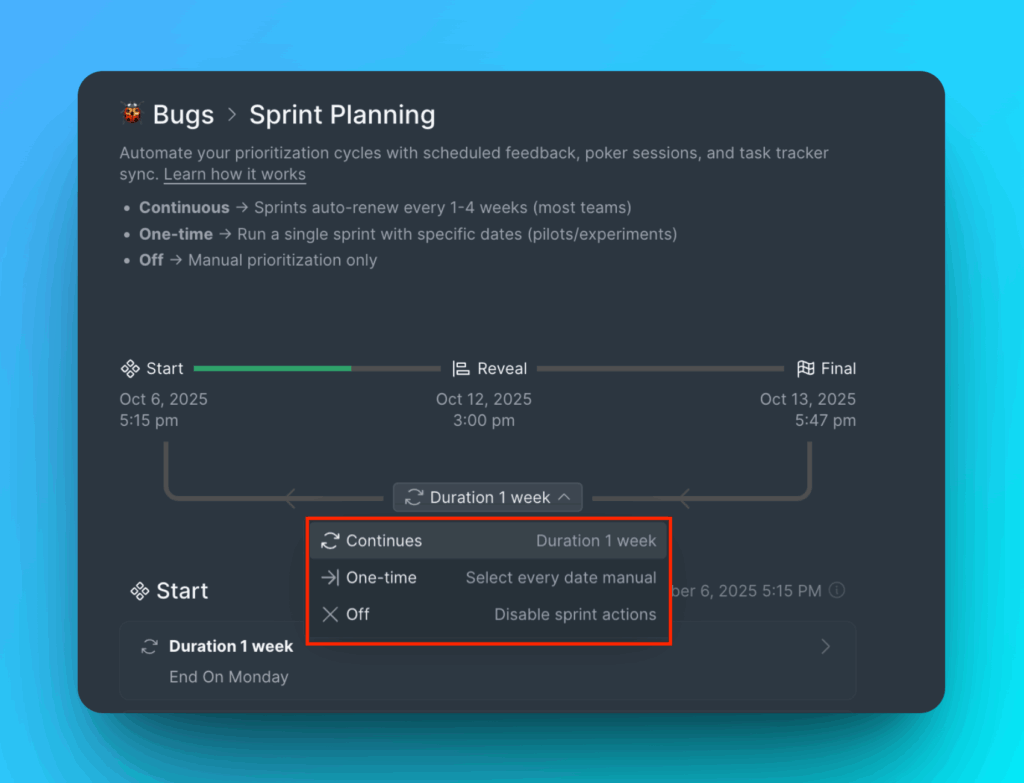
Escolha entre três modos:
- Continuous (Contínuo) – Sprints automatizados que ocorrem regularmente sem configuração manual
- One-time (Único) – Configuração manual do Sprint que requer reinício após cada Sprint
- Off (Desativado) – Sprints desativados com todas as definições relacionadas inativas
Configurar o dia de revelação e lembretes de avaliação
-
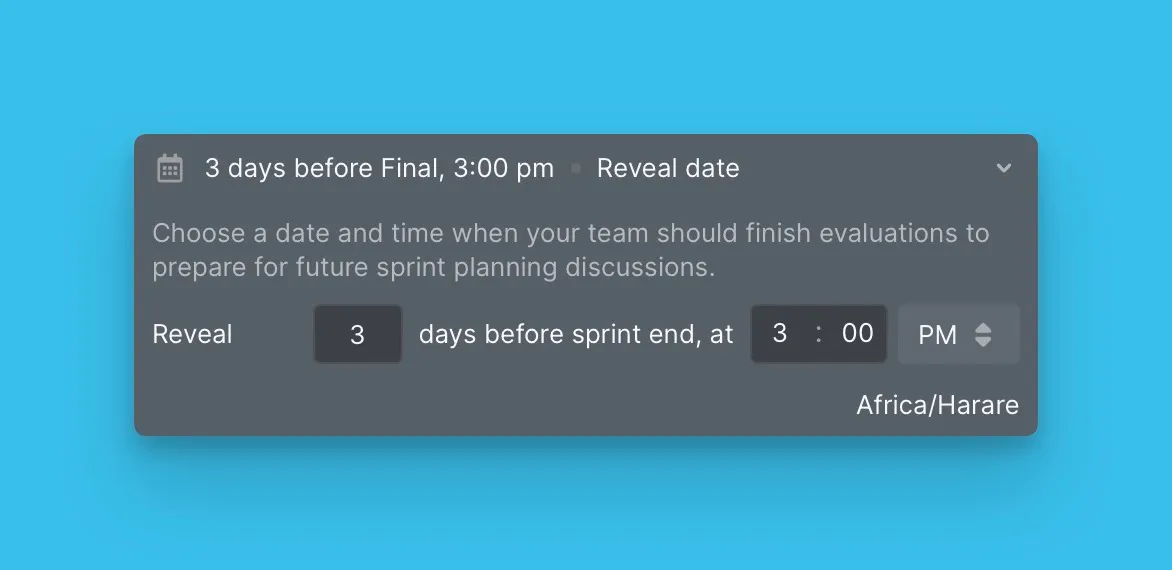
Selecione o Reveal day (Dia de revelação) quando o Sprint termina.
-
Configure Evaluation reminder (Lembrete de avaliação) para notificar a sua equipa antes da reunião de planeamento do Sprint.
-
(Opcional) Adicione uma mensagem de reconhecimento para os membros da equipa que concluem avaliações. As mensagens podem ser enviadas para canais Slack ou e-mail.
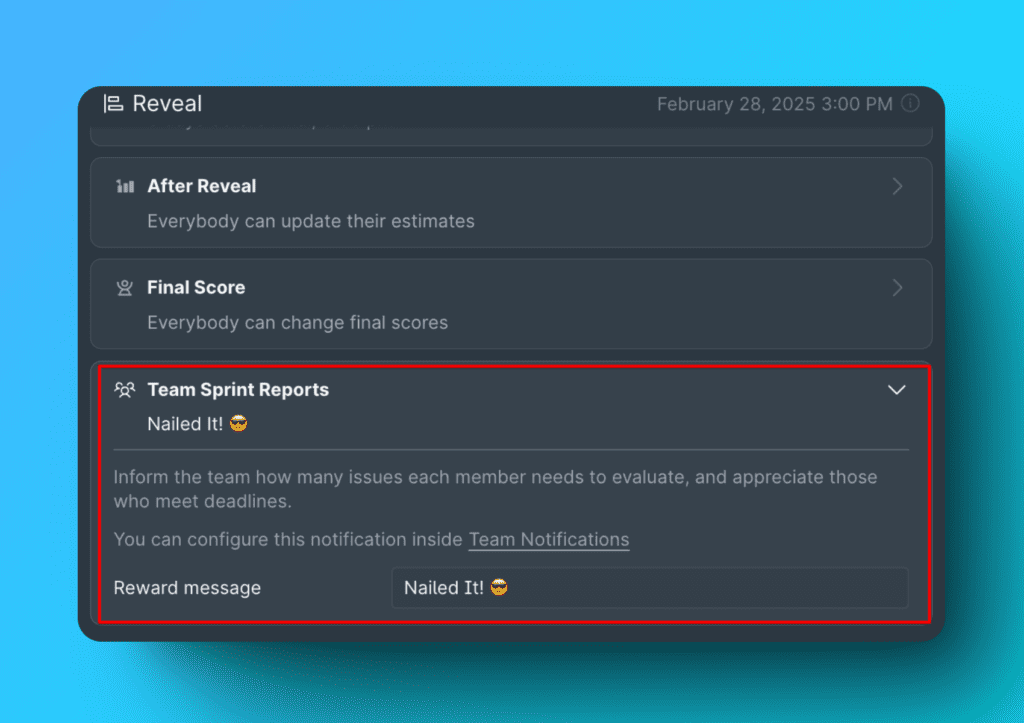
Para mais detalhes, consulte Integração Slack e lembretes de avaliação.
Agendar Sync Back
Se está a avaliar um Backlog de um gestor de tarefas conectado, agende quando as pontuações de priorização sincronizam de volta para o gestor de tarefas.
Escolha entre duas opções:
- By sprint end date (Por data de fim do Sprint) – Sincronizar quando o Sprint termina
- By custom period (Por período personalizado) – Sincronizar de acordo com o seu agendamento personalizado
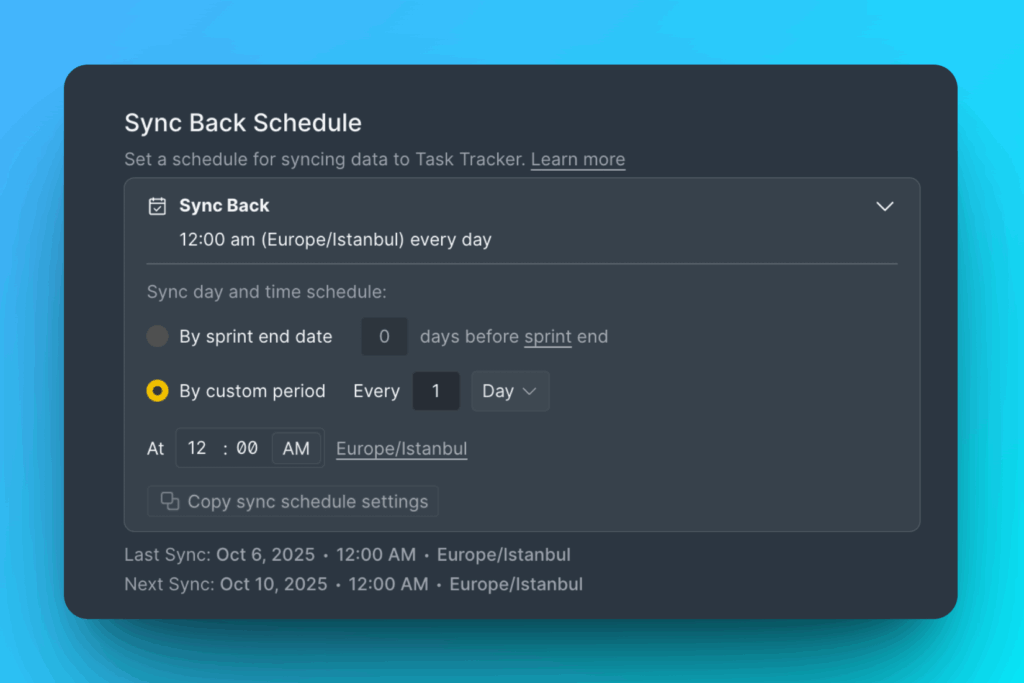
Para mais detalhes, consulte Visão geral da sincronização bidirecional.
Ativar expiração de pontuação
Para repor pontuações após um período específico, ative Score expiration (Expiração de pontuação) e defina a duração antes das pontuações expirarem.
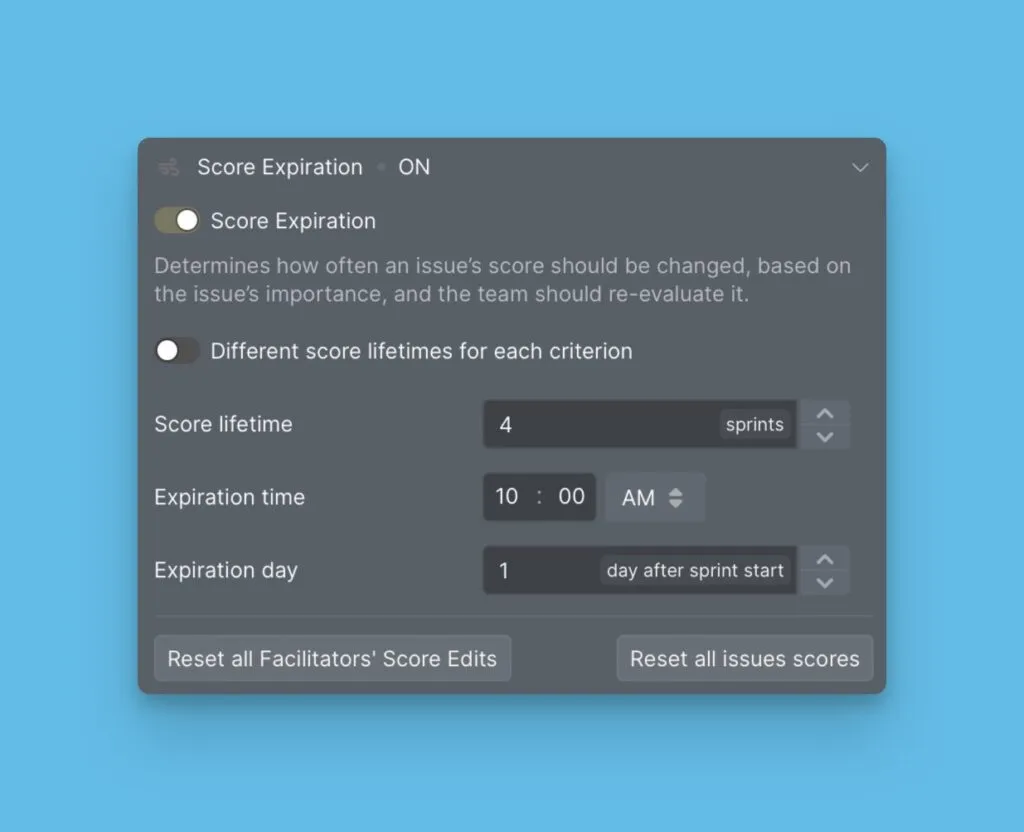
Para mais detalhes, consulte Expiração de pontuação.
Próximos passos
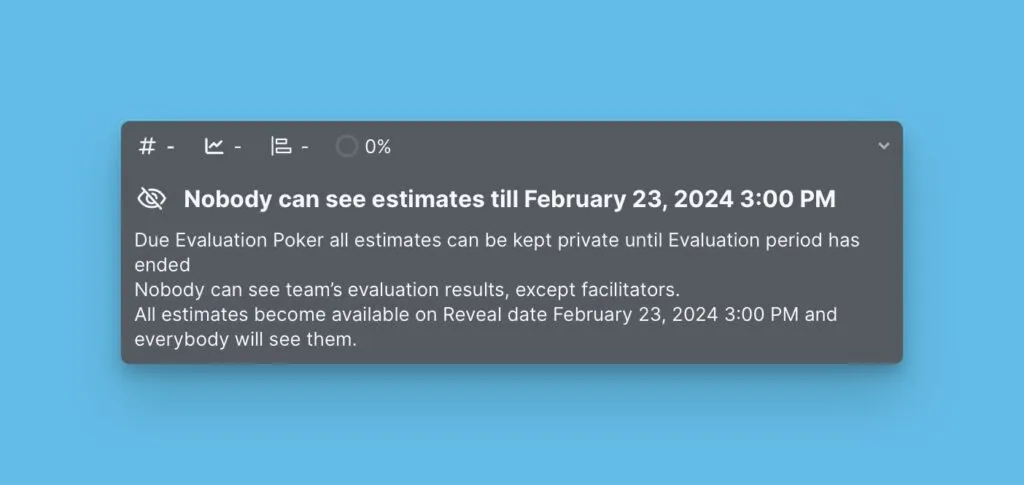
Obtenha resultados de priorização imparciais com Evaluation Poker Mode (Modo Evaluation Poker), que mantém as pontuações ocultas durante a avaliação.