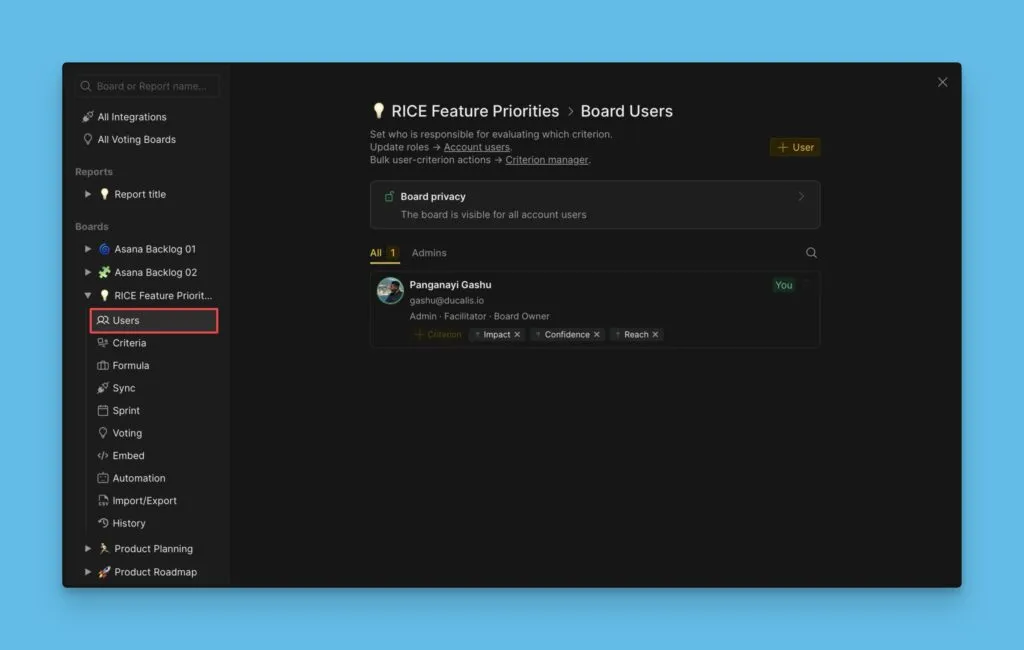
Schritt 2. Priorisierungs-Framework
Kriterien definieren die Dimensionen, anhand derer du deinen Backlog bewertest und priorisierst. Diese Anleitung zeigt dir, wie du Bewertungskriterien konfigurierst.
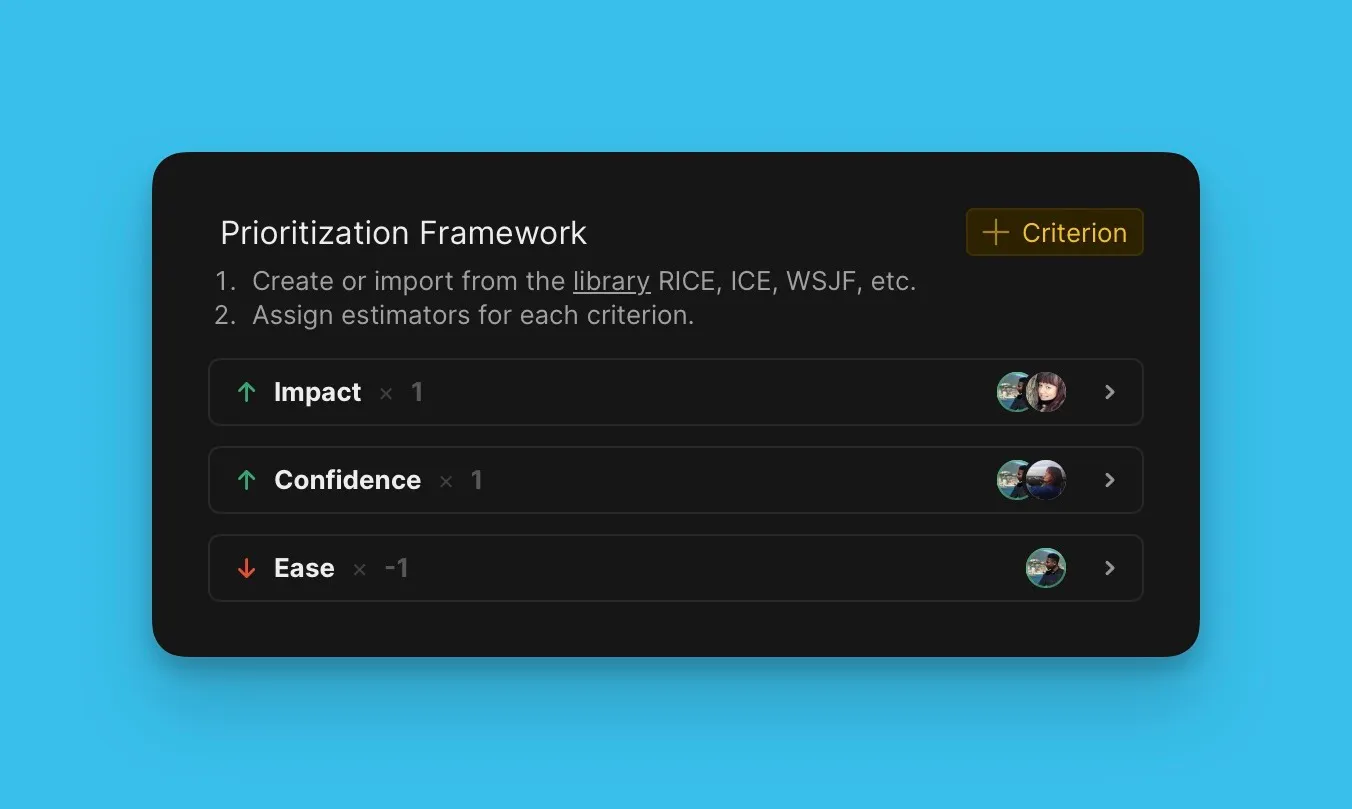
Zugriff auf Kriterien-Einstellungen
-
Öffne dein Board.
-
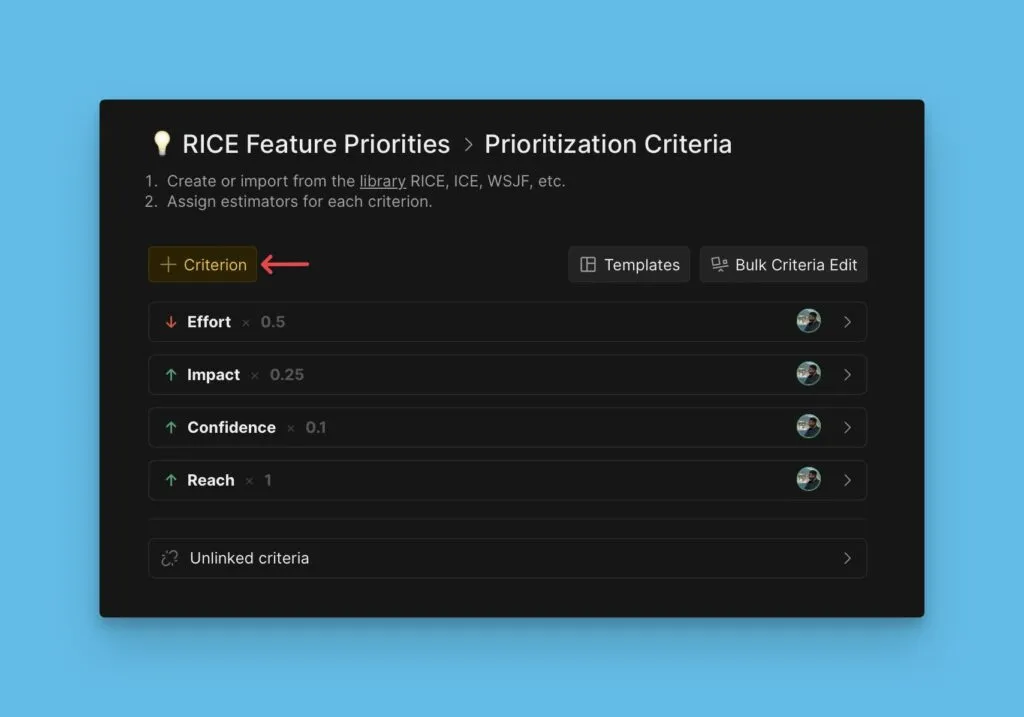
Navigiere zu Criteria settings (Kriterien-Einstellungen).
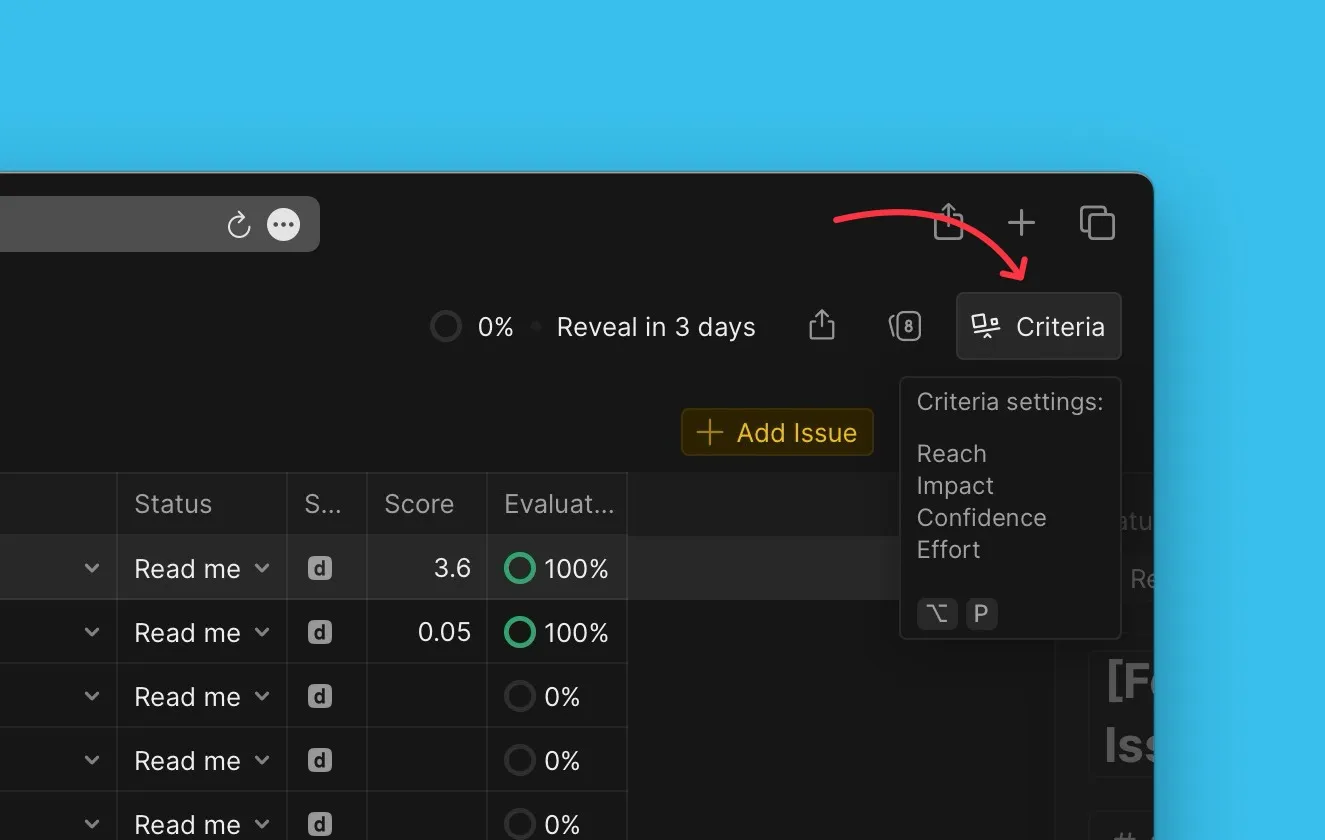
Du siehst ein bearbeitbares voreingestelltes Priorisierungs-Framework.
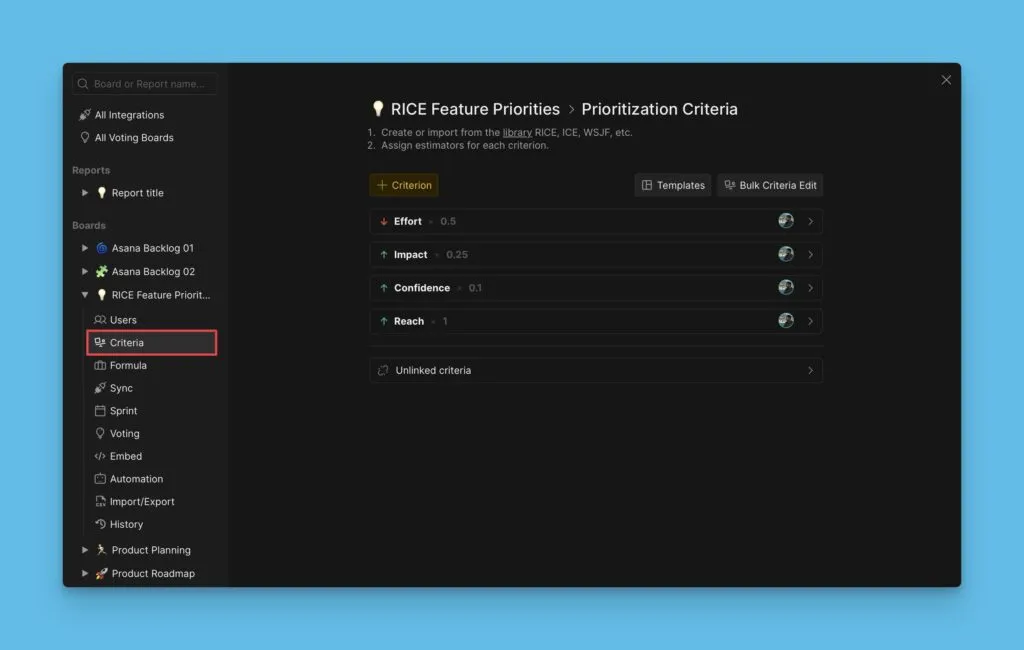
Kriterien hinzufügen
-
Klicke auf + Criterion (+ Kriterium).
-
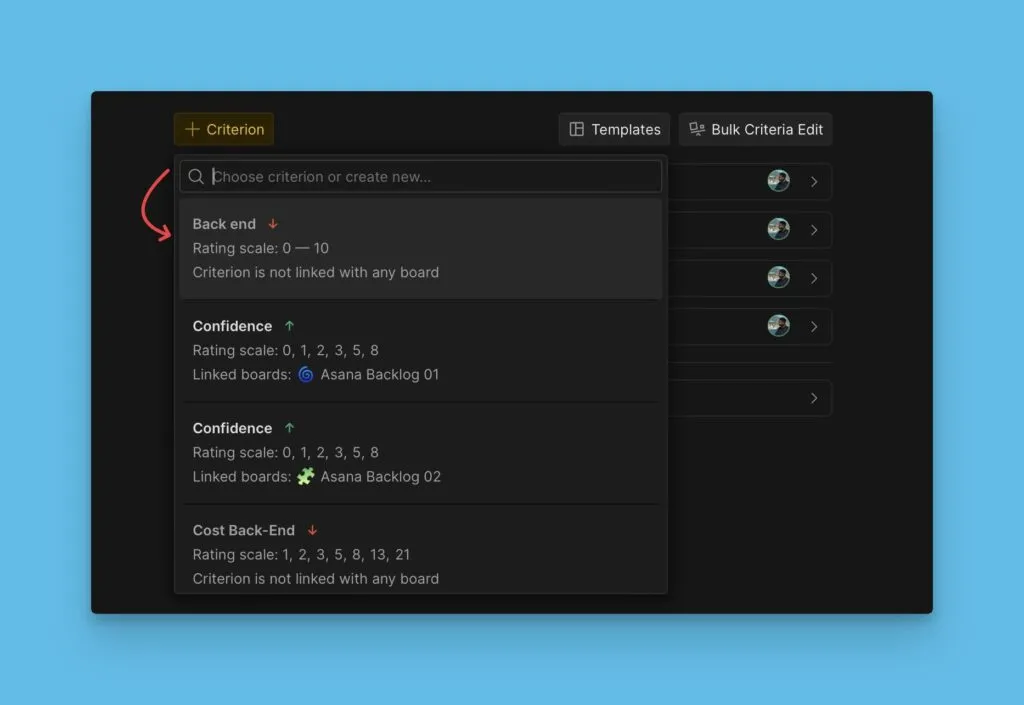
Wähle ein Kriterium aus der vorgeschlagenen Liste oder erstelle ein neues.
-
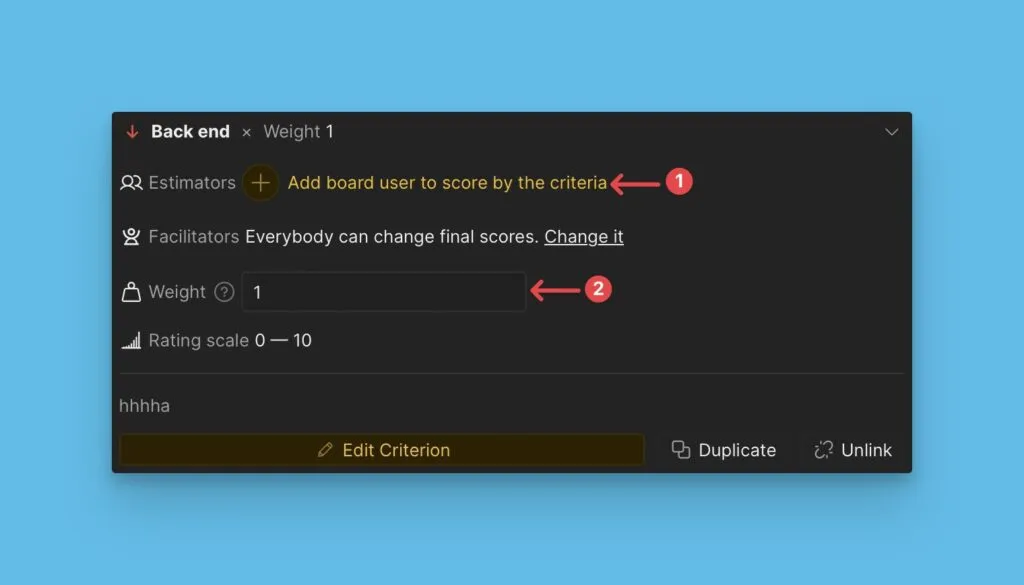
Konfiguriere grundlegende Eigenschaften: Füge Schätzer hinzu und passe Gewichtungen an.
-
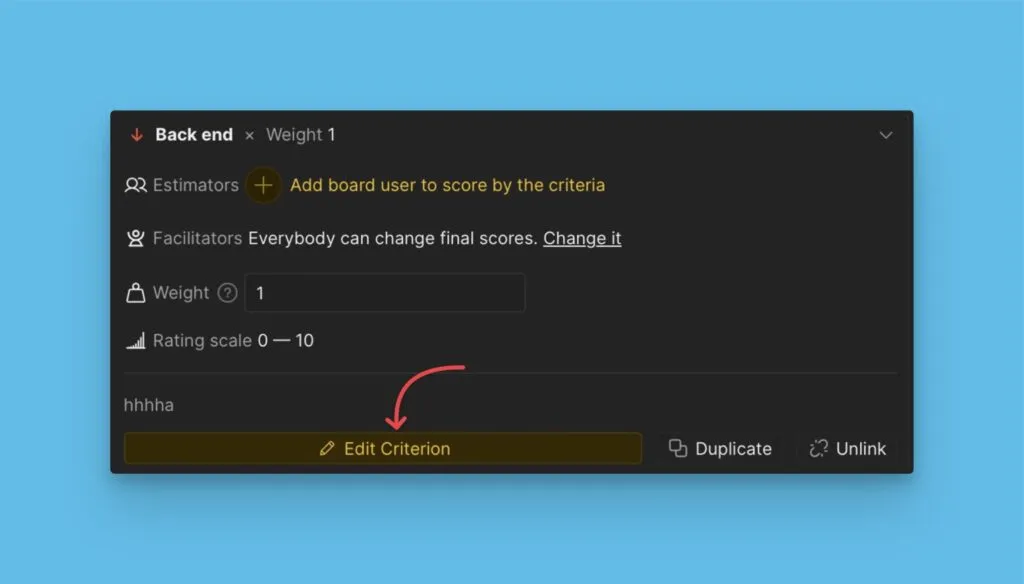
Klicke auf Edit Criterion (Kriterium bearbeiten), um auf erweiterte Einstellungen zuzugreifen.
-
Konfiguriere erweiterte Eigenschaften: Bewertungsquelle, Kriterientyp, Bewertungsskala und Beschreibung.
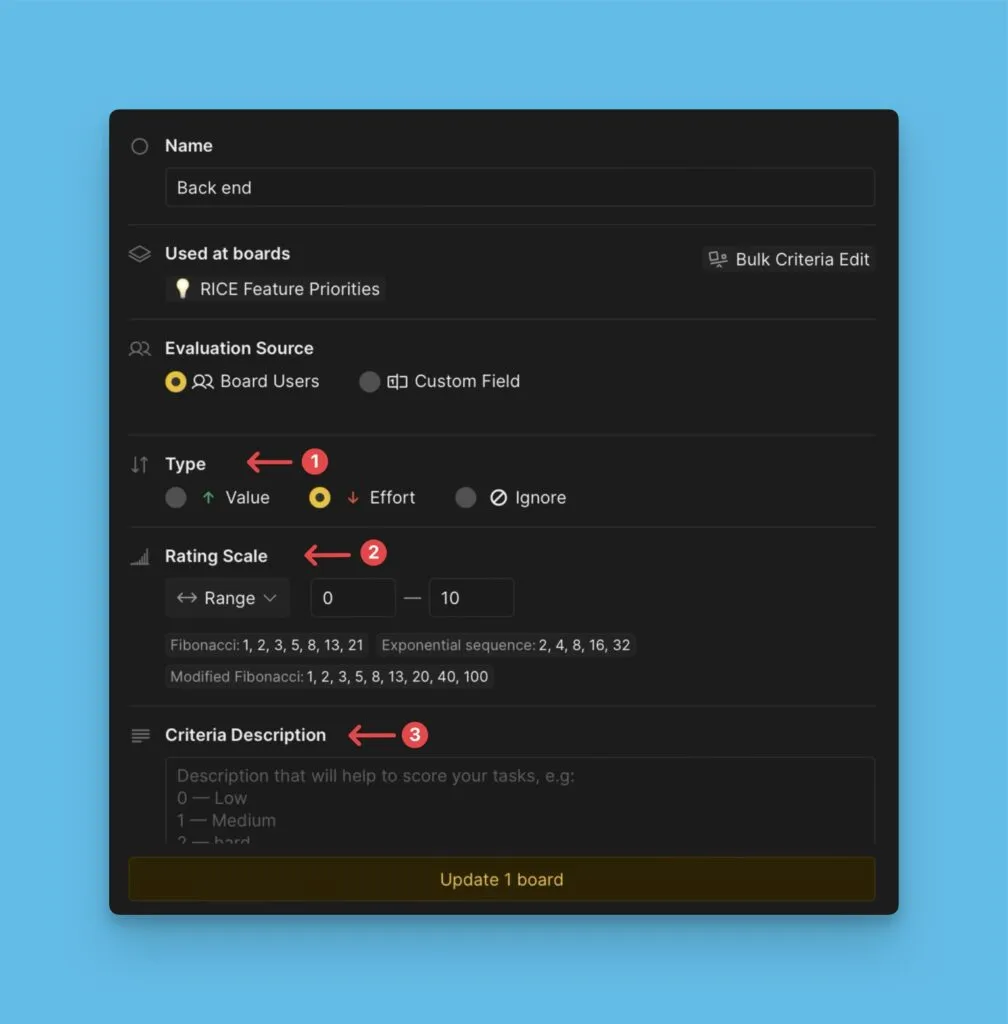
Lies mehr über Kriterien-Eigenschaften.
Benutzerdefinierte Kriterien erstellen
Wenn dein gewünschtes Kriterium nicht in der Bibliothek ist:
-
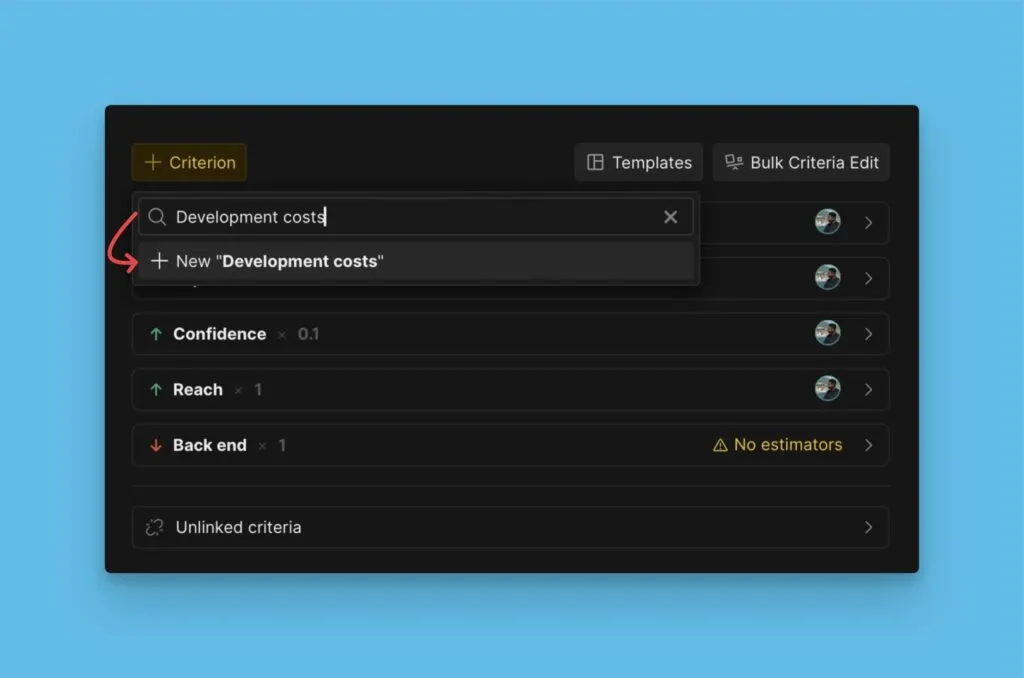
Gib den Namen im Suchfeld ein.
-
Klicke auf + New [criterion name] (+ Neues [Kriterienname]).
-
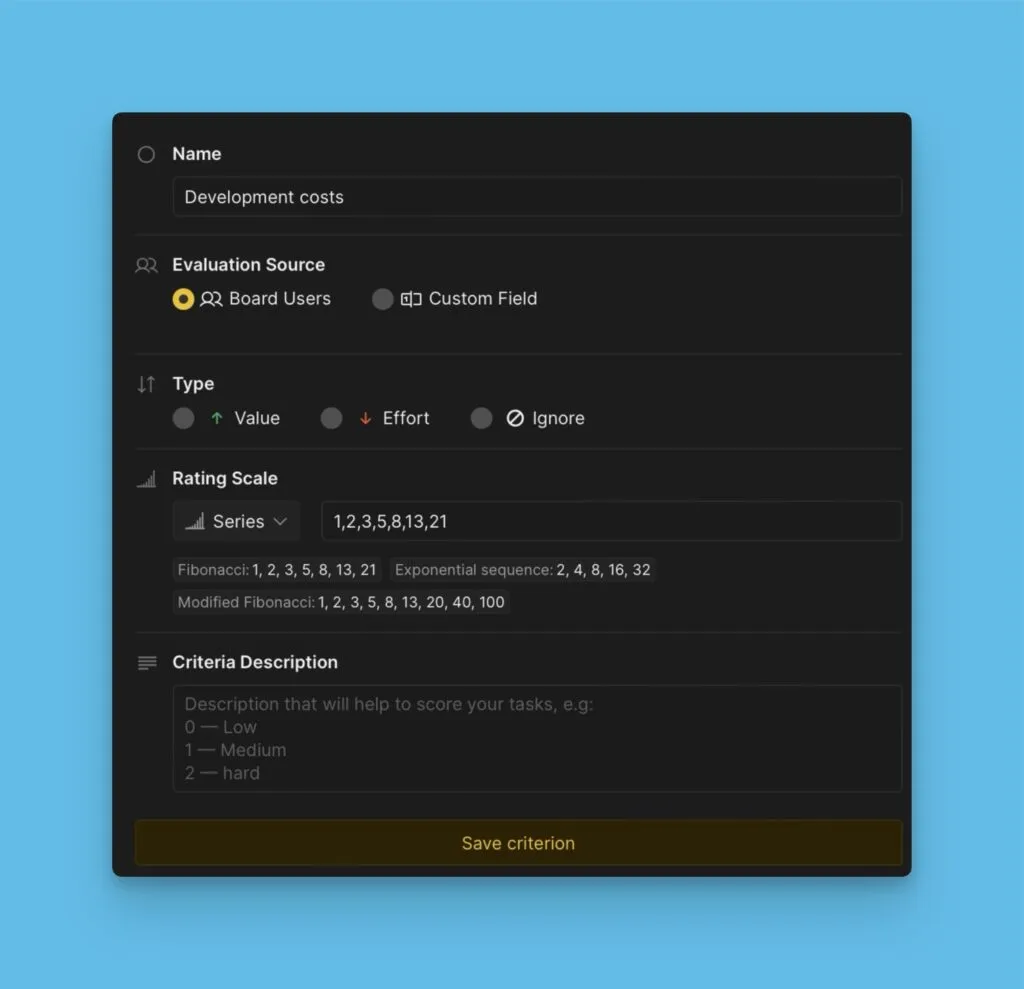
Konfiguriere die Kriterien-Eigenschaften.
-
Klicke auf Save Criterion (Kriterium speichern).
Entdecke weitere Priorisierungs-Frameworks in der Templates-Bibliothek.
Kriterien bearbeiten
-
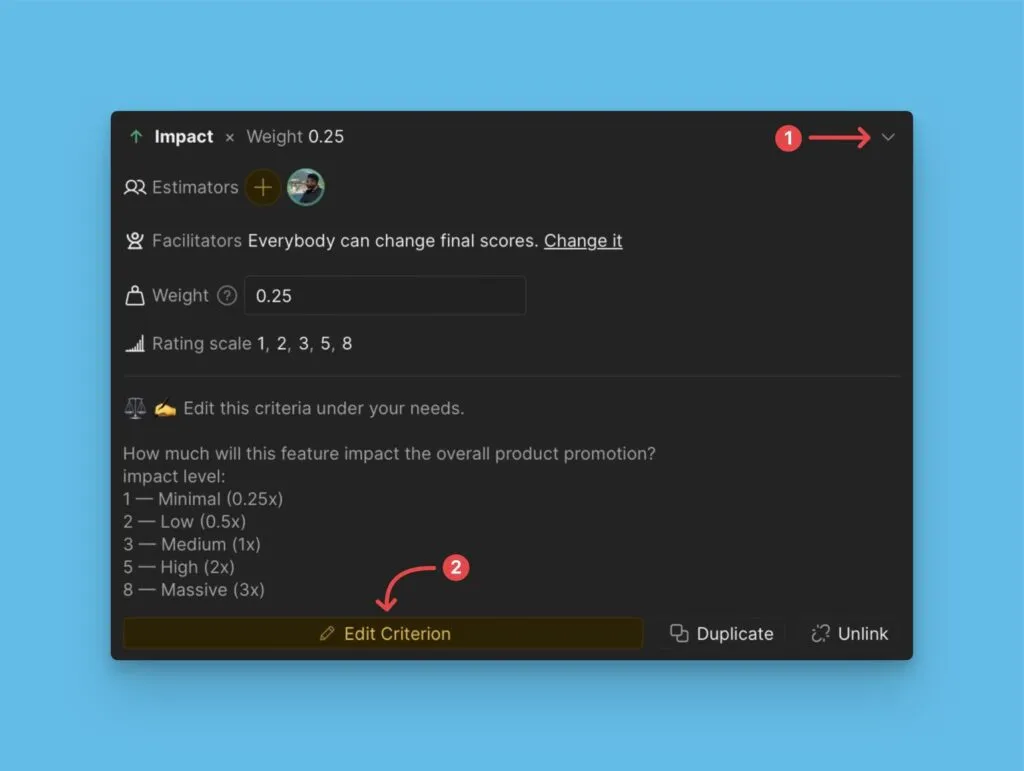
Öffne den Kriterienblock.
-
Klicke auf den Bearbeiten-Button.
-
Ändere Eigenschaften: Name, Schätzer, Kriterientyp, Gewichtung, Bewertungen und Beschreibung.
-
Klicke auf Update [number] board(s) ([Anzahl] Board(s) aktualisieren).
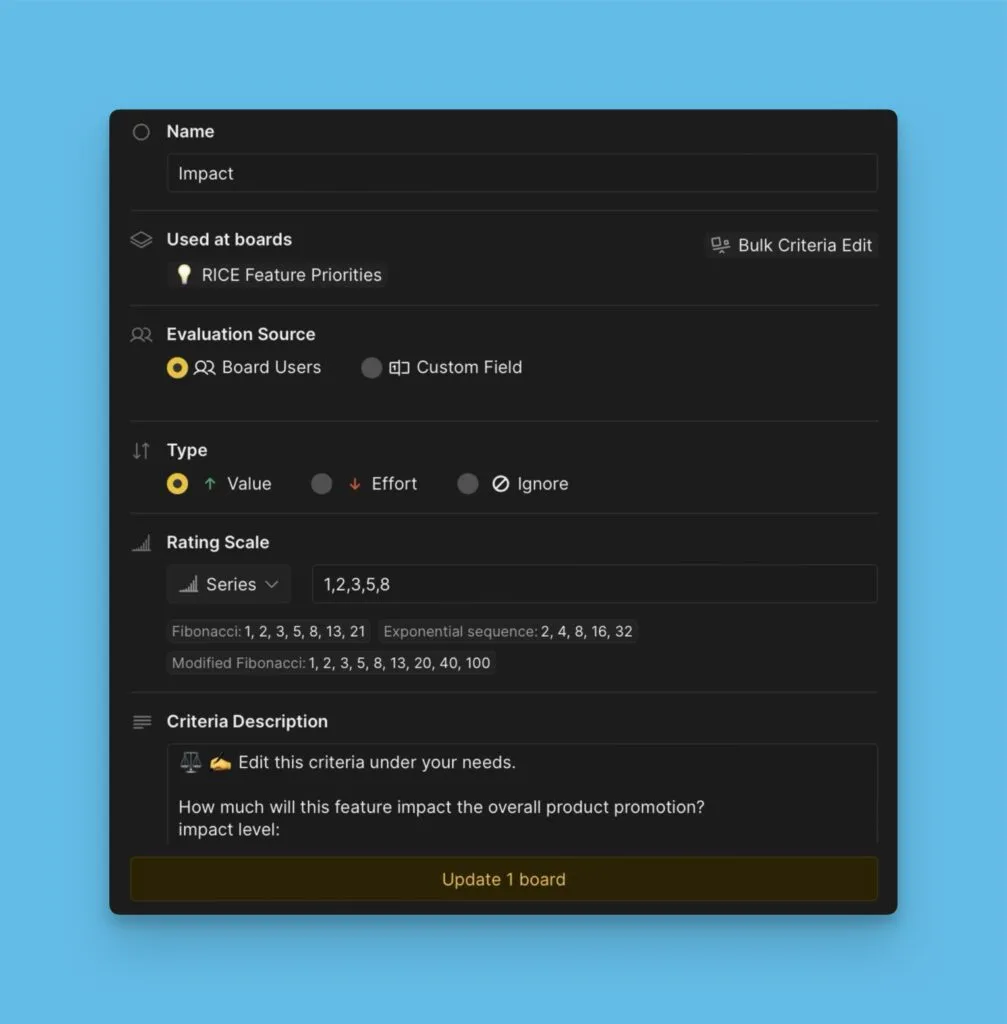
Kriterien archivieren
Entferne die Verknüpfung von Kriterien, die du jetzt nicht brauchst, aber später verwenden möchtest:
-
Öffne den Kriterienblock.
-
Klicke auf Unlink (Verknüpfung aufheben).
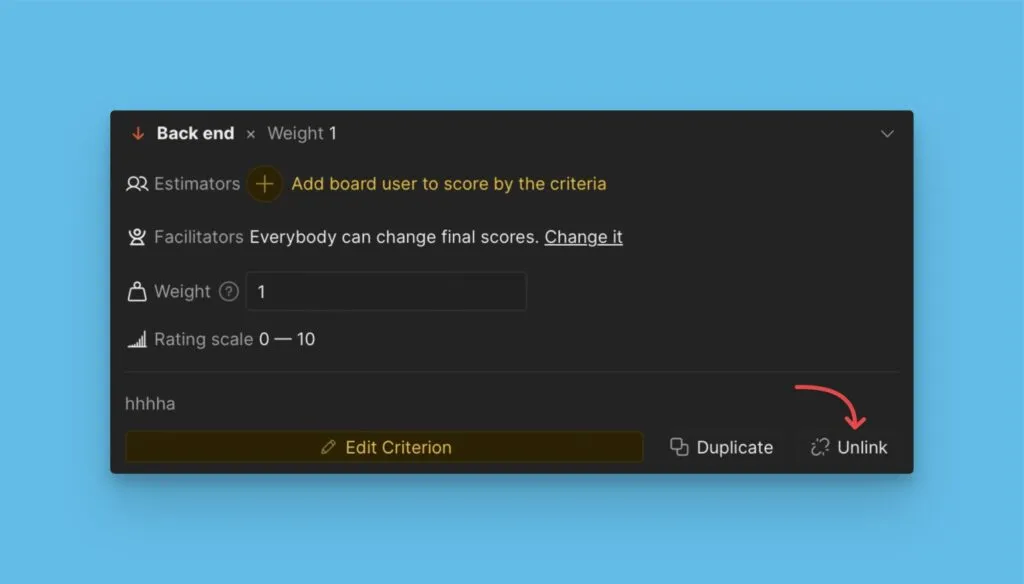
-
Bestätige die Aktion.
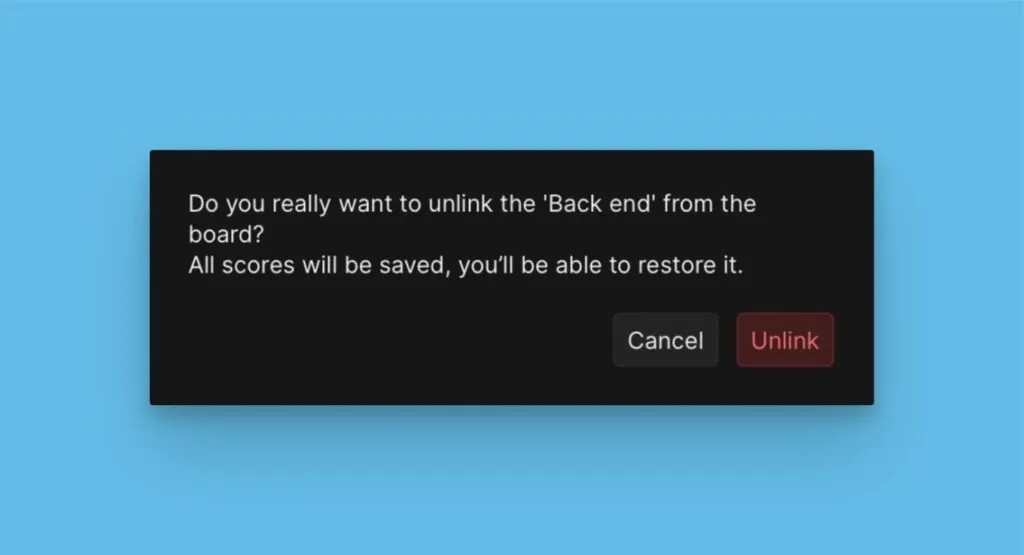
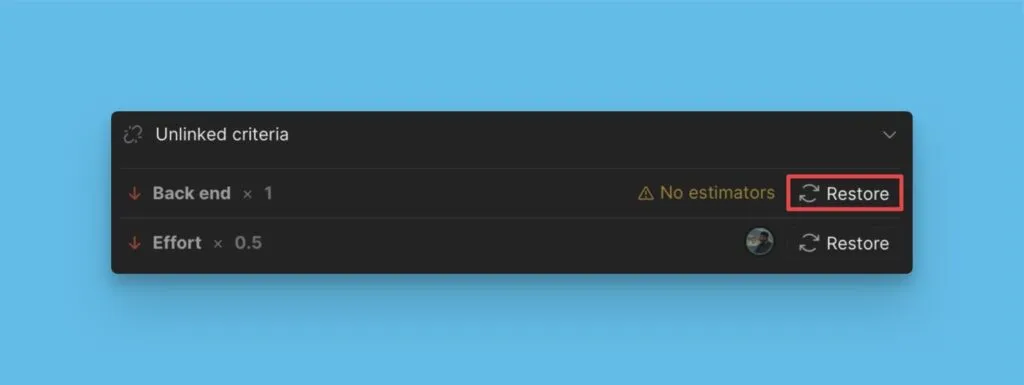
Nicht verknüpfte Kriterien wiederherstellen
-
Gehe zum nicht verknüpften Block.
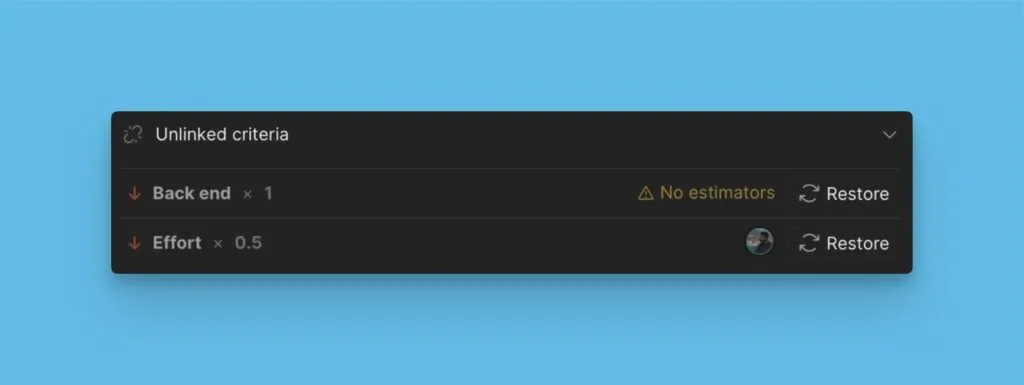
-
Klicke auf Restore (Wiederherstellen) neben dem Kriterium.
Kriterien duplizieren
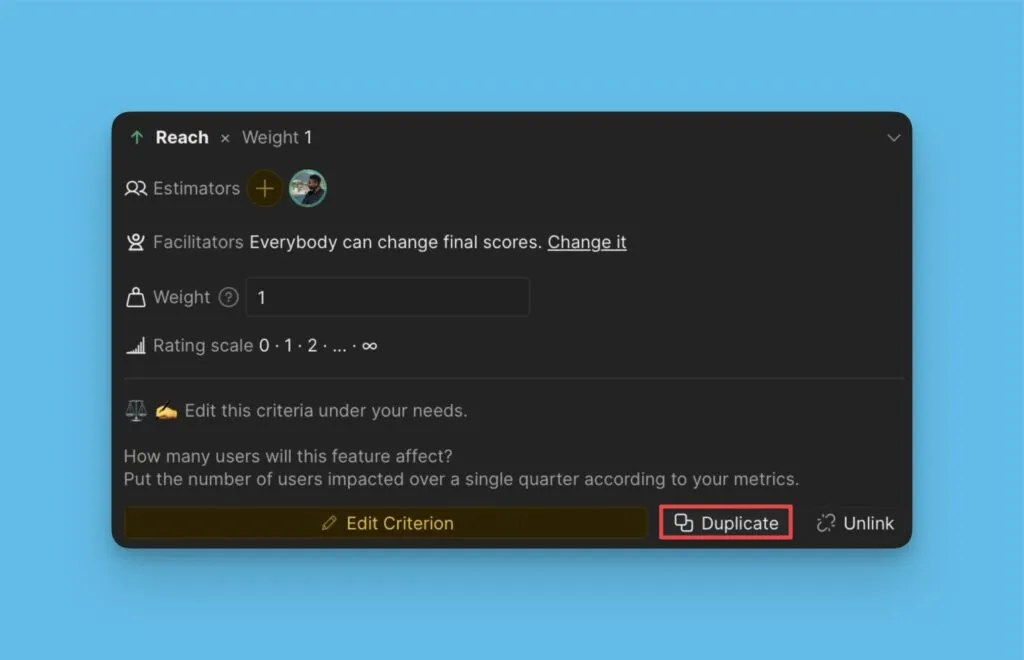
Das Duplizieren von Kriterien ermöglicht dir, mit Einstellungen zu experimentieren, ohne das Original zu ändern:
-
Klicke auf Duplicate (Duplizieren) im Kriterienblock.
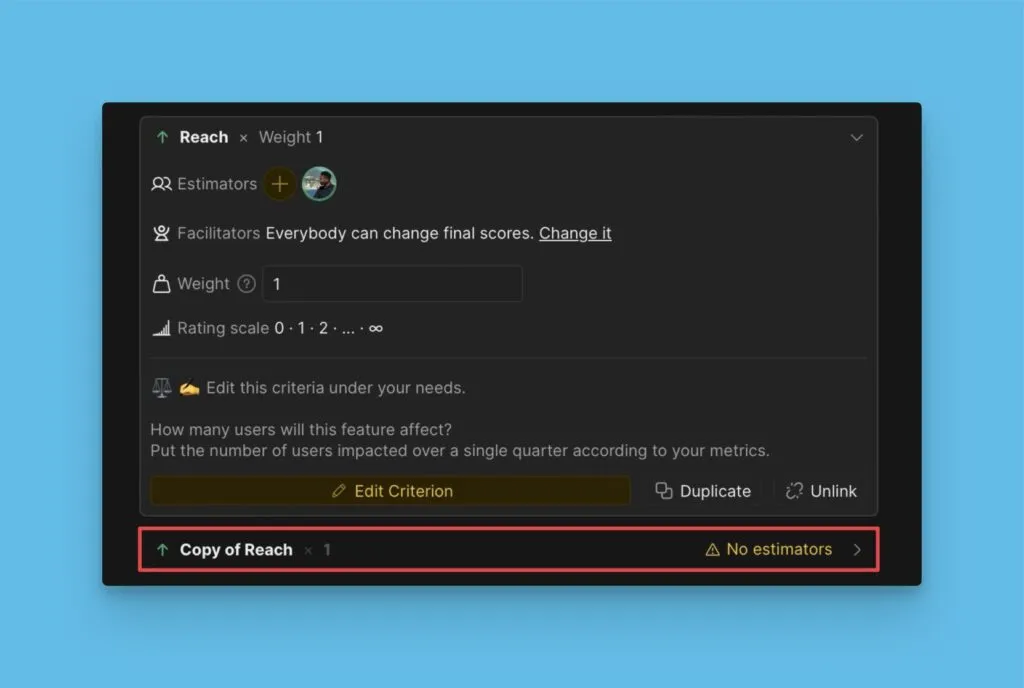
Eine Kopie des Kriteriums erscheint in deinem Framework.
Lies mehr über das Duplizieren von Kriterien.
Verlauf und Backups
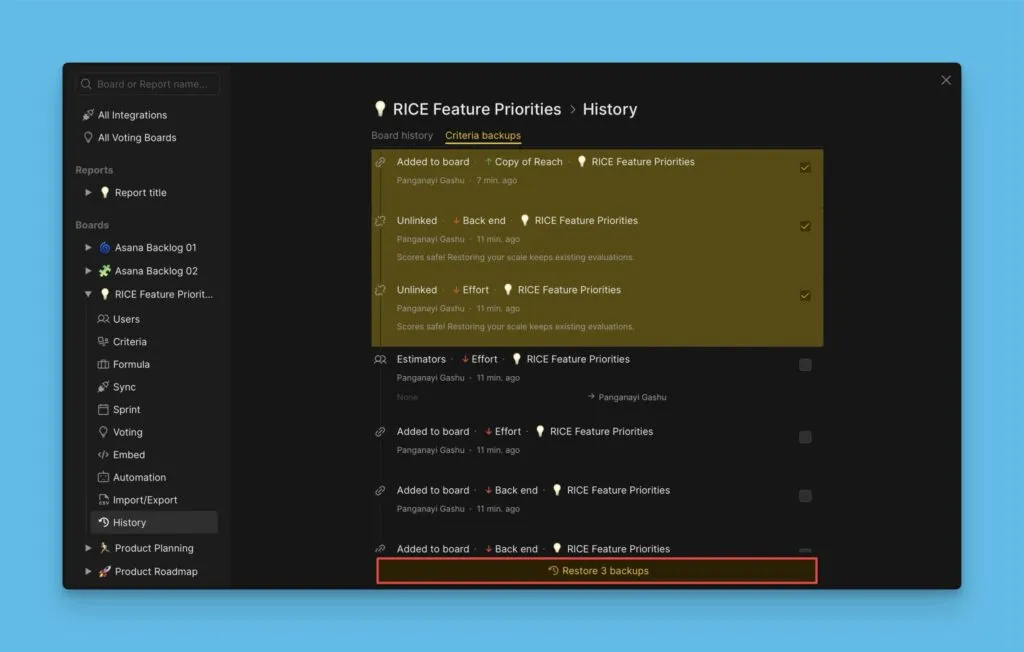
Alle Konfigurationsänderungen werden unter History (Verlauf) gespeichert. Zeige vorherige Konfigurationen und an Kriterien vorgenommene Änderungen an.
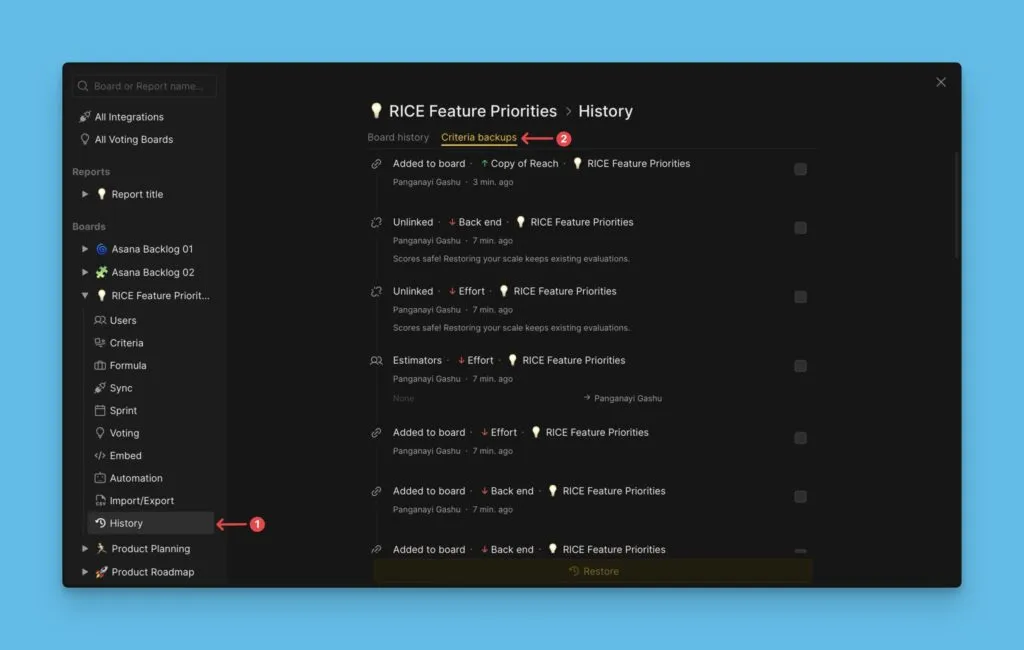
Die neueste Version jeder Eigenschaft wird unbegrenzt gespeichert. Frühere Versionen werden zehn Tage aufbewahrt.
So stellst du eine vorherige Konfiguration wieder her:
-
Wähle die Einstellungen aus, die du wiederherstellen möchtest.
-
Klicke auf Restore backups (Backups wiederherstellen).
Benutzerdefinierte Felder als Kriterien verwenden
Verwende benutzerdefinierte Felder aus Ducalis Voting Boards (wie Stimmenanzahl) oder deinem Aufgaben-Tracker (Jira, Linear, Asana) als Kriterien. So kannst du vorhandene Daten nutzen, anstatt von Grund auf neu zu bewerten.
Lies mehr über die Verwendung benutzerdefinierter Felder als Kriterien.
Zusätzliche Ressourcen
- Ducalis Templates – Einsatzbereite Priorisierungs-Frameworks
- Priorisierungs-Frameworks – Überblick über beliebte Frameworks
- PLG Hypothesis Prioritization Framework – Für die Bewertung von Wachstumshypothesen
- RICE Framework – Guter Ausgangspunkt für Priorisierung
- WSJF Agile Framework – Ordne Arbeit für maximalen wirtschaftlichen Nutzen
- Technische Schulden priorisieren – Integriere Schulden-Priorisierung in Sprints
Wie geht es weiter
Nachdem du deine Kriterien konfiguriert hast, füge Teammitglieder zu deinem Board für die gemeinsame Bewertung hinzu.
Fahre fort mit Schritt 3: Nutzer hinzufügen und Kriterien zuweisen.