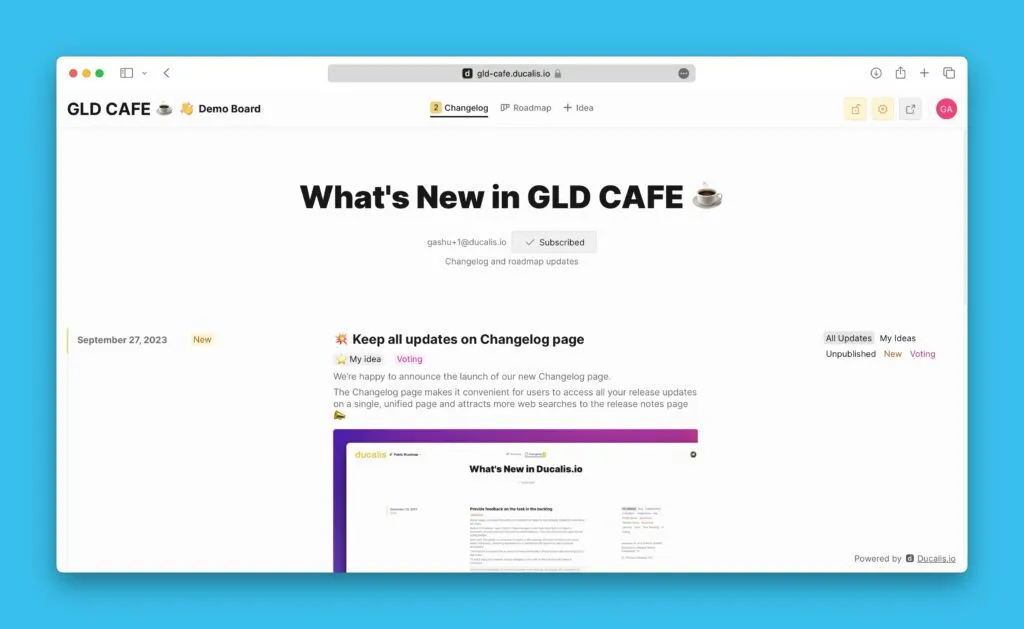
Passo 4. Configurar Atualizações Automáticas de Estado
Atualize automaticamente os estados de Ideias quando os estados dos Itens ligados forem alterados. Mantém as Ideias públicas e os Itens internos sincronizados sem atualizações manuais.
Aceder às definições
-
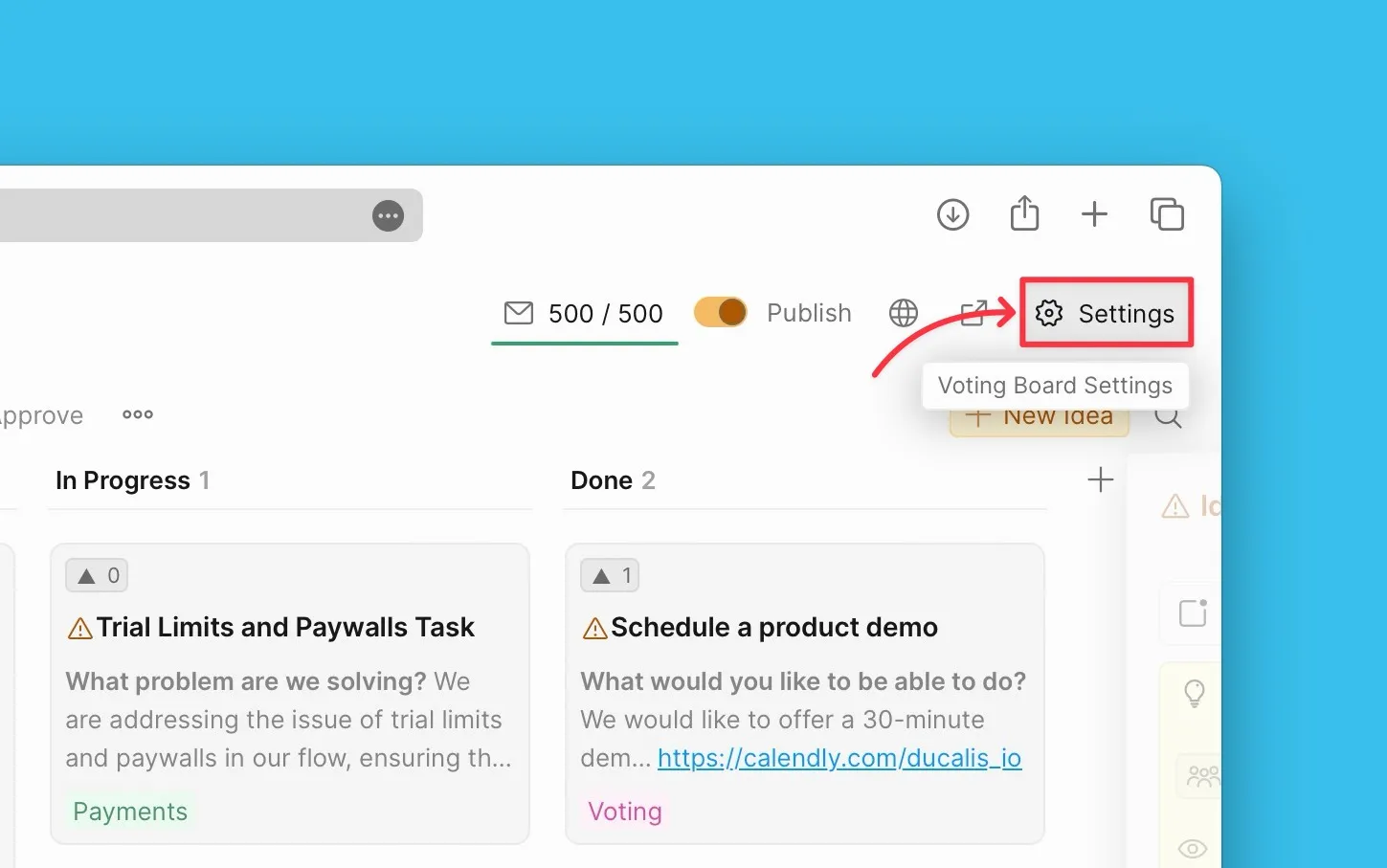
Navegue para as definições do Voting Board.
-
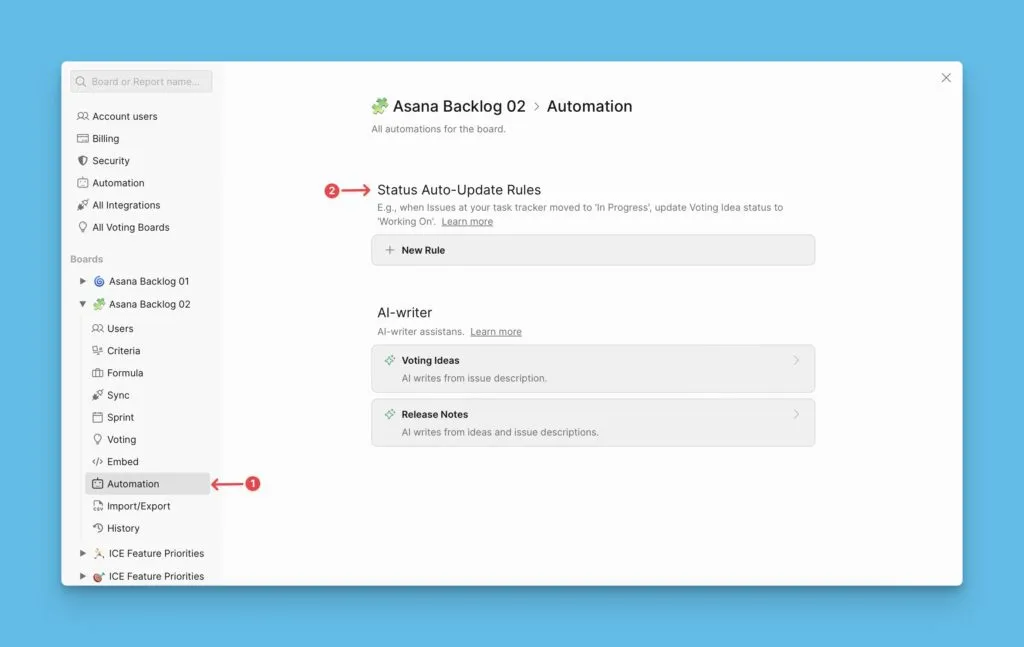
Selecione Automation (Automatização) no menu à esquerda.
-
Clique em Status Auto-Update Rules (Regras de Atualização Automática de Estado).
Criar regras de atualização de estado
-
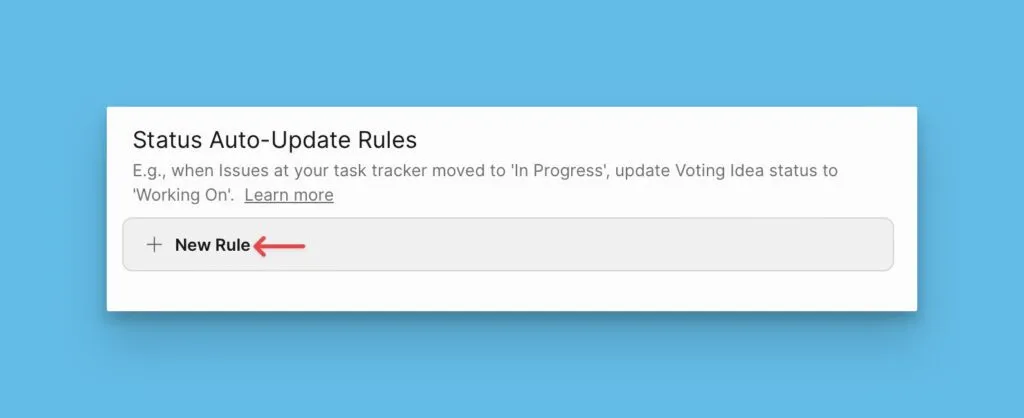
Clique em +New Rule (+Nova Regra).
-
Defina Trigger Condition (Condição de Acionamento) como Issue Status (Estado do Item).
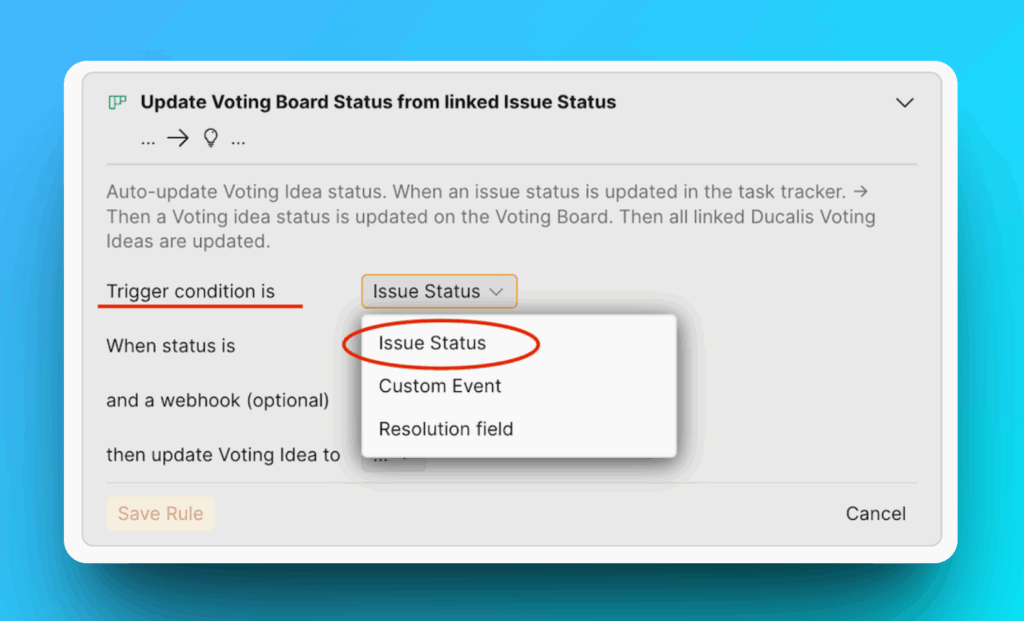 informacao
Os acionadores Custom Event são predefinições do sistema. Selecione apenas eventos existentes. Precisa de mais condições de automatização? Contacte-nos através do chat.
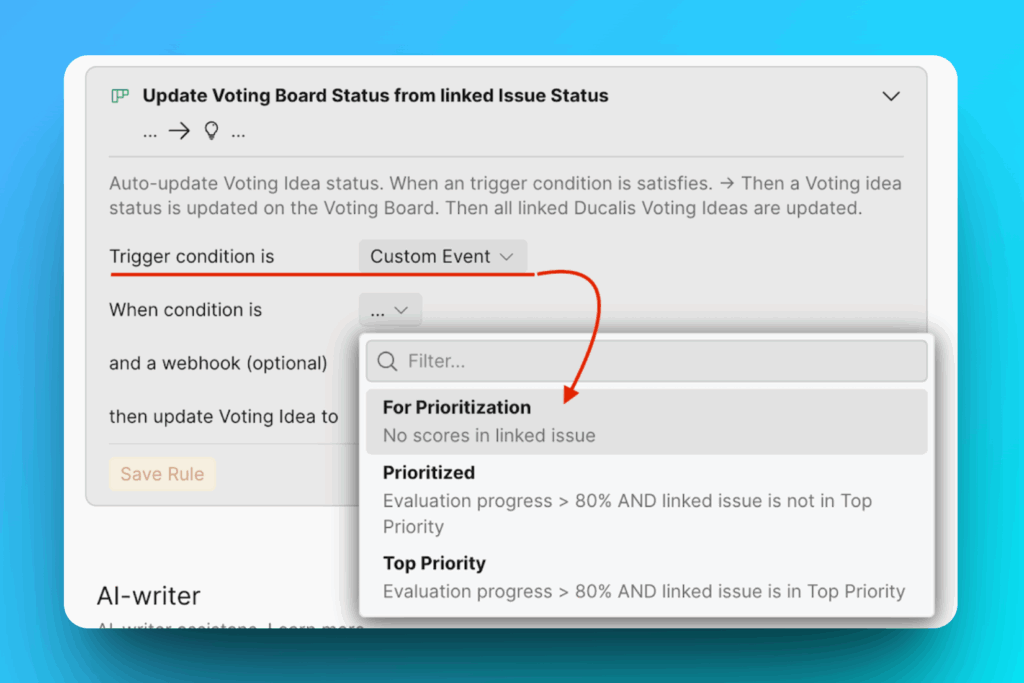
-
Selecione a plataforma onde os seus Itens são geridos (Ducalis ou o seu gestor de tarefas).
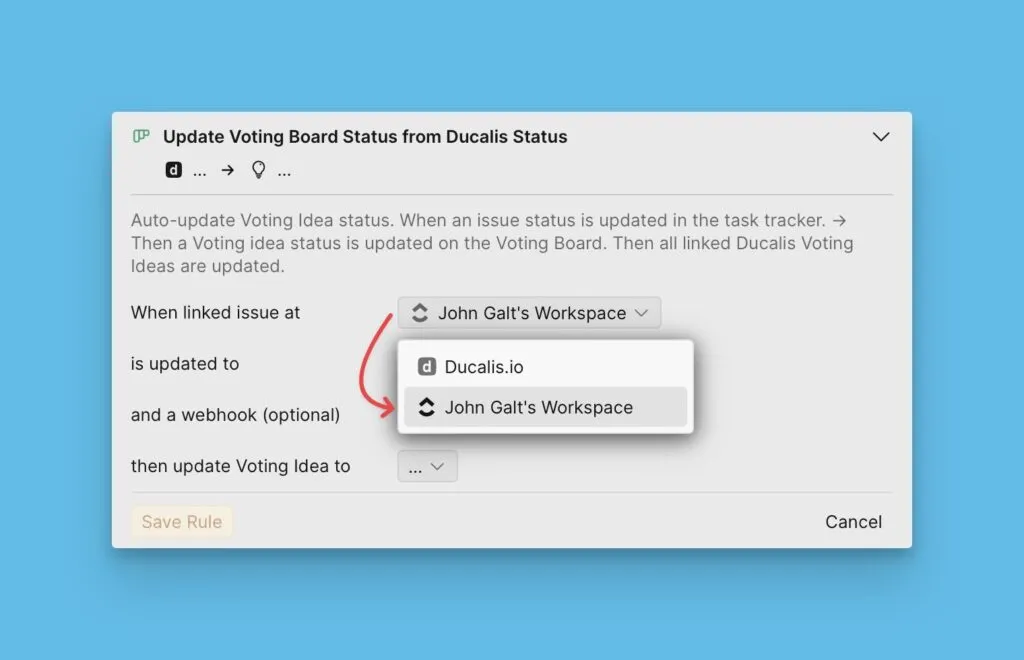
-
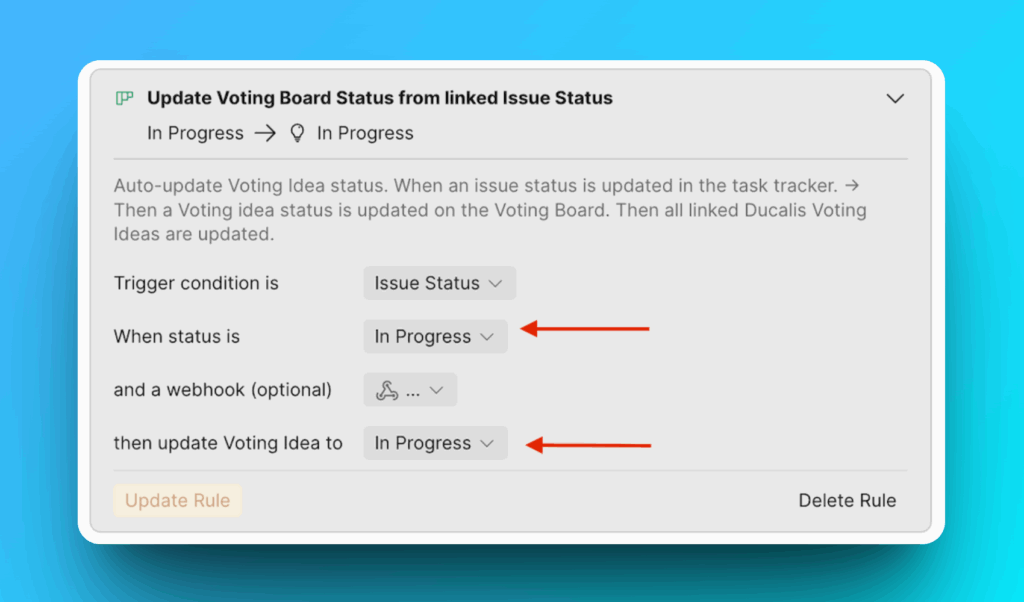
Em When status is (Quando o estado for), escolha o estado do Item no seu gestor de tarefas.
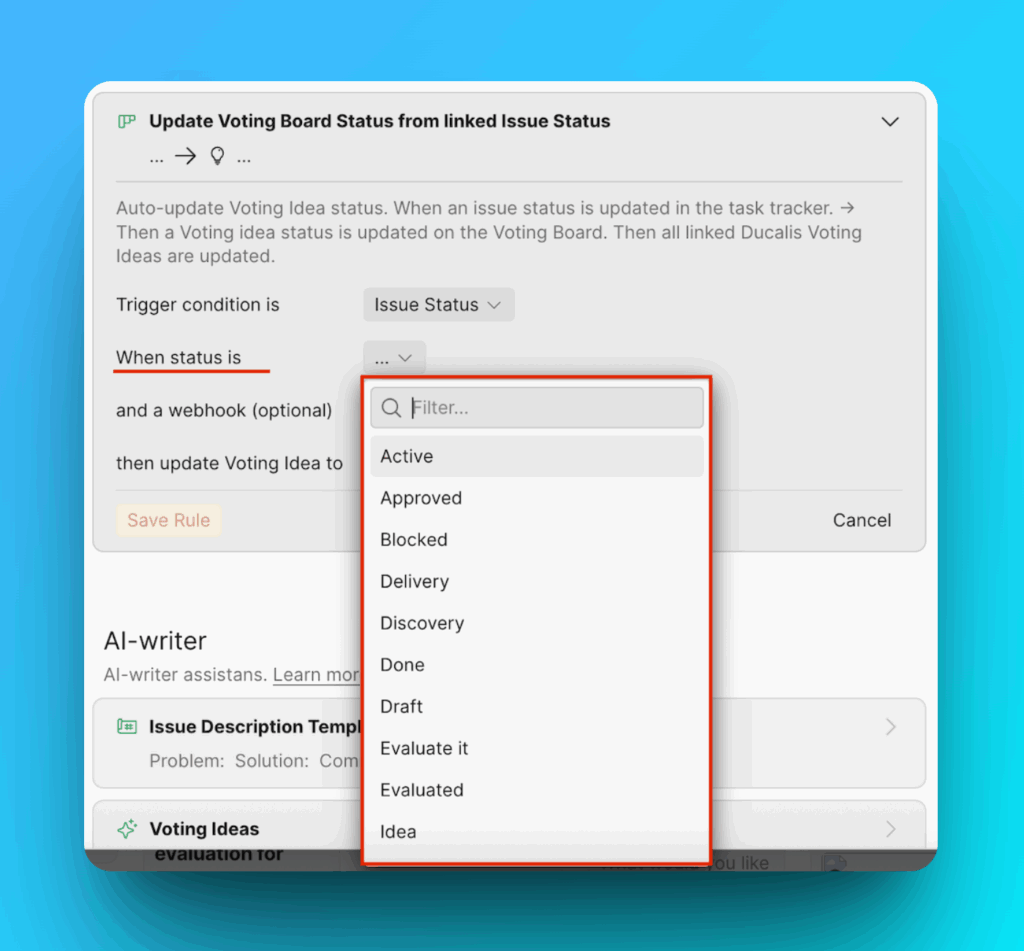
-
Em then update Voting Idea to (então atualizar a Ideia de Votação para), escolha o estado correspondente da Ideia.
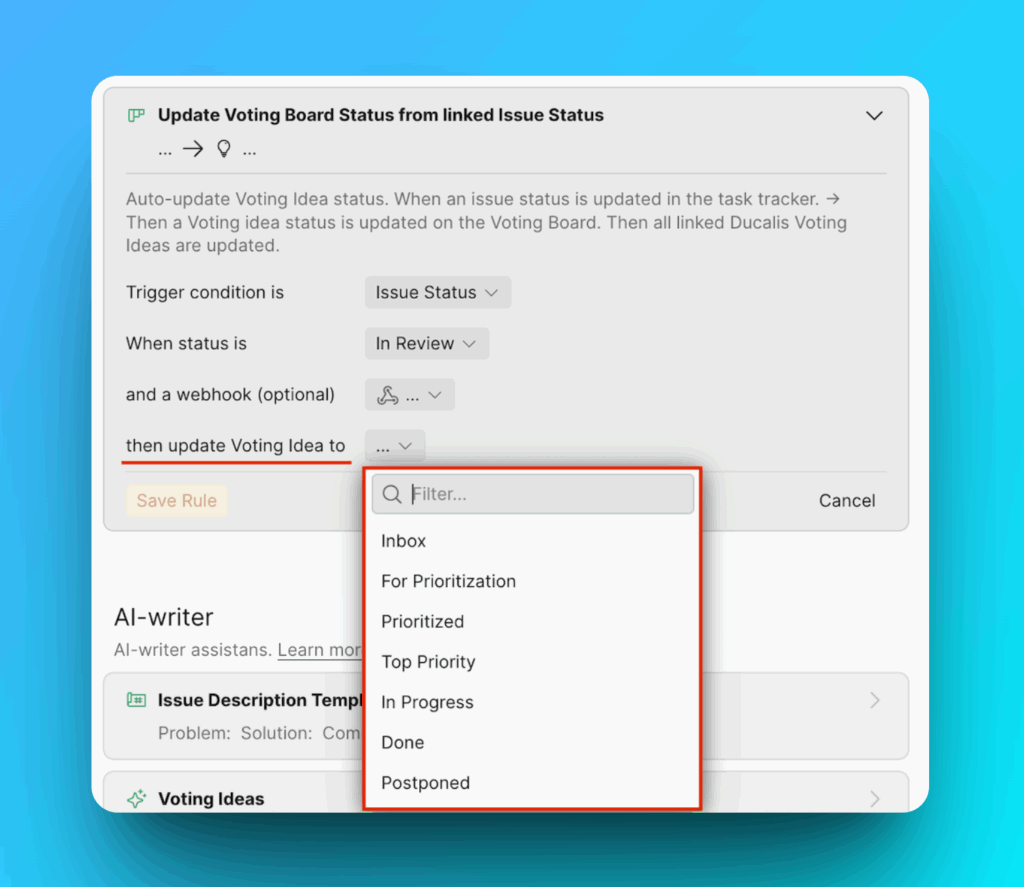
Exemplo: Quando um Item do Jira Cloud for alterado para In Progress (Em Progresso), a Ideia ligada é automaticamente atualizada para In Progress (Em Progresso).
-
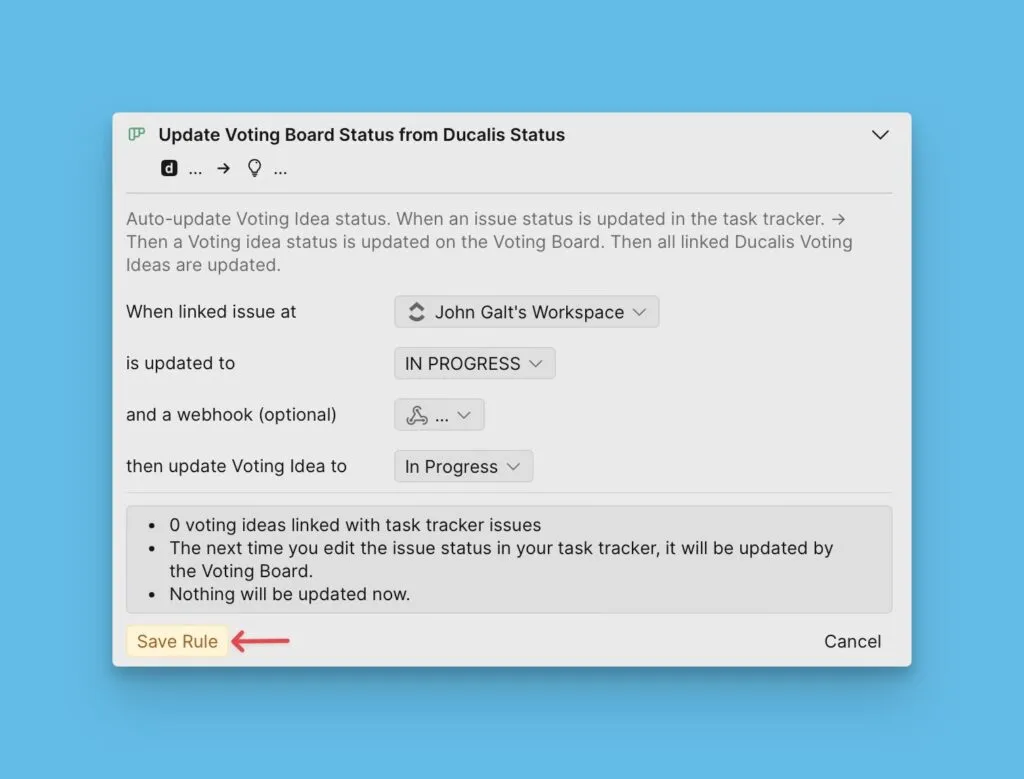
Clique em Save Rule (Guardar Regra).
-
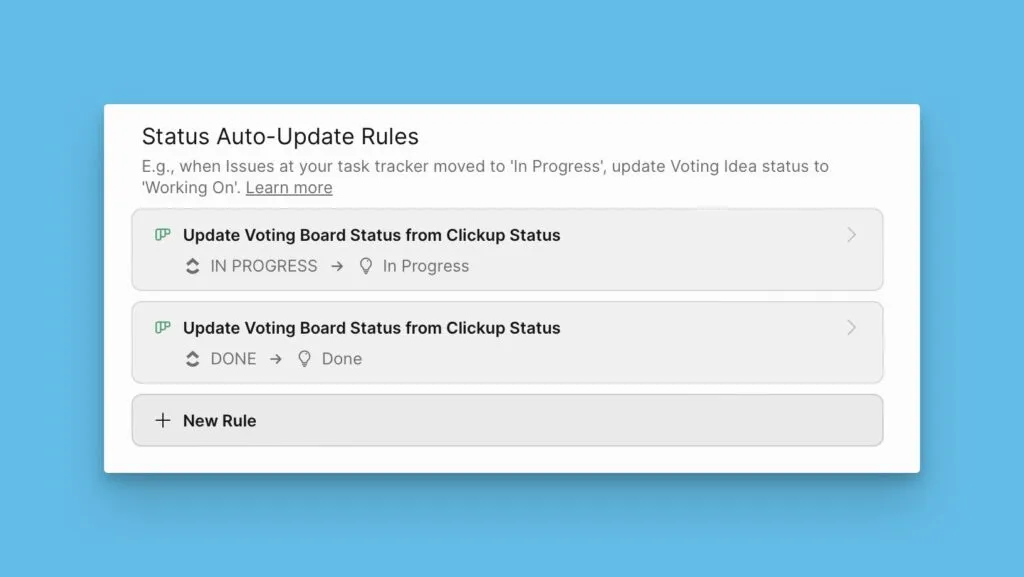
Repita os passos 1-6 para criar regras para todos os seus estados.
O que se segue?
Continue para Passo 5: Anúncios de funcionalidades lançadas na página Changelog para aprender como manter os clientes informados sobre novos lançamentos utilizando a página Changelog.