Approve and comment
Facilitators can approve Final Scores and add comments to document their reasoning. Once approved, the Final Score is locked to prevent accidental changes.
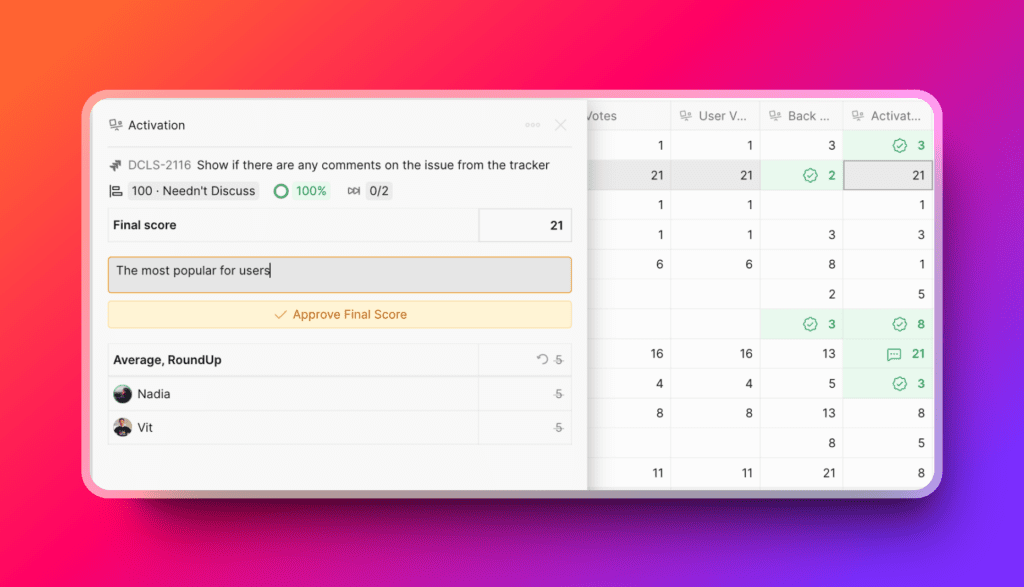
Who can approve
Only Facilitators can approve and lock Final Scores.
How approval works
When you approve a Final Score:
- The system records who approved it and when.
- The Final Score is locked—other Facilitators cannot modify it.
- Only the Facilitator who approved it can undo the approval.
This prevents accidental changes and maintains scoring integrity.
Approve a Final Score
-
Locate the Issue and click the cell for the Criterion or Criterion Alignment.
Or open the Issue card and click Approve & Comment in the Final Score cell.
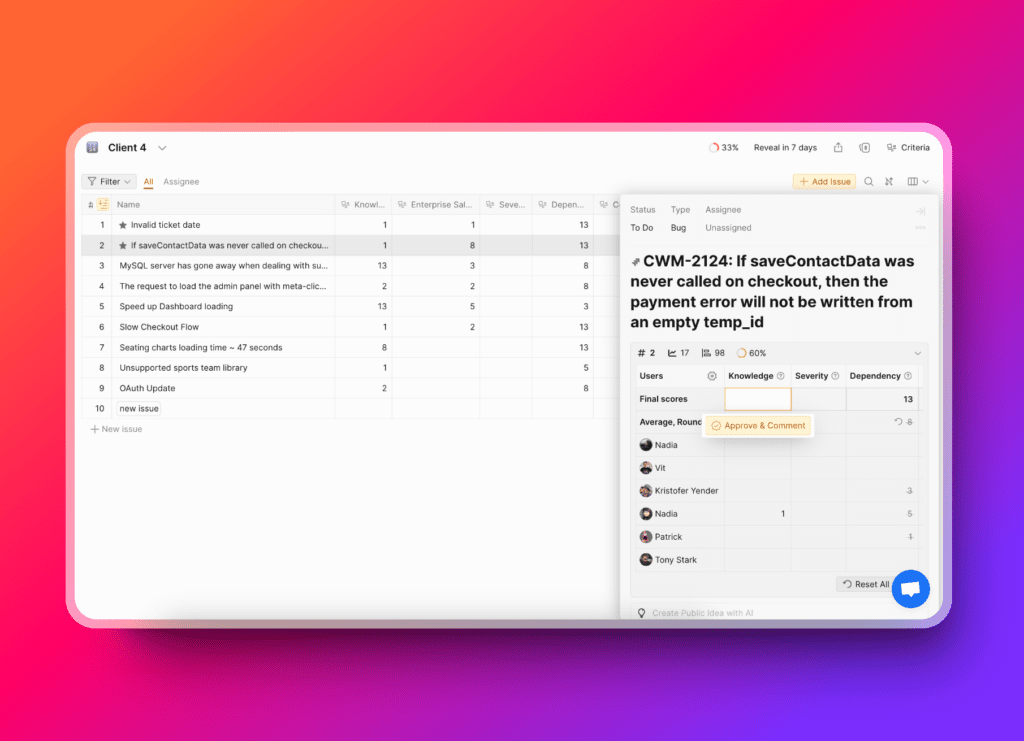
-
Modify the Final Score if needed.
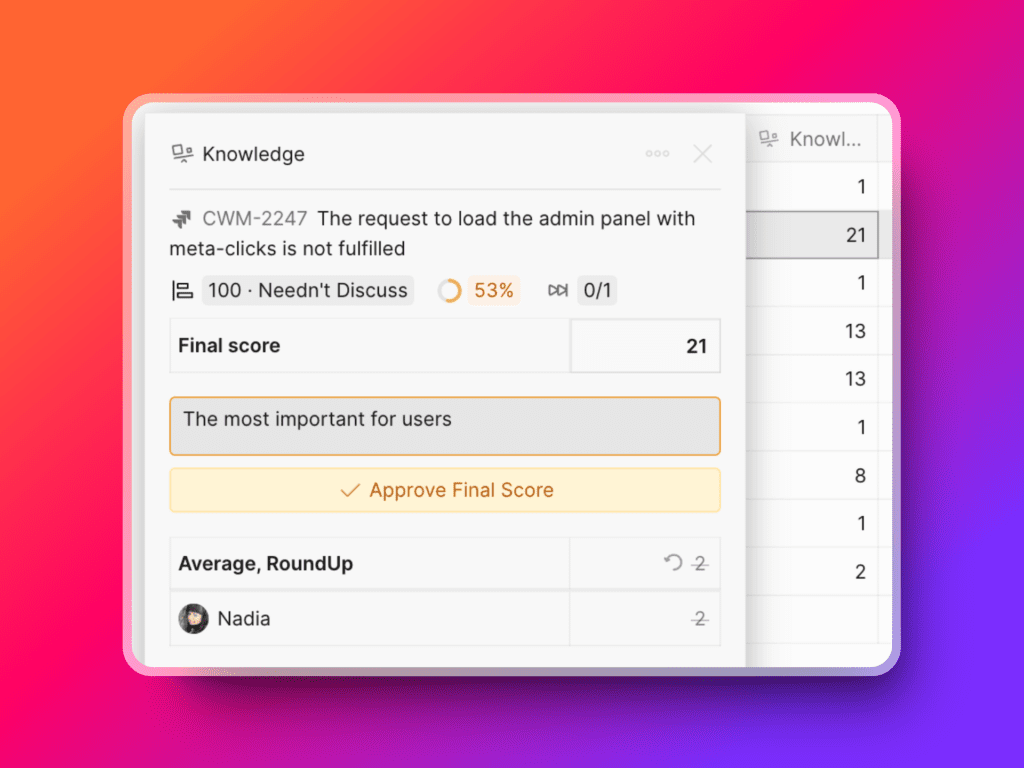
-
Enter any comments in the provided field to document your reasoning or important notes.
-
Click Approve Final Score to lock it.
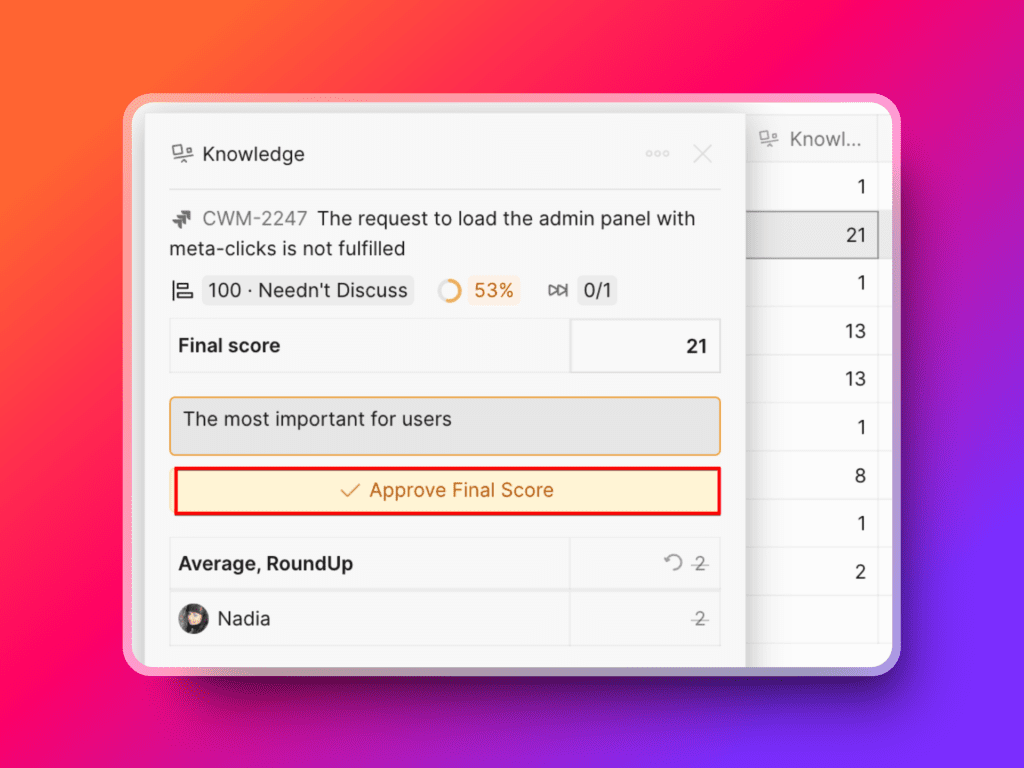
The Final Score is now locked. Only you can undo this approval.
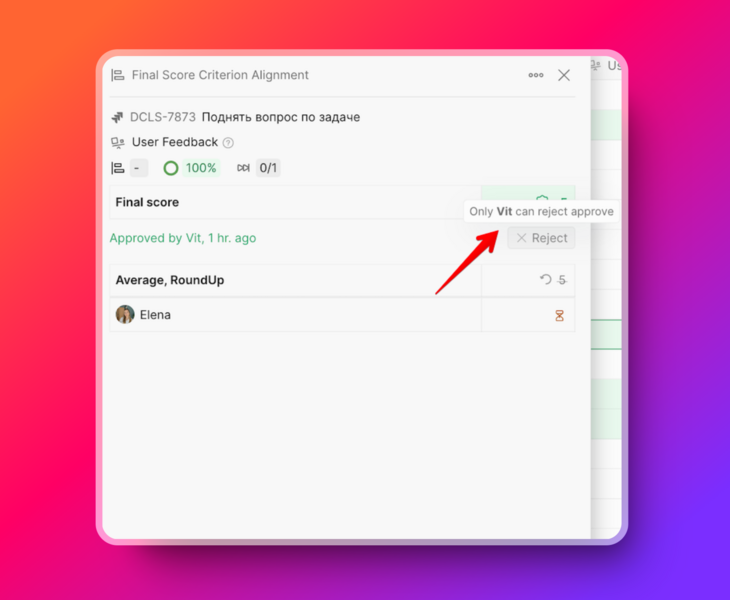
Final Scores that haven't been approved can still be changed by any Facilitator.
Track approval status
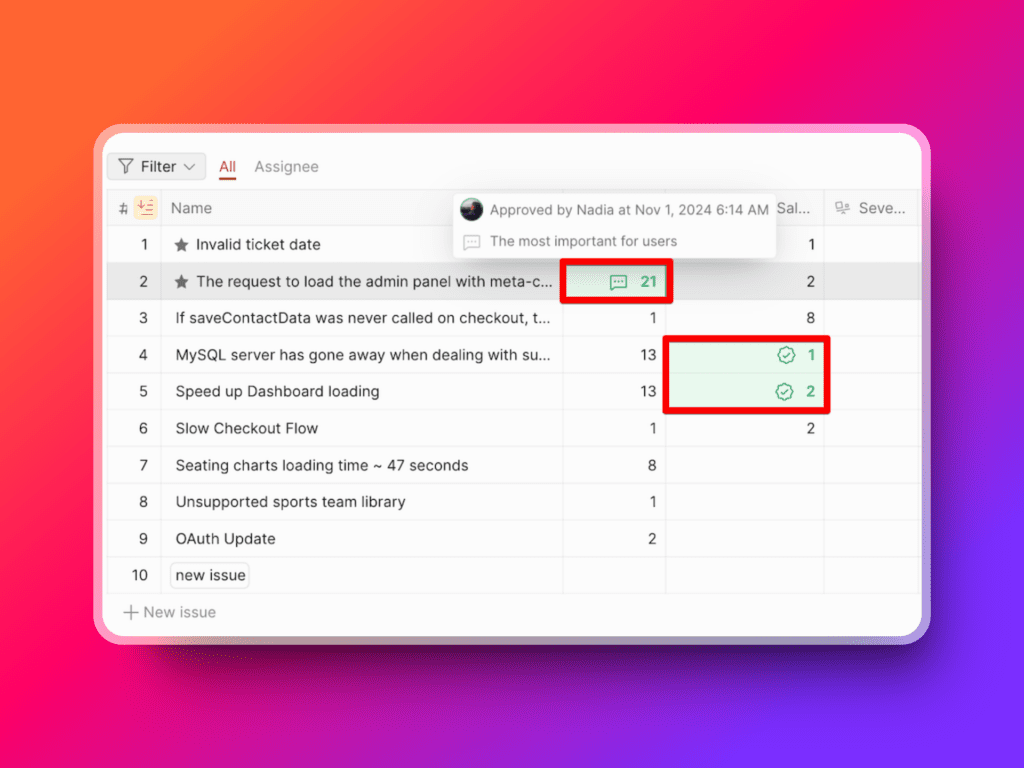
The Criteria column shows which Issues have approved Final Scores and which are still open for editing.
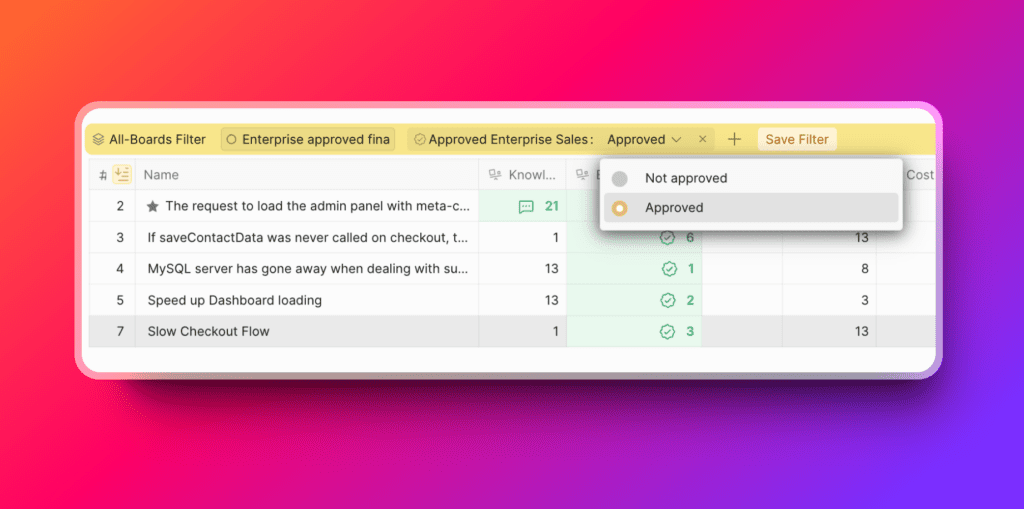
Use the Approved [Criterion Name] filter to view Issues by approval status. This helps you focus on Issues that still need final approval.
Best practices
- Use the comment section to provide context for score changes.
- Carefully review scores before approving to ensure accuracy.
- Utilize the approval filter to manage and track which Issues still need final approval.