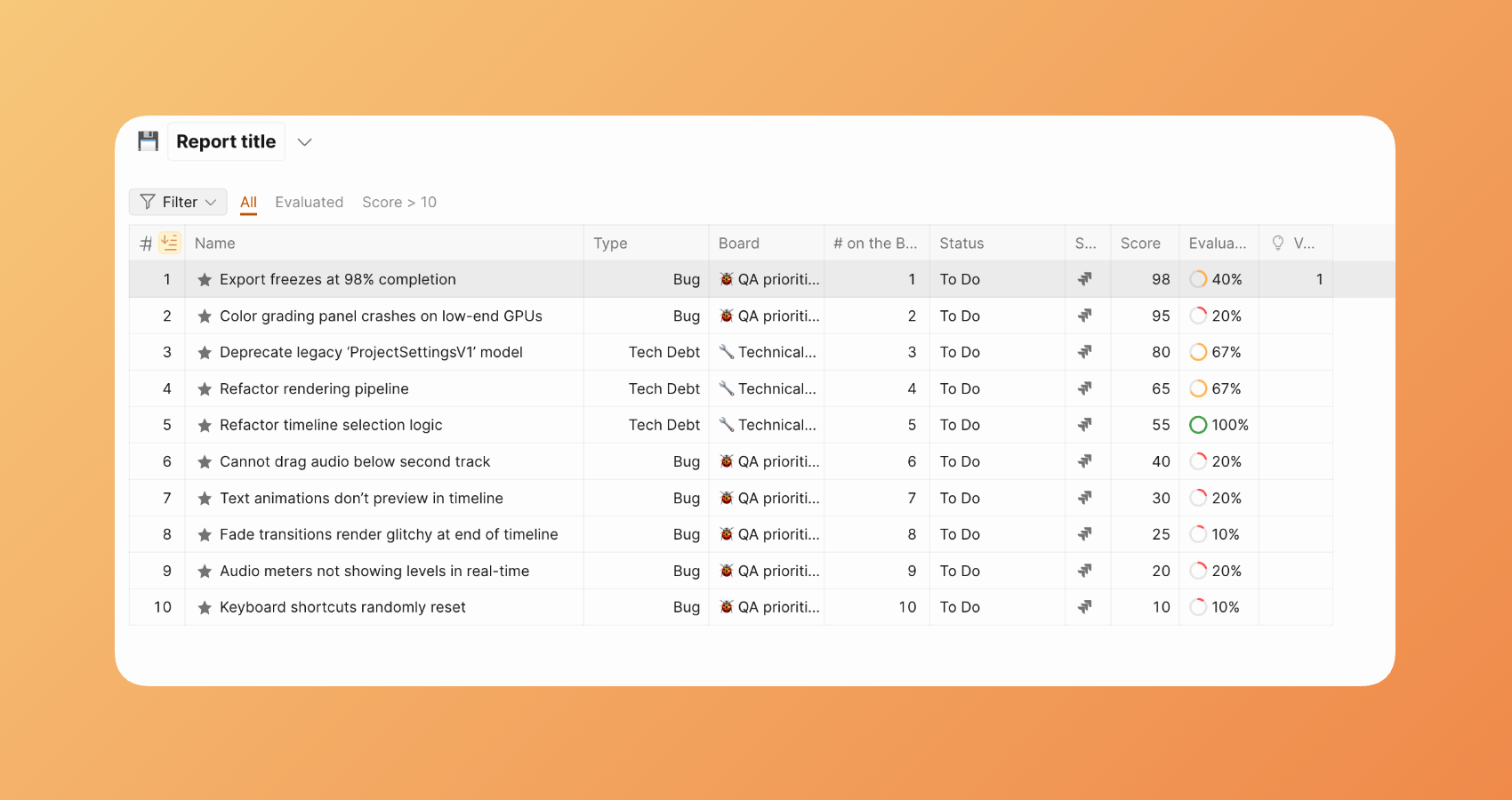
Create a Report Board
A report board that is made by combining several prioritization boards. It allows you to see top-priority issues from several boards in one place.
Choose the Boards
-
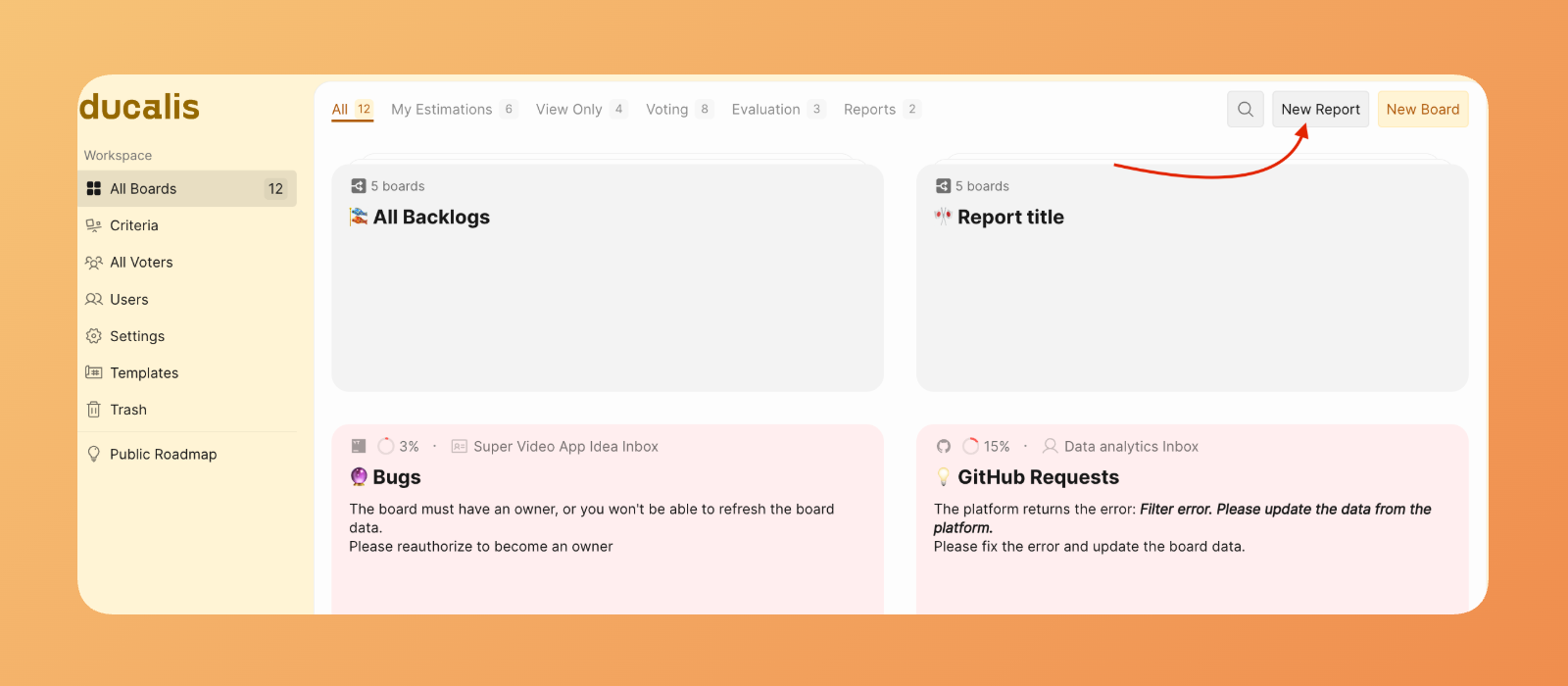
To start creating a board, click New Report on your dashboard.
-
Choose the boards that you want to add to this report.
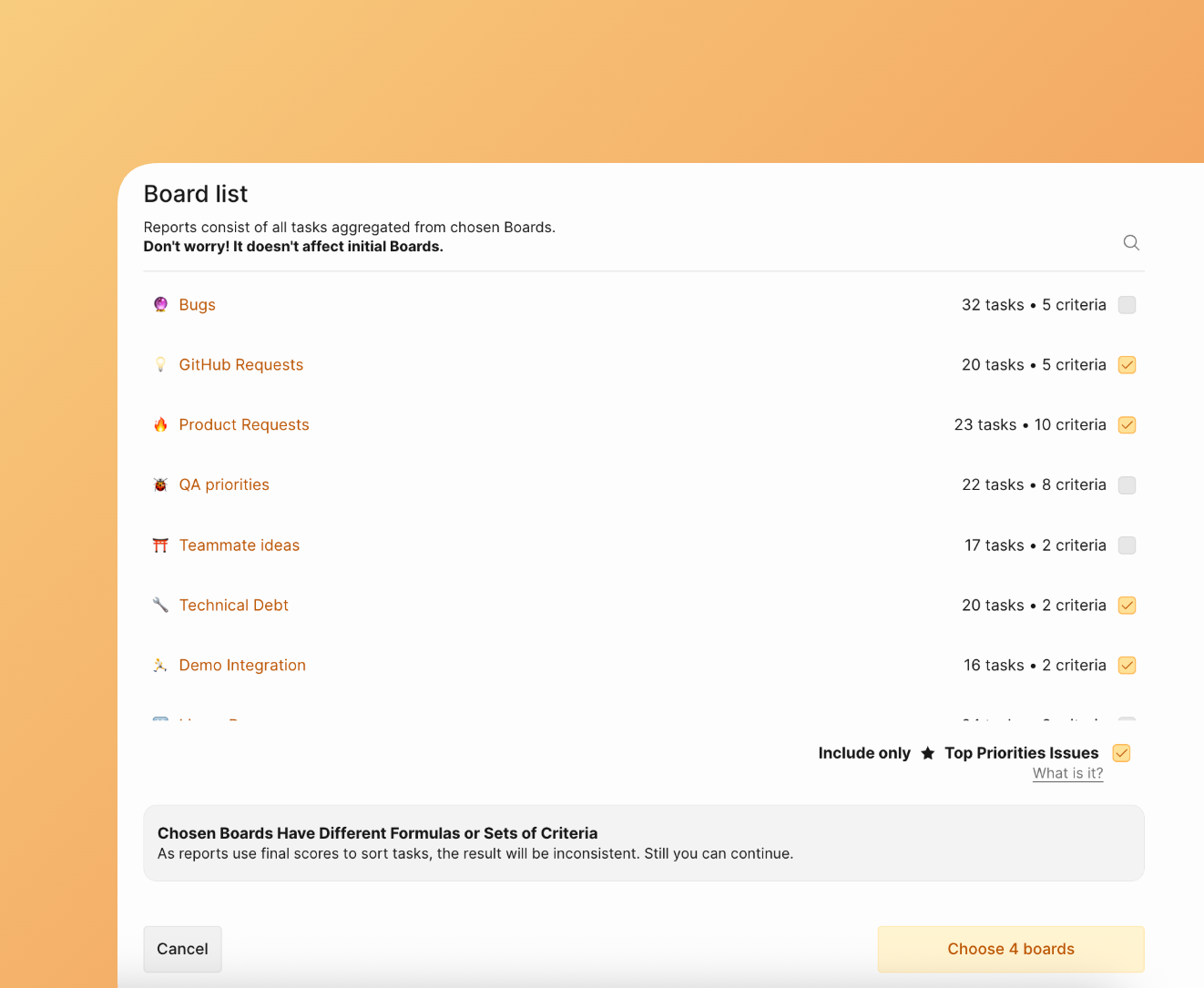
We recommend that the boards you add have the same prioritization framework and formula for consistent results.
If you plan on activating back sync from this report board, the boards you add should be connected to the same task tracker.
Choose the Issues to Add to the Report Board
Check the box to import top-priority issues only.
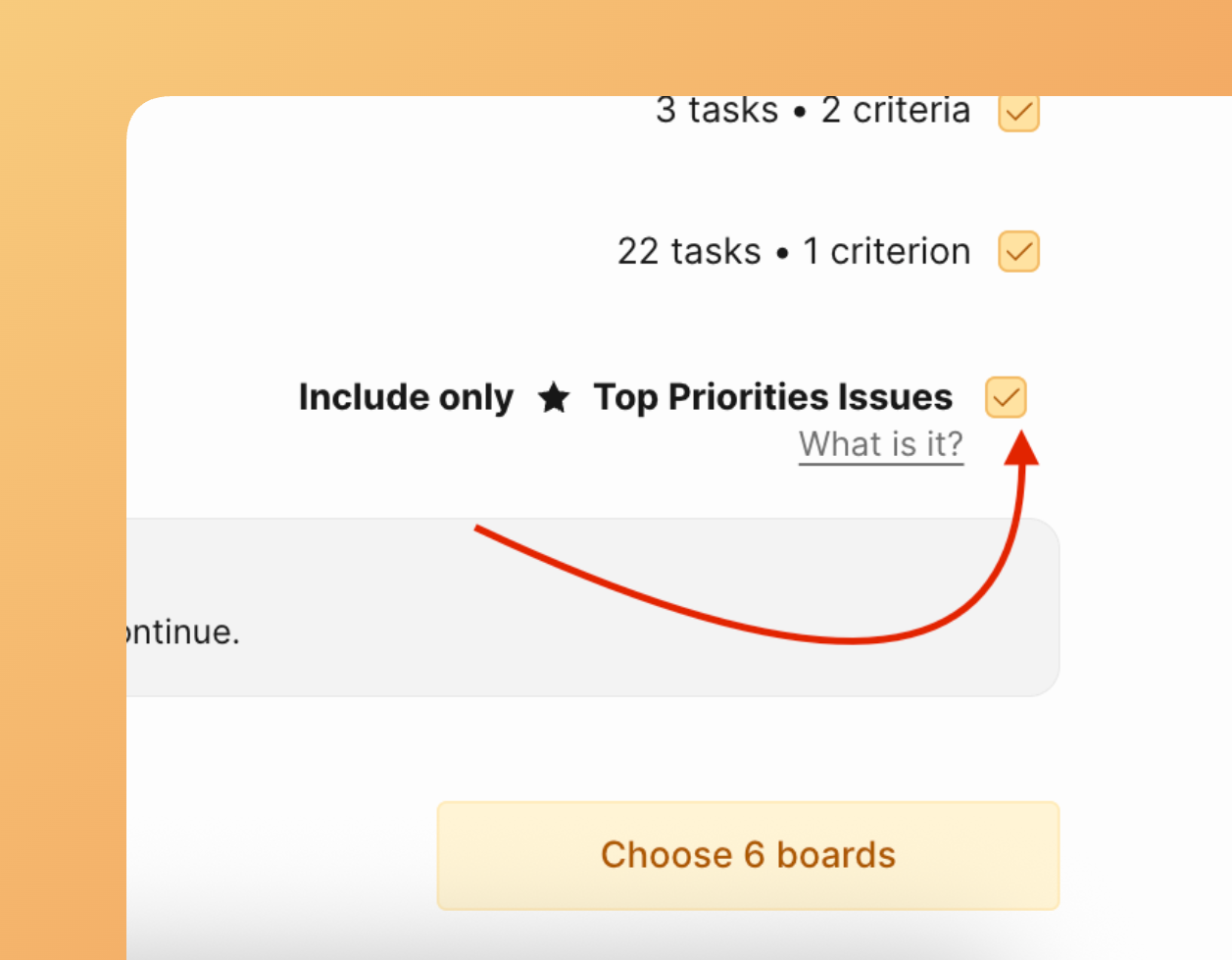
Top priority issues mean that you choose the number of issues with the highest priority. The stars will be shown in the Backlog section of each board and in the Report board.
You can set the number in the Backlog section of each board that you want to include in the Report board.
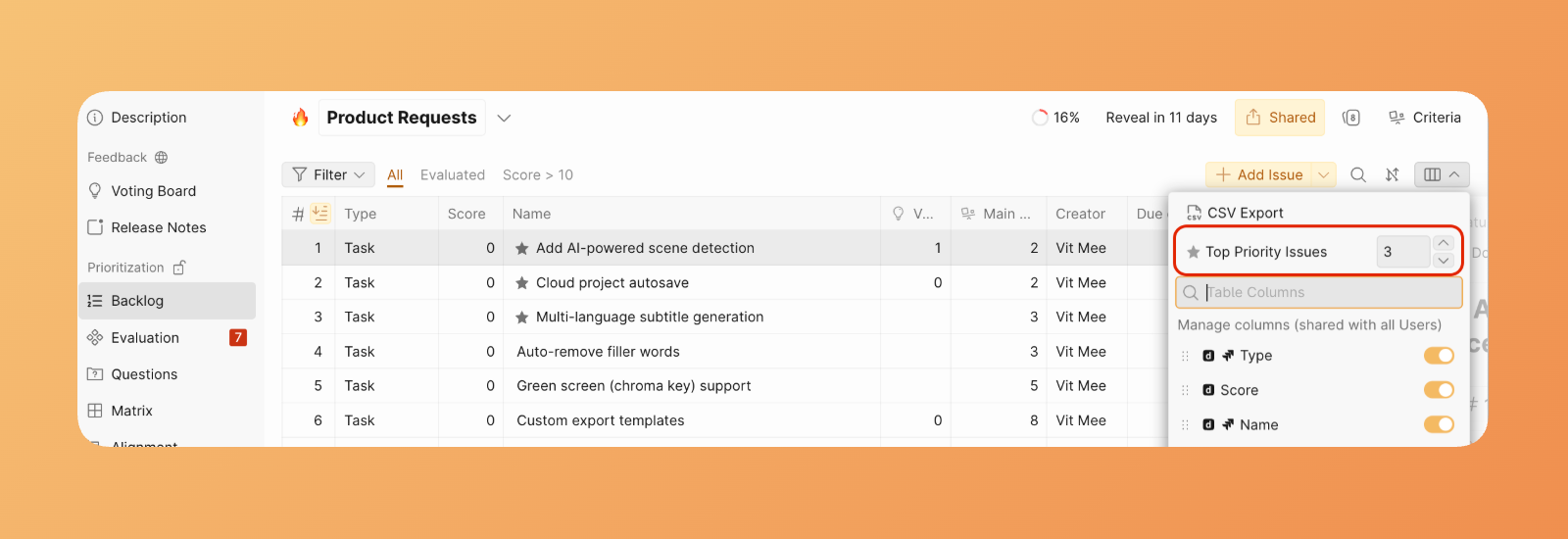
If you check the box 'Include only ★ Top Priorities Issues,' your report board will only contain the issues marked with a star in chosen boards.
Confirm creation
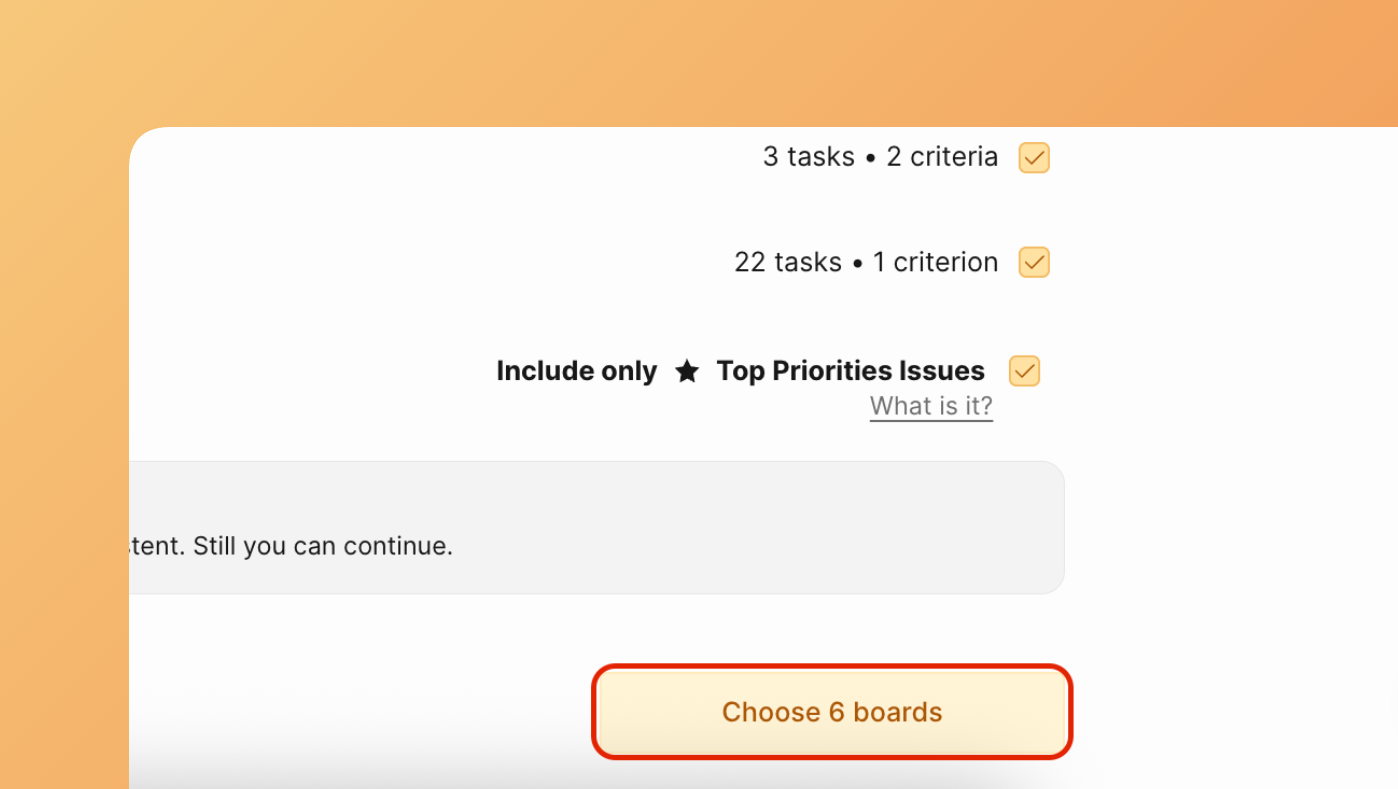
Then click Choose # boards to Finish creating the board.
A report board with top priority from the connected prioritization boards.