Step 1. Add Public Ideas
Add Ideas to your Voting Board to collect and manage customer feedback. You can create public Ideas from internal backlog Issues, manually create Ideas directly on the Voting Board, bulk import from CSV, or migrate from Canny.
Create Public Ideas from Backlog Issues
Share your internal roadmap with customers by creating public versions of backlog Issues. Use Ducalis AI for automatic conversion or write descriptions manually.
First, import your backlog from your task tracker or create Issues manually in Ducalis.
Use Ducalis AI to write a public version
The AI generates public-facing descriptions automatically, saving time while maintaining clarity for external audiences.
The feature is enabled by default. Access settings under Voting Board settings.
-
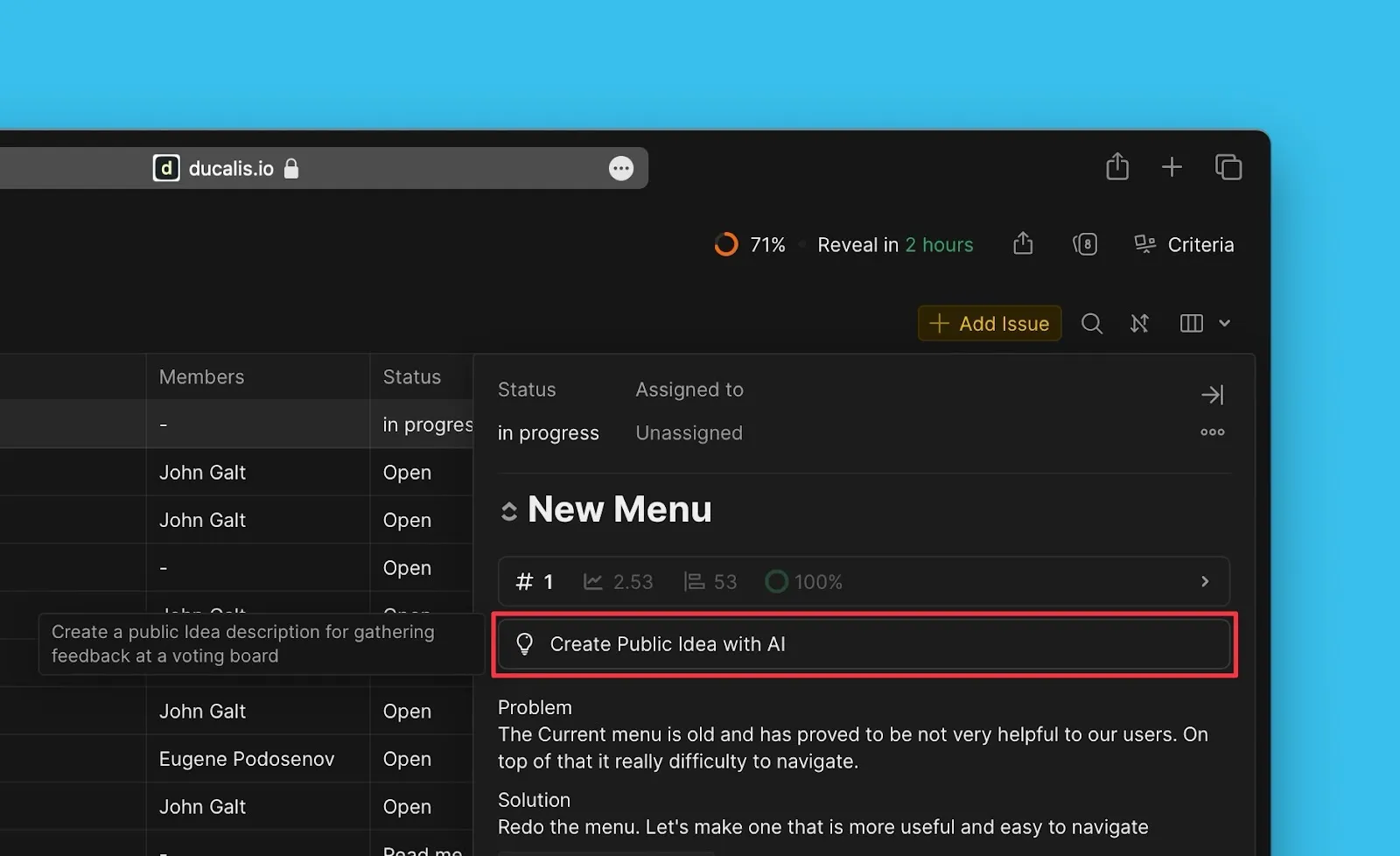
Open the Issue card you want to convert to a public Idea.
-
Click Create Public Idea with AI.
-
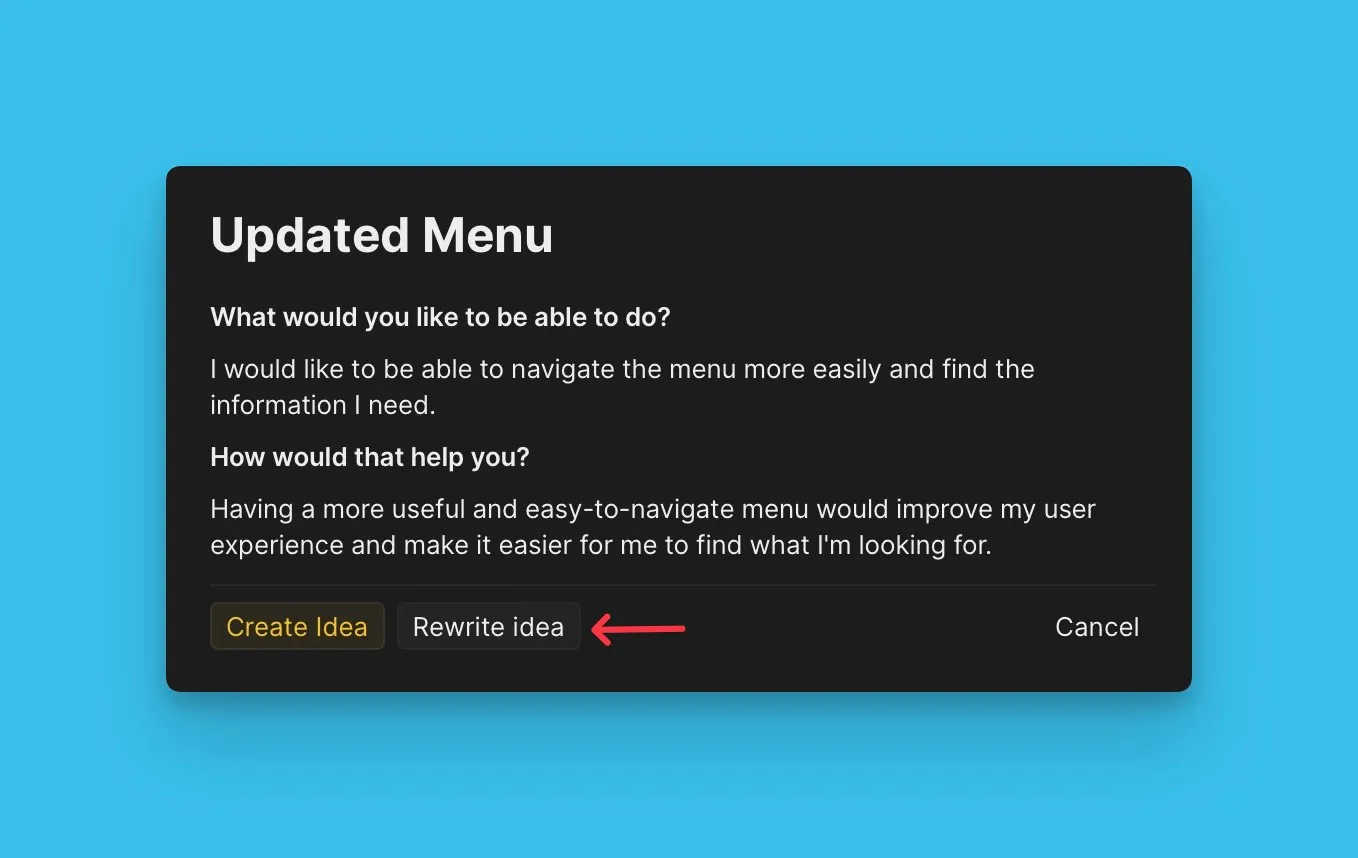
Review the AI-generated draft. Edit the description if needed before approving and publishing.
-
If you want different content, prompt the AI to rewrite the draft.
Read more: Creating an Idea.
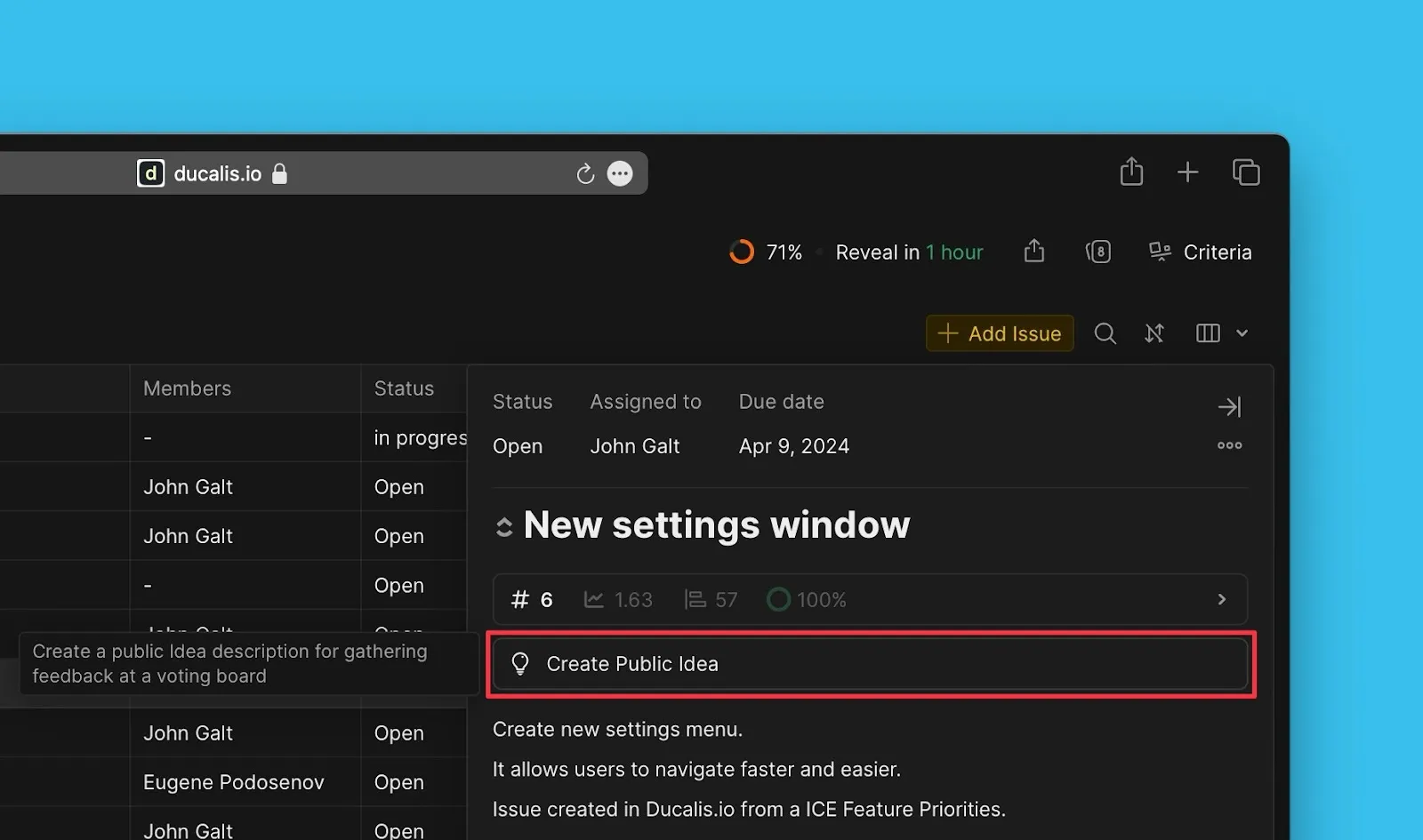
Write a public version manually
Manually create custom descriptions for public Ideas when you need full control over messaging.
-
Click Create Public Idea.
-
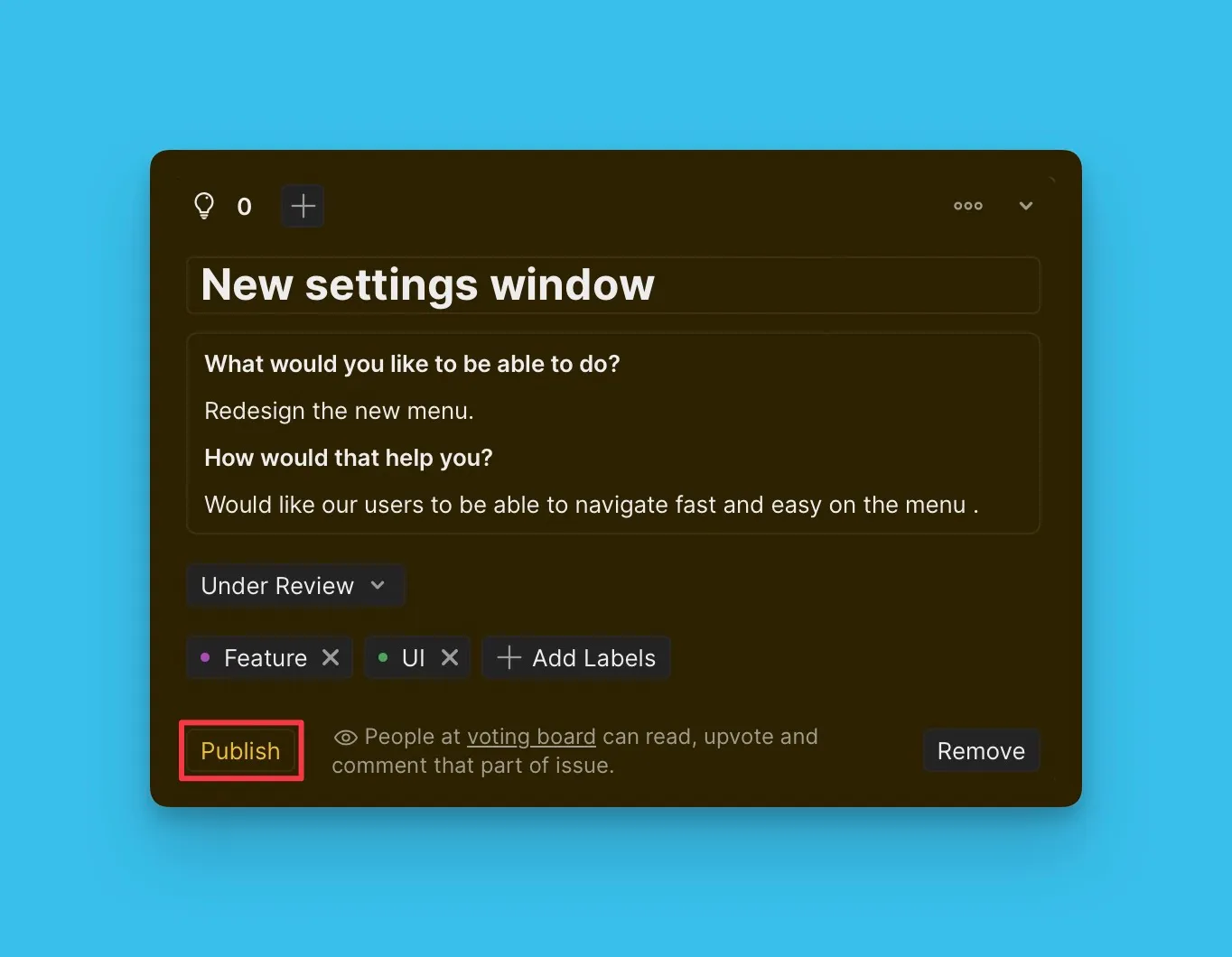
Fill in the Idea details and publish to the Voting Board.
Read more: Creating an Idea.
Create Ideas manually on the Voting Board
Create Ideas directly on the Voting Board without connecting to internal Issues. This method works for teams without existing backlogs or when Voters submit requests directly.
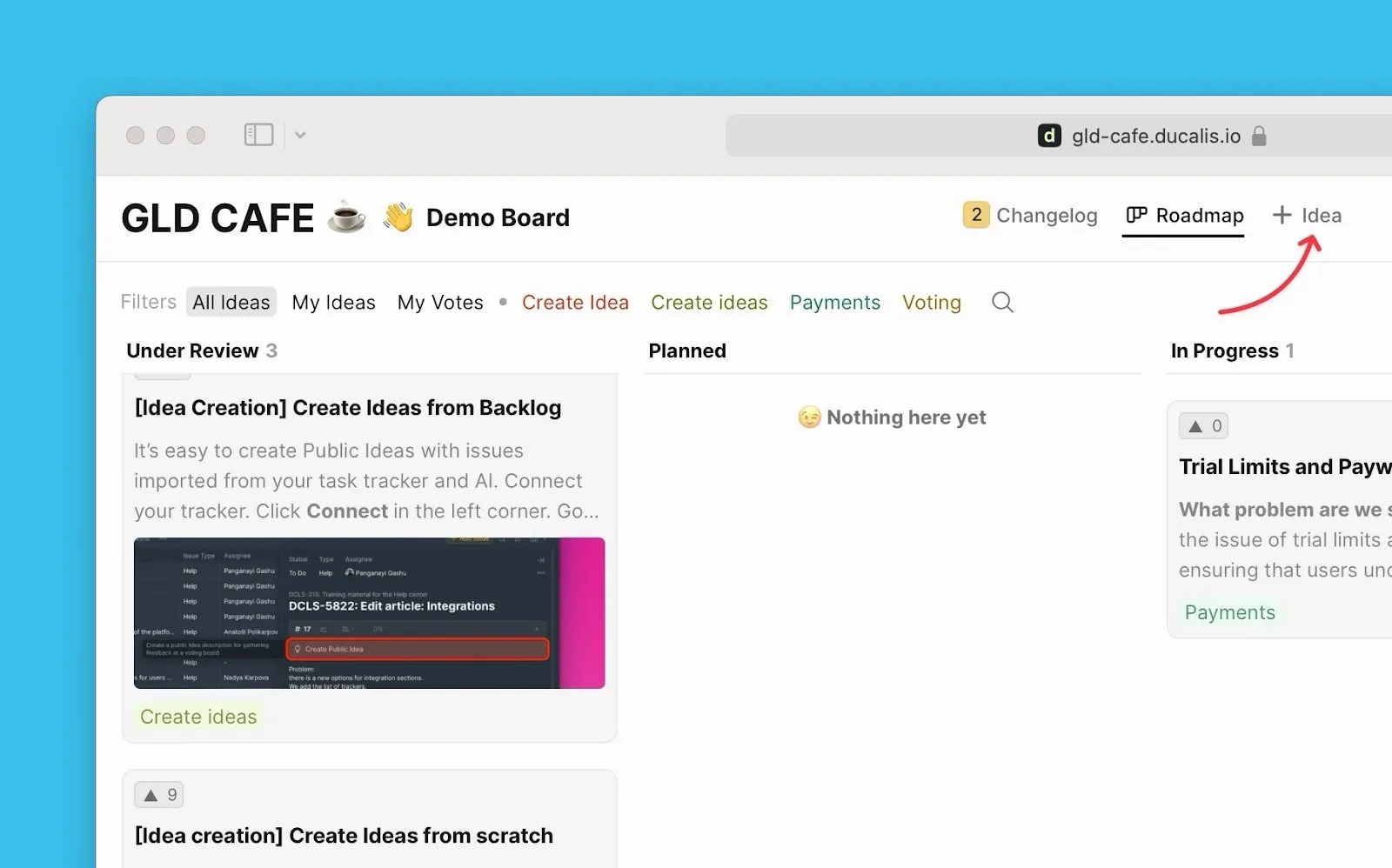
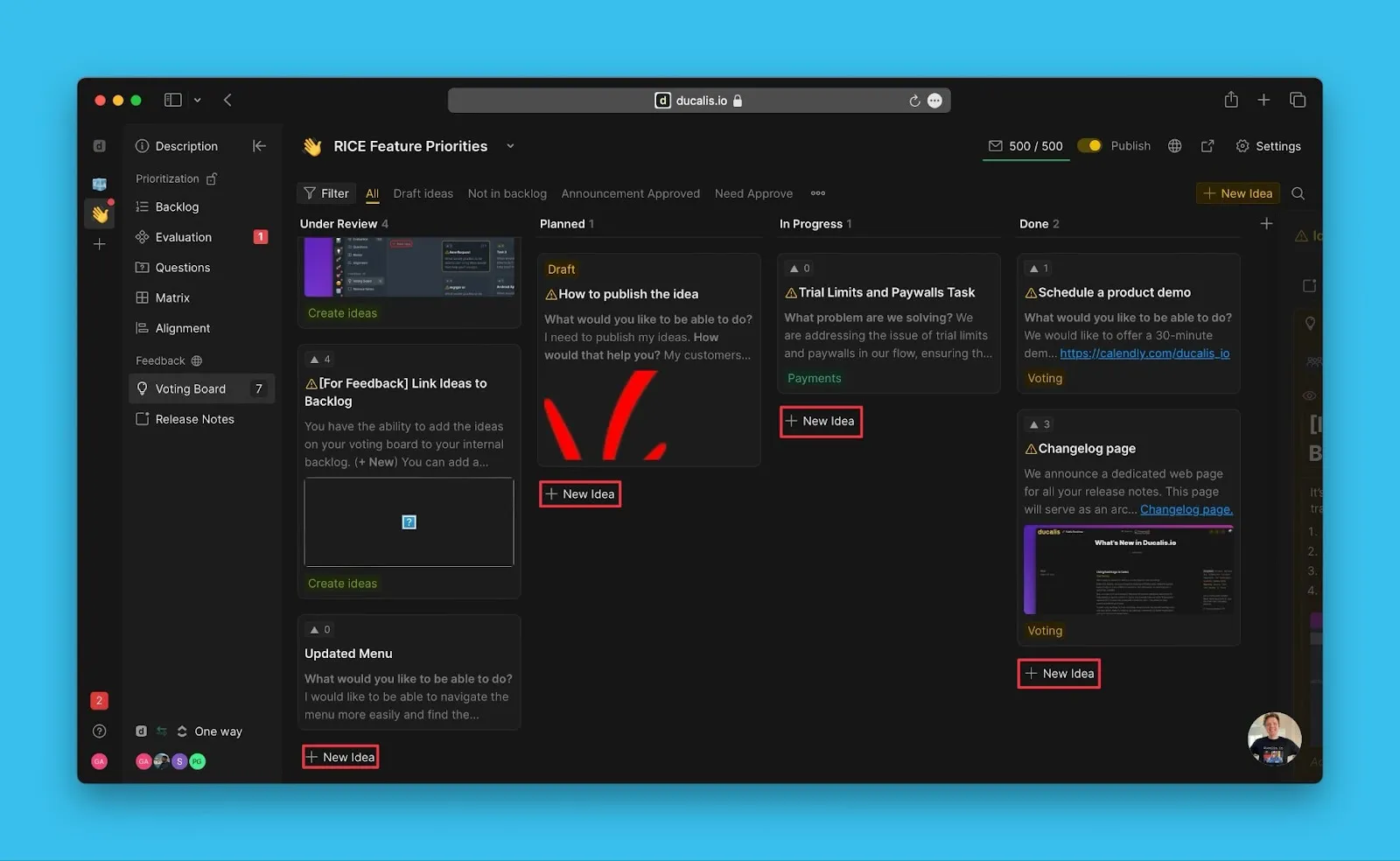
Click + Idea from either location:
On the public Voting Board:
On the Voting Board admin page:
Read more: Creating an Idea.
Bulk import Ideas from CSV
Import Ideas in bulk from spreadsheets or other feedback tools by uploading a CSV file.
-
Go to Voting Board settings.
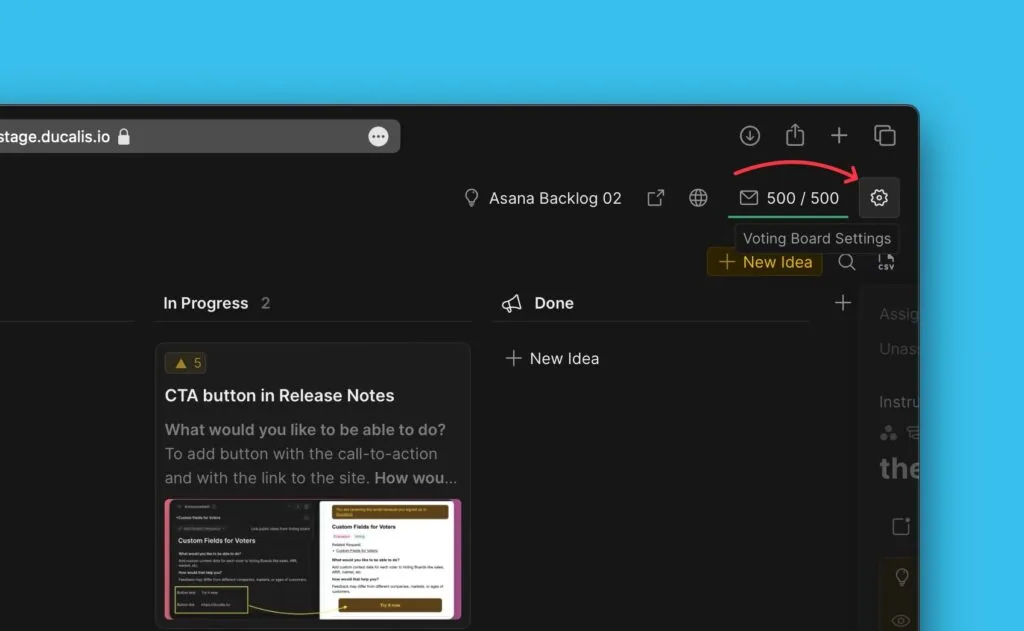
-
Click Import/Export in the left menu.
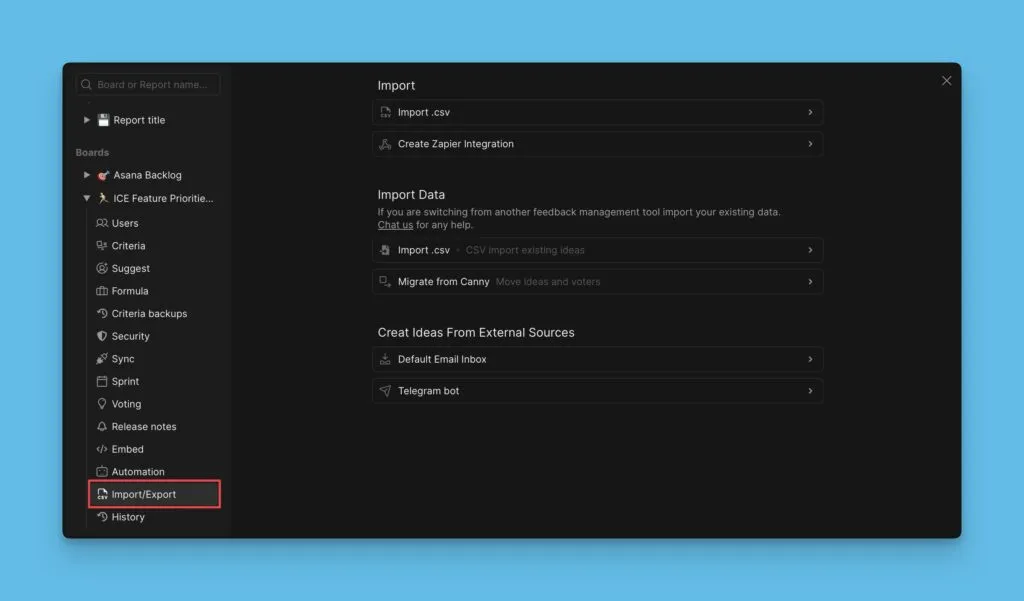
-
Open Create Ideas From External Sources > Import Voting Ideas via CSV.
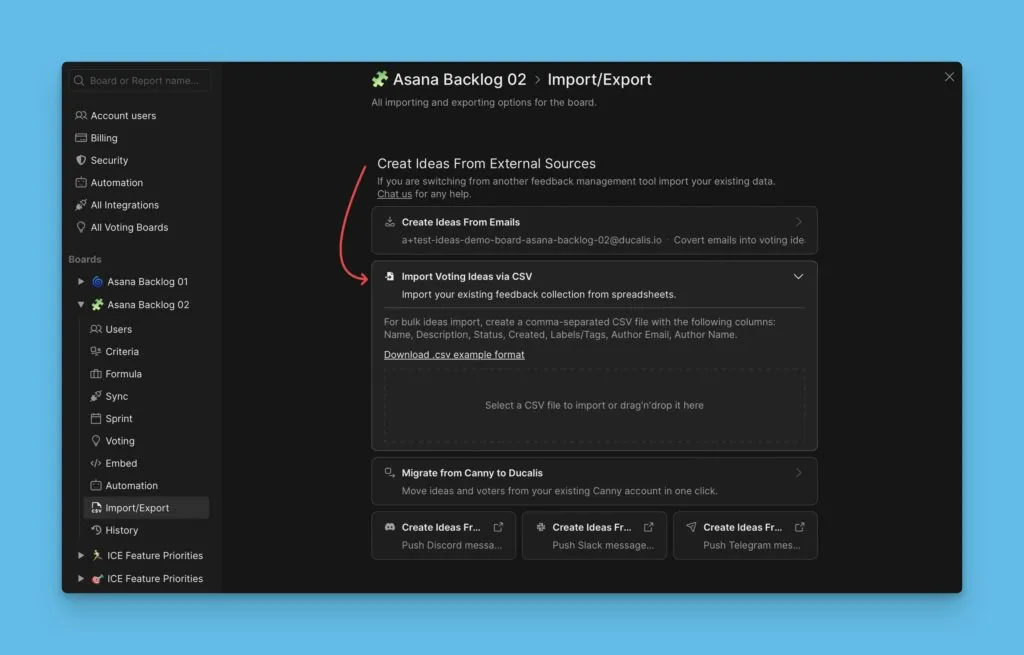
Read more: Import Ideas via CSV.
Import Ideas from Canny
Migrate Ideas and Voters from Canny to Ducalis using your Canny API key.
-
Go to Voting Board settings.
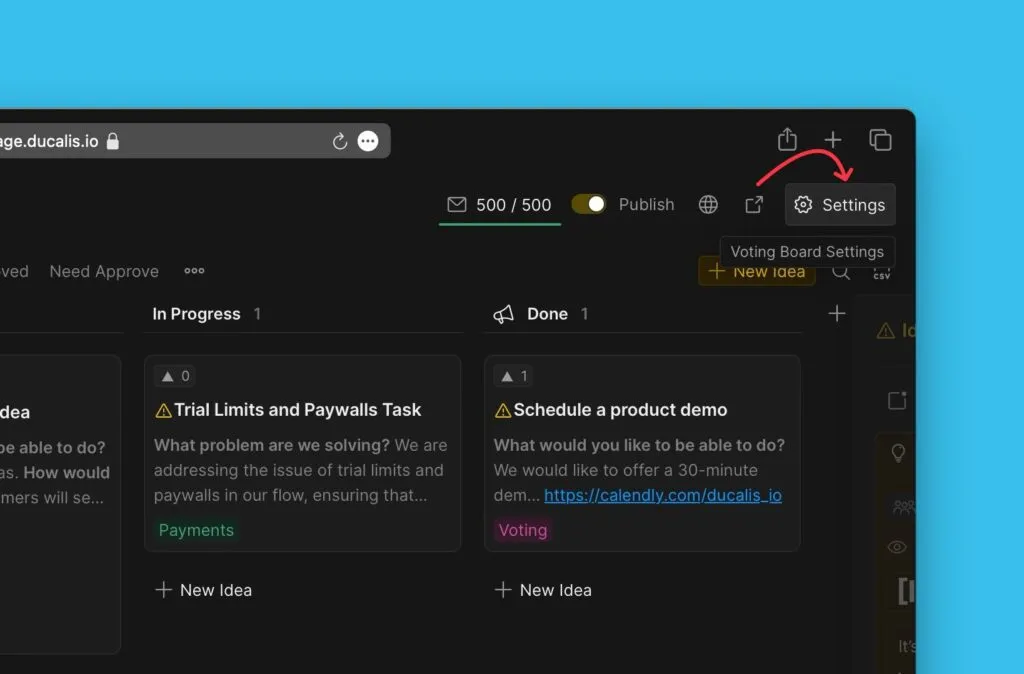
-
Navigate to Import/Export > Create Ideas From External Sources > Migrate from Canny to Ducalis.
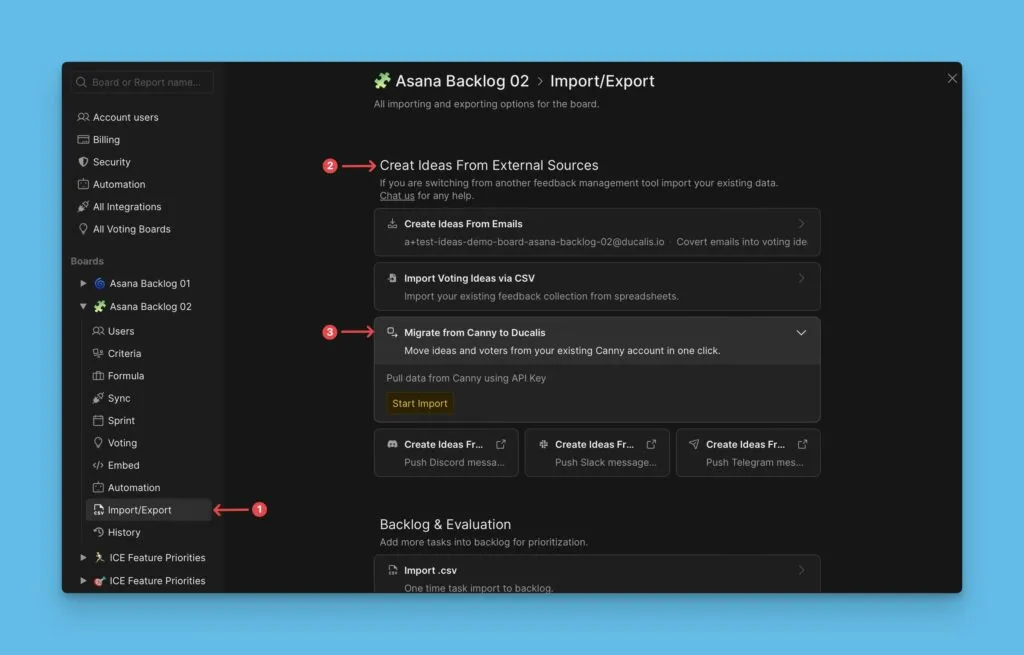
-
Click Start Import.
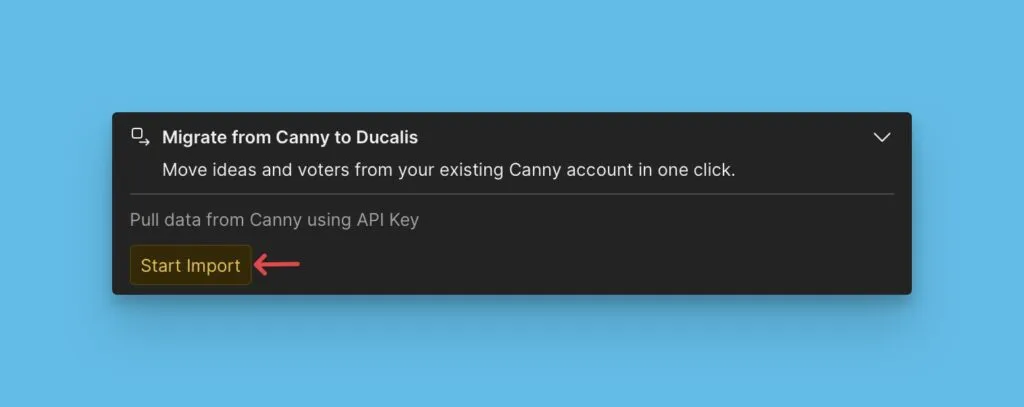
Read more: Import feedback from Canny.
What's next
Continue to Step 2: Customize the voting board appearance to customize appearance, privacy, and notification preferences.