Step 1. Configure code
Install the feedback widget code on your website to capture user feedback at any point in their journey. Users can share feedback about bugs, features, or general product needs through an embedded button.
Before you begin
Choose the Voting Board where you want to collect feedback via the widget.
Copy the widget code
-
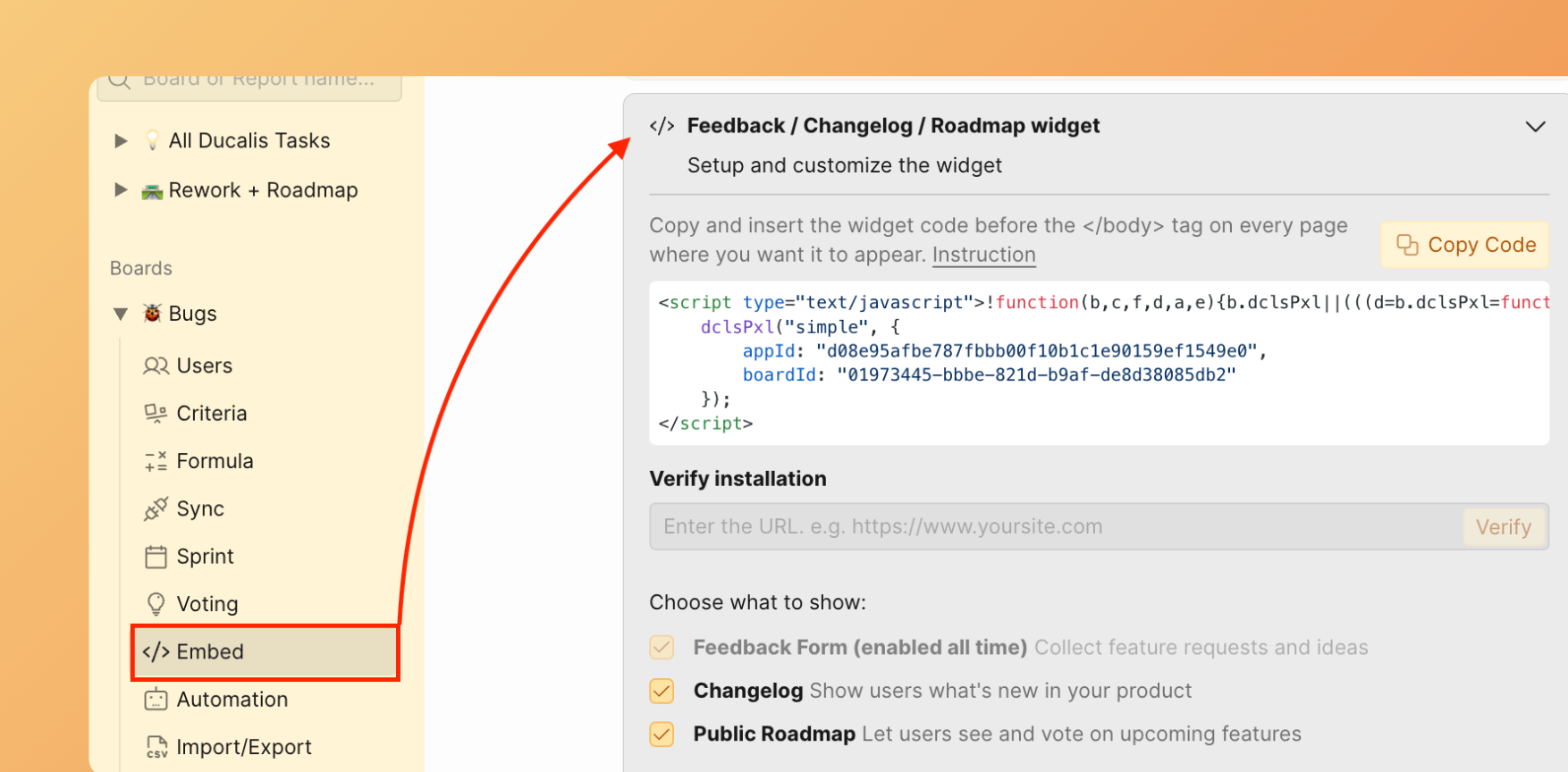
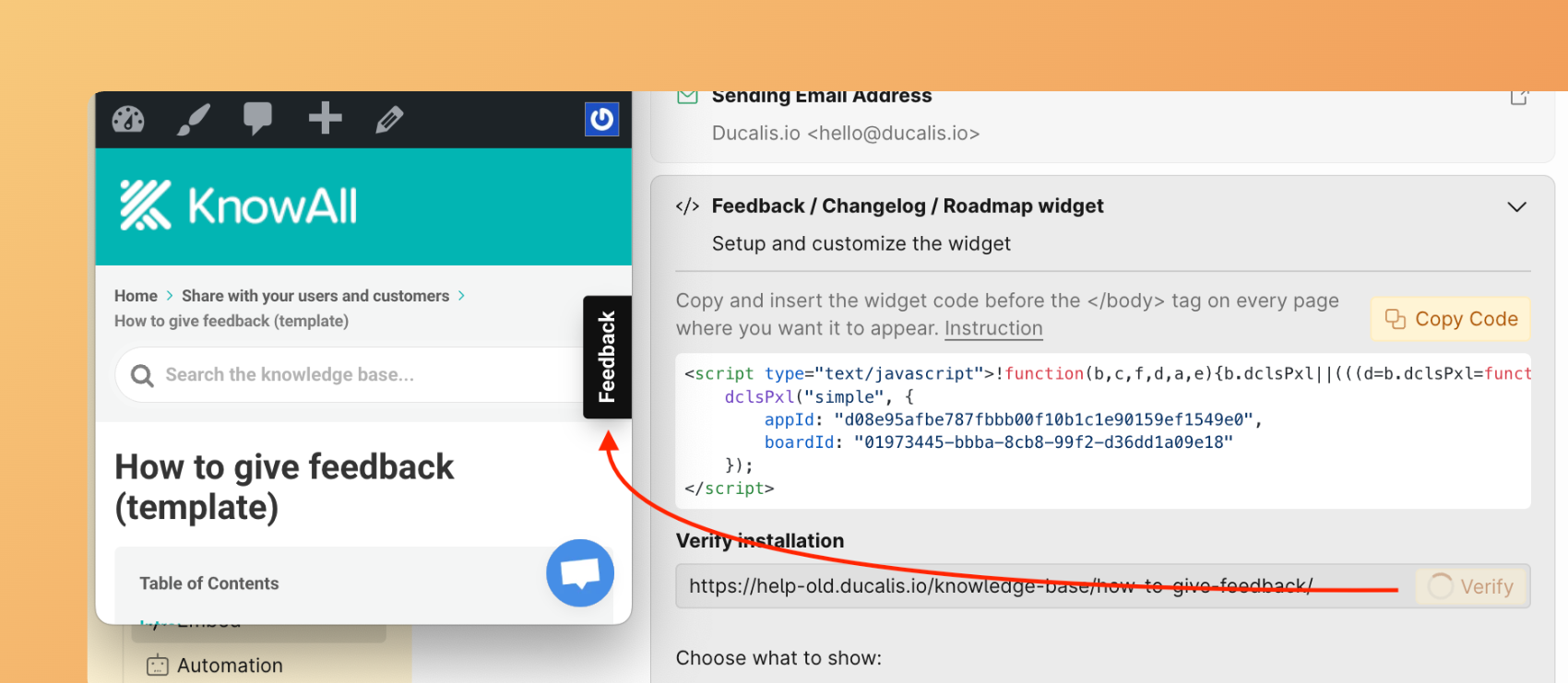
Open the Voting Board and navigate to Embed → Feedback/Roadmap/Changelog widget.
-
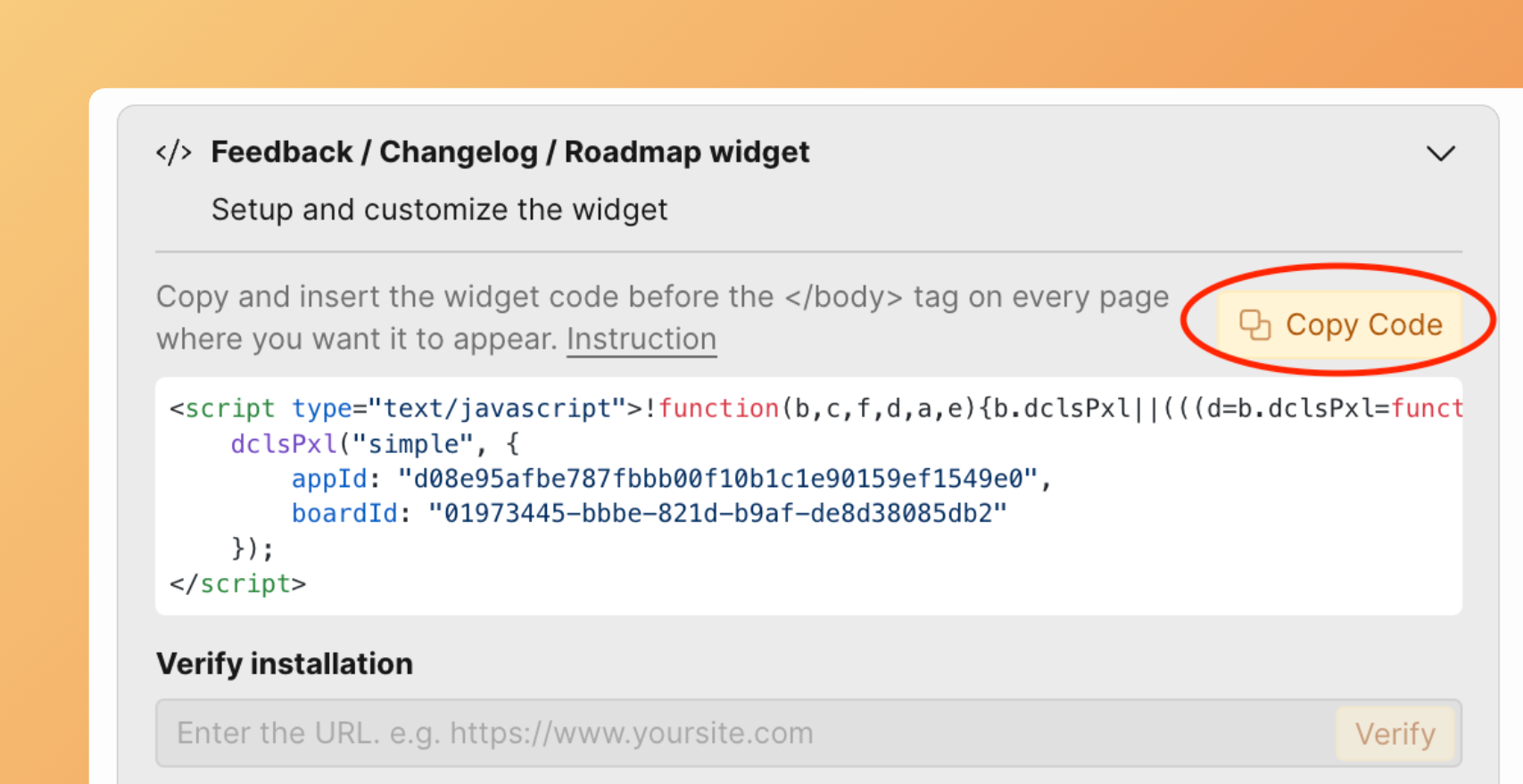
Click Copy Code to copy the code snippet.
-
Paste the script tag into your HTML
<head>section.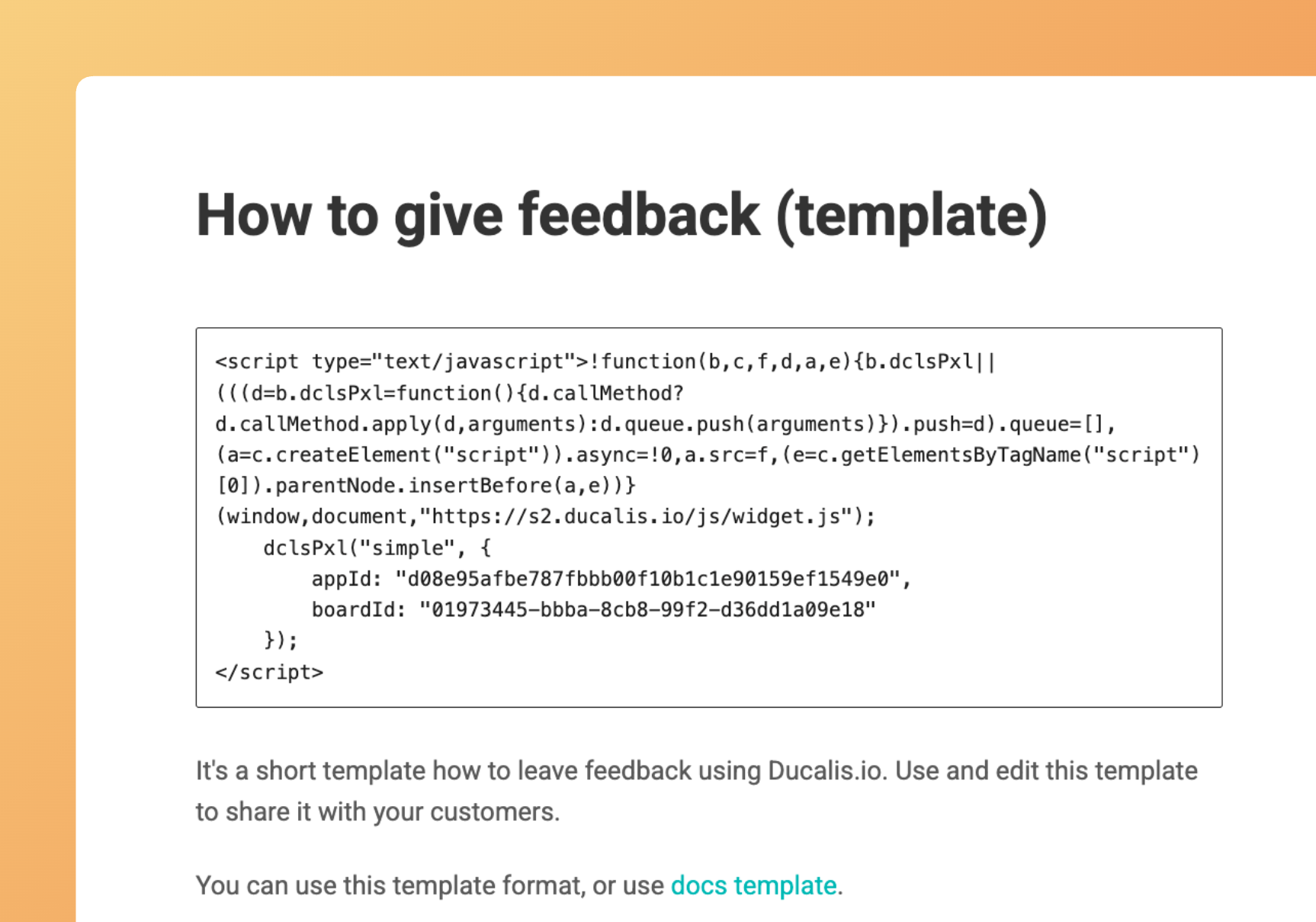
Verify the installation
- Enter the website URL where you pasted the widget code.
- Click Verify.
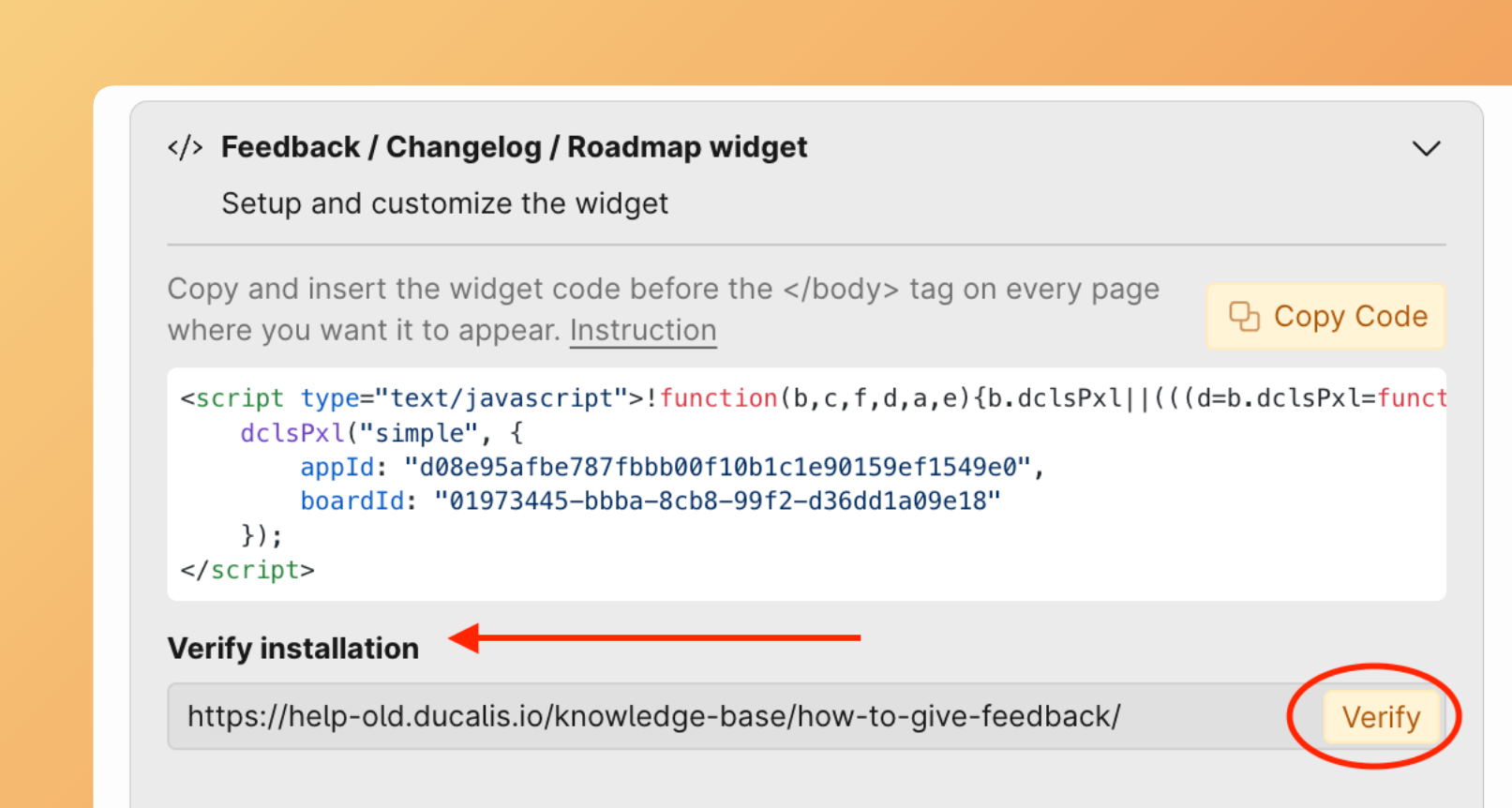
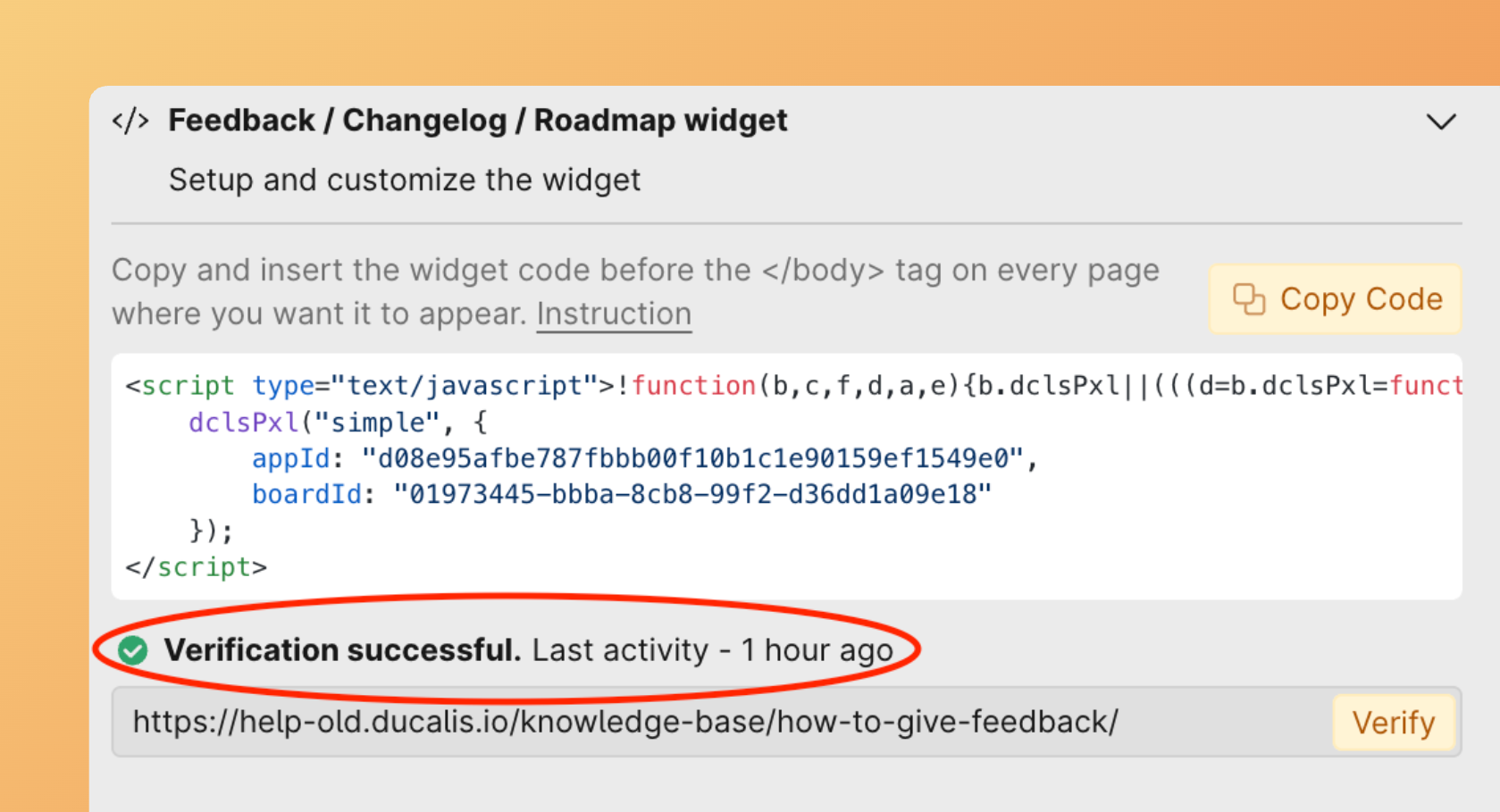
A success message appears if the installation is correct.
If verification fails, contact support via the chat.
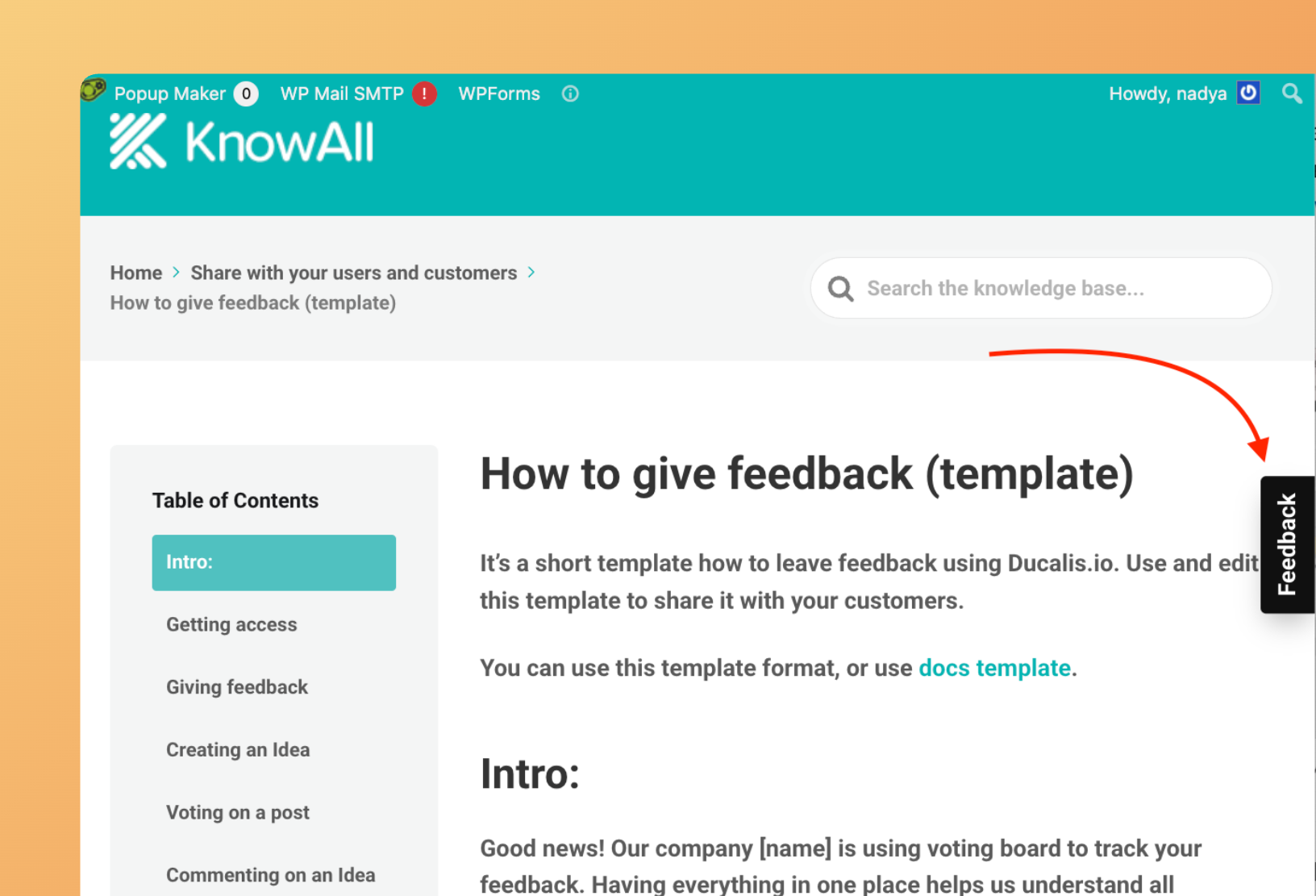
View the widget
The feedback button appears on your website.
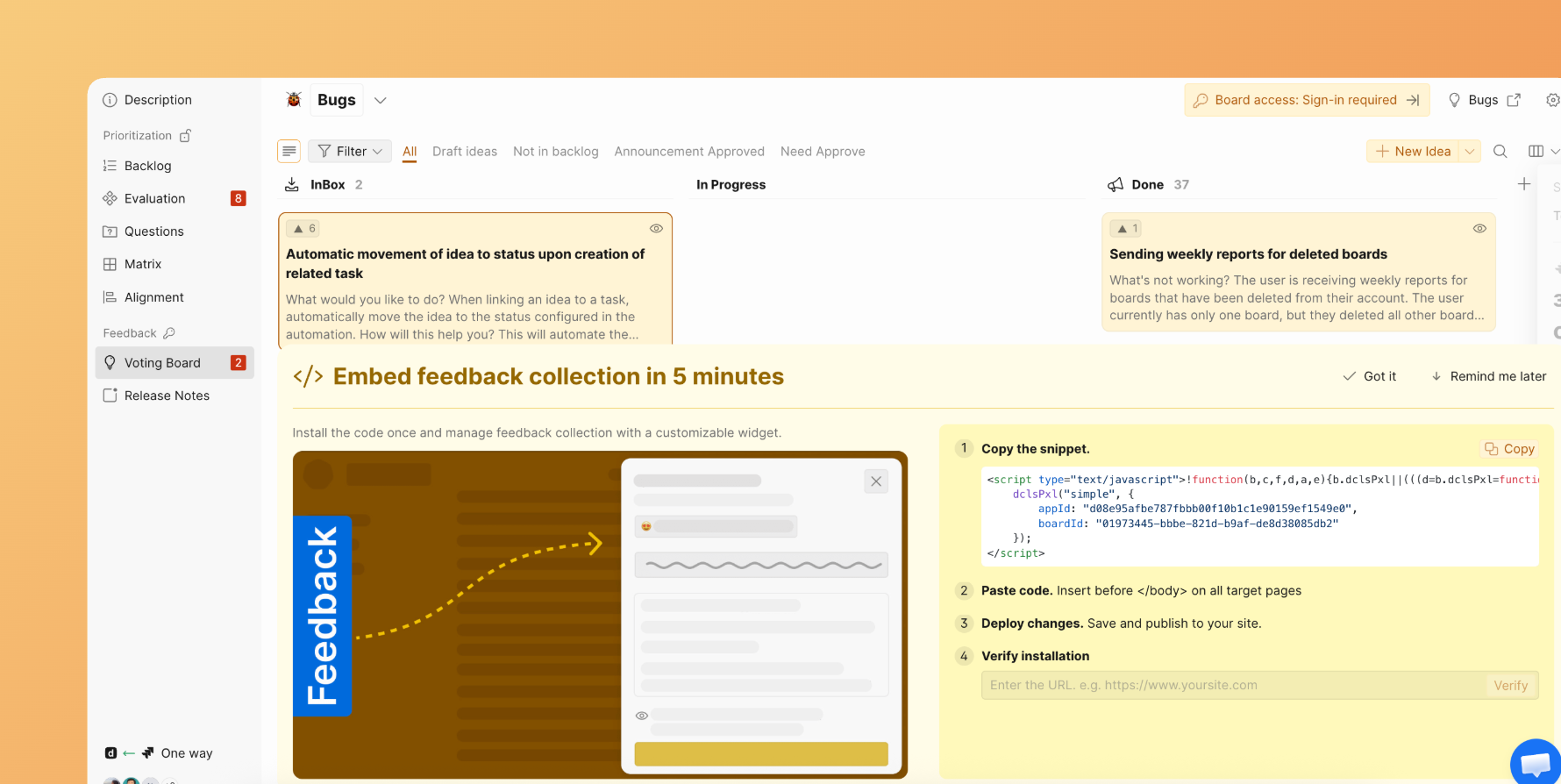
You can also configure the widget directly from the Voting Board banner.
What's next
Continue to Step 2: Set what to display to customize your widget's display sections and modules.