Ana içeriğe atla

Push Issues

While working in Ducalis, create issues directly in your Yandex.Tracker queues without switching tools. Push issues from your prioritization board straight to your team's backlog.

Prerequisites

Complete the Connect Yandex.Tracker setup first.

Configure push settings

Before pushing issues, configure the default values for new issues in Yandex.Tracker.

  1. Go to Sync settings in your Ducalis board.

    [img: Sync settings location]

  2. Scroll down to Push to Yandex.Tracker section.

    [img: Push to Yandex.Tracker section in Sync settings]

  3. Select the Queue where new issues will be created.

    [img: Queue dropdown in Push settings]

  4. Select the default Issue Type (Task, Bug, Story, etc.).

    [img: Issue Type dropdown showing available types]

  5. Configure additional default field values as needed.

    [img: Additional field configuration options]

Queue-specific custom fields

When you select a queue, the available custom fields update to show fields available in that queue.

  • Global fields — Appear regardless of queue selection

  • Local fields — Only appear when their specific queue is selected

    [img: Custom fields section showing queue-specific fields]

  1. Map any custom fields you want to populate when pushing issues.

    [img: Custom field mapping for push configuration]

  2. Click Save to store your push configuration.

    [img: Save button for push settings]

Push an issue

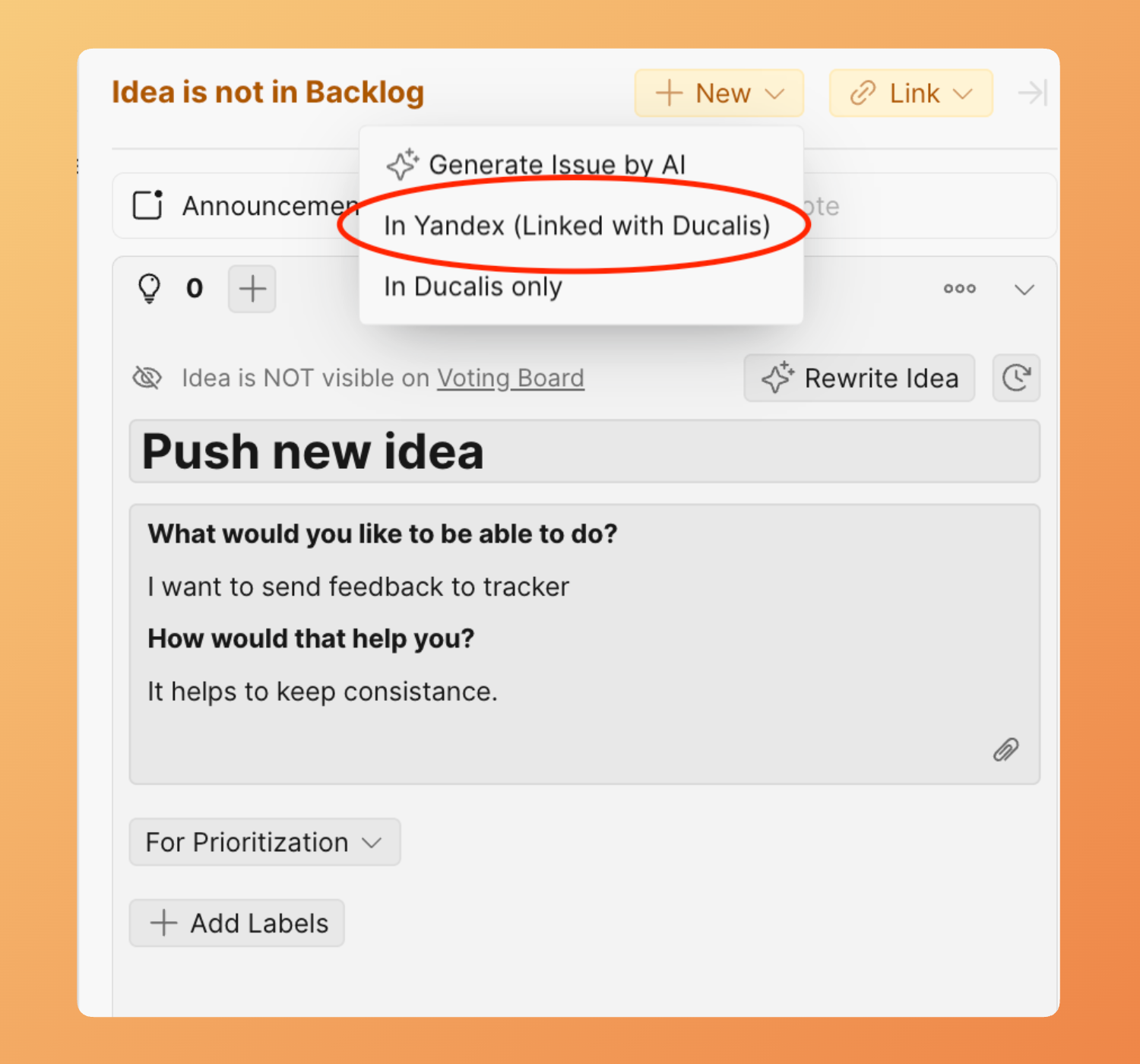
Create a new issue in Yandex.Tracker from your Ducalis board.

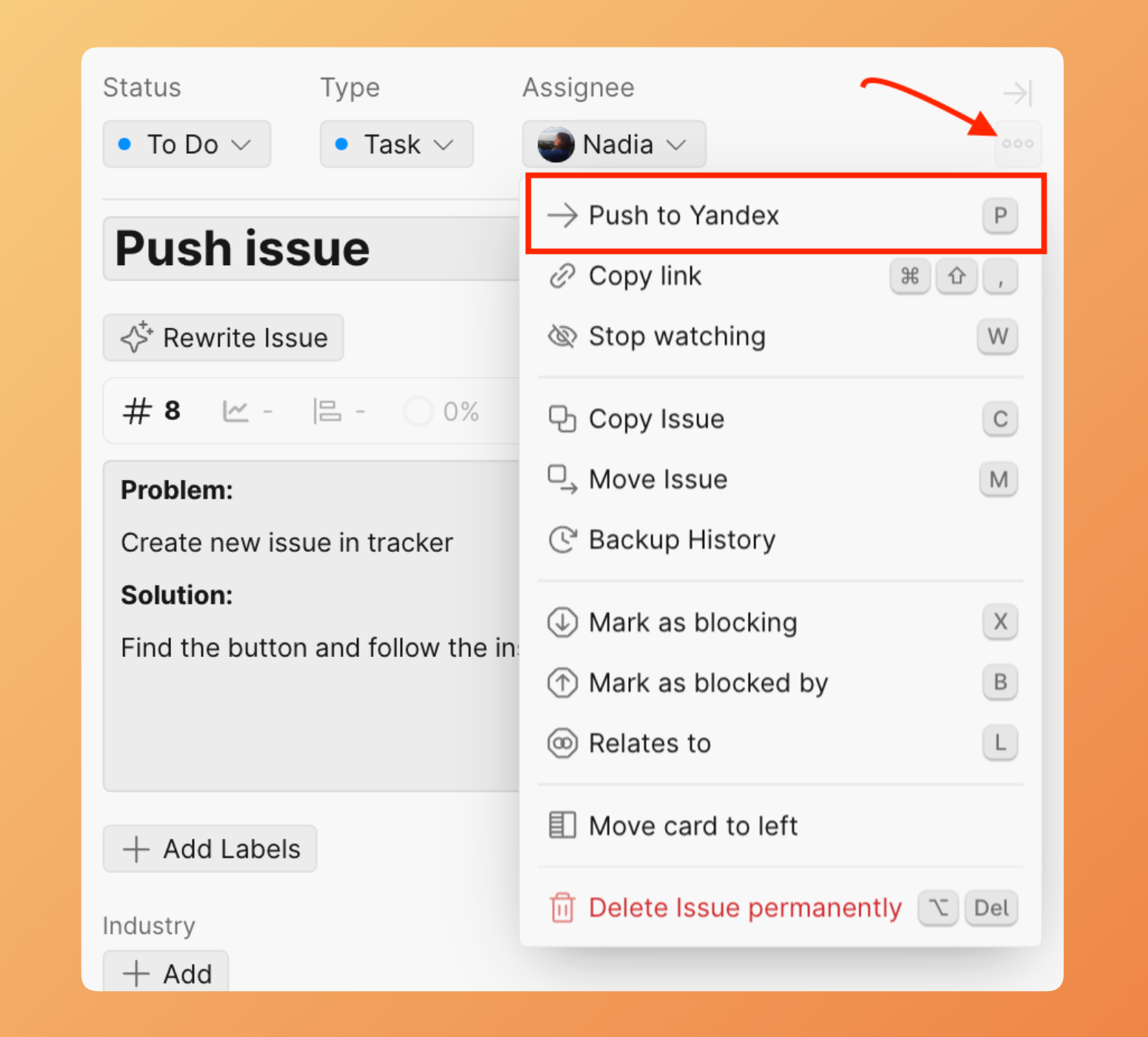
  1. In your Ducalis board, click the + button or Add Issue.

    [img: Add Issue button in board]

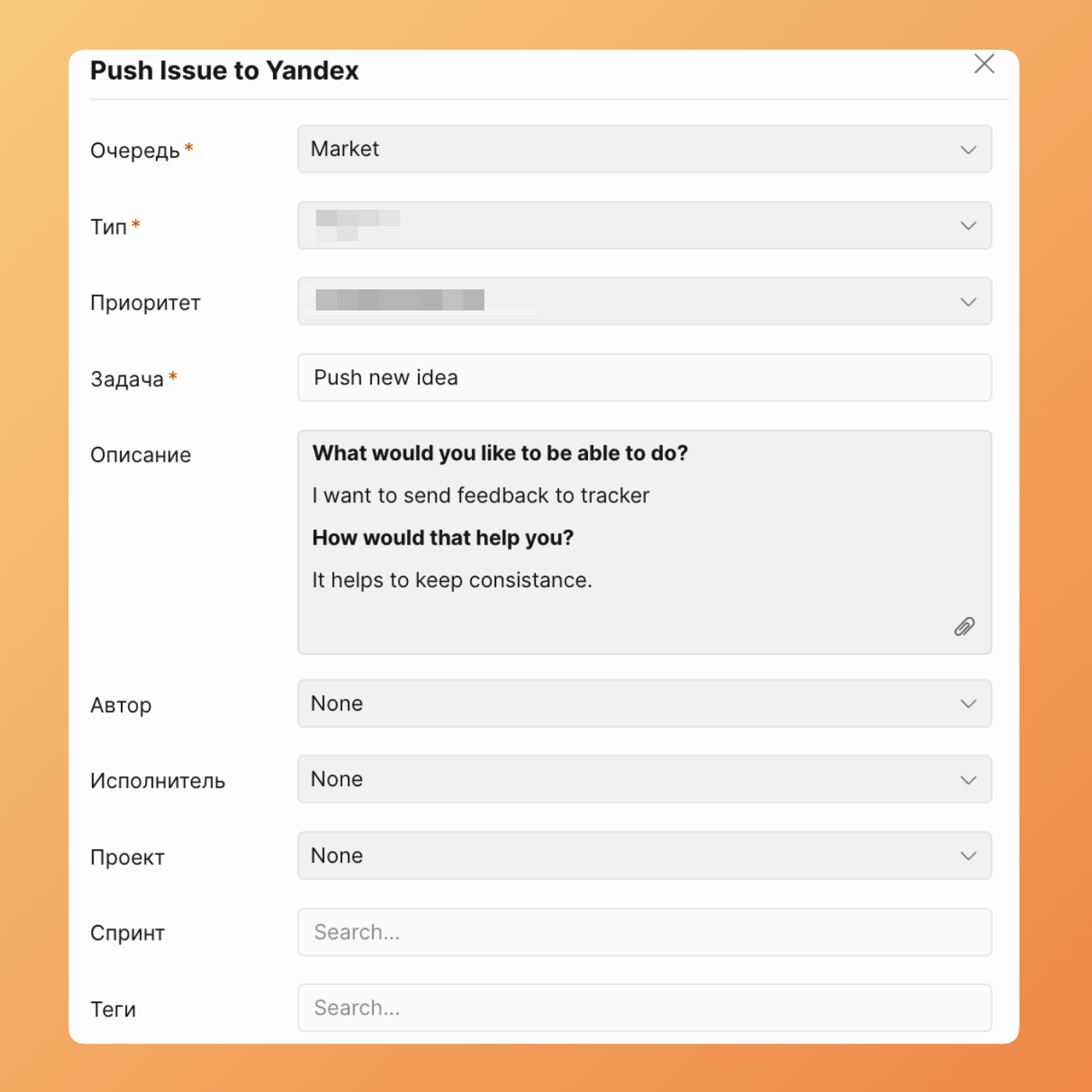
  2. Enter the issue Title.

    [img: Issue title input field]

  3. Enter the issue Description (optional).

    [img: Issue description field]

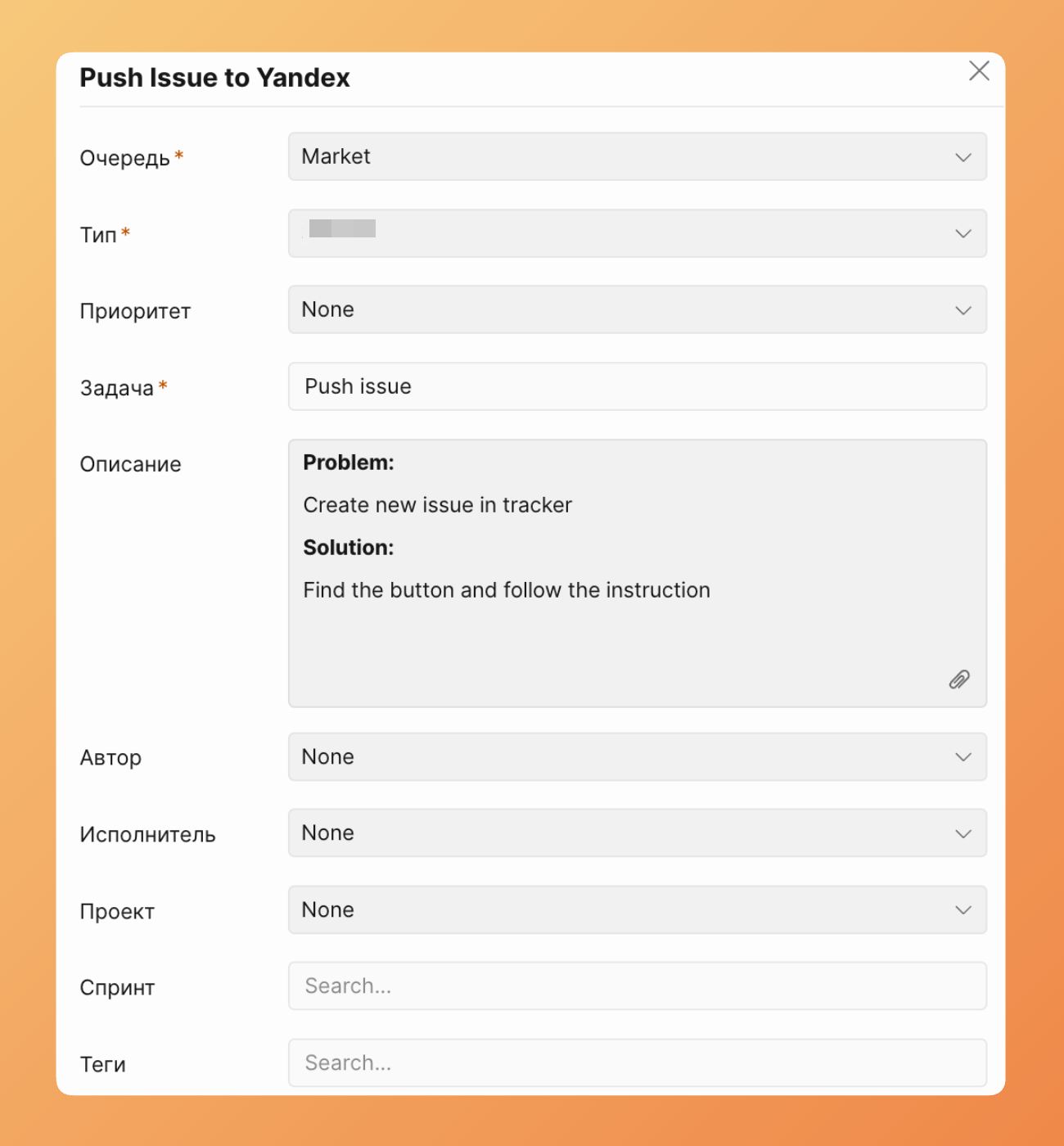
  4. Review the pre-filled fields from your push configuration:

    • Queue
    • Issue Type
    • Custom field values

    [img: Pre-filled fields showing configured defaults]

  5. Modify any field values for this specific issue if needed.

    [img: Modified field values different from defaults]

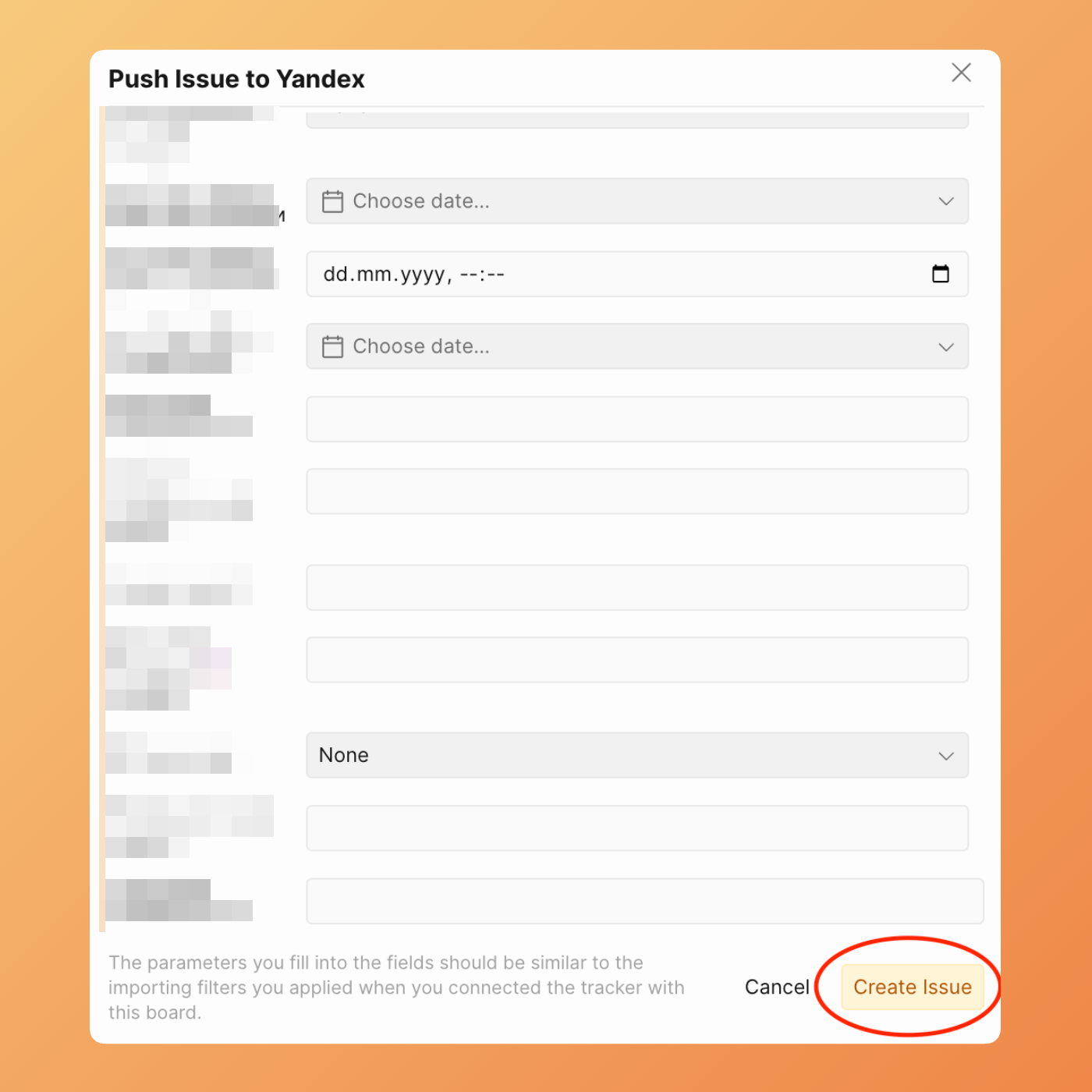
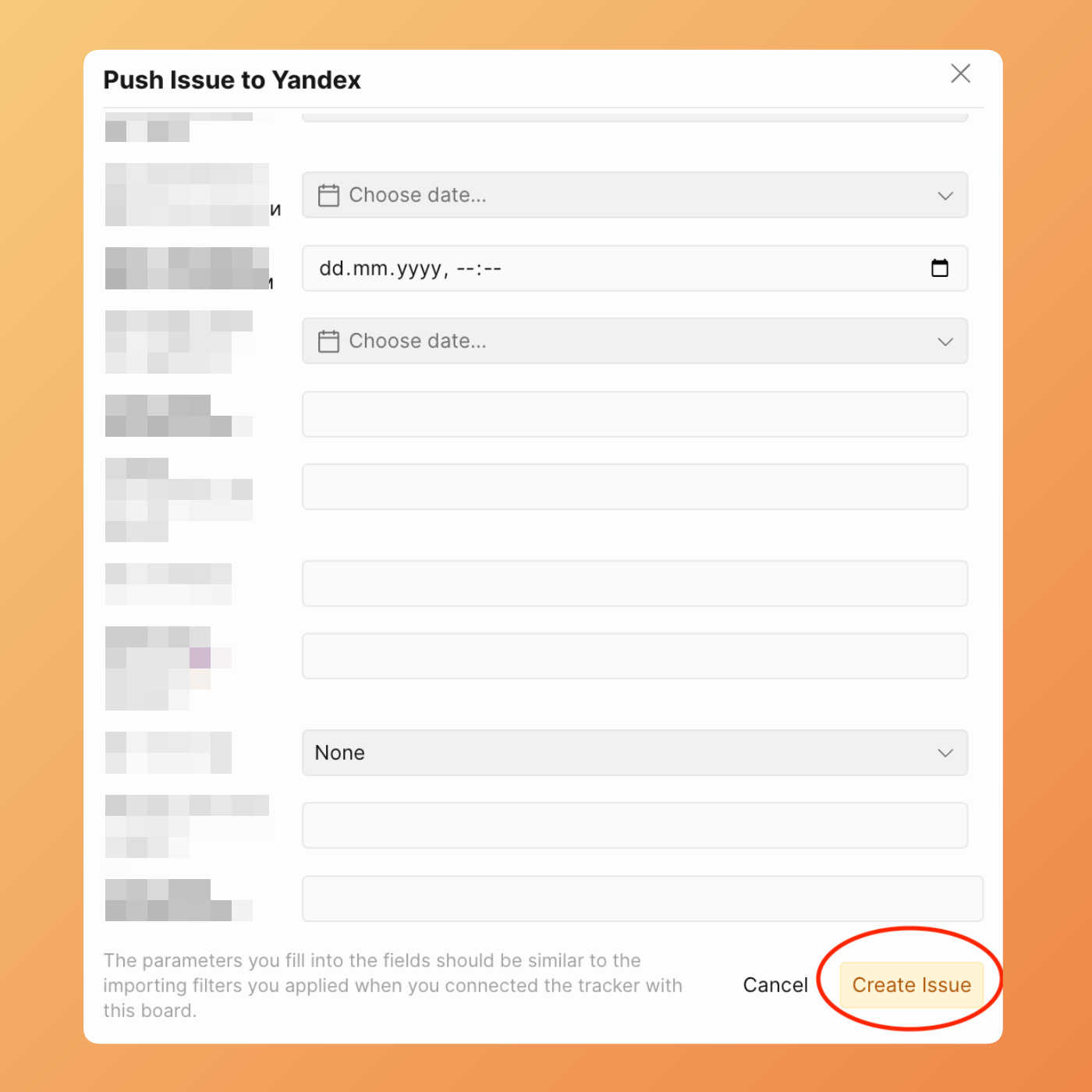
  6. Click Push to Yandex.Tracker.

    [img: Push to Yandex.Tracker button]

  7. Ducalis creates the issue in Yandex.Tracker and adds it to your board.

    [img: Success message showing issue created]

Verify pushed issue

Confirm the issue exists in both systems.

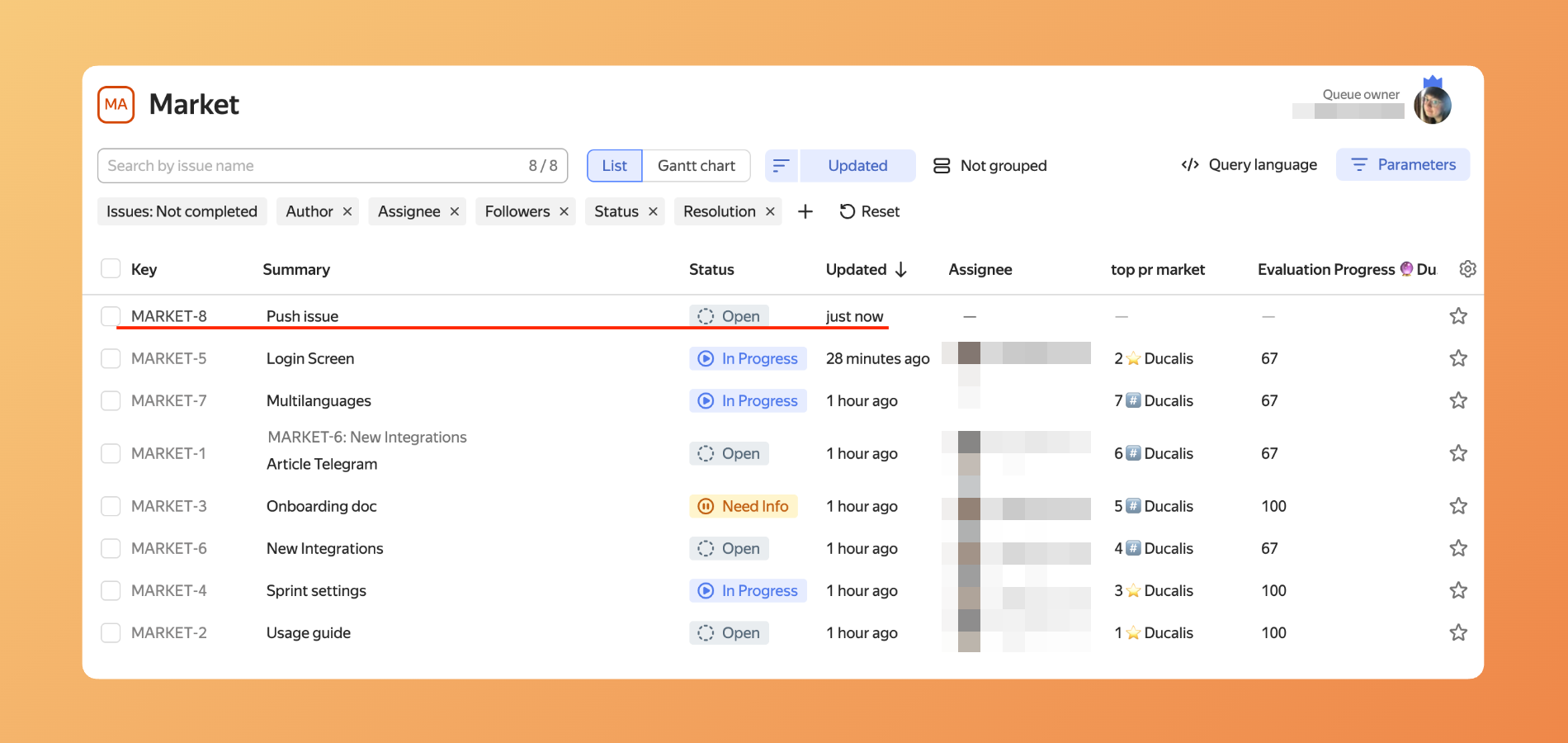
  1. The new issue appears in your Ducalis board with a Yandex.Tracker key.

    [img: New issue in board with Yandex.Tracker issue key visible]

  2. Click the issue key to open it in Yandex.Tracker.

    [img: Issue key link]

  3. The issue displays in Yandex.Tracker with all configured field values.

    [img: Pushed issue open in Yandex.Tracker showing all fields]

Pushed issues and import filters

When you push an issue, it may or may not appear in your Ducalis board depending on your import filters.

bilgi

If a pushed issue doesn't match your current Sync-In Conditions (import filters), it creates in Yandex.Tracker but won't appear in Ducalis. Adjust your filters if you want to see and prioritize the new issue.

Example scenarios:

Push ConfigurationImport FilterResult
Queue: DEV, Type: TaskQueue: DEV, Type: AllIssue appears in Ducalis
Queue: DEV, Type: BugQueue: DEV, Type: Task onlyIssue creates in Yandex.Tracker but not in Ducalis
Queue: DEV, Status: OpenQueue: DEV, Status: In ProgressIssue not visible until status changes

Changing the target queue

Push issues to different queues without changing your default configuration.

  1. When creating an issue, click the Queue field.

    [img: Queue field in push dialog]

  2. Select a different queue from the dropdown.

    [img: Queue dropdown showing alternative queues]

  3. Available custom fields update to match the selected queue.

    [img: Custom fields updated for new queue selection]

  4. Complete the issue creation as normal.

ipucu

Changing the queue during push is temporary. Your default push configuration remains unchanged for future issues.

Important notes about Yandex.Tracker

Issues cannot be deleted

Yandex.Tracker does not allow issue deletion. Once pushed, an issue exists permanently. You can:

  • Change status — Move to a Closed, Cancelled, or archived status
  • Move to another queue — Transfer the issue if needed
uyarı

The only way to truly delete an issue in Yandex.Tracker is to delete the entire queue containing it. This is not recommended and removes all issues in that queue.

Queue selection matters

Each queue in Yandex.Tracker may have:

  • Different workflows and statuses
  • Different available issue types
  • Different local custom fields
  • Different team permissions

Ensure you select the appropriate queue for each issue you push.

Güncelleme: Bugün