İş listesini değerlendirin
Bu kılavuz, davet edilen Yöneticilerin ve Üyelerin iş listesi Kayıtlarını puanlamaya başlamasına yardımcı olur.
Takım arkadaşlarınız sizi davet ettiyse ve nereden başlayacağınızdan emin değilseniz, bu kılavuz temel bilgileri adım adım açıklar.
Önceliklendirme Panolarına erişin
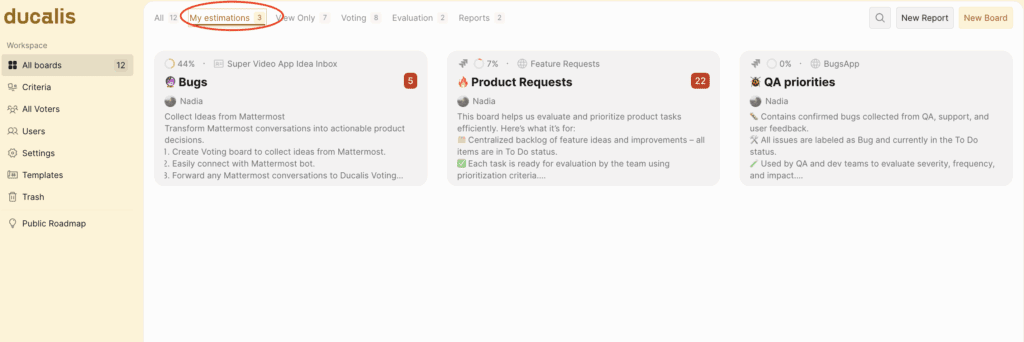
Gösterge Panelinden, davet edildiğiniz Panoyu seçin. İhtiyaç duyulduğu kadar Panoya eklenebilirsiniz. Hızlı filtre kullanarak My estimations (Değerlendirmelerim) ile filtreleyebilirsiniz.
Kayıtların listesini görüntüleyin
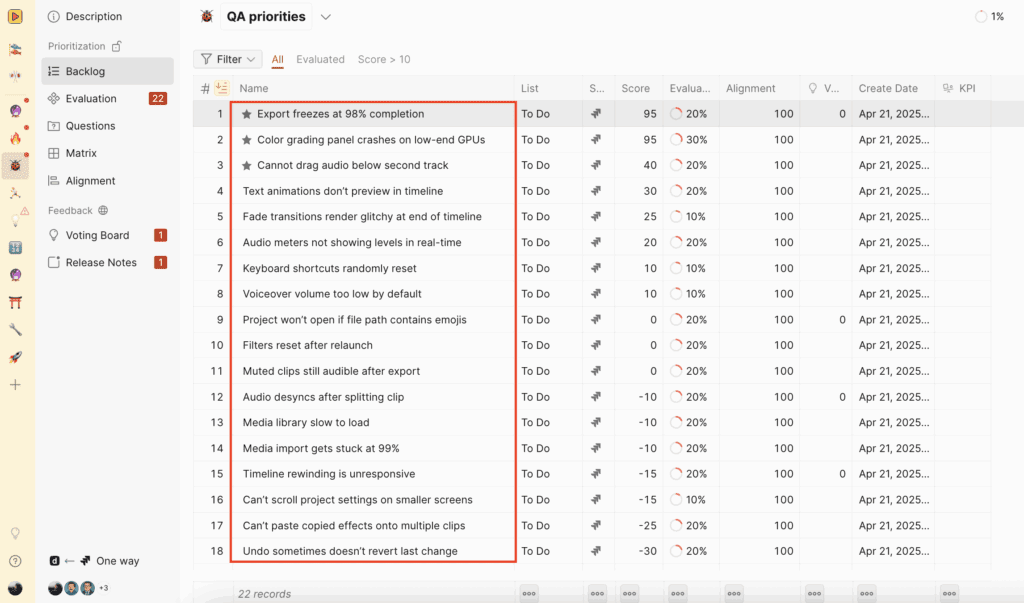
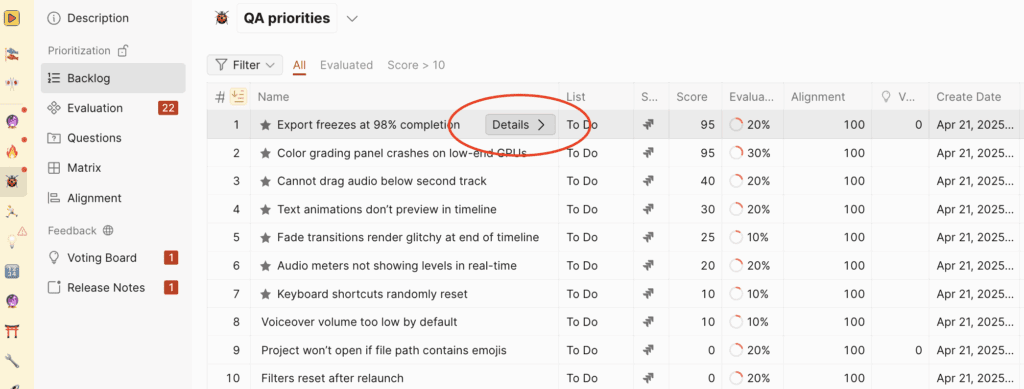
Panoda, Backlog altında, takım arkadaşlarınız tarafından eklenmiş Kayıtların bir listesini göreceksiniz. Kayıtlar Ducalis'de manuel olarak oluşturulmuş veya kurumsal görev takip sisteminizden içe aktarılmış olabilir.
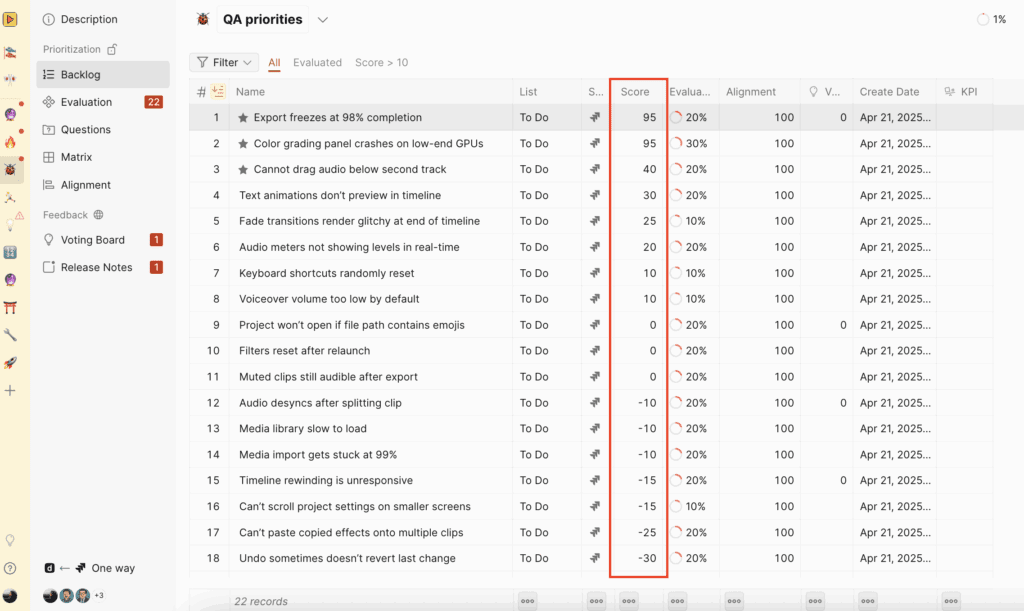
Panodaki diğer Üyeler Kayıtları zaten değerlendirdiyse, öncelik sırasına göre sıralanırlar. Her Kaydın toplam puanı en sağda görünür.
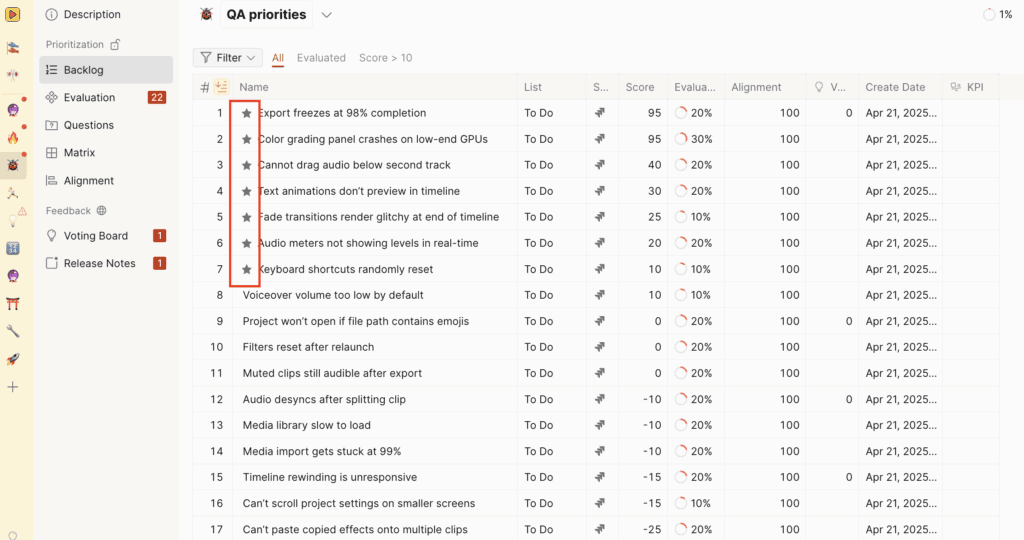
En yüksek öncelikli Kayıtlar yıldızlı olanlardır.
Ayrıntılı açıklama almak için bir Kayda tıklayın.
Kayıtları değerlendirin
Önceliklendirme için Kayıtları değerlendirmeye başlamak için Evaluation (Değerlendirme) sekmesini seçin.
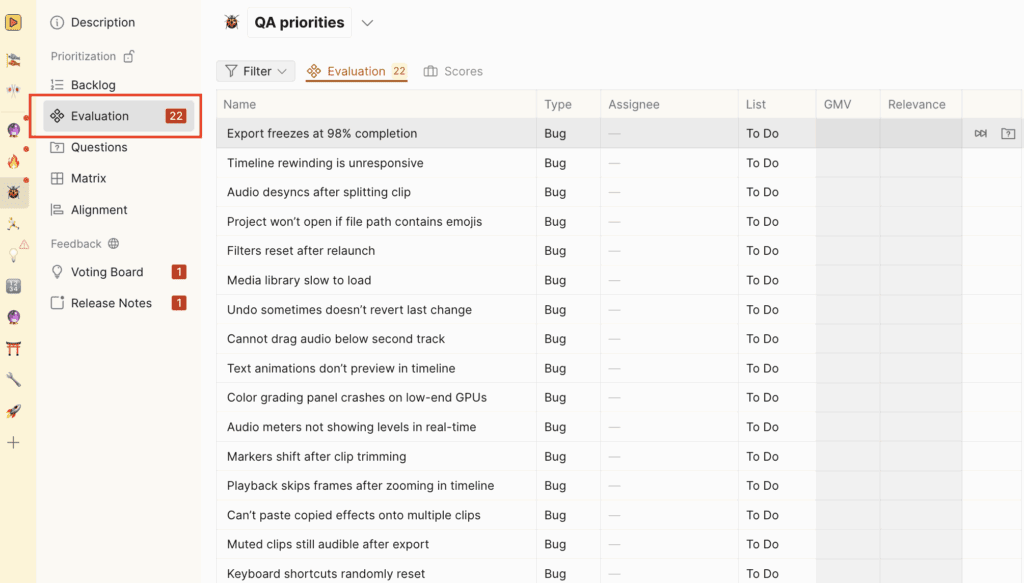
Yöneticiniz tarafından belirlenen Kriterleri kullanarak Kayıtları değerlendirin. Örneğin, bir Kaydın ne kadar alakalı olduğunu ve ne kadar önemli olduğunu göz önünde bulundurun.
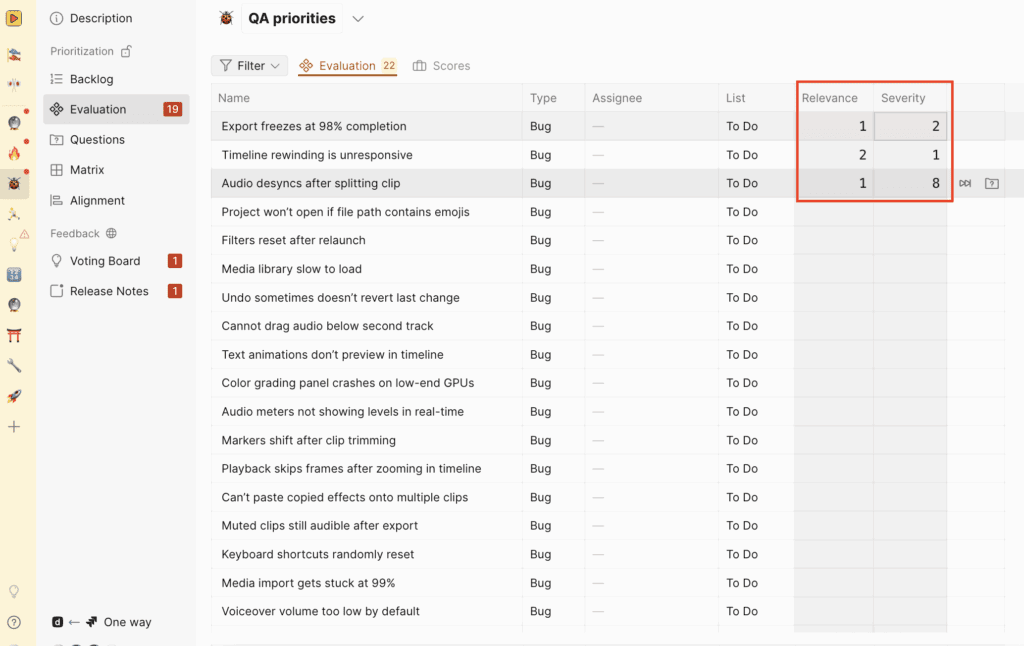
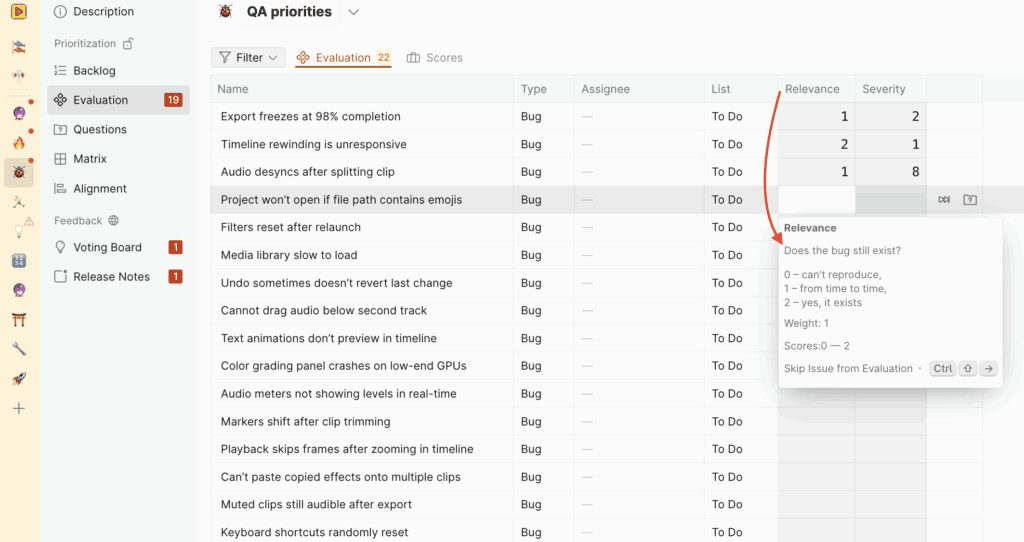
Kriter açıklamasını kılavuz olarak kullanın ve her Kriter altındaki hücreye bir puan girin.
Soru sorun
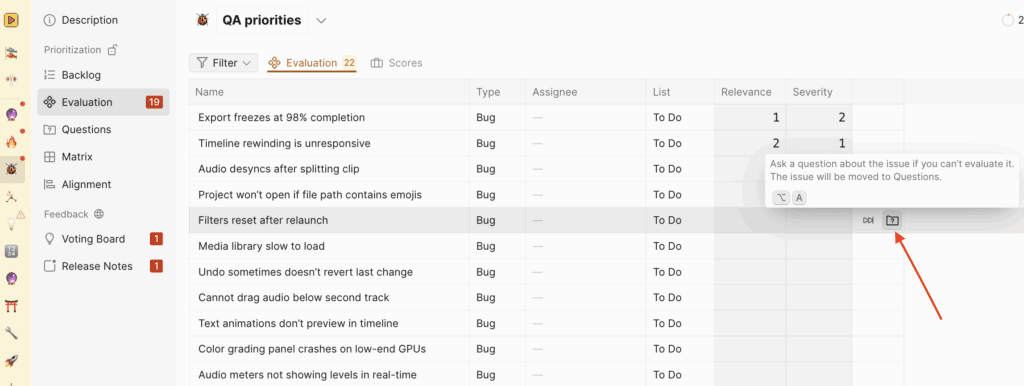
Değerlendirme sırasında, bir Kayıt veya açıklama istediğiniz bir Kriter hakkında soru sorabilirsiniz. Örneğin, bir görevi anlamıyorsanız:
- question icon (soru simgesine) tıklayın.
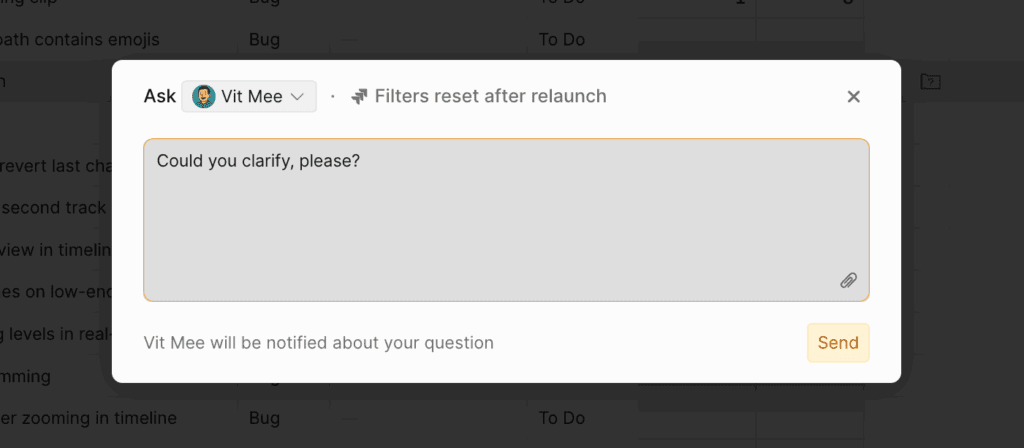
- Bir kullanıcı seçin ve takım arkadaşınıza sorunuzu yazın.
Soruyu yönlendirdiğiniz kişi anında bilgilendirilecektir.
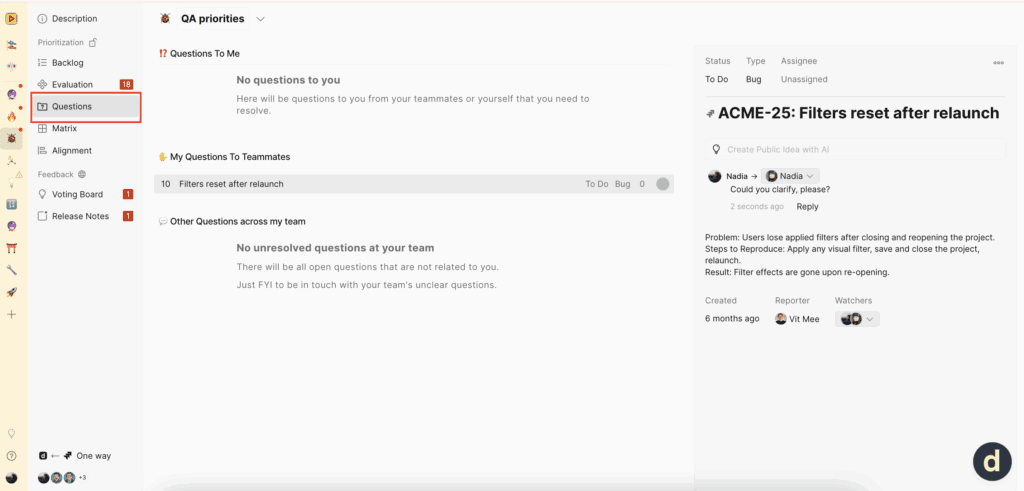
Sorulmuş herhangi bir Soru veya Panoda yapılmış tartışma varsa, bunları Questions (Sorular) altında görüntüleyebilirsiniz.
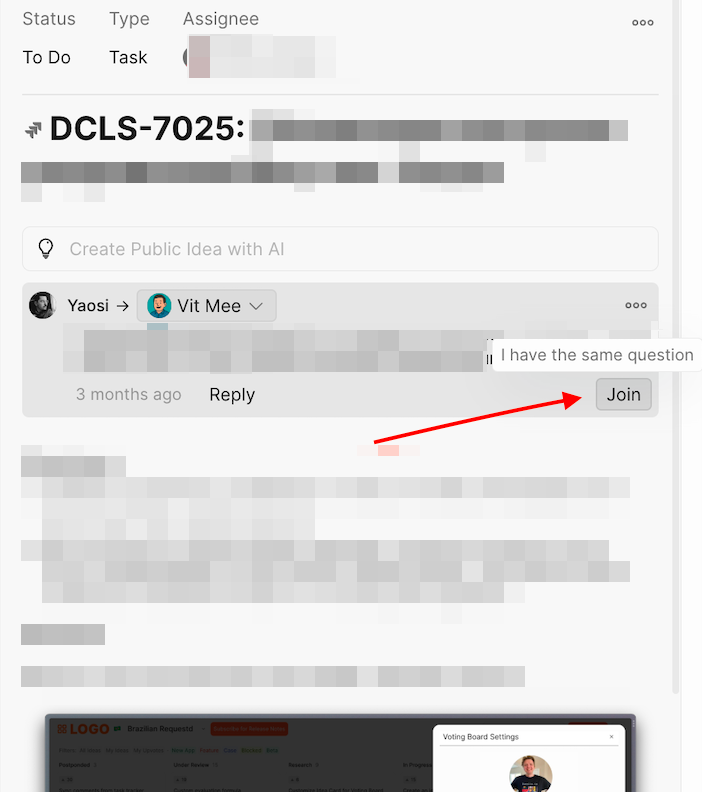
Benzer bir sorunuz varsa tartışmaya katılabilirsiniz.
Kayıt puanlamasını atlayın
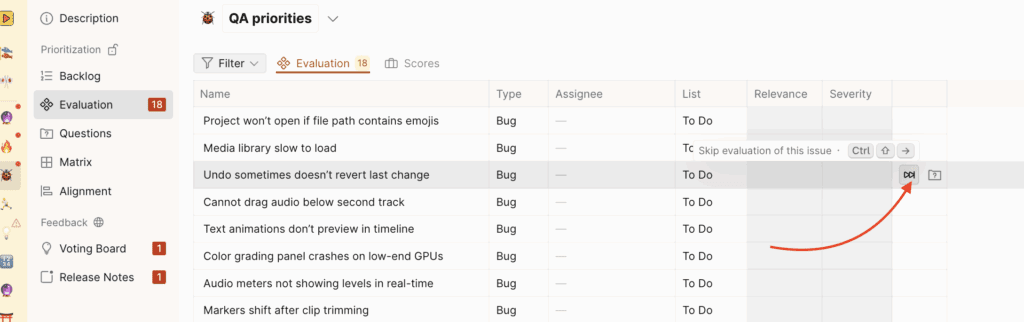
Bir Kaydı anlamıyorsanız veya hakkında yeterli bilginiz yoksa değerlendirmeyi atlayabilirsiniz.
skip icon (atla simgesine) tıklayın. Kayıt Scores (Puanlar) sekmesine taşınacaktır.
Kayıt puanlarını değiştirin
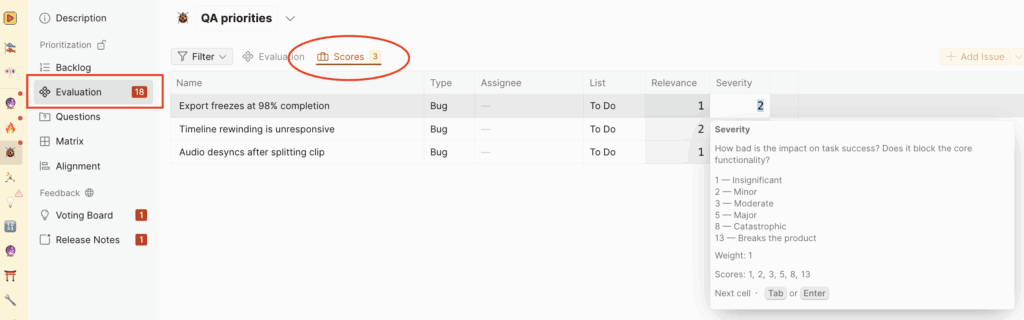
Değerlendirdiğiniz görevleri görmek ve gerekirse yeniden değerlendirmek için Evaluation → Scores (Değerlendirme → Puanlar)'a gidin.
Sırada ne var
Ducalis önceliklendirmesi sürekli bir döngüdür. Yolda kalmak için, görevleri değerlendirme hatırlatıcıları, yeni Sorular hakkında uyarılar ve Panoda neler olduğuna dair güncellemeler almak için bildirimleri ayarlayın.