Gelişmiş Ayarlar ve Özellikler
Temel kurulumu tamamladıktan ve İş Listesi'nizi bir veya iki kez önceliklendirdikten sonra, önceliklendirme iş akışınızı geliştirmek için bu gelişmiş özellikleri keşfedin.
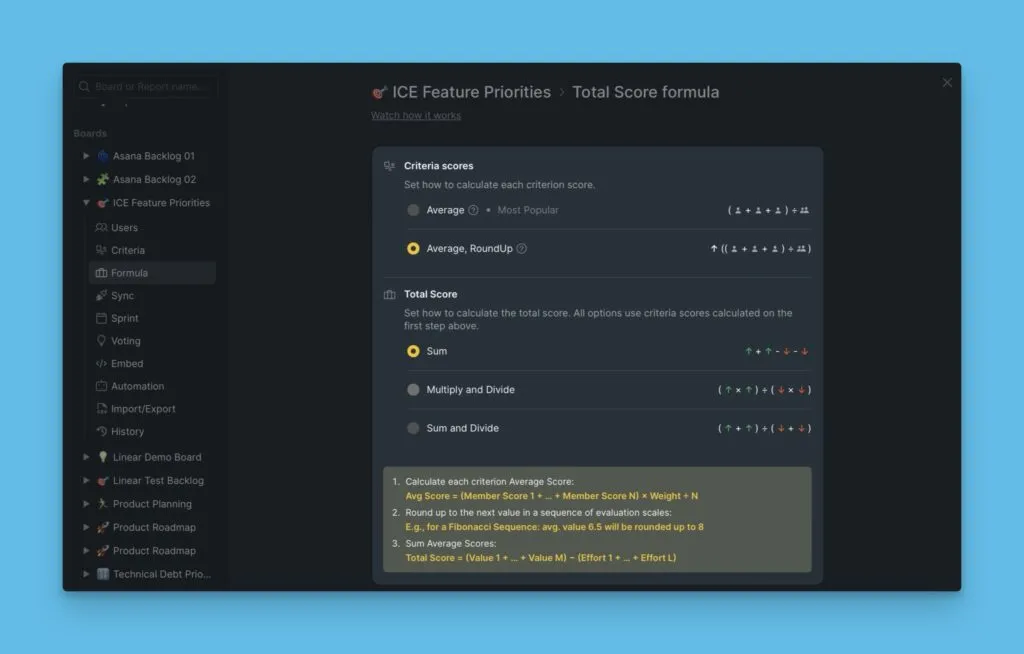
Toplam puan formülü
Toplam puan formülü, Değerlendirme sonrasında Kayıt sıralamalarını hesaplar. Varsayılan formül çoğu takım için çalışır, ancak önceliklendirme çerçevenizle eşleşecek şekilde özelleştirebilirsiniz.
Toplam puan formülünü özelleştirme hakkında daha fazla bilgi edinin.
Hizalanma
Ortak Değerlendirme, takımların öncelikler konusunda hizalanmasına yardımcı olur. Hizalanma raporu, takımınızın puanlama konusunda ne kadar uyum içinde olduğunu gösterir ve tartışma gerektiren alanları vurgular.
Hizalanma sonuçlarını görmek için en az bir takım arkadaşınızı davet edin ve her ikiniz de İş Listesi'ni değerlendirin.
Hizalanma raporlarını kullanma hakkında daha fazla bilgi edinin.

Sprint planlama
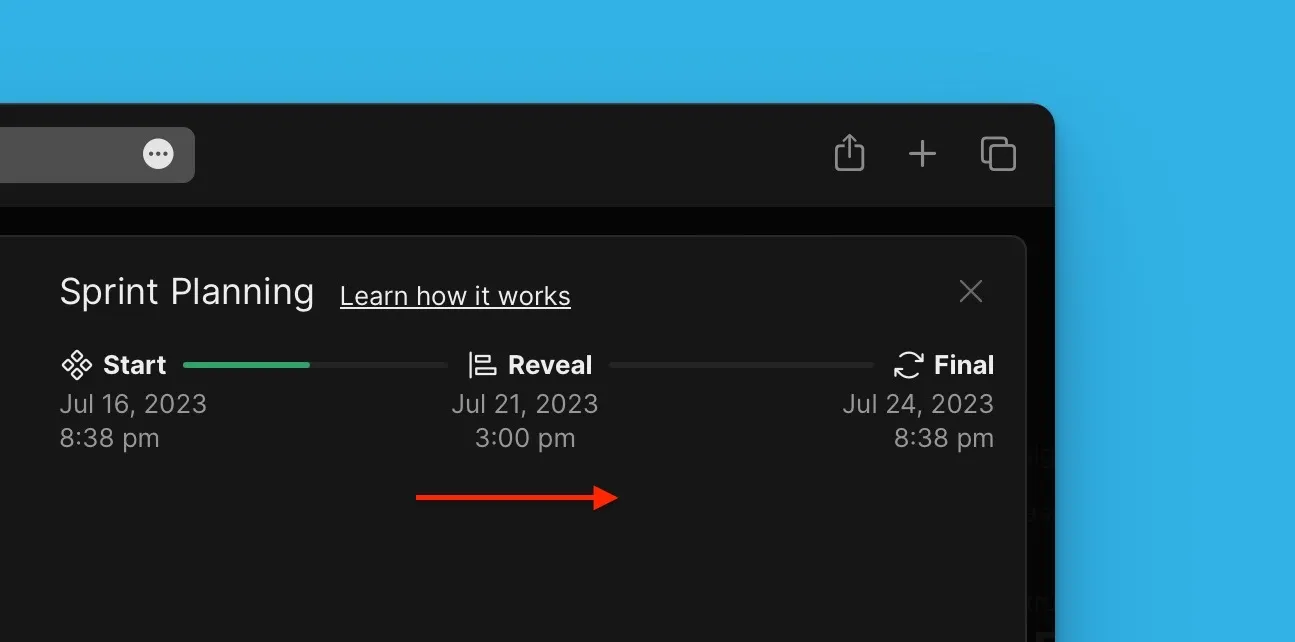
Değerlendirme döngüleri ve son tarihler yapılandırarak sprint'lerinizi planlayın. Önceliklendirme sonuçlarının yeniden değerlendirme gerektirmeden önce ne kadar süre geçerli kalacağını belirleyin.
Sprint planlama ayarları hakkında daha fazla bilgi edinin.
Değerlendirme pokeri
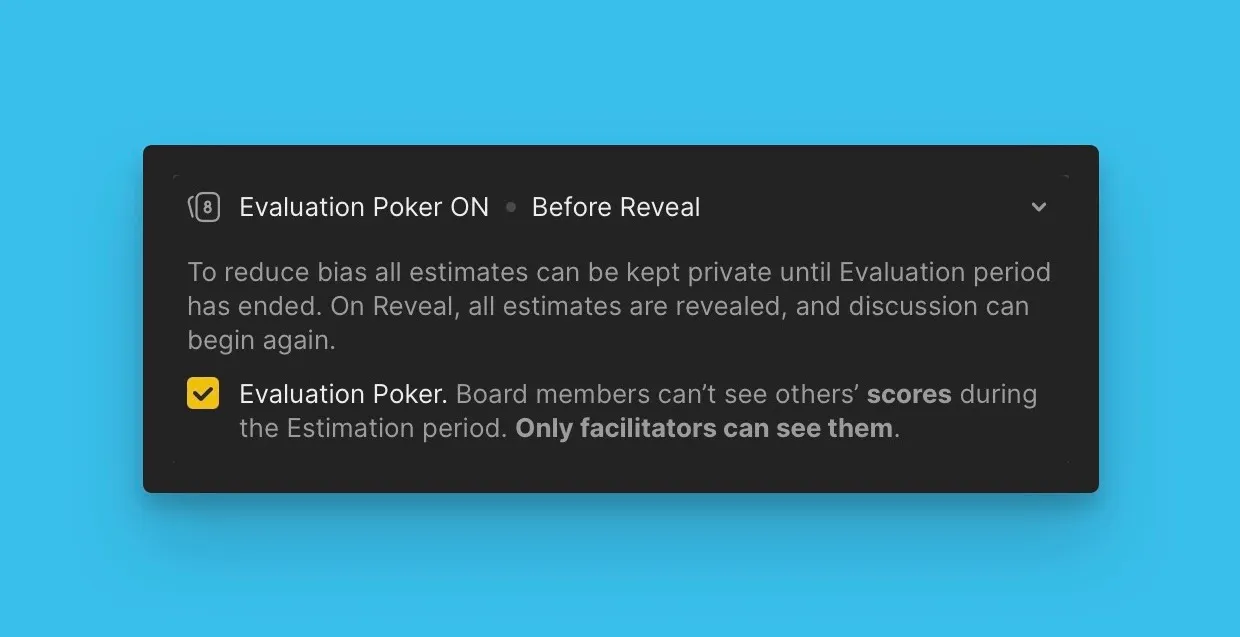
Takımınızdan tarafsız görüşler toplamak için Değerlendirme pokerini kullanın. Puanlar Değerlendirme sırasında gizli kalır ve yalnızca tüm takım üyeleri değerlendirmelerini gönderdikten sonra ortaya çıkar.
Değerlendirme pokeri hakkında daha fazla bilgi edinin.
Tablo özelleştirme ve filtreler
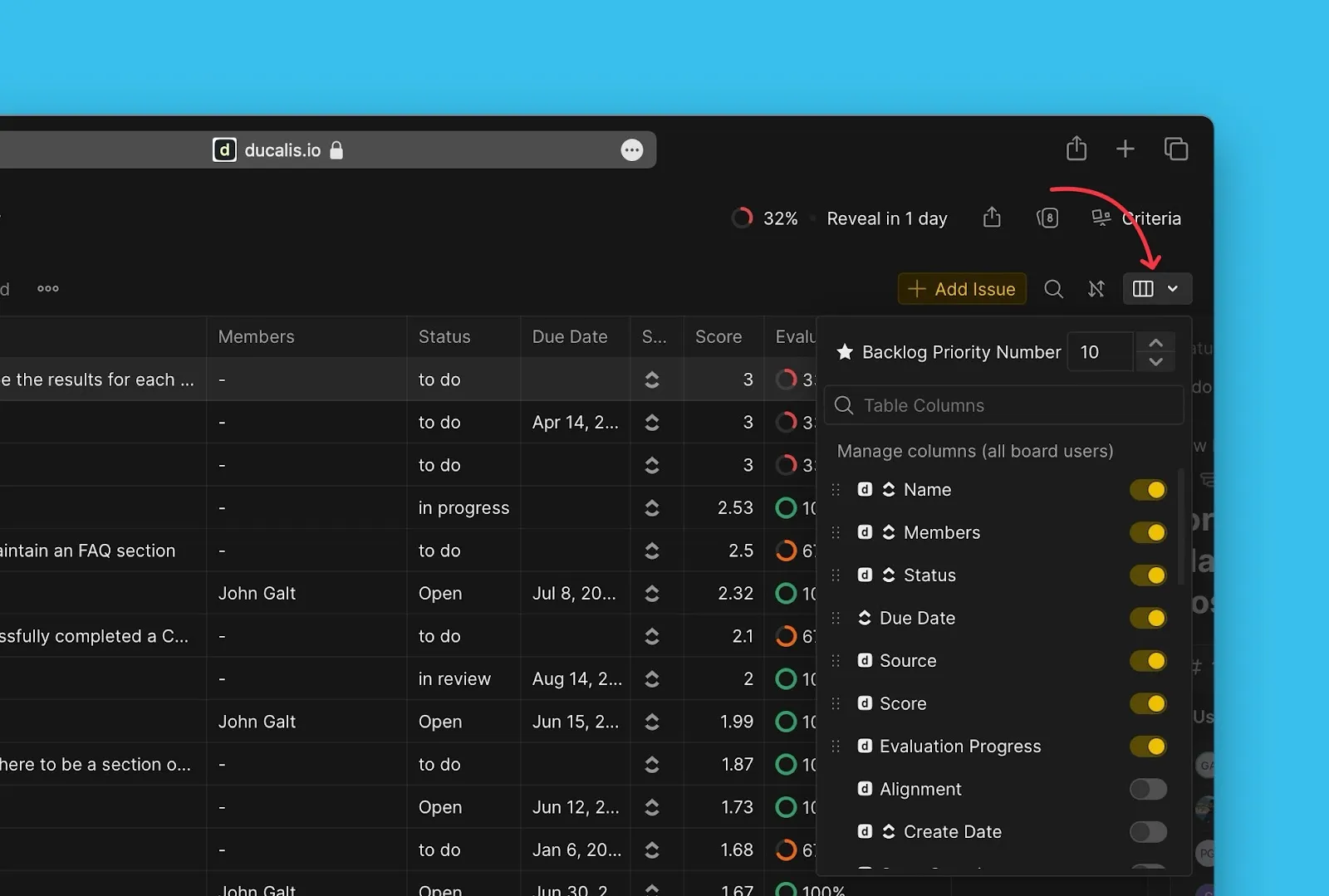
İş Listesi, Değerlendirme ve Hizalanma sayfalarında tablo sütunlarını özelleştirin. İlgili bilgileri gösterin, gereksiz alanları gizleyin ve iş akışınıza uyması için sütun sırasını yeniden düzenleyin.
Tablo sütunlarını özelleştirme hakkında daha fazla bilgi edinin.
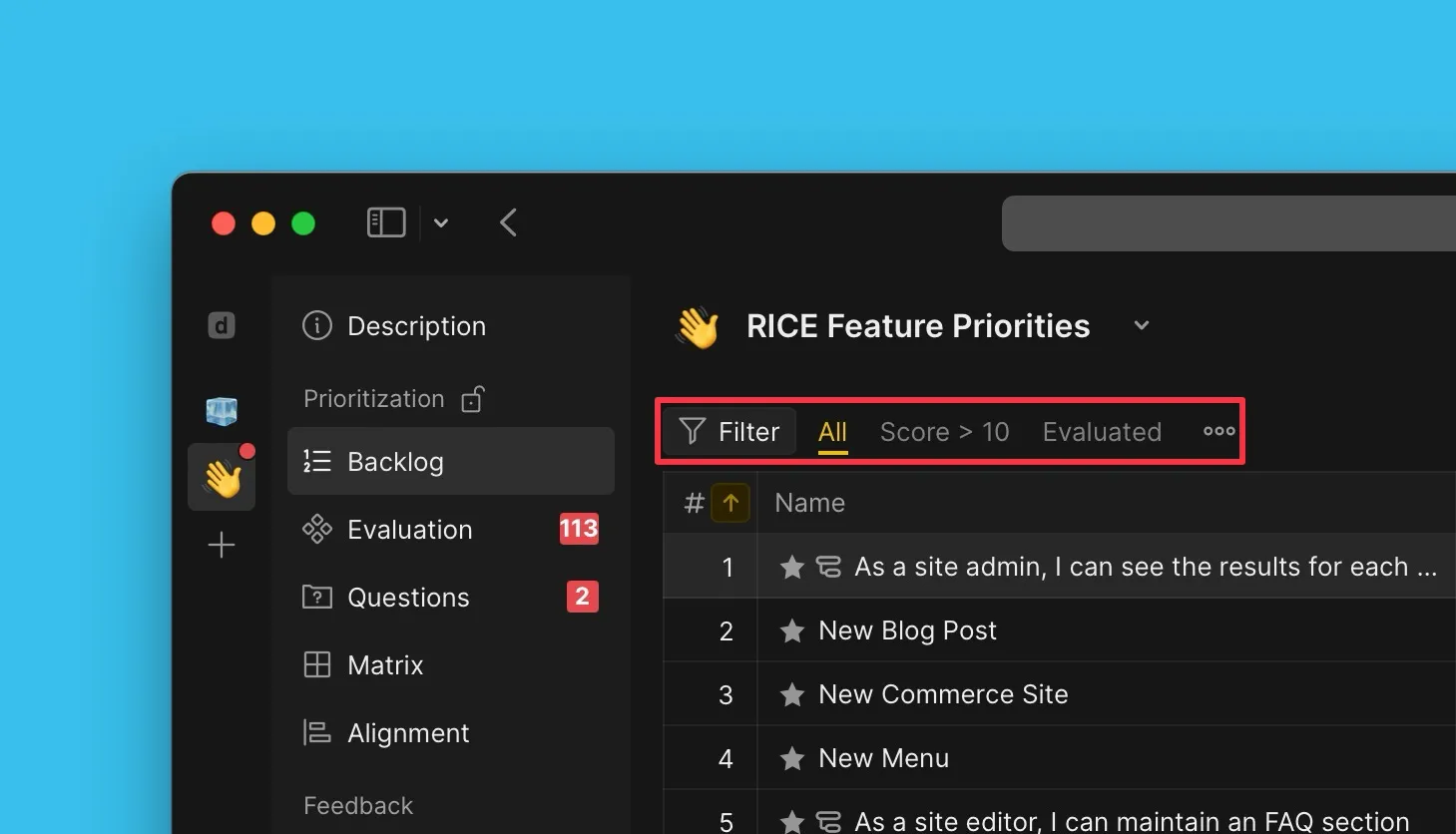
Belirli Kayıt gruplarını görüntülemek için filtreleri kullanın. Sık kullanılan filtreleri takımınızla paylaşmak için kaydedin—kaydedildikten sonra, herhangi bir takım üyesi bunlara erişebilir.
Filtre oluşturma ve kullanma hakkında daha fazla bilgi edinin.
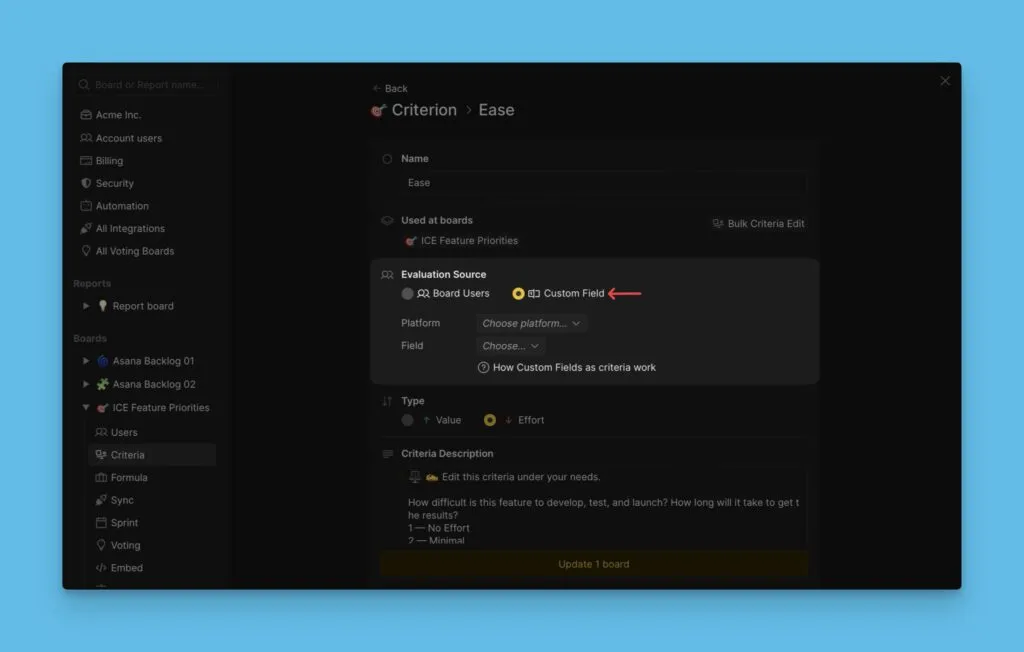
Özel alanları Kriter olarak kullanın
Yeni Kriterler oluşturmak ve Kayıtları puanlamak yerine, görev takip aracınızdan veya Ducalis uygulamasından mevcut özel alan verilerini Kriter olarak kullanın. Bu, önceliklendirme için zaten tuttuğunuz verileri kullanır.
Özel alanları Kriter olarak kullanma hakkında daha fazla bilgi edinin.
Açık ve özel Panolar
Panoları özel yaparak Pano görünürlüğünü kontrol edin. Özel Panolar, erişimi yalnızca yetkili kullanıcılarla sınırlar ve hassas bilgileri daha geniş Organizasyondan gizli tutar.
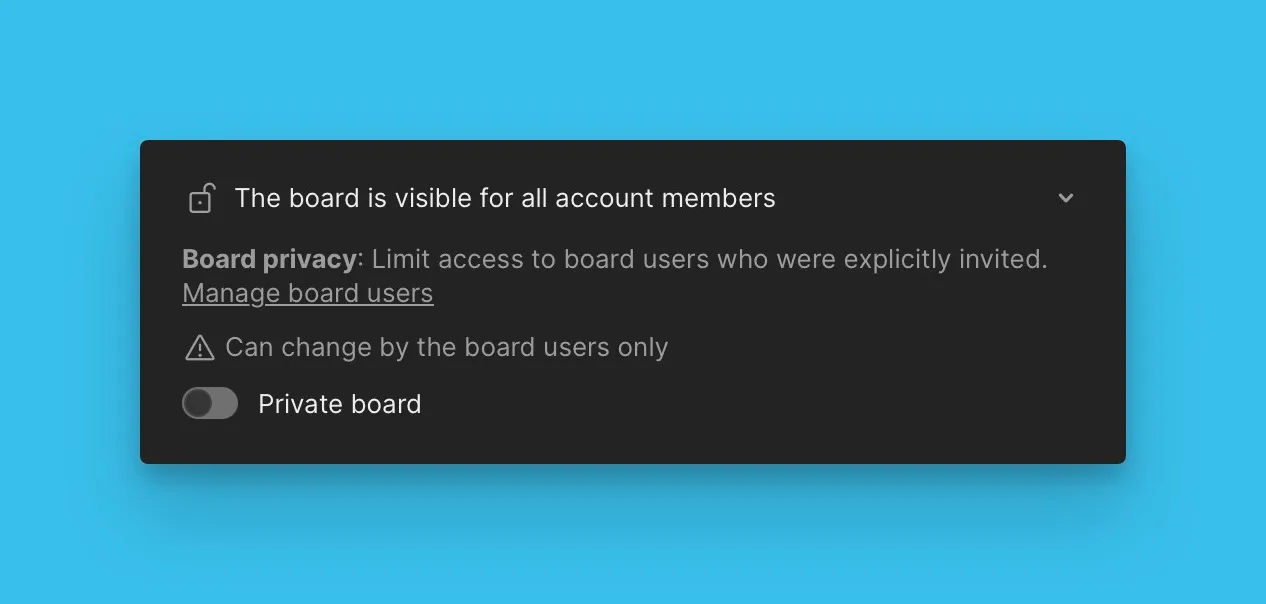
Açık ve özel Panolar hakkında daha fazla bilgi edinin.
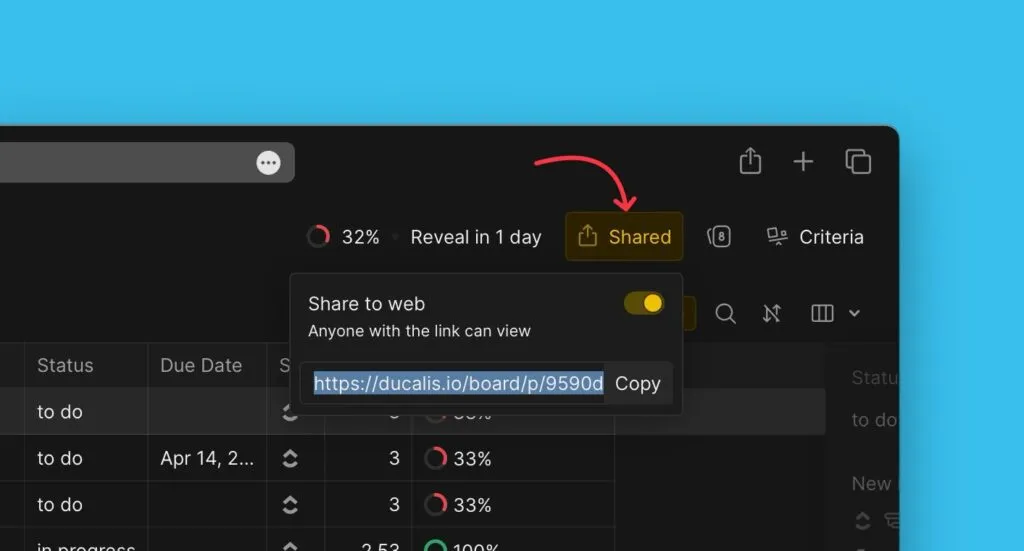
Pano bağlantılarını diğer kullanıcılarla paylaşın. Özel Panolar için, alıcıların paylaşılan içeriği görüntülemek üzere Pano erişimine sahip olması gerekir.