Adım 4. Önceliklendirme için Kayıtları Değerlendirin
İş listenizde yer alan Kayıtları size atanan Kriterler kullanarak puanlayın. Bu süreç, öznel görüşleri veriye dayalı önceliklere dönüştürür.
Değerlendirmeye başlayın
-
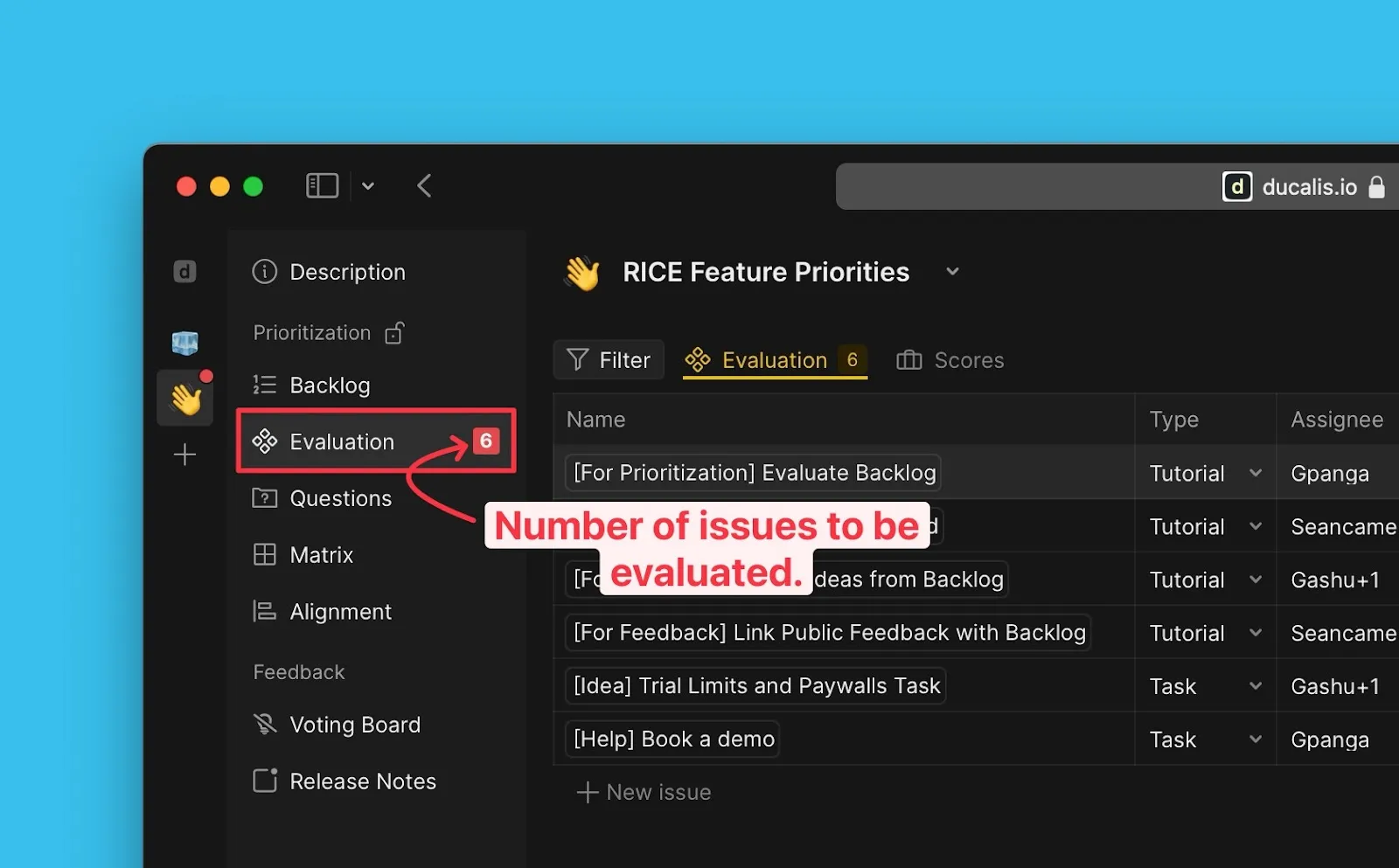
Evaluation (Değerlendirme) bölümüne gidin. Değerlendirmeniz gereken Kayıt sayısını göreceksiniz.
-
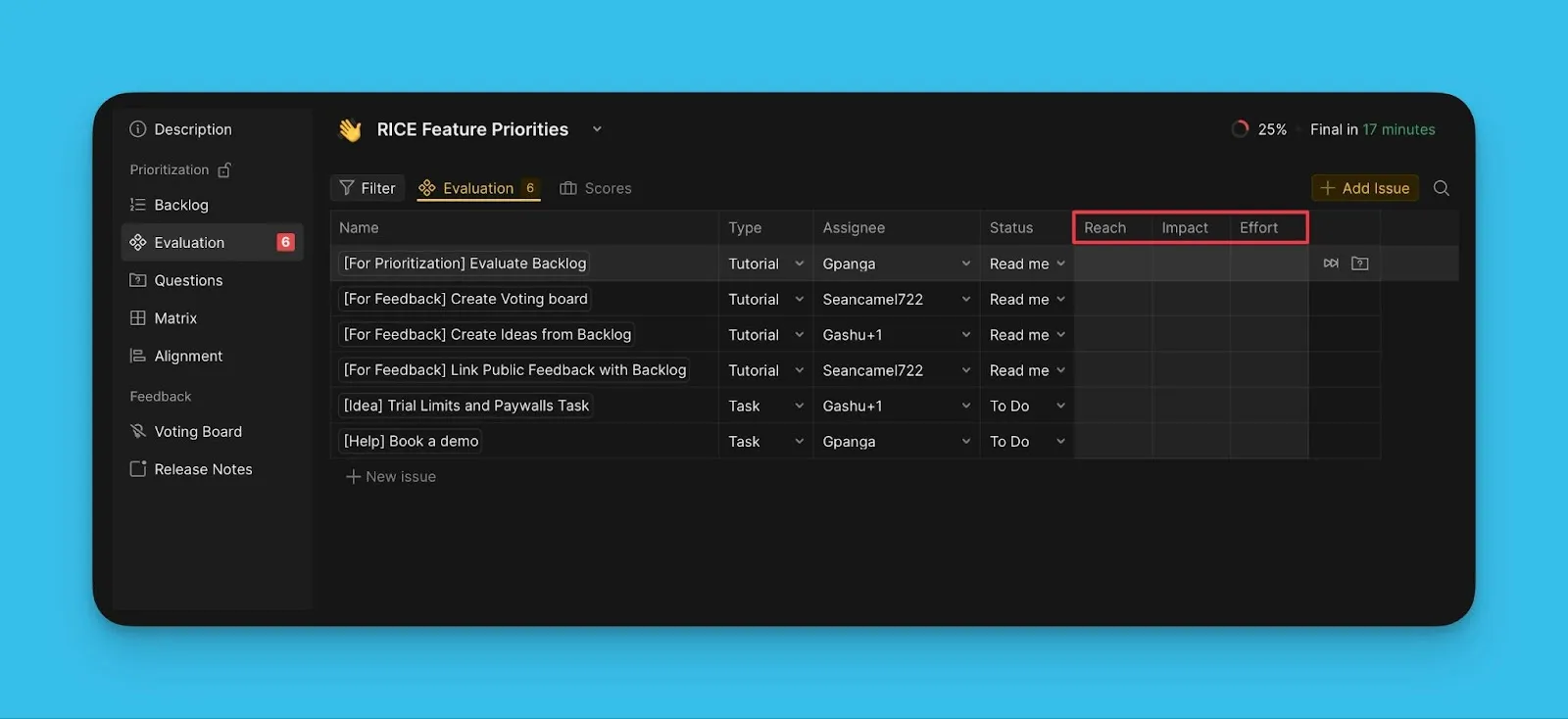
Değerlendirmeniz için atandığınız Kriterleri inceleyin. Yalnızca bir Yönetici tarafından size atanan Kriterleri göreceksiniz.
-
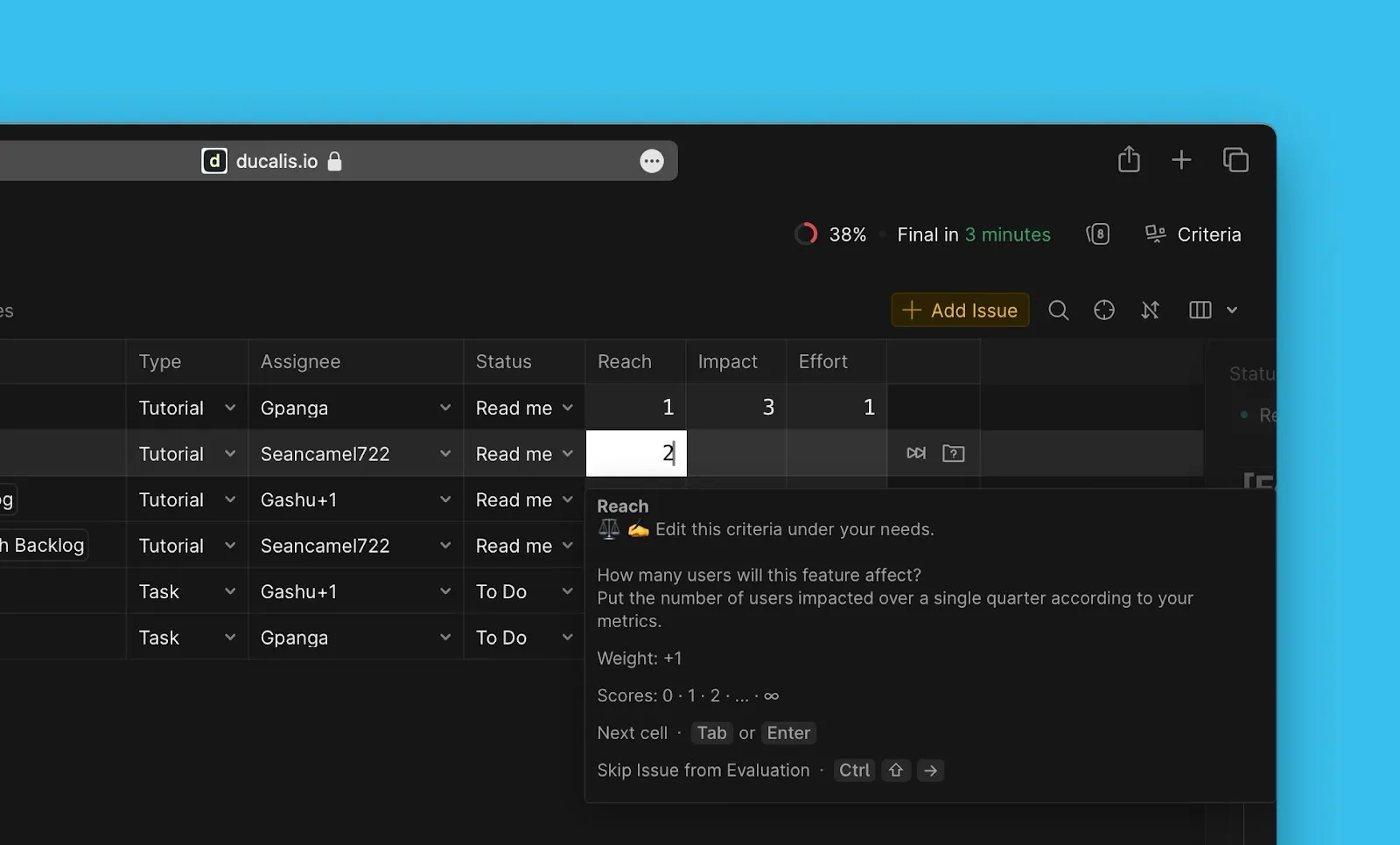
Her bir Kaydı atandığınız Kriterlere göre puanlayın. Rehber olarak Kriter açıklamasını kullanın.
-

Hücreler arasında Tab veya Enter tuşlarına basarak geçiş yapın (Hızlı giriş kapalıysa). Girdiğiniz sayılar, Yöneticiniz tarafından yapılandırılan puanlama yöntemine bağlıdır.
Netleştirme soruları sorun
Bir Kriteri veya Kaydı anlamadığınızda, ekip arkadaşlarınıza netleştirme için soru sorun. E-posta yoluyla bilgilendirileceklerdir.
-
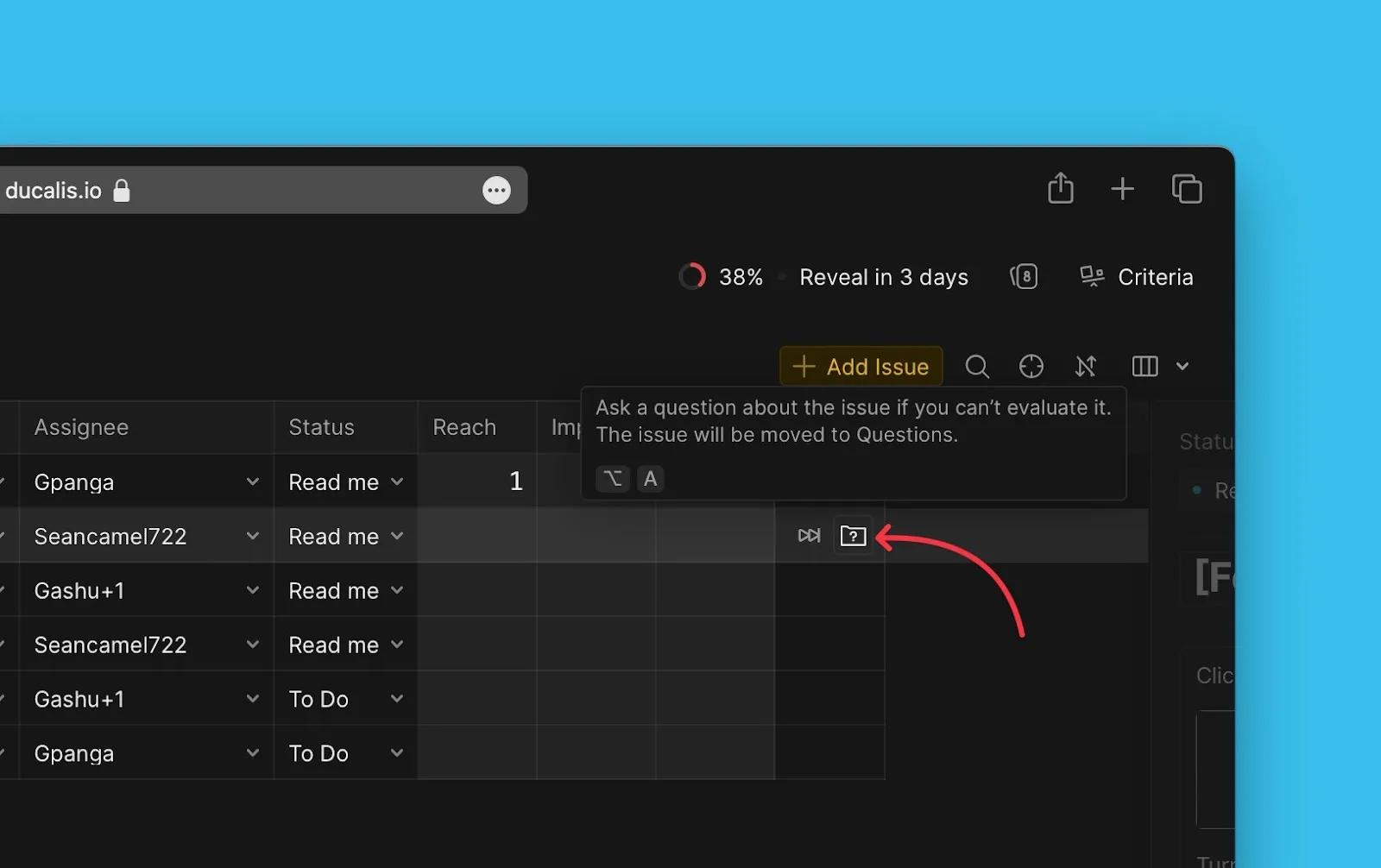
Kaydın sağ tarafındaki soru simgesine tıklayın.
-
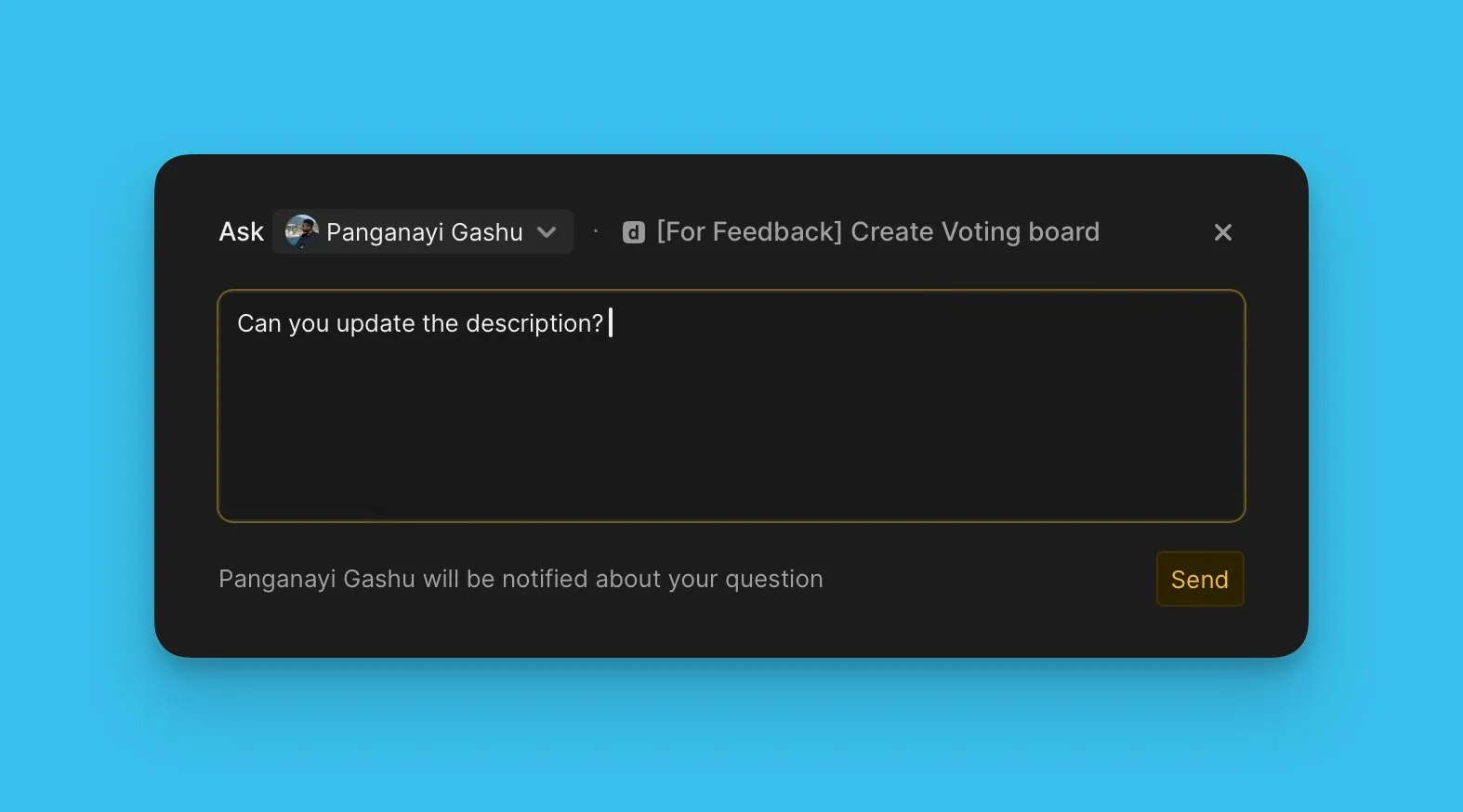
Sorunuzu yazın ve Send (Gönder) düğmesine tıklayın.
-
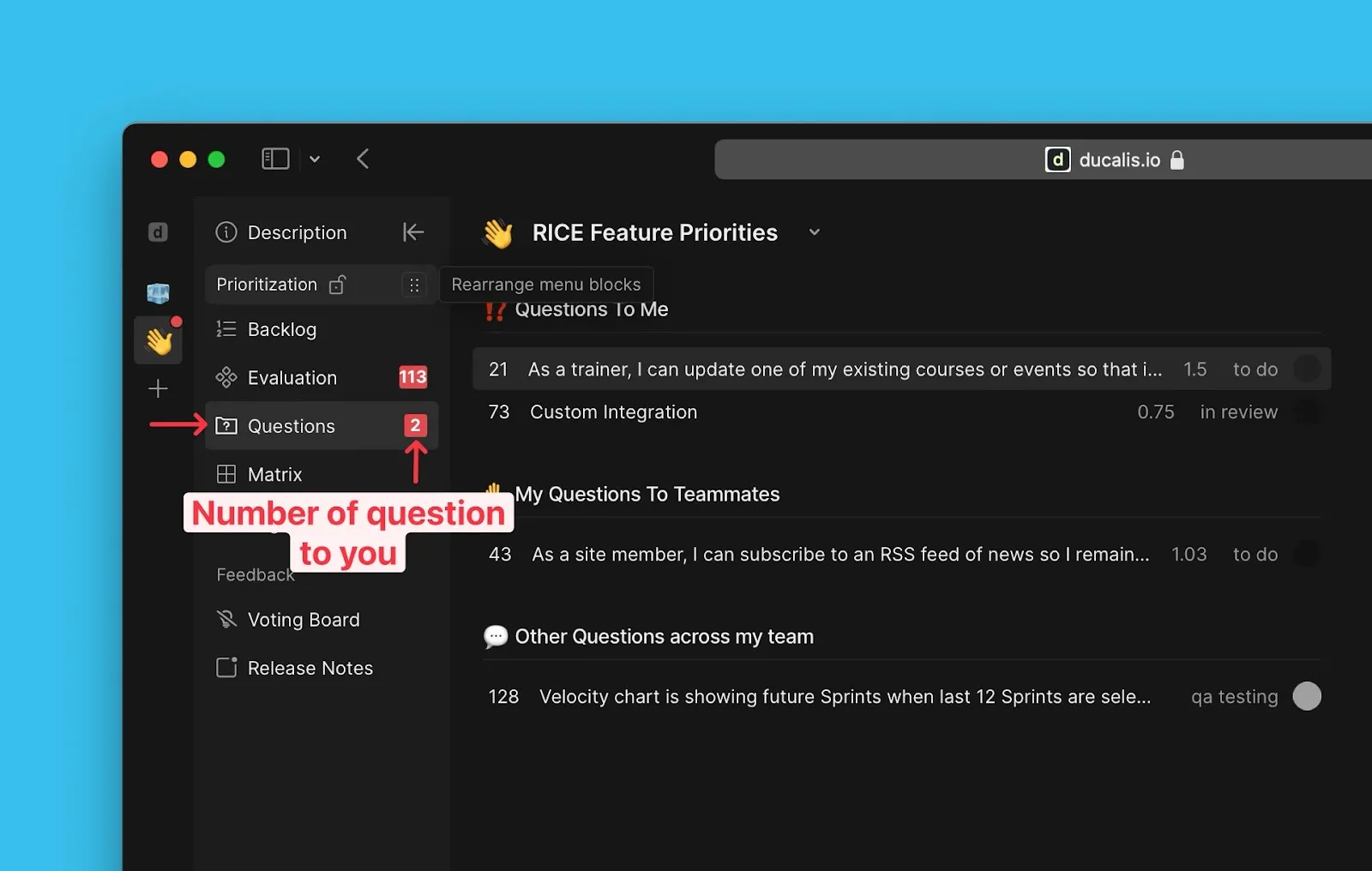
Tüm soruları ve tartışmaları Pano navigasyonunda Questions (Sorular) bölümü altında bulabilirsiniz.
Kayıtları atlayın
Değerlendirmek istemediğiniz herhangi bir Kaydı, ekibinizin genel değerlendirme ilerlemesini etkilemeden atlayabilirsiniz.
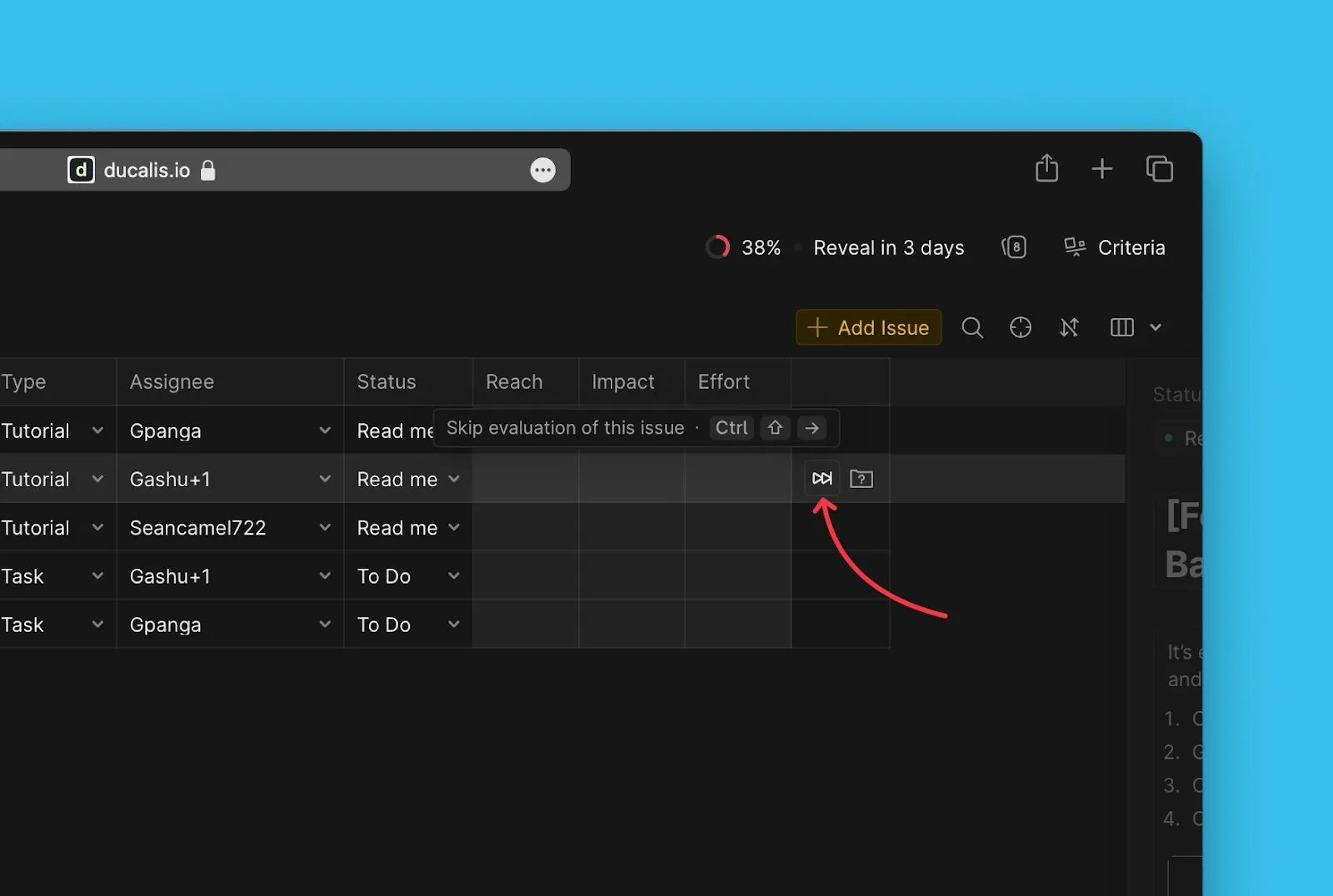
Atlanan tüm Kayıtlar Scores (Puanlar) sekmesine taşınır.
Puanlanmış Kayıtları görüntüleyin
Puanlanmış tüm Kayıtlar ve atlanan Kayıtlar Scores (Puanlar) sekmesinde görünür.
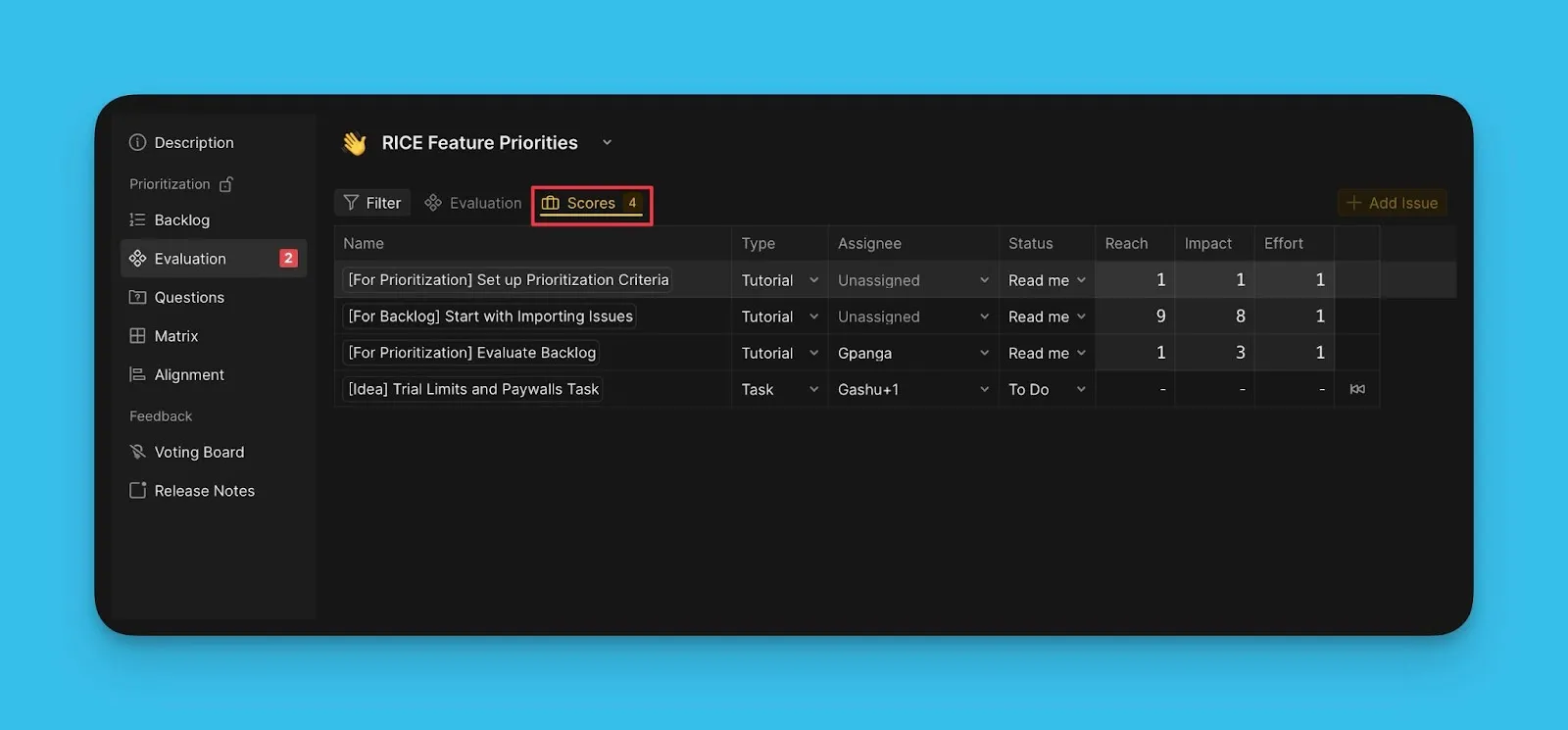
Puanları düzenleyin
Puanları Scores (Puanlar) sekmesinden veya doğrudan Backlog (İş Listesi), Matrix (Matris) veya Alignment (Hizalanma) görünümlerindeki Kayıt kartlarından düzenleyebilirsiniz.
Scores sekmesinden düzenleme
-
Scores (Puanlar) sekmesine gidin.
-
Düzenlemek için herhangi bir puana tıklayın.
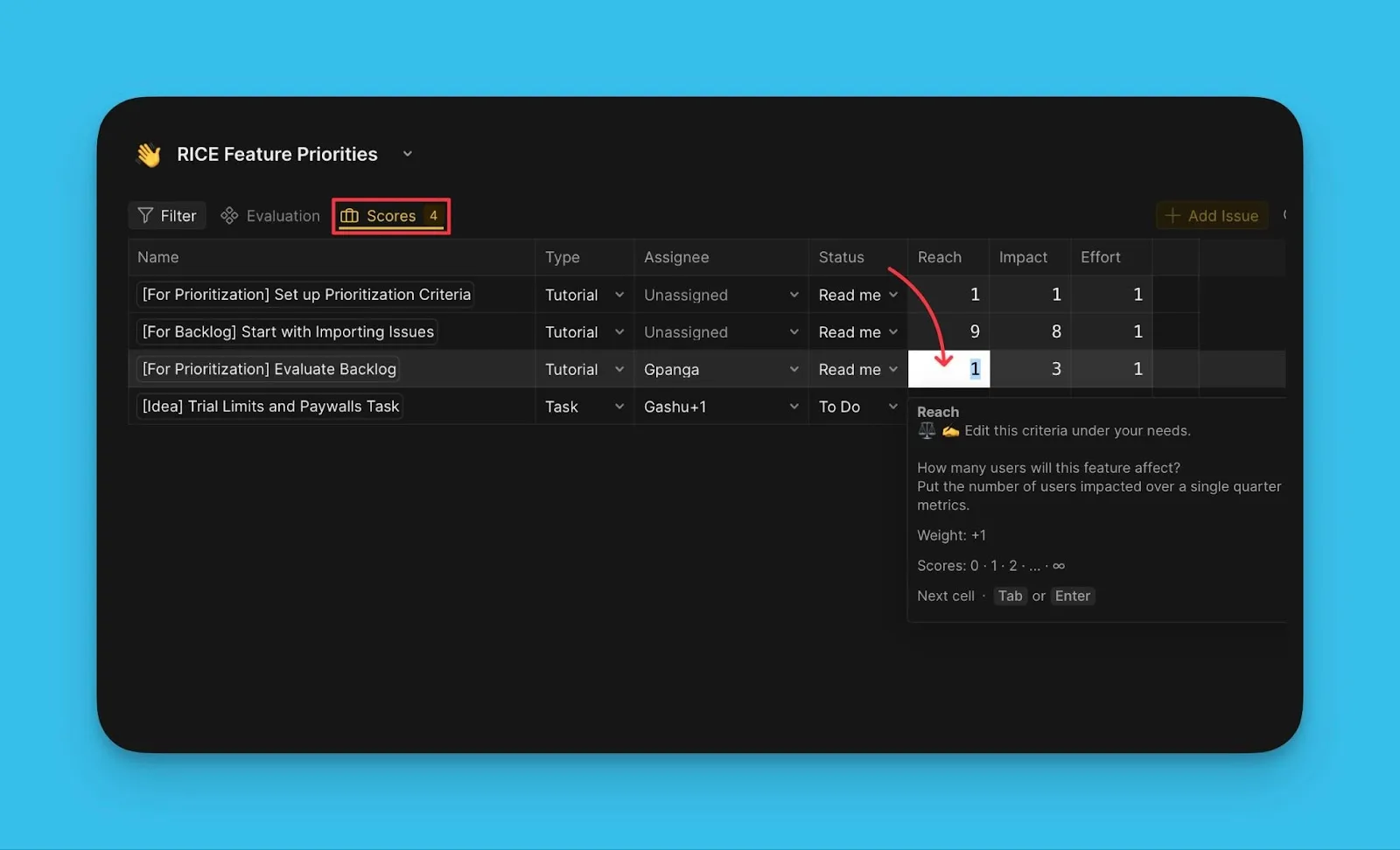
Kayıt kartlarından düzenleme
-
Backlog (İş Listesi), Matrix (Matris) veya Alignment (Hizalanma) görünümlerinde Kayıt kartını açın.
-
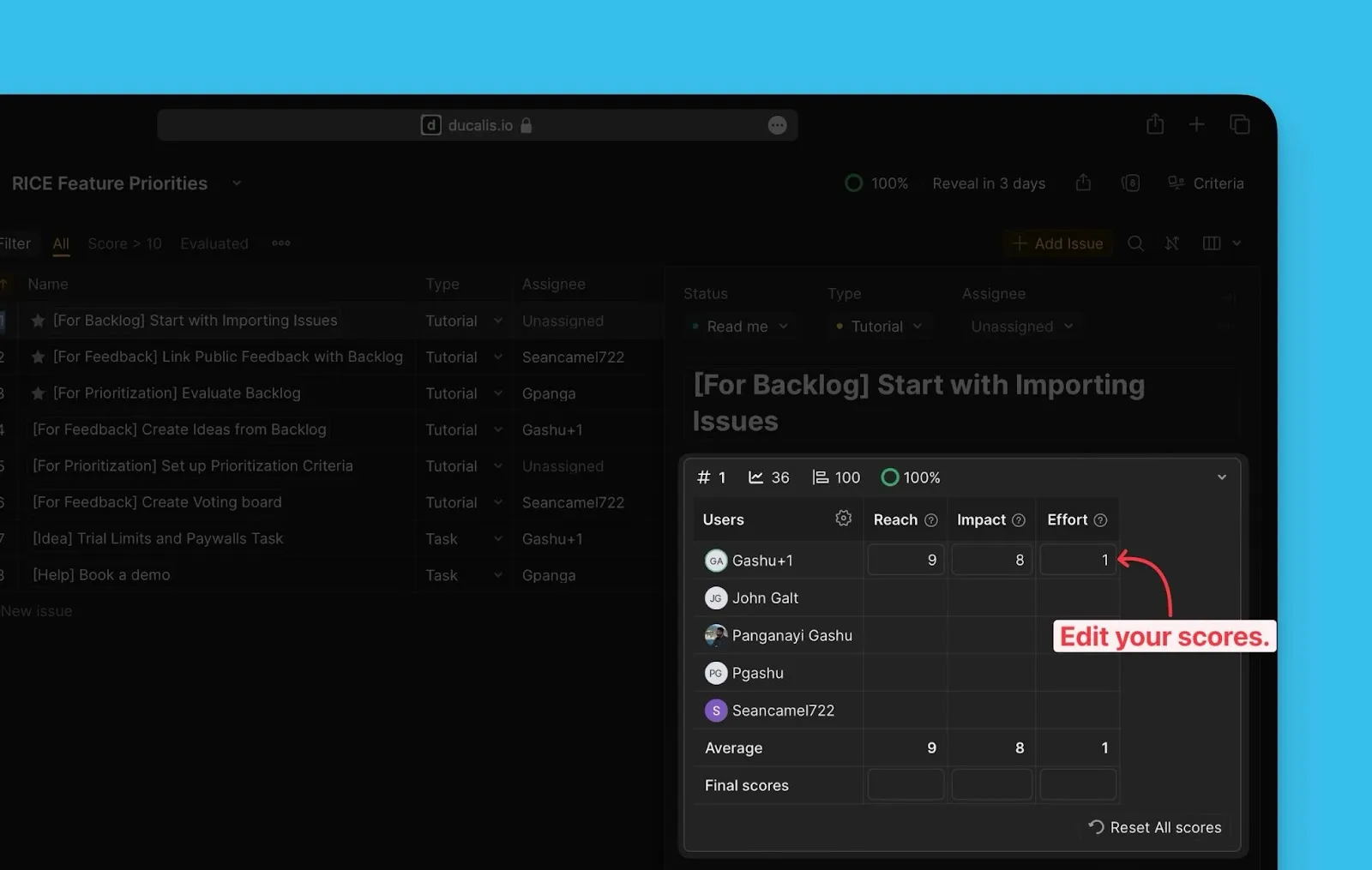
Yeniden değerlendirme bloğunu bulun.
-
Puanlarınızı düzenleyin veya Yönetici iseniz Final Score (Nihai Puan) değerini düzenleyin.
Sırada ne var
Önceliklendirme sonuçlarınızı Backlog ve Matrix görünümlerinde görüntüleyin.
Adım 5: Önceliklendirme sonuçlarını görüntüleyin ve analiz edin bölümüne devam edin.