Adım 6. Önceliklendirme Sonuçlarını Görev Takip Aracına Senkronize Edin
Sync Back, önceliklendirme sonuçlarınızı görev takip aracınıza otomatik olarak göndererek iş listesi önceliklerinizi sistemler arasında hizalı tutar. Araçlar arasında geçiş yapmadan görevler üzerinde öncelik sırasına göre çalışın.
Sync Back entegrasyonları
Ducalis, şu görev takip araçlarıyla entegre olur:
- Jira Cloud ile Sync Back
- Jira Server ile Sync Back
- Asana ile Sync Back
- ClickUp ile Sync Back
- Trello ile Sync Back
- YouTrack ile Sync Back
- GitHub ile Sync Back
Sync Back ayarlarına erişim
-
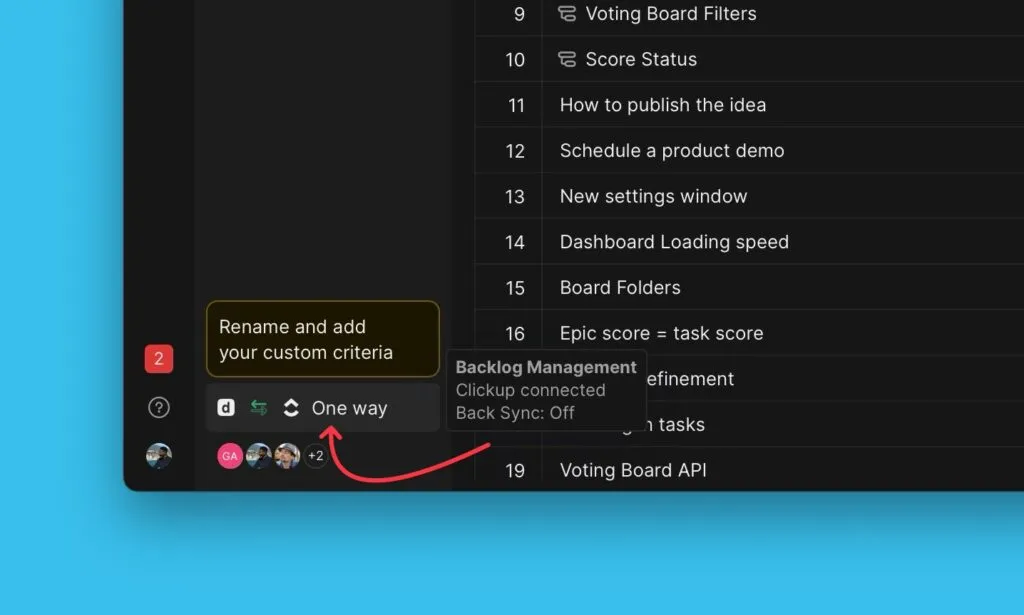
Sağ alt köşedeki senkronizasyon simgesine tıklayın.
-
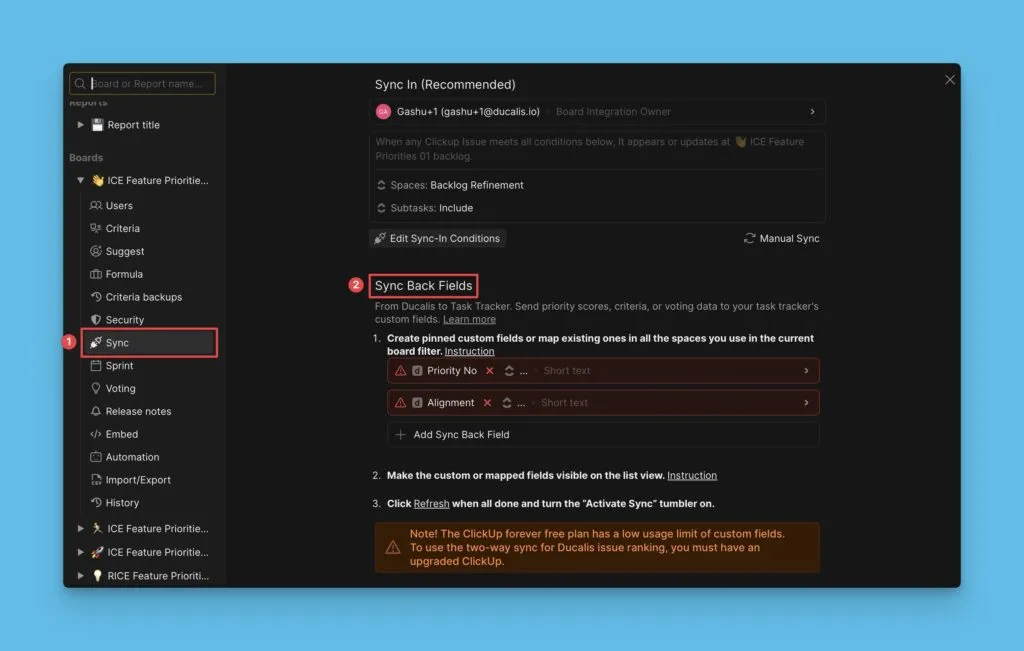
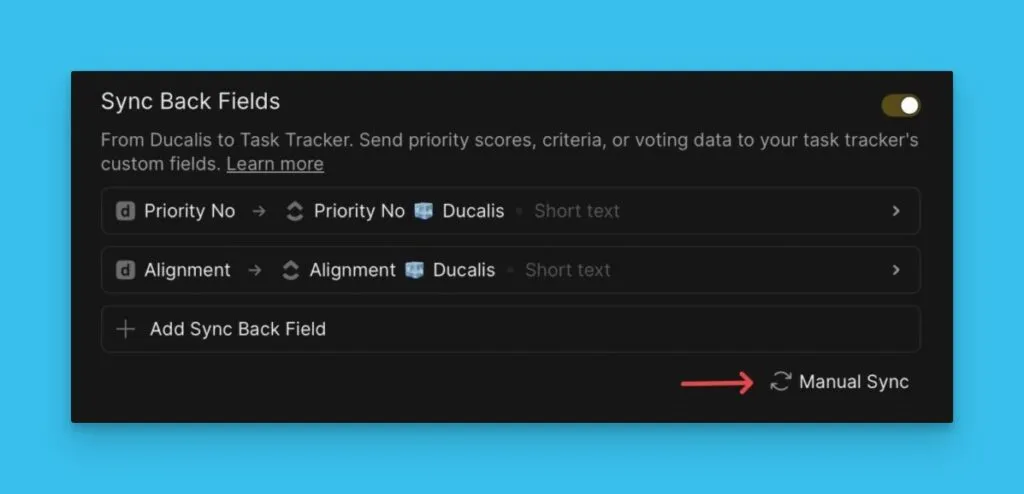
Sync Back Fields (Geri Senkronizasyon Alanları) bölümüne gidin.
Varsayılan alanlar
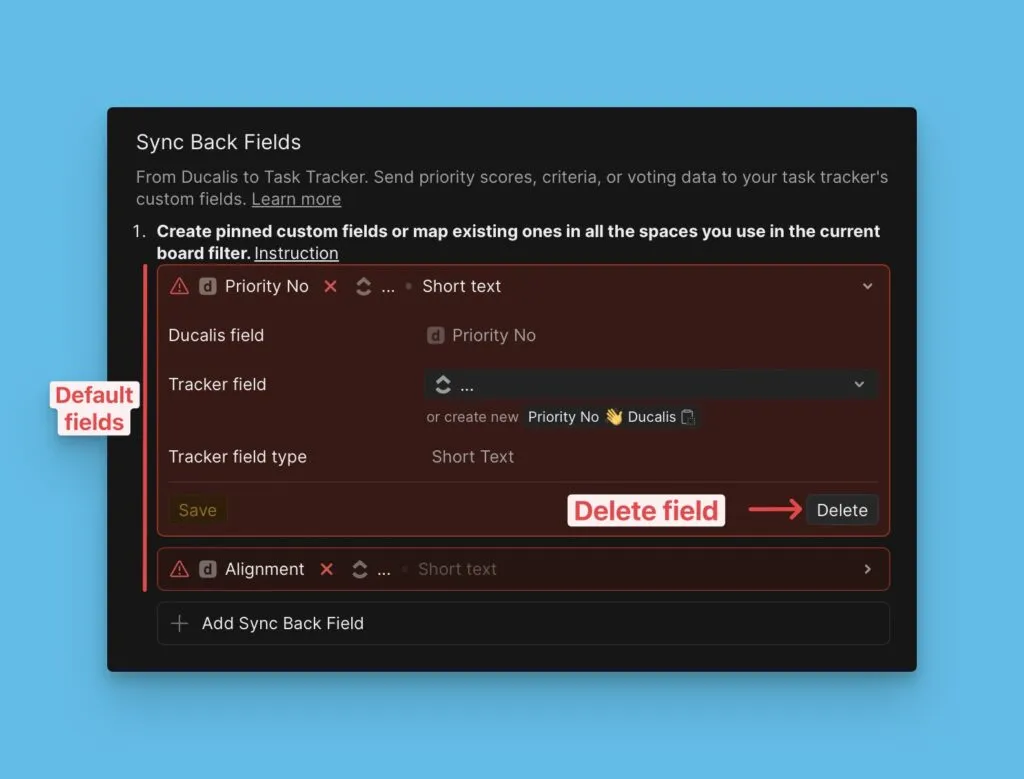
İki varsayılan alan otomatik olarak senkronize edilir:
- Priority No {emoji} Ducalis – Kayıt öncelik sıralaması
- Alignment {emoji} Ducalis – Ducalis içindeki Kayıtlara bağlantılar
İhtiyacınız yoksa bu alanları senkronizasyon listesinden silin.
Daha fazla alan ekleyin
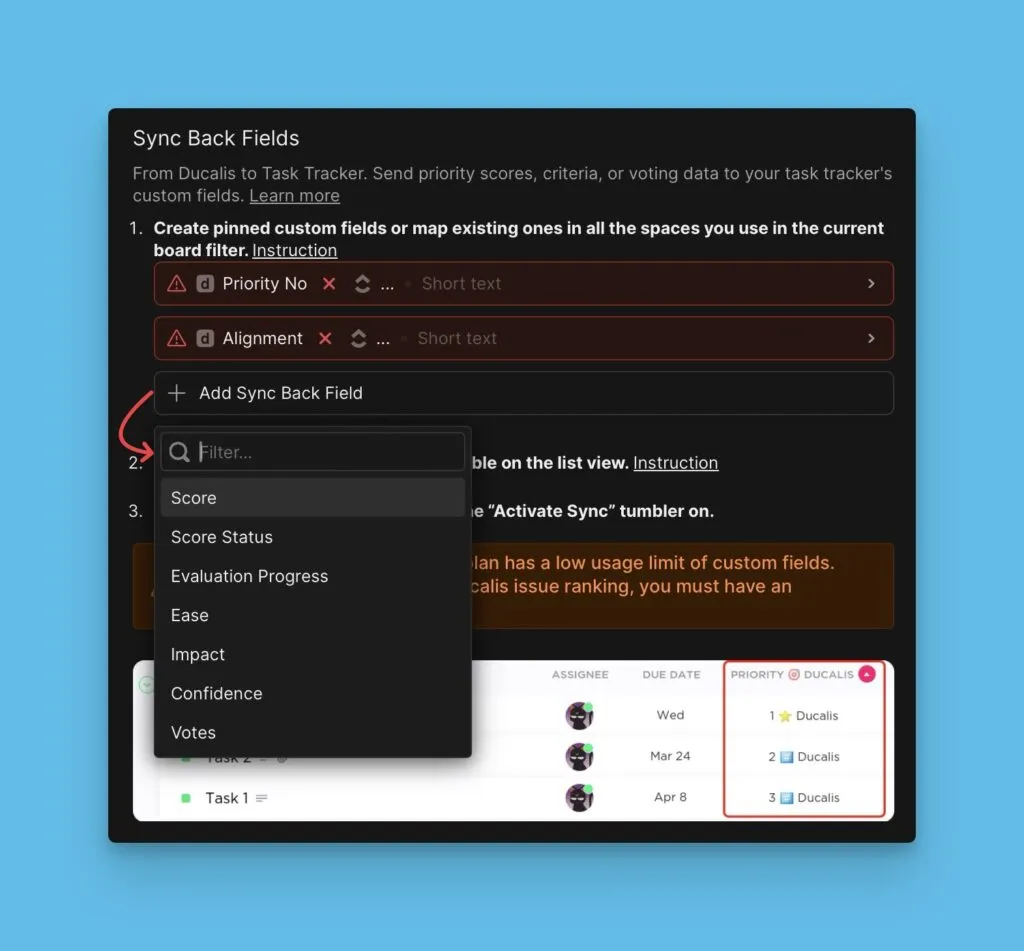
Ek veri senkronize etmek için Add field (Alan ekle) seçeneğine tıklayın:
- Score Ducalis – Toplam Kayıt puanları
- Score Status Ducalis – Değerlendirme tamamlanma durumu
- Score Percent Ducalis – Değerlendirme ilerleme yüzdesi
- Criteria fields (Kriter alanları) – Bireysel Kriter puanları
Takip aracınızda özel alanlar oluşturun
Bazı görev takip araçları, Sync Back'i etkinleştirmeden önce özel alanlar gerektirir:
Devam etmeden önce bu özel alanları takip aracınızda oluşturun.
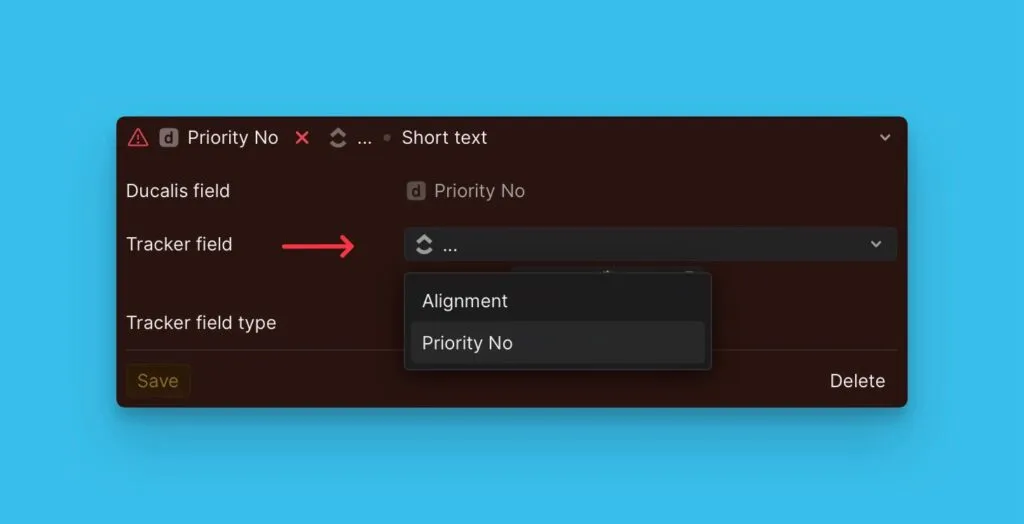
Alanları mevcut takip aracı alanlarıyla eşleştirin
Takip aracınızda zaten özel alanlar varsa, yeni alanlar oluşturmak yerine bunları Ducalis alanlarıyla eşleştirin.
Ayrıntılar için bkz. Alan Eşleştirme.
Sync Back'i planlayın
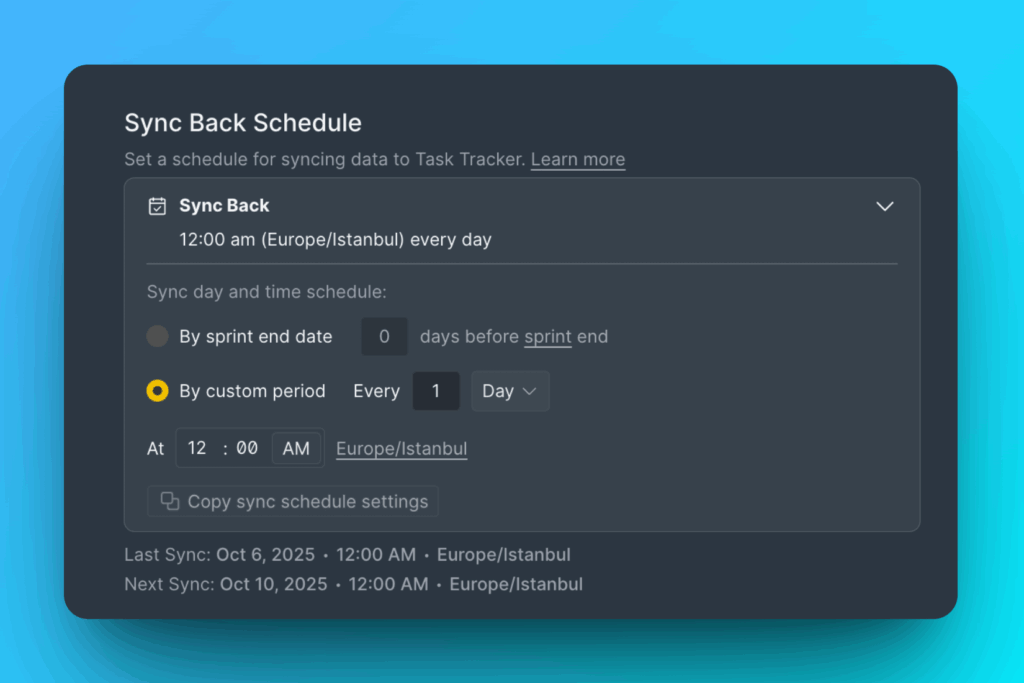
Sync Back, sprint'ler bitmeden önce bir programa göre çalışır. İki seçenekten birini seçin:
- By sprint end date (Sprint bitiş tarihine göre) – Sprint programına göre senkronize eder
- By custom period (Özel döneme göre) – Belirli bir gün ve saat belirleyin
Manuel senkronizasyon
Planlanan zamanı beklemeden verileri hemen senkronize etmek için Manual Sync (Manuel Senkronizasyon) seçeneğine tıklayın.
Senkronize edilen veriler
Sync Back, önceliklendirme sırasında oluşturulan Ducalis alanlarından veri gönderir:
- Öncelik sıralamaları
- Hizalanma metrikleri
- Toplam puanlar
- Değerlendirme durumu ve ilerlemesi
- Bireysel Kriter puanları