Adım 5. Aboneleri İçe Aktarın
Ürün güncellemeleriniz hakkındaki Sürüm Notlarını alabilmeleri için abone listenizi içe aktarın.
CSV dosyası ile içe aktarma
CSV dosyası kullanarak aboneleri toplu olarak içe aktarın.
-
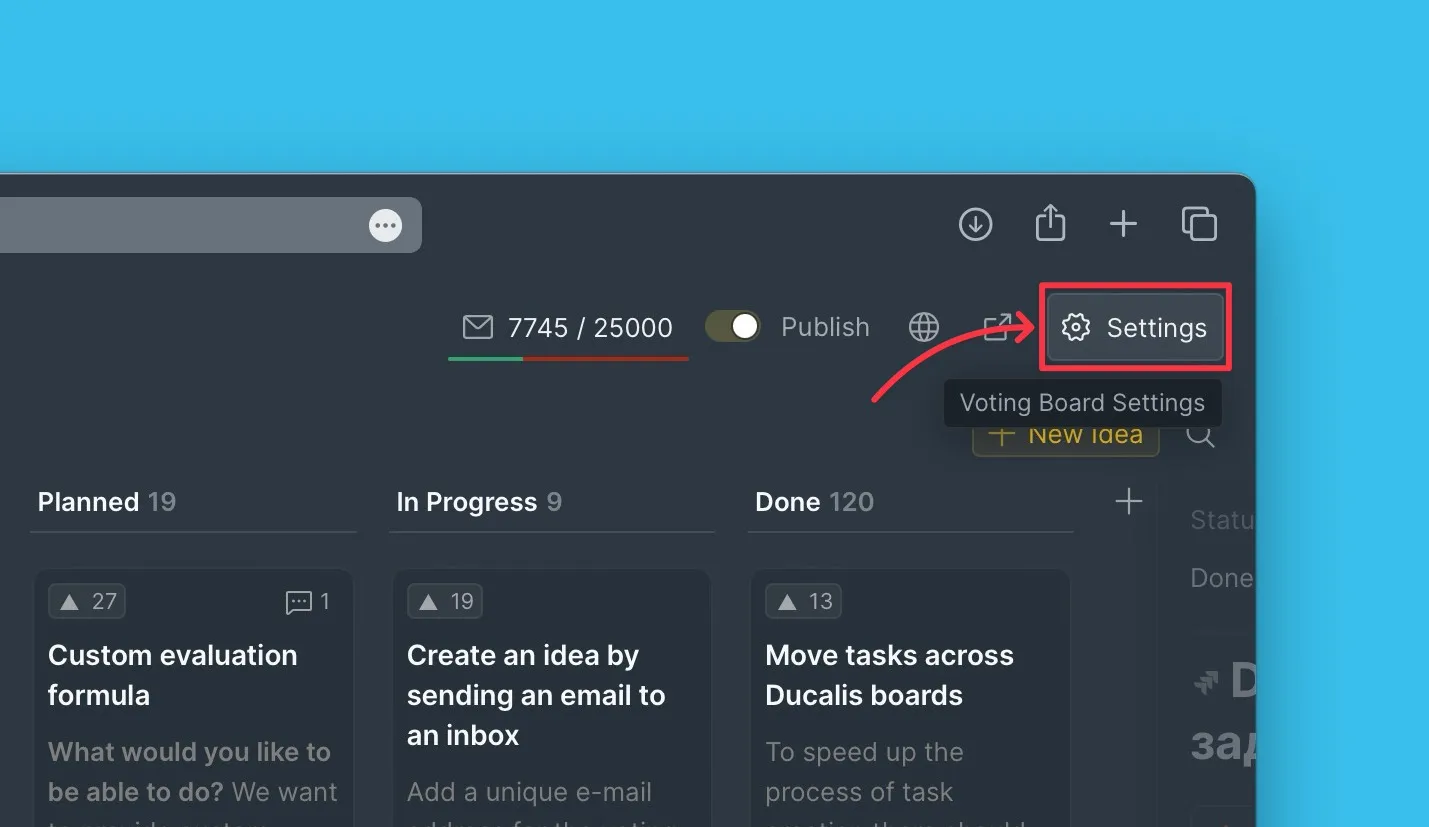
Voting Board settings (Oylama Panosu ayarları) menüsünü açın.
-
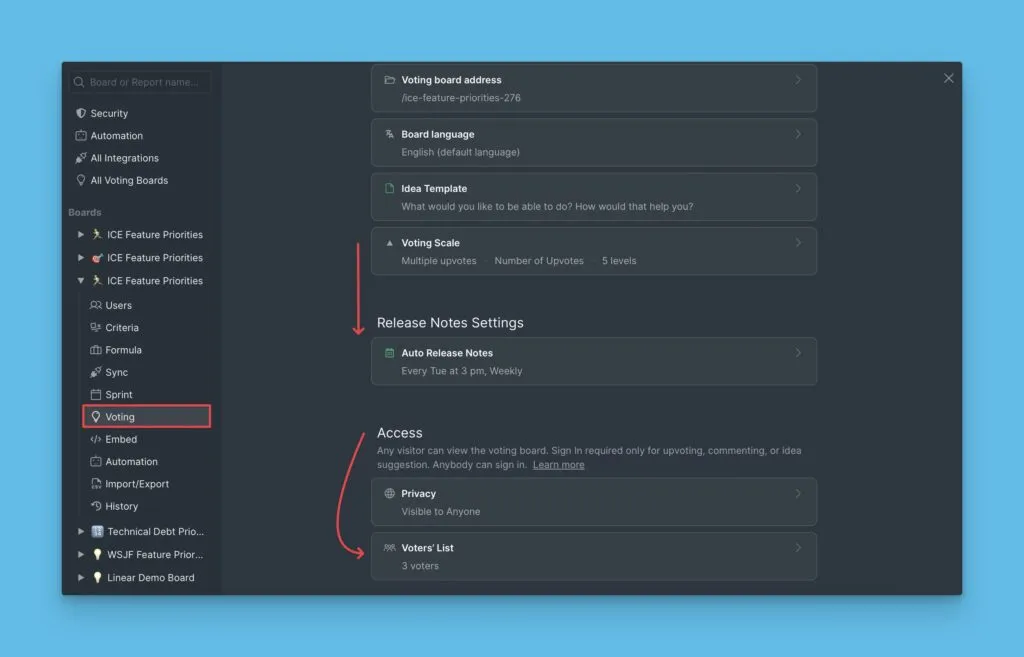
Access (Erişim) bölümüne gidin ve Voters' list (Oylayanlar listesi) bloğunu açın.
-
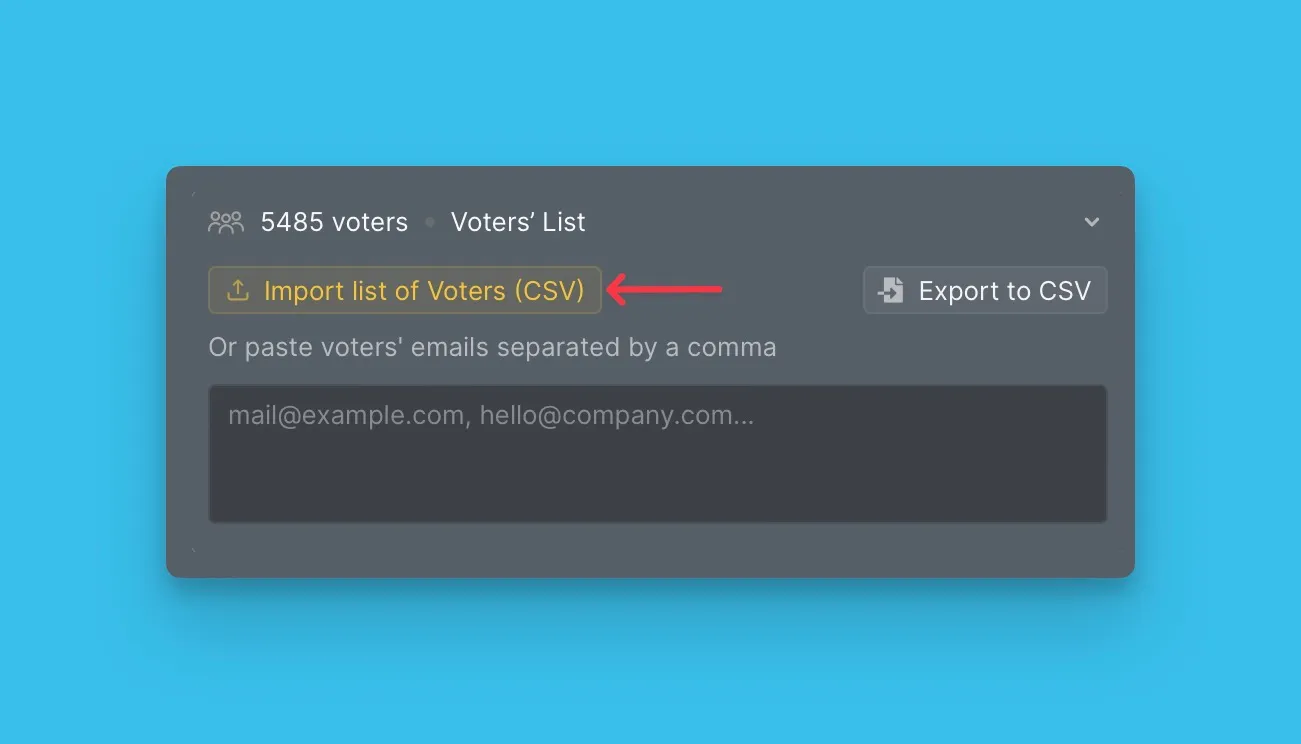
Import List of Votes (CSV) (Oy Listesini İçe Aktar (CSV)) seçeneğine tıklayın.
-
Gerekli alanları görmek için CSV örnek dosyasını indirin.
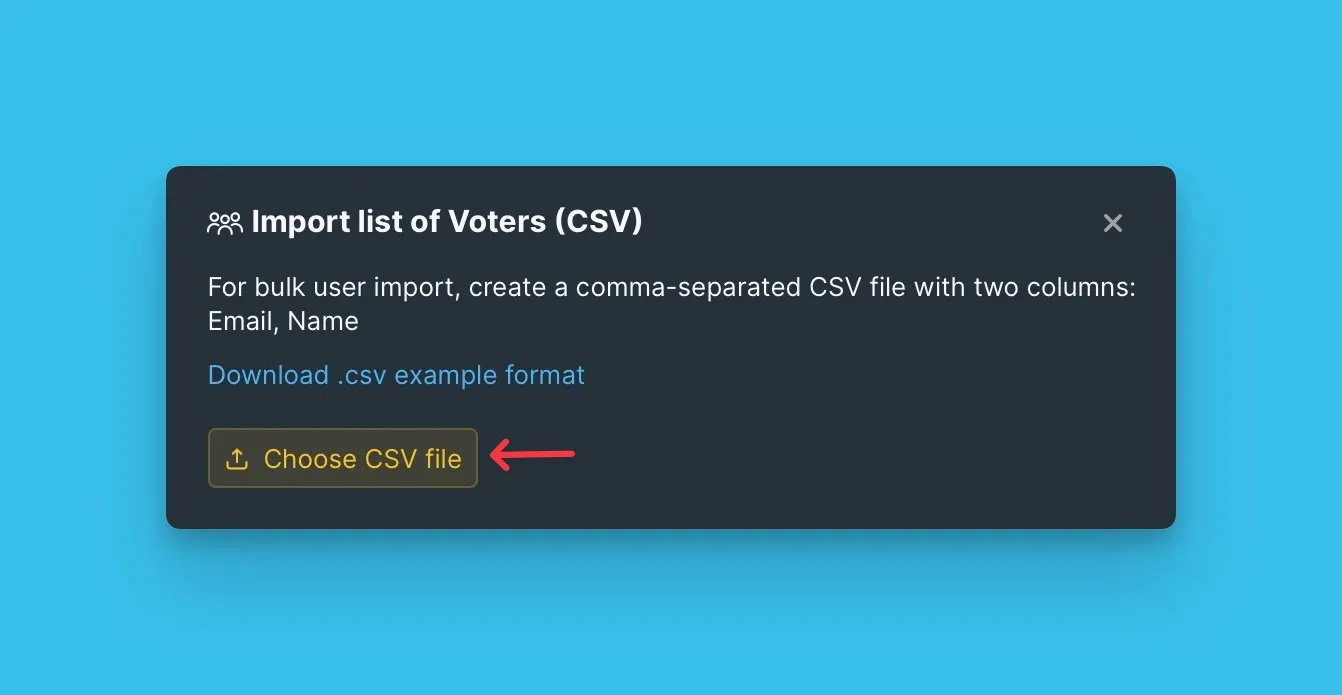
-
Bilgisayarınızdan CSV dosyasını seçin.
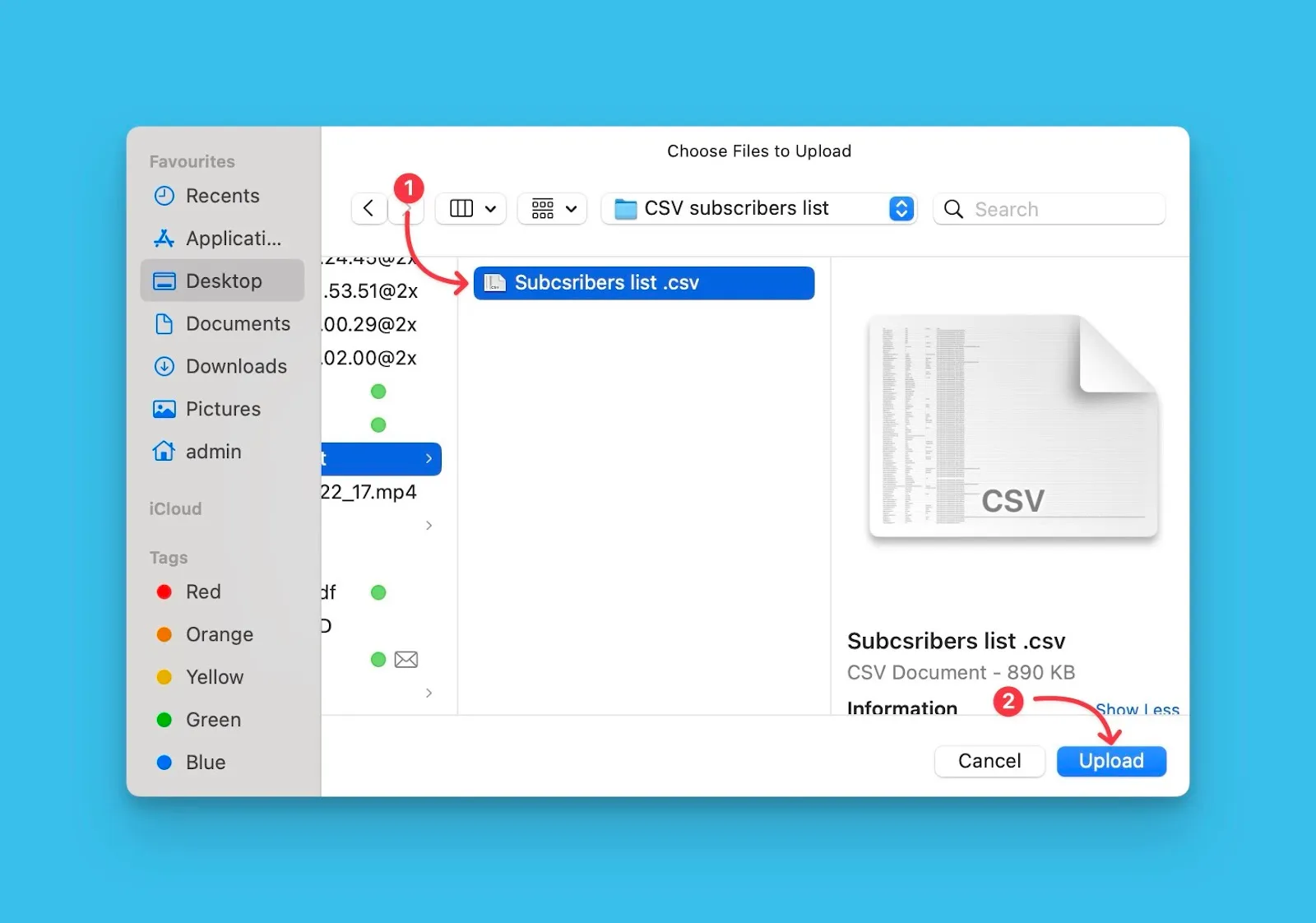
-
Listeyi gözden geçirin ve içe aktarmayı onaylayın.
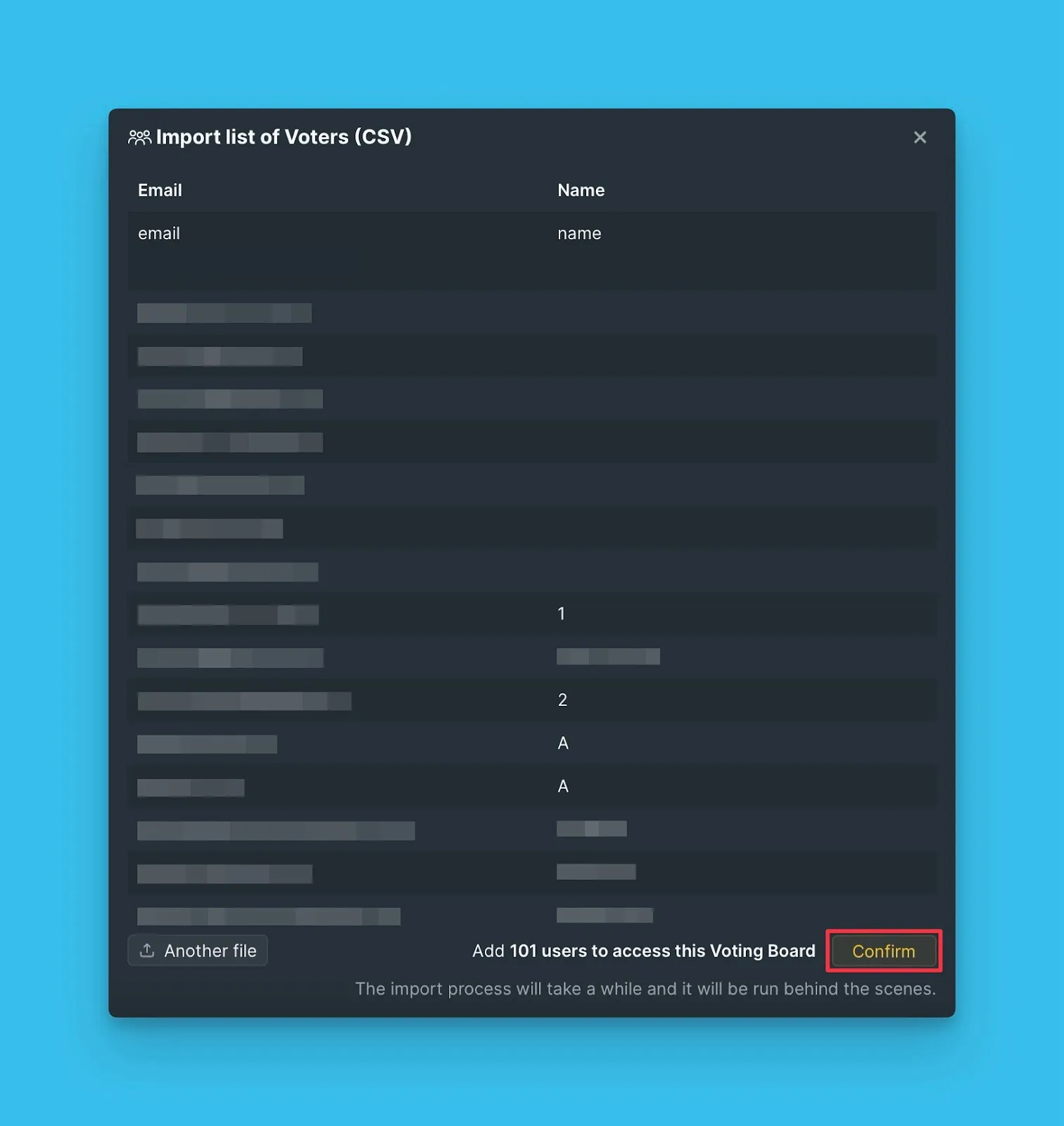
Aboneleri manuel olarak ekleme
Daha küçük listeler için e-posta adreslerini doğrudan metin kutusuna girin.
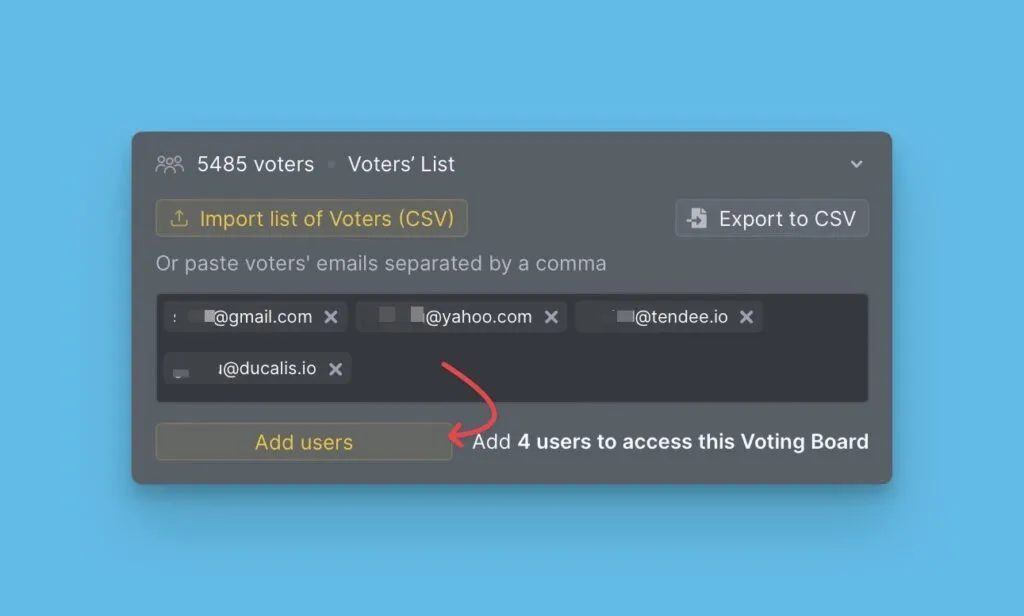
Yeni Oylayanlar için otomatik abonelik
Oylama Panonuza abone olan tüm yeni Oylayanlar, Sürüm Notları abone listesine otomatik olarak eklenir. Bu özellik, yeni kullanıcıların manuel liste yönetimine gerek kalmadan ürün güncellemelerinizi almasını sağlamak için varsayılan olarak etkindir.
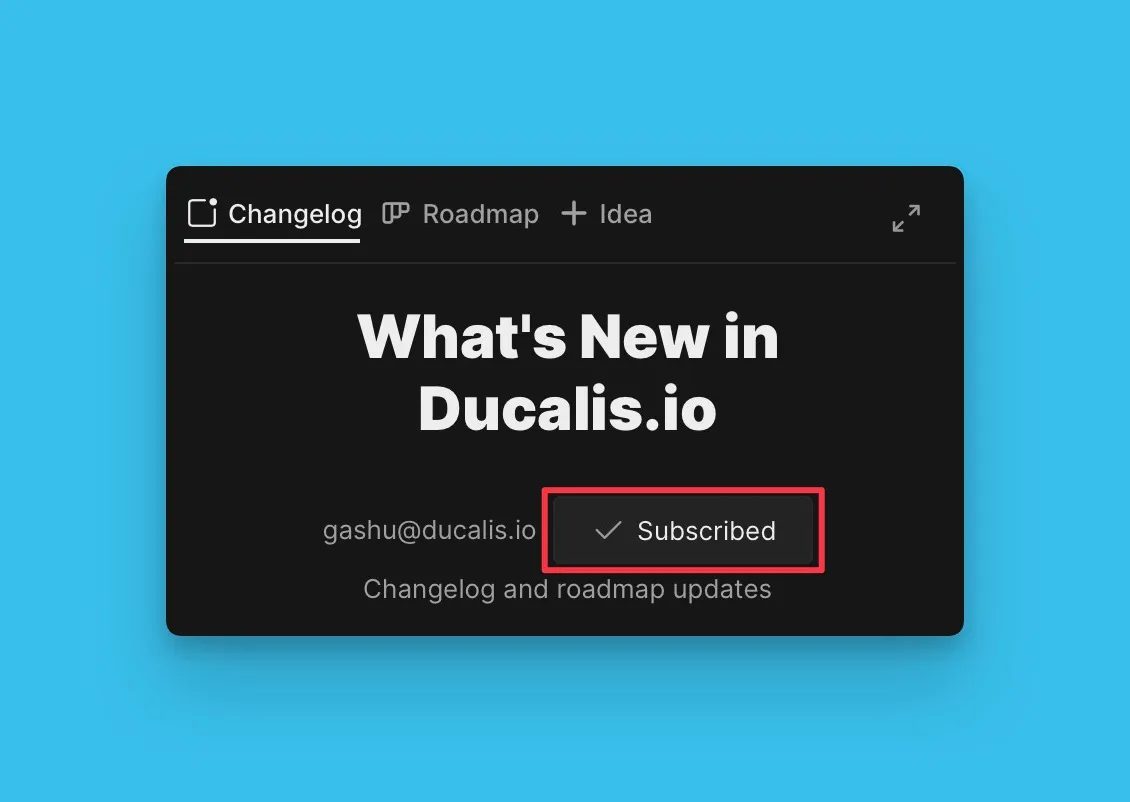
Daha fazla bilgi: Sürüm notlarına otomatik abonelik nasıl çalışır
Abone listesini dışa aktarma
Abone olan kullanıcıları gözden geçirmek veya abone verileriyle başka yerlerde çalışmak için abone listenizi CSV dosyası olarak dışa aktarın. Dışa aktarma, abonelik durumu, kaynak ve tarih bilgilerini içerir.
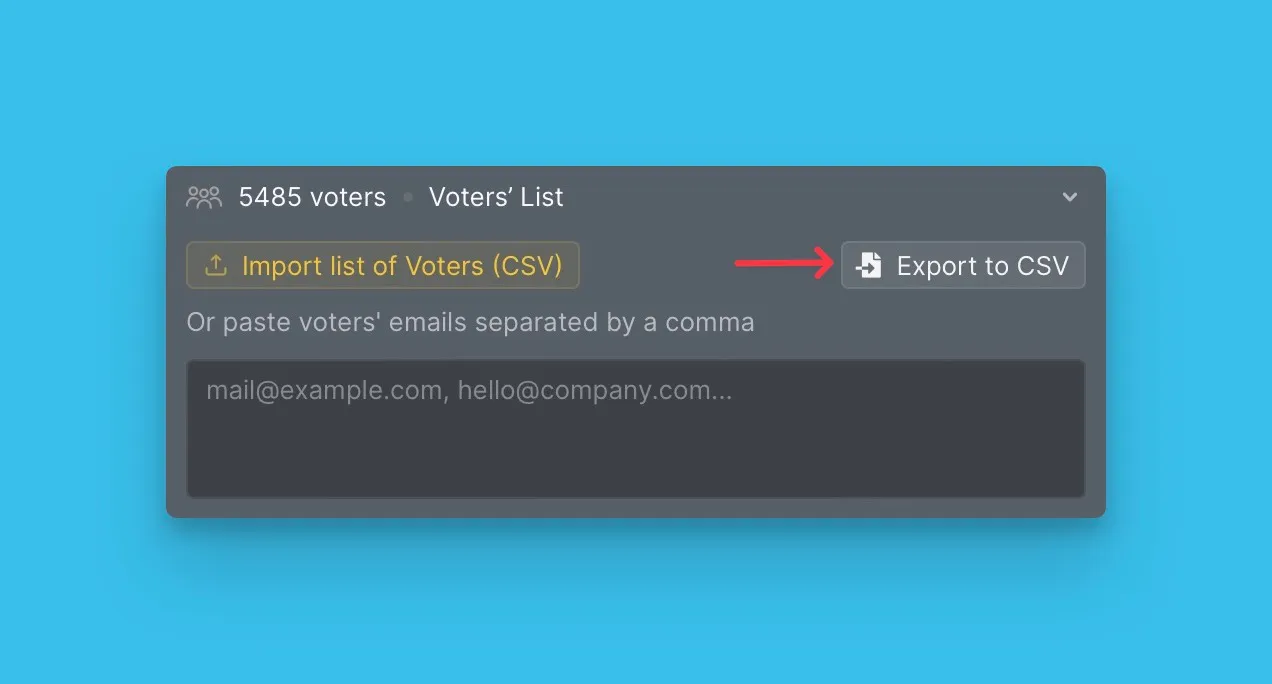
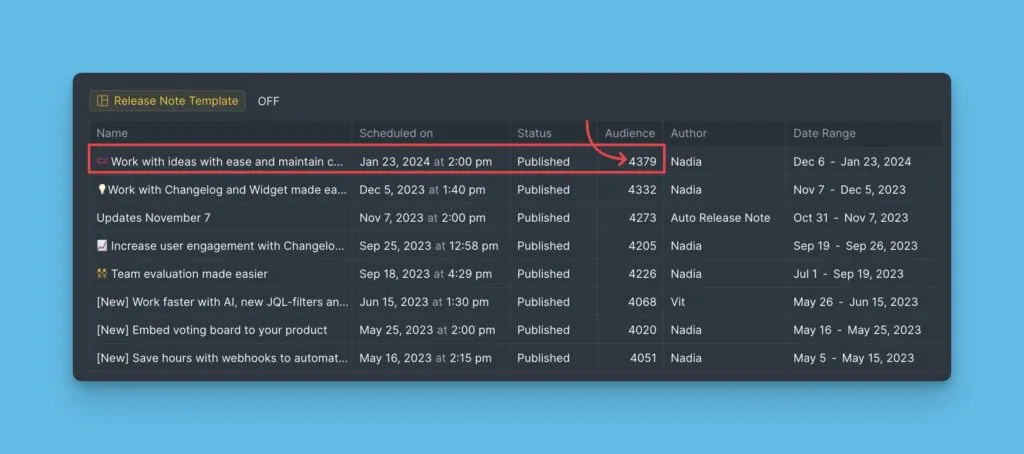
Artık ilk Sürüm Notunuzu göndermeye hazırsınız. Abone listenizin doğru olduğunu doğrulamak için hedef kitle boyutunu kontrol edin.