Evaluation Progress report
The Evaluation Progress report shows how your team's evaluation process is going. Use it to check sprint readiness and identify bottlenecks before planning meetings.
The report shows:
- Team's overall evaluation progress percentage
- Time remaining until Reveal and Final milestones
- Issues each member still needs to evaluate
- Skipped issues by team member
- Unresolved questions
- Scrum Poker settings (Facilitators, score visibility, editing permissions)
Access the report
Click Evaluation Progress in the Board menu.
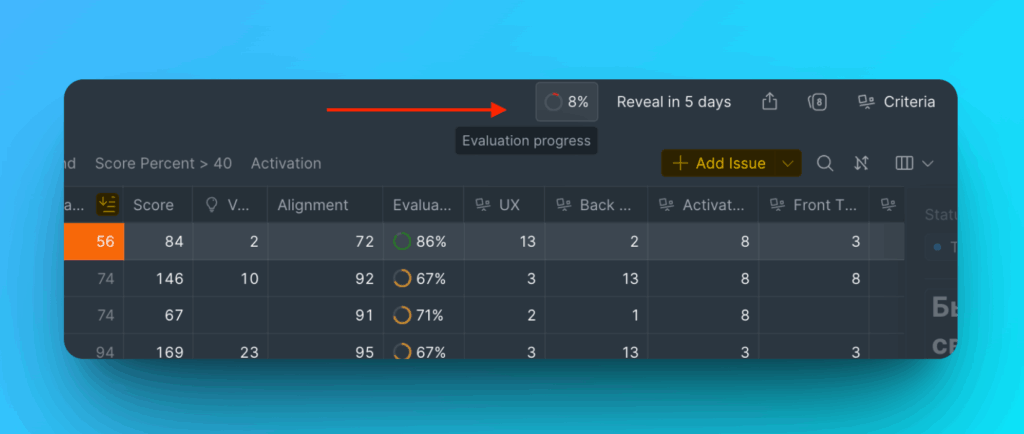
The Evaluation Progress report appears.
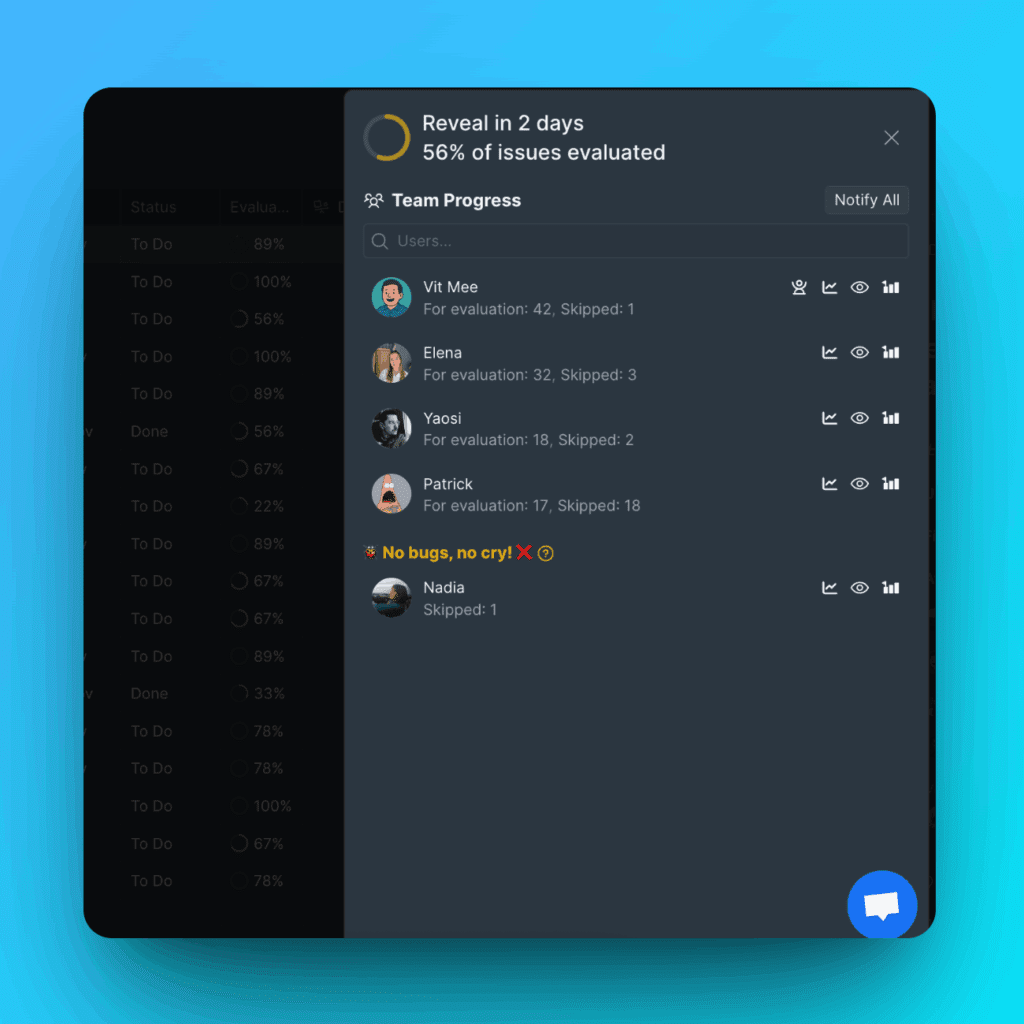
Report sections
Team progress
Shows overall evaluation completion as a percentage.
Sprint milestones
Two key milestones appear at the top:
- Reveal – Deadline for completing evaluations before sprint planning discussions (scores become visible to the team)
- Final – Sprint end date when final scores are locked
Configure these dates in Sprint planning settings.
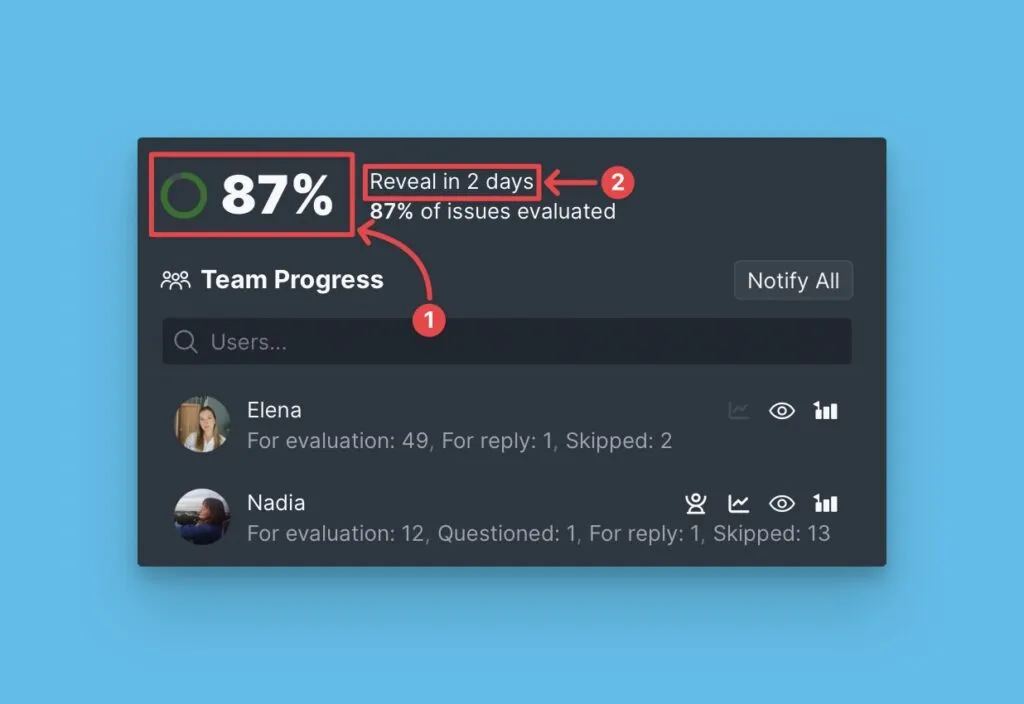
Individual progress
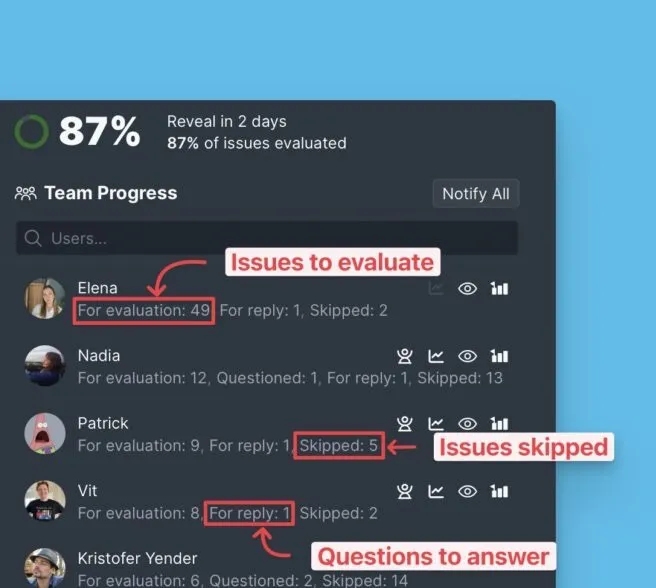
Team members are sorted by pending evaluation count (most issues at the top).
For each member, you see:
- Issues to evaluate – Remaining unscored issues
- Unresolved questions – Questions awaiting answers
- Skipped issues – Issues skipped during evaluation
Facilitators
The report lists all Facilitators. Facilitators can:
- Edit Final Scores to resolve disagreements
- See all team members' scores even when Scrum Poker is enabled
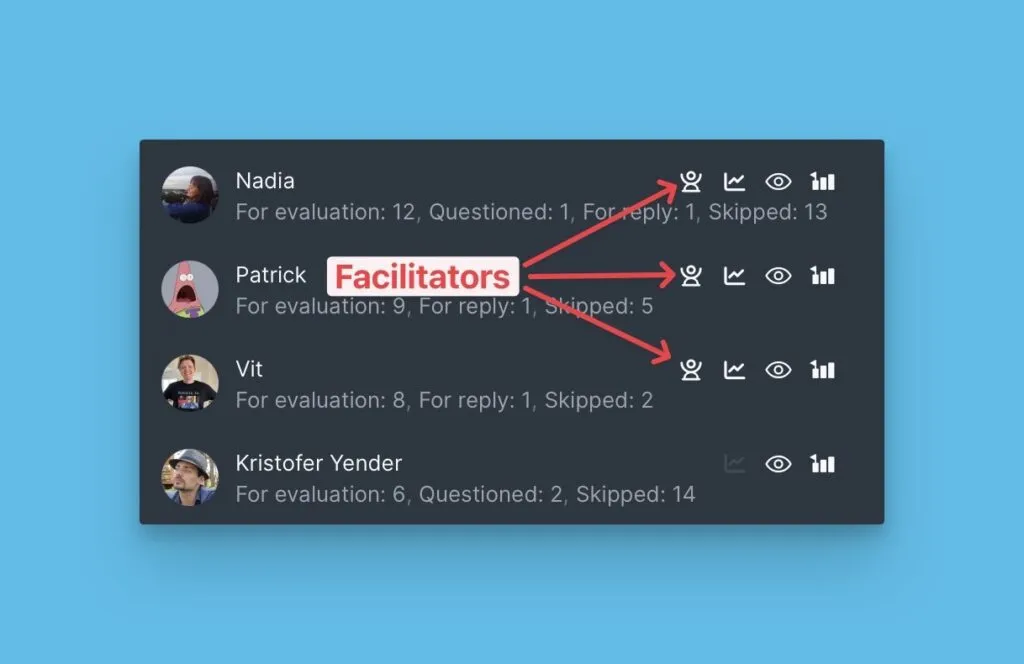
Board Owners and Admins can add or remove Facilitators directly from the report.

Score visibility
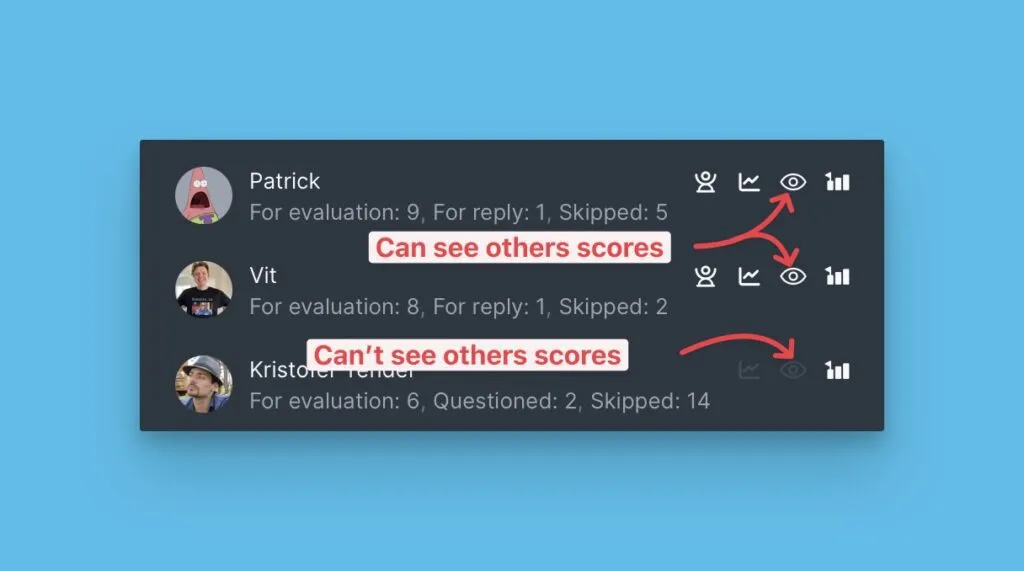
When Scrum Poker is enabled, the report shows which users can see other team members' scores during evaluation. Only Facilitators can see scores before Reveal.
Completed evaluations
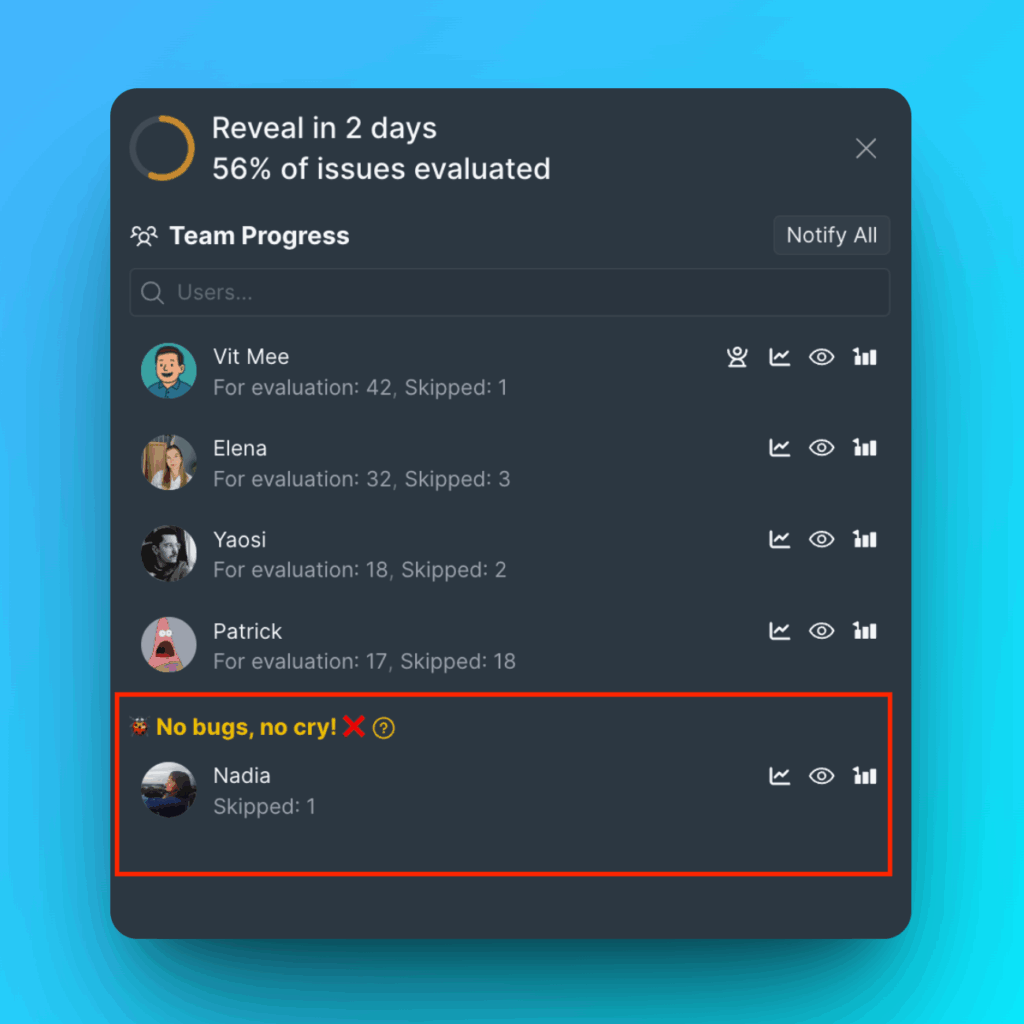
Team members who've evaluated all issues appear at the bottom of the report.
Post-Reveal editing
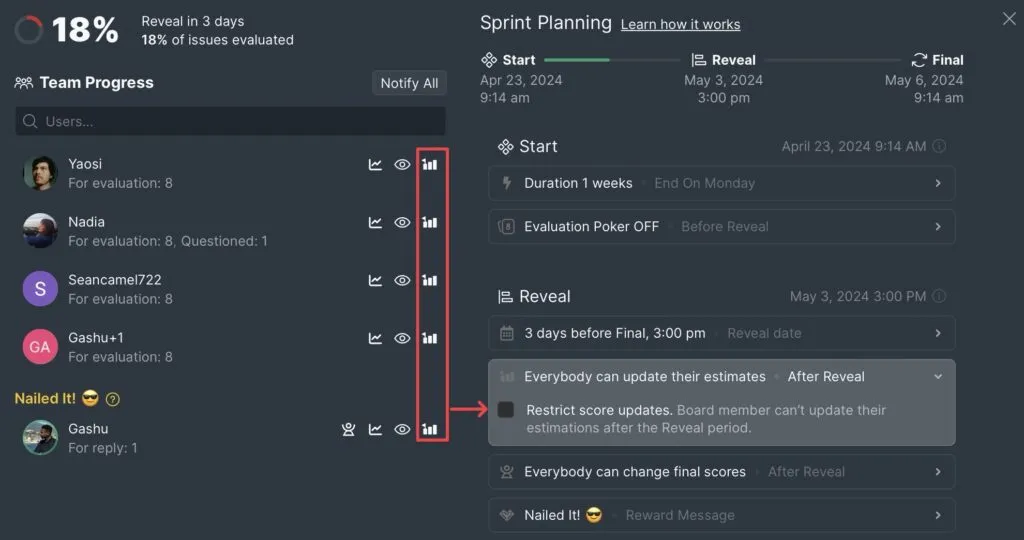
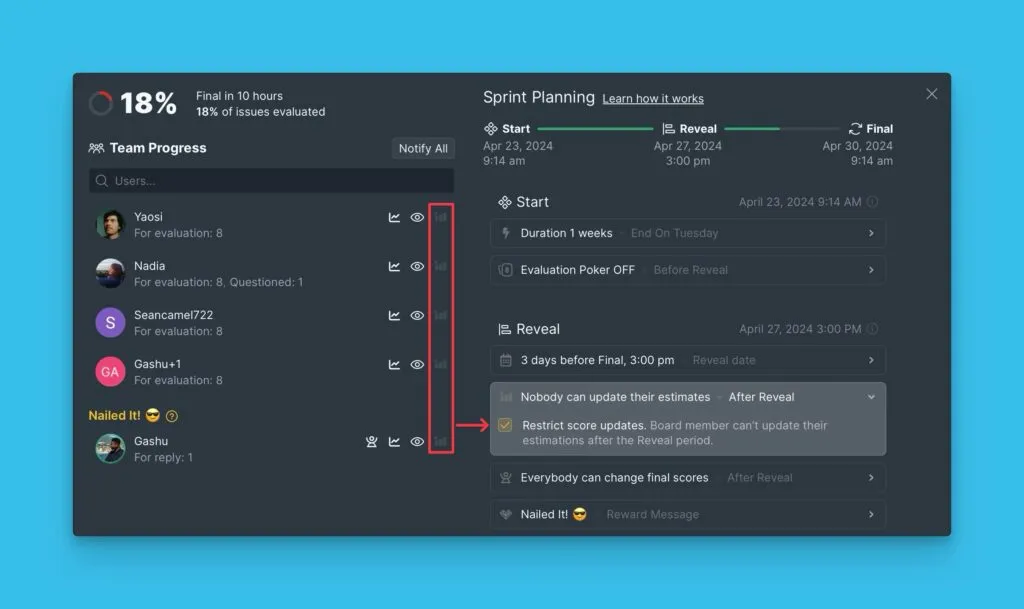
The report shows whether users can edit scores after Reveal:
Editing allowed:
Users can revise their scores after Reveal to reflect discussion outcomes.
Editing disabled:
Scores are locked after Reveal. Only Facilitators can change Final Scores.
Send reminders
Board Owners and Admins can notify team members about pending evaluations. This helps ensure everyone completes their evaluations before Reveal.
Remind one person:
Click Remind next to their name.
Remind everyone:
Click Notify All at the top of the report.
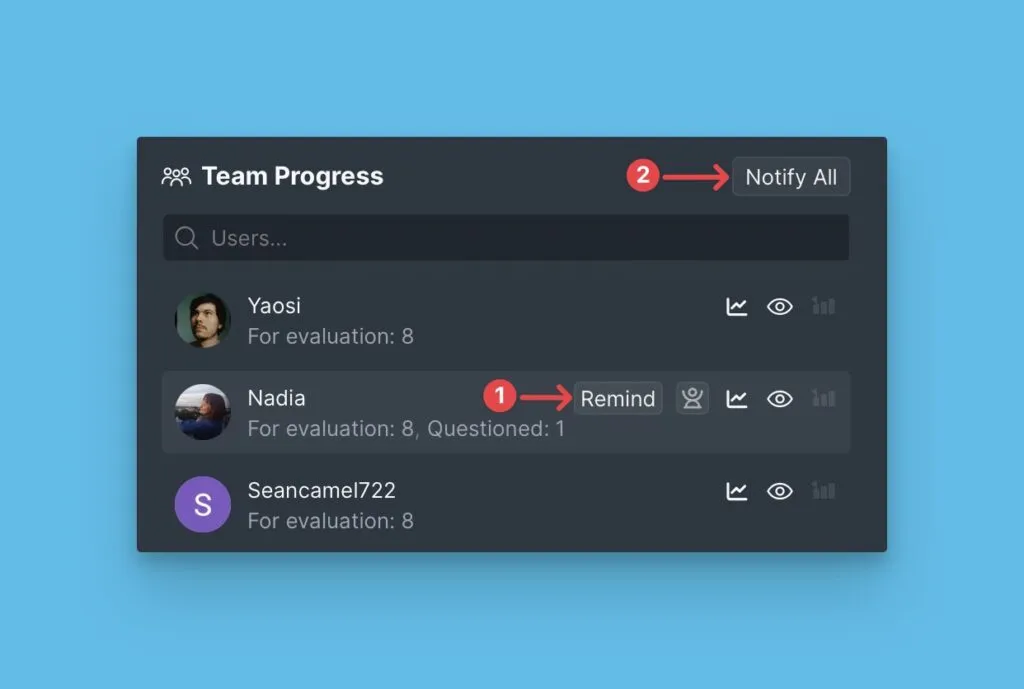
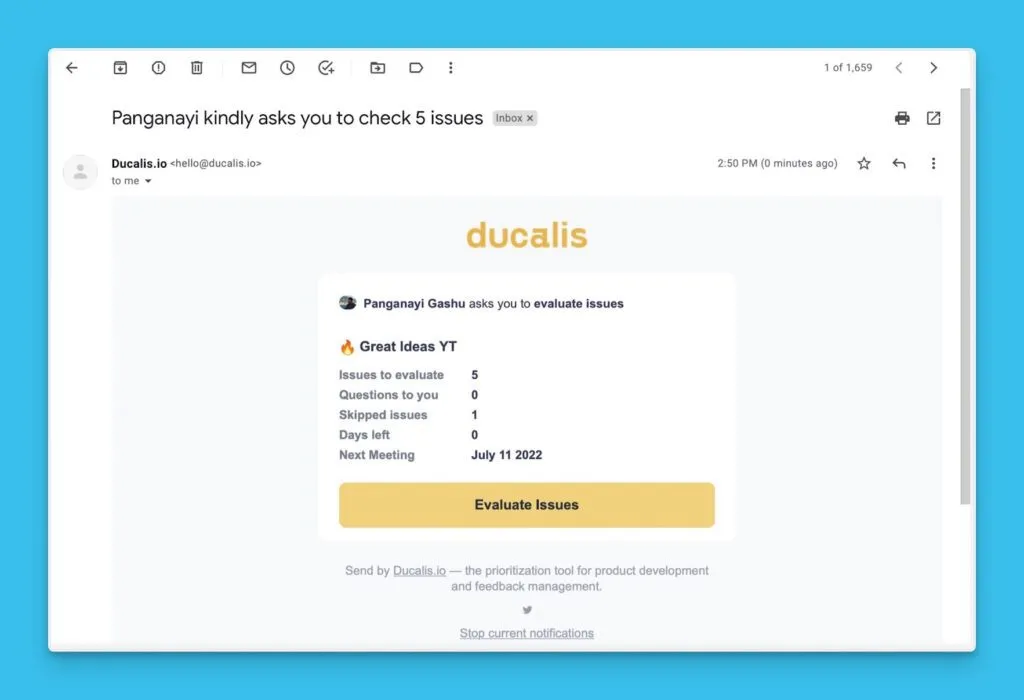
Team members receive an email with the Evaluation Progress report.