Hide Roadmap
Here's how to completely disable the public roadmap view from being shown to your users, while retaining backend access for internal planning.
Enable Hidden Roadmap
-
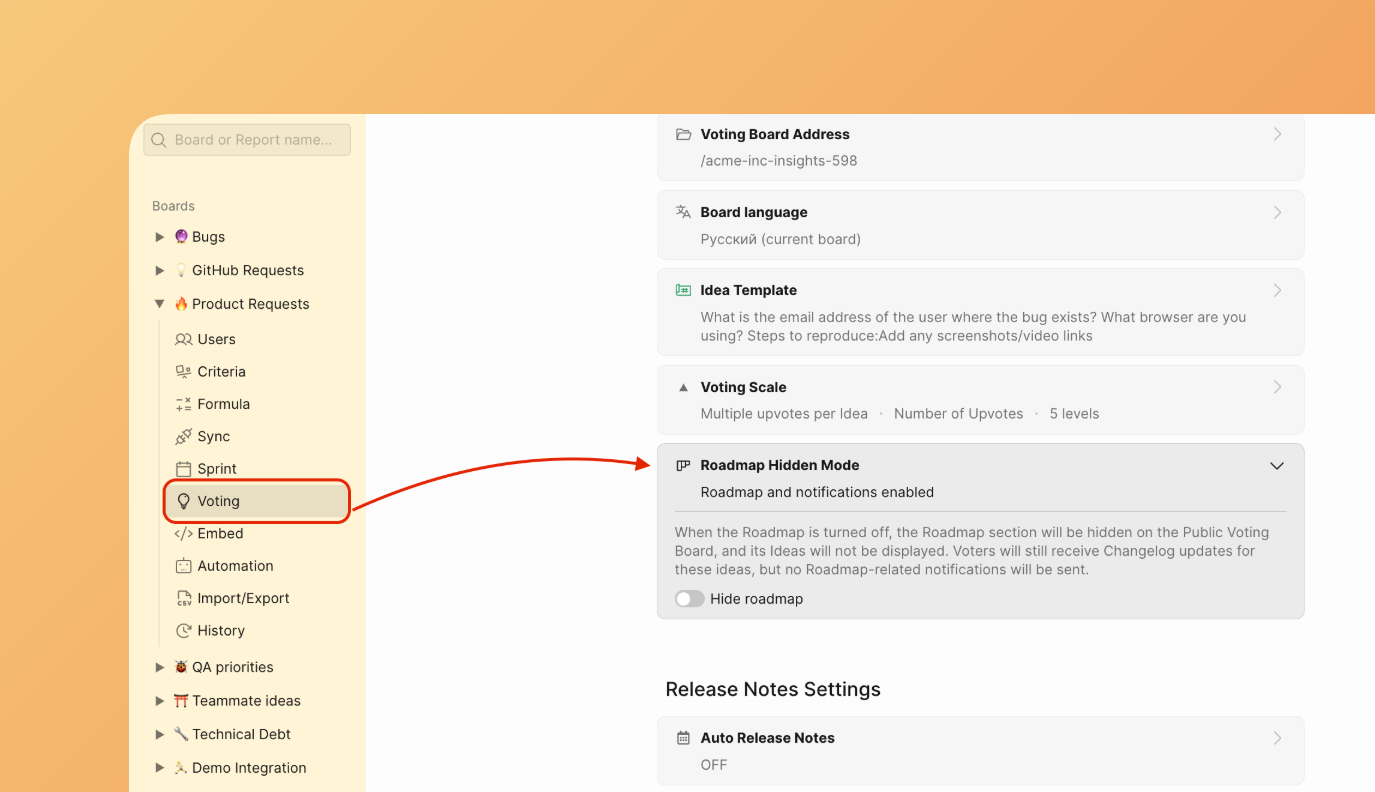
Go to Voting Board Settings.
-
Find Roadmap Hidden Mode section.
-
Enable the toggle.
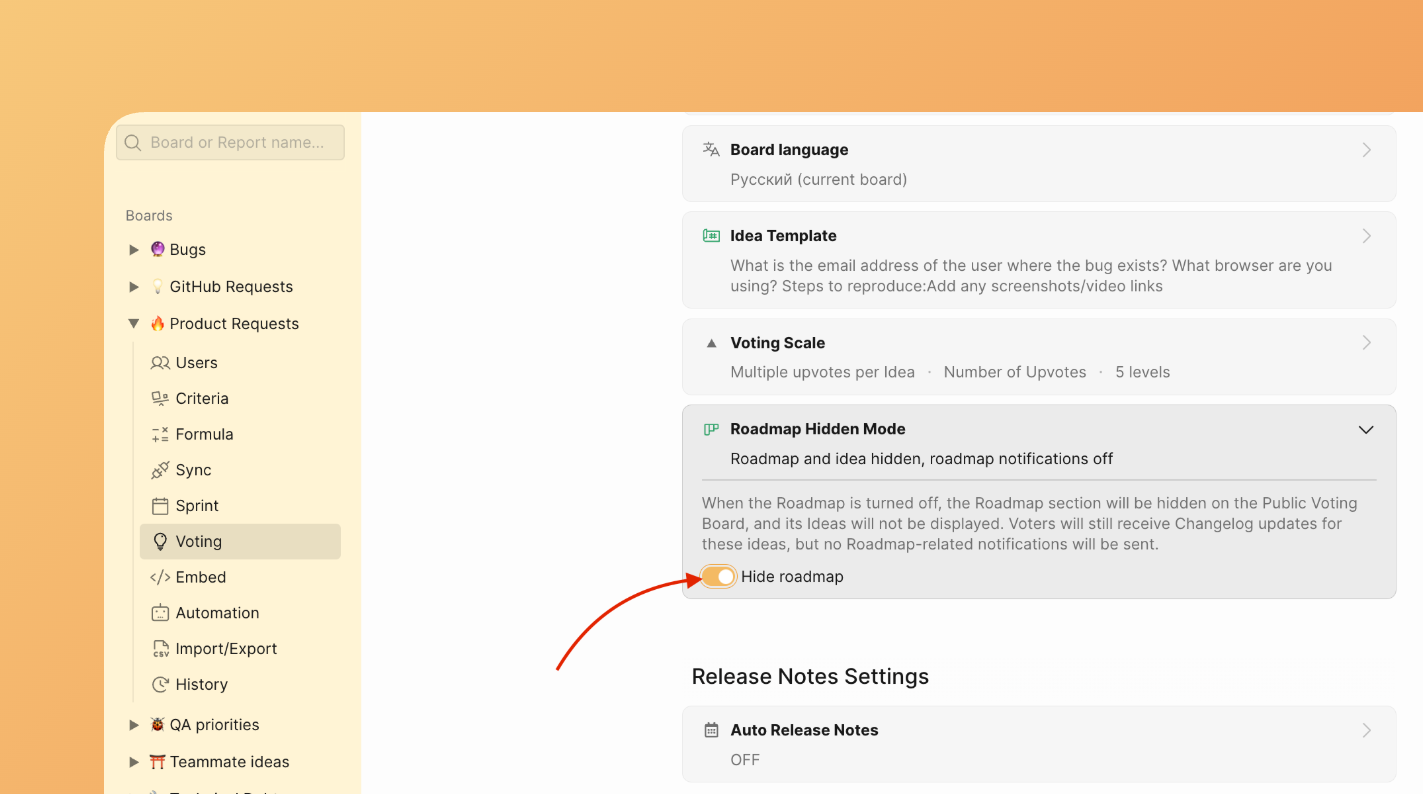
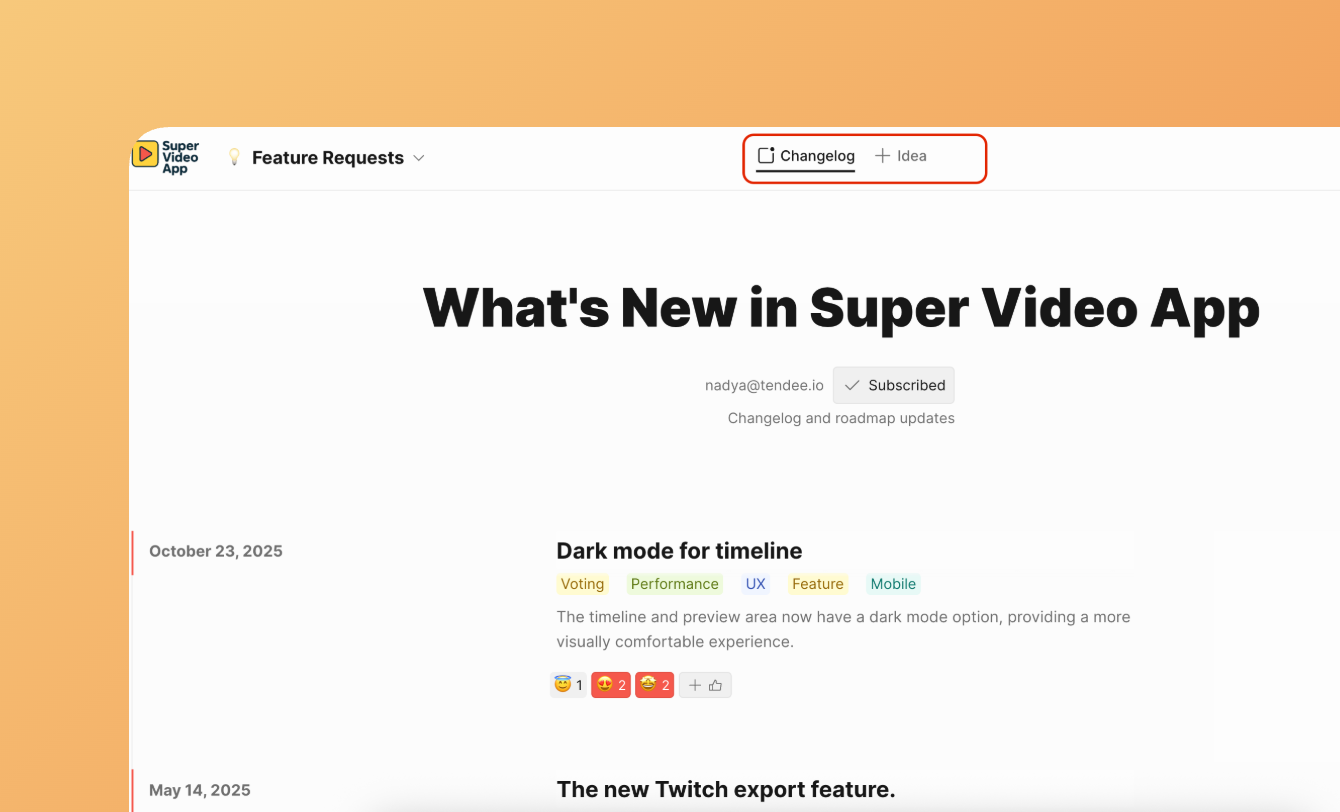
Once disabled, all frontend components related to the roadmap, including roadmap items and Kanban columns, are hidden from public pages.
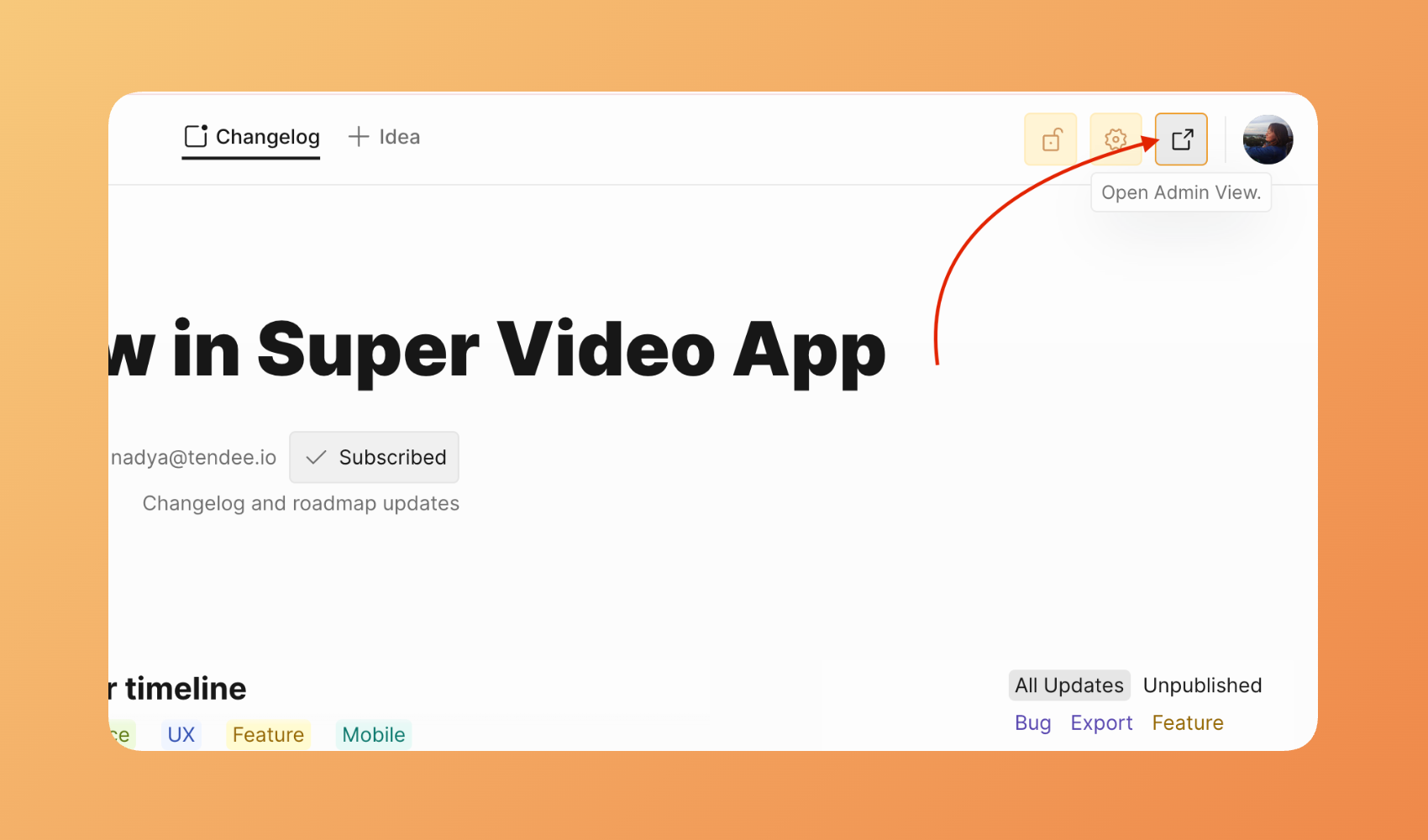
However, roadmap data and functionality remain available via the admin view for future use or internal tracking.
Notifications
While the roadmap is hidden, external voters and subscribers won’t receive any notifications from the Voting board regarding their ideas: comments, statuses, mentions, votes.
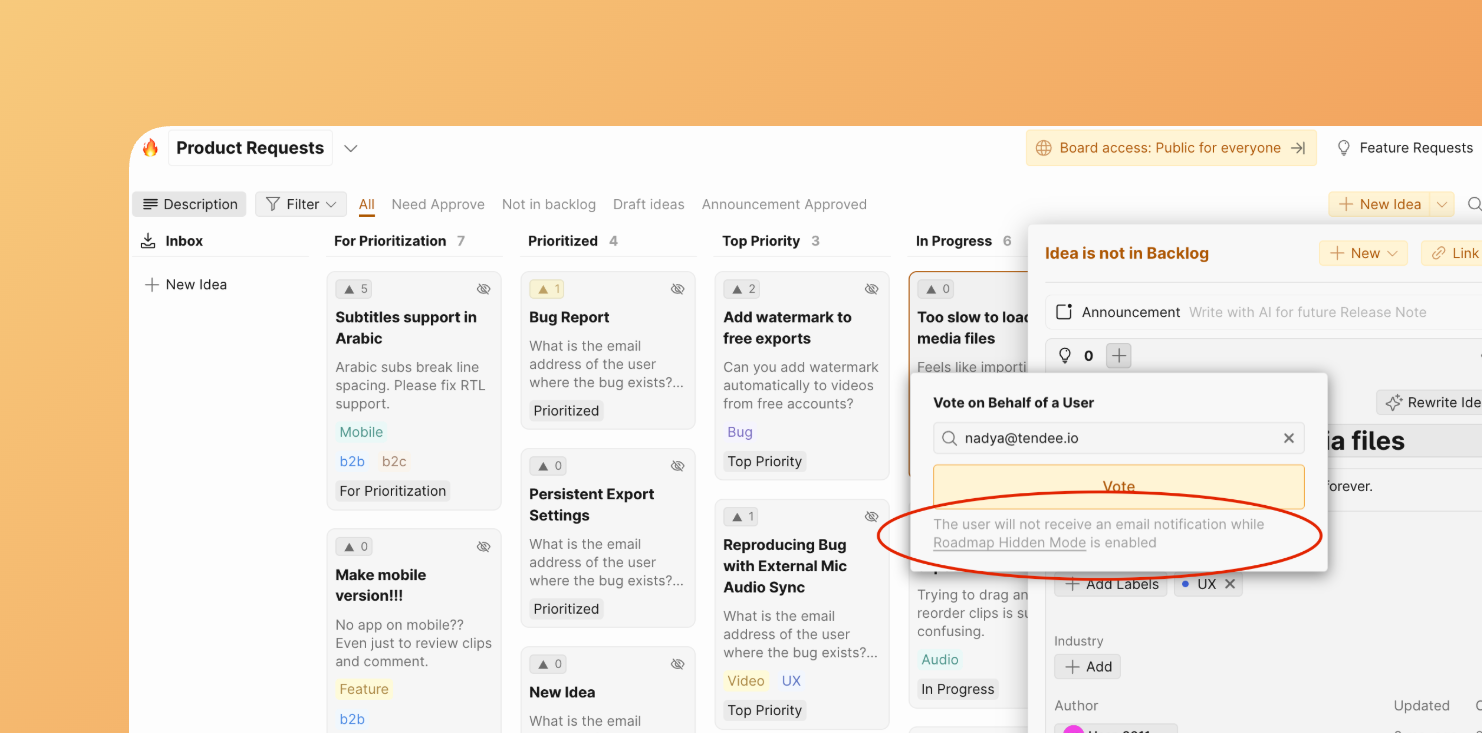
Only your Ducalis organization Users will receive these notifications.
What Voters see
External Voters and Subscribers can:
-
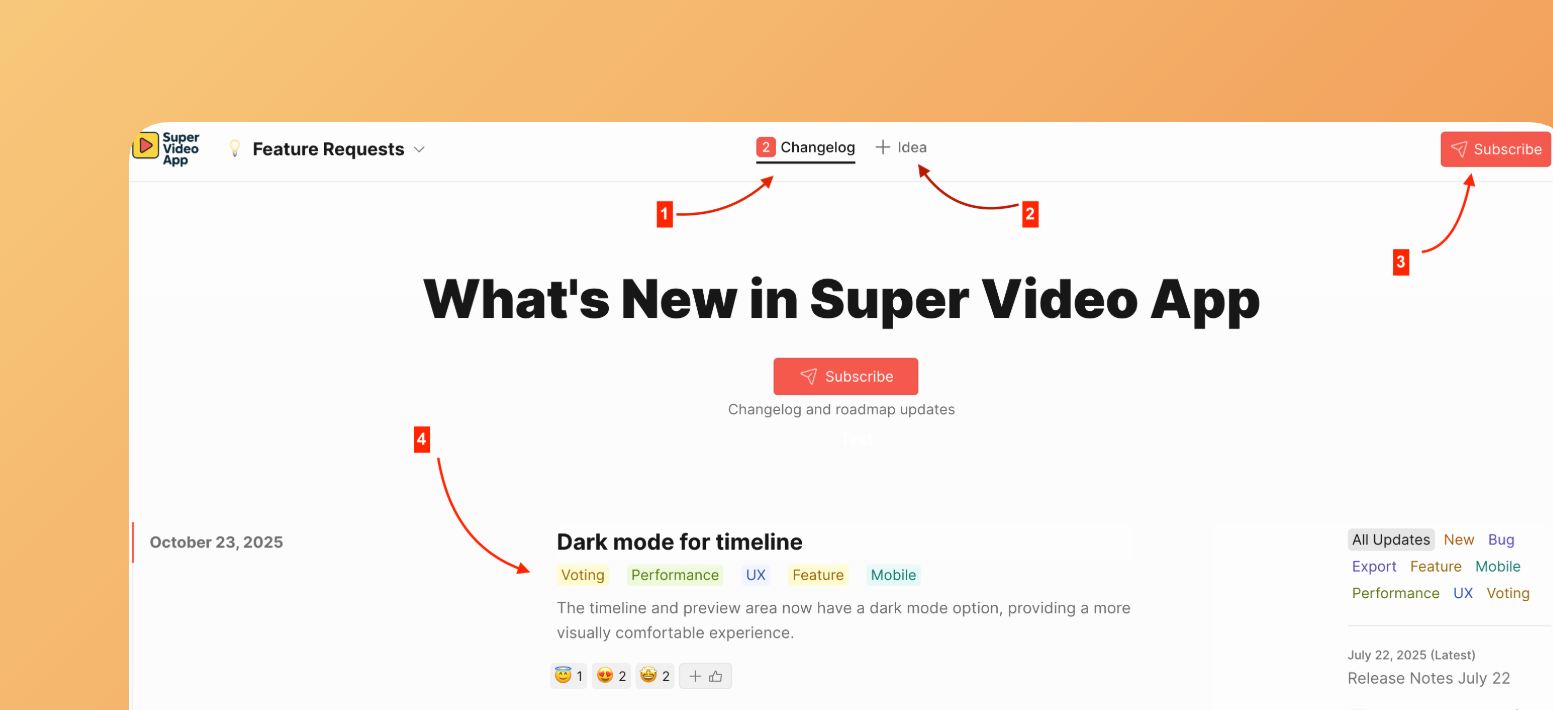
See only Changelog page.
-
Add Ideas.
-
Subscribe to the Changelog and Release Notes.
-
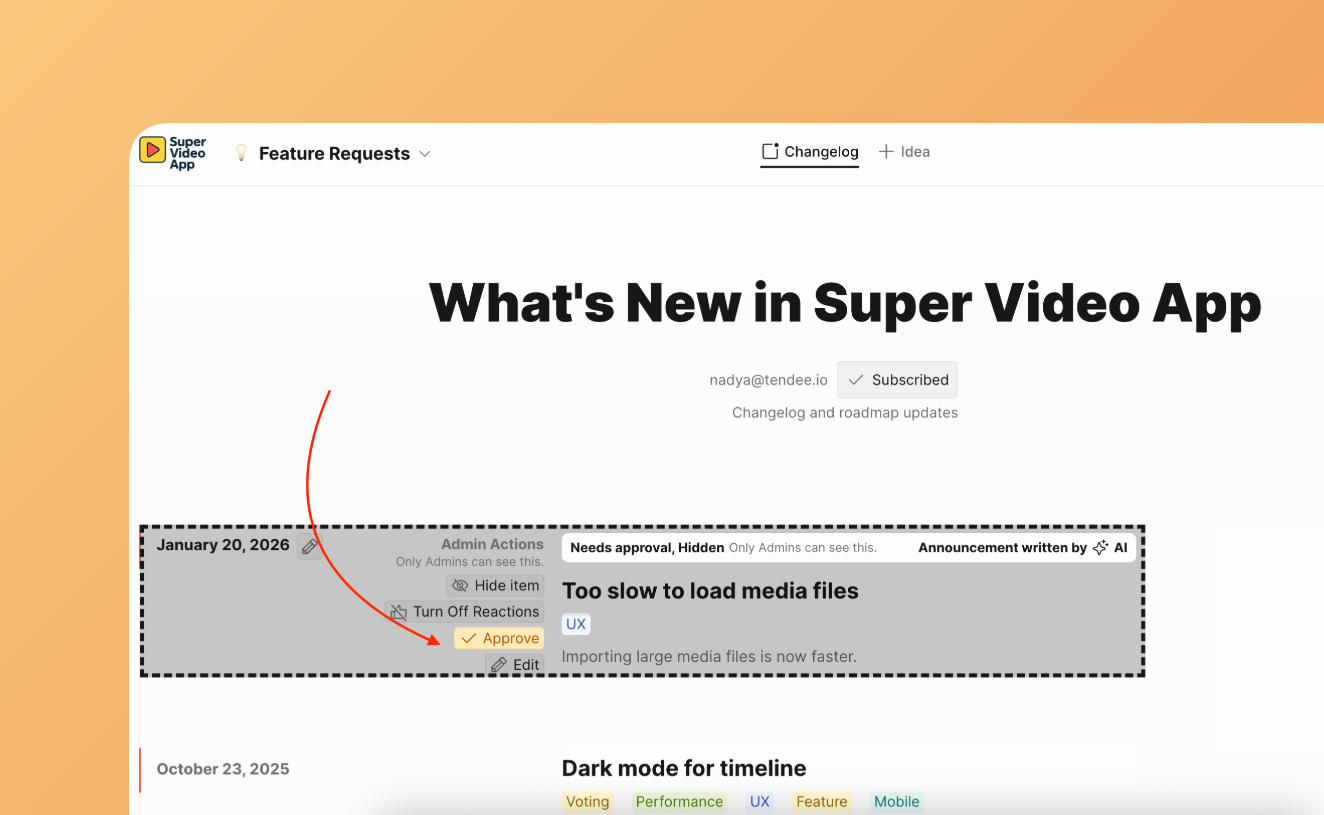
See Announcement if you approve them.
If you haven’t approved announcements, voters won’t see them until you approve them.
Reasons for hiding
Hiding the roadmap can be an important part of your product or feature management strategy. Common scenarios include:
– Private Planning: Work through ideas or set roadmap priorities before making public announcements.
– Project Restructuring: Redesign columns or adjust your roadmap approach without confusing users with in-progress changes.
– Seasonal or Event-Based Roadmaps: Reveal your roadmap only during product launches, major events, or specific campaigns.
– Internal-Only Use: Use the roadmap as an internal project board for your team without public exposure.