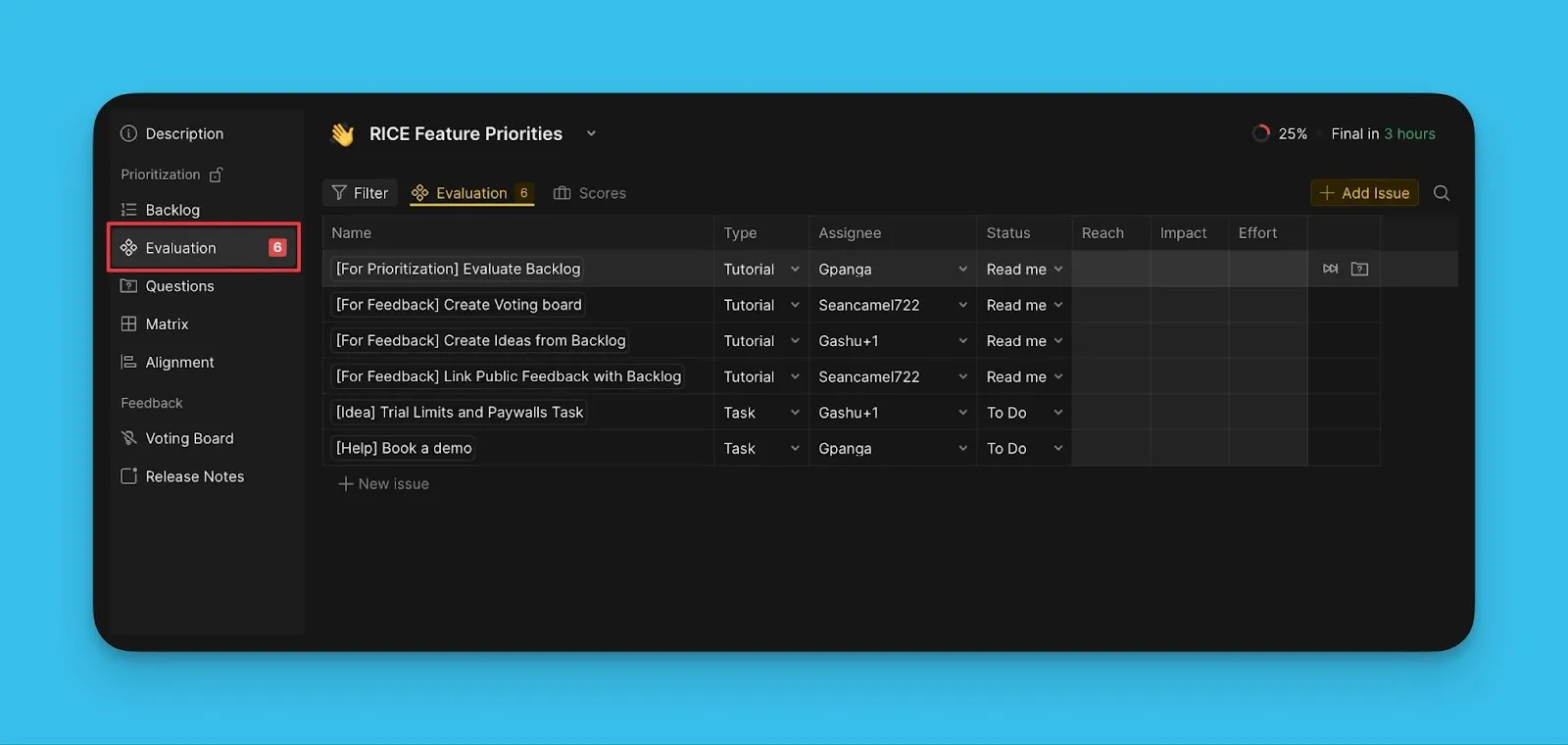
Adım 3. Kullanıcıları Ekleyin ve Kriter Atayın
İşbirlikçi önceliklendirme, takım katılımı gerektirir. Takım arkadaşlarınızı Pano'nuza ekleyin ve iş listenizi birlikte değerlendirmek için onlara Kriterler atayın.
Pano'ya Kullanıcı Ekleme
-
Board Members and Criteria Settings (Pano Üyeleri ve Kriter Ayarları) bölümünü açın.
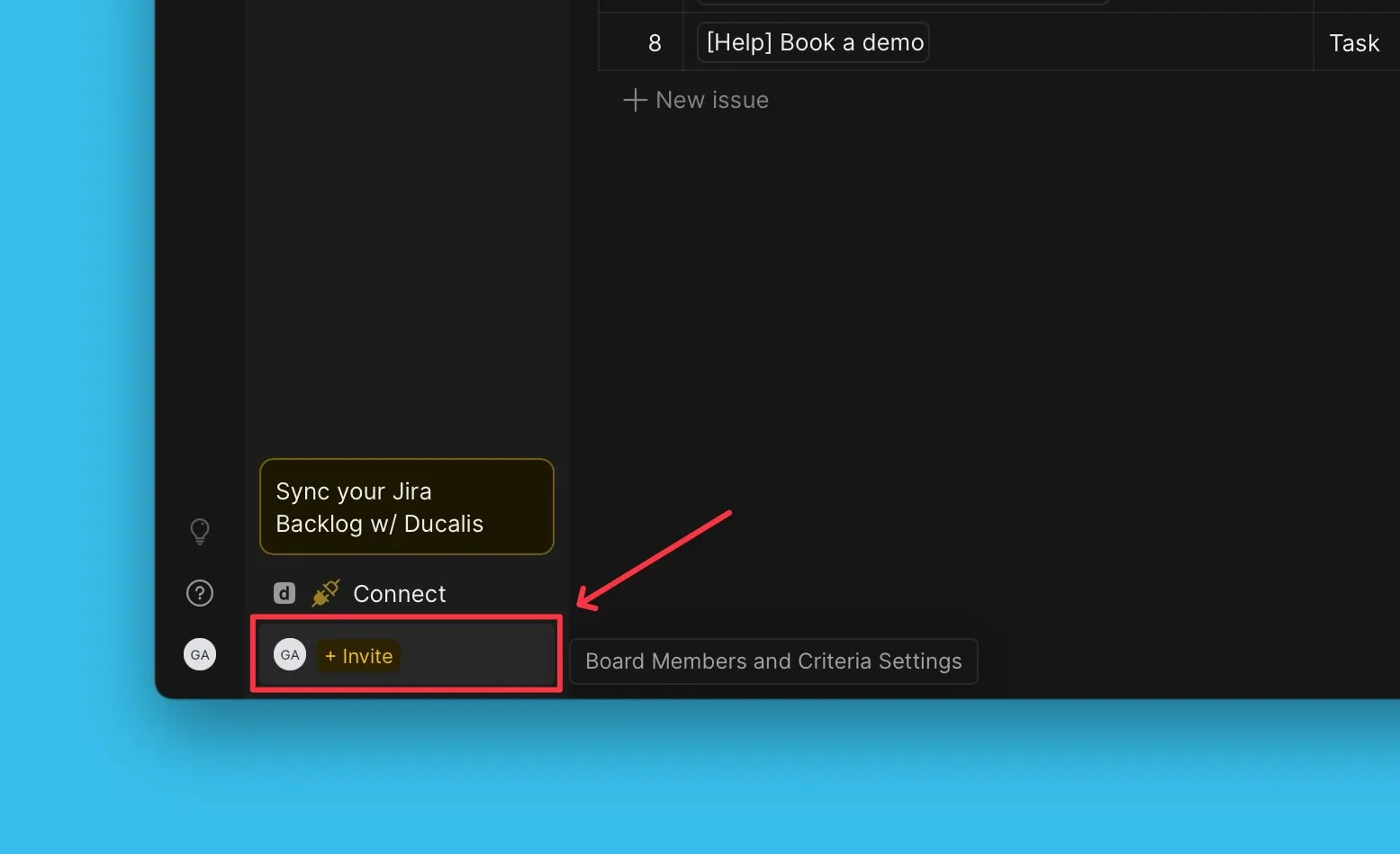
-
+ User (+ Kullanıcı) düğmesine tıklayın.
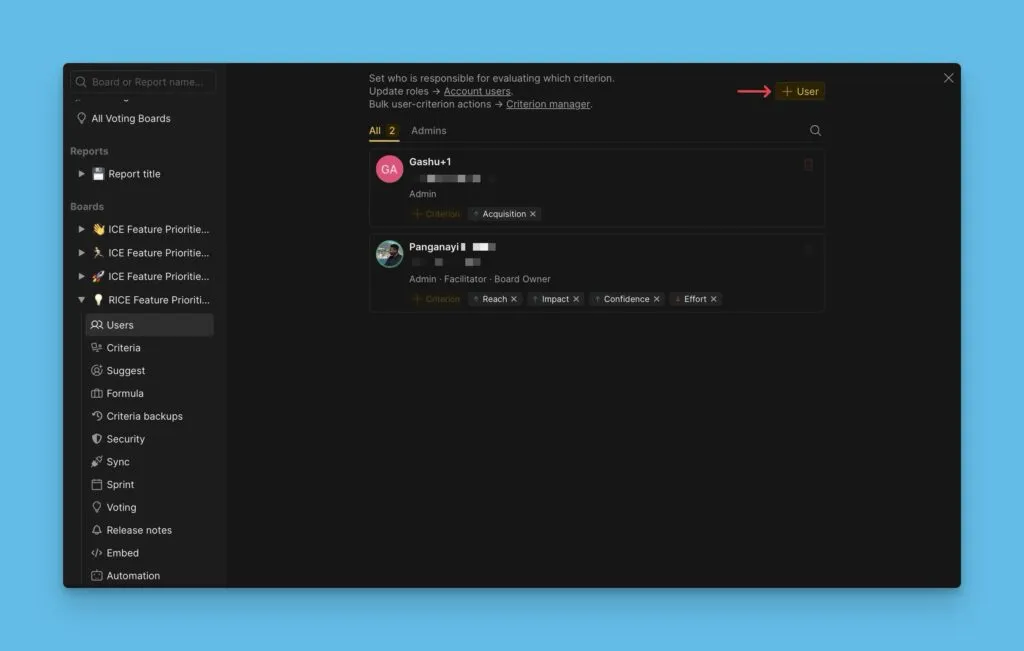
-
Davet etmek istediğiniz kullanıcının e-posta adresini girin.
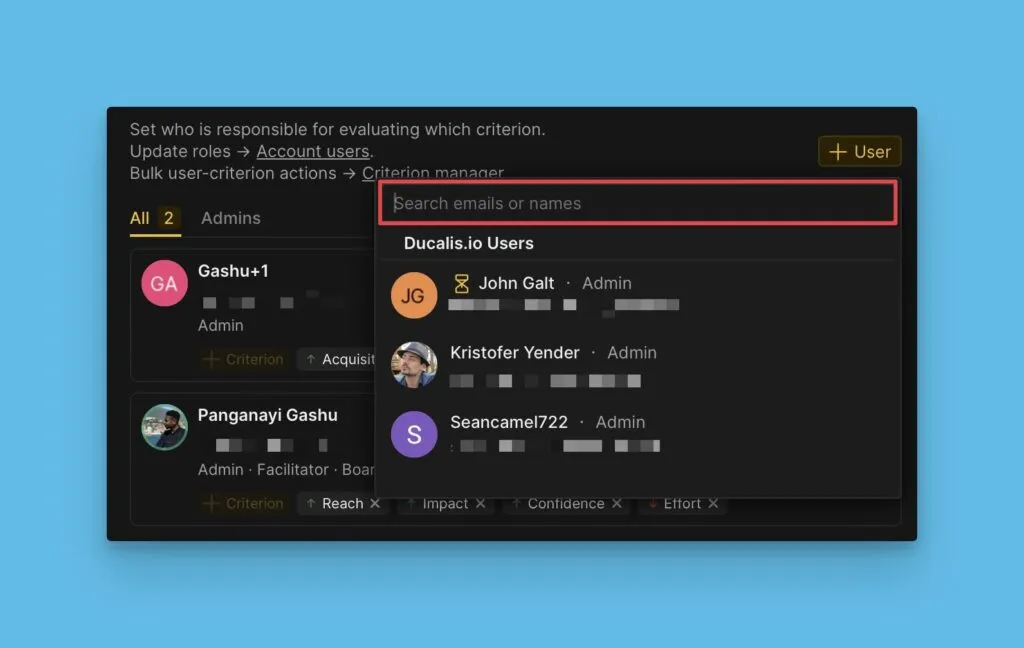
-
Eğer görev takip sistemi bağladıysanız, bu entegrasyondan kullanıcı ekleyebilirsiniz.
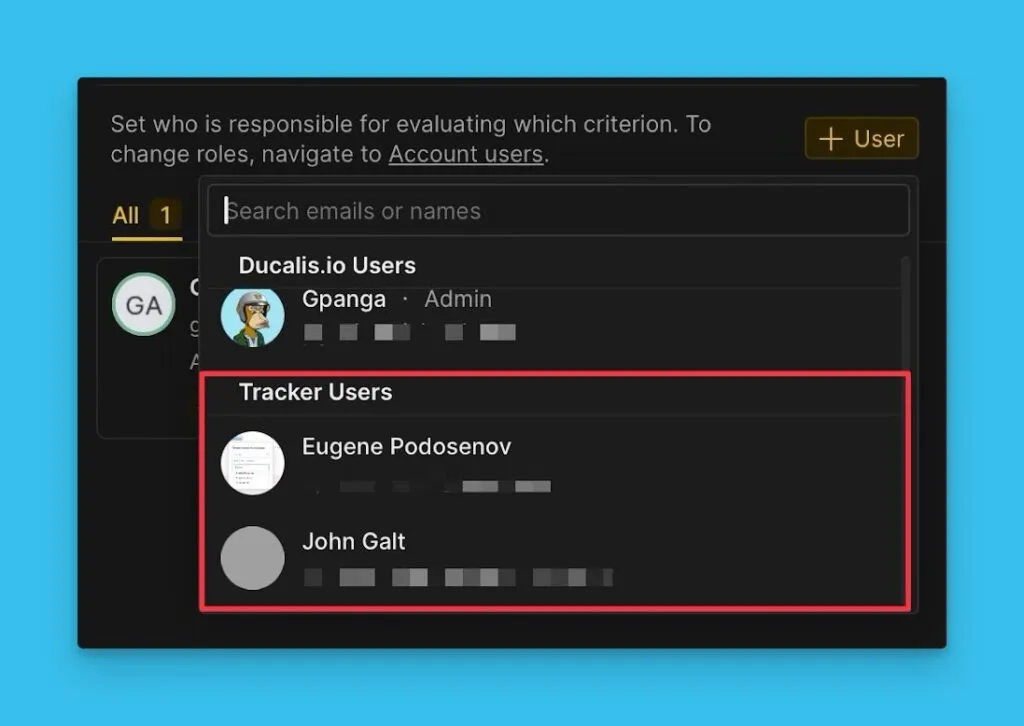
-
Daveti göndermeden önce, kullanıcıya bir rol atayın.
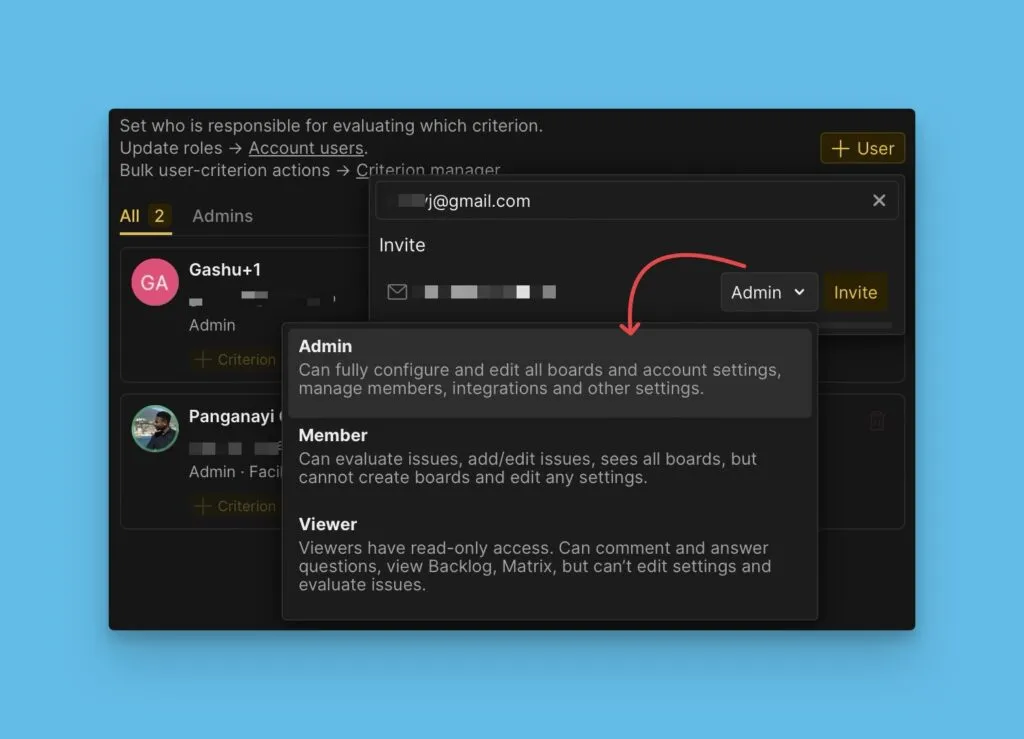
-
Daveti göndermek için Invite (Davet Et) düğmesine tıklayın.
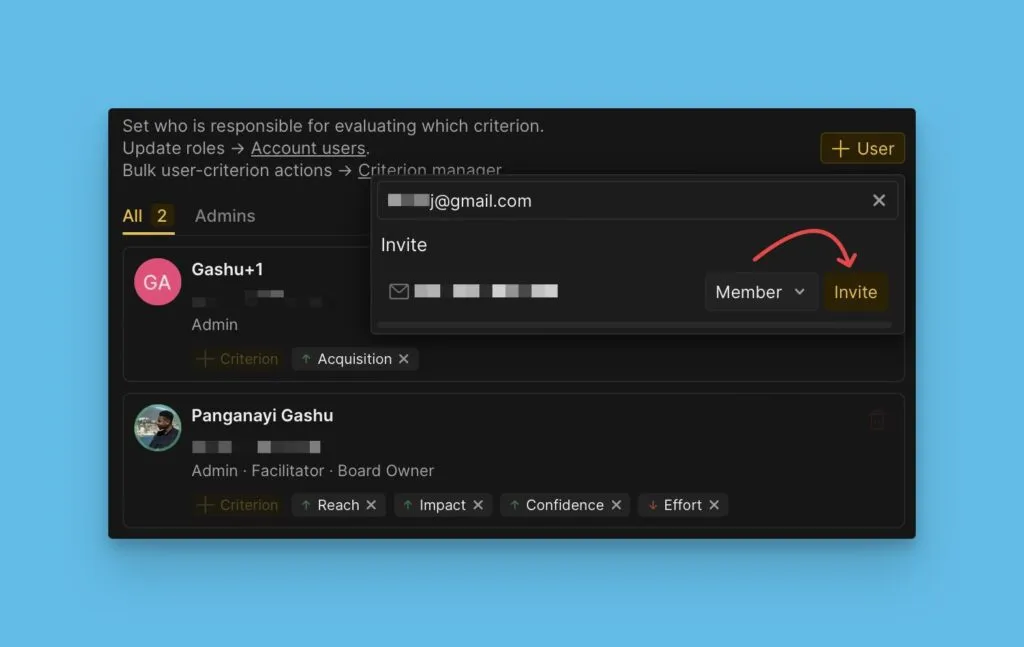
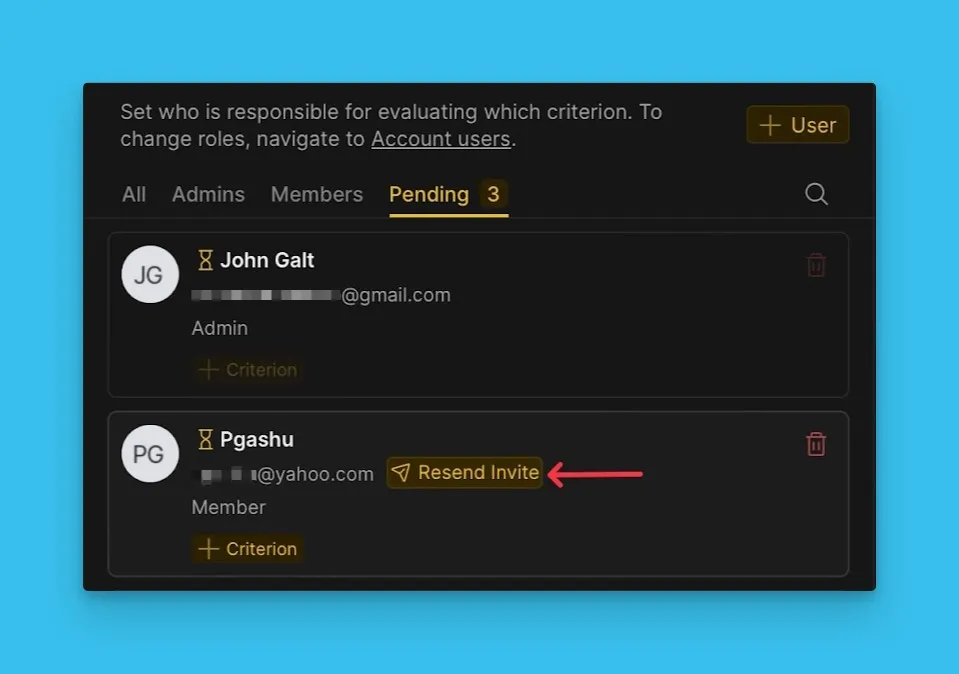
Bekleyen tüm davetler Pending (Bekleyen) altında görünür.
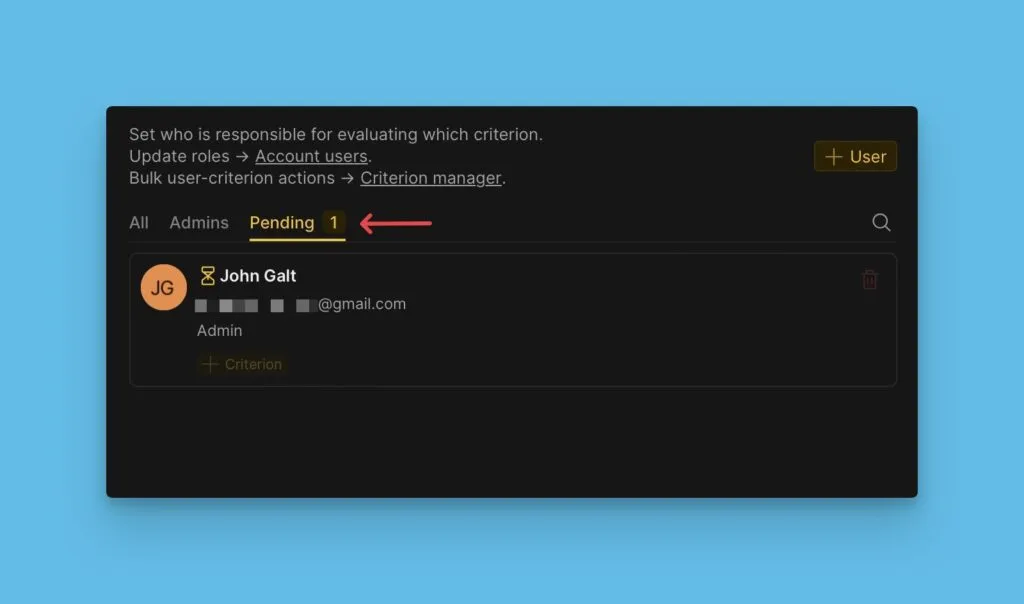
Yanıt vermeyen kullanıcılara hatırlatmak için daveti yeniden gönderebilirsiniz.
Kriter Ayarlarından Kullanıcı Davet Etme
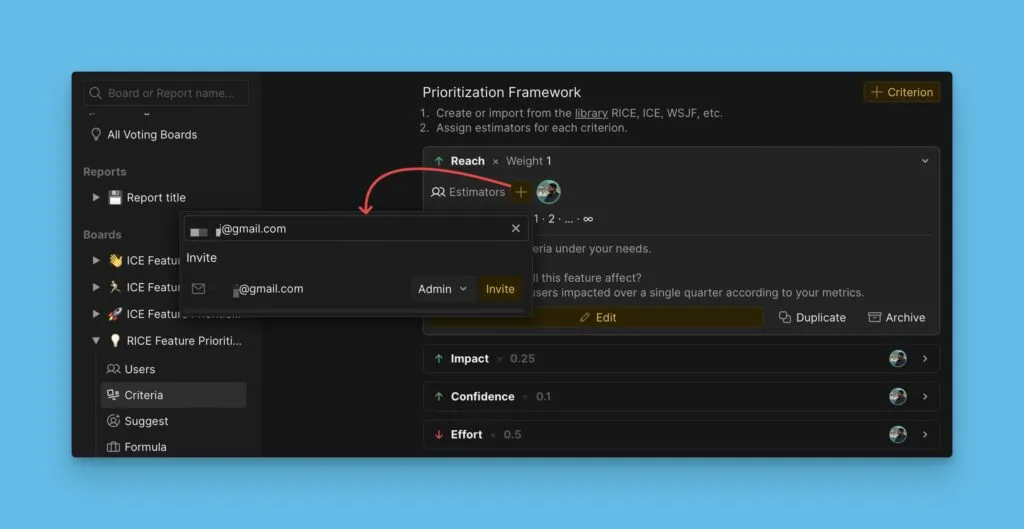
Kriterlere Değerlendirici atarken de kullanıcı davet edebilirsiniz.
Her kullanıcının Değerlendirmeye katılabilmesi için en az bir atanmış Kriter bulunmalıdır. Kriter atamadan Pano'ya kullanıcı eklemek, onların Kayıtları puanlayamamasına neden olur.
-
Criteria settings (Kriter ayarları) bölümünü açın.
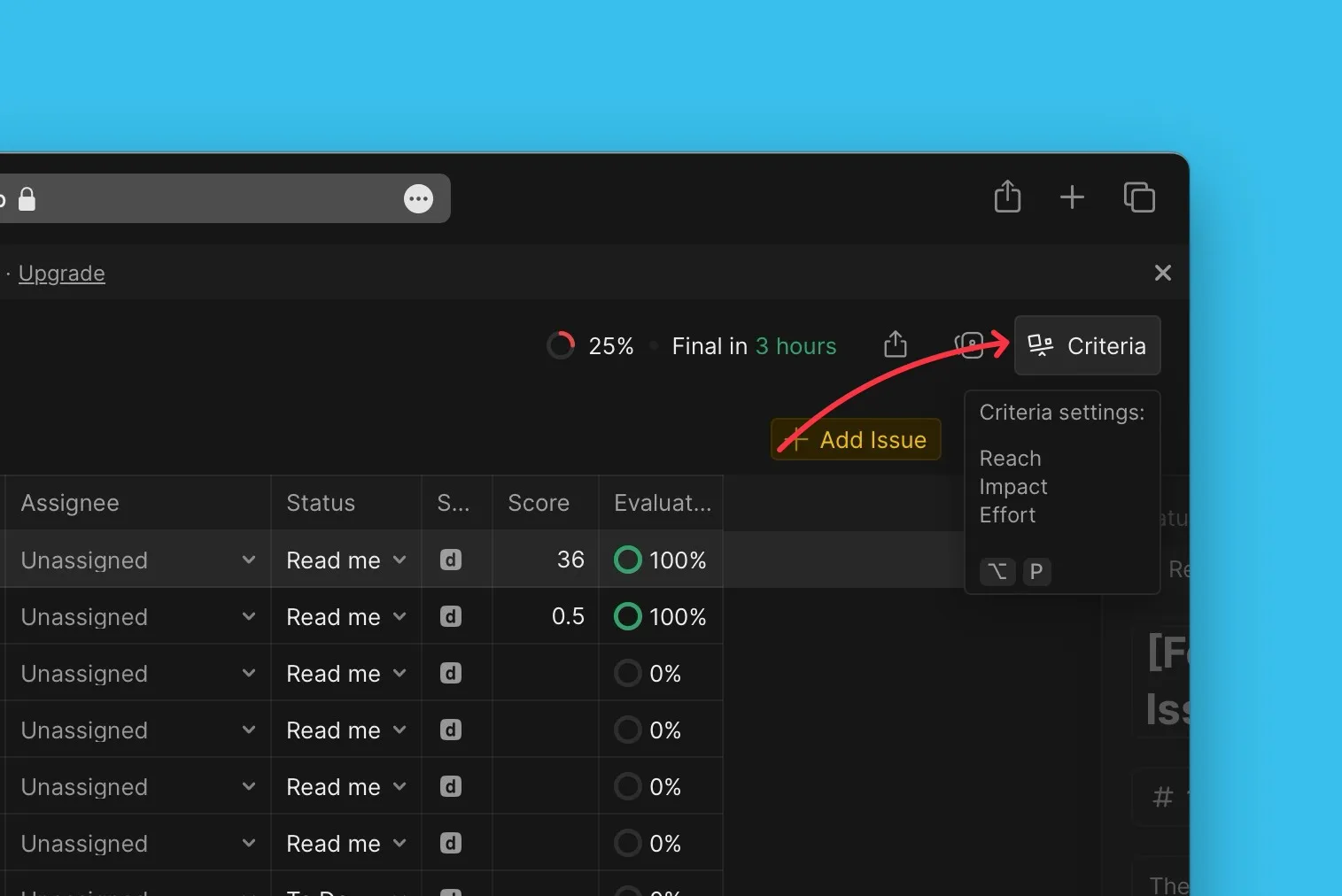
-
Mevcut bir Kritere Değerlendirici ekleyin.
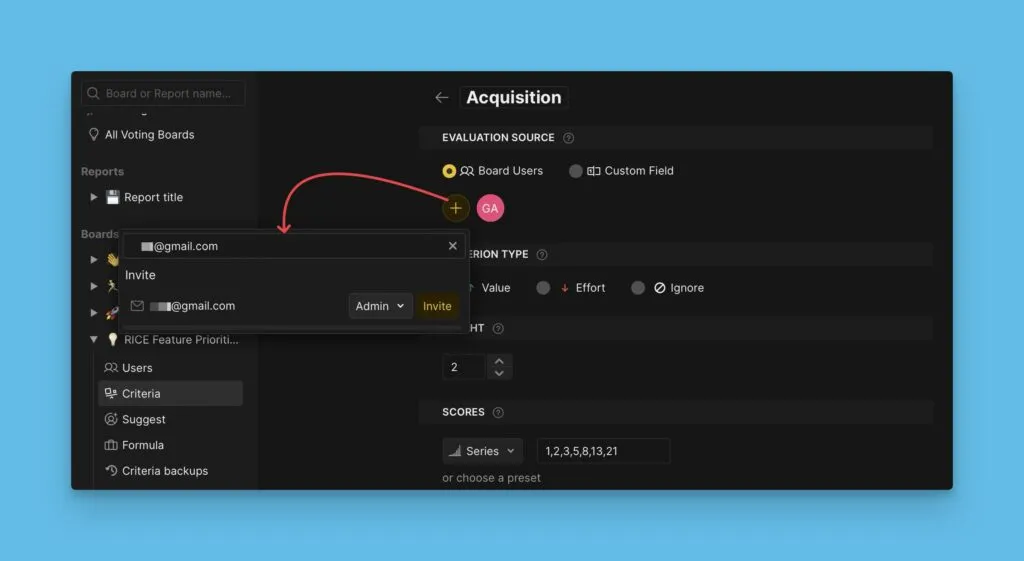
Kriter oluştururken de Değerlendirici ekleyebilirsiniz.
Kullanıcılara Kriter Atama
Kullanıcılara uzmanlıklarına ve bilgilerine göre Kriterler atayın. Her Değerlendirici, değerlendirme yapmaya yetkili olduğu Kriterleri değerlendirmelidir.
-
Kriter atamak istediğiniz kullanıcıyı seçin.
-
+ Criteria (+ Kriterler) düğmesine tıklayın.
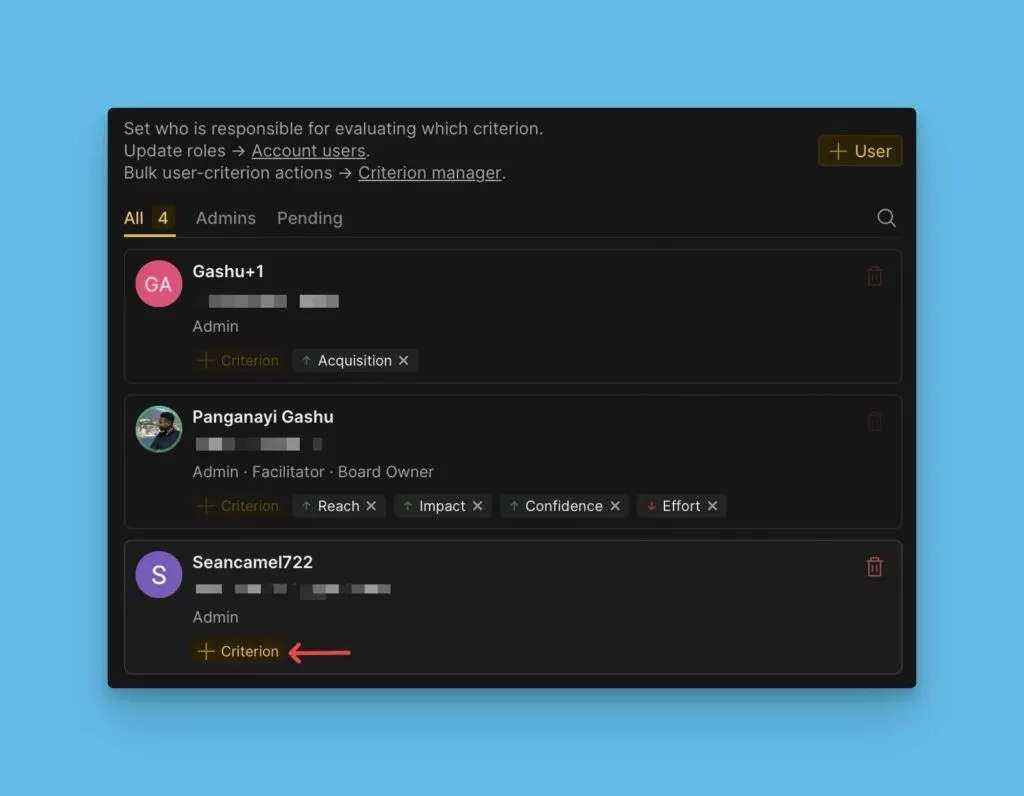
-
Önceliklendirme çerçevenizden bir Kriter seçin veya bulmak için arama alanını kullanın.
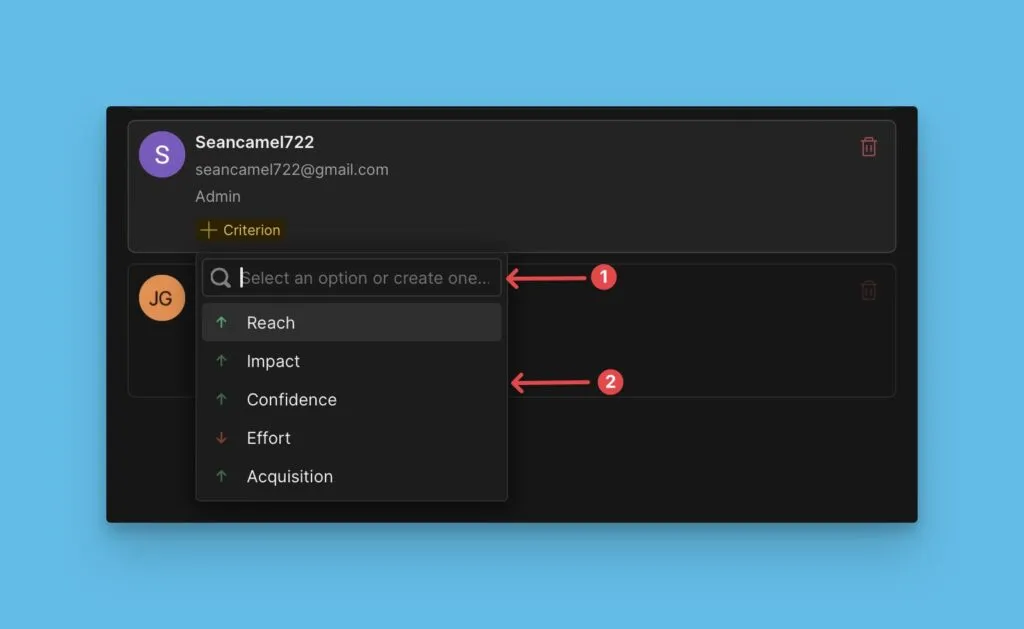
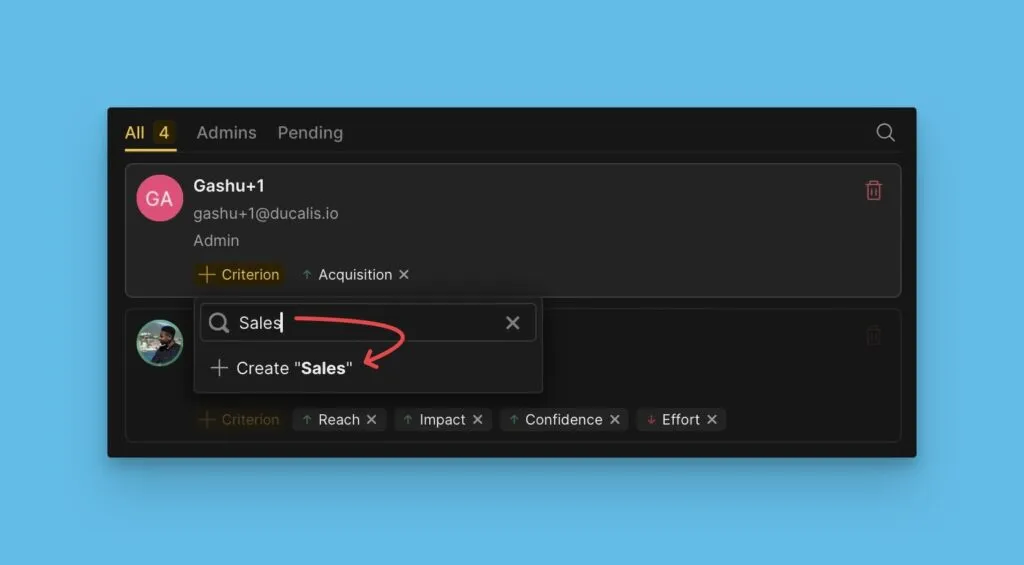
-
Eğer Kriter mevcut değilse, adını yazıp + Create [name of Criterion] (+ Oluştur [Kriter adı]) düğmesine tıklayarak oluşturun.
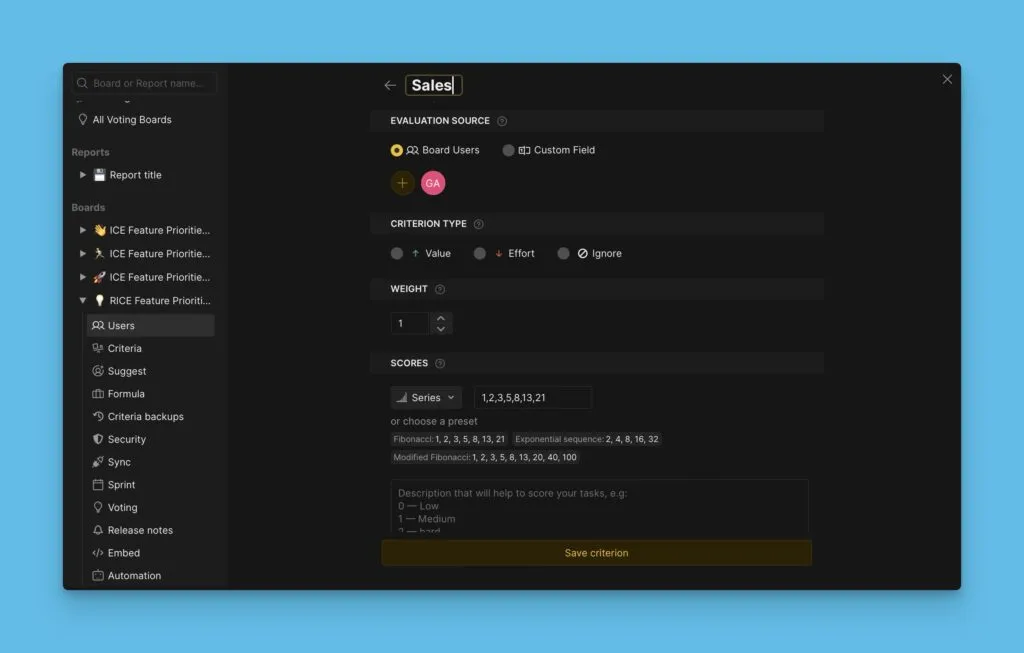
Kriter oluşturma sayfası açılır. Kriter oluşturma hakkında daha fazla bilgi edinin.
Sırada Ne Var?
Önceliklendirme sisteminizi kurduktan sonra, Adım 4: Önceliklendirme için Kayıtları Değerlendirin adımına devam edin.