Settings
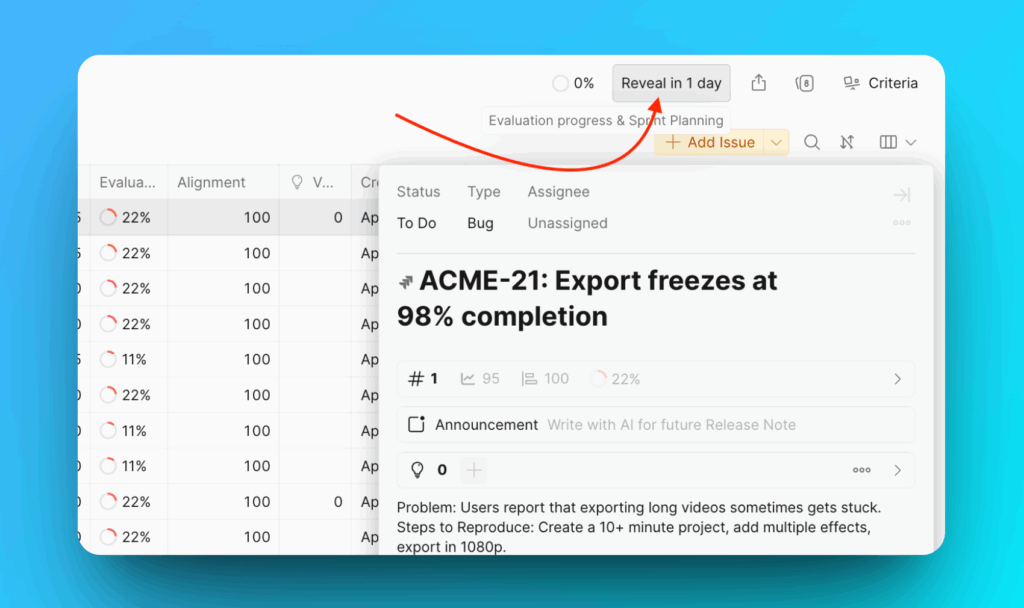
Configure sprint settings to automate your prioritization workflow. Build a prioritization habit that keeps your priorities aligned with constantly changing goals.
Sprint settings help you:
- Keep priorities in line with your sprint goals
- Have tasks prioritized before each sprint planning meeting
To access sprint settings, go to Evaluation Progress & Sprint Settings in your Board.
Sprint Modes
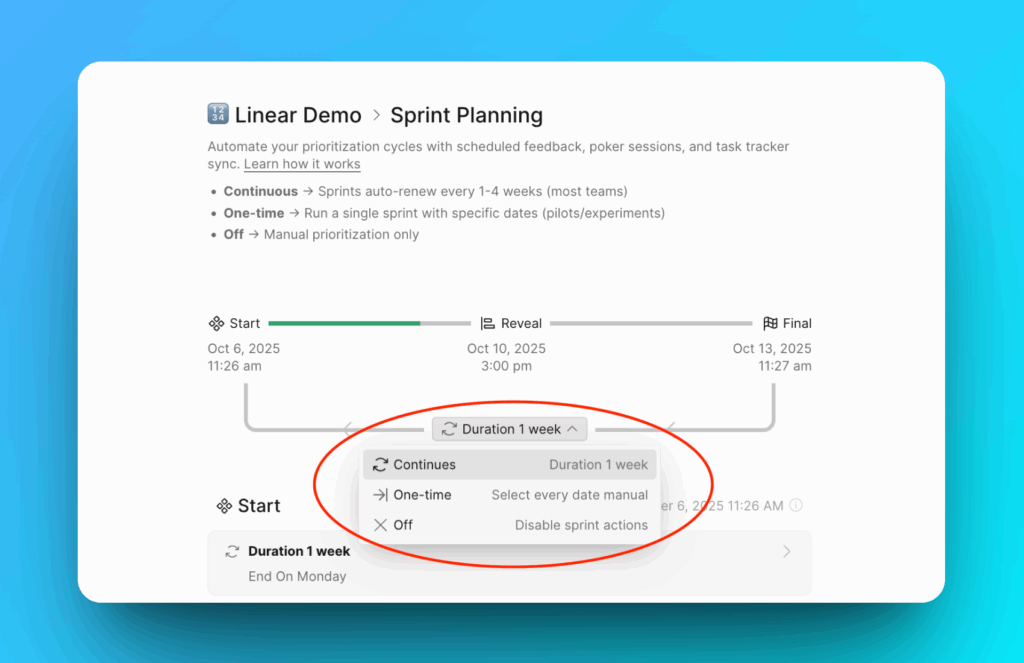
There are three modes:
- Continuous – auto sprints that continue regularly; you don't need to set up each sprint manually.
- One-time – manual sprint setup; you need to restart it manually after each sprint ends.
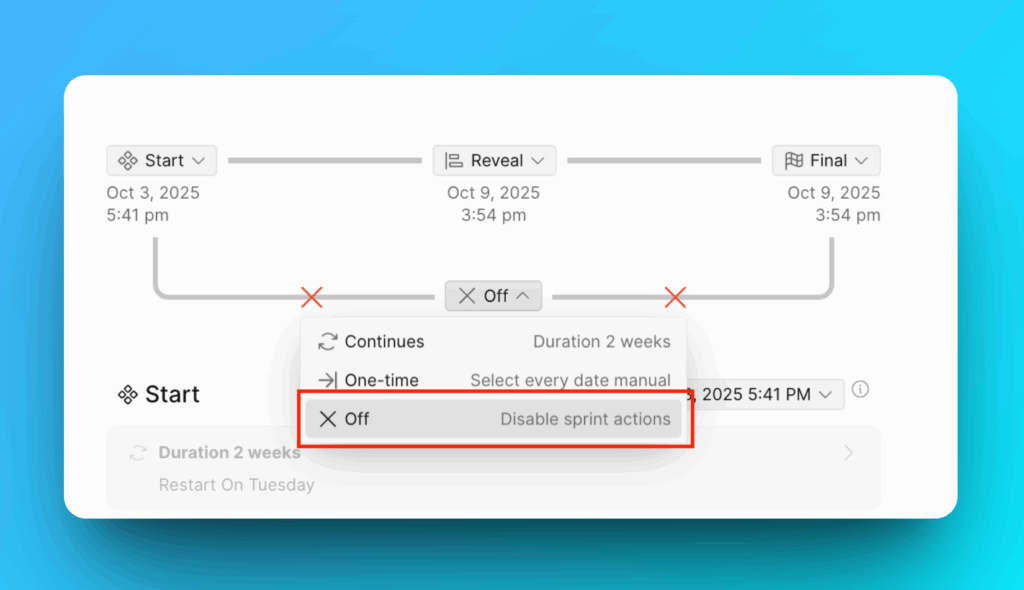
- Off – sprints are disabled; all related settings are inactive.
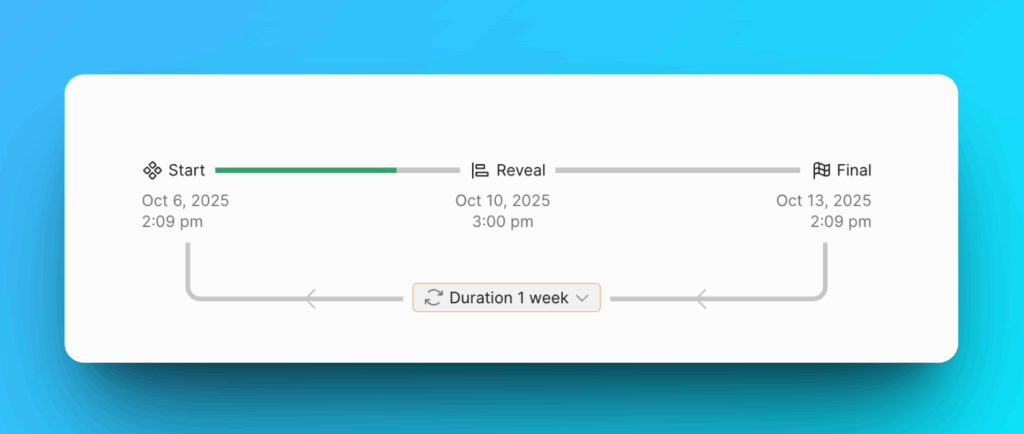
Each Sprint mode involves three steps:
-
Start – this is the evaluation period. During this time, the team is estimating issues in the backlog for prioritization. An admin or owner of a board can set the length of the evaluation period.
-
Reveal – this is the time when all users should finish their evaluation and will no longer be able to change their scores.
-
Final – this is the last step of the sprint planning process. Final scores are set and cannot be edited. The prioritization results will then be available.
Continuous Sprint Mode
If you need an automated and continuous sprint process, choose Continuous.
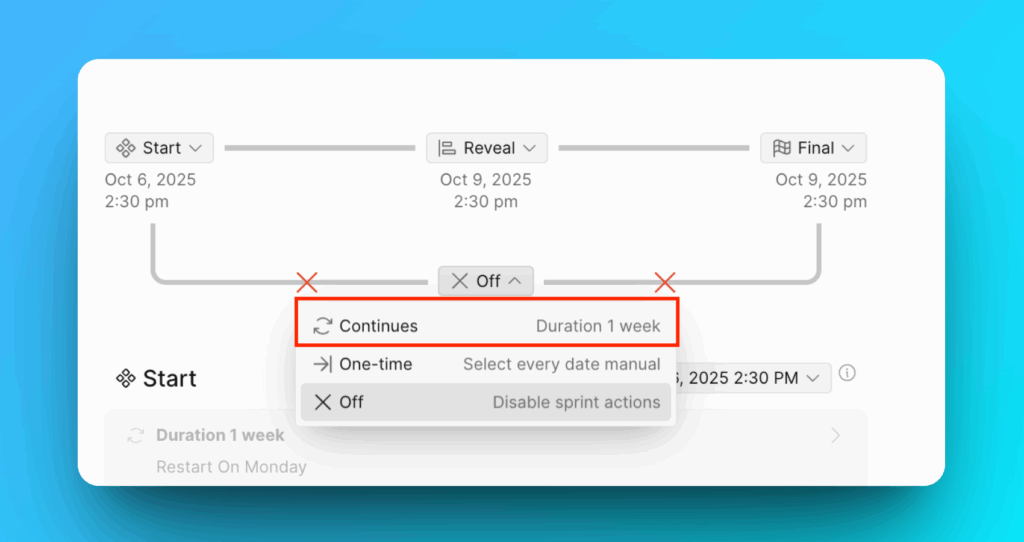
- On Start step you need to set up:
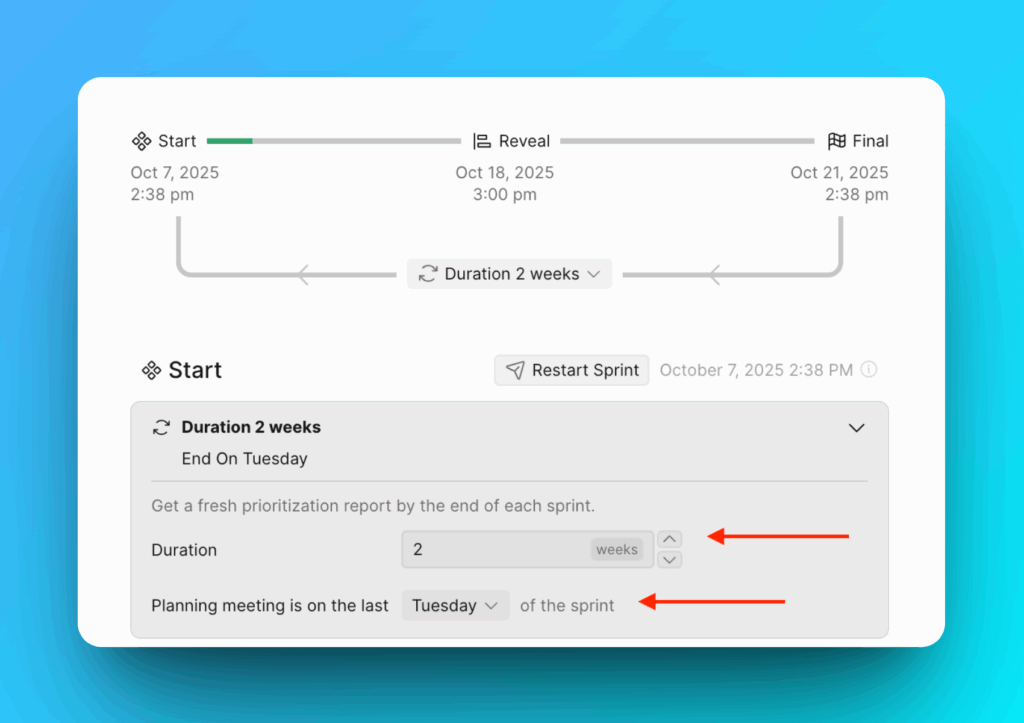
- Duration – choose how long you want your sprint plannings to be.
- Choose the day of the week that you like to start your sprint.
- Decide if you need to turn on Evaluation Poker. This mode helps you get unbiased prioritization results, as users' scores remain private until the evaluation period is over.
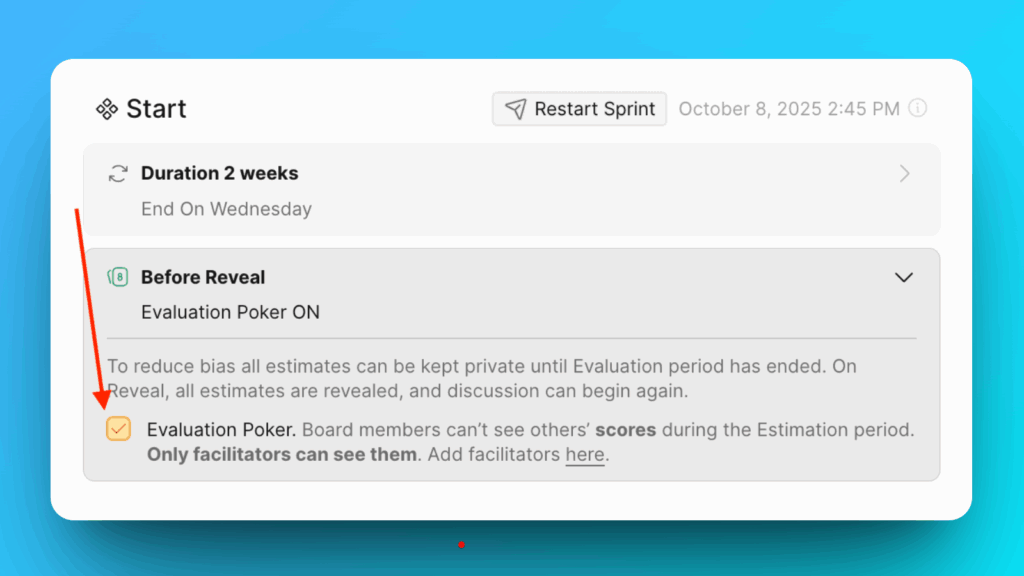
When the Evaluation poker mode is switched on, everyone's scores are kept private until Reveal, but Facilitators can.
- In Reveal you you will be able to set:
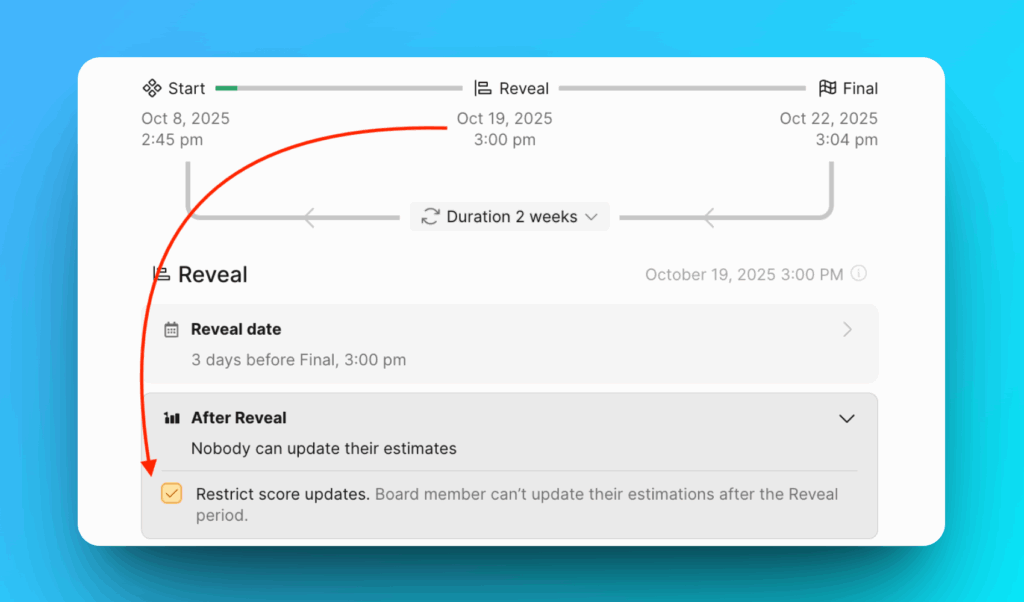
- Reveal date – how many days before the Final you would like the scores to be revealed for discussion, or when your team should finish evaluations to prepare for future sprint planning discussions.
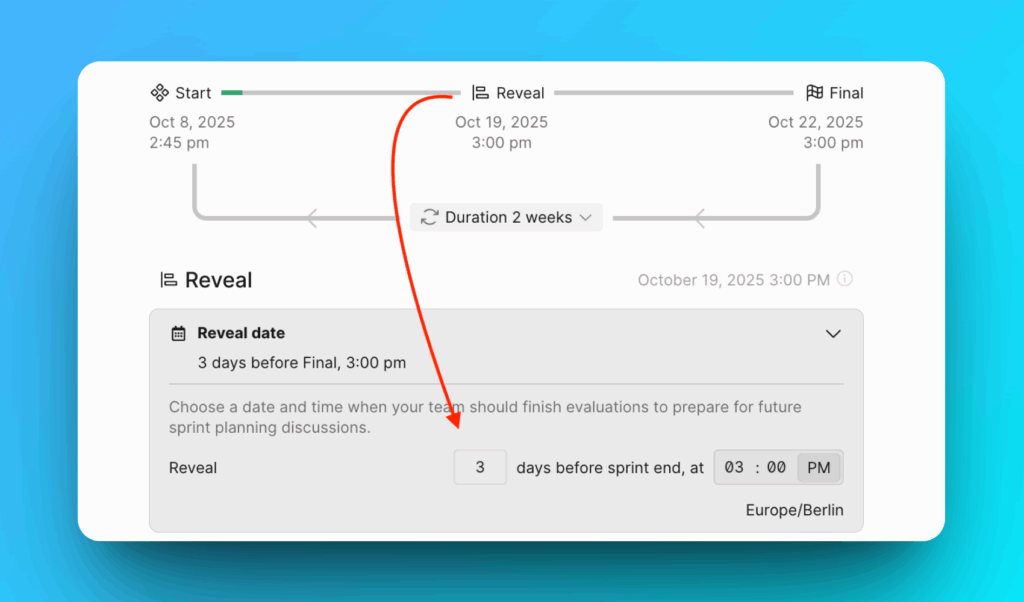
- After Reveal –Option to restrict users from updating their scores after the reveal. This will help block users from editing their scores after seeing other users' scores.
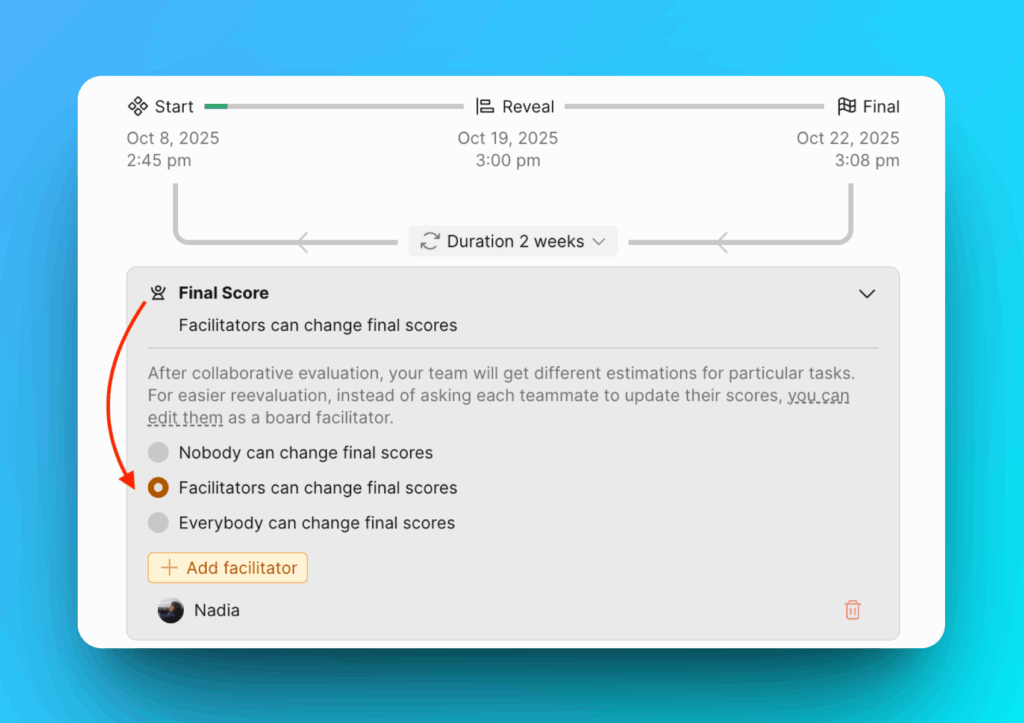
- Final Score – choose who can change the Final scores after the discussions.
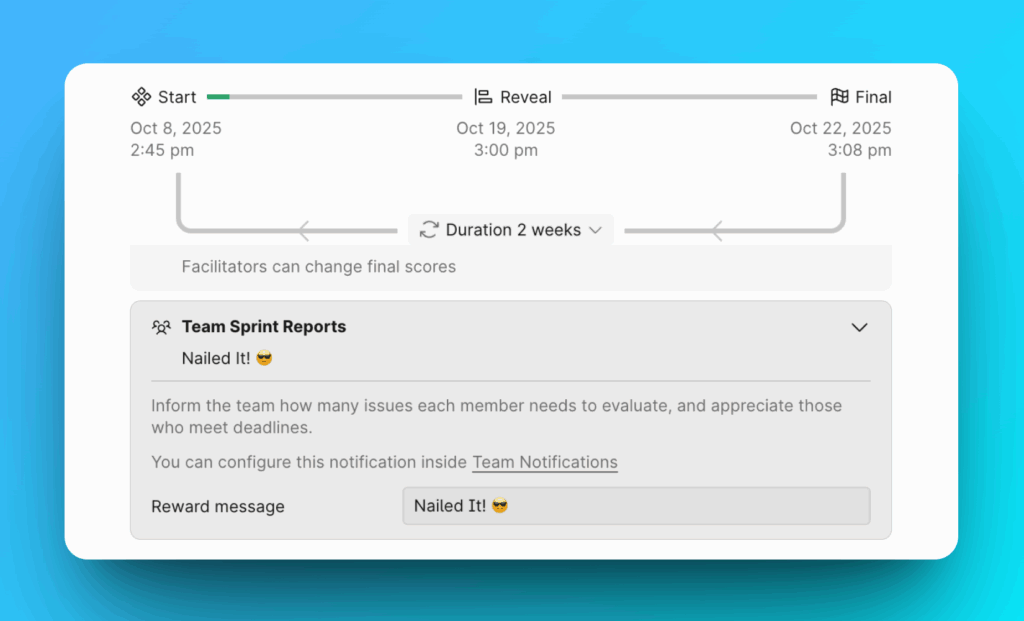
- Team Sprint Reports – Choose how you want to inform your users about issues they still need to evaluate. Write the reward message that users who evaluate all the issues by the end of the sprint will receive.
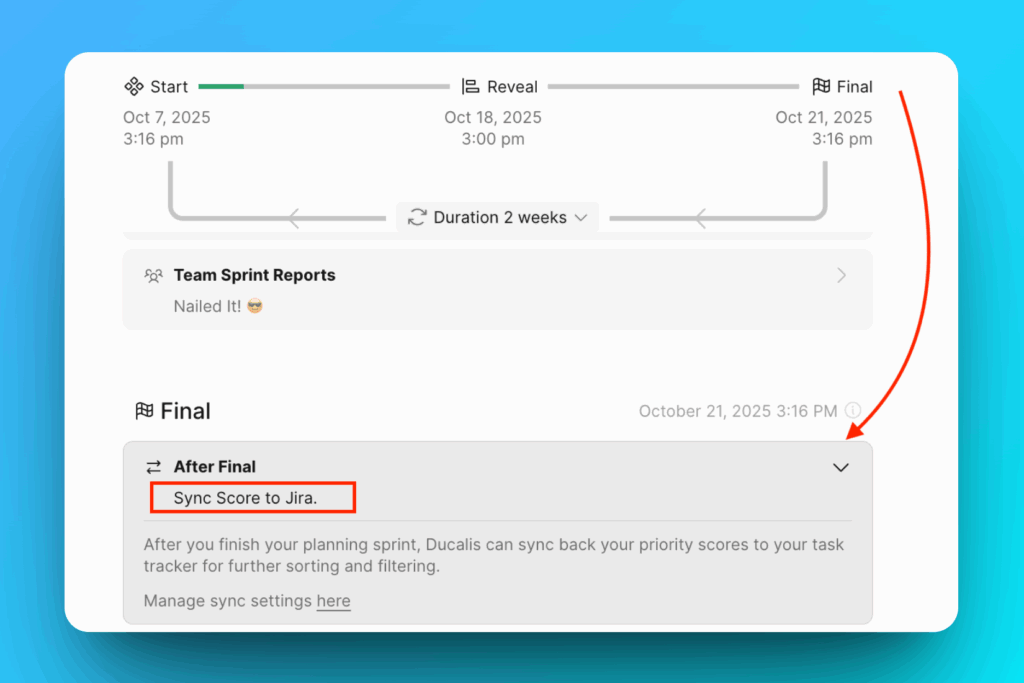
- On Final step you can:
- Sync scores to your task tracker.
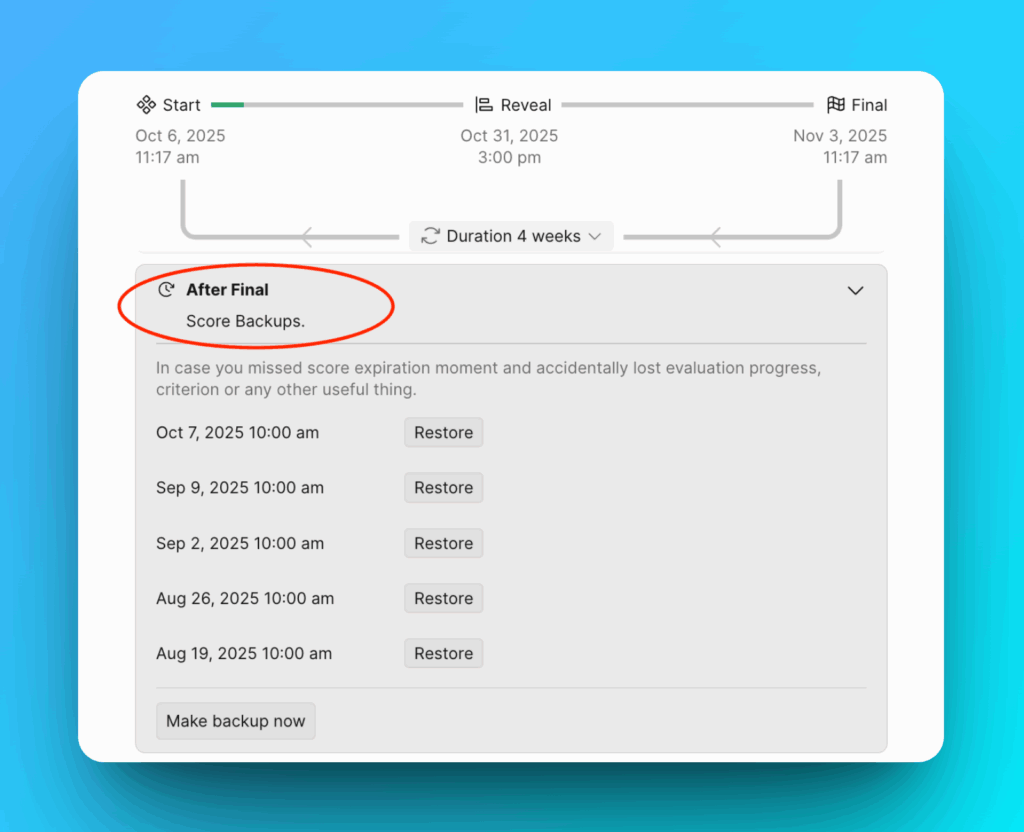
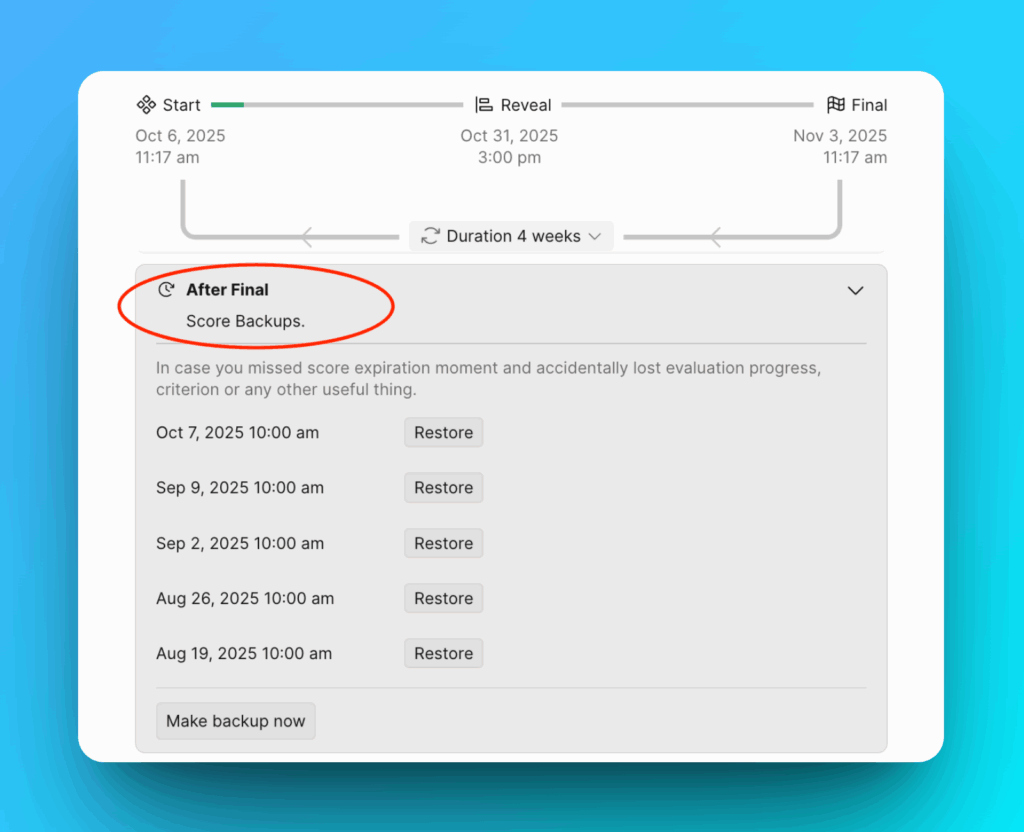
- Have a list of score backups that you can restore in case the scores expired when you still need them for a sprint.
- Set score expiration dates – when you want the current scores to be reset for your team to reevaluate the backlog again. This will help to ensure that your top priority tasks match your current goal.
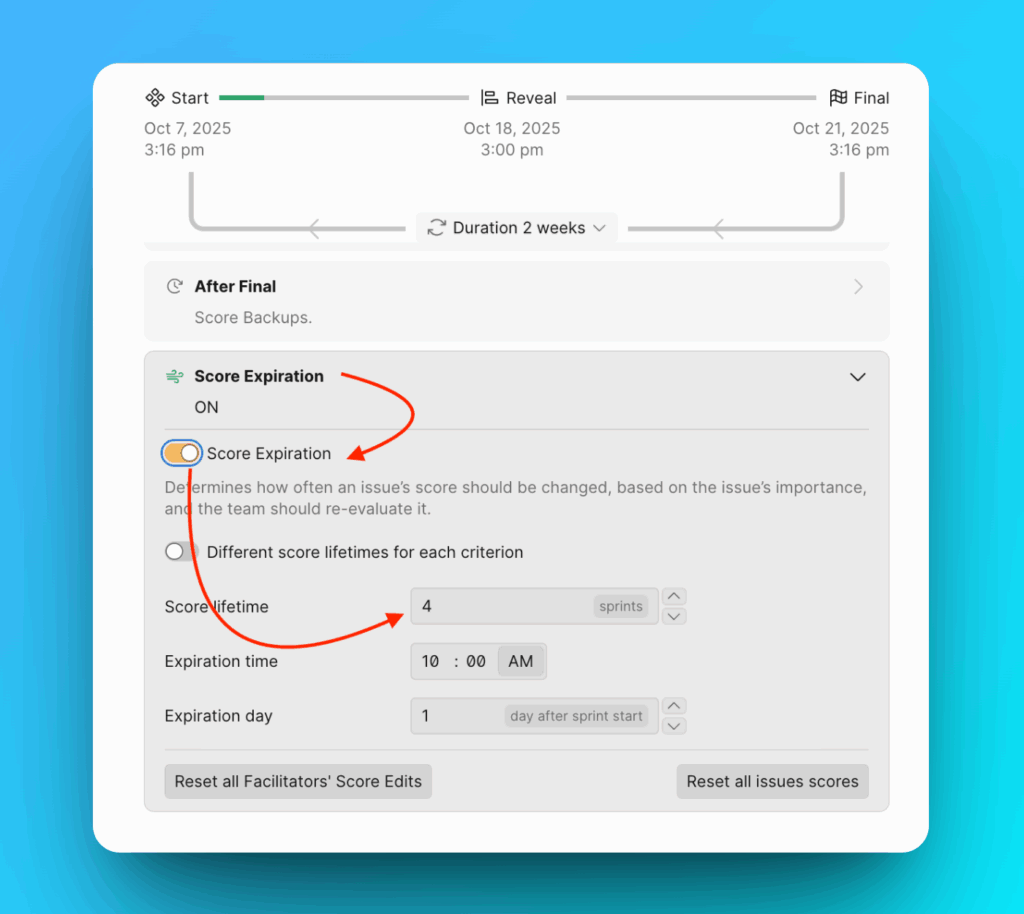
You can read more about Score expirations.
One-time Sprint Mode
If you need to run sprints of different durations, you can do so with a manual one-time sprint. You must restart it manually each time the previous sprint ends.
- Choose the date for each step manually.
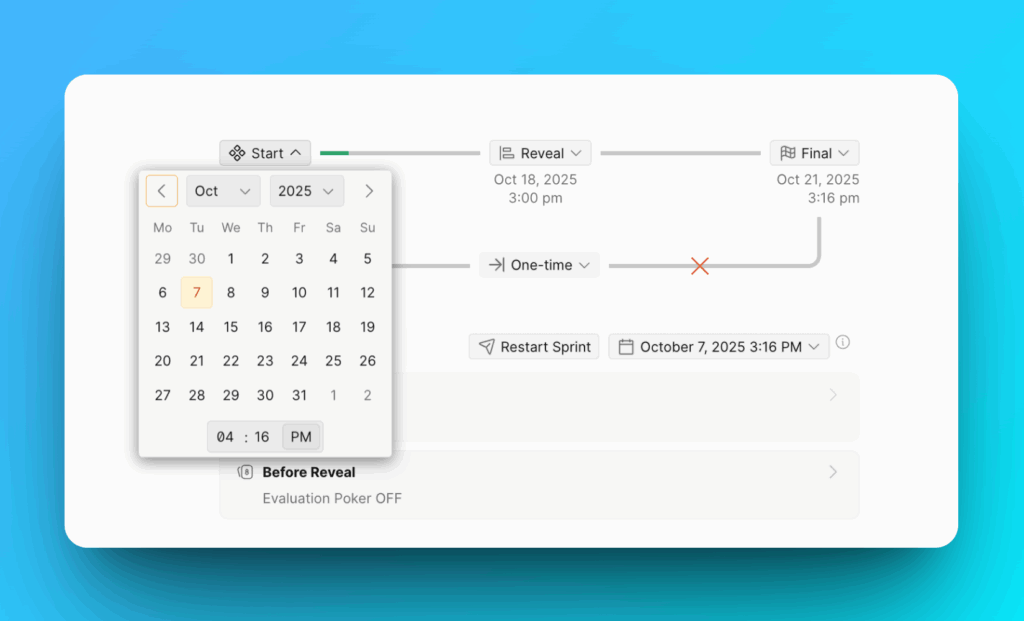
- After the current sprint ends, you need to finish it, choose new dates and then click Restart Sprint to start a new sprint.
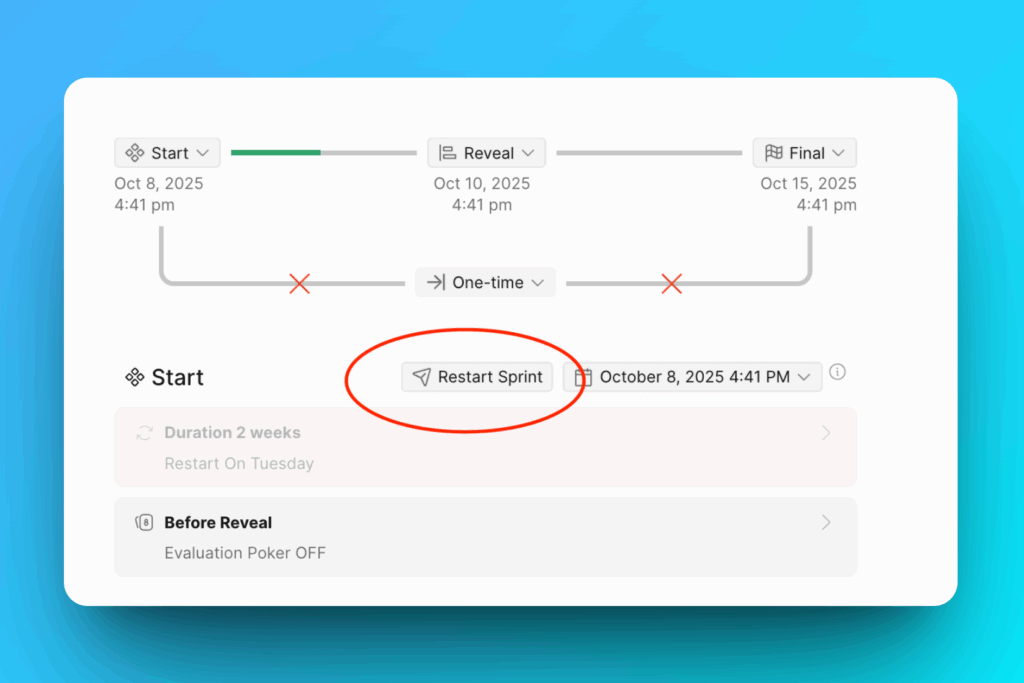
- On Start step you can to set up:
- Decide if you need to turn on Evaluation Poker. This mode helps you get unbiased prioritization results, as users' scores remain private until the evaluation period is over.
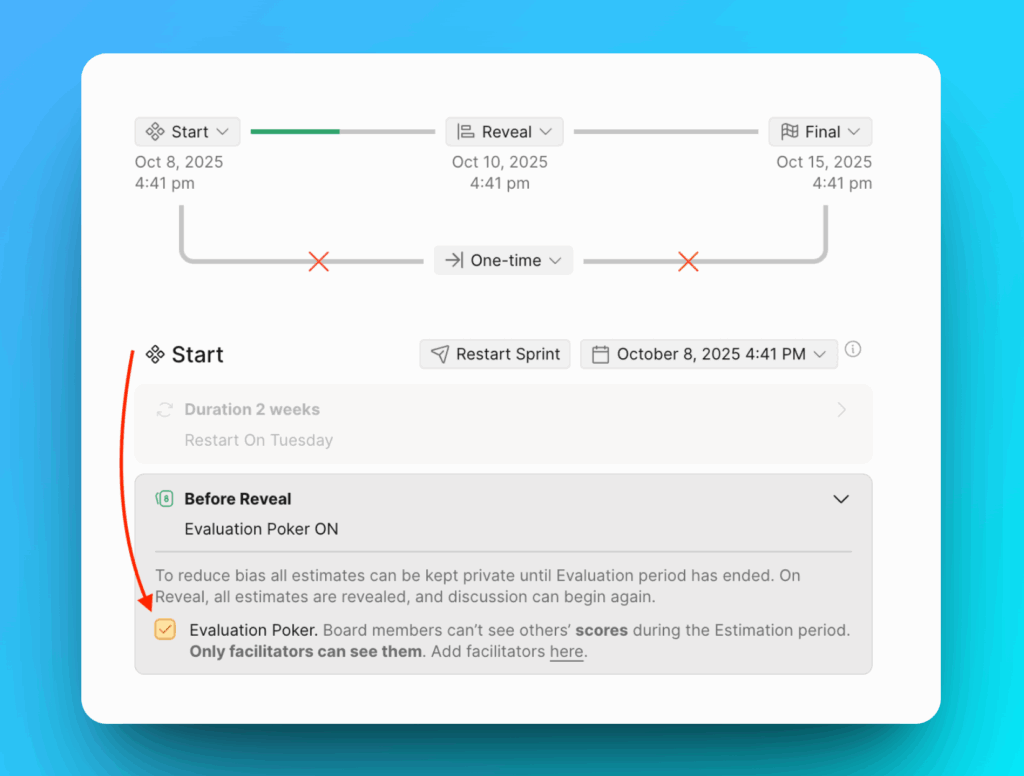
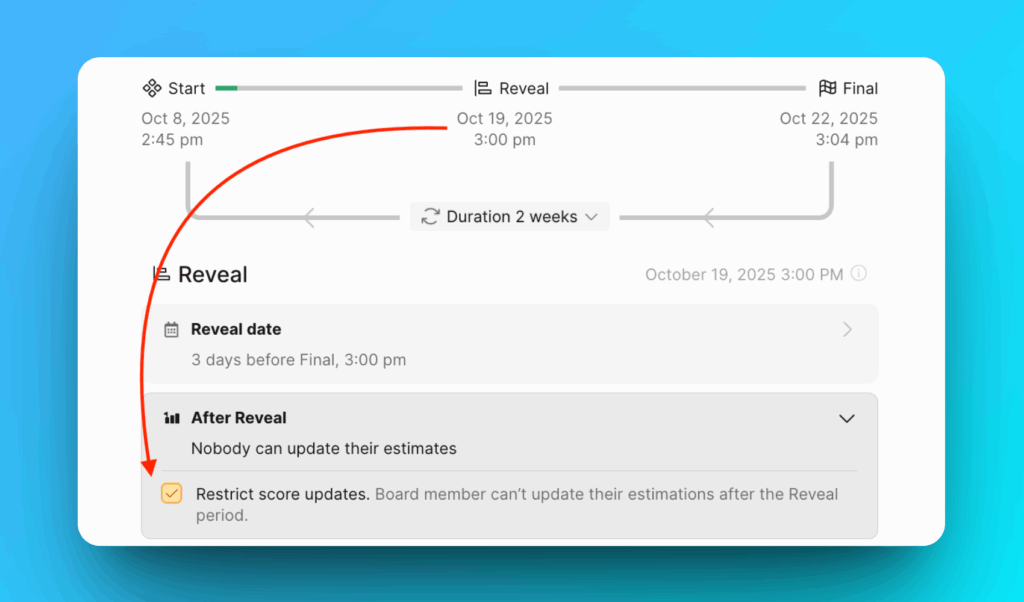
- In Reveal you you will be able to set:
- After Reveal –Option to restrict users from updating their scores after the reveal. This will help block users from editing their scores after seeing other users' scores.
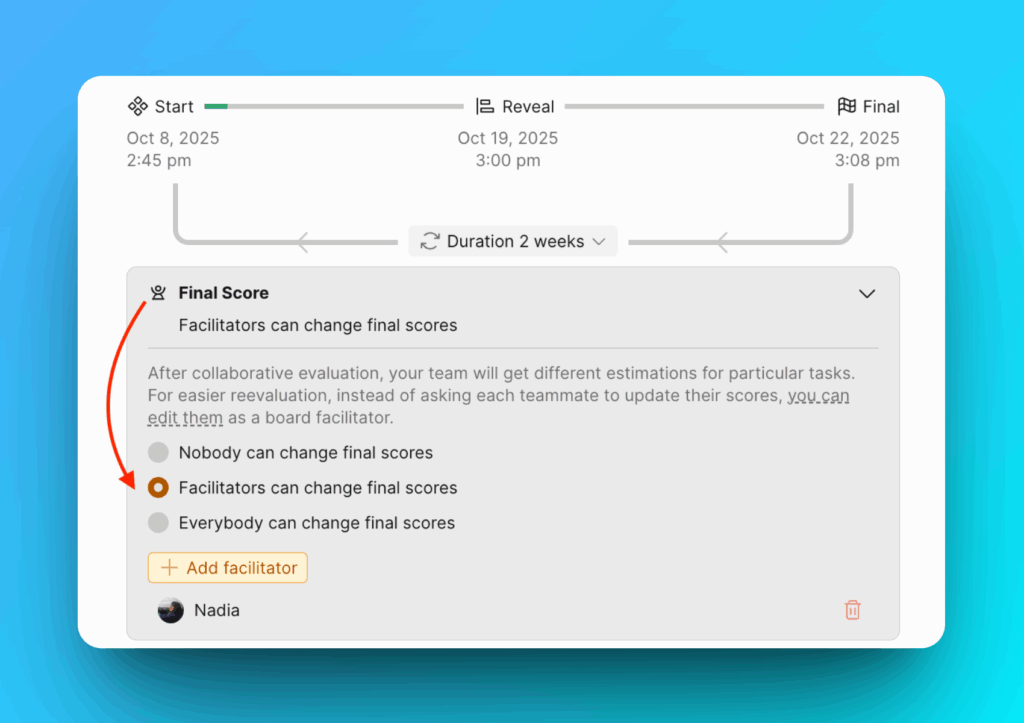
- Final Score – choose who can change the Final scores after the discussions.
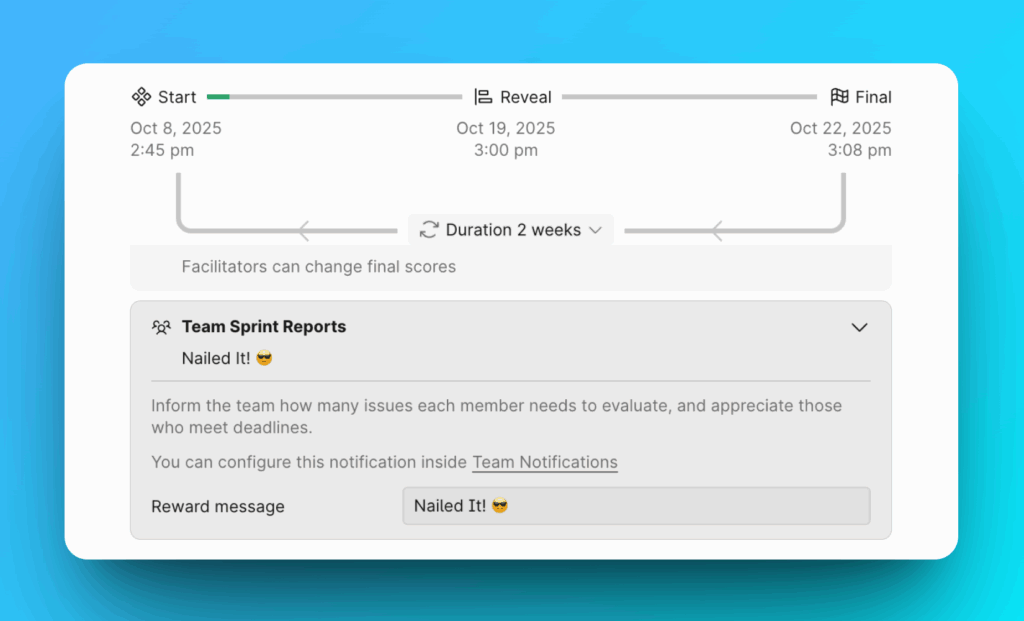
- Team Sprint Reports – Choose how you want to inform your users about issues they still need to evaluate. Write the reward message that users who evaluate all the issues by the end of the sprint will receive.
- On Final step you can:
- Have a list of score backups that you can restore in case the scores expired when you still need them for a sprint.
Off Mode
If you don't need sprints at all, you can turn this option off.
Choose the Off mode.
Copy Sprint Settings
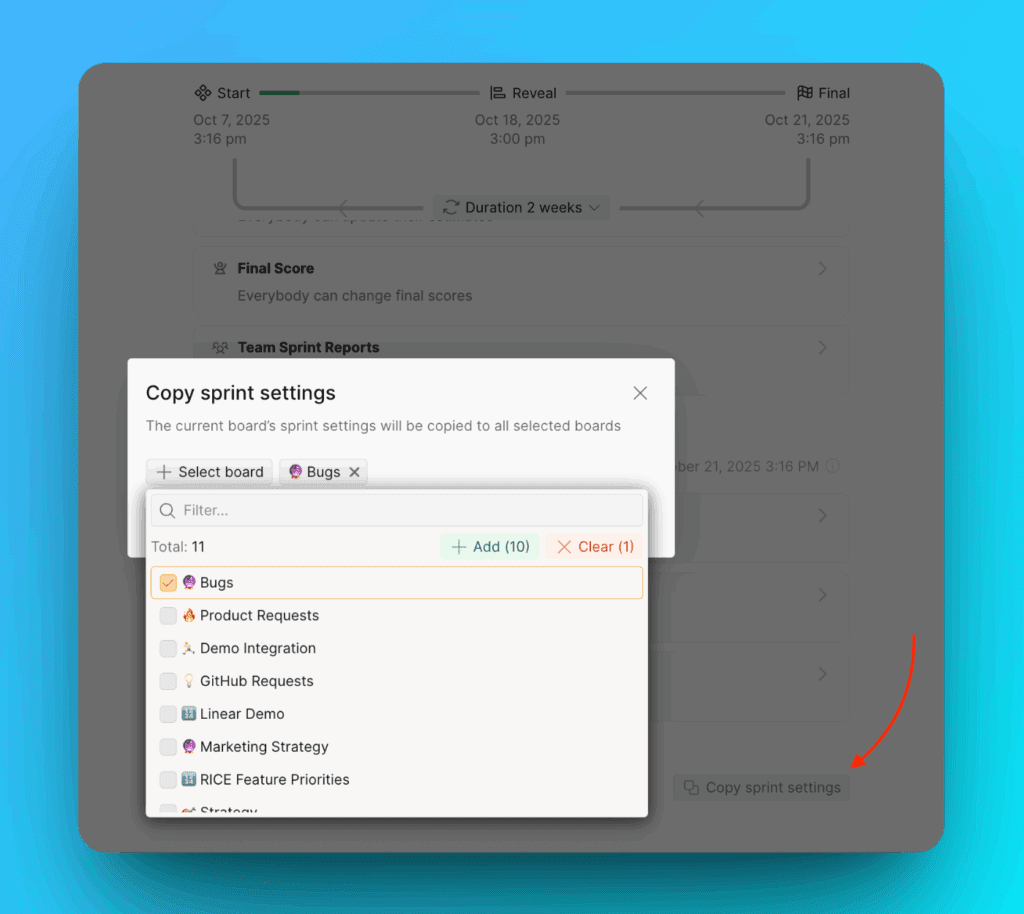
You have the option to copy sprint settings in bulk:
-
Click Copy Sprint Settings at the bottom of this page.
-
Choose the boards to which you want to copy the settings.
Sync Back Schedule
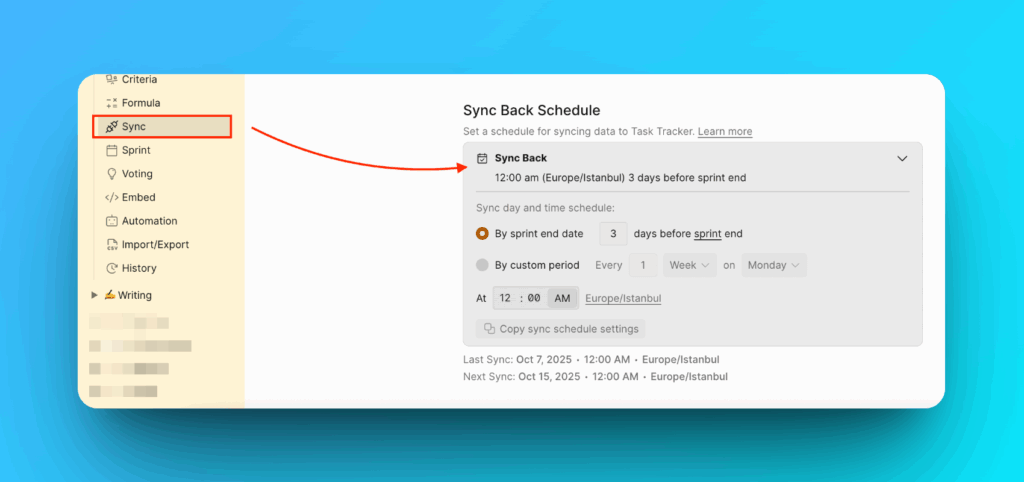
On the Final step, there is a feature to sync the results back to the task tracker.
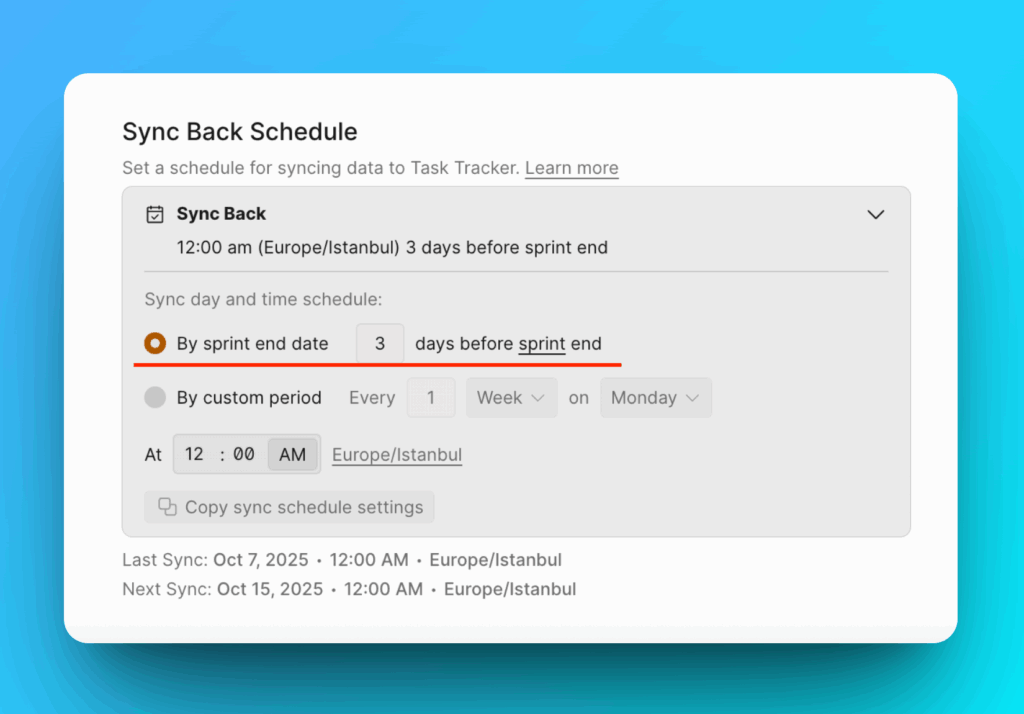
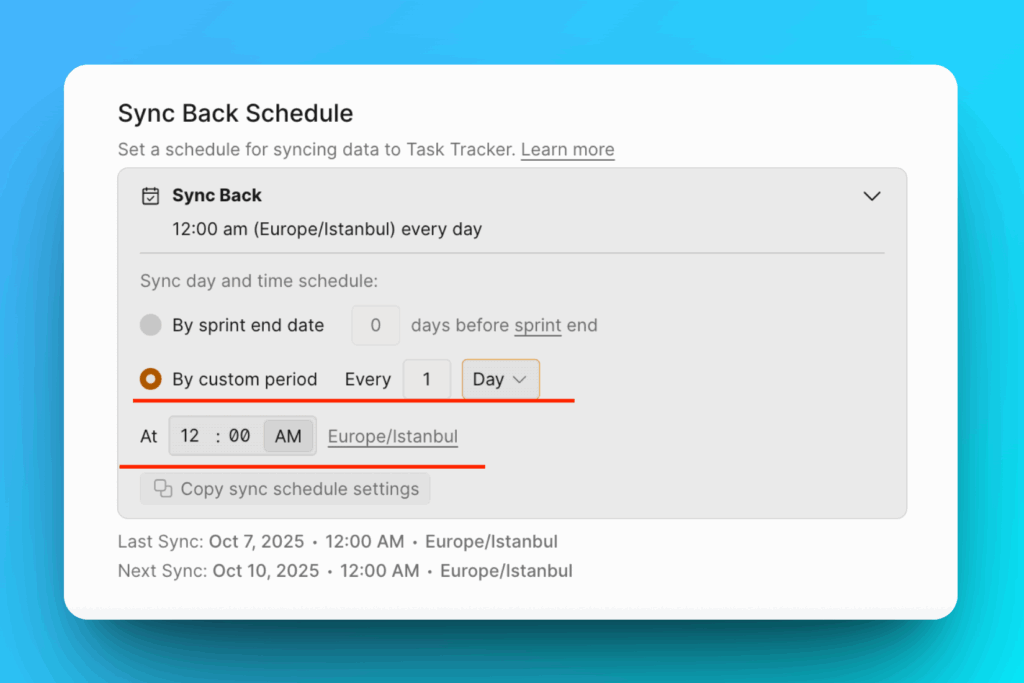
There are two options: By sprint end date and By custom period.
By sprint end date
It depends on the Sprint settings. Decide when to send the results to the task tracker. Choose the number of days before the sprint ends.
By Custom Period
Choose custom back-sync settings that don't depend on the sprint settings.
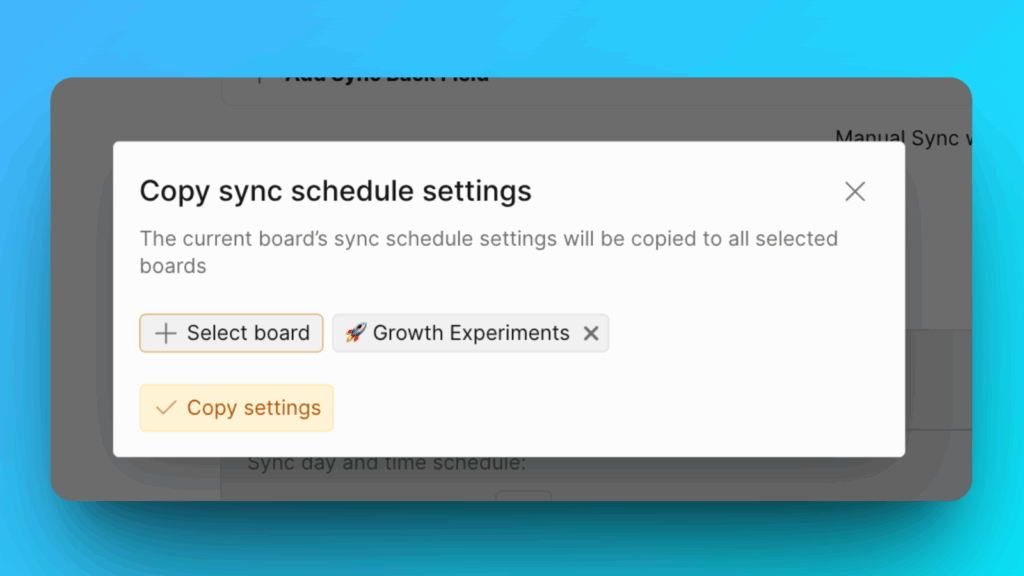
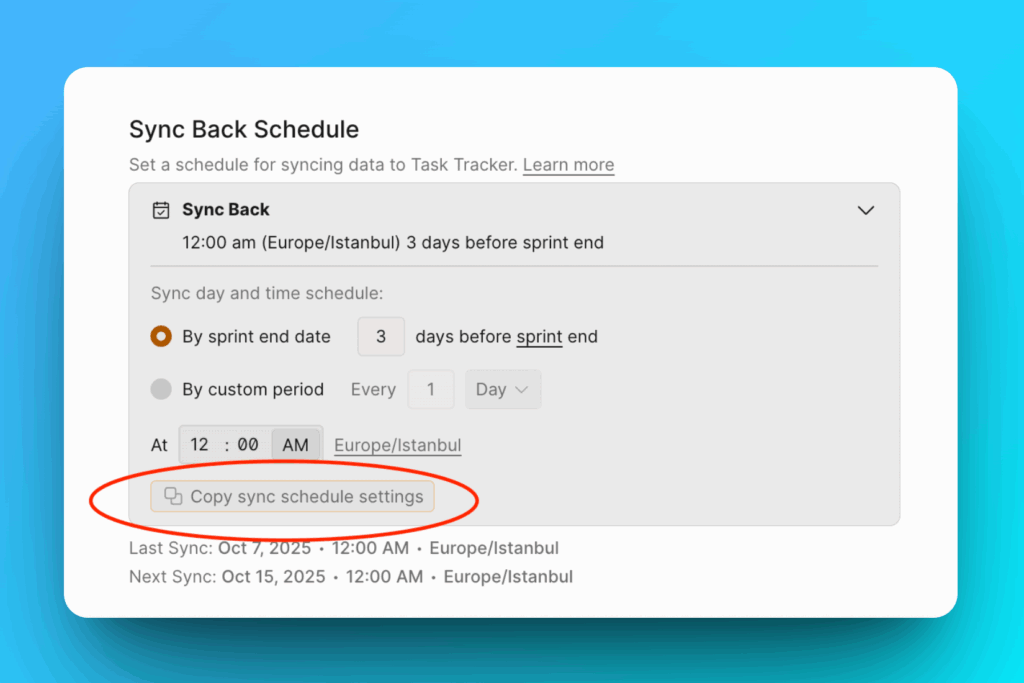
Copy Sync Back Schedule Settings
You can copy these settings in bulk to other boards.
Click Copy sync schedule settings.
Choose the boards to which you want to copy the settings.
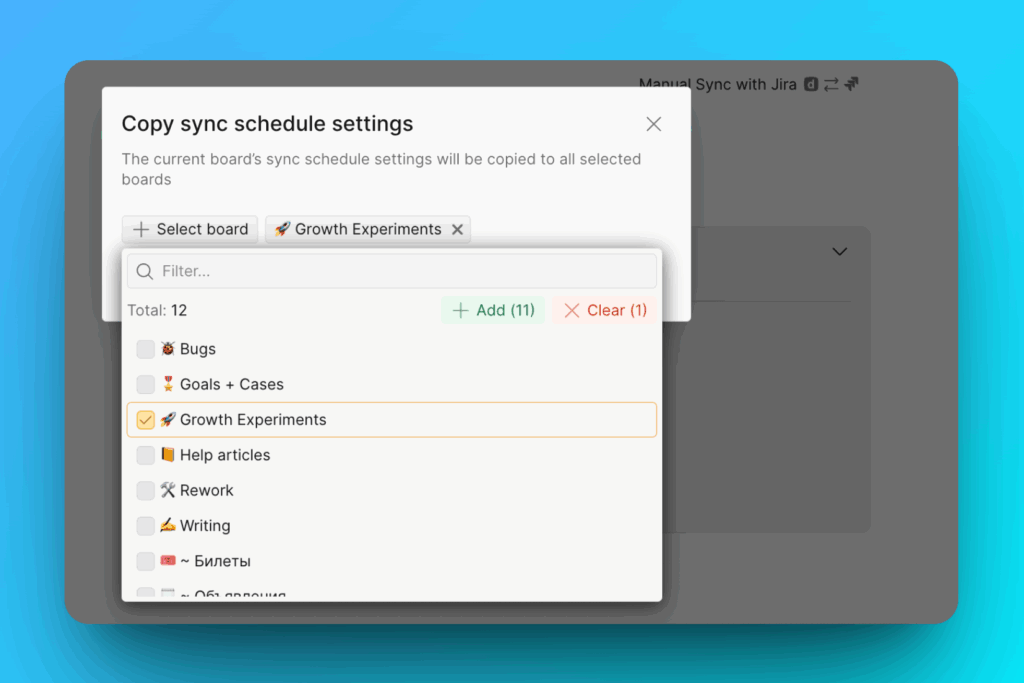
Click Copy Settings.