Create Backlog Issues Using AI
When creating issues for your backlog, you can use AI to rewrite the descriptions. It helps you create detailed and easy-to-understand descriptions for your backlog issues with just a single click.
AI rewrites your issue descriptions using simple, clear language—making them easier for your team to understand and act on. Whether you're working with vague input or just want a more polished version, AI can help you:
- Add missing context
- Clarify vague statements
- Improve readability
- Save time on writing
How to use the AI rewrite feature
On Issue Card
-
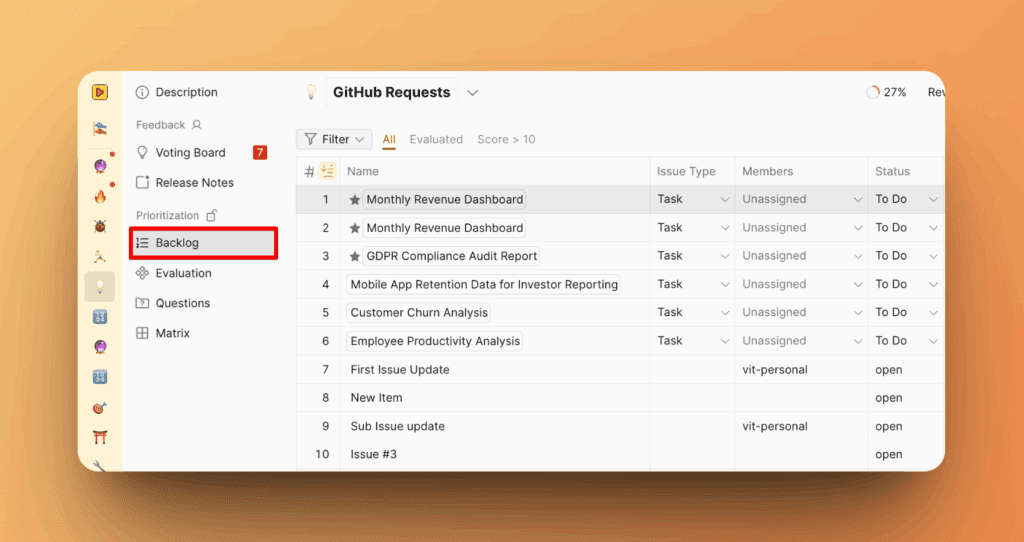
Go to your backlog. Navigate to the Backlog section where your issues are listed.
-
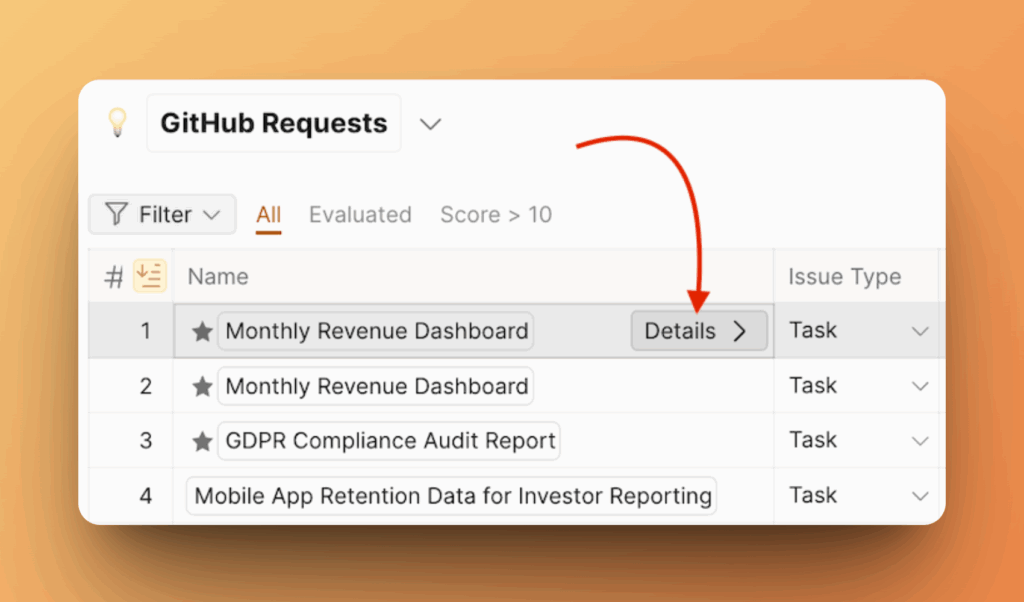
Select an issue. Click on an issue you'd like to improve.
-
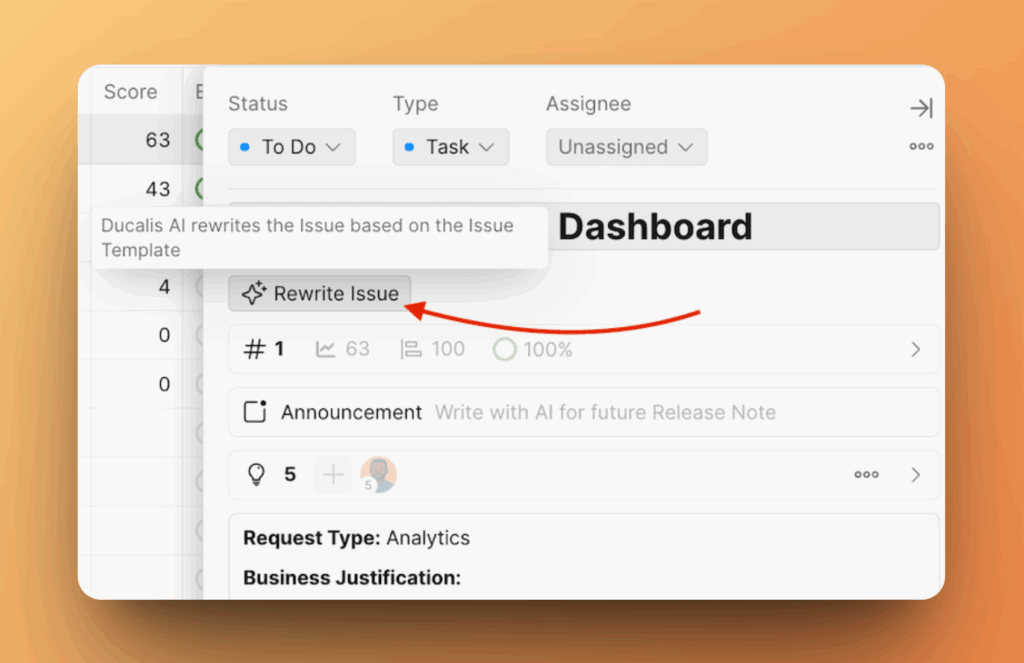

Click "Rewrite Issue". You'll see a button labeled Rewrite Issue near the description field. Click it.
-
Review the new description. AI will rewrite the description instantly.
You can:
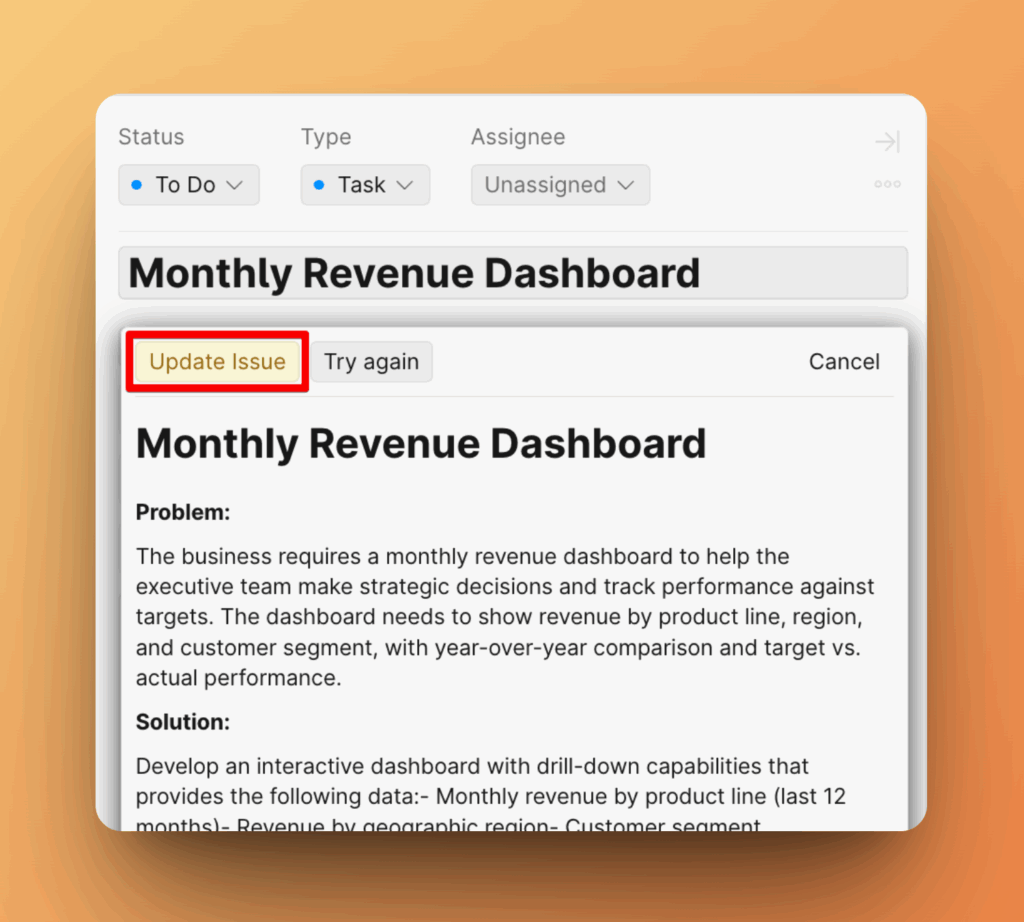
- Accept it as is—click Update Issue
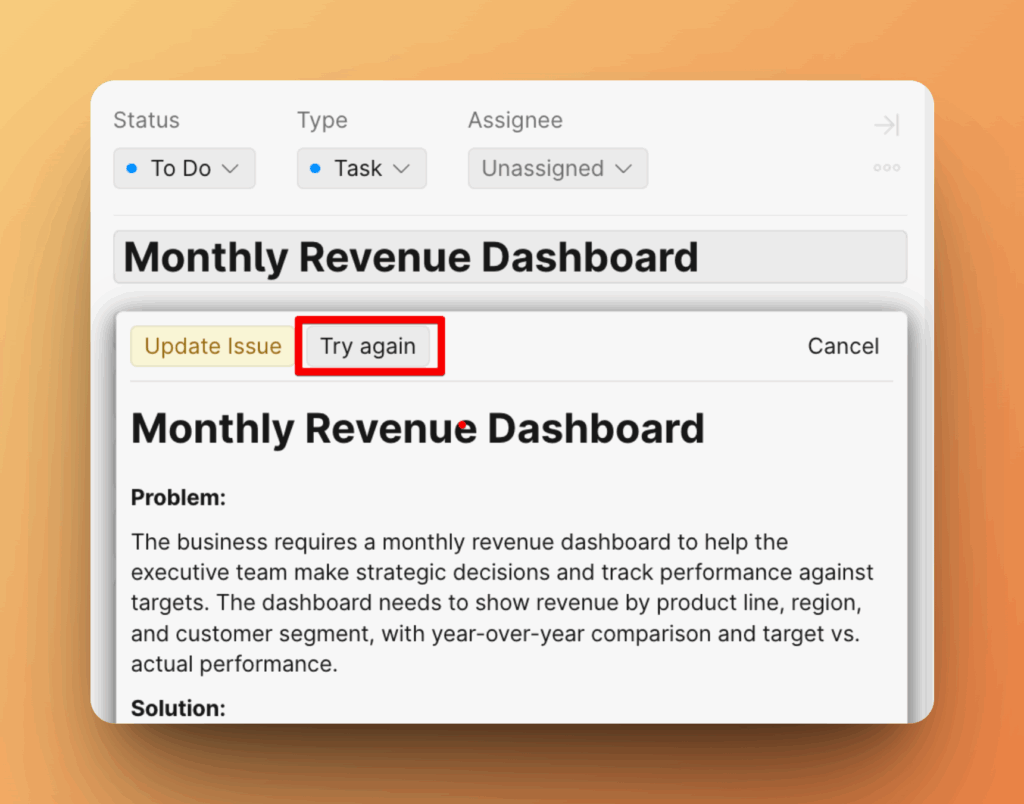
- Rewrite one more time—click Try again
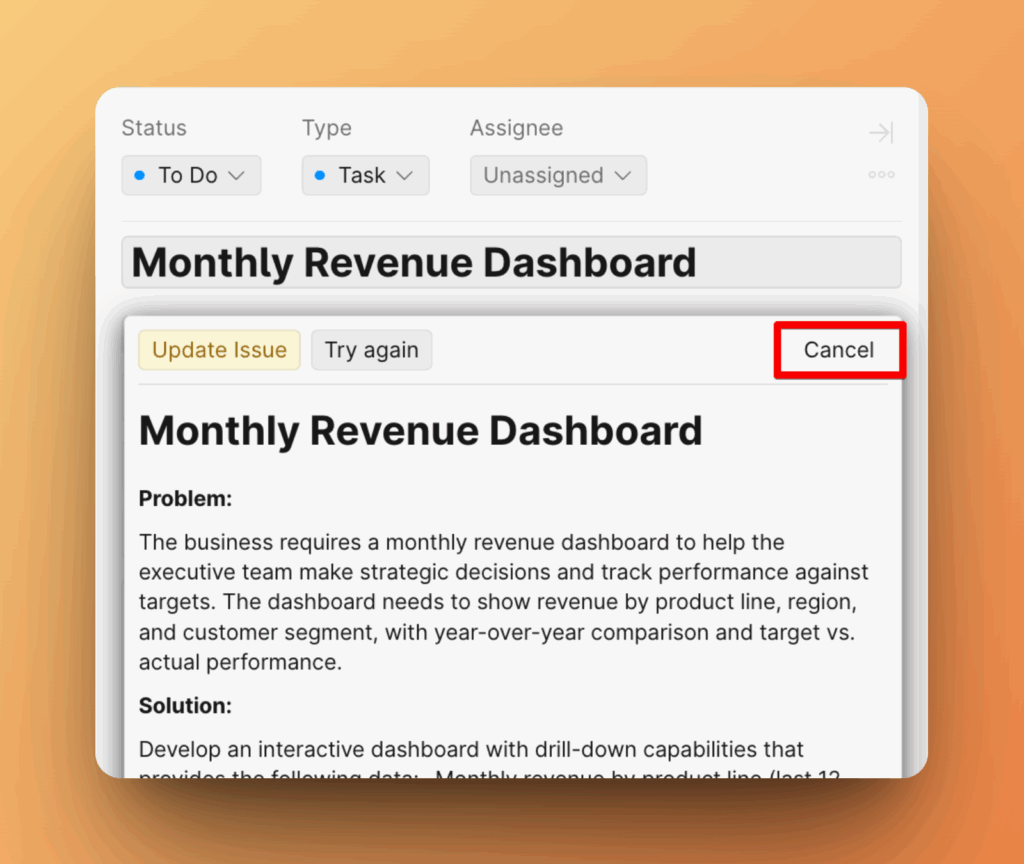
- Or discard and keep your original version—click Cancel
On Voting Idea Card
-
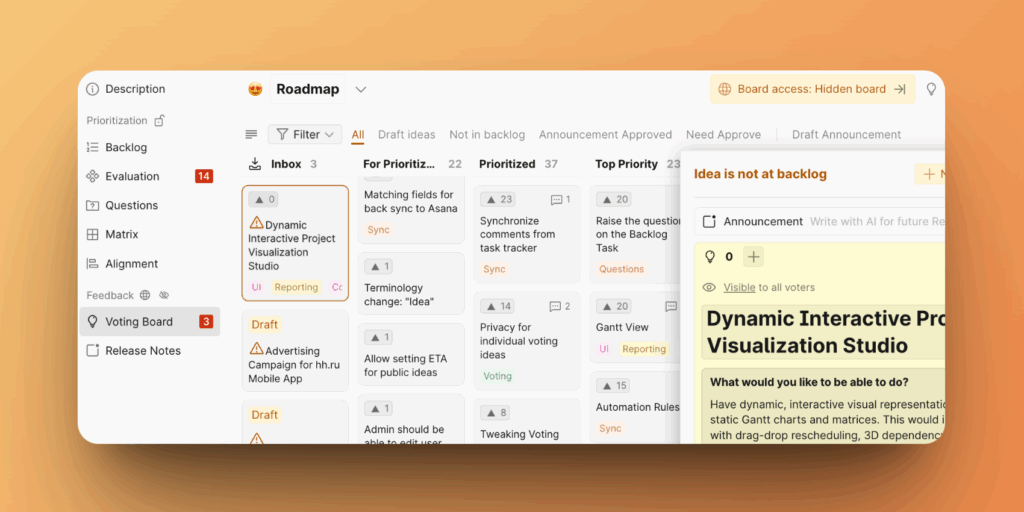
Go to Voting board.
-
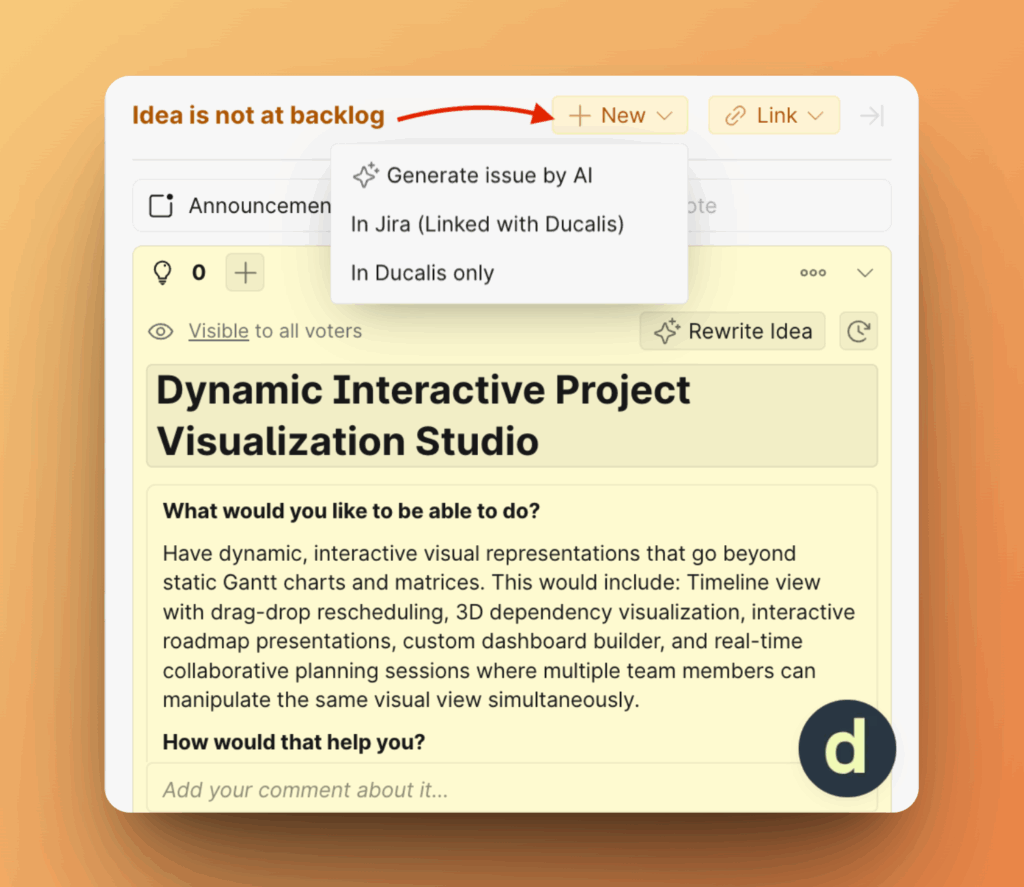
Select an Idea that not in a backlog and click +New.
-
Click Generate issue by AI.
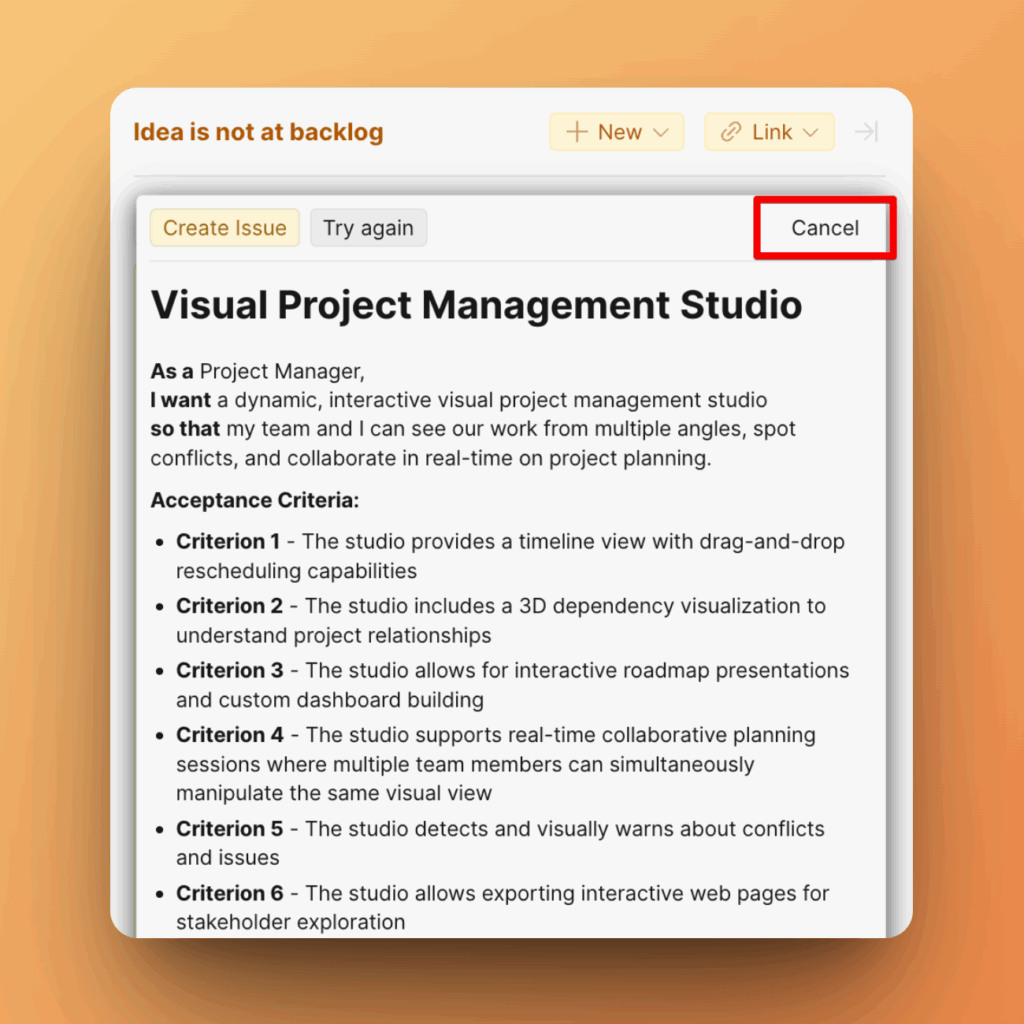
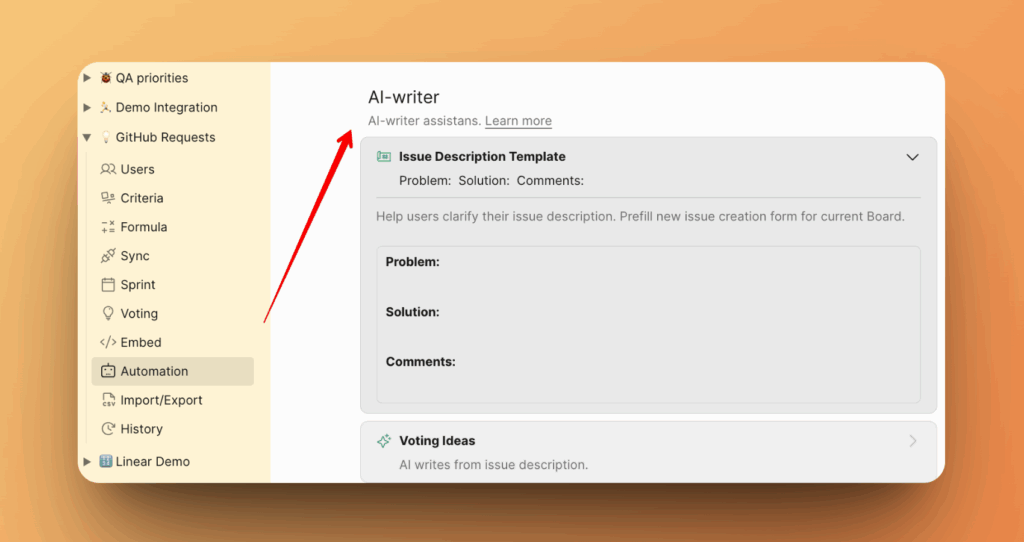
AI uses the Issue Description Template to generate the issue. To create without a template, click In Ducalis only.
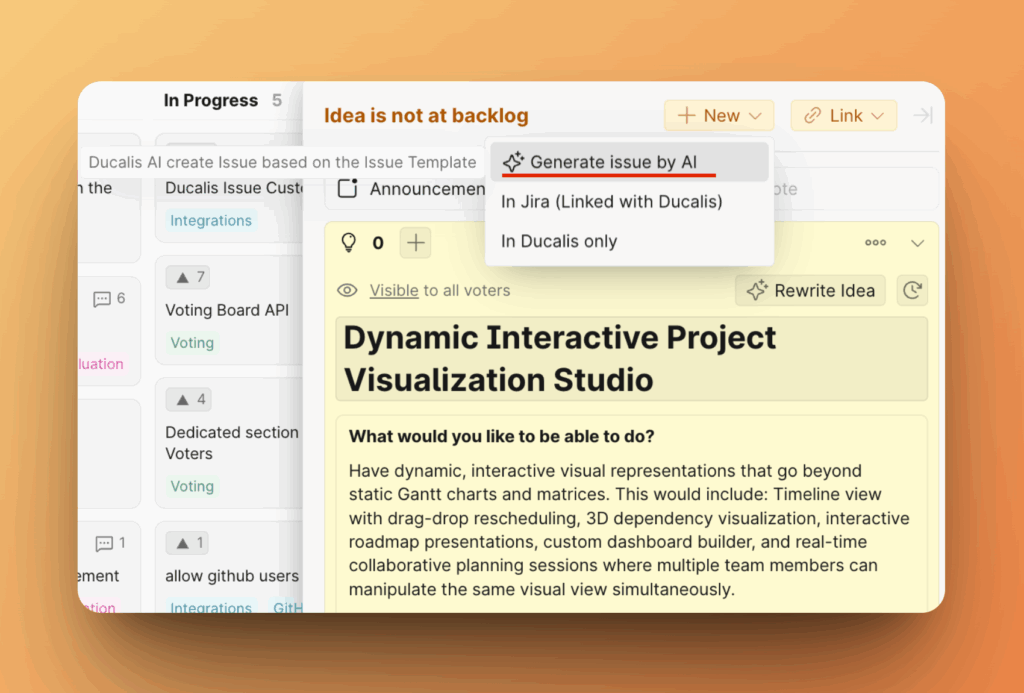
-
The issue description will be created.
-
Review the new description.
You can:
- Accept it as is—click Create Issue
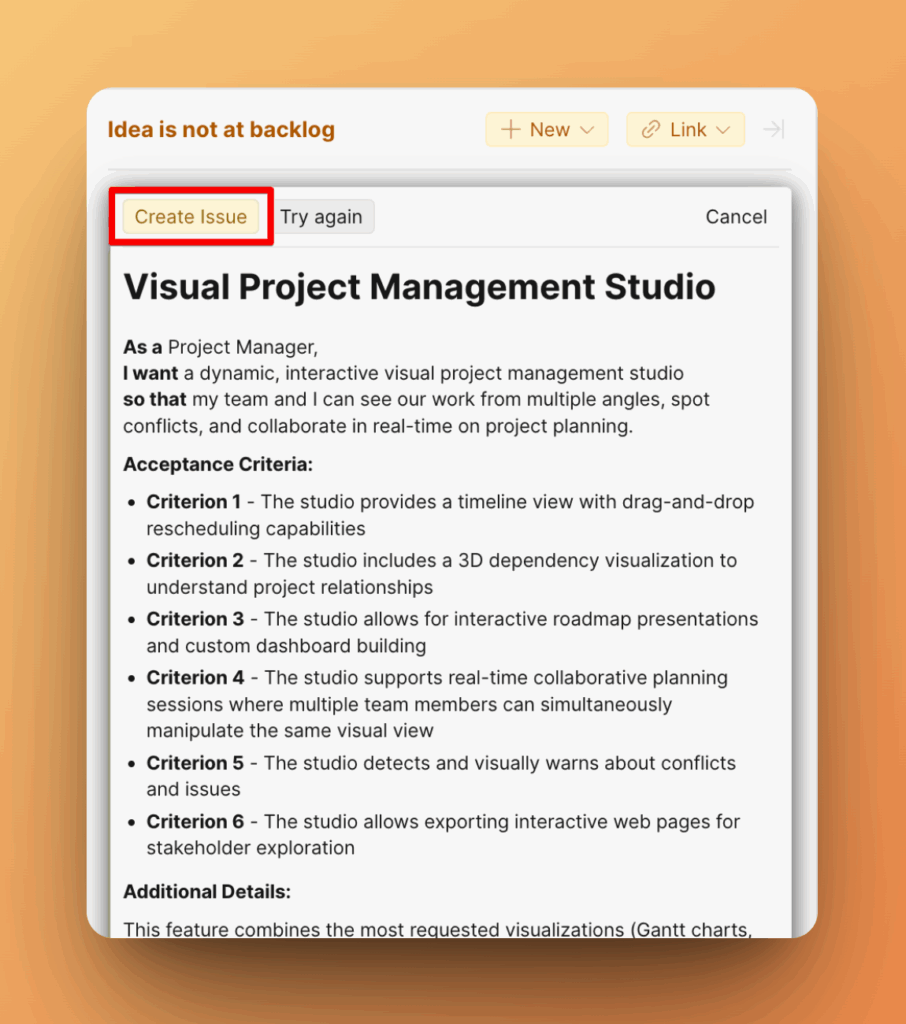
- Rewrite one more time—click Try again
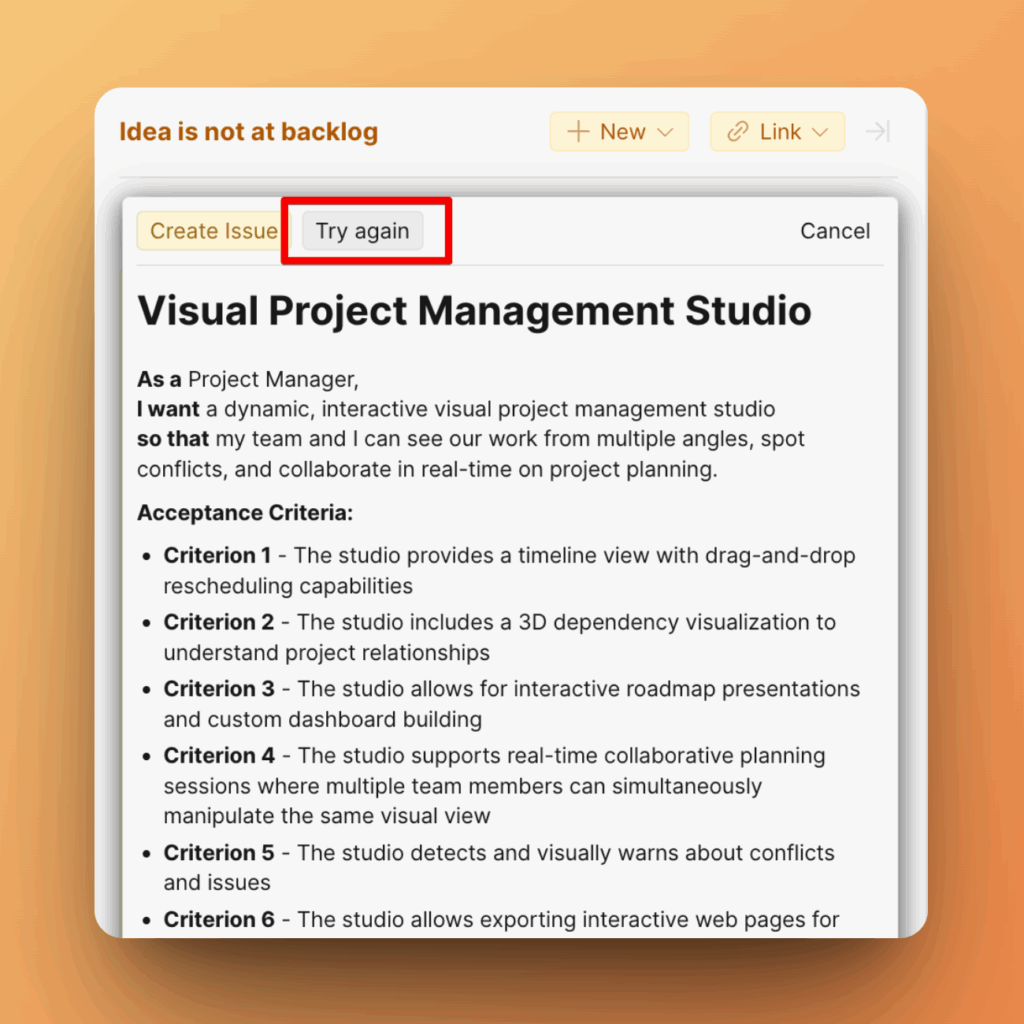
- Or discard and keep your original version—click Cancel
Tips for best results
-
Edit the Issue Description Template to rewrite issue using it.
-
Include as much relevant information as possible before hitting "Rewrite Issue".
-
Use bullet points or short notes—AI will expand them into complete, readable descriptions.