Field mapping
Map Ducalis fields to your task tracker's custom fields to sync priority scores and criteria values back to Jira Cloud, Jira Server, or ClickUp.
You have two options for setting up fields:
- Create new custom fields in your task tracker
- Map to existing custom fields in your task tracker
If your tracker already has many custom fields, mapping to existing fields lets you reuse them instead of creating duplicates.
Map fields
-
In Ducalis, open Settings.
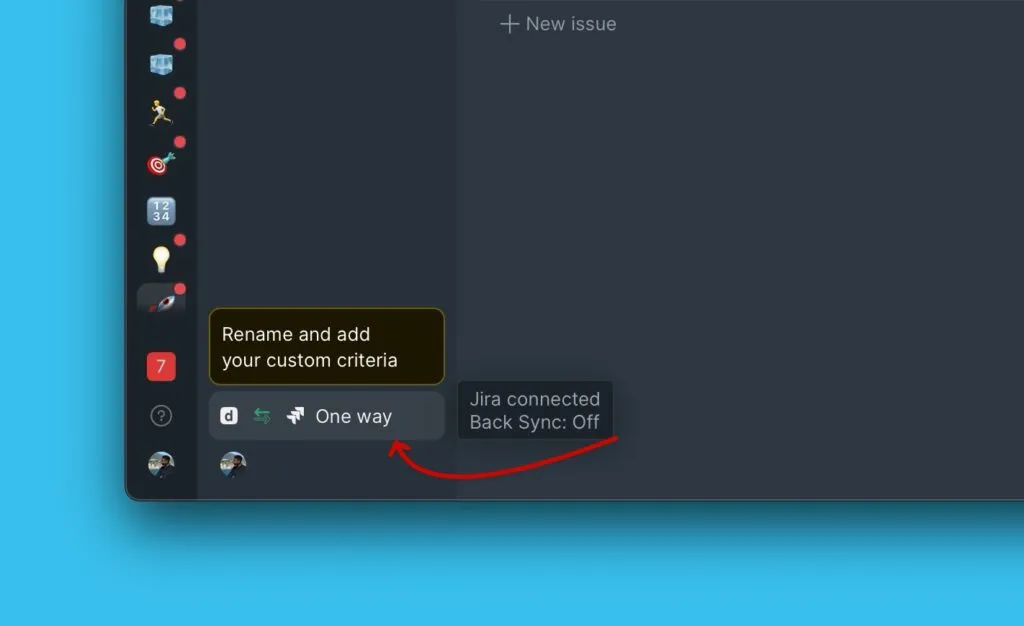
-
Scroll down to Sync Back fields.
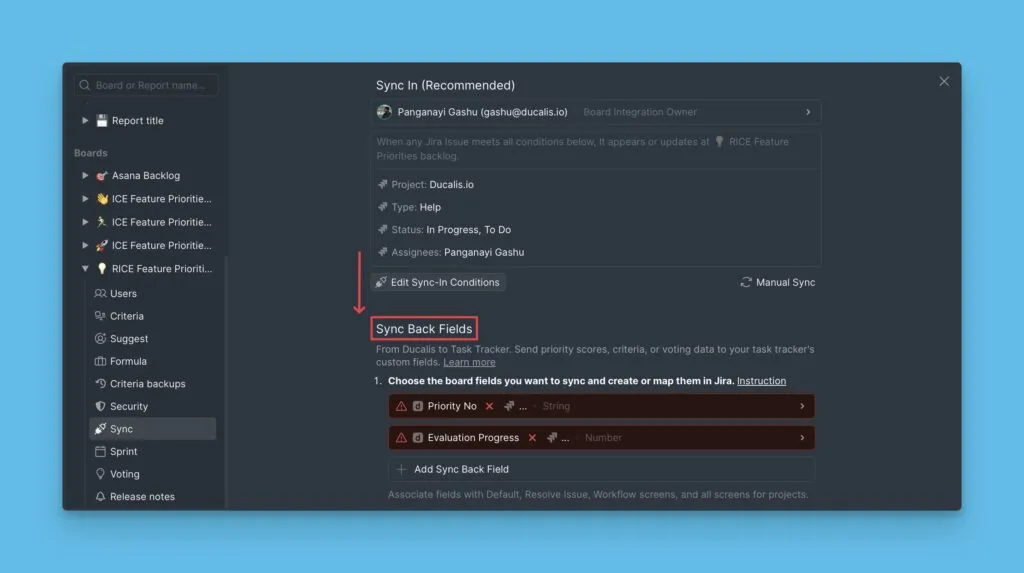
-
Review the default field mappings. Delete any you don't need.
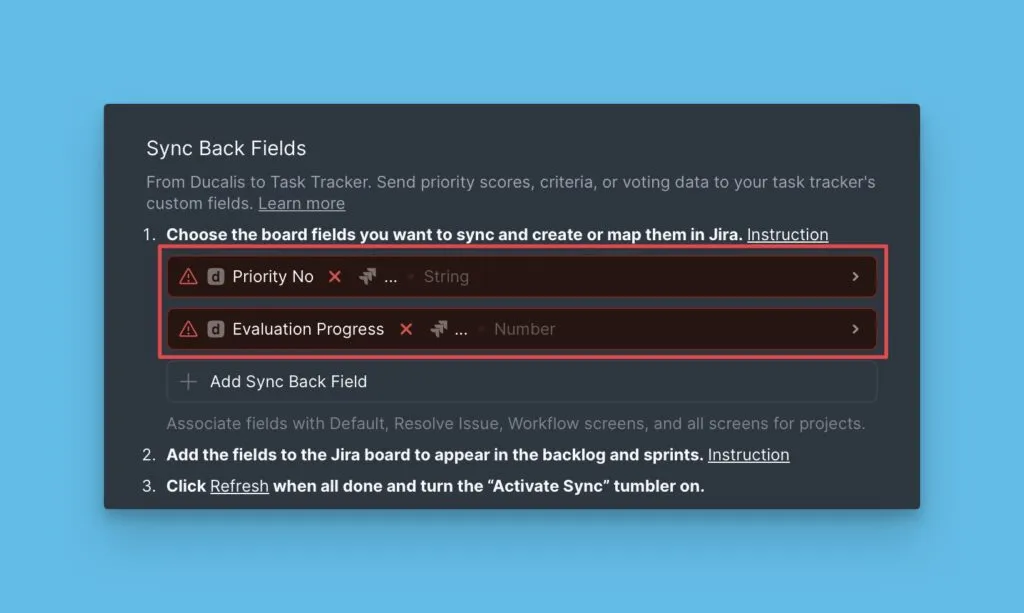
-
To add a field, click Add field and select the Ducalis field you want to sync.
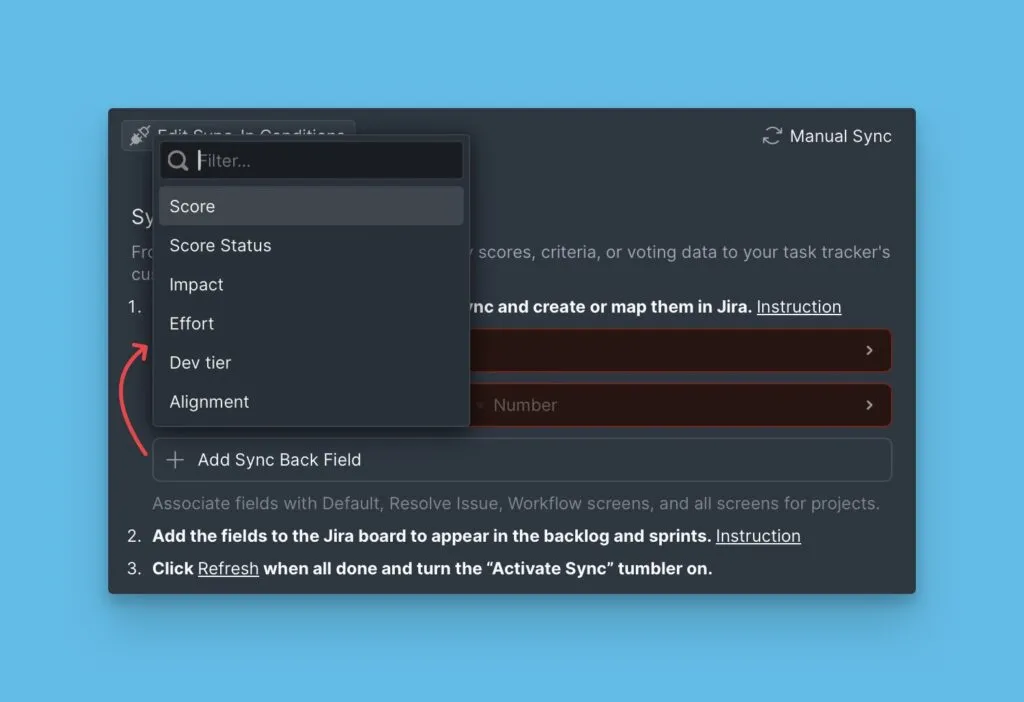
-
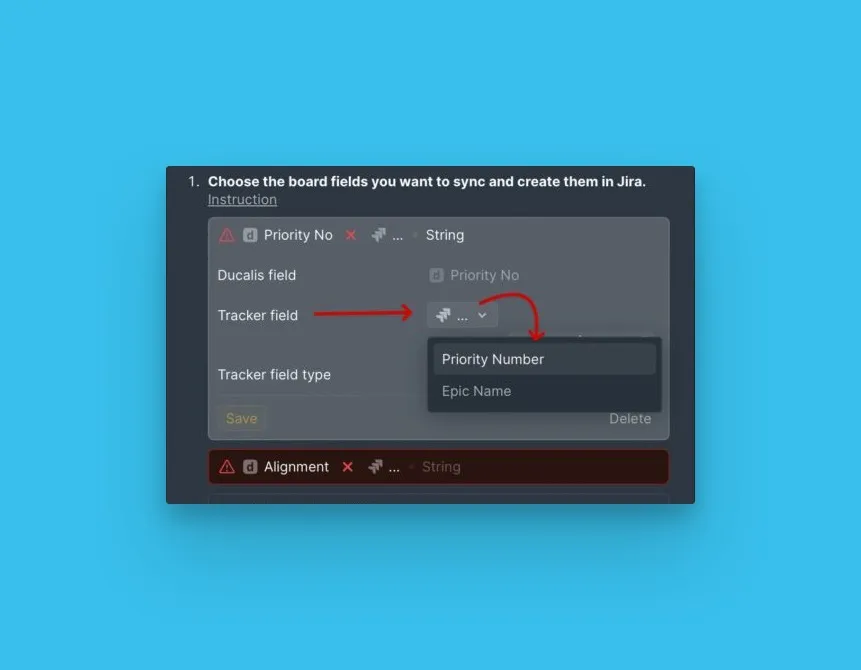
Click the Tracker field dropdown and select the corresponding field in your task tracker.
-
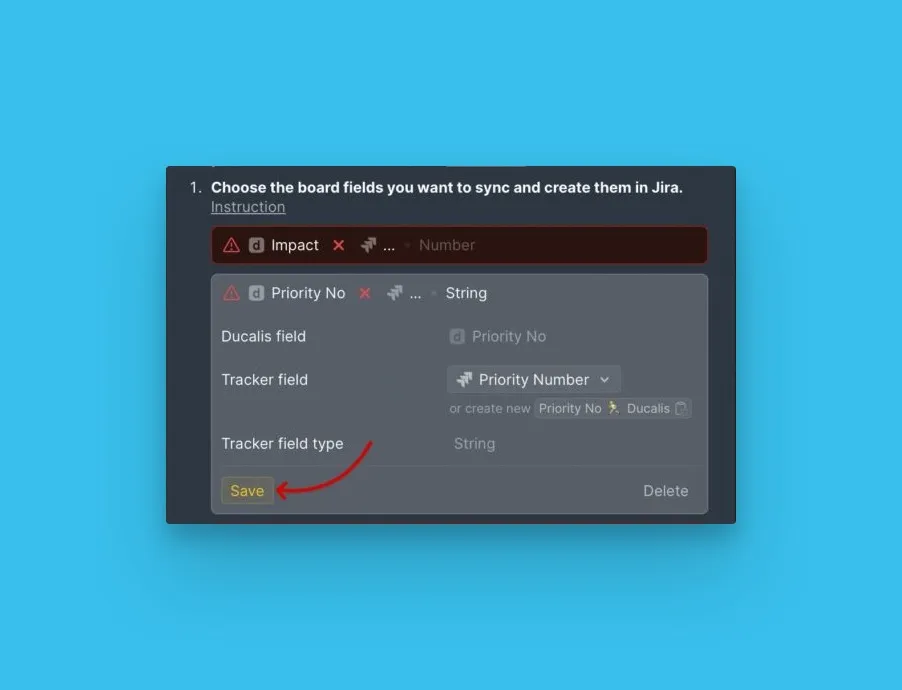
Click Save.
After mapping your fields, activate Sync Back and set up the sync schedule.