Users and criteria
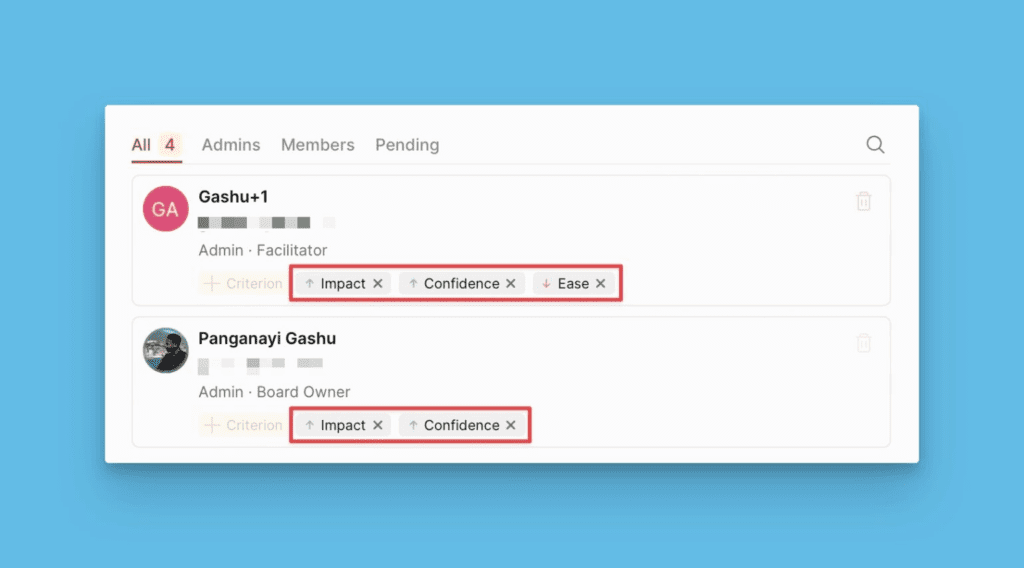
Board Users are your company's stakeholders who collaborate with you to evaluate your backlog for prioritization. Assign each user the criteria you want them to evaluate based on their expertise to get expert opinions and accurate results.
View board users
To view the list of users on your board:
-
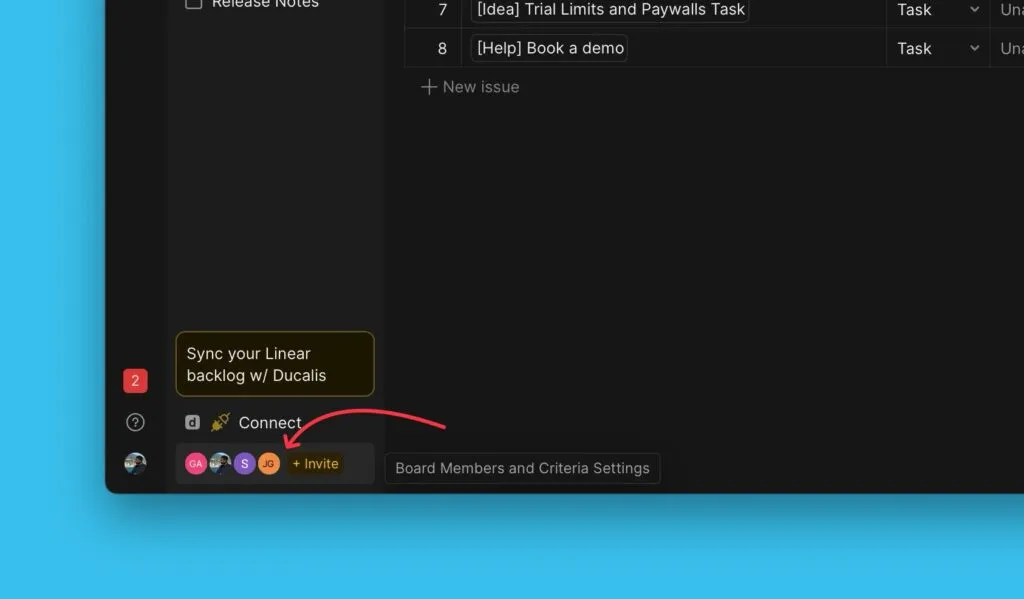
Go to Board Users.
-
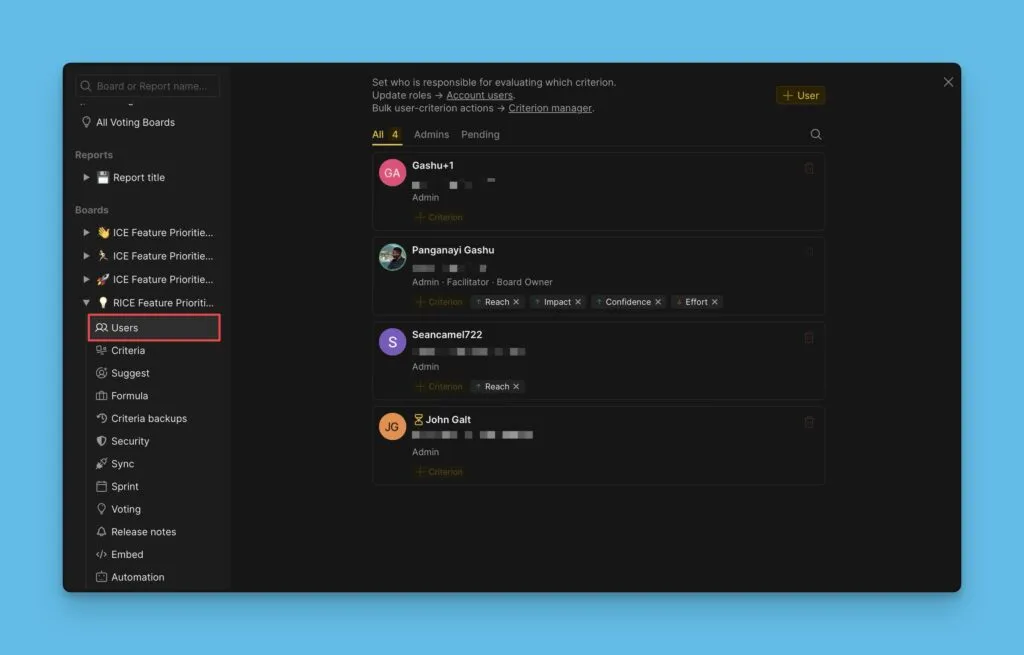
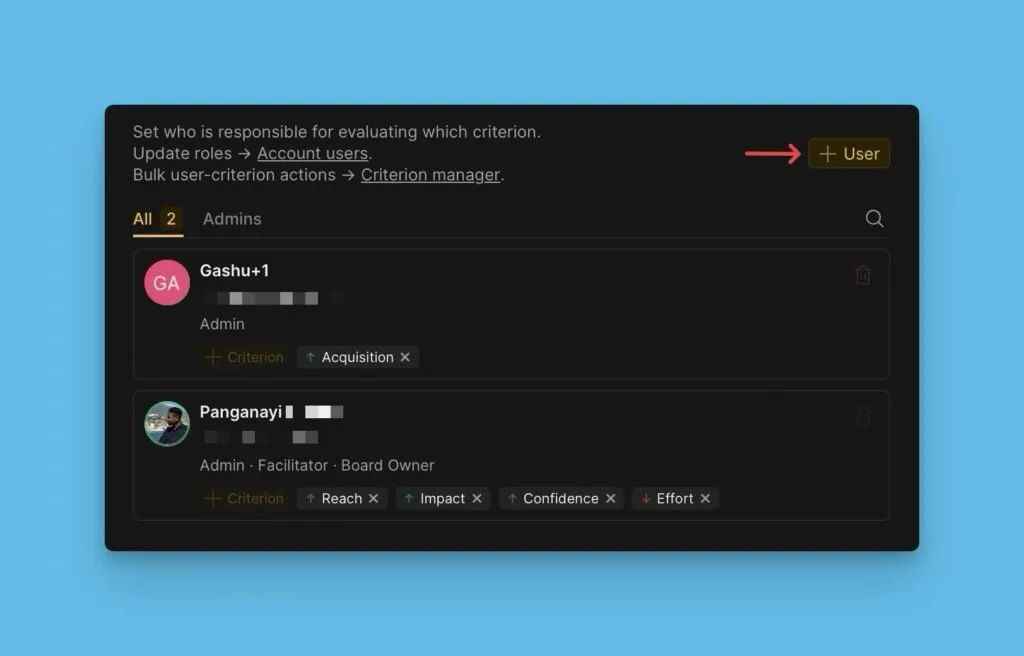
You'll see all users and the criteria each person estimates.
-
Filter users by role.
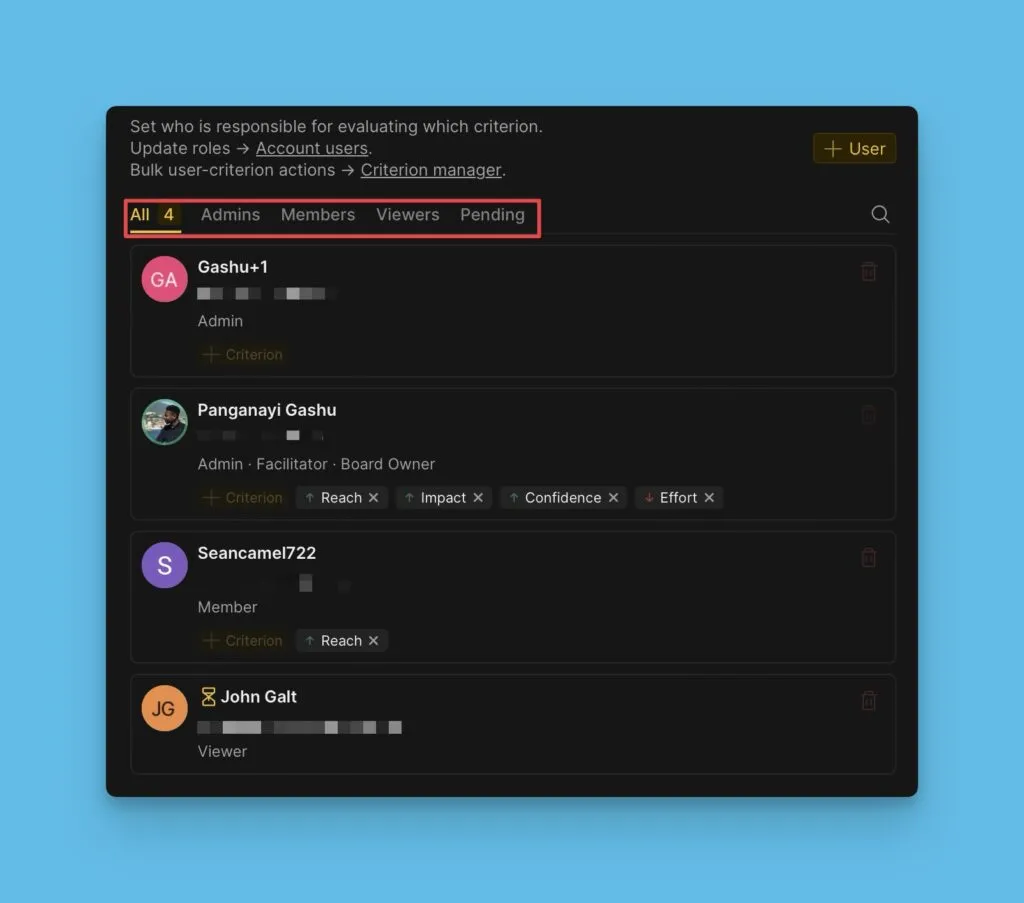
Each user shows their name, email address, role, and assigned criteria.
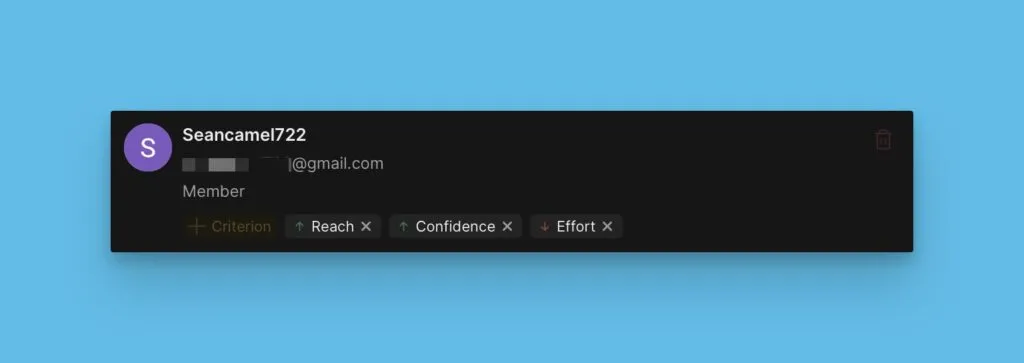
Manage user criteria
Add or remove criteria for any user:
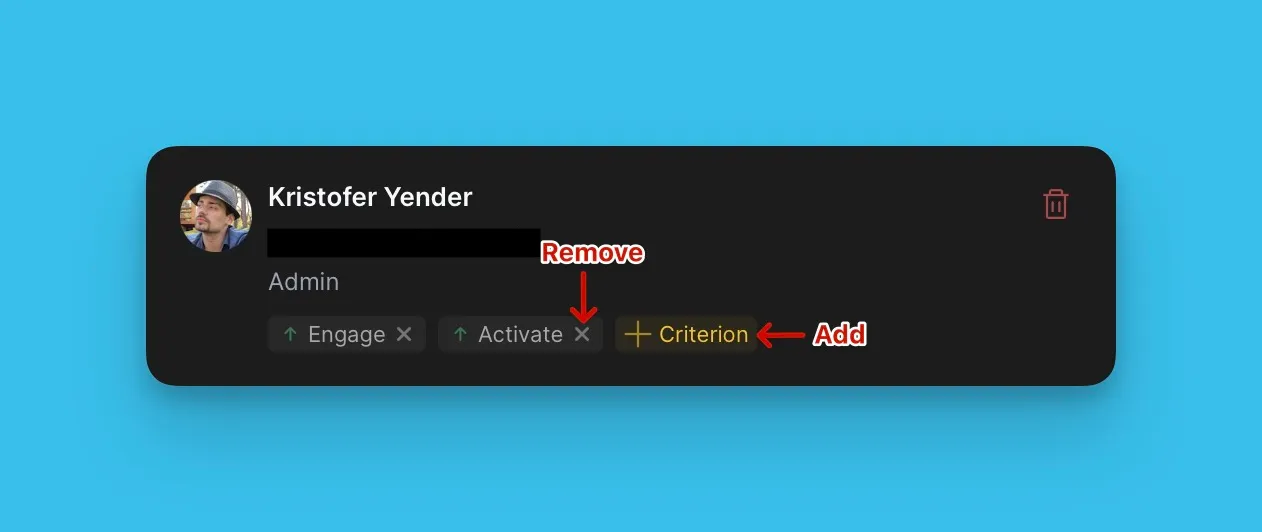
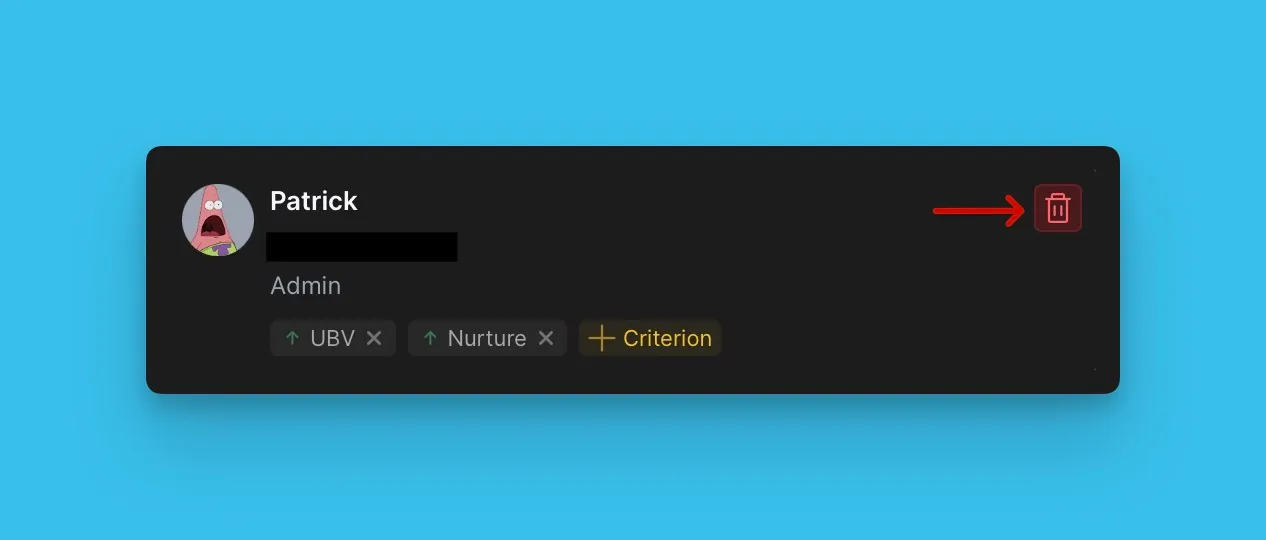
When you remove a user from the board, their scores are deleted. If you add them back later, their scores will be restored.
Add a user to the board
-
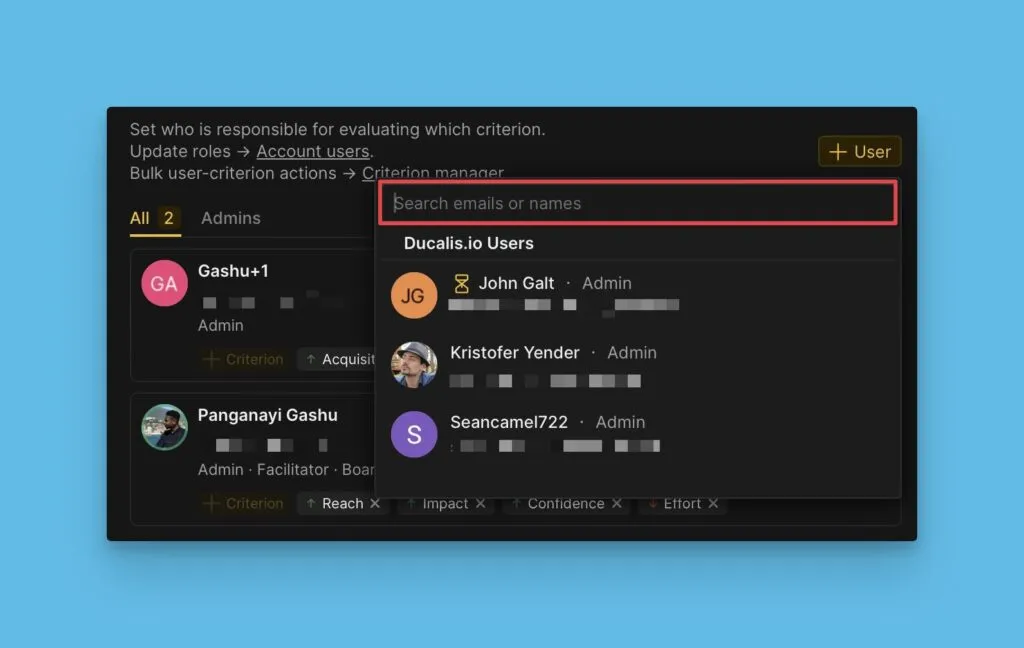
On the Board Users page, click + User.
-
Search for users from your Ducalis organization or connected task tracker by email or username.
-
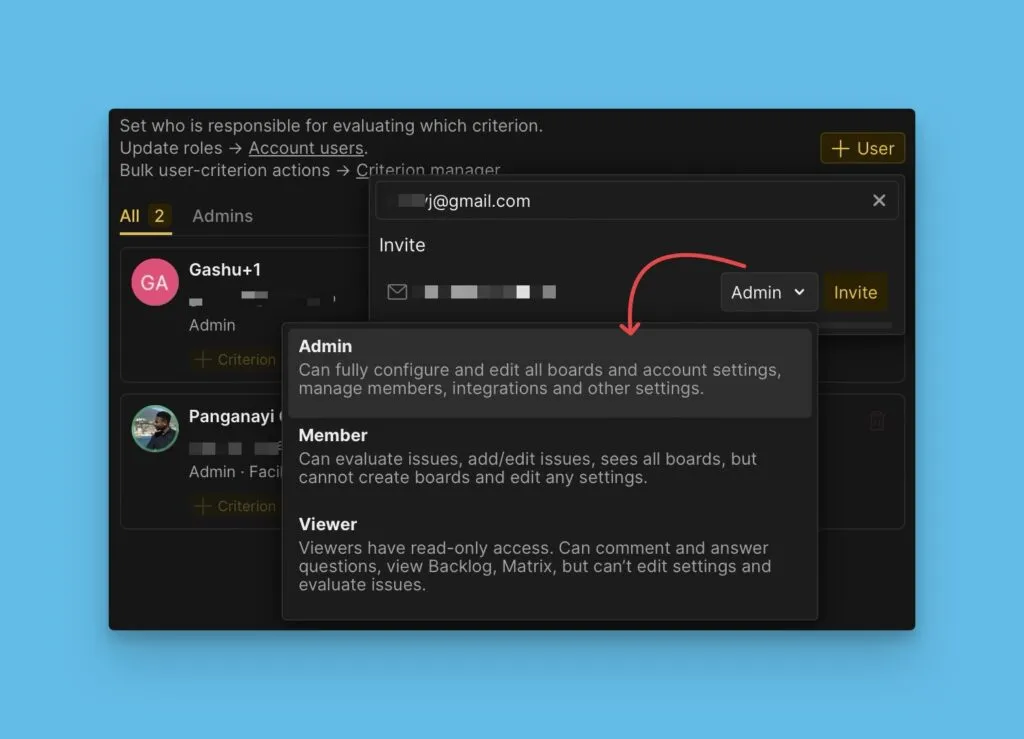
If the user isn't in your organization or task tracker, invite them via email by typing their email address, assigning a role, and sending the invitation.
Assign criteria to users
You can assign criteria in two ways:
From Criteria settings
-
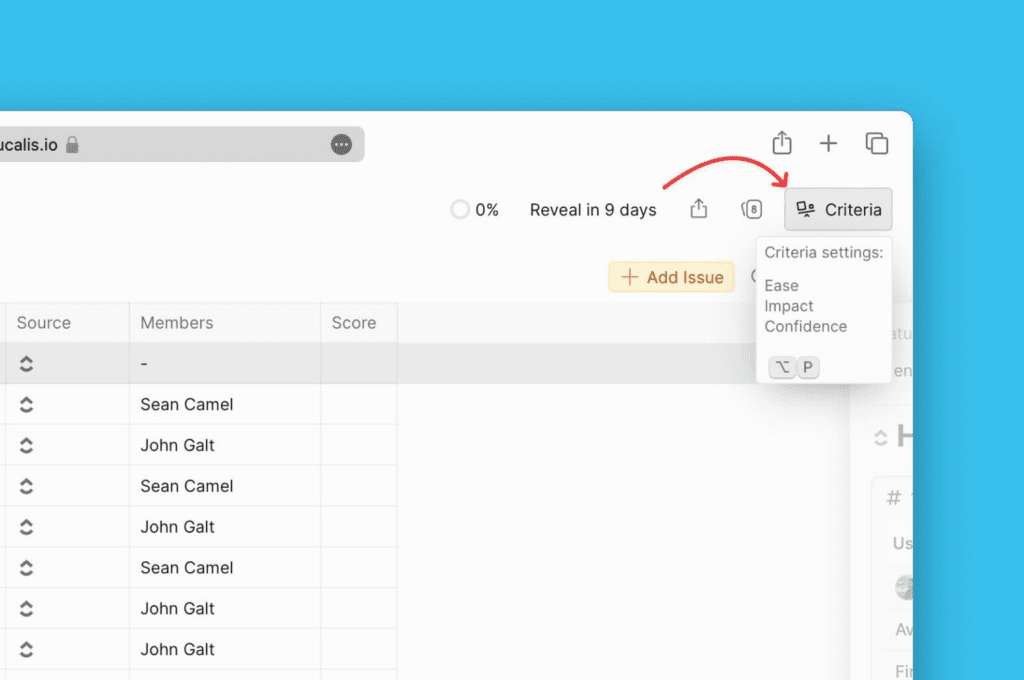
Go to Criteria settings and hover over the criterion you want to assign.
-
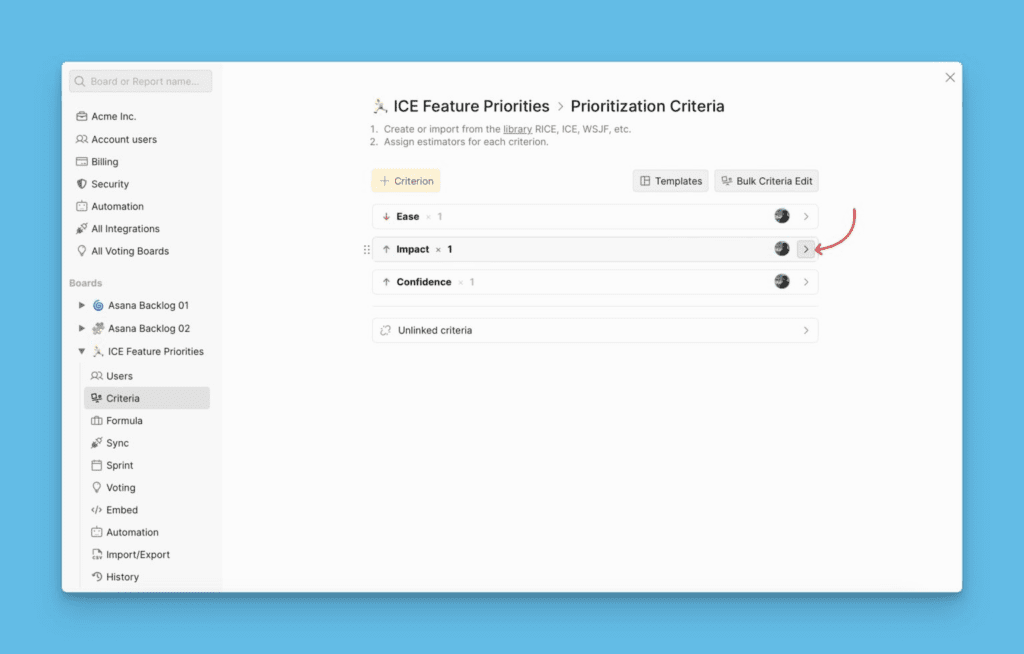
Click the arrow to expand the block.
-
Click the plus sign to add estimators.
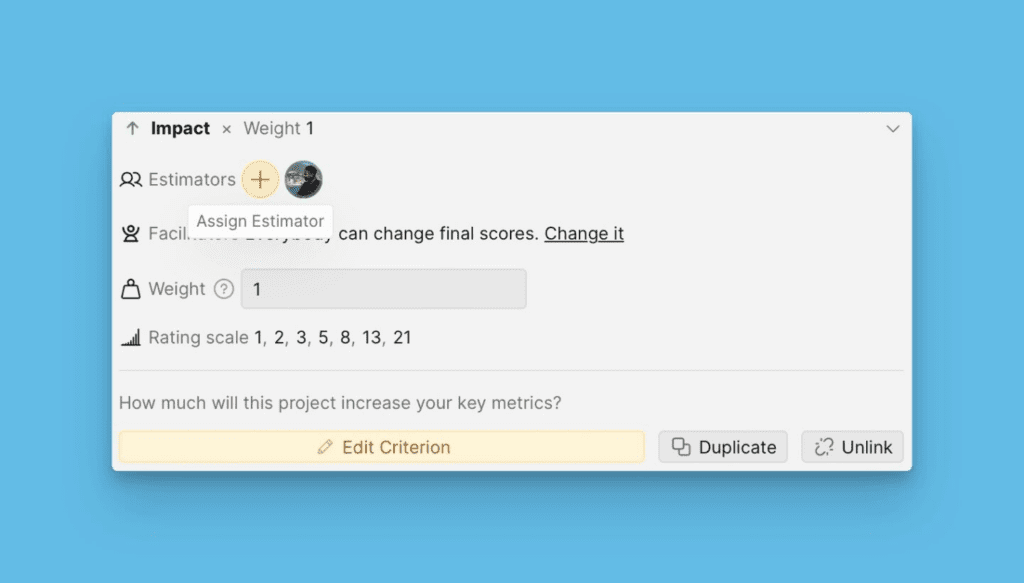
-
Select a user from your organization.
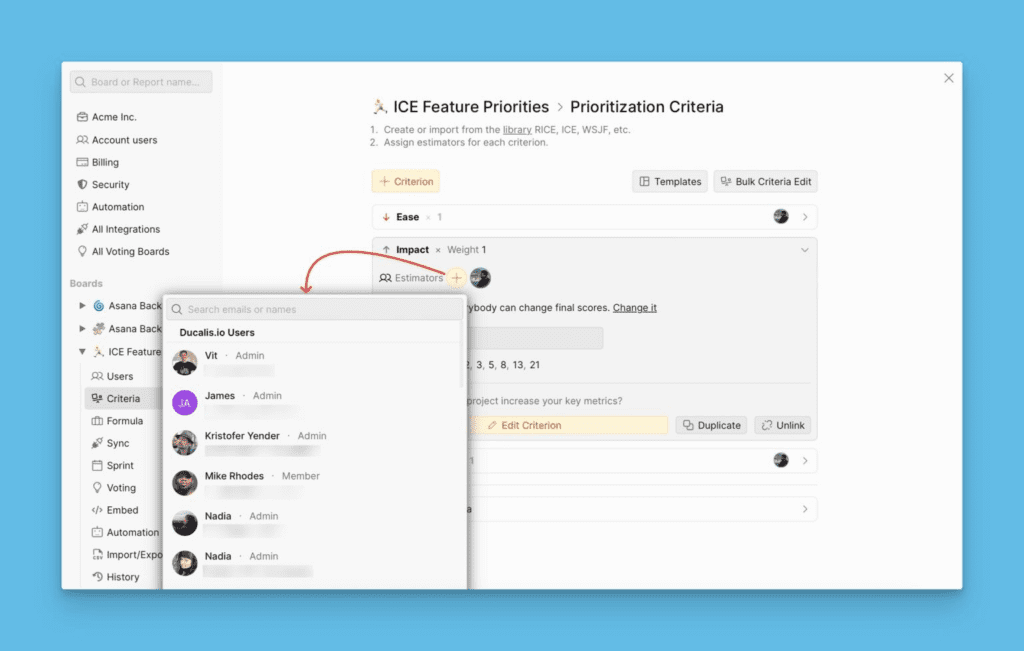
-
If the user isn't in the organization, type their email address in the search field.
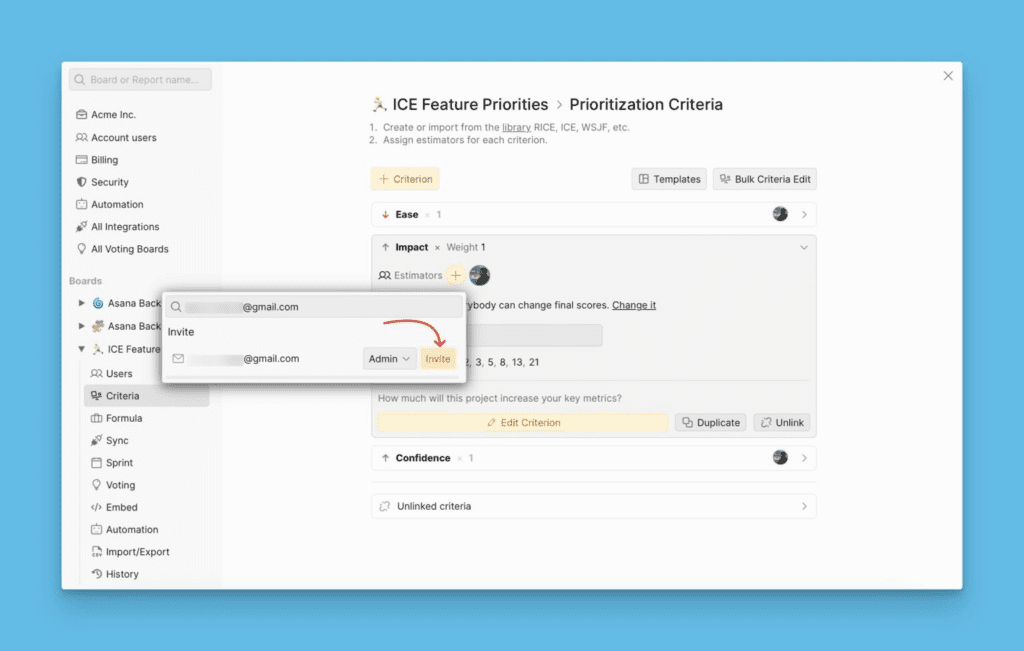
You can assign multiple estimators to a single criterion.
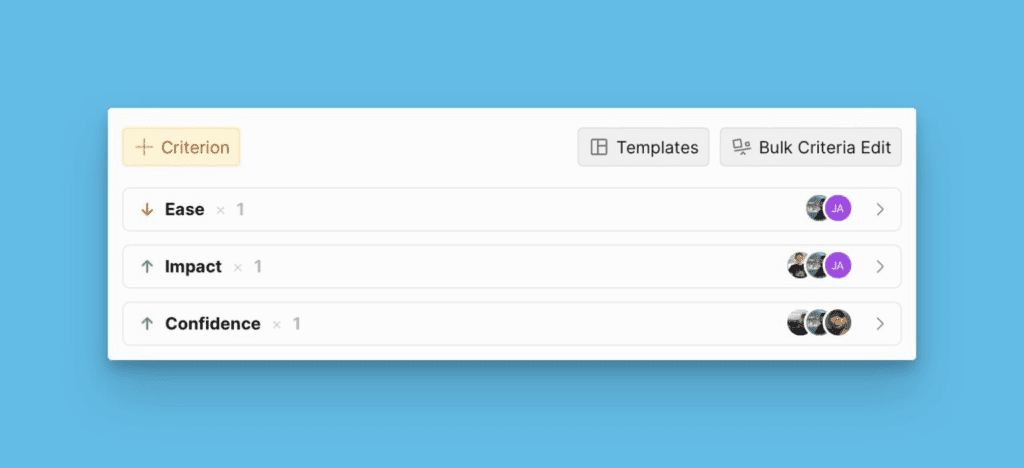
Assign criteria based on each user's expertise for the most accurate evaluations.
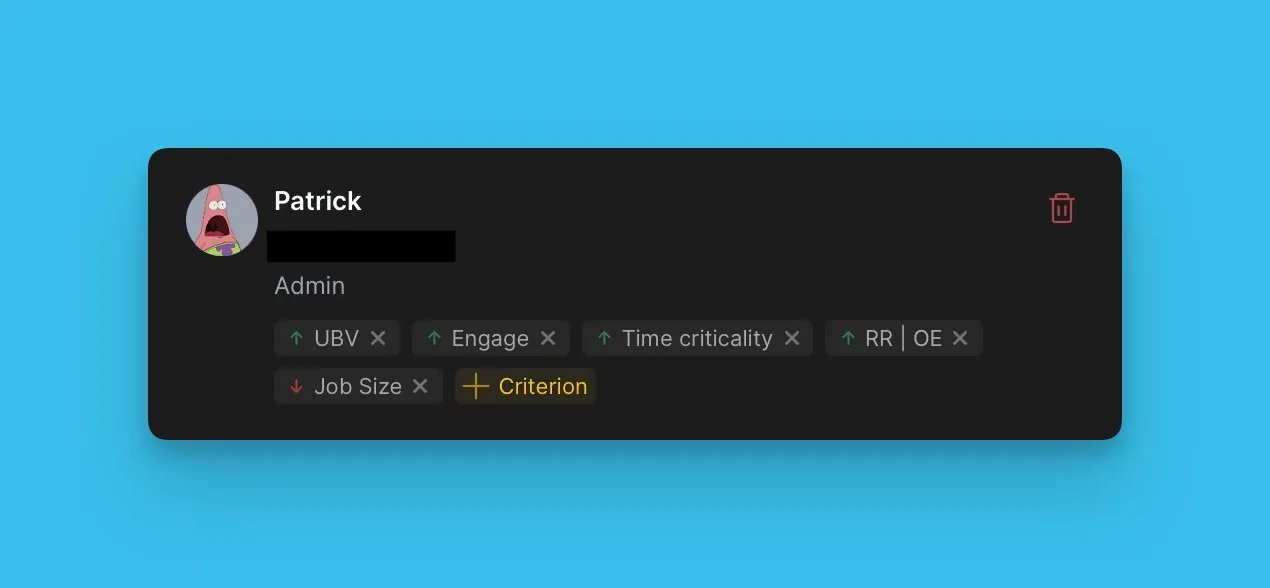
From Board Users List
-
Find the user you want to assign a criterion to.
-
Click +Criterion and select the criterion from the list.
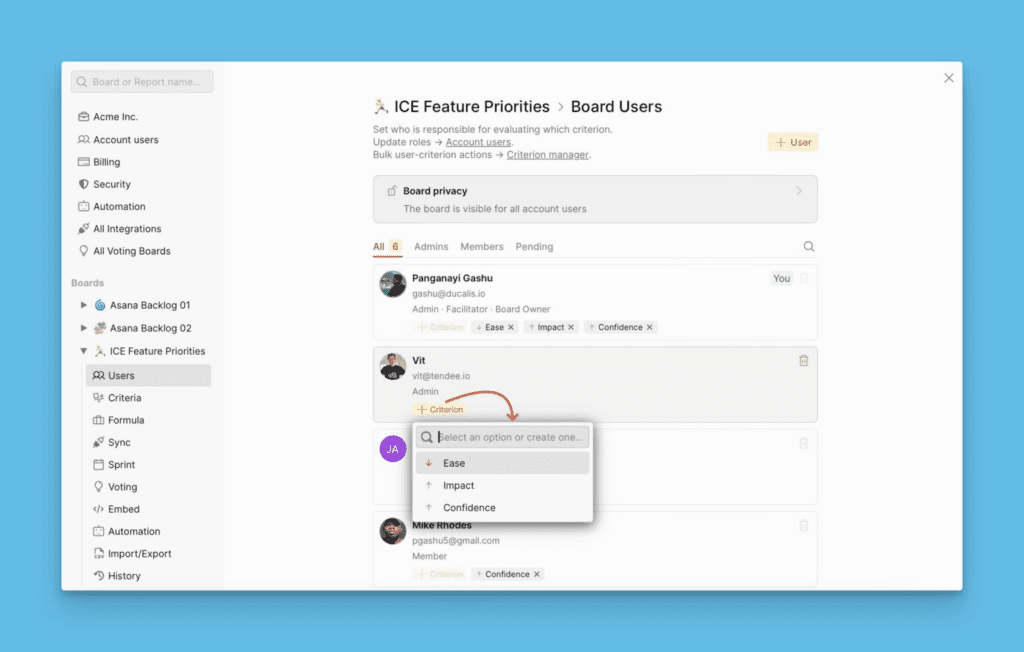
Users can estimate multiple criteria.