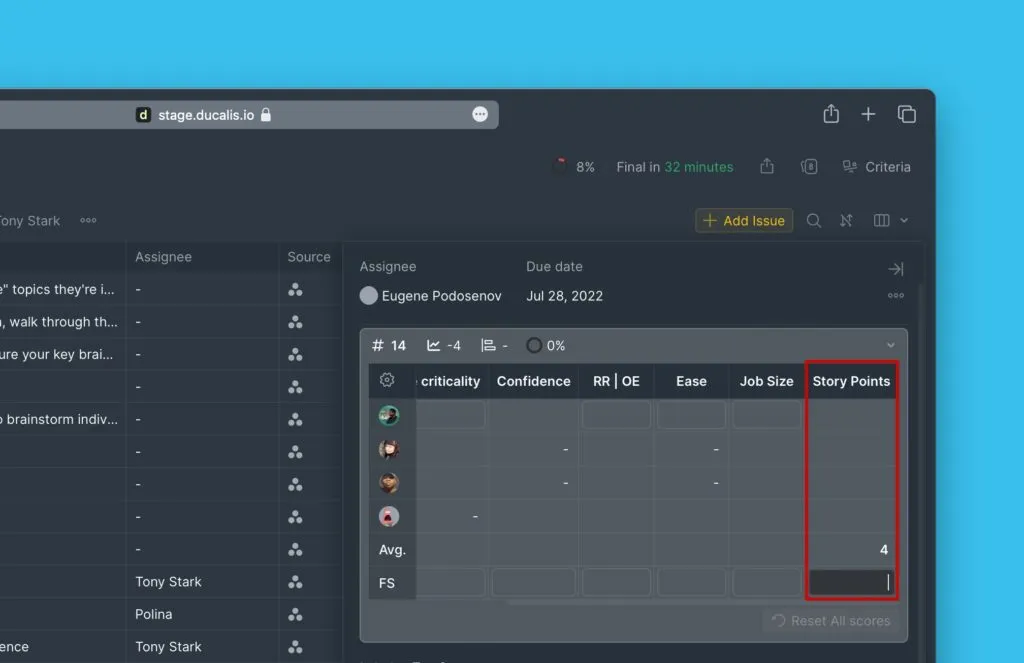
Custom field criteria
Use custom fields as criteria to prioritize issues in your backlog. You can add custom fields from connected task trackers or from Ducalis.
Create a criterion from a custom field
-
Go to prioritization Criteria settings.
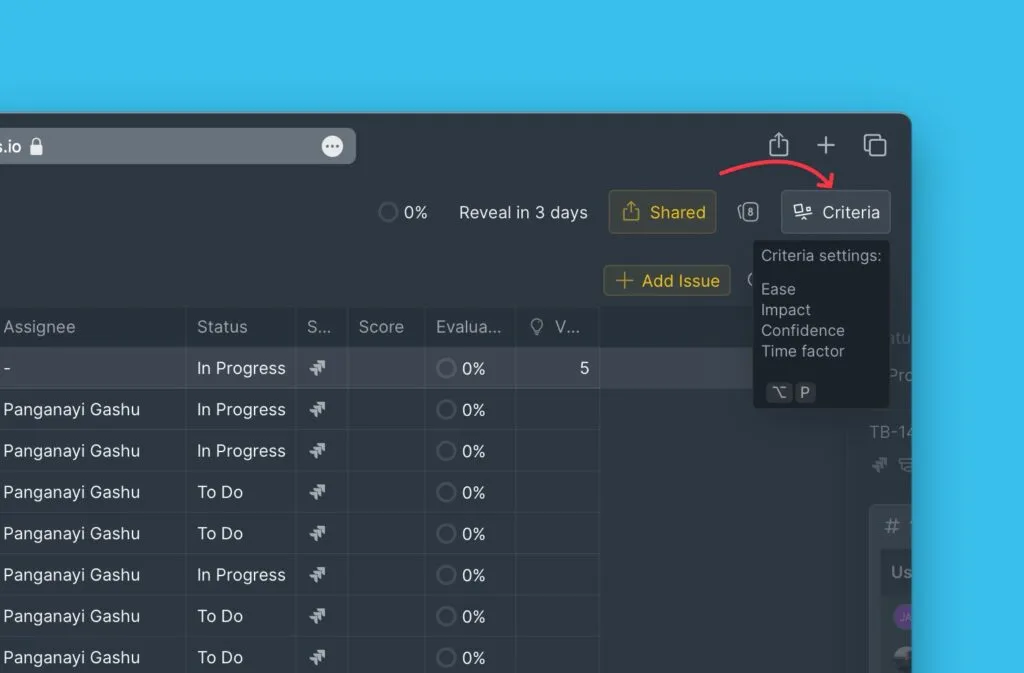
-
Click + Criterion.
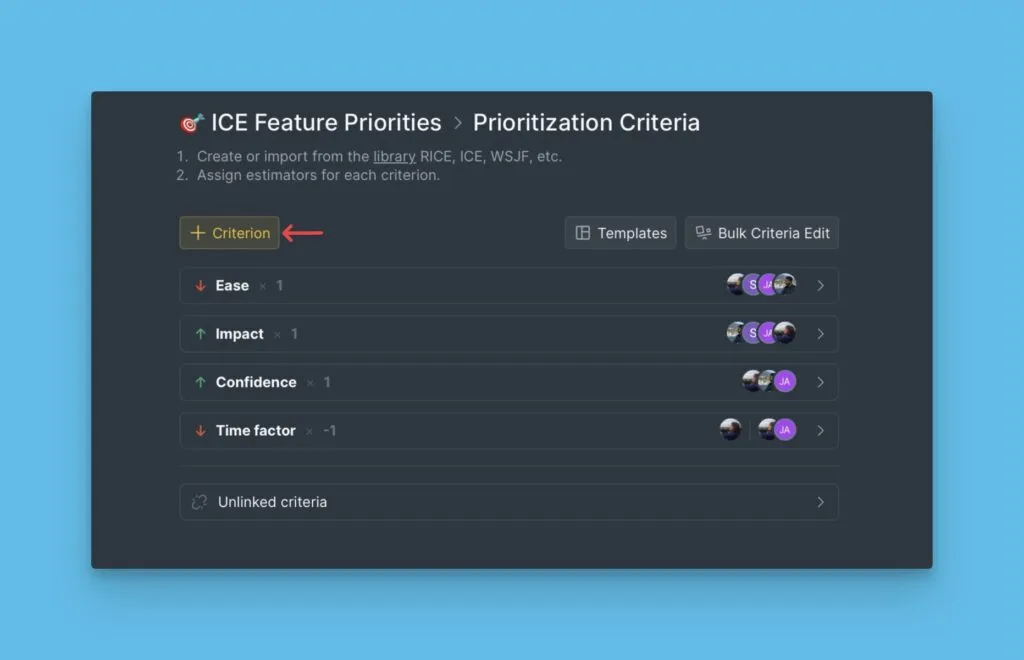
-
Enter the criterion name and click +New [name of criterion].
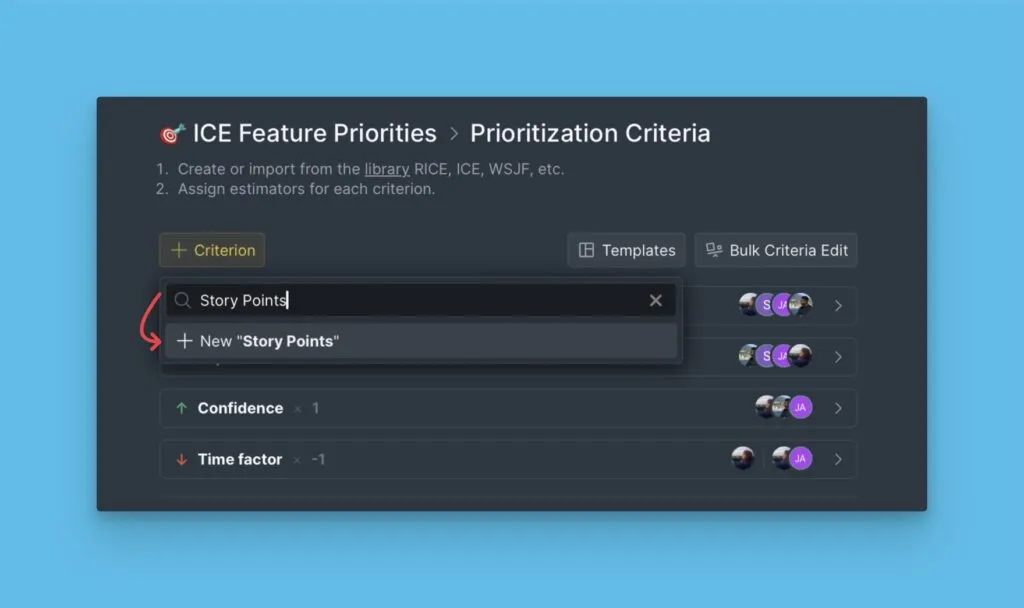
-
Select Custom Field as the criterion type.
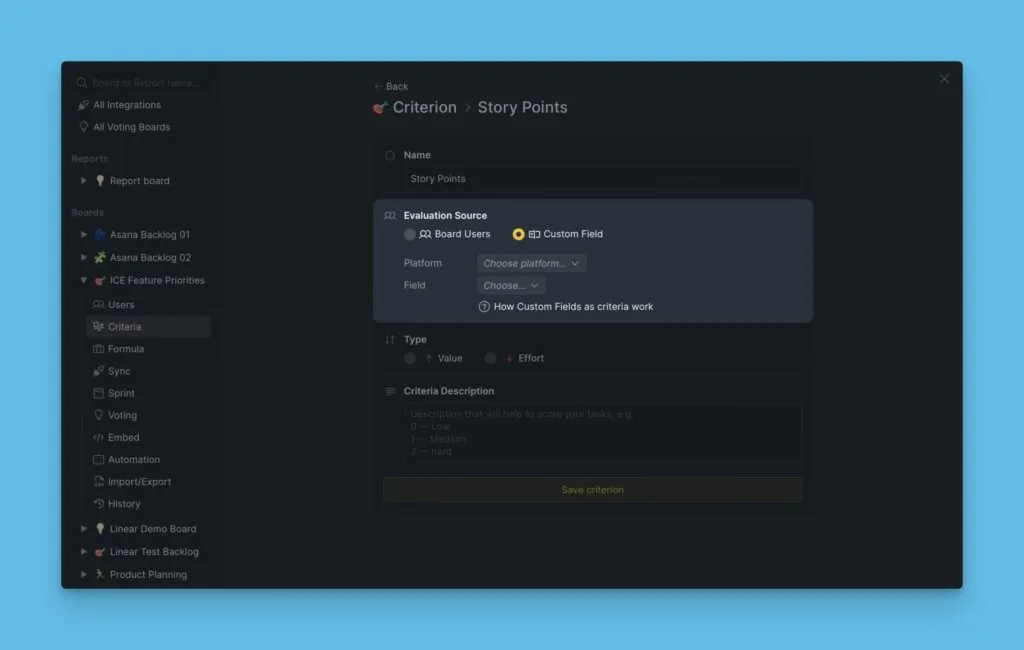
-
Choose the platform you want to use (connected task tracker or Ducalis).
-
Select the custom field you want to add as a criterion.
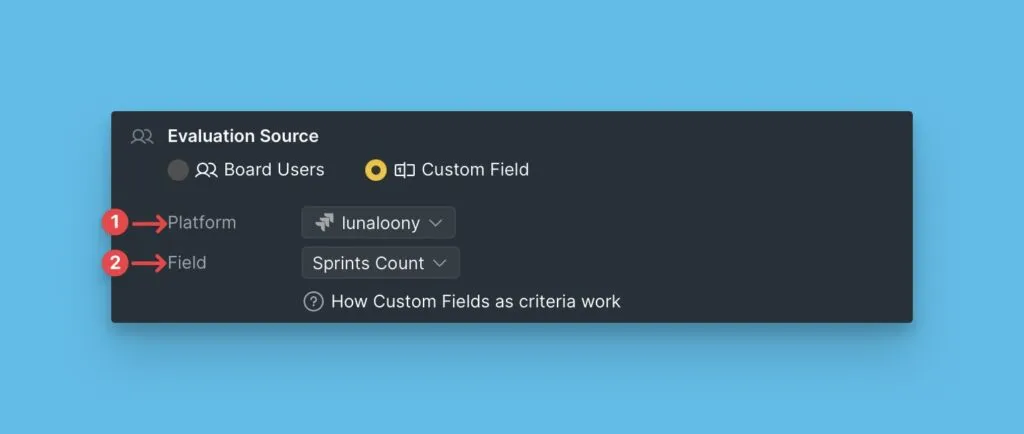
-
Choose the Criterion type (Value or Effort) and add a description, then click Save Criterion.
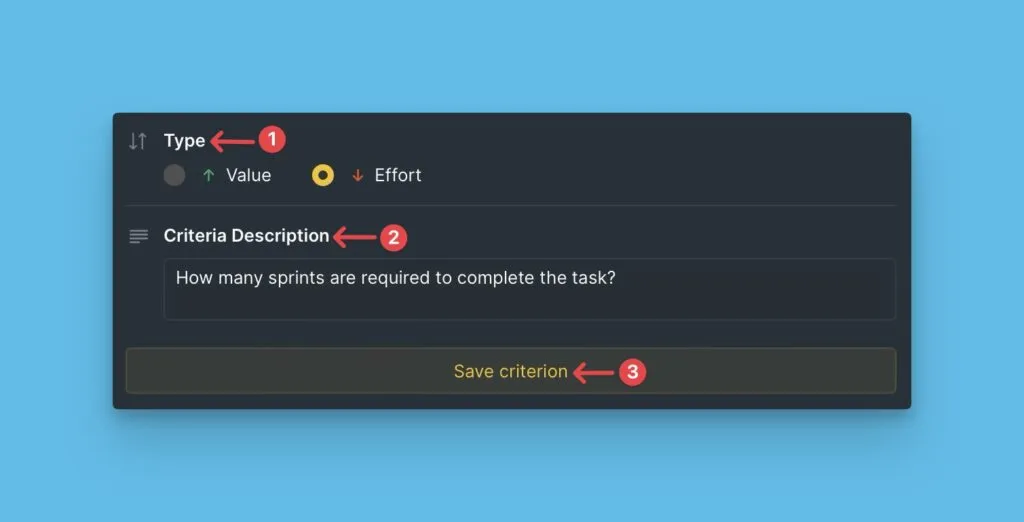
After creating the criterion, you can edit the criterion weight.
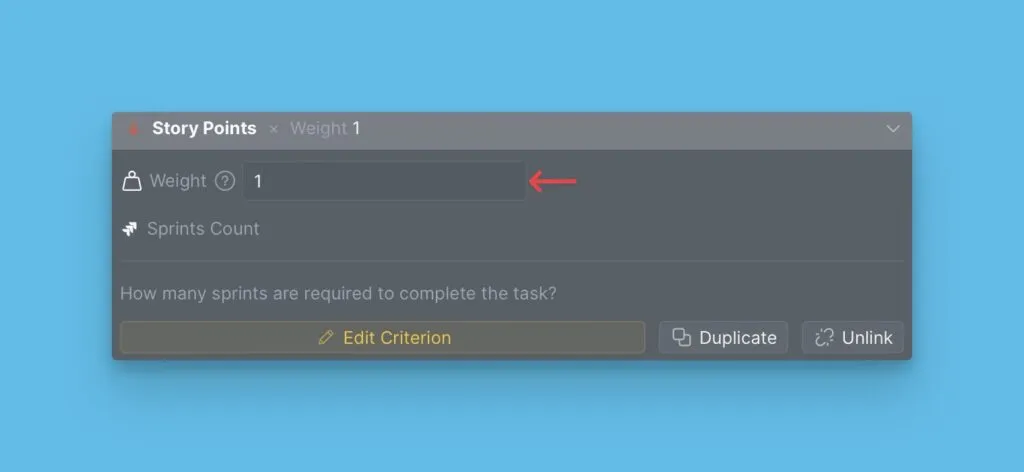
Add custom field criteria to tables
By default, criteria created from custom fields don't appear in the Evaluation or Backlog tables.
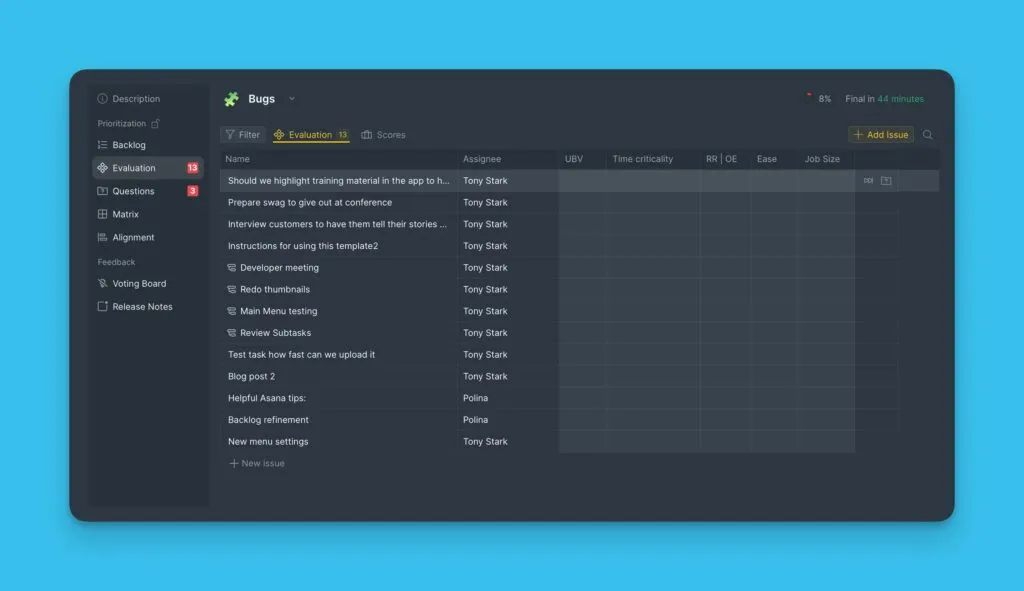
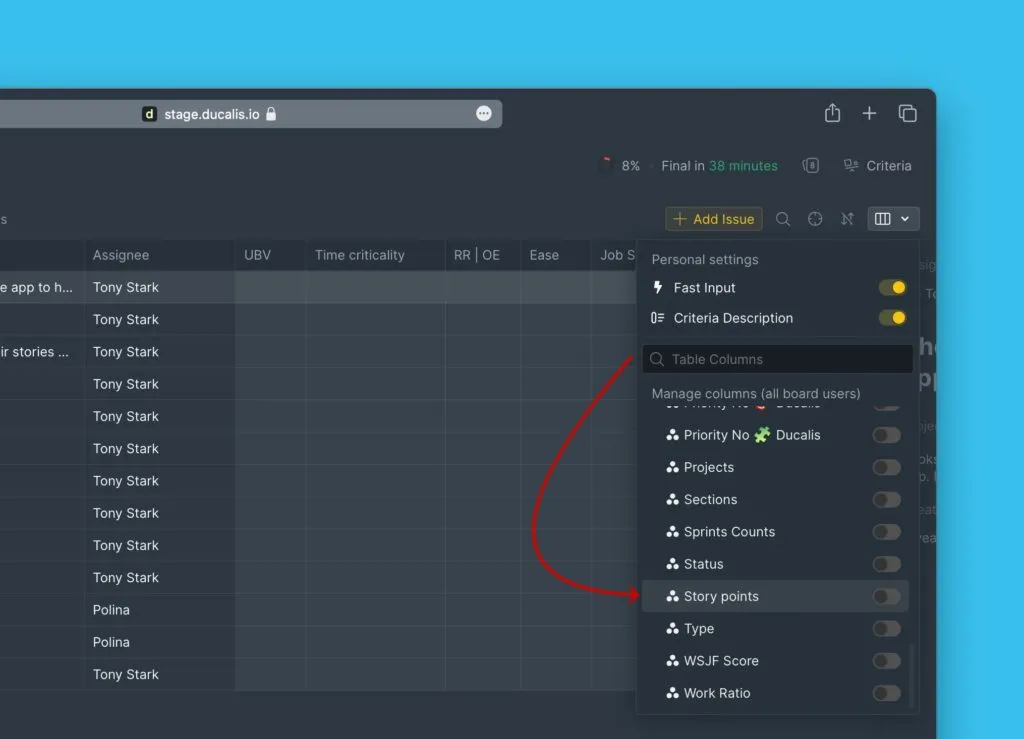
To add them:
- Open table Columns settings.
- Select the criteria you want to display in the table.
Custom field criteria also appear in the Re-evaluation block. Team members with permission to edit Final Scores can modify values there.