Jira İş Listesini Önceliğe Göre Sırala
Jira iş listesinin önceliğe göre sıralanması, 2008'den beri en çok talep edilen özelliklerden biridir. Hem Jira Cloud hem de Server için yerel öncelik sıralaması talep eden yüzlerce kullanıcı bulunmaktadır. Bu kılavuz, yerleşik Jira araçları ve Ducalis kullanarak Jira iş listesi öncelik sıralama sorunlarını gidermek için 8 çözüm sunar.
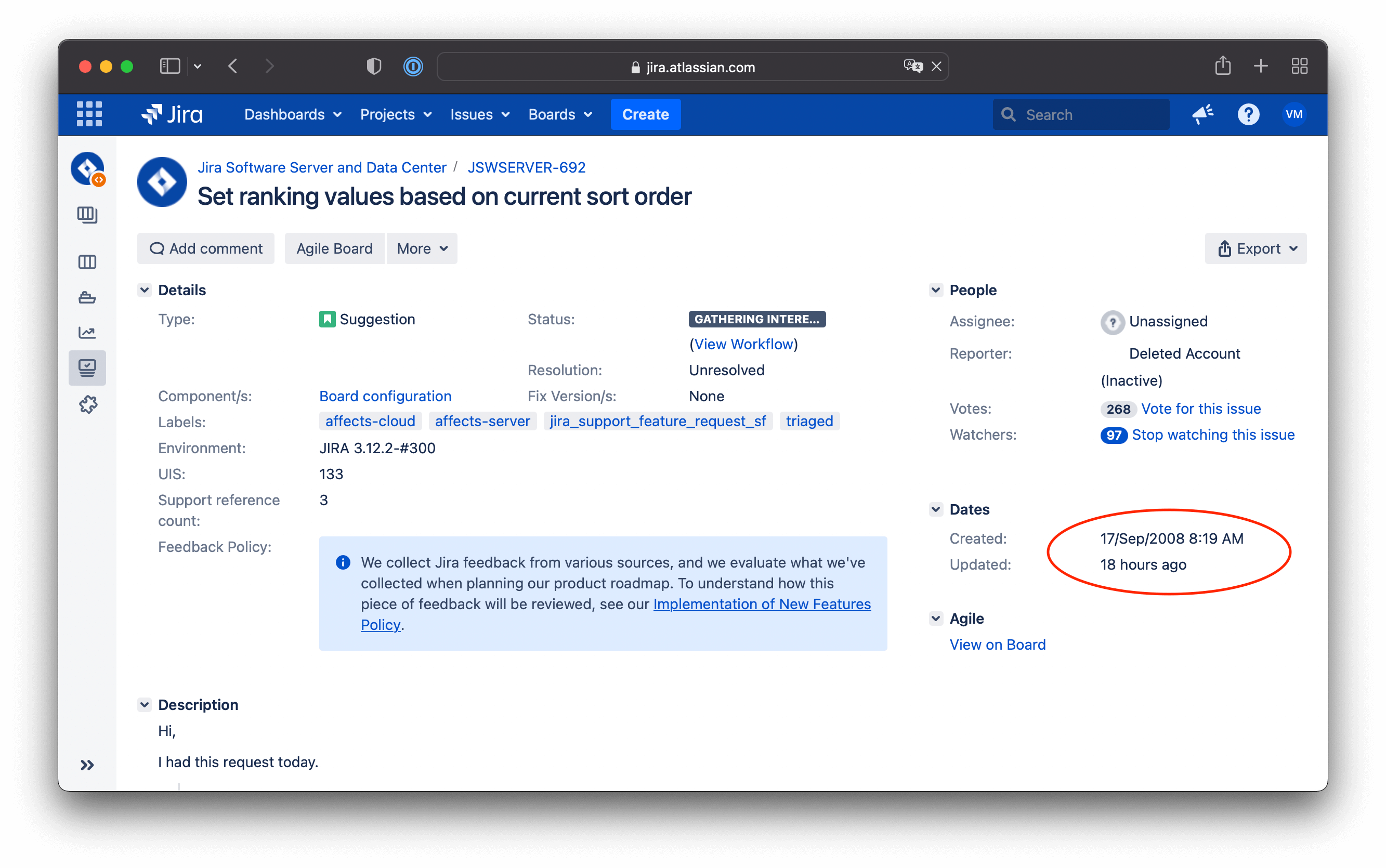
Jira Varsayılan Öncelik Alanının Sorunları
1. Sınırlı Öncelik Sıralama Seçenekleri
Varsayılan olarak, Jira Issue'larını manuel olarak sürükleyebilirsiniz. Ancak, belirli bir Jira iş listesi sıralama kuralı ayarlarsanız, sıralama seçeneği kilitlenir—bir filtre uygulandıktan sonra öncelikleri manuel olarak ayarlayamazsınız.
2. Yeterli Öncelik Alanı Seçeneği Yok
Jira yalnızca üç varsayılan öncelik seviyesi sunar. İş listenizde yüzlerce veya binlerce öğe bulunduğunda ancak yalnızca birkaç düzine kritik görev olduğunda, üç seviye yetersizdir. Öncelik göreceli bir kavramdır, mutlak değildir.
3. Orta Öncelik Varsayılan Seviye
Yeni bir Jira Issue oluşturduğunuzda, otomatik olarak orta öncelik sıralaması alır. Bu durum, birinin kasıtlı olarak öncelik verip vermediğini veya sadece varsayılan olarak mı ayarlandığını belirsiz hale getirir.
4. Önceliklendirme Çerçevesi Yok (Önyargılı Karar Verme)
Paydaşlarınıza ve liderlerinize yapılması gereken en önemli şeyin ne olduğunu sorarsanız, farklı yanıtlar alırsınız. Önceliklendirme, birçok boyutta—teknik, iş, rekabet—ödünleşimler içerir ve bir çerçeve olmadan öncelik belirlerken önyargılı olmak kolaydır.
5. Güncelliğini Yitirmiş Öncelik Puanları
Öncelik ve aciliyet, hızlı tempolu bir ortamda sürekli değişir. Bugün en önemli müşteri talebini alabilir, gelecek hafta kritik veritabanı bakım verileri ve bir sonraki hafta kritik bir hata ile karşılaşabilirsiniz. Tüm görevler yüksek öncelikli olarak işaretlenecek ve güncelliğini yitirmiş puanlara sahip yüksek öncelikli Issue'larla dolu bir iş listesi oluşacaktır.
6. Herkes için Tek Önceliklendirme Modeli
Jira iş listeniz hataları, yeni özellikleri, iyileştirmeleri, teknik borç Issue'larını ve güzel olurdu Fikir'lerini içerir. Her Issue grubu kendi karar verme sürecini gerektirir.
7. Belirsiz Öncelik Bağlamı
Takım arkadaşlarınız belirli bir görevin neden en yüksek önceliğe sahip olduğunu nasıl anlayacak? Önceliklendirme kararının nasıl verildiğini açıklamadan, takım arkadaşlarınızı dışlarsınız ve ortak hedefler etrafında birlik duygusunu kaybederler, bu da morali düşürür.
8. Takım Önceliklendirmesi Yok
Jira'da tüm projeler ve ekranlar için açık olan ve üç duruma sahip öncelik alanı bulunur ve her takım üyesi öncelik belirleyebilir—yapılandırılmış bir takım önceliklendirme süreci yoktur.
Bu makale, Ducalis ve yerleşik Jira araçlarını kullanarak Jira iş listesi sıralama Issue'larını nasıl gidereceğinizi kapsar.
Ducalis ile Jira İş Listesi Sıralaması
Ducalis, Jira Issue'larını sıralamanın en kolay yolunu sunar. Bu araç, öncelikler etrafında görevleri yönetmek için oluşturulmuştur ve tüm Jira eksik önceliklendirme Issue'larını tek seferde çözmek için uygulanabilir ayarlara sahiptir.
Jira ile Ducalis arasında gerçek zamanlı 2 yönlü senkronizasyon olarak bir bağlantı nasıl kurulacağını öğrenmek için okuyun.
[Çözüldü] Sınırlı Jira Öncelik Sıralama Seçenekleri
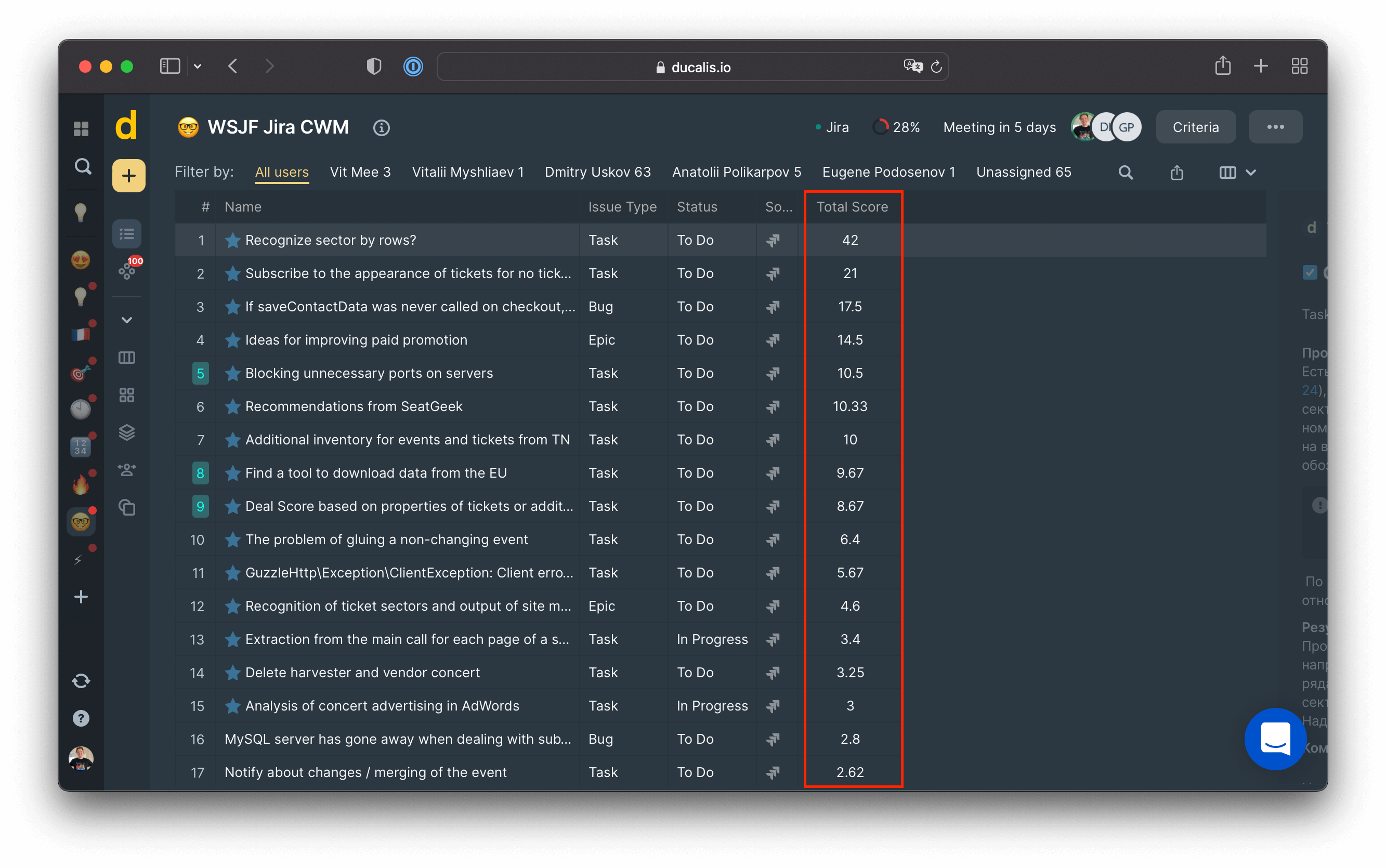
Varsayılan olarak, Ducalis'deki tüm Issue'lar öncelik puanına göre sıralanır. Takım arkadaşlarınız görevleri değerlendirdikçe gerçek zamanlı olarak güncellenir.
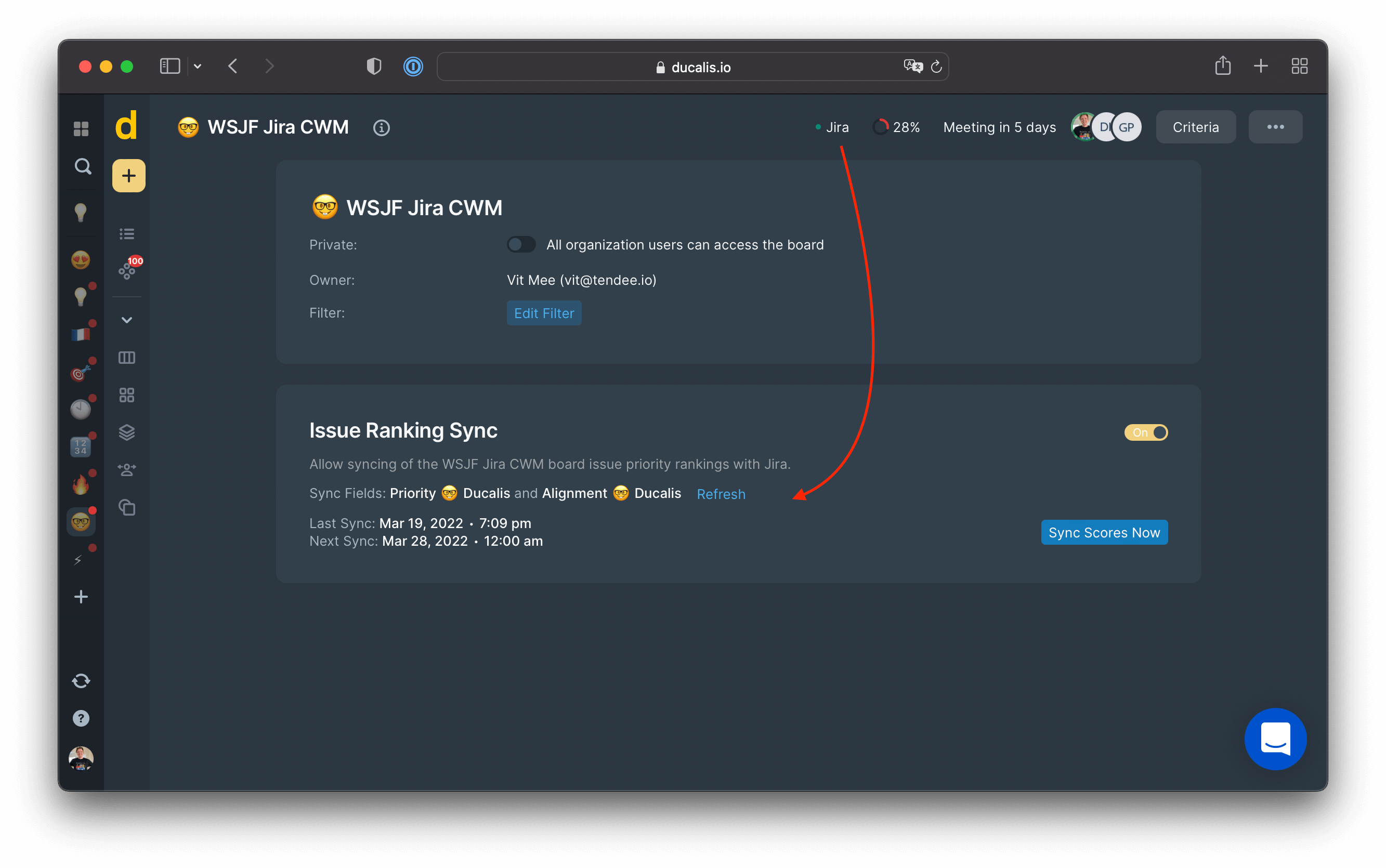
Öncelik puanınızı Jira özel alanına aktarmak için Geri Senkronize'yi açabilirsiniz.
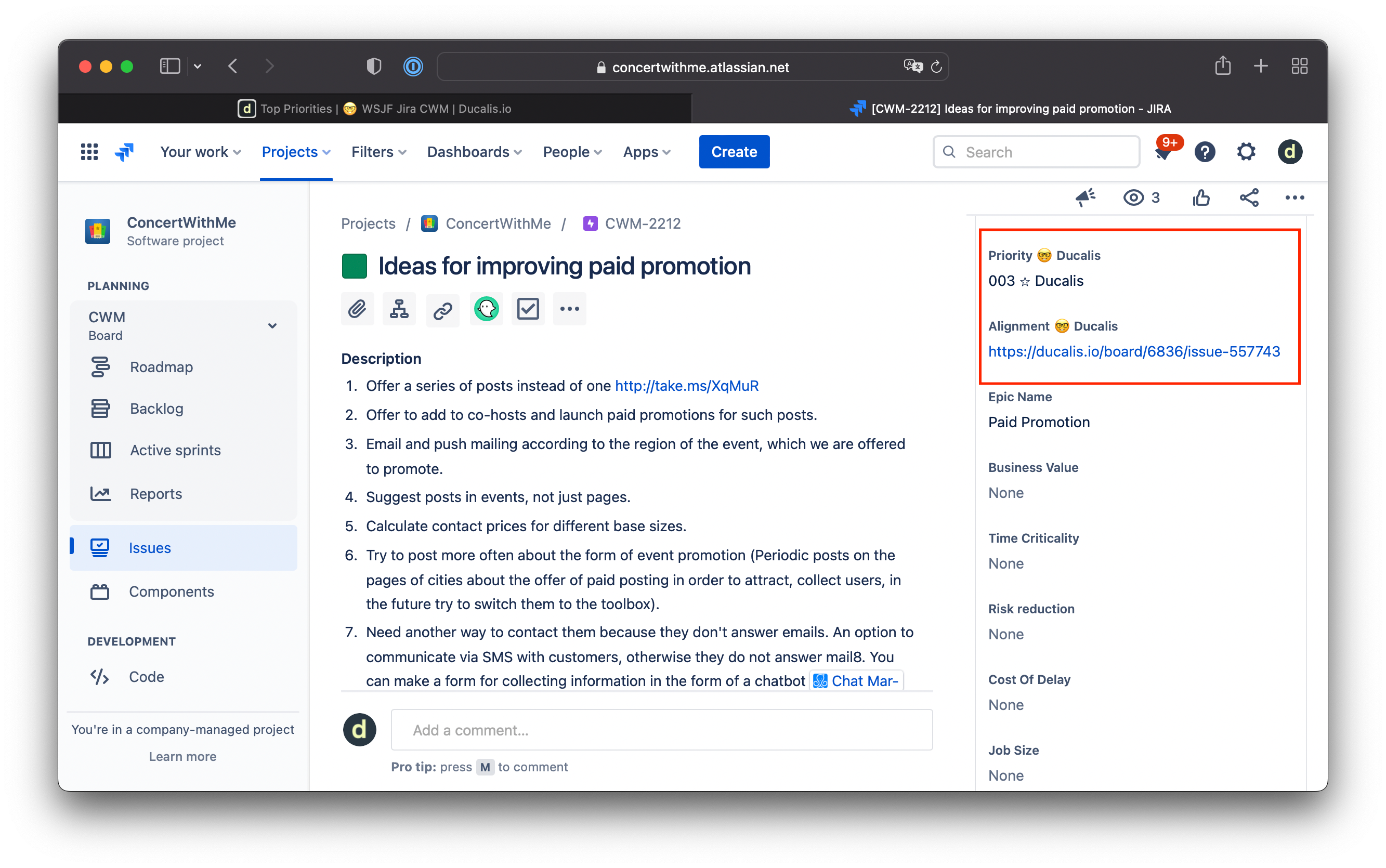
Artık Ducalis'in öncelik sıralamasını kullanarak Issue'larınızı Jira içinde sıralayabilirsiniz.
[Çözüldü] Yeterli Öncelik Alanı Seçeneği Yok
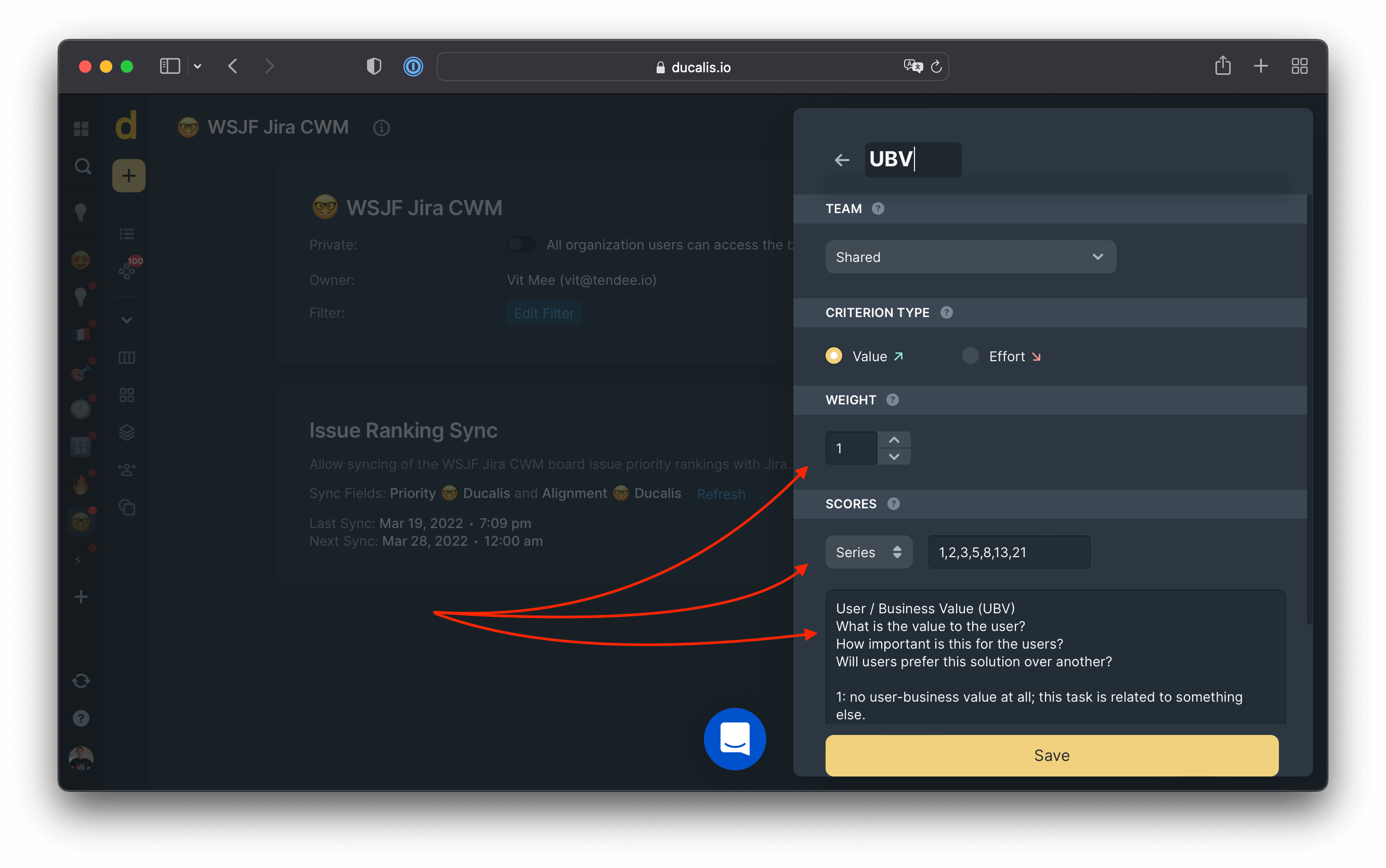
Ducalis, önceliklerinizi ayarlamak için esnek seçenekler sunar.
Her Kriter için, sizin ve takımınızın bağlamı anlamasına yardımcı olmak için açıklamalar, ağırlık ve bir ölçek ekleyin.
[Çözüldü] Orta Öncelik Varsayılan Seviye
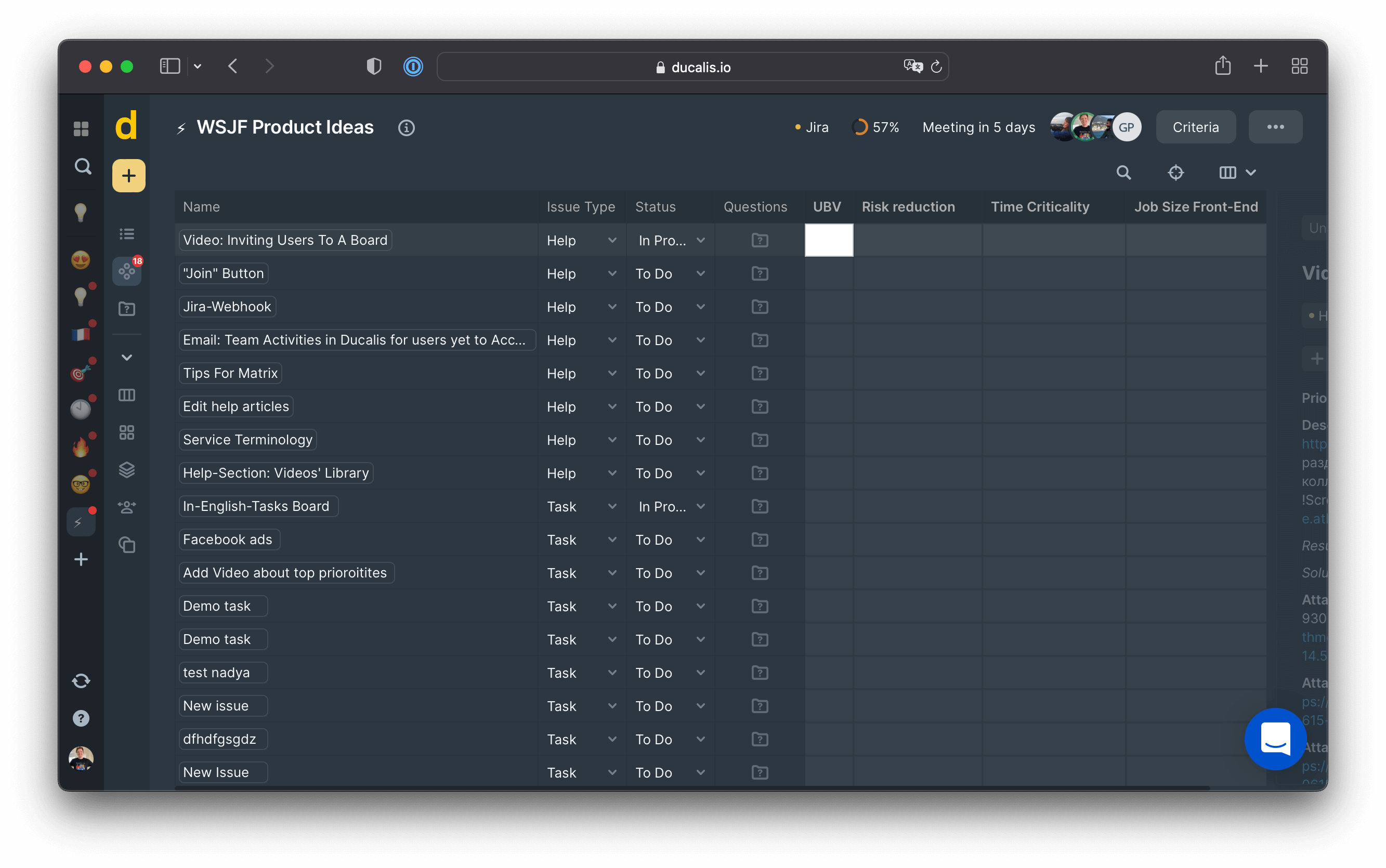
Ducalis'de varsayılan öncelik değeri yoktur. Bilinçli değerlendirme, Ducalis yaklaşımının temelindedir.
[Çözüldü] Önceliklendirme Çerçevesi Yok
Kriter'leri bir önceliklendirme çerçevesinde birleştirin. Ducalis, tüm popüler önceliklendirme çerçevelerini destekler: RICE, WSJF, ICE ve daha fazlası.
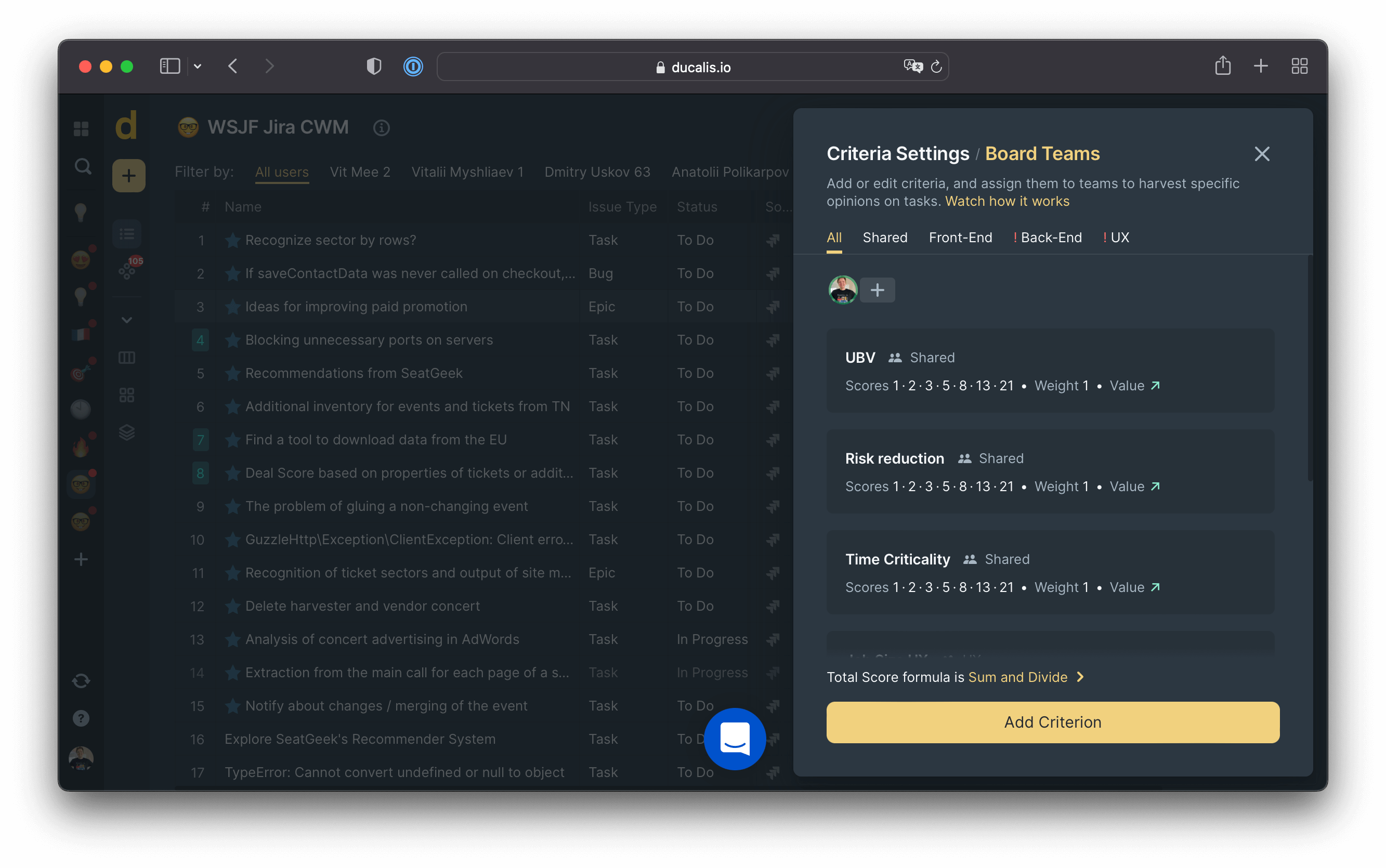
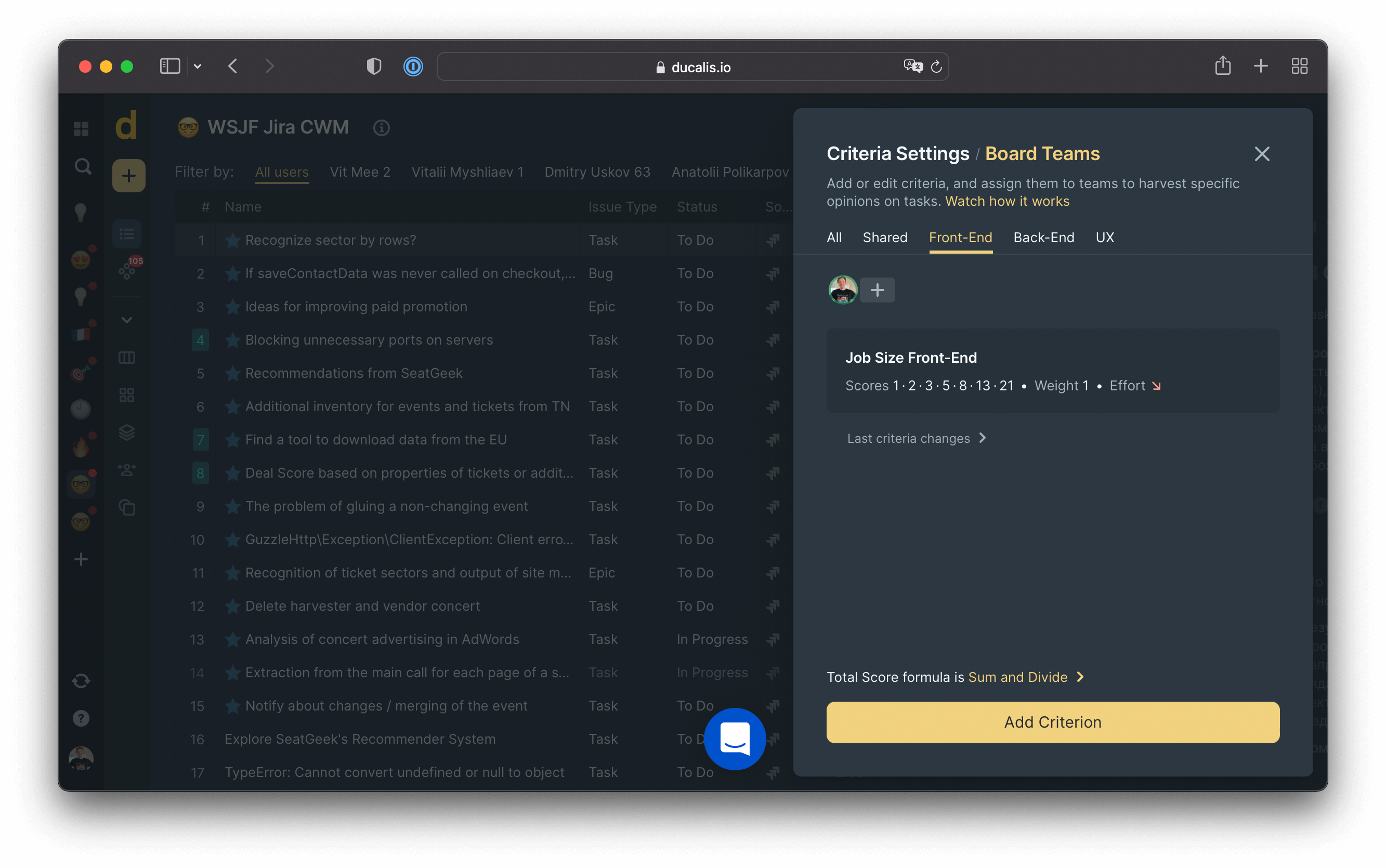
Role özel önceliklendirme Kriter'leri oluşturun. Öncelikleri tanımlarken önyargıyı azaltmak için farklı bakış açılarına ihtiyacınız vardır. Yalnızca onların verebileceği bağlamları sağlamak için satış, tasarım ve destek departmanlarınızı değerlendirme sürecine davet edin.
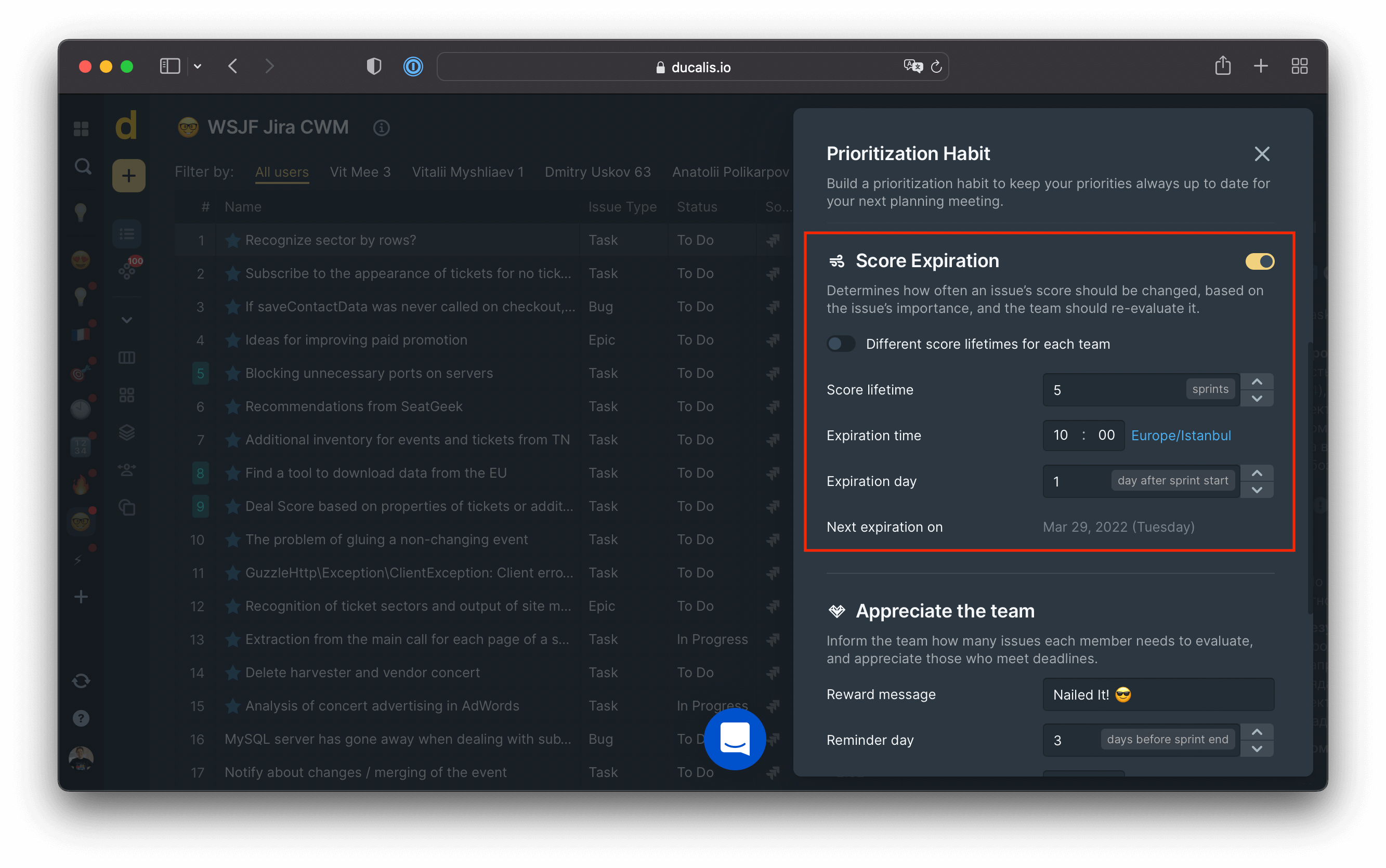
[Çözüldü] Güncelliğini Yitirmiş Öncelik Puanları
Hızla değişen dünyamızda öncelikler periyodik olarak yeniden değerlendirilmelidir. Ducalis ile, tüm önceliklerin güncel kalmasını sağlamak için birkaç sprint'ten sonra Puan Geçerliliği Sona Erme'yi ayarlayabilirsiniz.
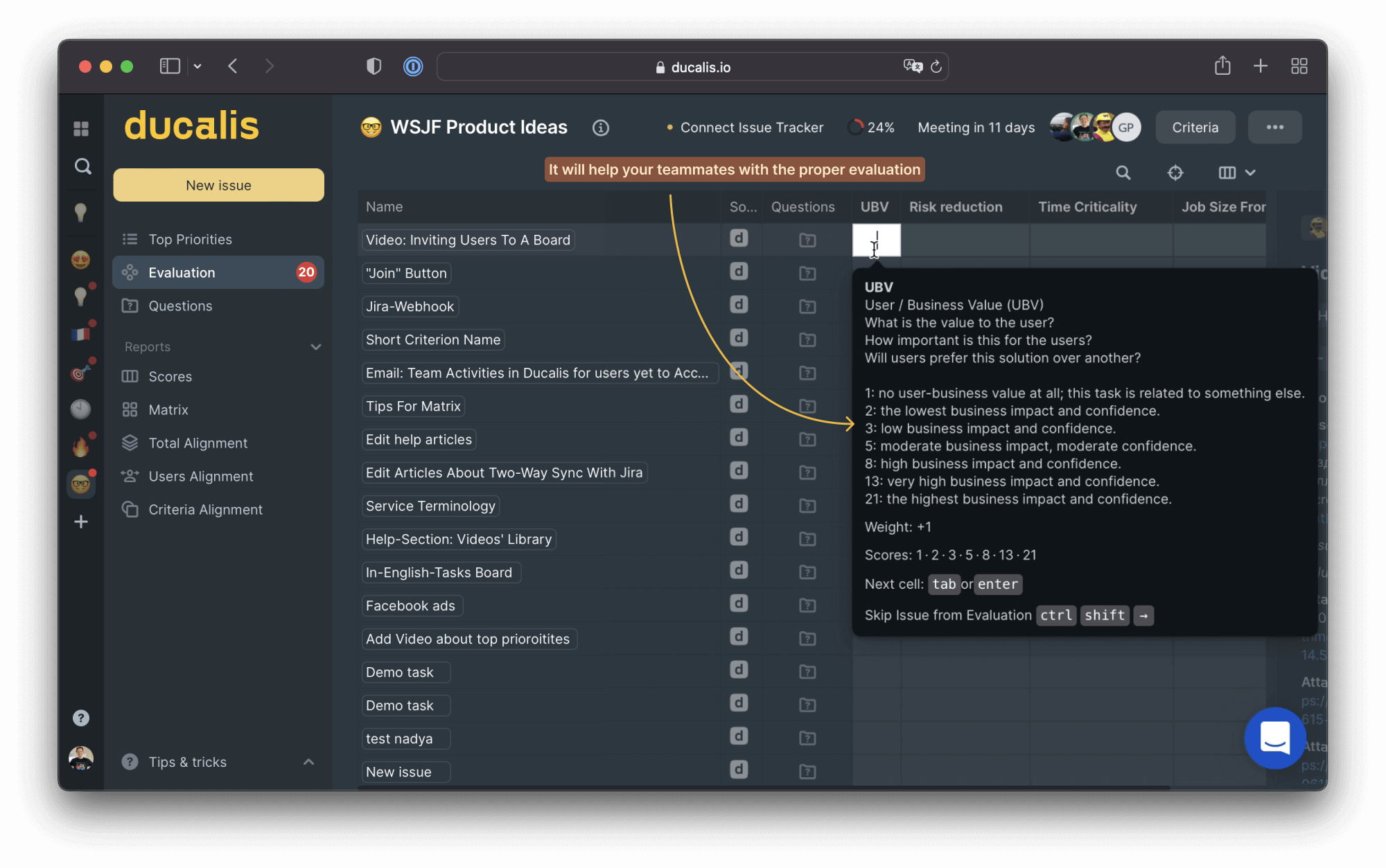
[Çözüldü] Belirsiz Öncelik Bağlamı
Değerlendirme süreci boyunca bağlam içeren rehberli değerlendirme ölçeği için ipuçlarını görün.
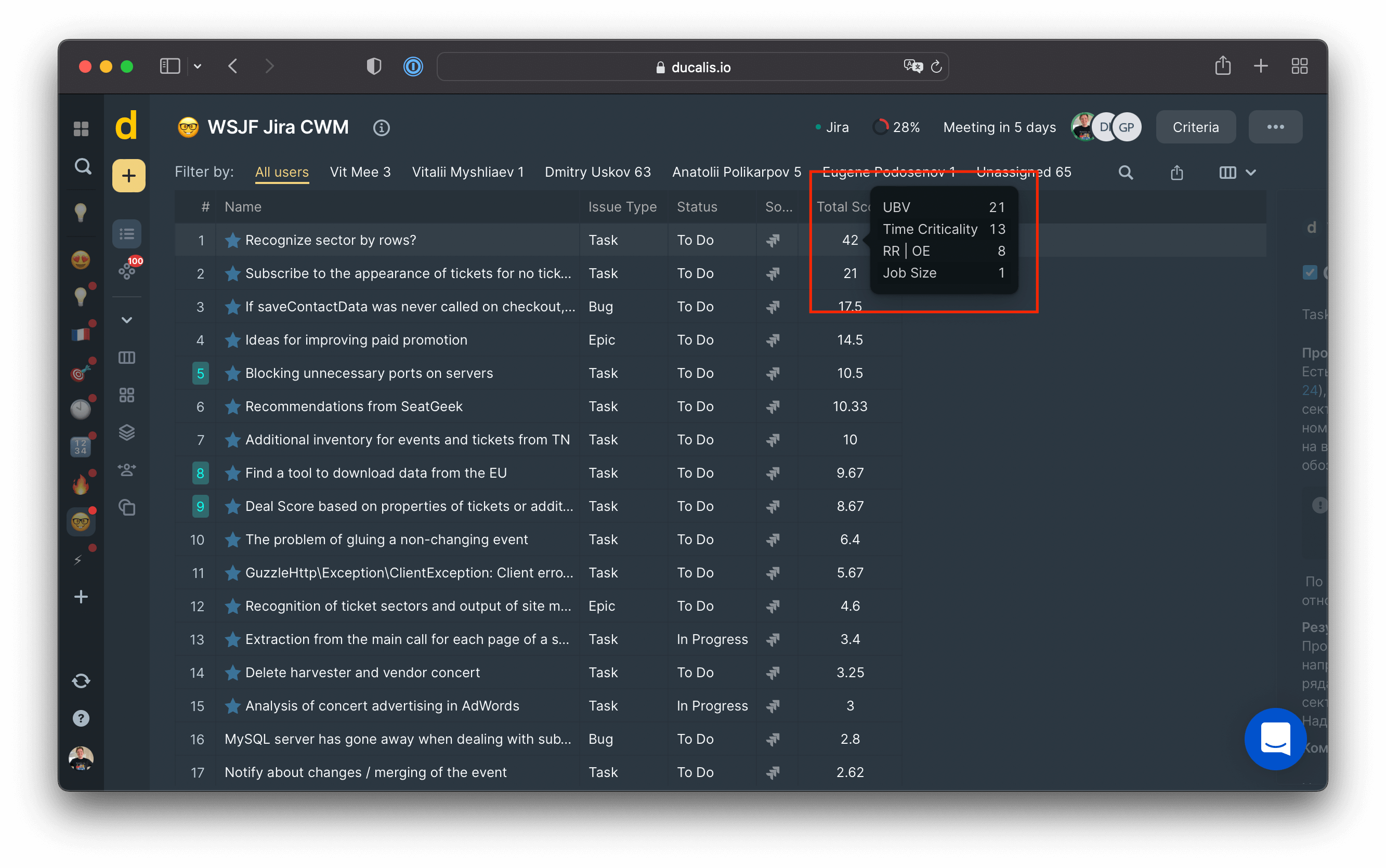
Değerlendirmeden sonra, belirli bir görevin nasıl önceliklendirildiğini anlamak kolaydır.
[Çözüldü] Herkes için Tek Önceliklendirme Modeli
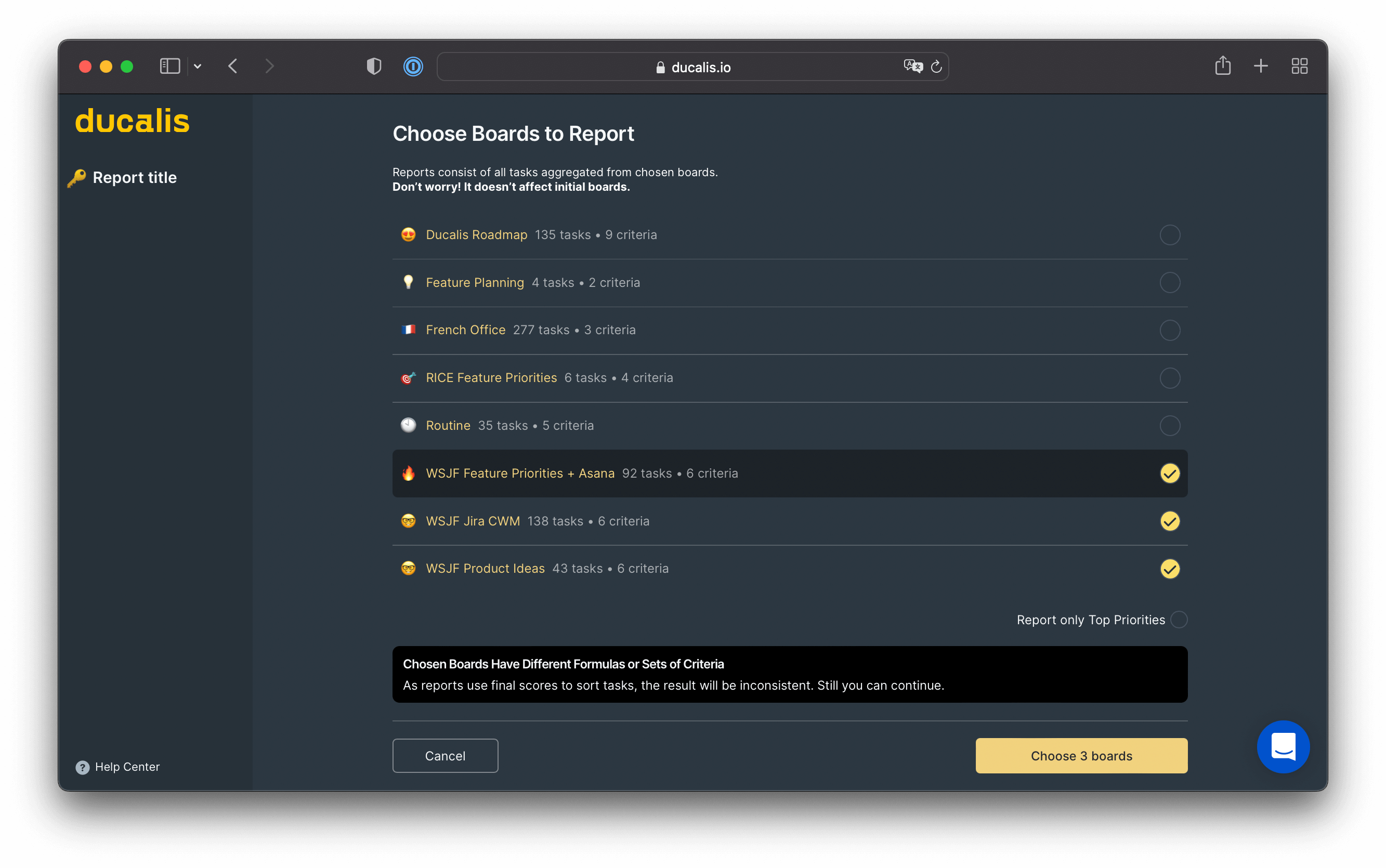
İş listenizin hangi kısmını önceliklendireceğinize karar verebilirsiniz. Ducalis ile, iş listenizin farklı kısımları, öncelik çerçeveleri ve insanlarla birden fazla önceliklendirme Pano'su oluşturabilirsiniz.
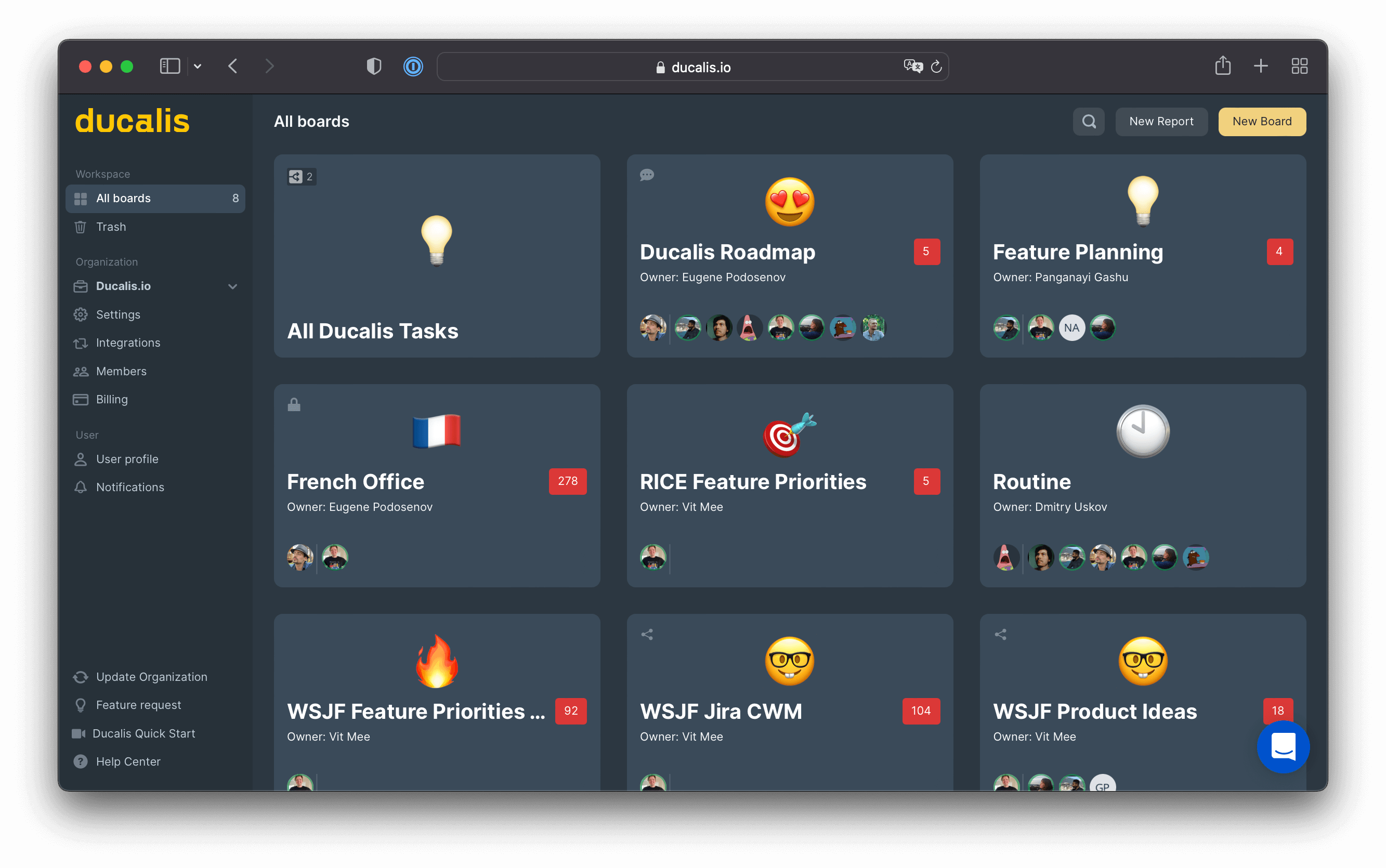
Her Ducalis Pano'su üç bileşenden oluşur:
- Issue'ların Listesi. İş listenizin herhangi bir kısmını senkronize edin.
- Önceliklendirme çerçevesi. Yeni özellikleri WSJF çerçevesi ile, pazarlama faaliyetlerini REAN ile, kullanıcı taleplerinizi RICE ile ve daha fazlasıyla önceliklendirin.
- Takım arkadaşları. Her önceliklendirme Pano'su için farklı kişiler önceliklendirme tahminlerini yapabilir.
İkinci Pano seçeneği, uçtan uca önceliklendirme için bir Rapor Pano'sudur. Bağlamları değiştirmek için birden fazla Pano'yu birleştirin: belirli bir projeye yakınlaştırın veya uçtan uca önceliklendirilmiş girişimlerinizin kuş bakışı görünümüne uzaklaştırın.
[Çözüldü] Takım Önceliklendirmesi Yok
Takım önceliklendirmesi, farklı bakış açılarını toplamak ve takım katılımı için önemlidir. Önceliklendirme alışkanlığı, takımınızı her iş listesi öğesinin önemi hakkında düşünmeye eğitir.
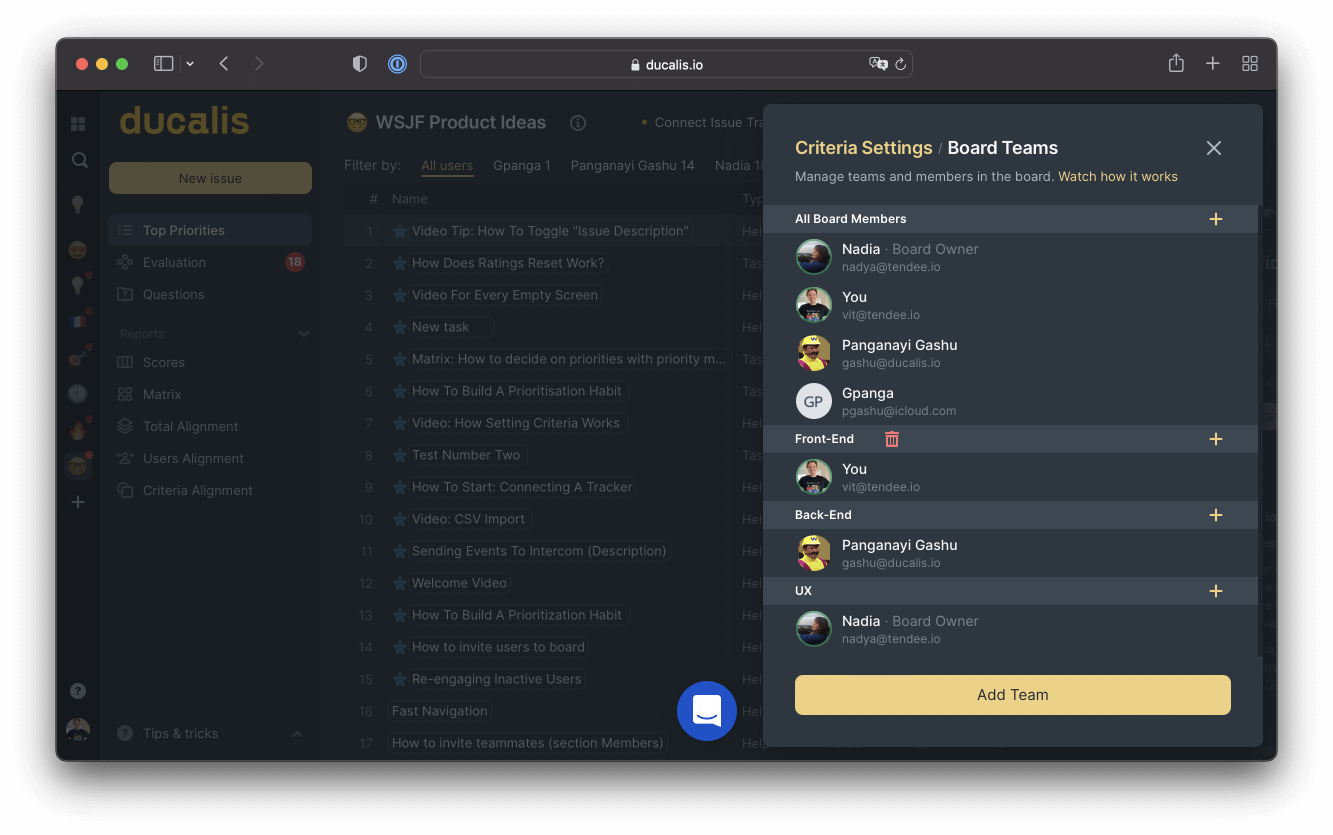
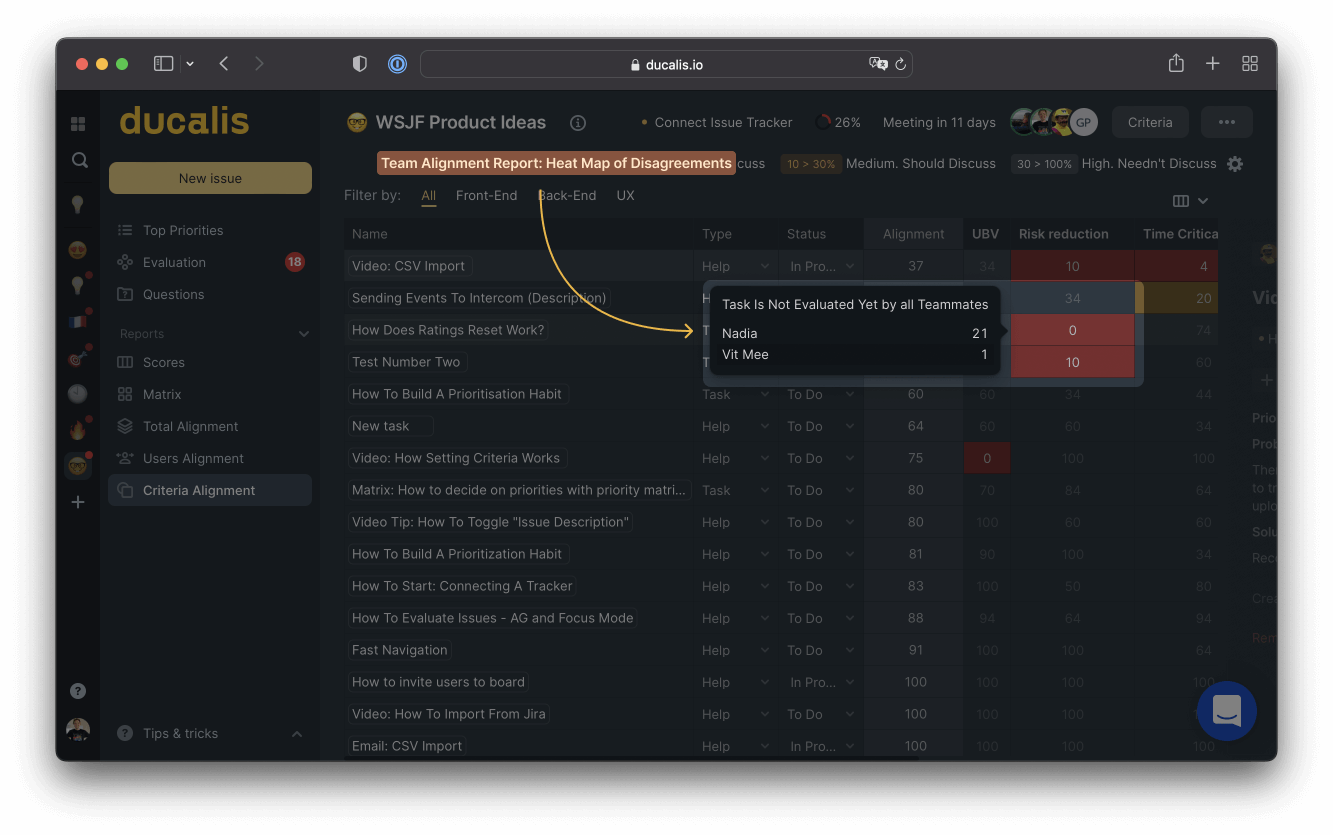
Takım arkadaşlarınızdan puanları topladıktan sonra, görüşlerinin farklı olduğunu göreceksiniz ve bu, katılımı geliştirmek için takımınızda alanlar bulmanıza yardımcı olur.
Jira Issue'larını Düzeltme: Jira'nın Yerleşik Araçları ile Önceliğe Göre Sıralama
Bu bölüm, Jira'nın yerleşik araçlarını kullanarak tanımlanan tüm önceliklendirme ve sıralama sorunlarını nasıl gidereceğinizi kapsar.
[Düzeltildi] Sınırlı Jira Öncelik Sıralama Seçenekleri
Daha önce belirtildiği gibi, Jira yalnızca iki sıralama seçeneğine sahiptir: manuel veya katı kurallara göre. Varsayılan öncelik alanına göre iş listenizi nasıl sıralayacağınız aşağıda açıklanmıştır.
-
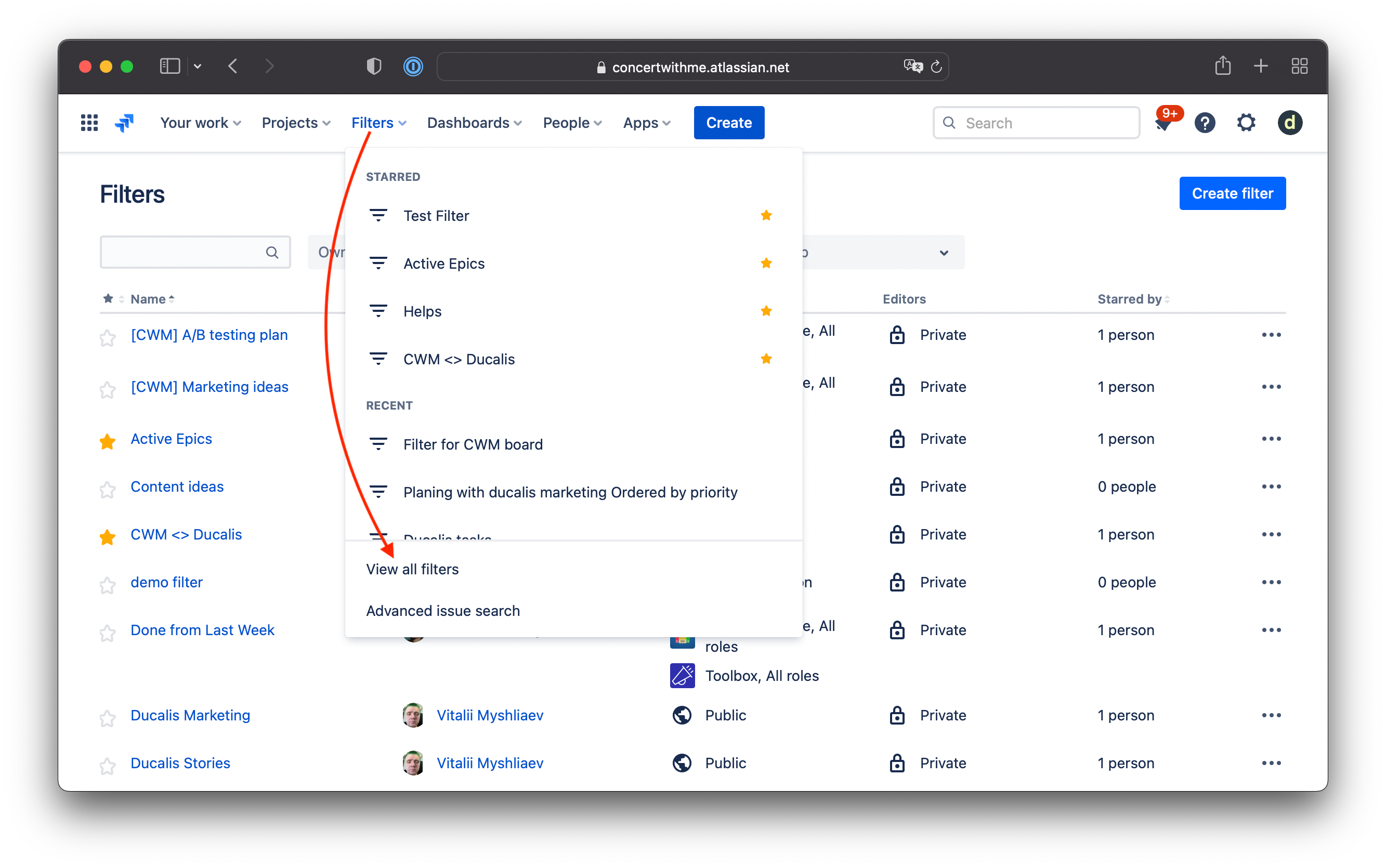
Yeni bir filtre oluşturun. Filters (Filtreler) > View all filters (Tüm filtreleri görüntüle) > Create filter (Filtre oluştur) bölümüne gidin.
-
Tüm Issue'ları seçin. Tüm proje Issue'larını dahil etmek için yalnızca proje adınızı seçin. Diğer alanları 'Tümü' olarak ayarlayın. Columns (Sütunlar) bölümüne tıklayın ve sıralamayı doğrulamak için en az Key (Anahtar), Summary (Özet), Type (Tür) ve Priority (Öncelik) seçin.
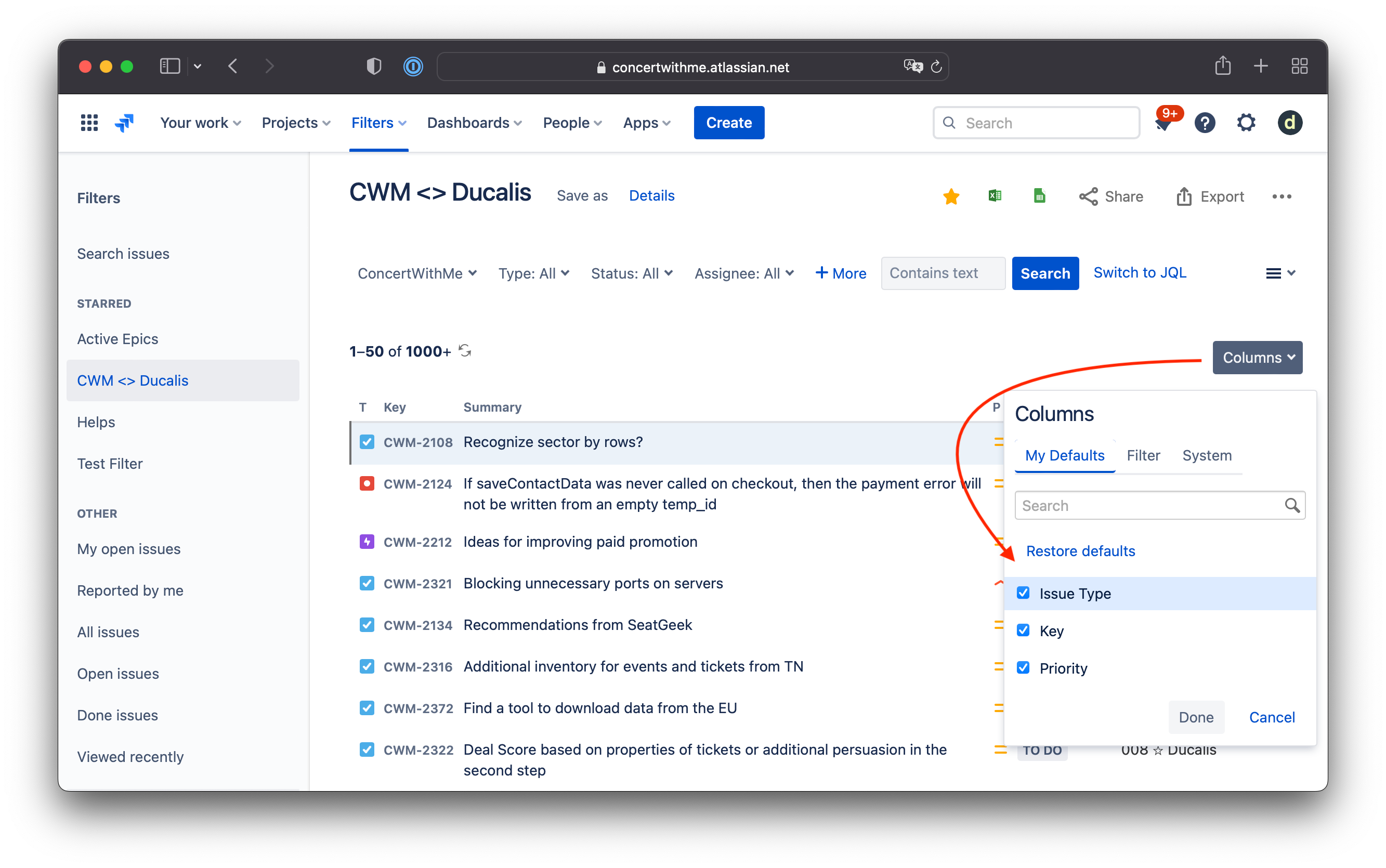
-
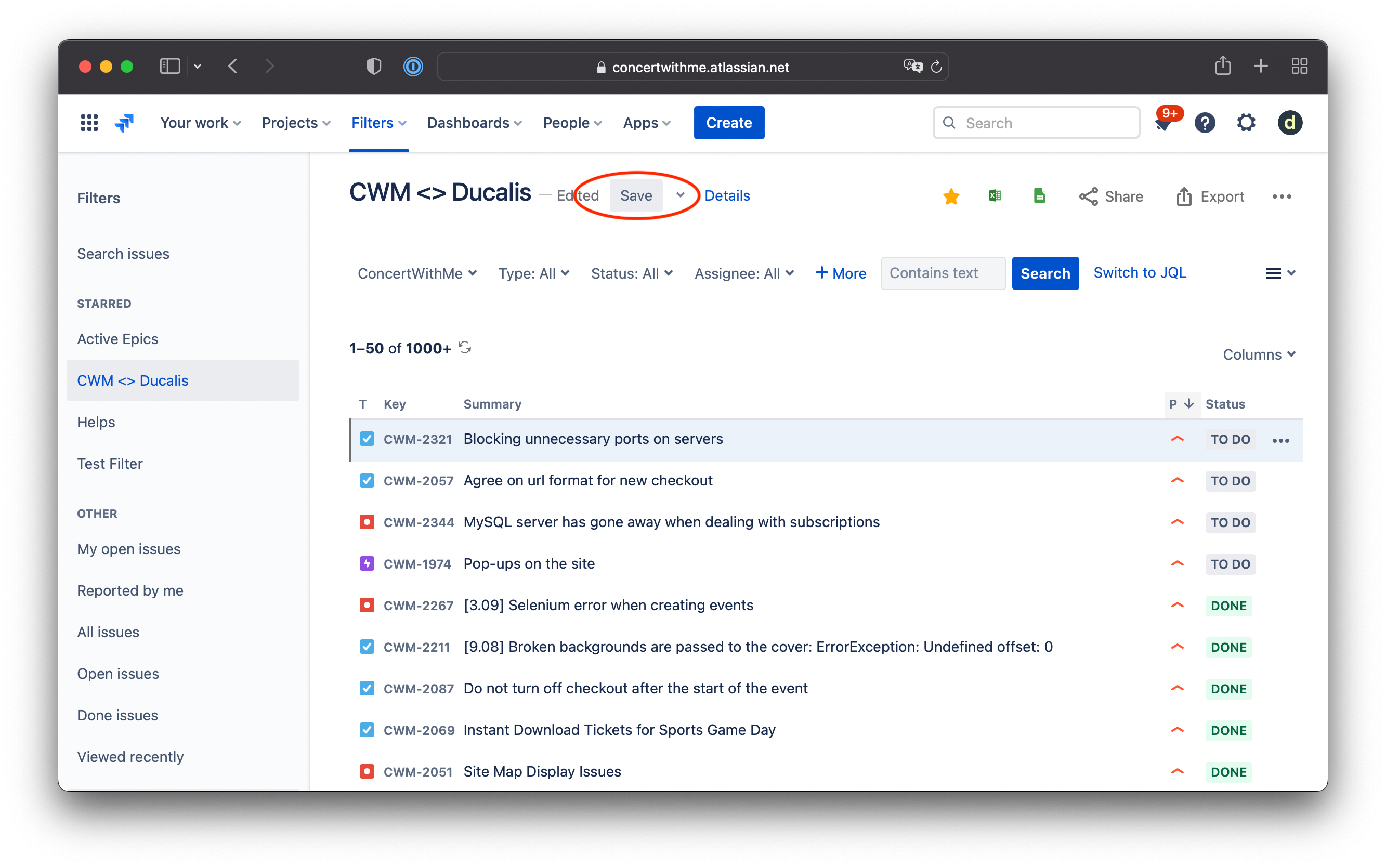
Önceliğe göre sırala. Issue'ları en yüksekten en düşüğe önceliğe göre sıralamak için 'P' sütun başlığının aşağı oku ↓'na tıklayın.
-
Filtreyi kaydedin. 'Save' (Kaydet) düğmesinin artık aktif olmadığını doğrulayın—bu, filtrenin kaydedildiğini onaylar.
-
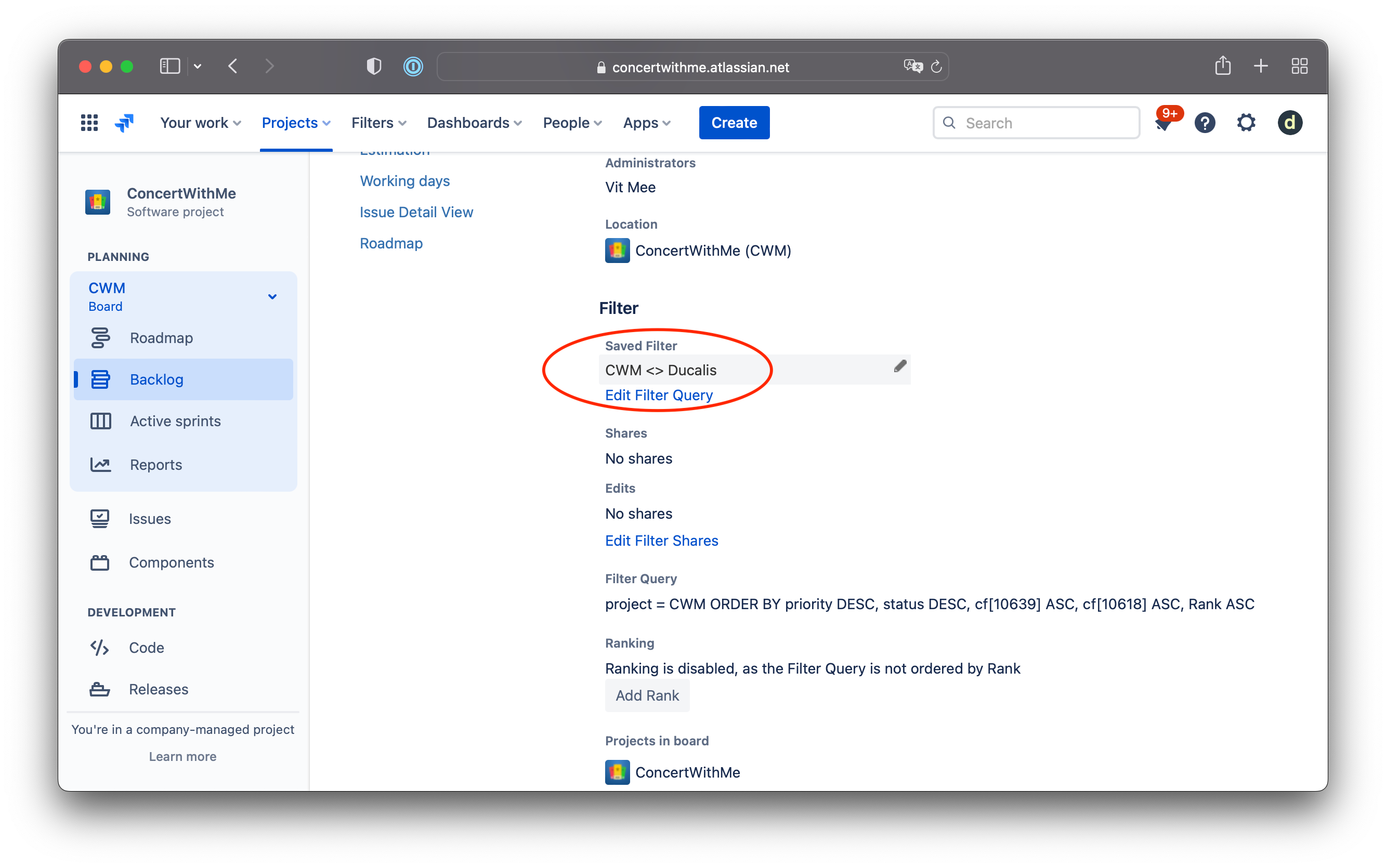
Filtreyi Pano'ya uygula. Öncelik seviyesine göre yeni sıralamayı uygulamak istediğiniz Pano için Board Settings (Pano Ayarları) bölümüne gidin. 'Filter' (Filtre) bölümüne kaydırın ve az önce oluşturduğunuz filtreyi seçin.
-
Yeni iş listesi sıralamasını kontrol edin. Tüm iş listesi öğeleriniz artık hem Jira Backlog görünümünde hem de Sprint/Kanban görünümünde öncelik alanına göre sıralanacaktır.
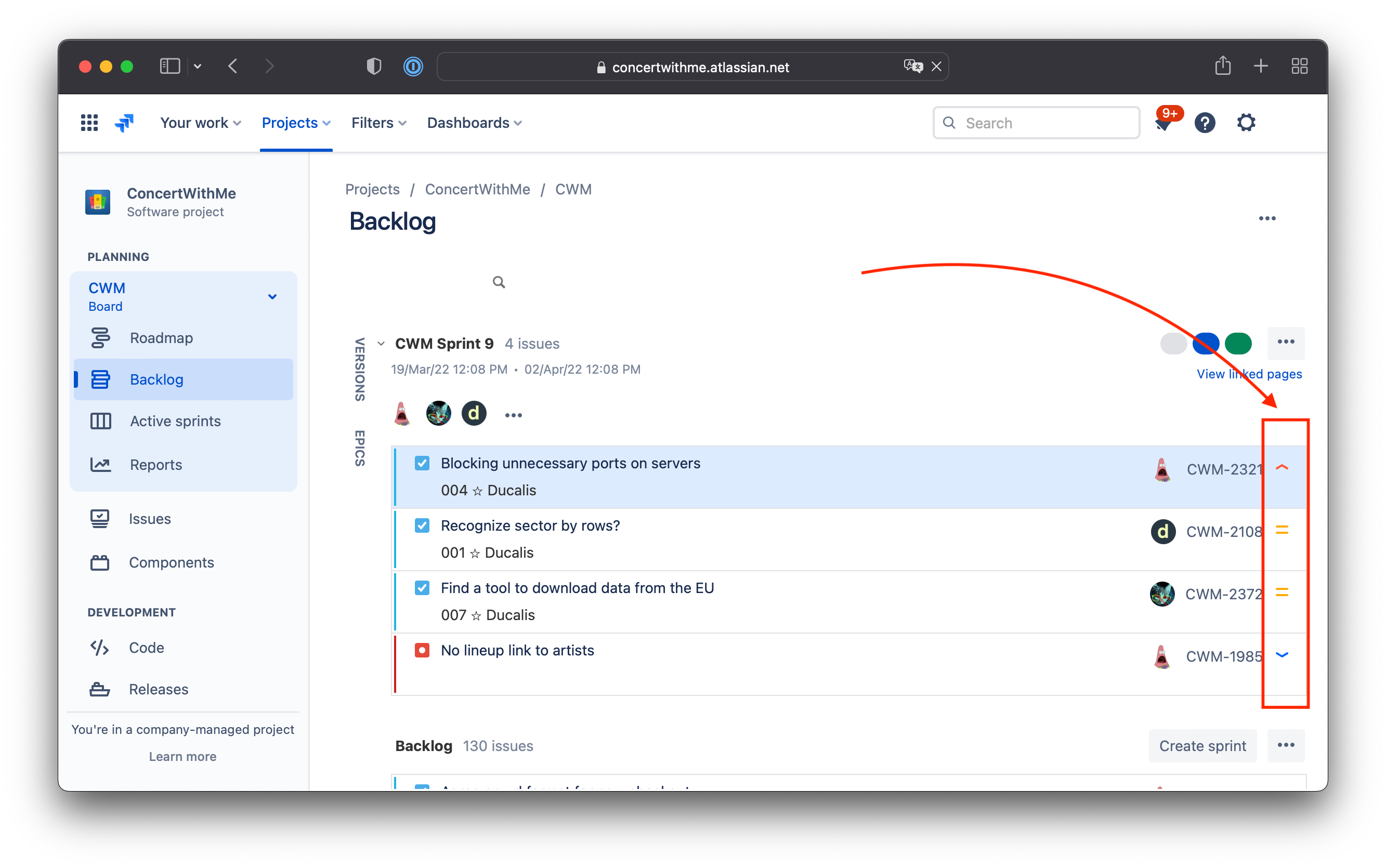
Bir Jira Issue kartını her sürüklemeye çalıştığınızda, sıralamayı değiştirmenin mümkün olmadığını belirten bir bildirim göreceksiniz.
[Düzeltildi] Yeni Jira Issue'ları için Orta Öncelik Varsayılan Seviye
Varsayılan öncelik durumlarından kaçının. Önceliklendirme süreci her zaman bilinçli olmalı ve her öncelik seviyesi açıkça belirlenmelidir.
-
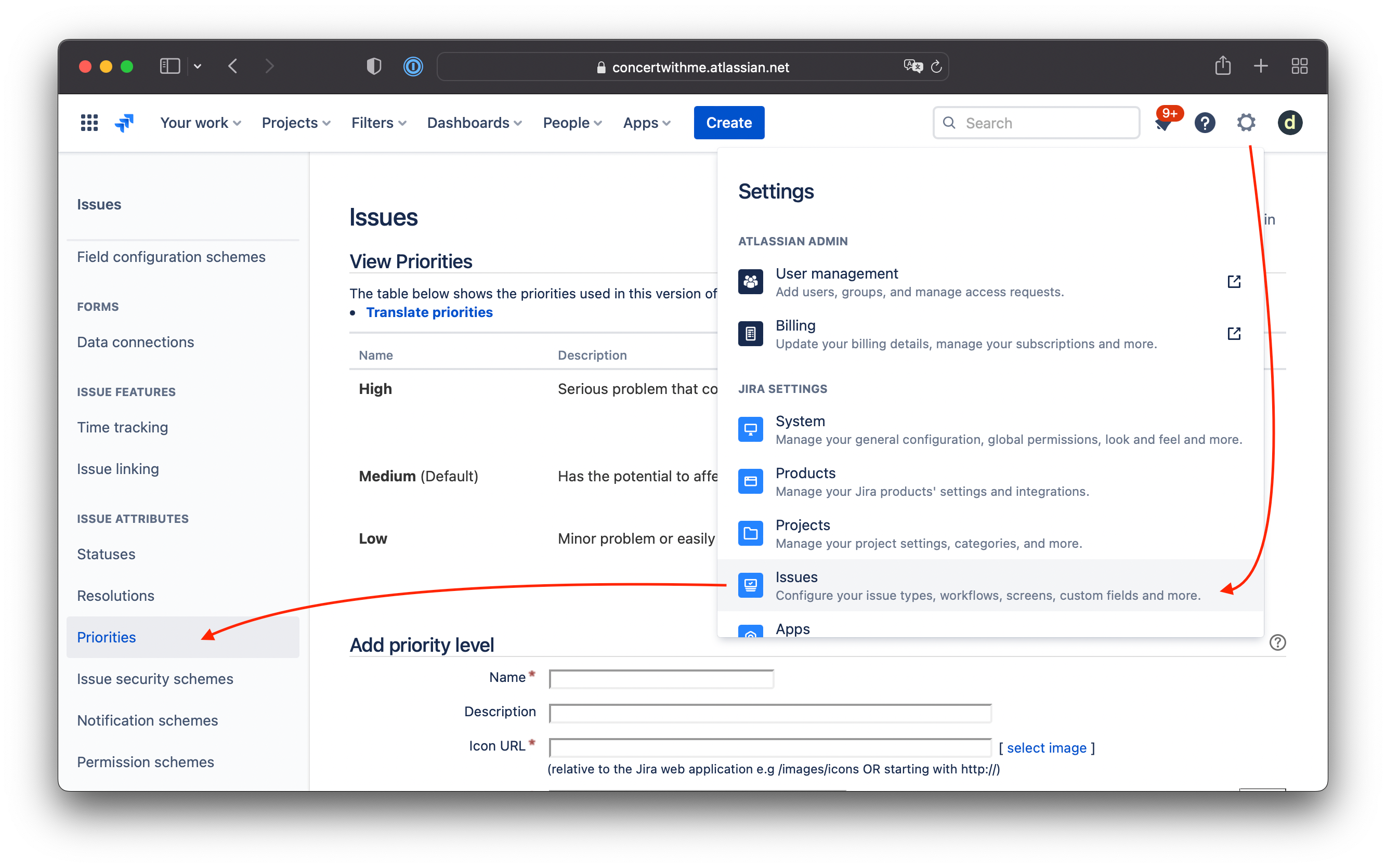
Jira projesinin Settings (Ayarlar) > Issues > Priorities (Öncelikler) bölümünü açın.
-
'Add priority level' (Öncelik seviyesi ekle) bölümüne kaydırın.
-
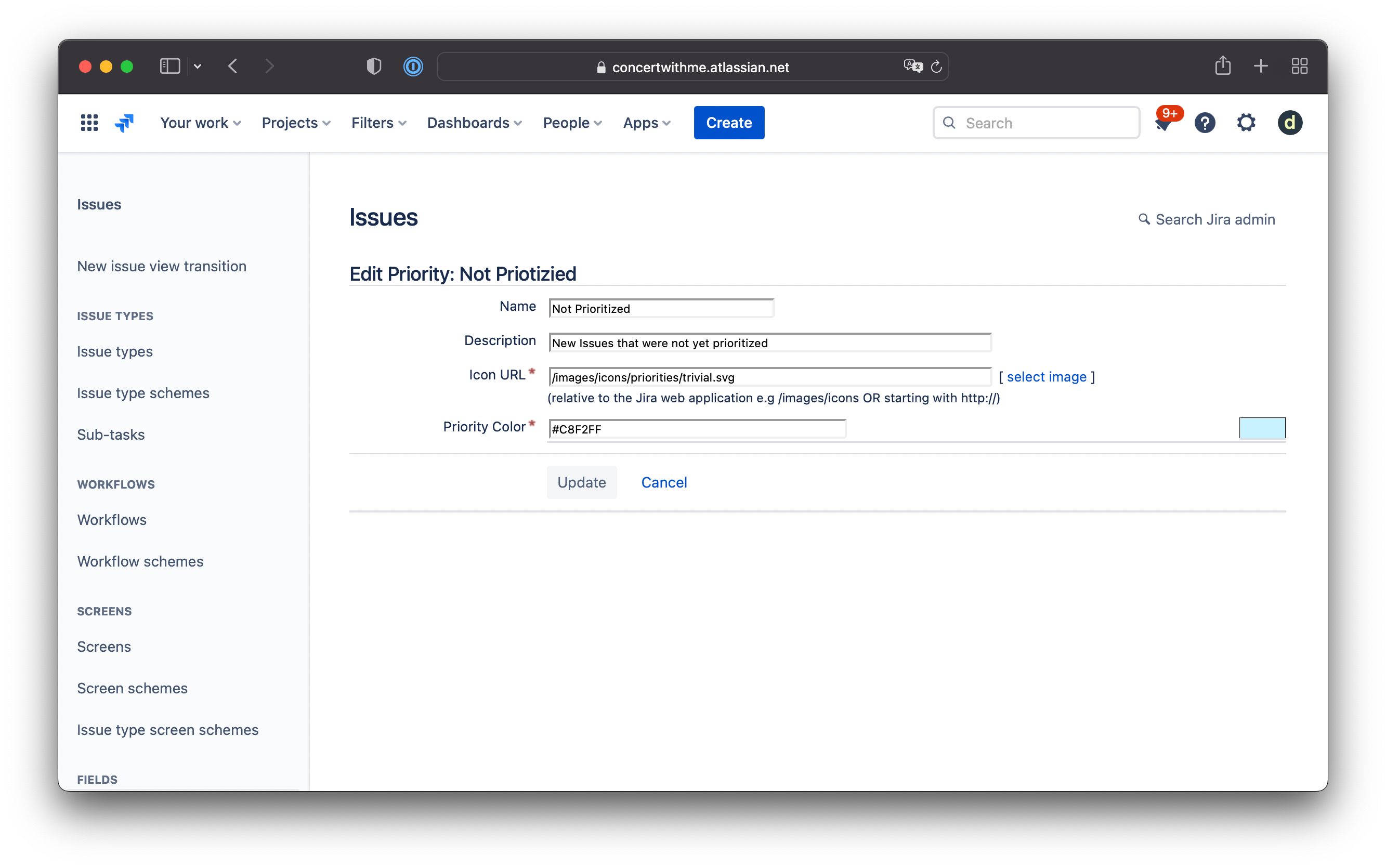
'Not Prioritized' (Önceliklendirilmemiş) seviye durumunu oluşturun:
-
Aşağıdaki değerleri girin:
- Name (Ad): Not Prioritized
- Icon URL: /images/icons/priorities/trivial.svg
- Priority Color (Öncelik Rengi): #C8F2FF
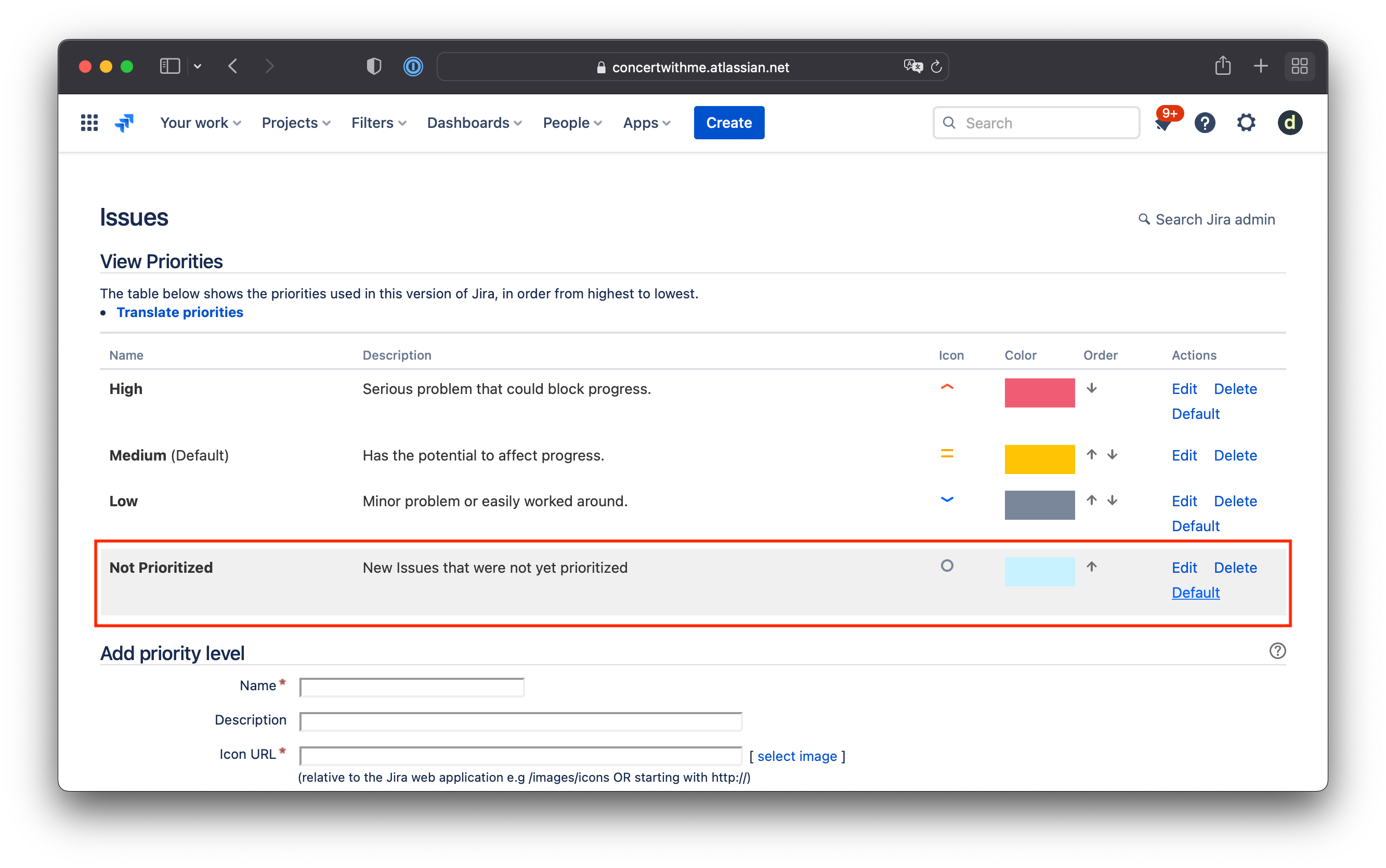
Başarıyla oluşturulduğunu doğrulayın:
-
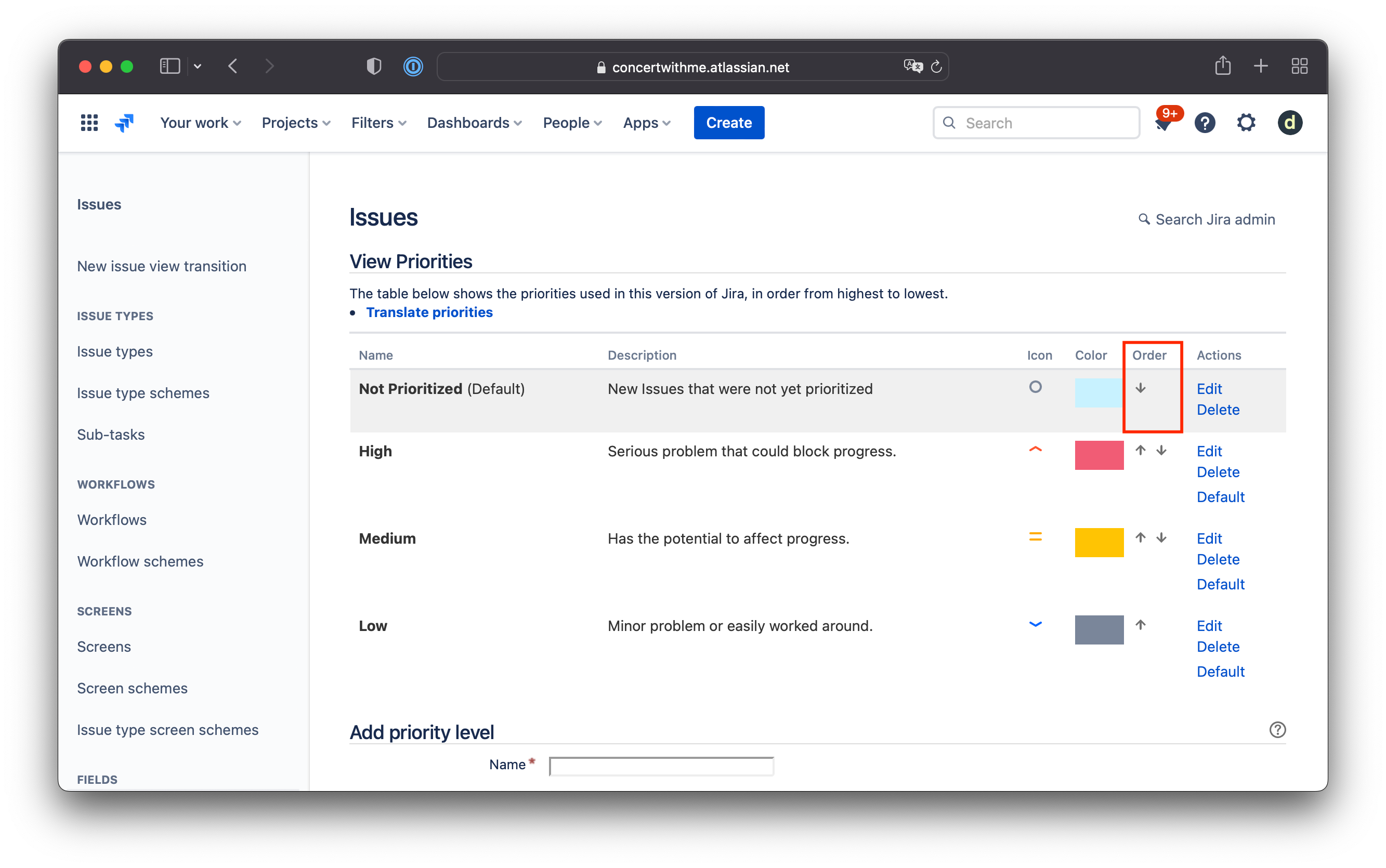
'Not Prioritized' durumunu ilk sıraya taşıyın ve Varsayılan olarak ayarlayın.
Yeni oluşturulan her Jira Issue, önceliklendirilmiş tüm Issue'ların üzerine yerleştirilecek ve bir sonraki sprint'inizi planlamadan önce yeni sorunları değerlendirmenizi hatırlatacaktır.
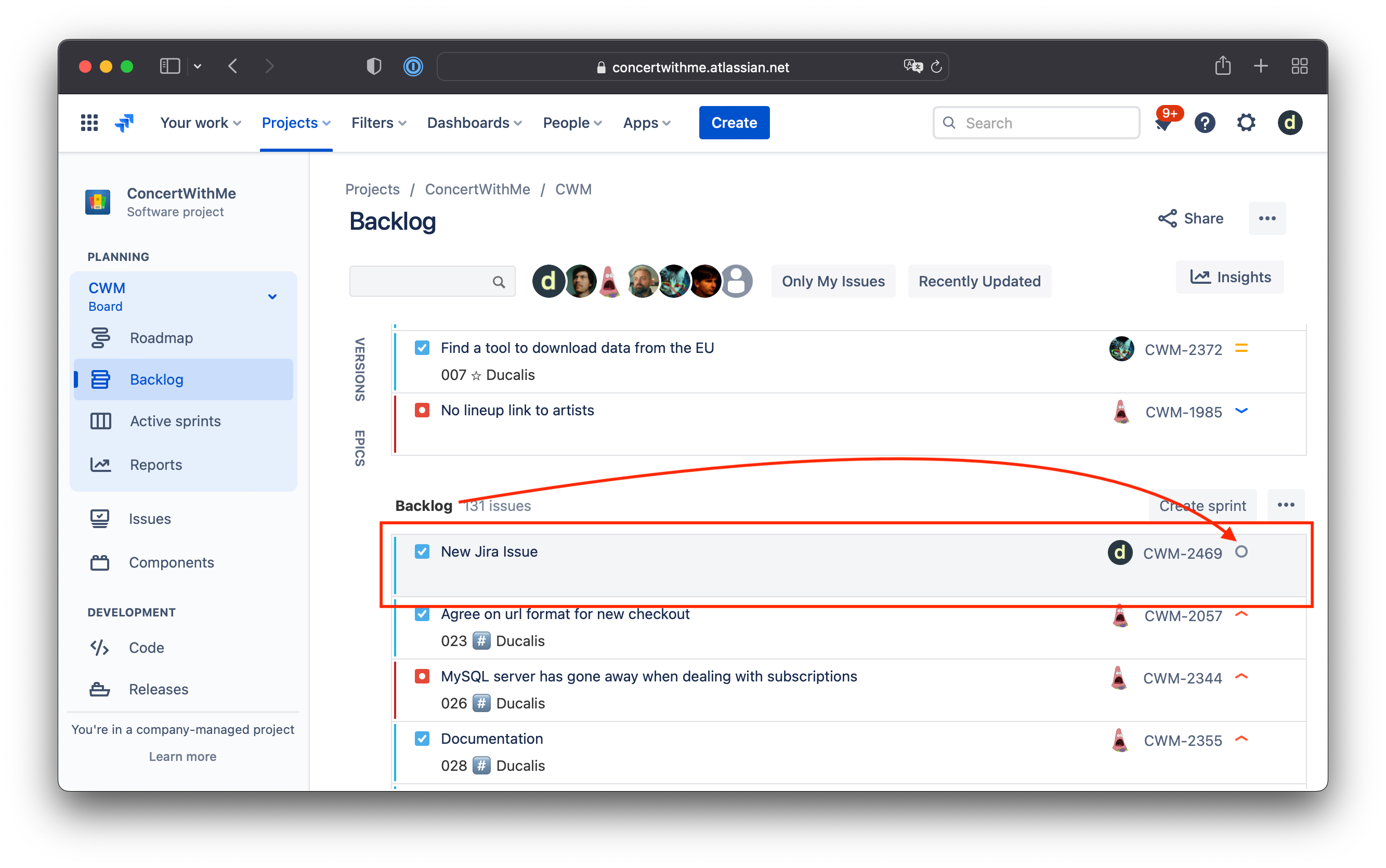
İş listenizde belirli bir Issue için önceliği güncellediğinizde, sayfayı yenileyene kadar listede aynı yerde görünecektir.
[Düzeltildi] Yeterli 'Öncelik' Alanı Seçeneği Yok
Birkaç düzine iş listesi öğesini değerlendirmek için üç öncelik seviyesi yeterli değildir. İyi haber şu ki, ihtiyacınız olan kadar çok öncelik seviyesi oluşturabilirsiniz.
-
Priorities (Öncelikler) ayarlarına gidin. Dişli simgesine tıklayın > Issues > Priorities (Öncelikler).
-
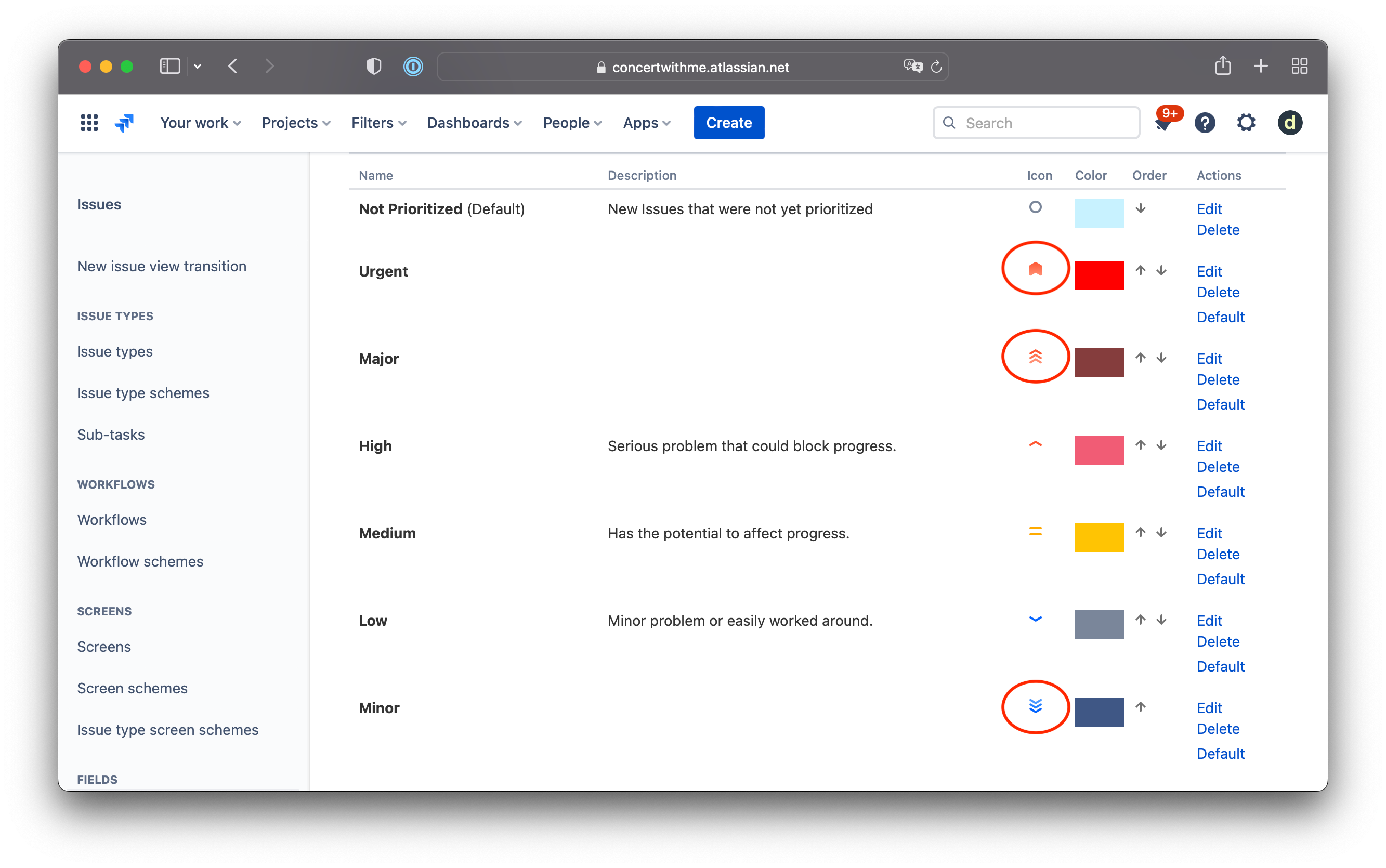
Takımınızın ihtiyaç duyduğu kadar yeni öncelik seviyesi oluşturun. İşte önerilen ayarlar:
Urgent (Acil)
- Name (Ad): Urgent
- Icon URL: /images/icons/priorities/critical.svg
- Priority Color (Öncelik Rengi): #FF0000
Minor (Küçük)
- Name (Ad): Minor
- Icon URL: /images/icons/priorities/minor.svg
- Priority Color (Öncelik Rengi): #3F5785
Major (Büyük)
- Name (Ad): Major
- Icon URL: /images/icons/priorities/major.svg
- Priority Color (Öncelik Rengi): #853D3D
-
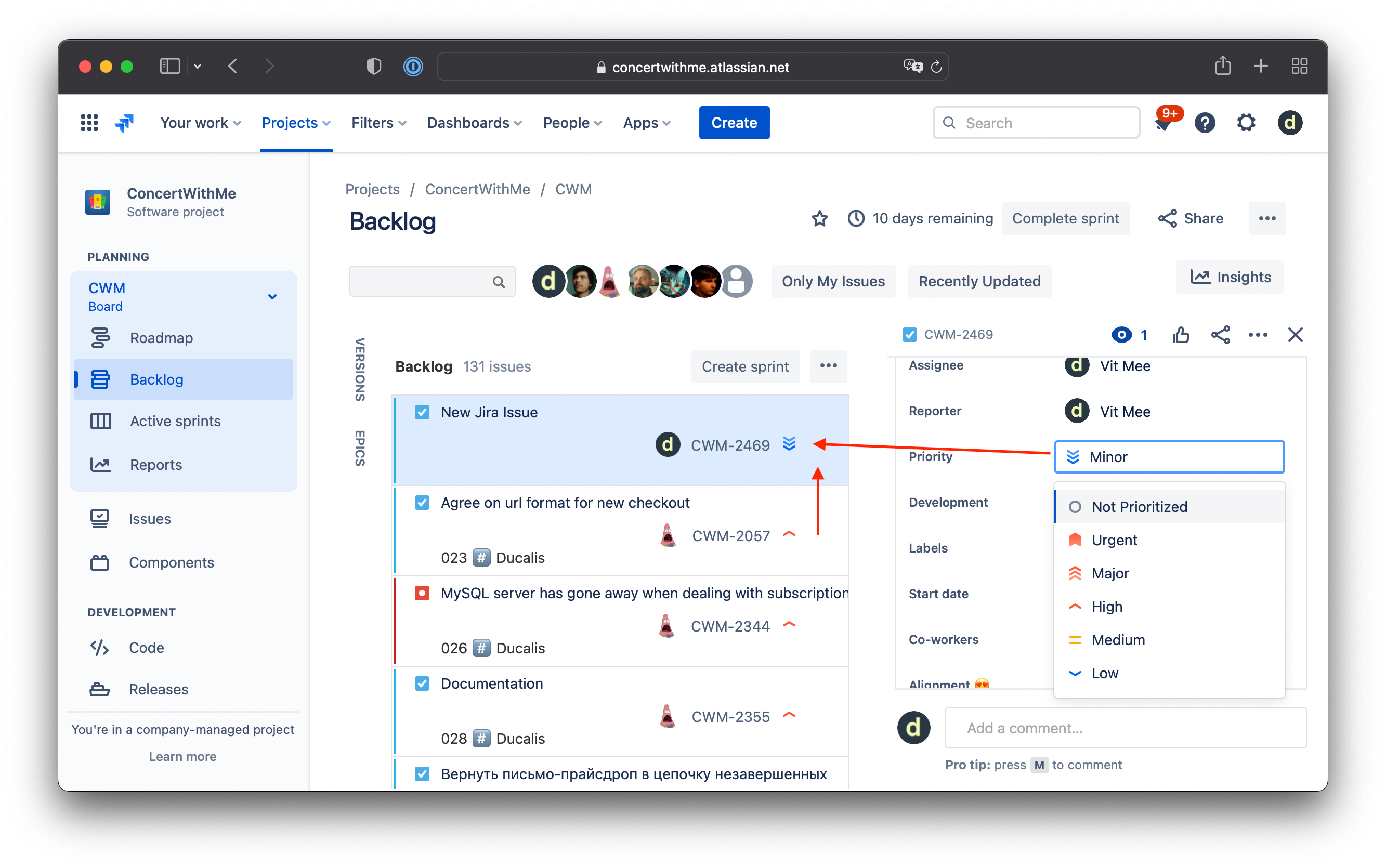
Backlog ve Sprint görünümlerinizi etkilemek için her seviyeyi uygun sıraya göre sıralayın.
-
Artık yeni iş listesi öğelerinizi değerlendirmek için çok daha fazla seçenek göreceksiniz.
[Düzeltildi] Önceliklendirme Çerçevesi Yok
Önyargısız karar verme için WSJF, RICE, ICE, Urgency / Importance (Aciliyet / Önem) ve diğerleri gibi önceliklendirme çerçevelerinden birini uygulayın. Popüler önceliklendirme çerçeveleri kütüphanemizi kontrol edin.
Cost of Delay hesaplamaları, Jira özel alanları ve Jira Automation kullanarak Jira'da WSJF önceliklendirmesi kurulumu hakkında adım adım kılavuzumuzu okuyun.
[Düzeltilmedi] Güncelliğini Yitirmiş Öncelik Puanları
Herkesin öncelik alanını istediği zaman düzenleyebildiği bir düzineden fazla üyeye sahip bir takımınız olduğunda, Jira'nın özel alanı dinamik öncelik değerlerini ayarlamak için yetersizdir. Öncelikler hızla güncelliğini yitirebilir.
[Düzeltilmedi] Belirsiz Öncelik Bağlamı
Bu makalede birçok kez belirtildiği gibi, Jira yalnızca sayıları saklamak için özel alanlar oluşturabilir. Ancak, öncelik bağlamı sadece bir sayıdan çok daha karmaşıktır.
[Düzeltilmedi] Takım Önceliklendirmesi Yok
Farklı paydaşlardan öncelik görüşleri toplamak istiyorsanız, çoğu Jira kullanıcısı elektronik tablo dışa aktarımlarını kullanmayı dener, ancak bu zaman alıcı ve güvenilir değildir. Yapılandırılmış takım önceliklendirmesi için Ducalis deneyin.