Appearance
Customize your Voting Board appearance to match your brand. Add your logo, set your brand colors, and choose the language to create a consistent experience for your customers.
Custom settings for all Voting Boards
Configure global settings that apply to all Voting Boards in your Organization.
-
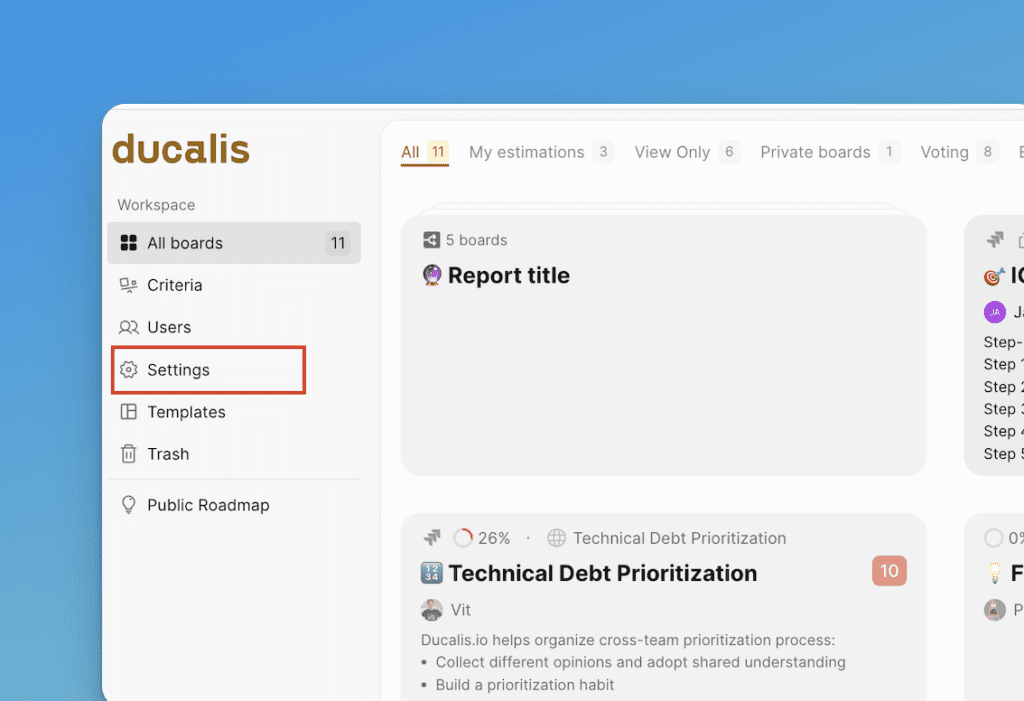
Navigate to Settings on your Dashboard.
-
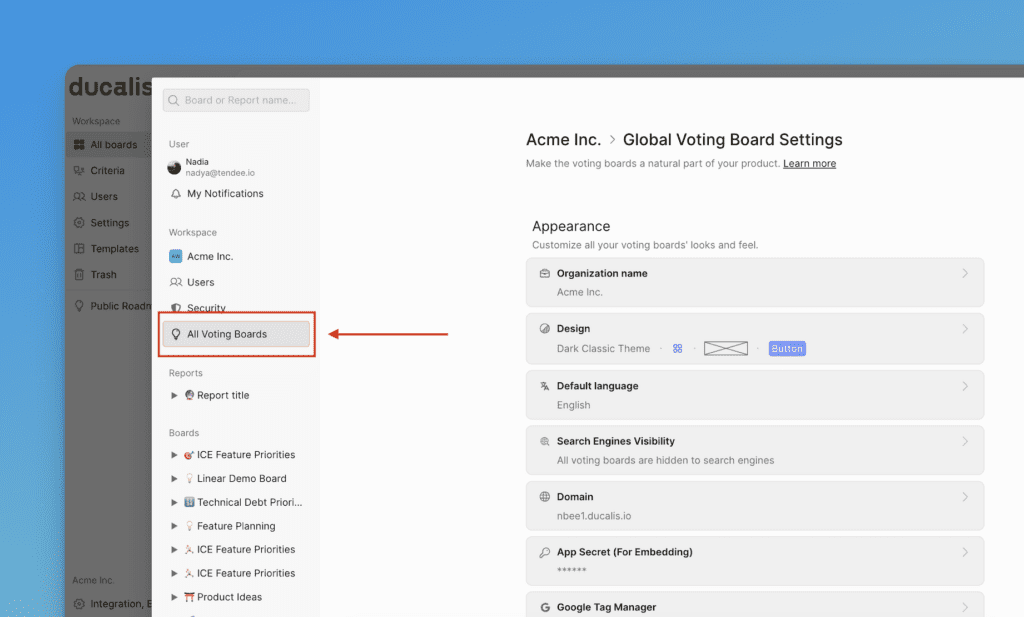
Select All Voting Boards from the left sidebar.
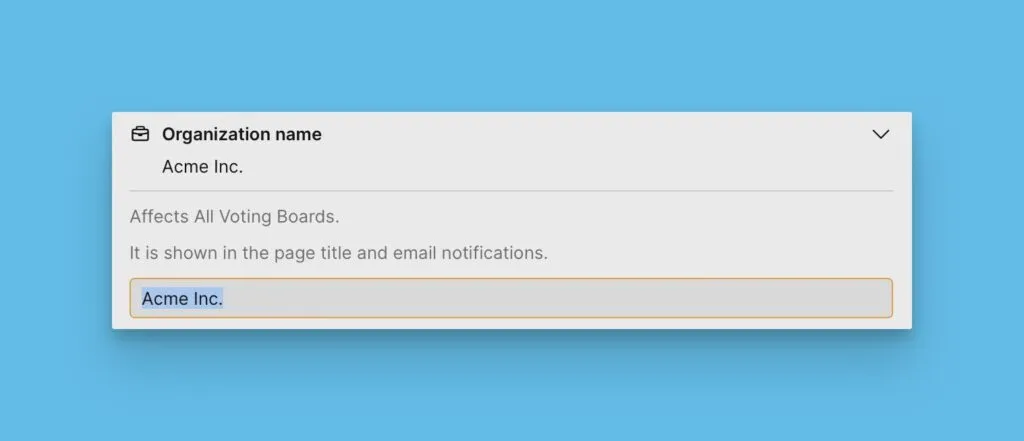
Organization name
Enter your Organization name. This name appears in all emails sent to your customers.
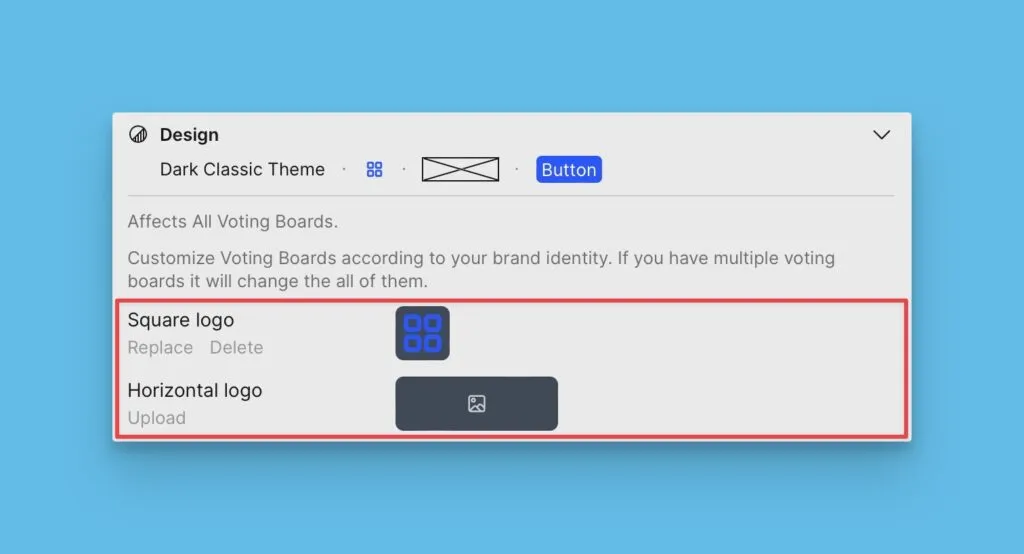
Logo
Upload your logo to display on your Voting Board. Depending on your logo dimensions, choose either a square logo or horizontal logo.
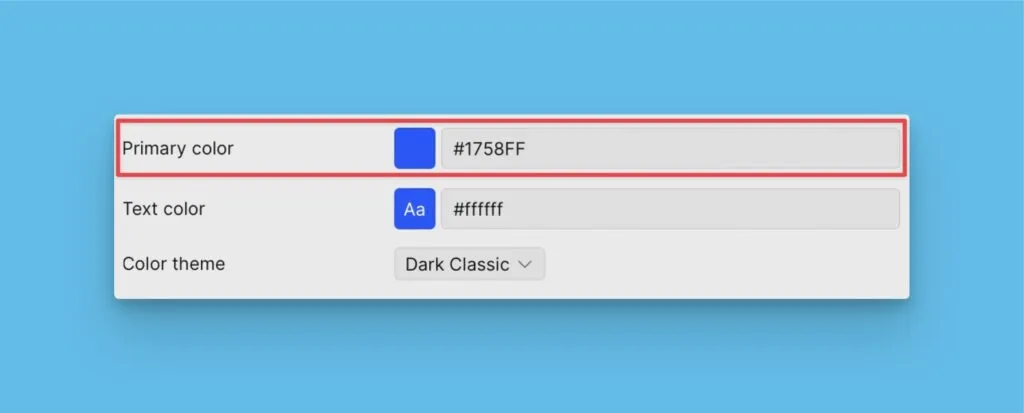
Primary color
Set your primary color by clicking the color box to open the palette, or paste a color code directly.
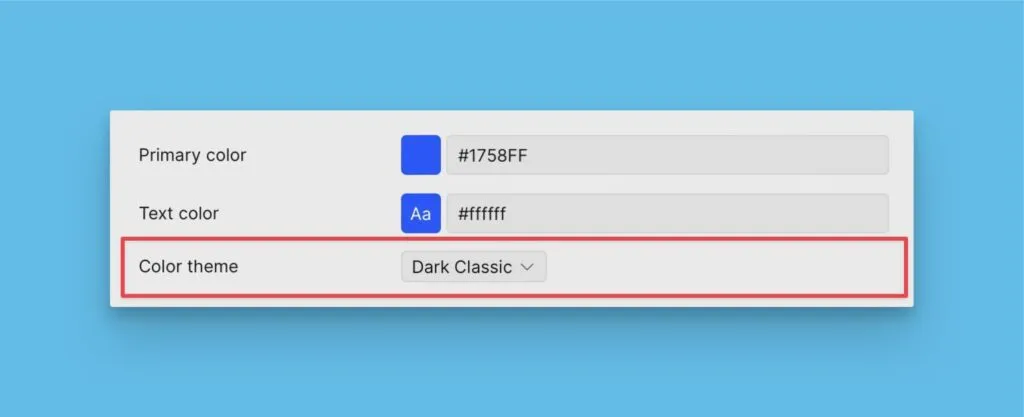
Color theme
Choose between dark theme or light theme for your Voting Boards.
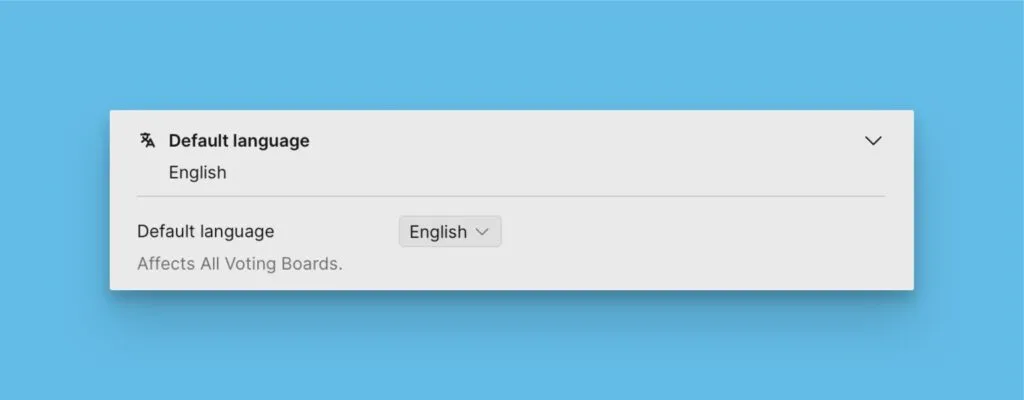
Default language
Select the default language for all new Voting Boards. You can override this language for individual boards after creation.
Custom settings for a single Voting Board
Access settings for an individual Voting Board through either location:
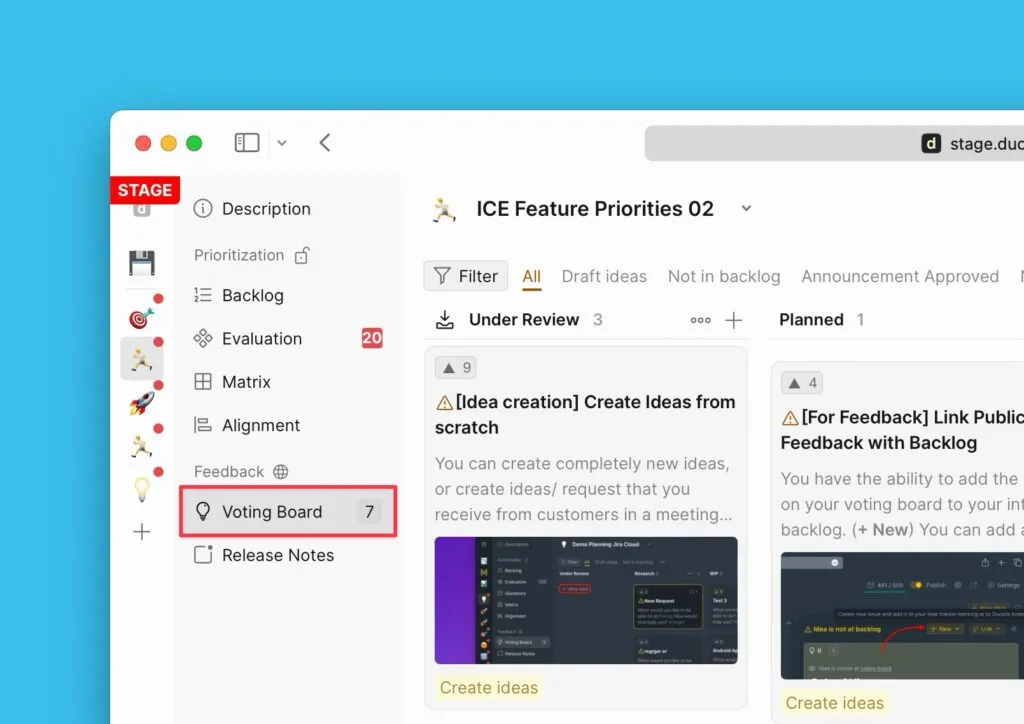
Option 1: From the Voting Board admin view
-
Open the Voting Board admin view.
-
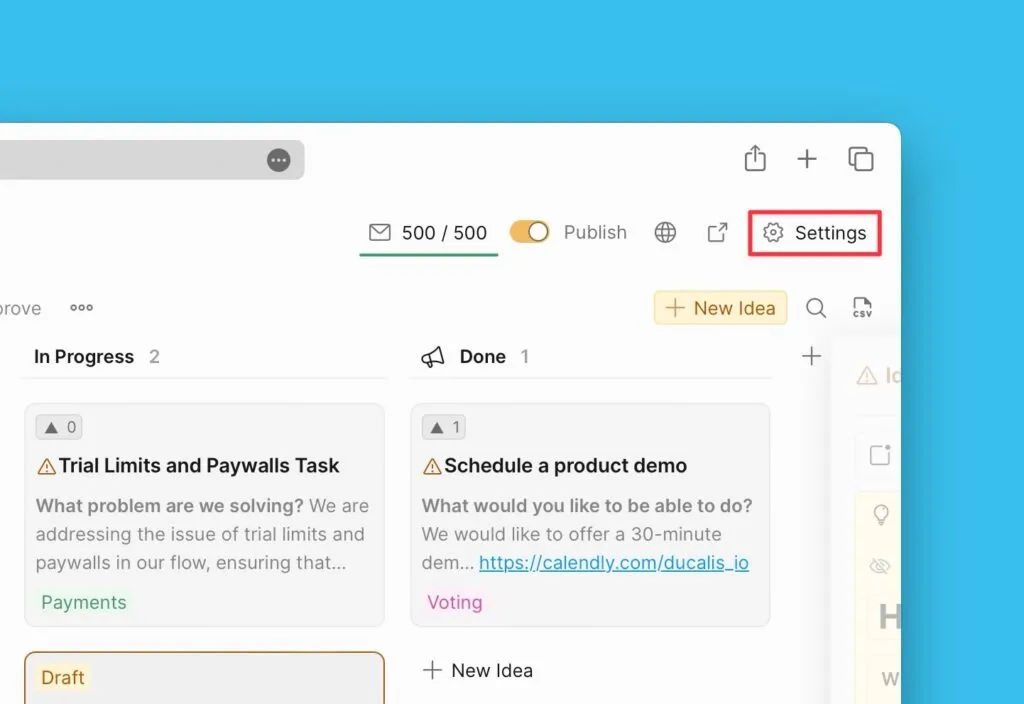
Click Settings.
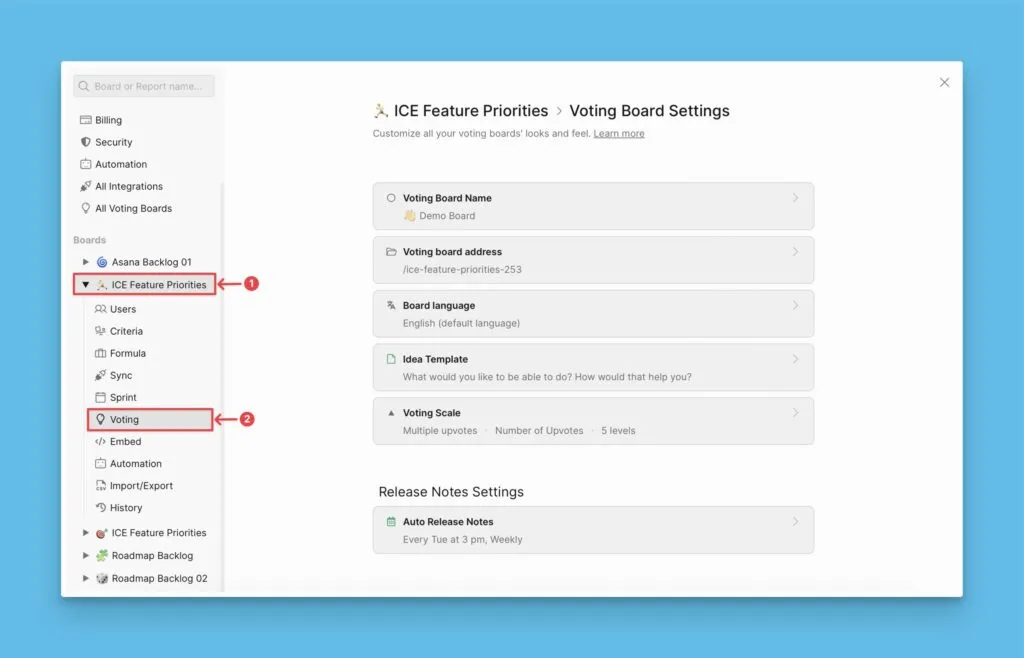
Option 2: From the priority Board settings
Open the settings of the priority Board associated with your Voting Board.
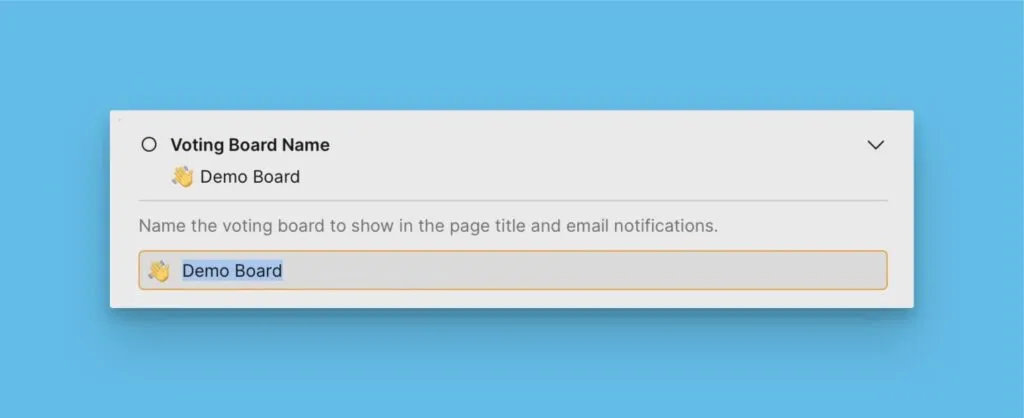
Voting Board name
Enter the name for your Voting Board. By default, this uses the name of the associated priority Board.
Board language
Set a language specific to this Voting Board. This overrides the default language for this board only.
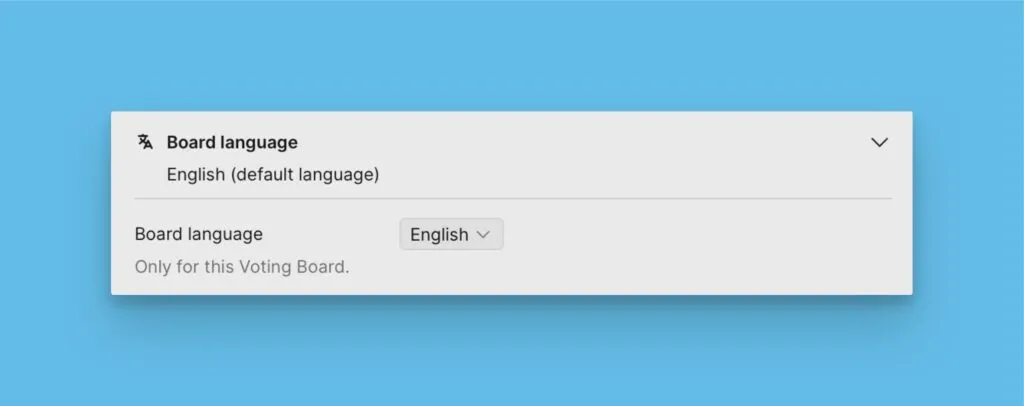
Each Voting Board supports only one language at a time. To serve feedback in multiple languages, create separate boards for each language. See serving feedback in different languages.
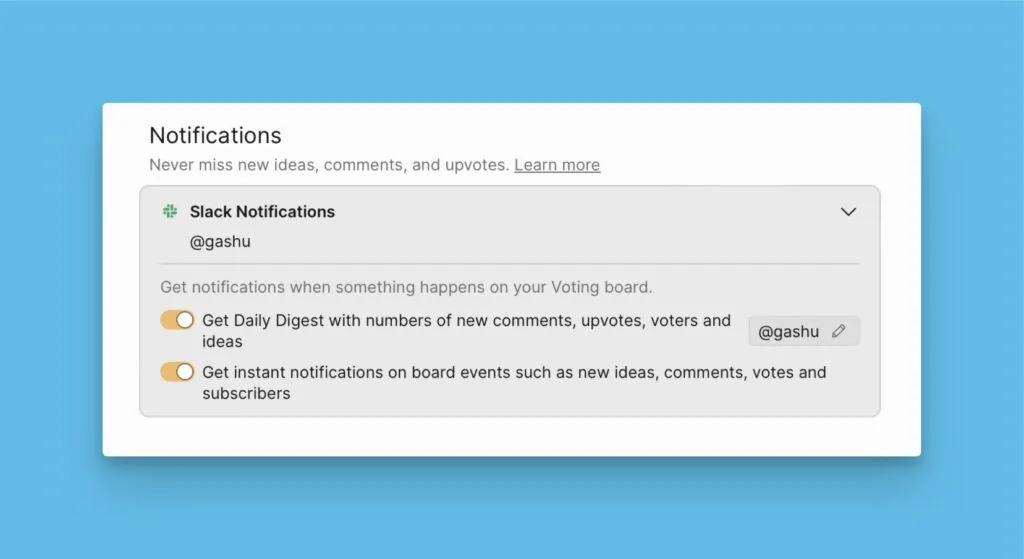
Slack integration
Connect Slack to receive notifications when customers submit new Ideas on your Voting Board. Notifications appear in a dedicated Slack channel.
Voting Board URL
Customize your Voting Board URL. By default, the URL uses the Board name. Access this setting from the priority Board settings.
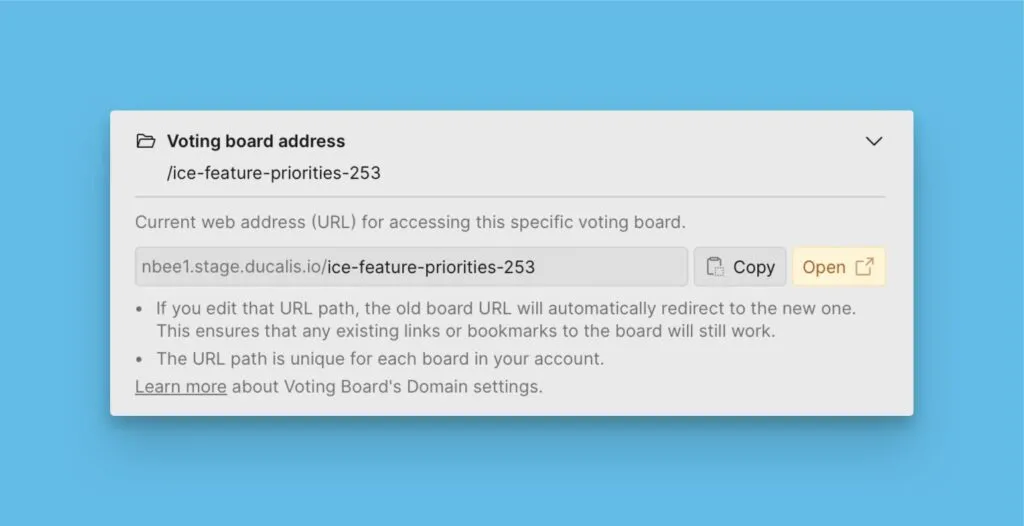
You can also create a custom domain for all Voting Boards in your Organization.
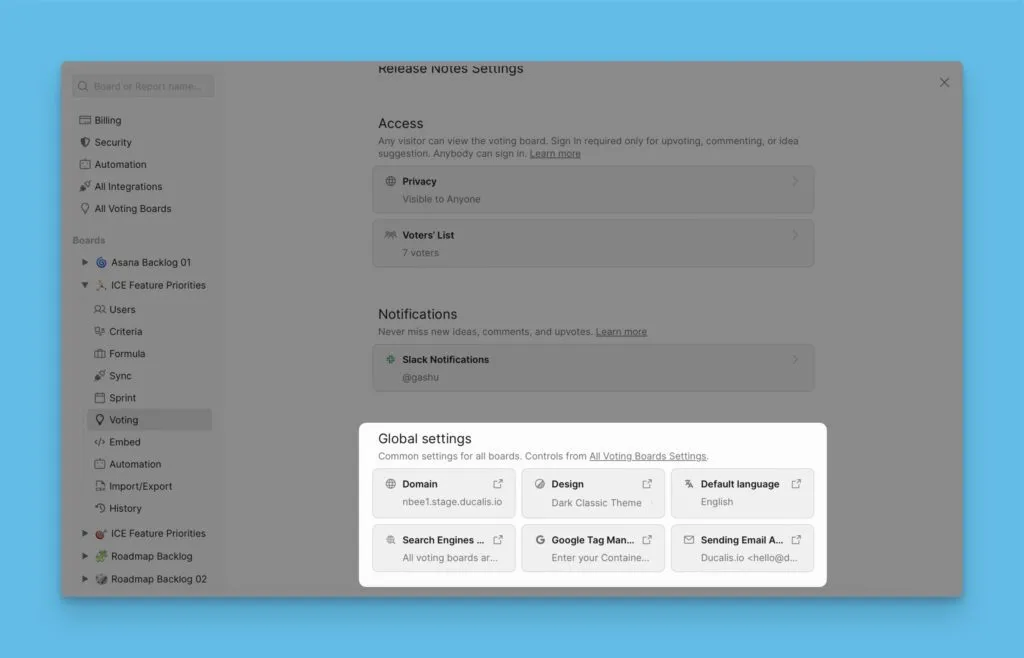
Access all Voting Board settings
View and manage global settings that affect all Voting Boards in your Organization.
What's next
- Set up a custom domain to help customers quickly recognize your site
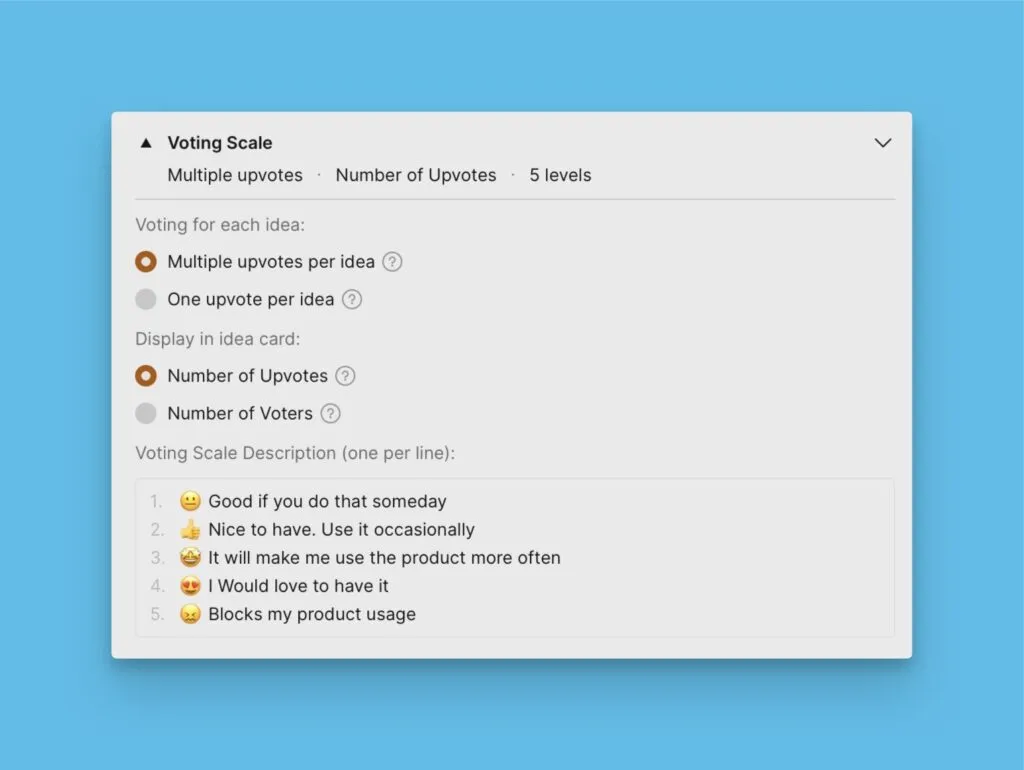
- Configure upvotes and vote display to control how users vote and how votes appear on Idea cards