Push Issues
Push Issues you create in Ducalis directly to your Asana projects. This lets you quickly add prioritized tasks to your Asana backlog without switching between platforms.
Push from backlog
Send Issues from your Board to Asana in a few clicks.
-
Open the Board connected to Asana.
-
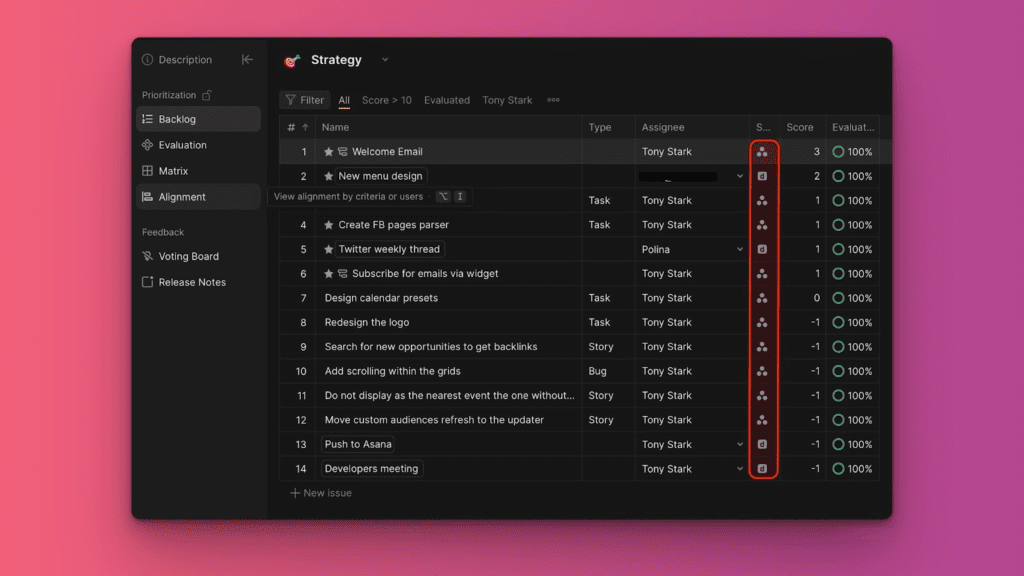
Identify the Issue you want to push:
- Imported Issues show the Asana icon
- Issues created in Ducalis show the Ducalis icon
-
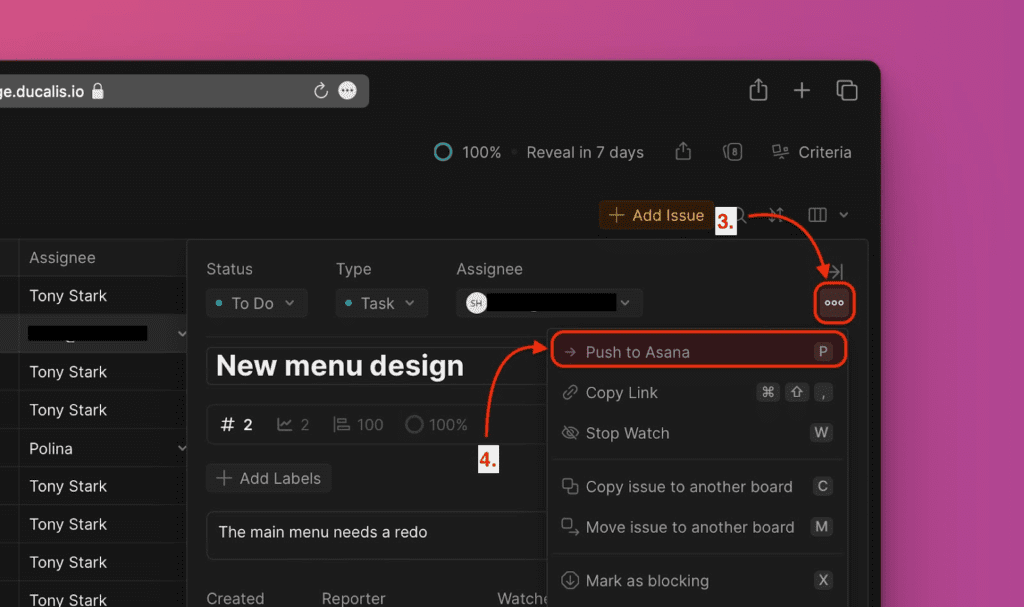
Click the Issue to open its card.
-
Click the ellipsis menu (⋯) in the top right corner.
-
Select Push to Asana.
-
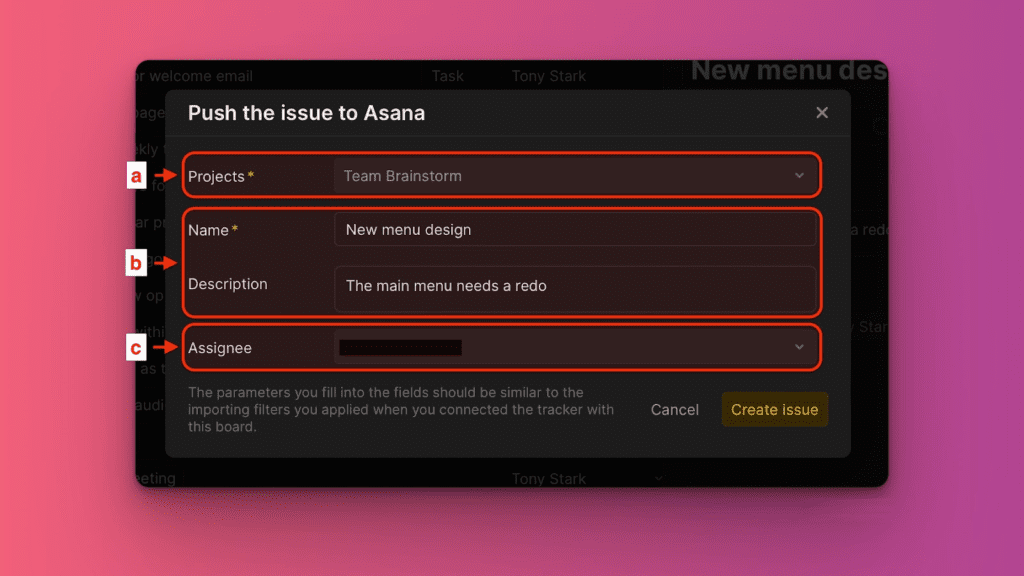
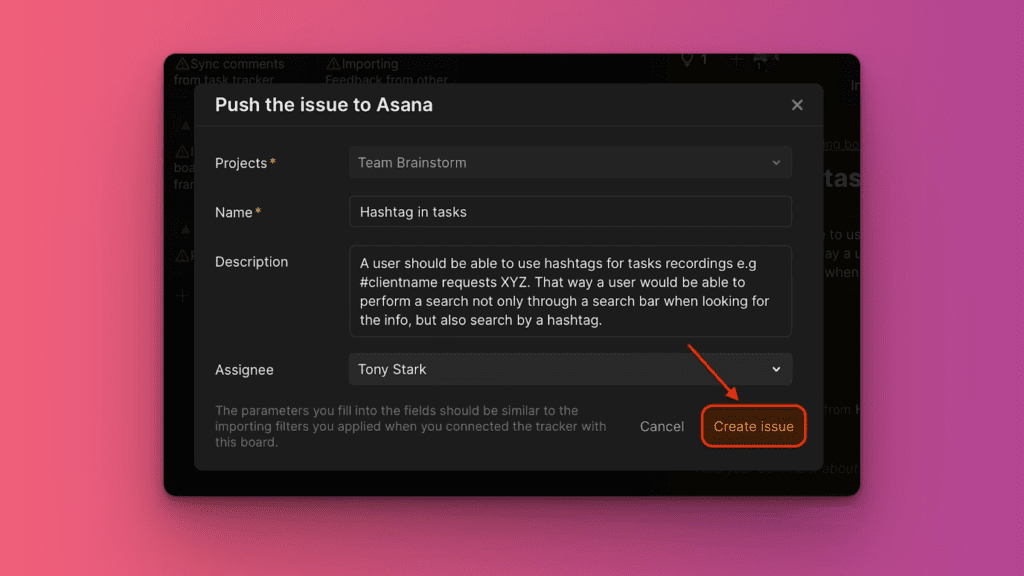
Configure the Issue details:
- Project: Choose from projects configured during integration
- Name: Edit the Issue title if needed
- Description: Edit the description if needed
- Assignees: Choose from your Asana team members
-
Click Create issue.
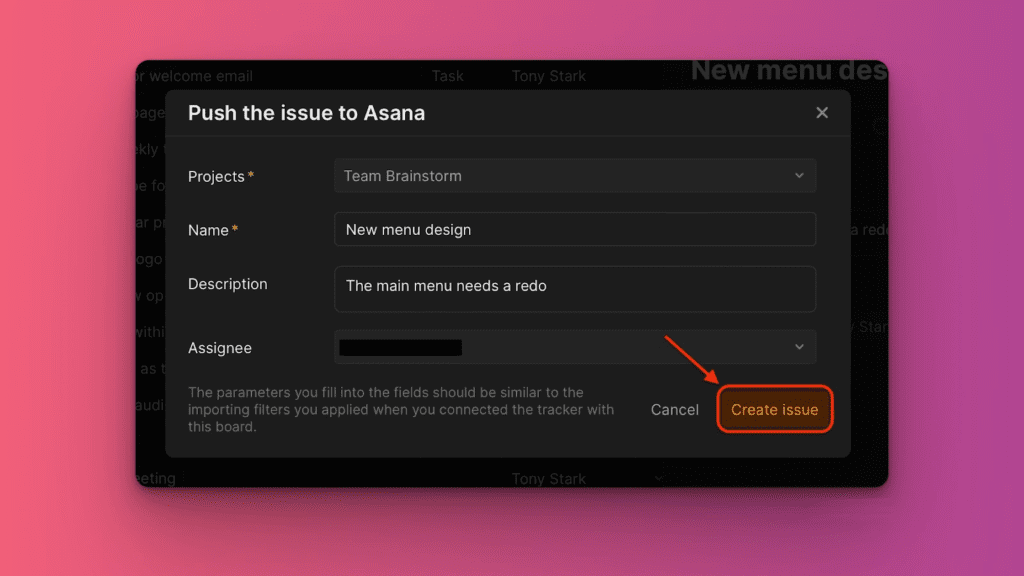
The Issue now exists in both Ducalis and Asana with synchronized updates.
Push from Voting Board
Convert customer feedback from your Voting Board directly into Asana tasks.
-
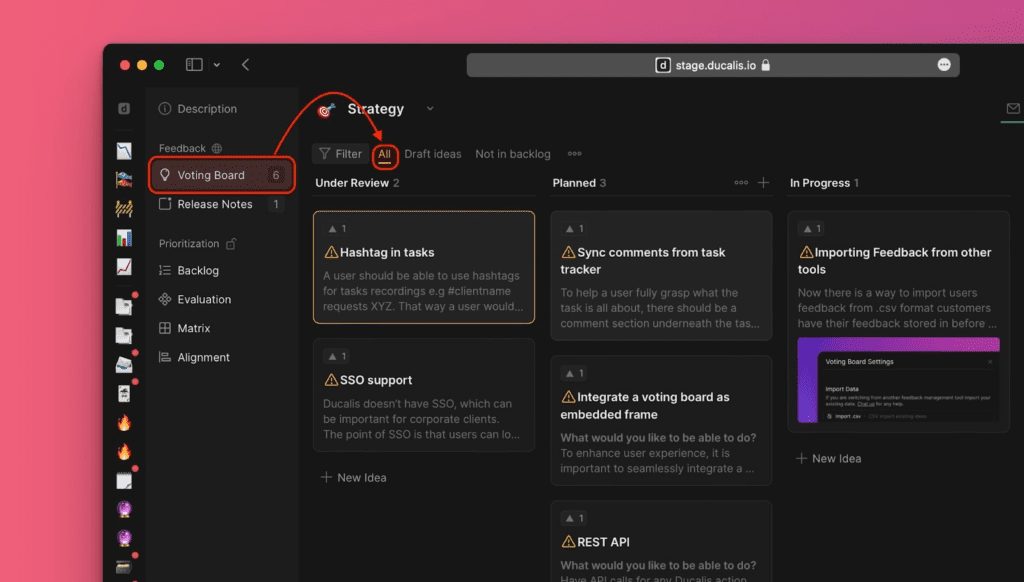
Navigate to the Voting Board.
-
Under All, select the Idea you want to convert.
Ideas not yet added to your internal backlog display a warning icon.
-
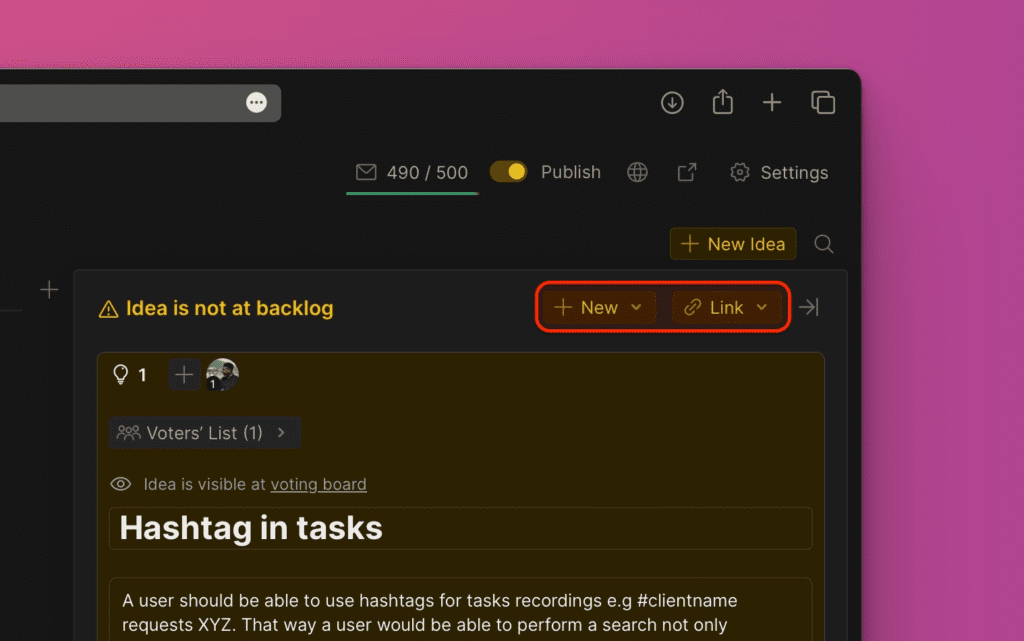
In the Idea card, click the option in the top right corner.
-
Choose Add as new issue.
-
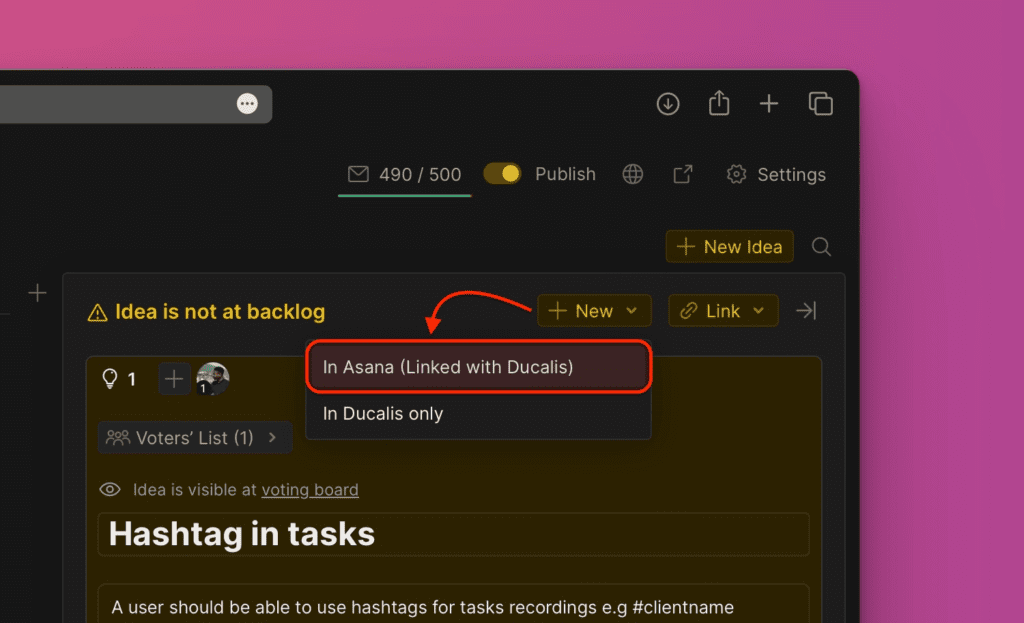
From the dropdown, select In Asana (linked with Ducalis).
-
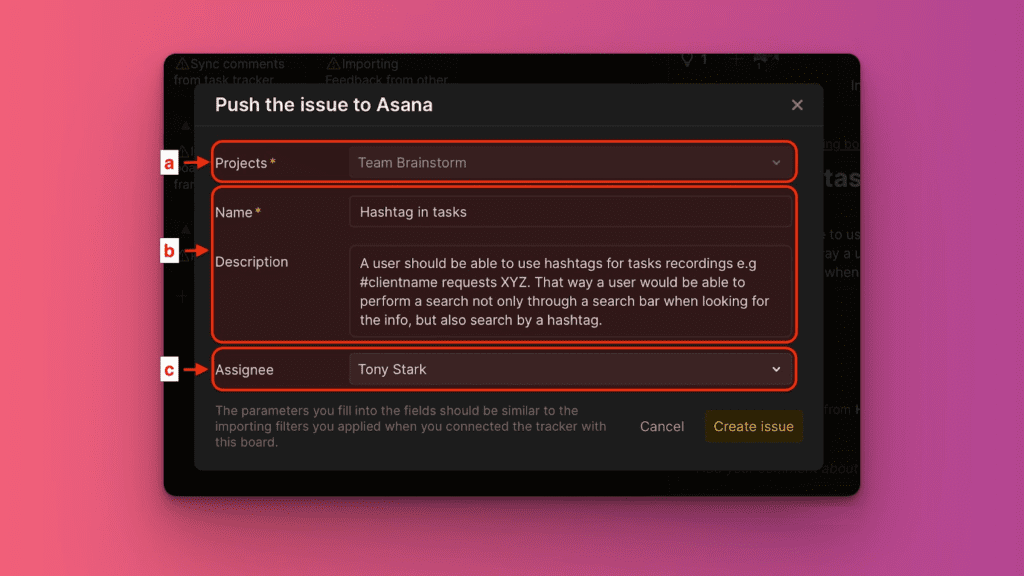
Configure the Issue details:
- Project: Choose from projects configured during integration
- Name: Edit the Idea title if needed
- Description: Edit the description if needed
- Assignees: Choose from your Asana team members
-
Click Create issue.
The Issue is created in both Ducalis and Asana, maintaining the link between customer feedback and your backlog.