Sync Back
Sync Back sends your team's prioritization results from Ducalis to Asana custom fields. Your teammates in Asana can see which tasks matter most and the order you plan to tackle them.
Prerequisites
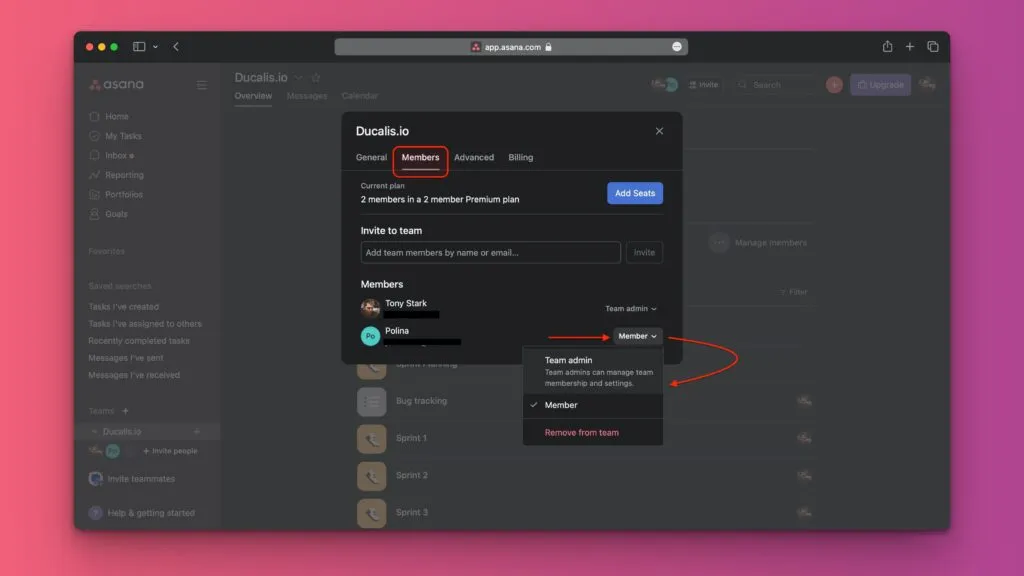
Limited Access Members in Asana can't activate sync.
To change a user's access level, go to Asana Admin → Members.
Activate Sync Back
-
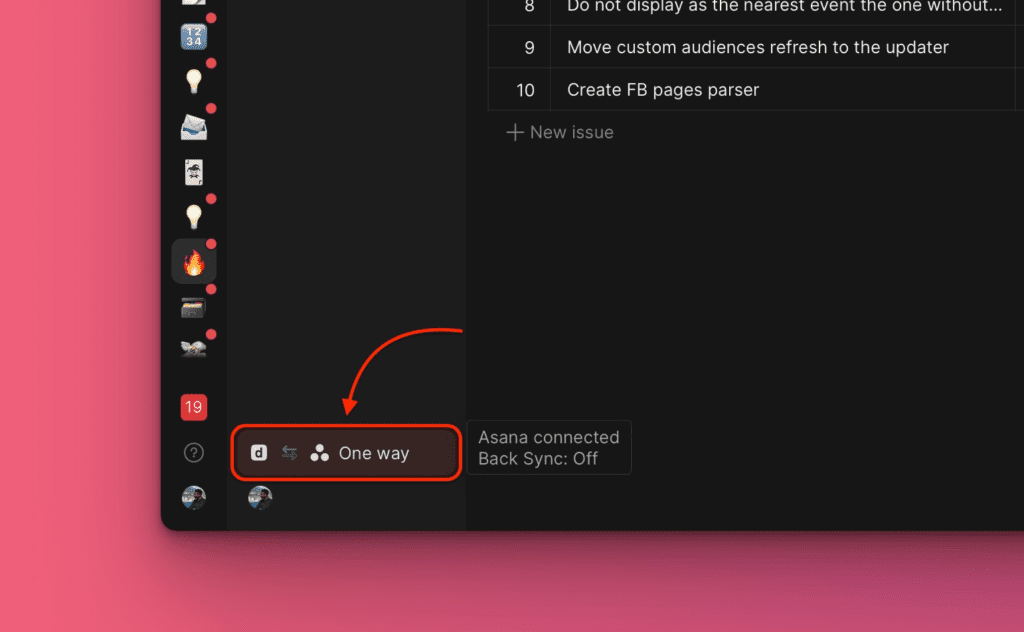
Click the Asana ↔ Ducalis connection icon in the bottom right corner.
-
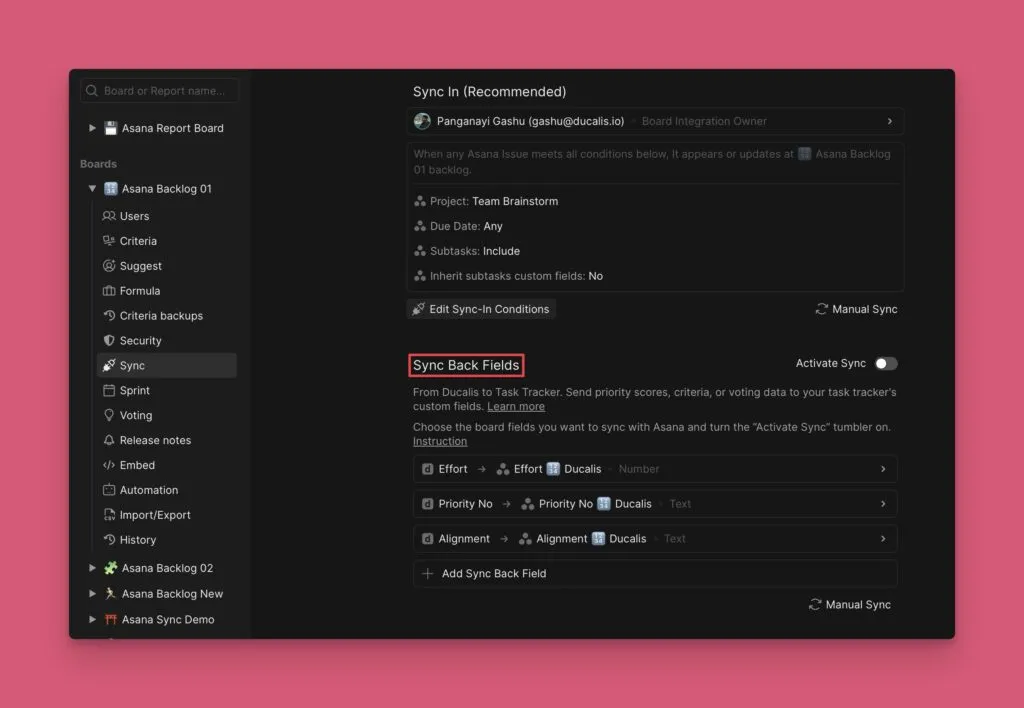
Select Sync from the menu.
-
Scroll down to Sync Back Fields.
Choose fields to sync
Before activating sync, select which Ducalis fields to sync to Asana.
-
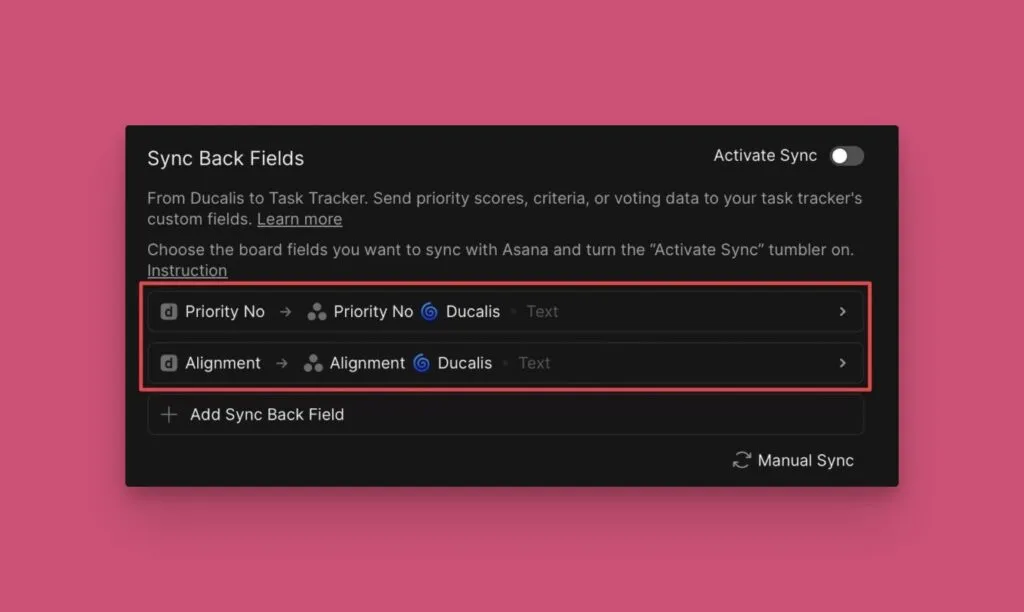
Review the default fields: Priority {emoji} Ducalis and Alignment {emoji} Ducalis.
-
To add more fields, click Add Sync Back field and select from the list.
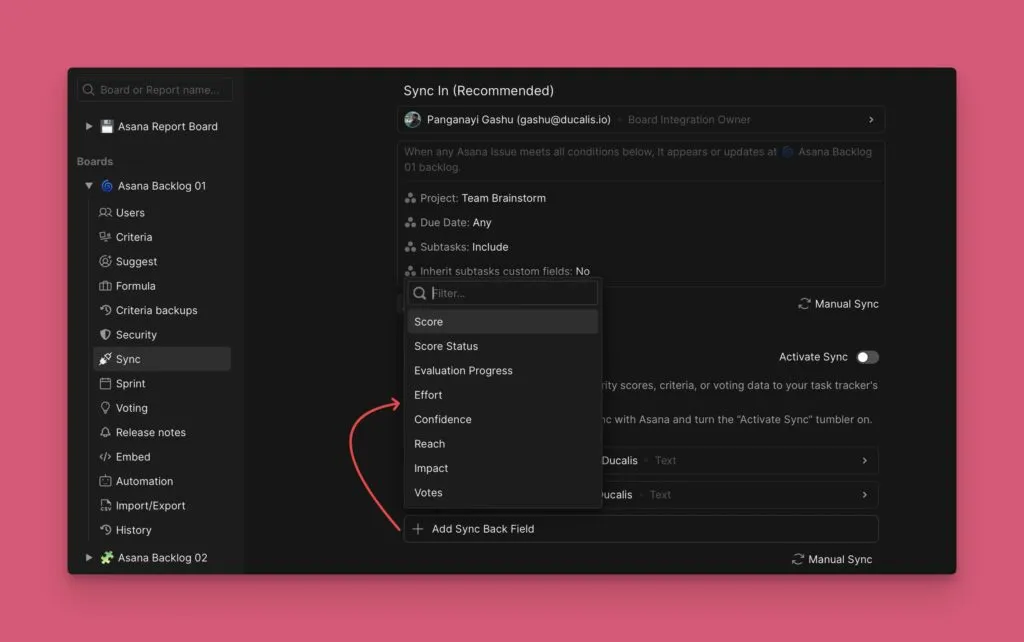
-
Added fields appear below the default fields.
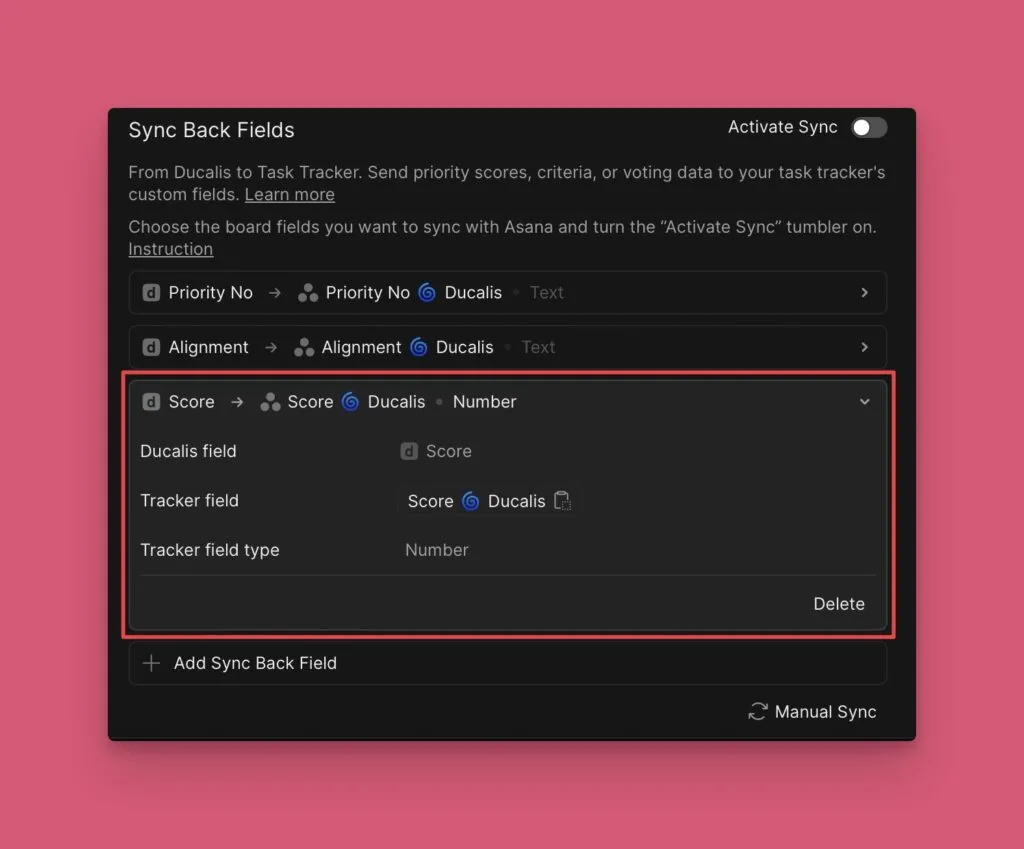
-
To remove a field, click the delete icon next to it.
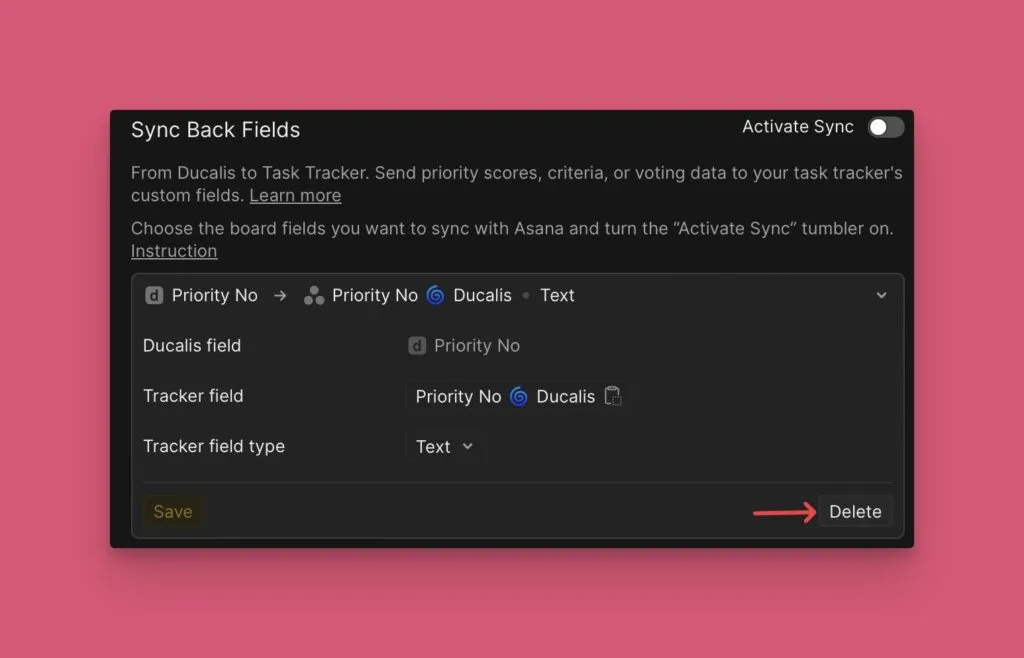
Turn on sync
-
After selecting your fields, click Refresh.
-
Toggle Activate Sync Back on.
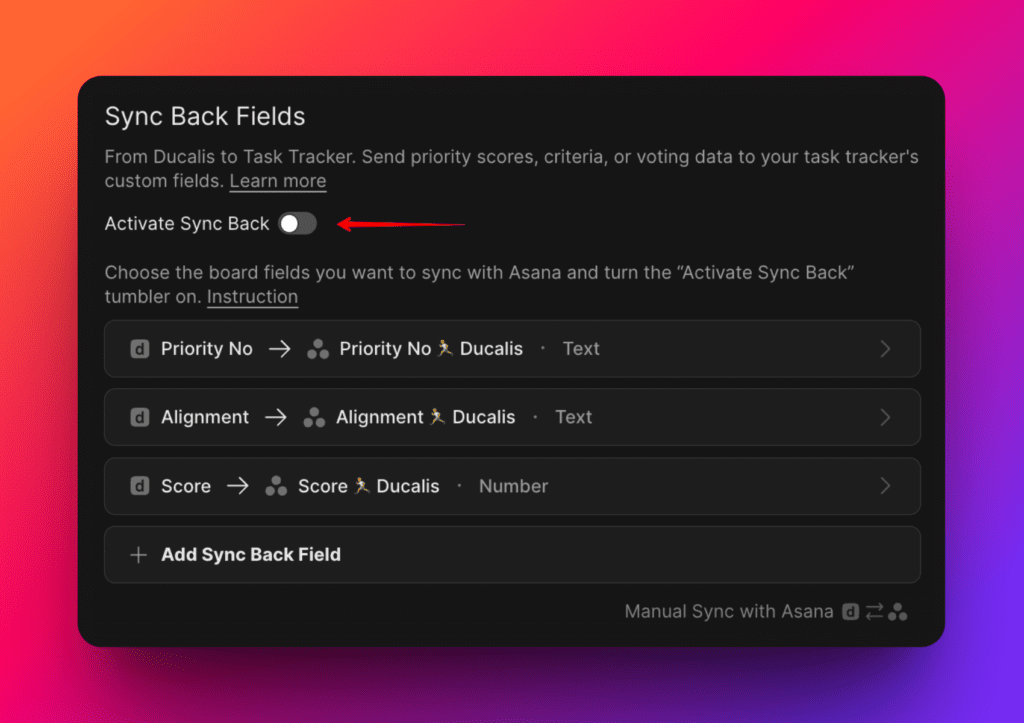
After activating sync, you can't add more fields. To add fields, turn sync off, add the field, then turn sync on again.
- Ducalis automatically creates custom fields in your Asana project.
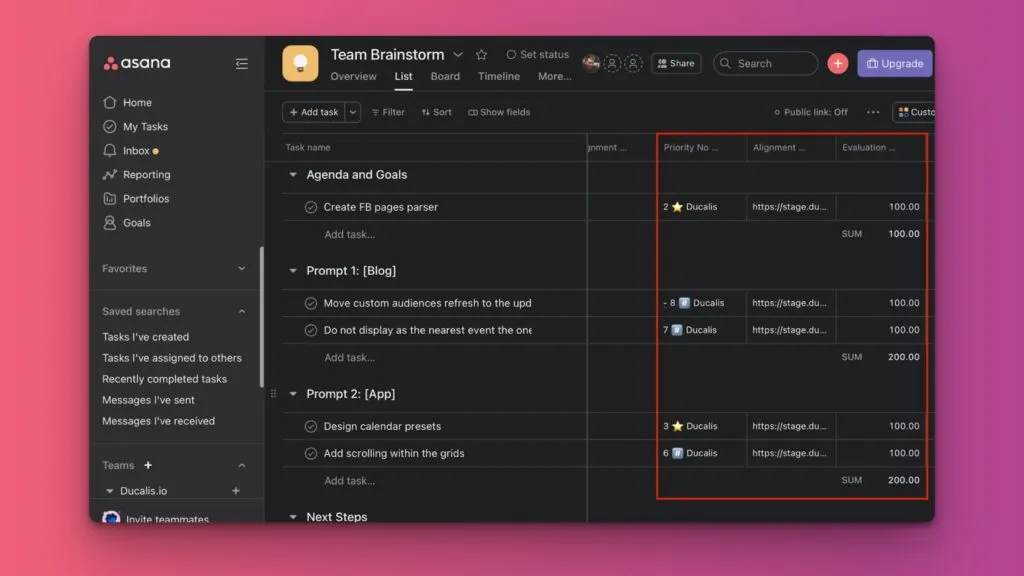
Customize field names
The emoji in custom field names is your Ducalis Board ID. You can change it in Board settings.
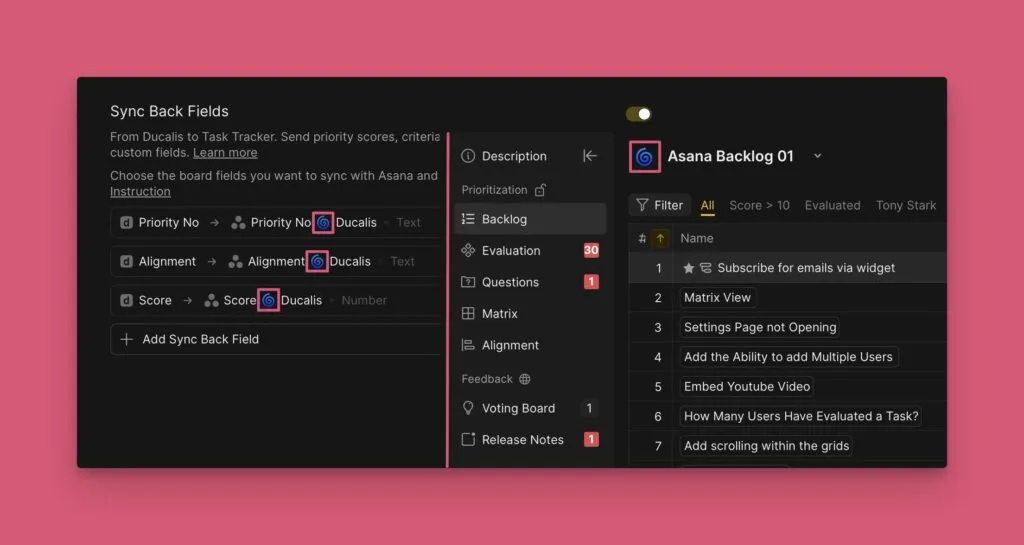
After changing the Board emoji, turn sync off and on again to apply the change to Asana field names.
Schedule automatic sync
Choose when to sync priority rankings to Asana.
-
Under Sync Back Schedule, select:
- By sprint end date - Syncs before your sprint ends
- By custom period - Syncs at a specific day and time
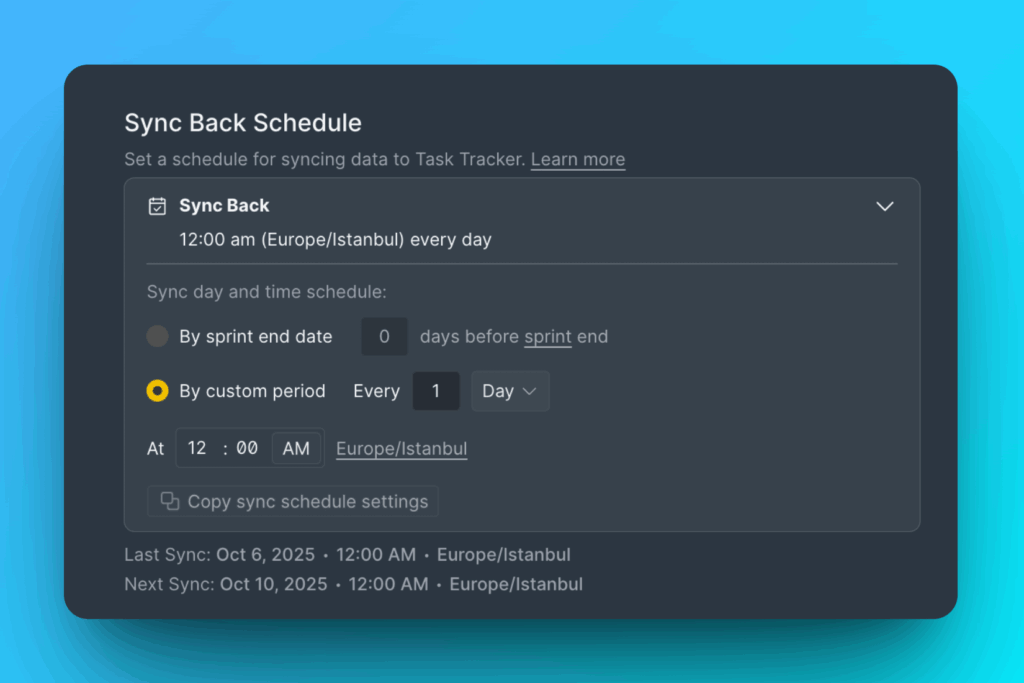
-
For immediate sync, click Manual Sync-Back.
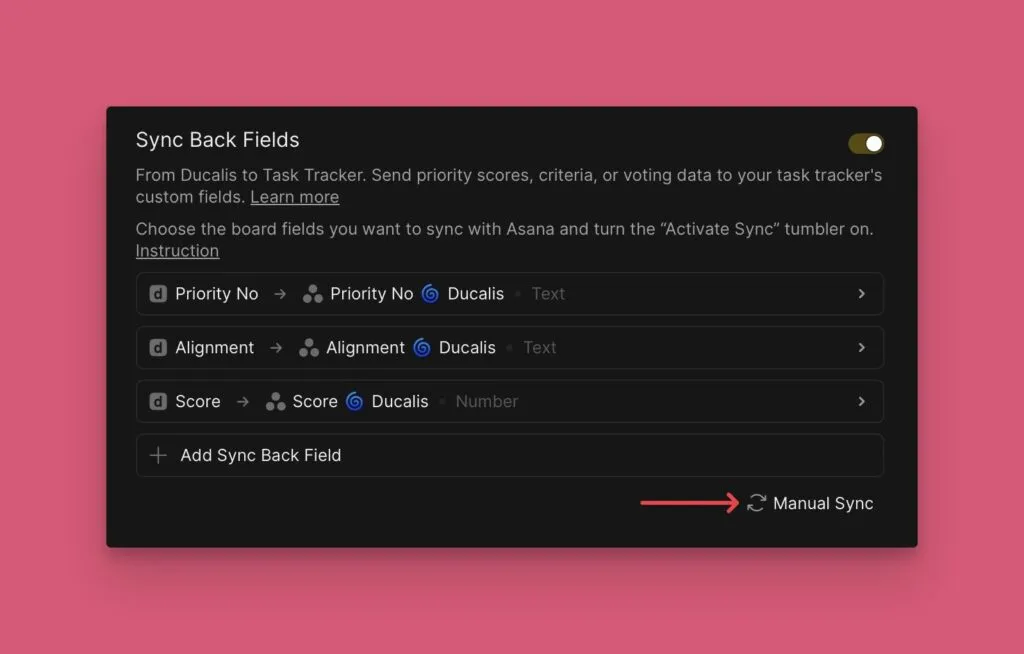
Turning sync off deletes Ducalis custom fields from your Asana library.
Copy settings to other boards
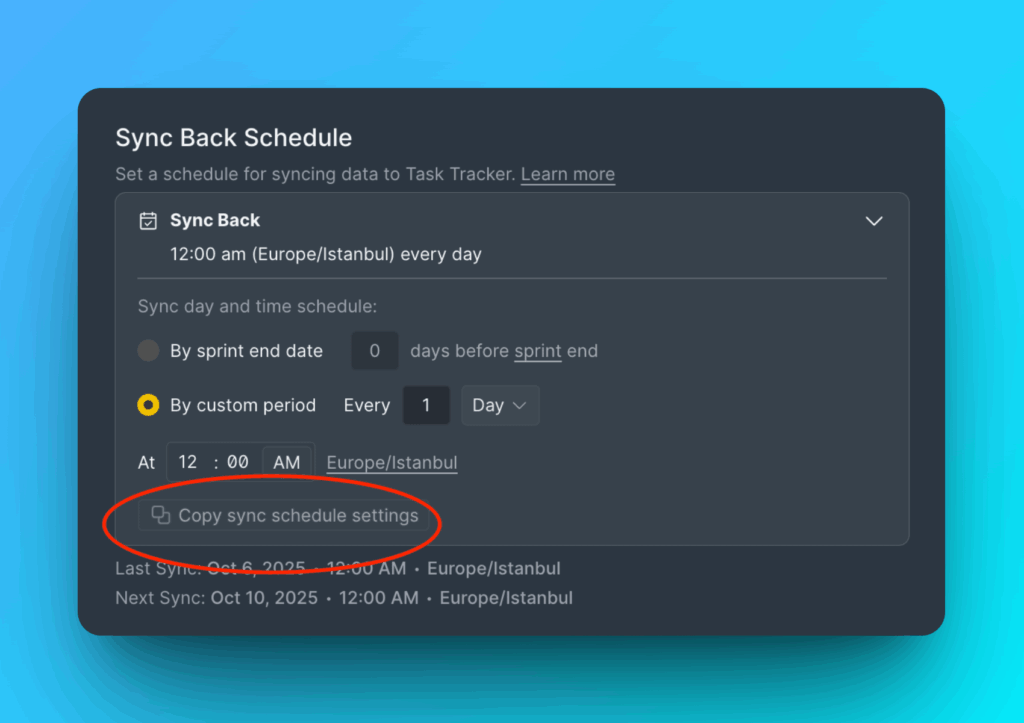
Apply the same sync schedule to multiple boards at once.
-
Click Copy sync schedule settings.
-
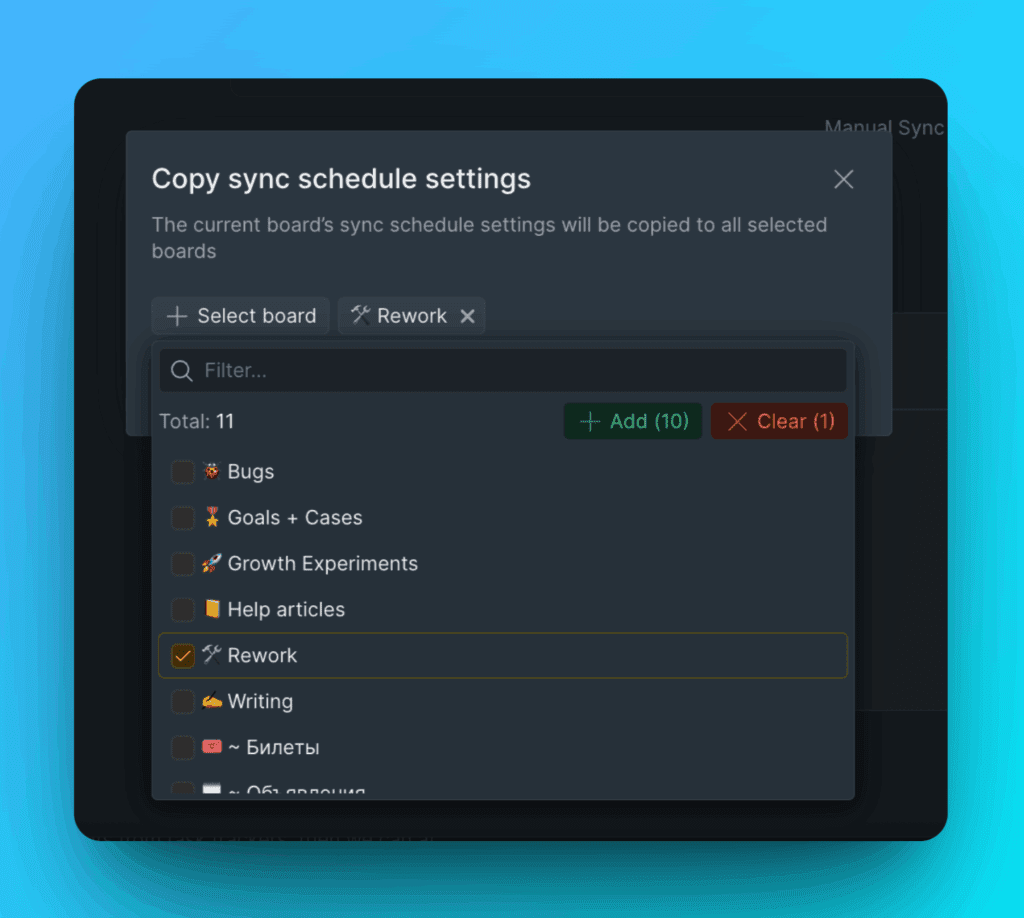
Select the boards to apply these settings to.
-
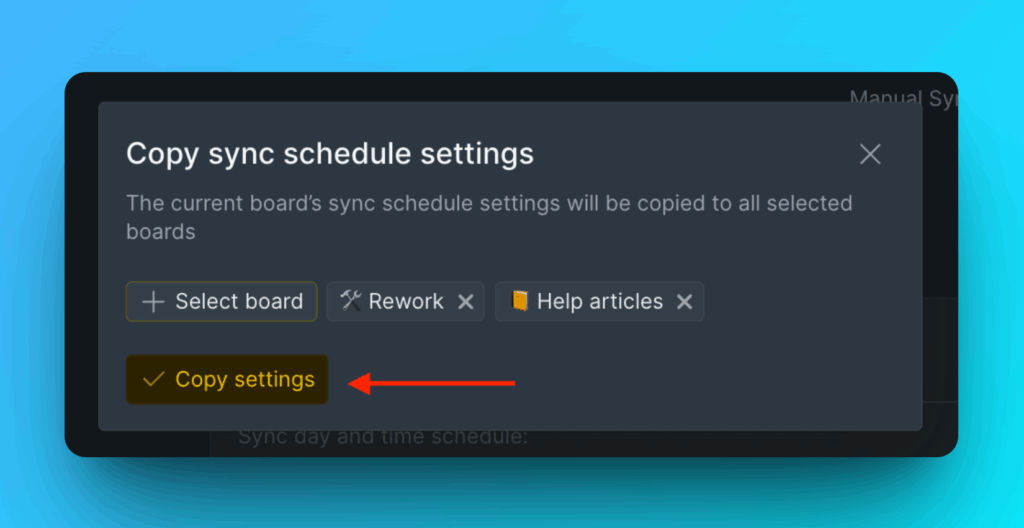
Click Copy Settings to confirm.
Related articles
- Alignment - Understand how team consensus is calculated
- Connect Asana - Set up the initial Asana integration