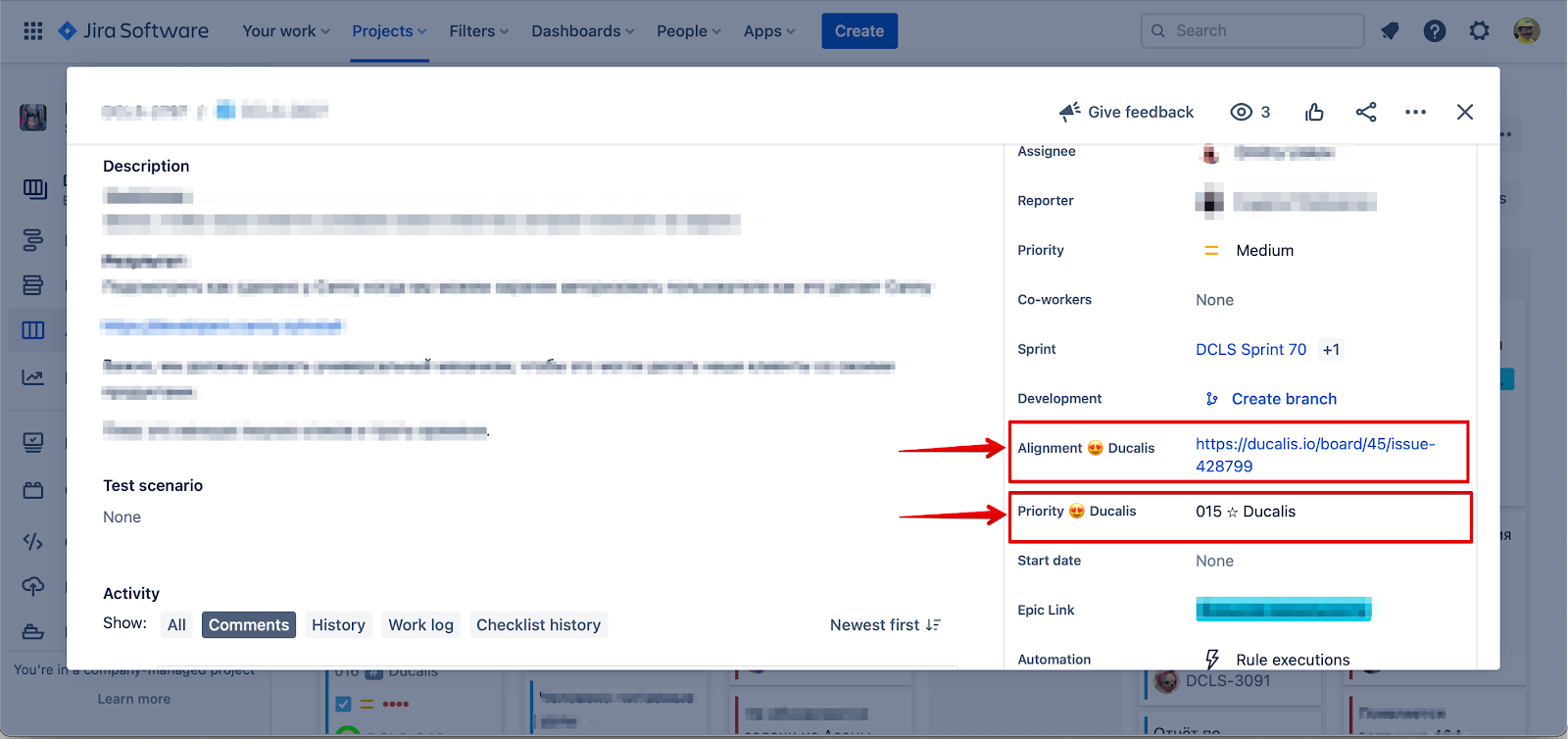
Step 2: Board fields
Complete Step 1: Create custom fields before proceeding. You need the custom fields created in Jira Cloud to configure your board.
Configure your Jira Cloud board to display Ducalis rankings in Backlog and Active Sprints, and order issues by priority.
This guide applies to Jira Cloud Company-managed projects only.
Order issues by priority ranking
-
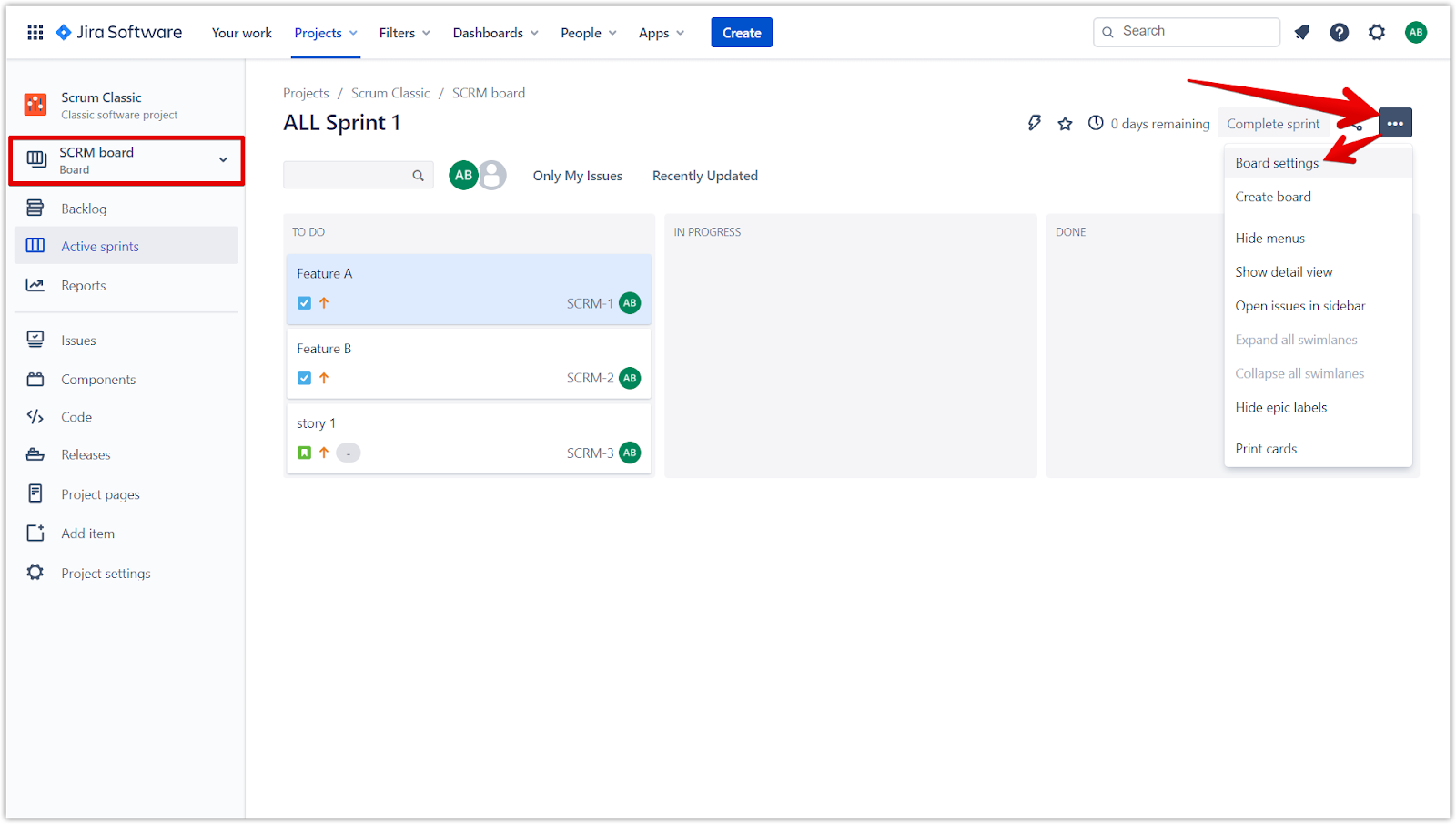
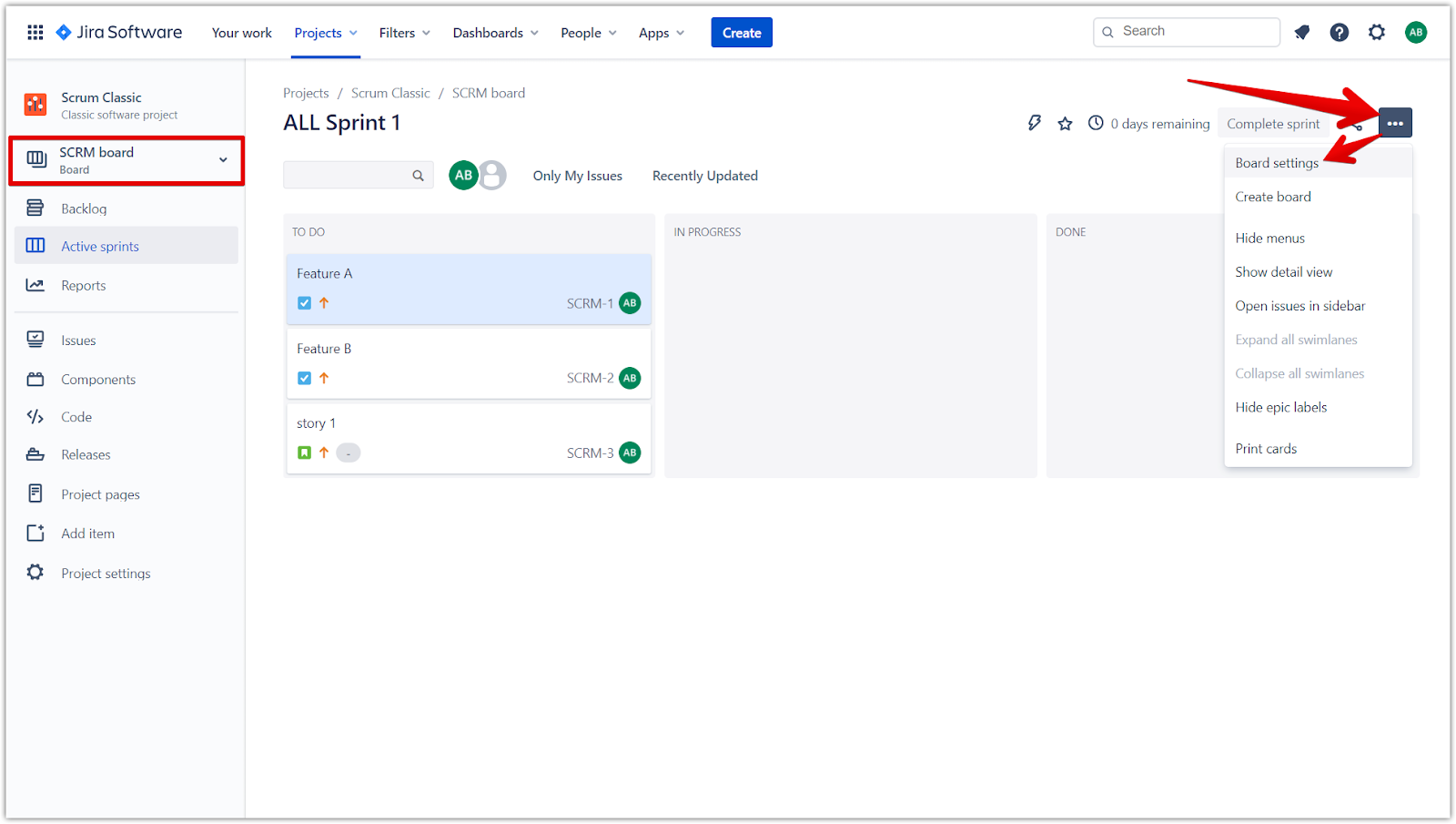
Open the board you want to configure and click the ellipses (...).
-
Select Board settings.
-
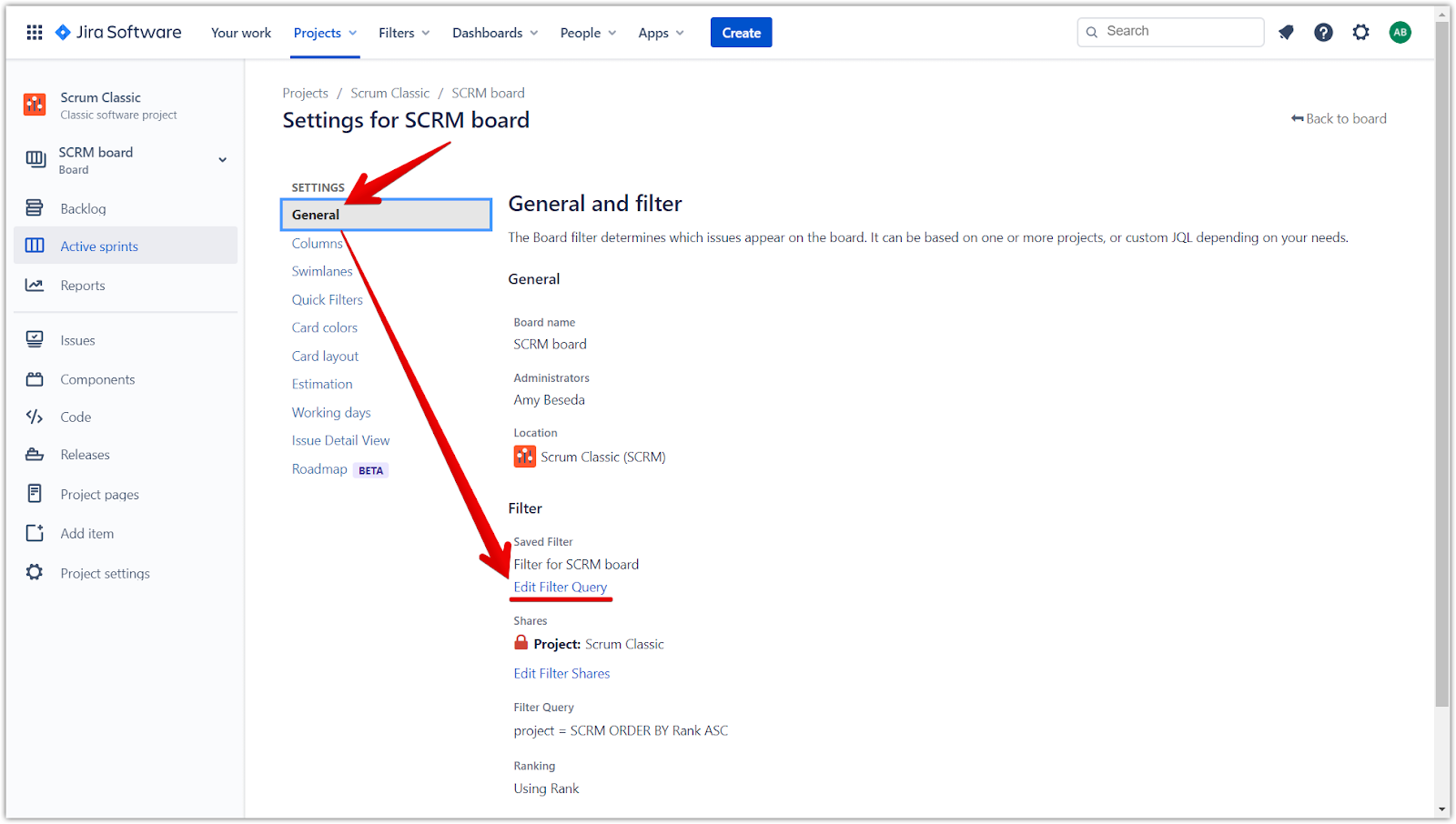
In the General section, click Edit Filter Query.
-
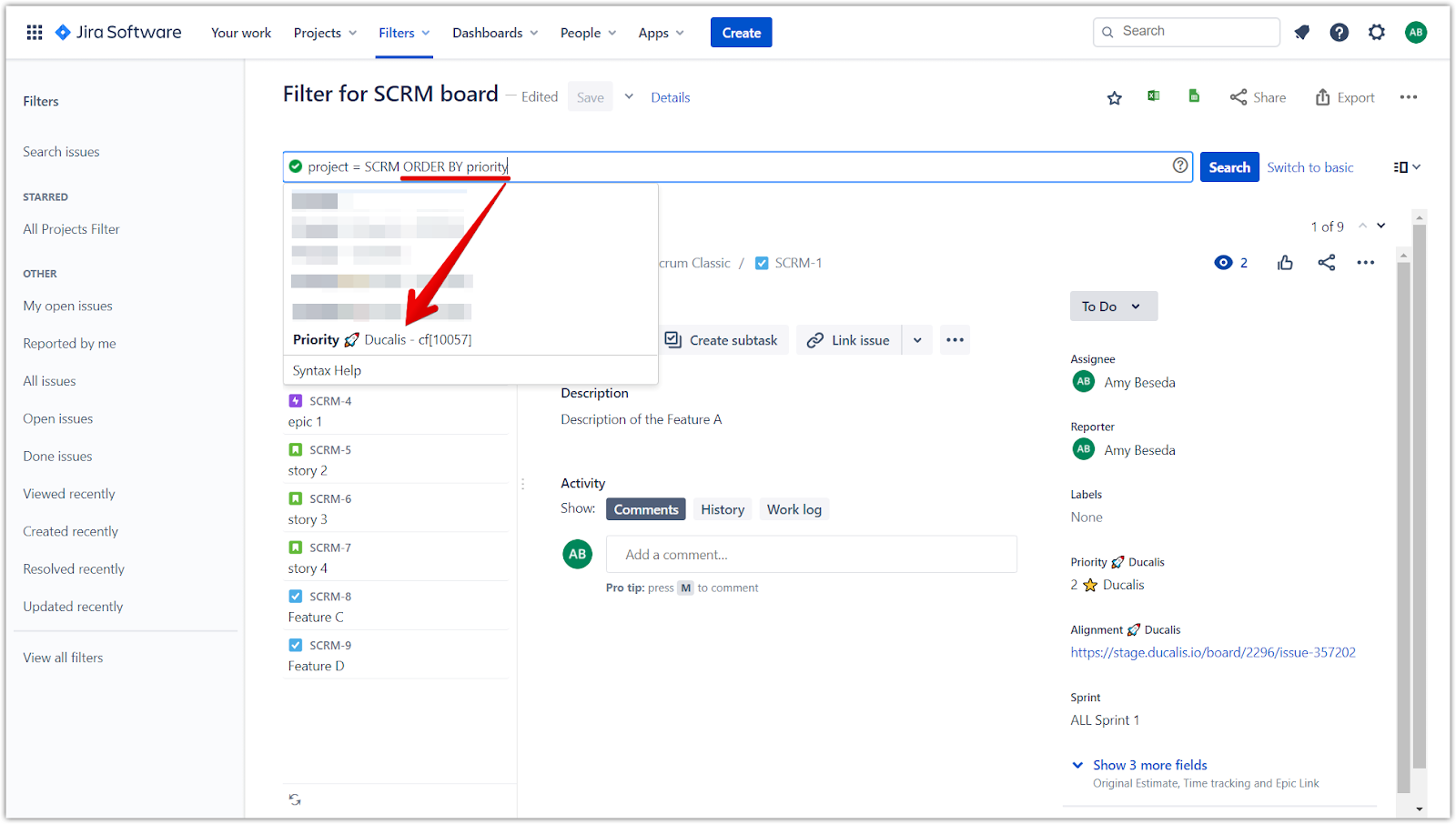
In the query field, type
ORDER BYfollowed by a space. -
From the dropdown menu, select Priority {your emoji} Ducalis.
-
After the field name, type
ASCfor ascending order (lowest rank number first). -
Click Search to preview the results.
-
Click Save to apply the ordering.
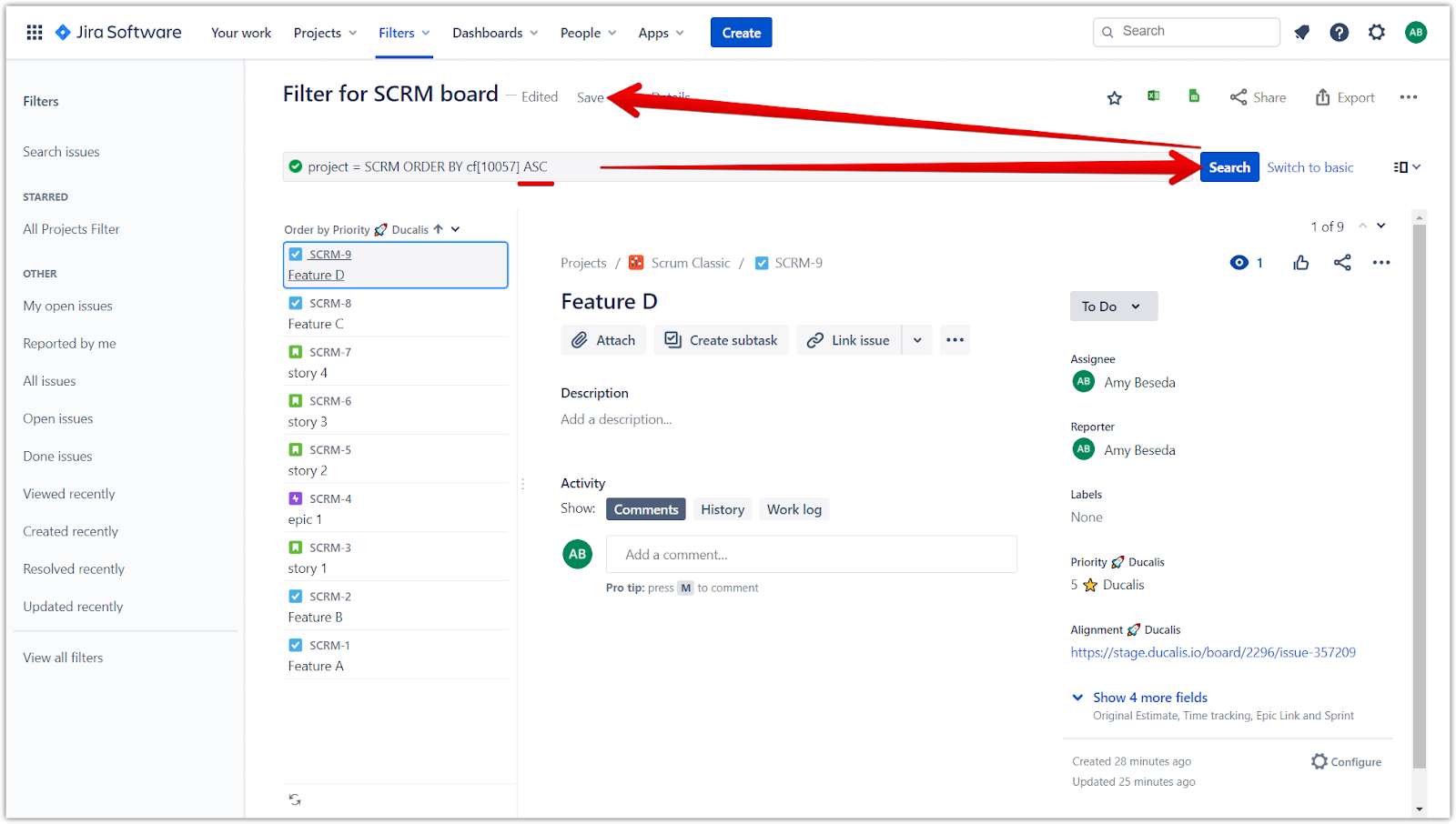
Your board now orders issues by priority ranking.
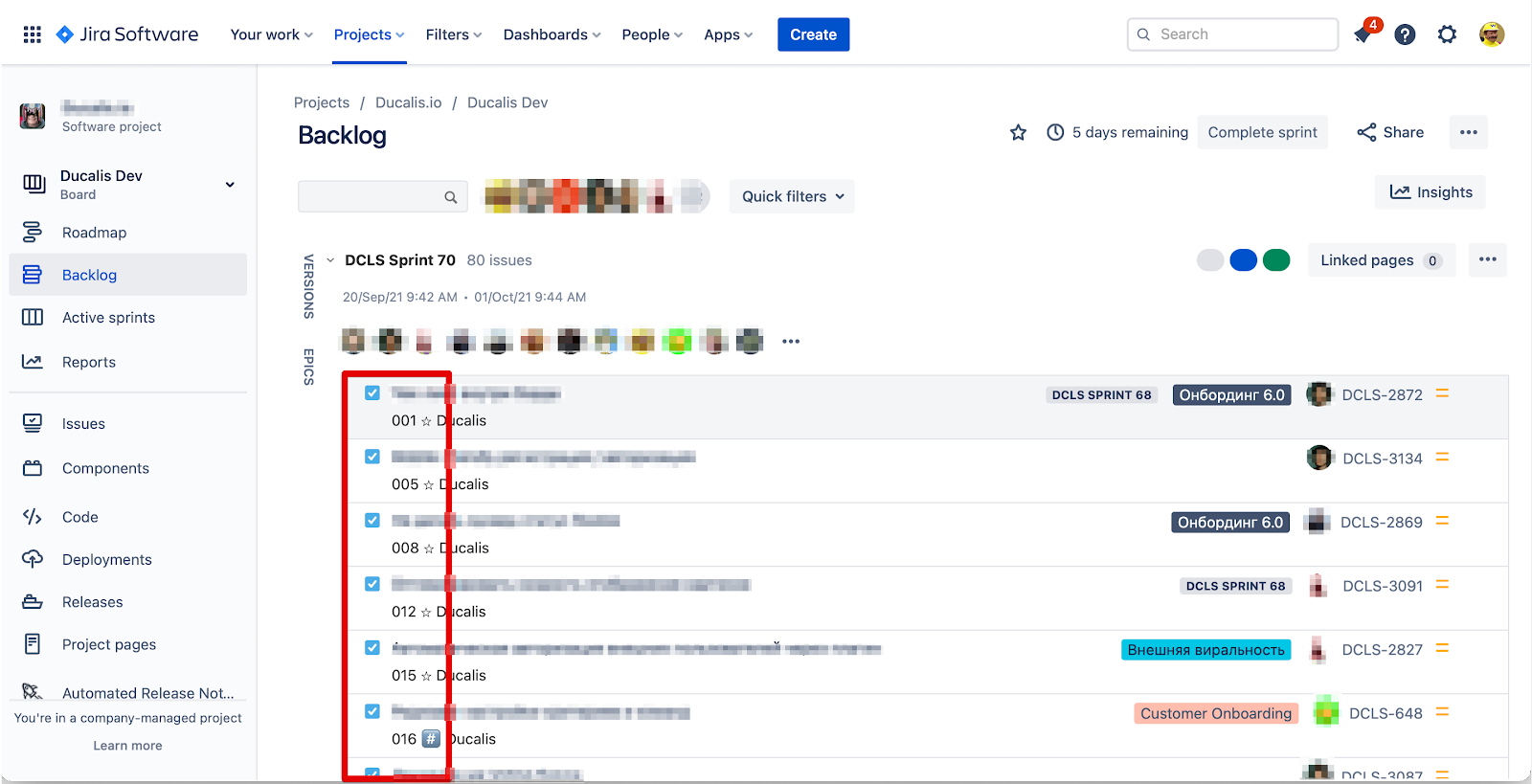
Add custom fields to issue cards
Display priority rankings directly on issue cards in Backlog and Active Sprints.
-
Open the board you want to configure and click the ellipses (...).
-
Select Board settings.
-
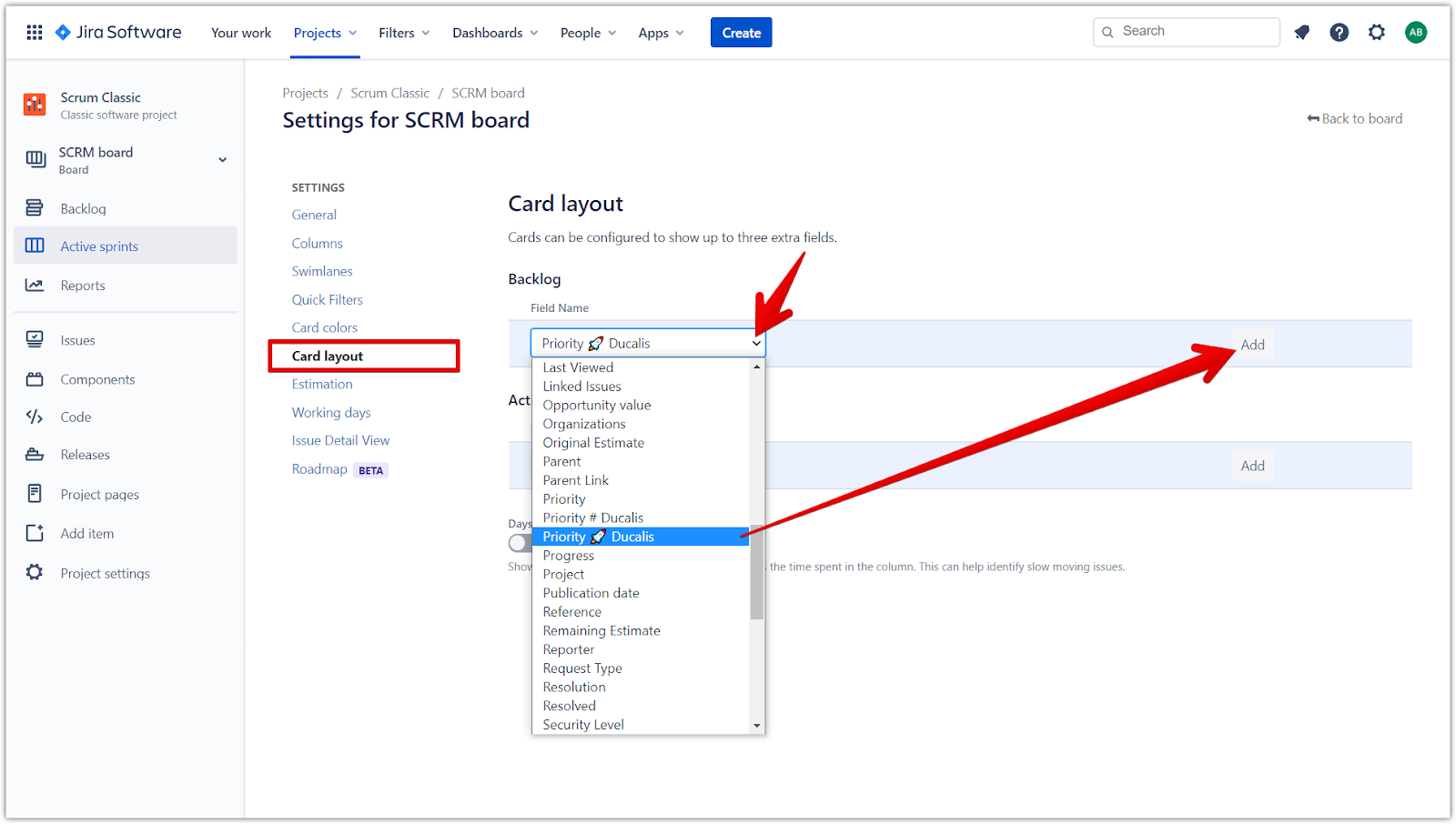
In the left sidebar, select Card Layout.
-
Under the Backlog section, click the Field Name dropdown.
-
Select Priority Ducalis from the list.
-
Click Add.
-
Scroll to the Active sprints section.
-
Click the Field Name dropdown, select Priority Ducalis, and click Add.
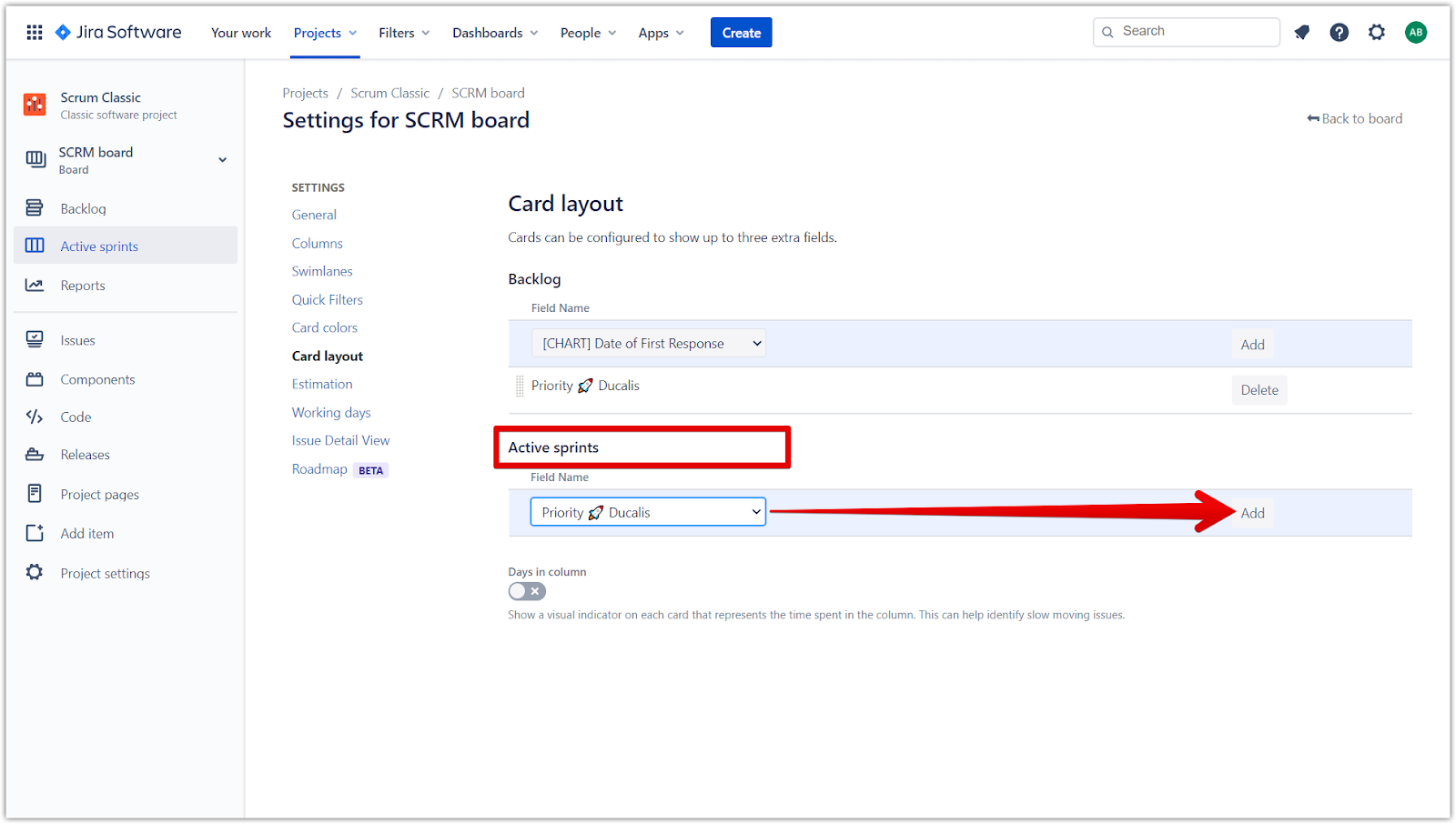
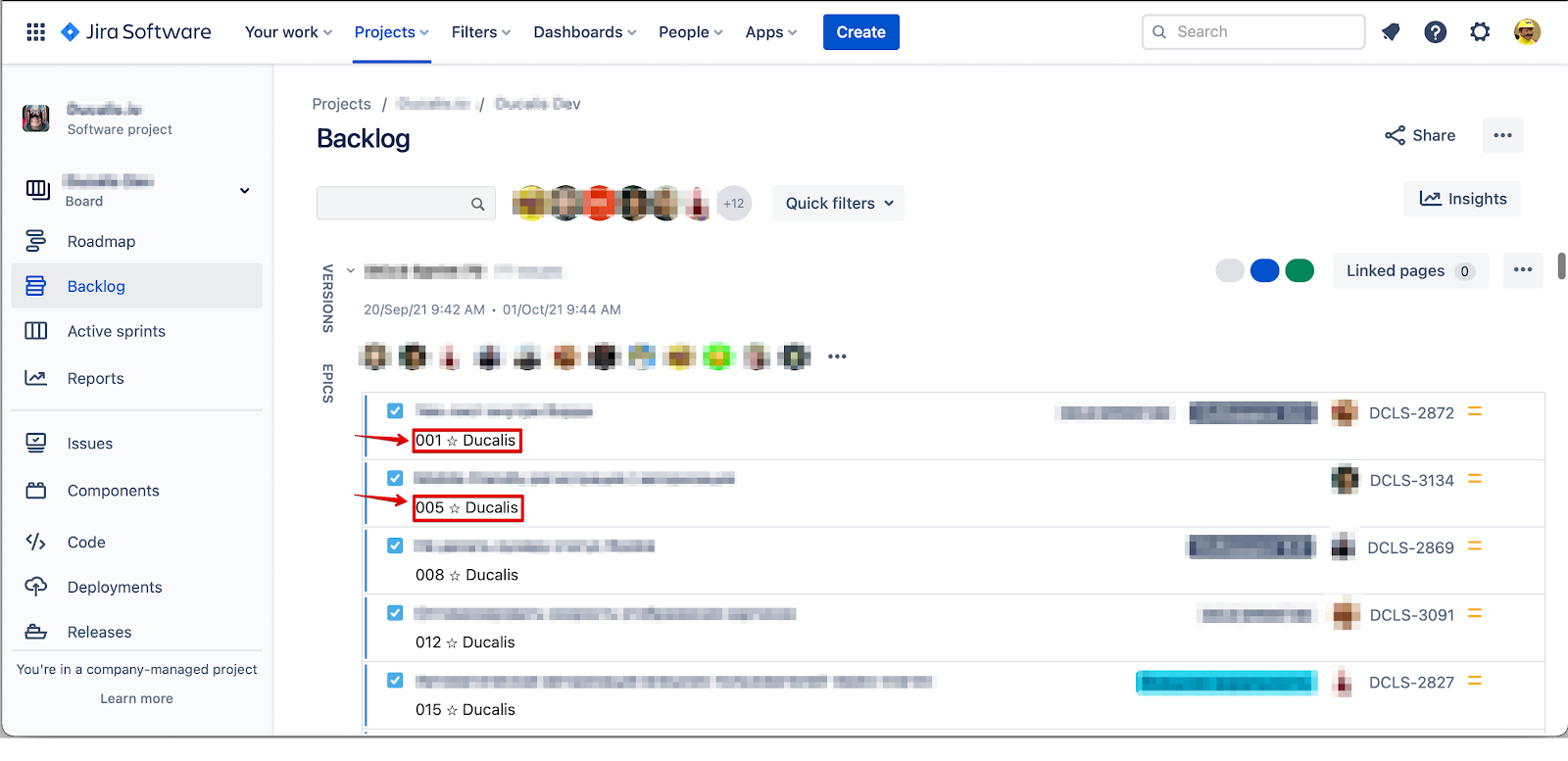
Priority rankings now appear on issue cards in both Backlog and Active Sprints.
Backlog view:
Active Sprints view:
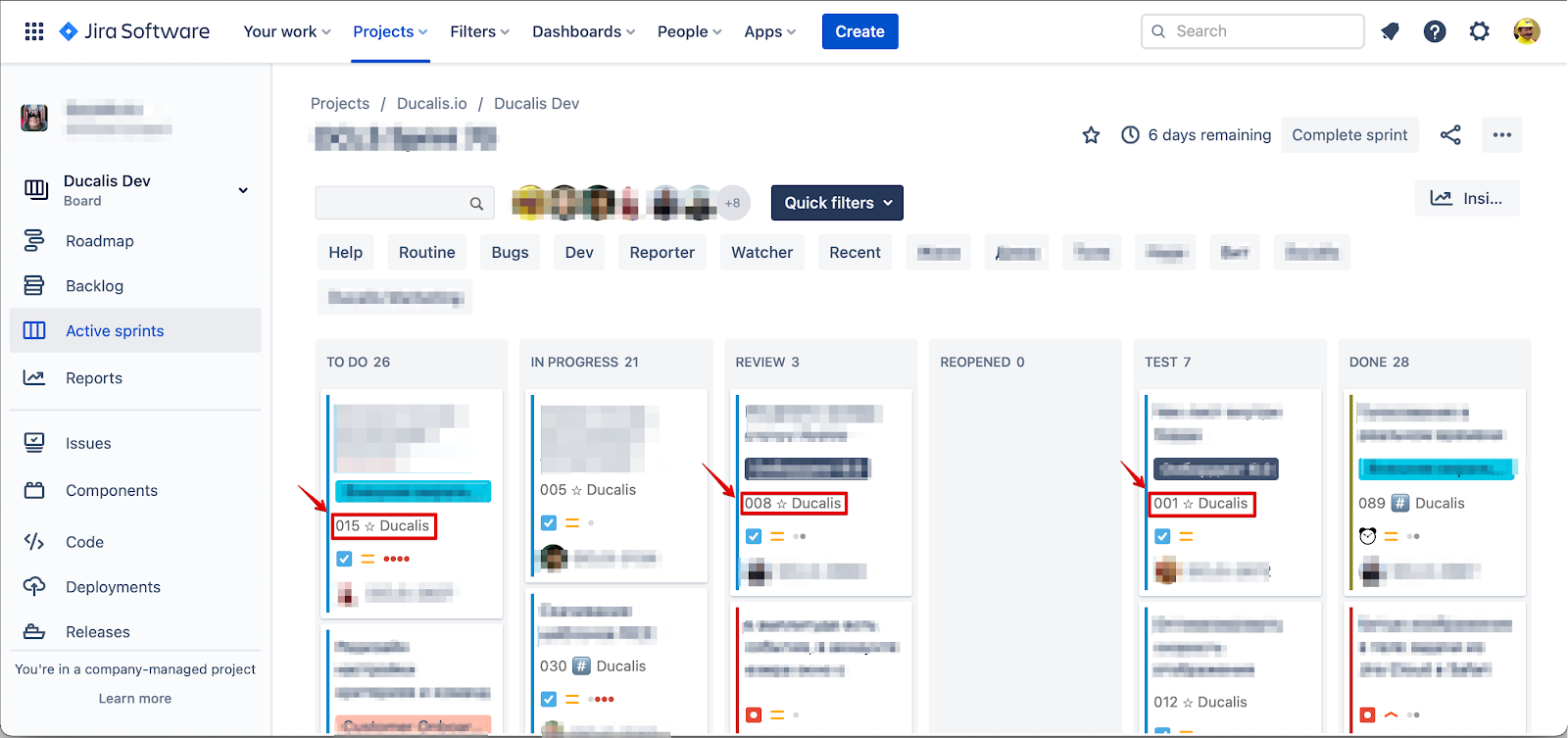
Issue card detail: