Push issues
When you integrate Ducalis with Jira Cloud, you can send issues and ideas you create in Ducalis to Jira Cloud. This helps you maintain workflow continuity between both systems.
Prerequisites
Your Board must be connected to Jira Cloud.
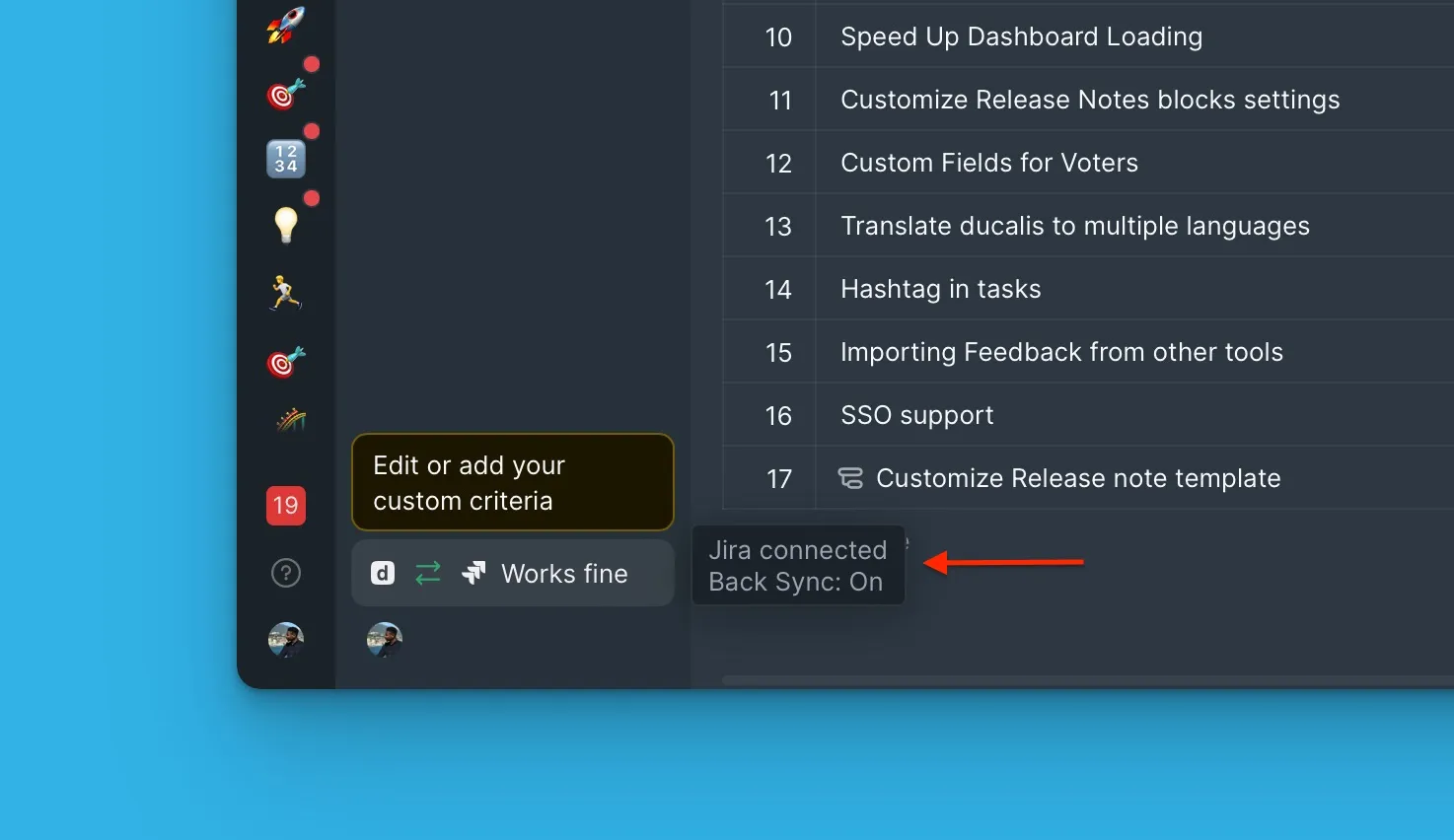
In your Board, issues created in Ducalis display a Ducalis icon. Issues imported from or linked to Jira Cloud display a Jira icon.
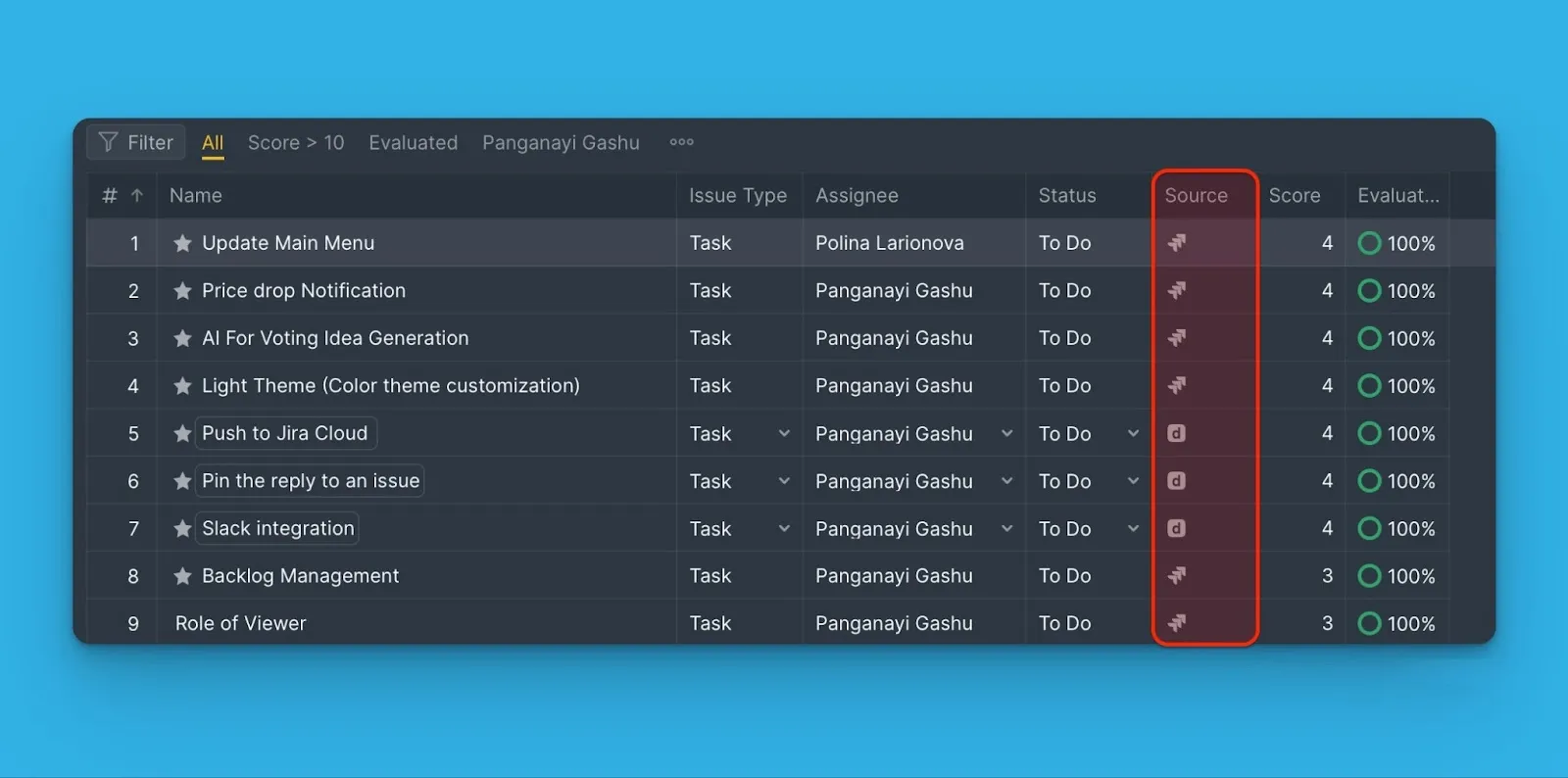
Push issues from backlog
-
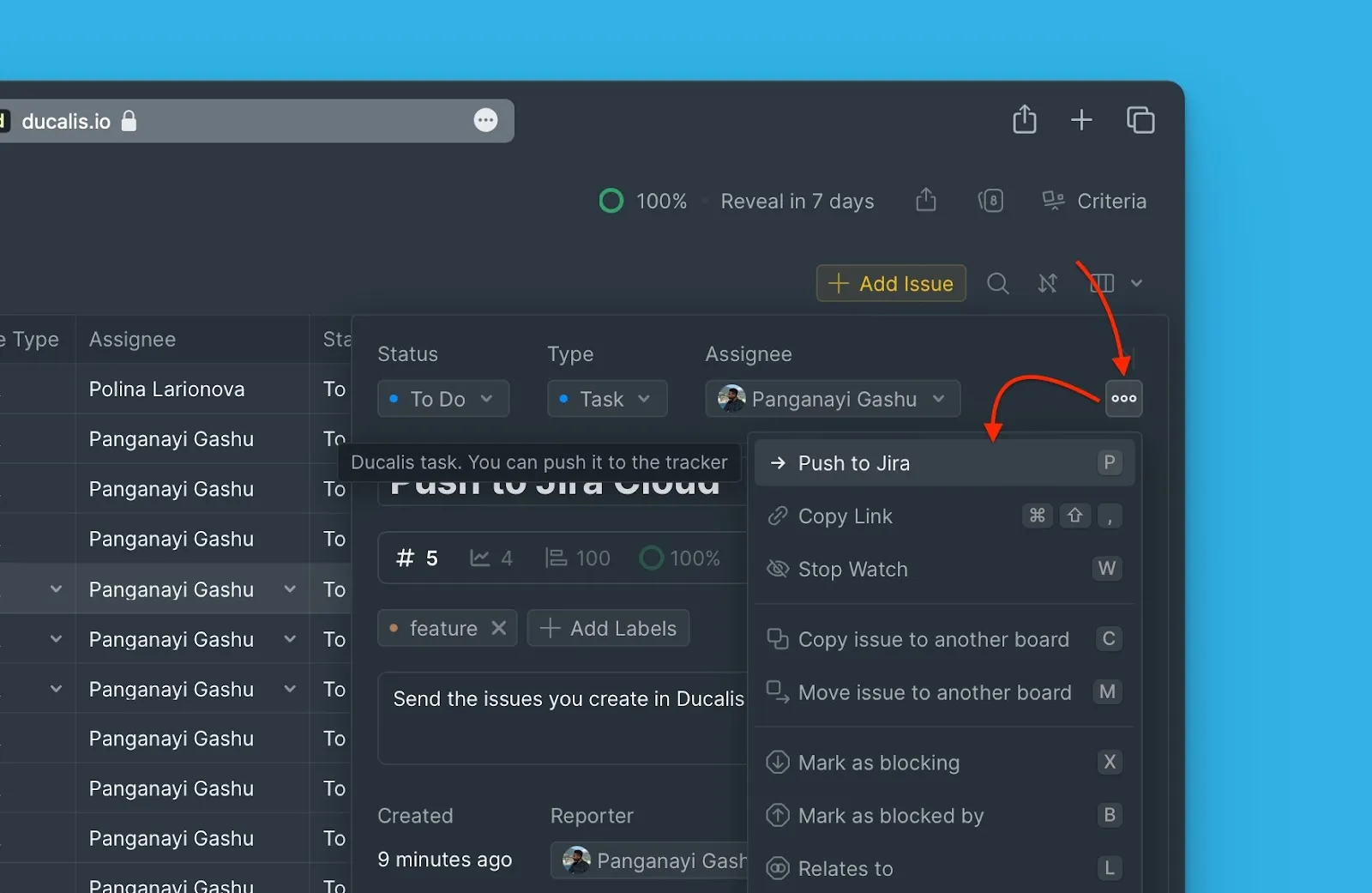
Select the issue you want to send to Jira Cloud and open its card.
-
In the card, click the ellipsis button in the top right corner, then choose Push to Jira from the dropdown menu.
-
Fill in the required fields and edit any fields that need updating.
-
Click Create issue to send your issue to Jira Cloud.
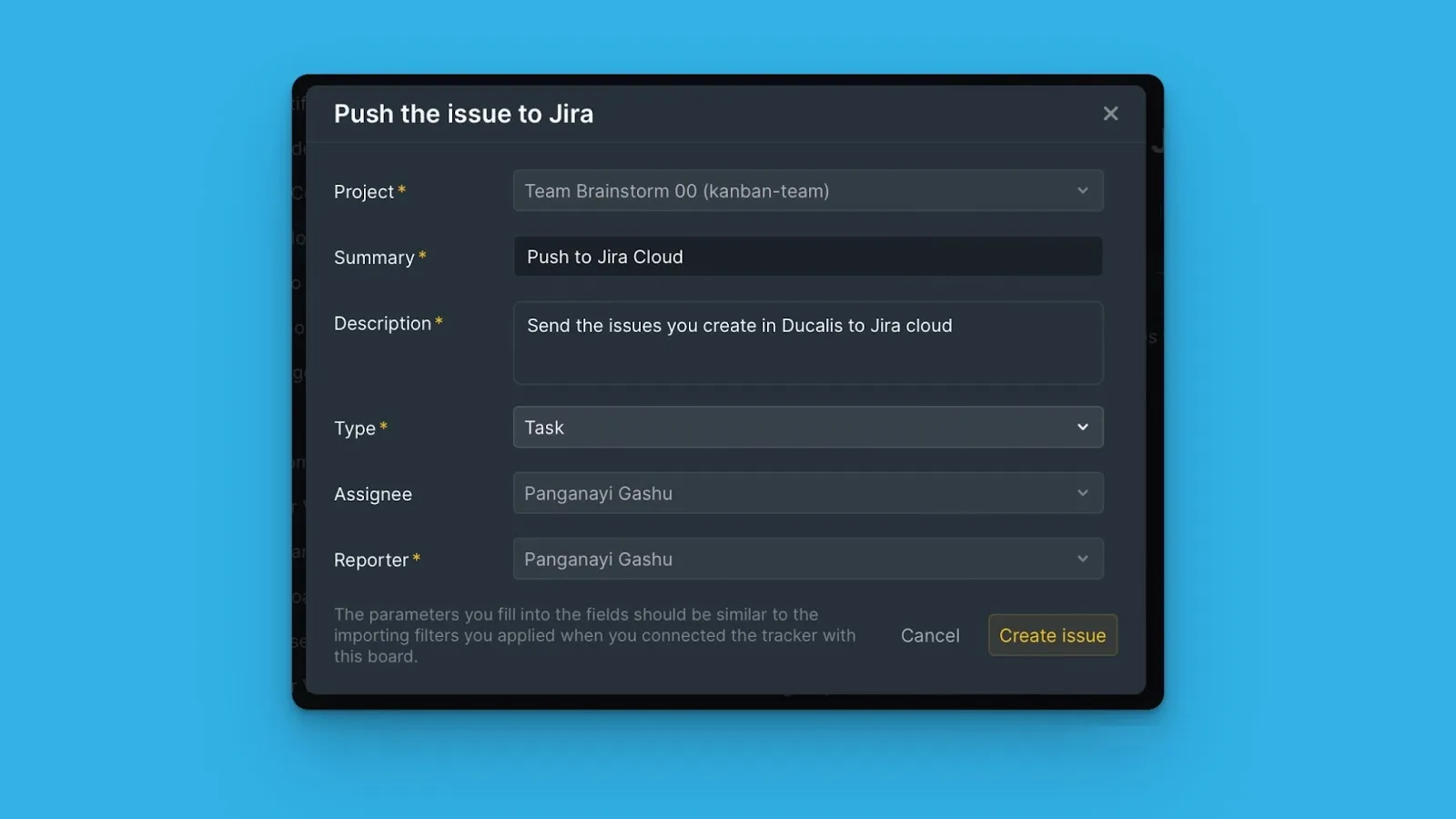
Ensure you fill in fields that match the filters you applied when you imported issues from Jira Cloud. This ensures the issues you create appear on the Ducalis Board.
Push Ideas from voting board
The Voting Board lets you convert customer feedback into issues that you can add to your internal Board, prioritize, and start working on.
-
Go to the Voting Board page and choose the Idea you want to add to your Jira Cloud backlog.
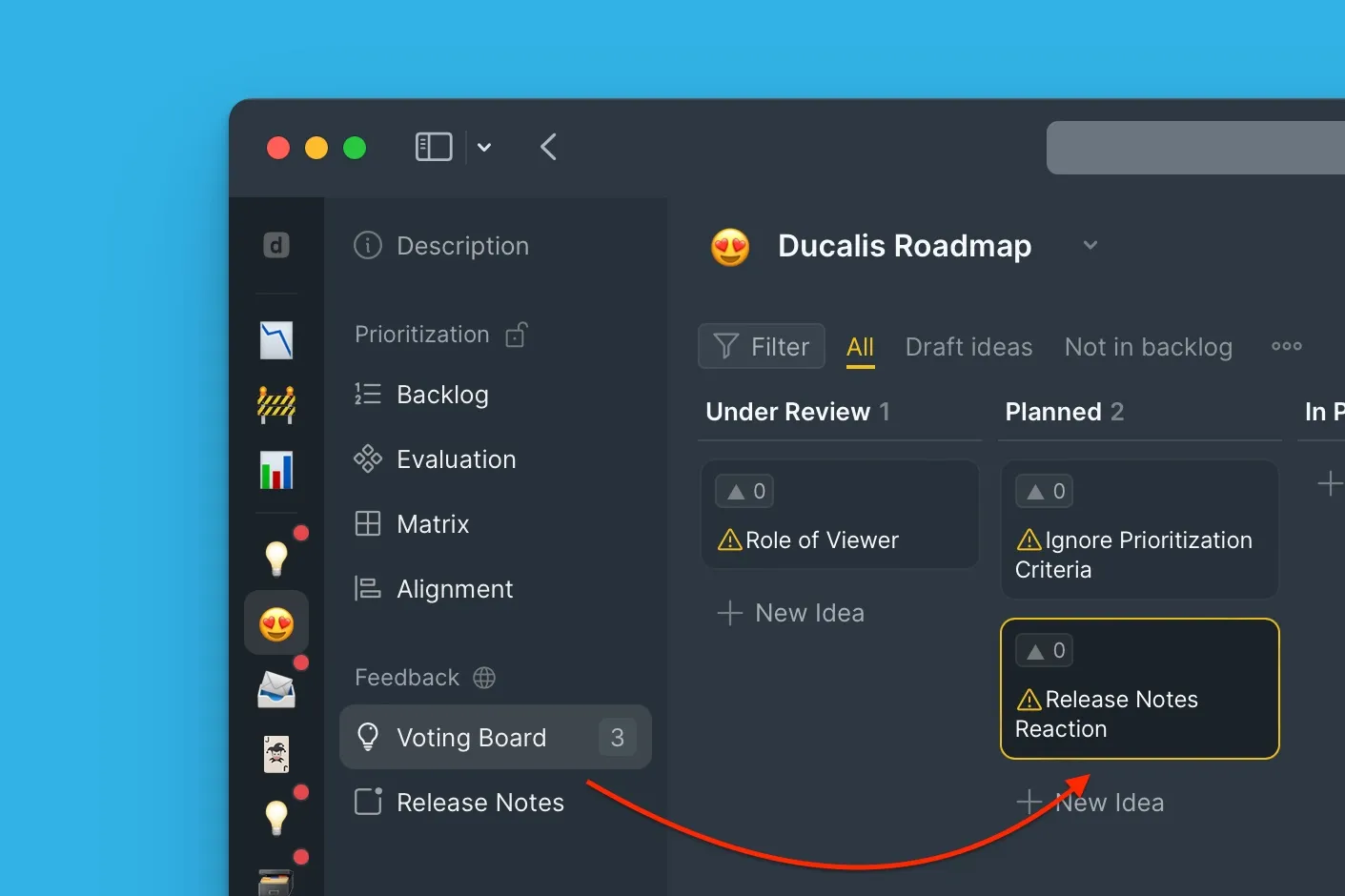
-
On the Idea's card, click +New, then select In Jira (Linked with Ducalis) from the dropdown menu.
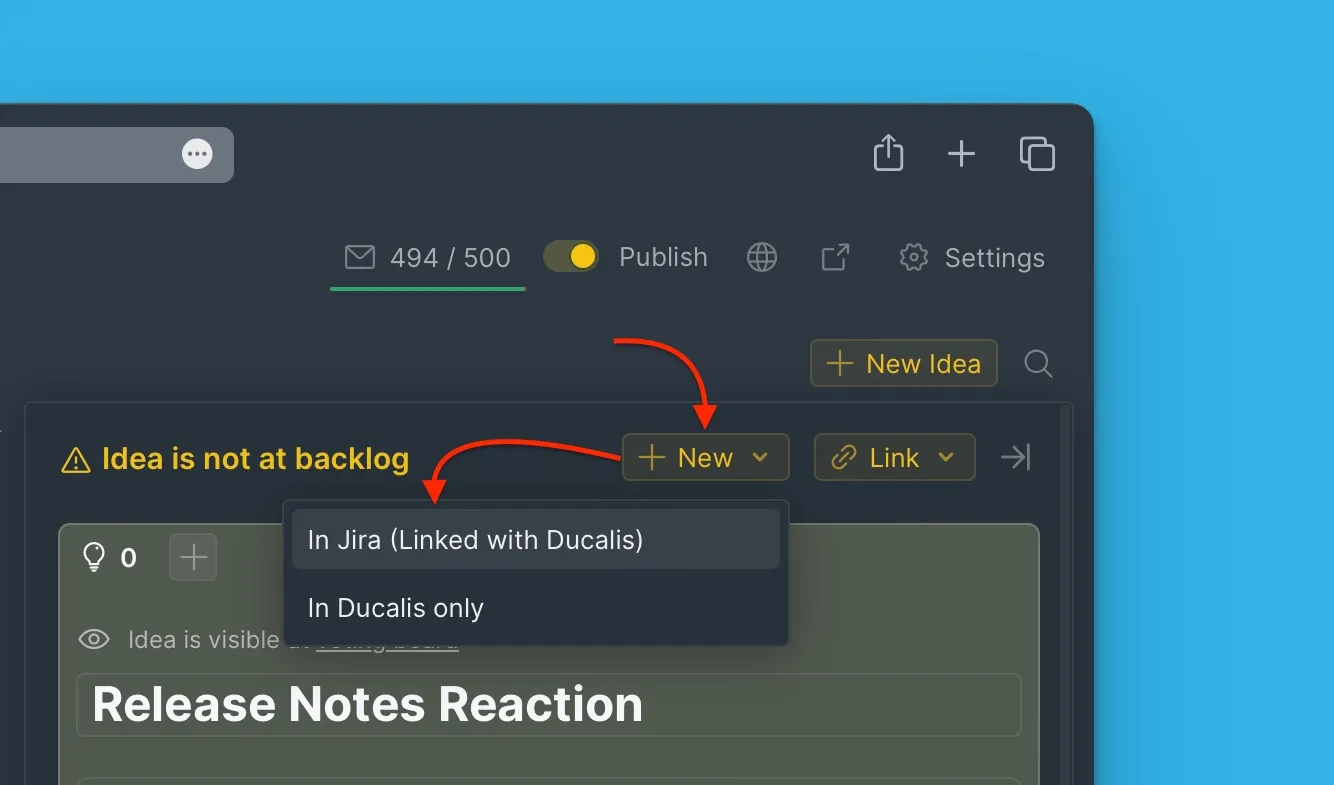
-
Fill in the required fields and edit any fields that need updating.
-
Click Create Issue to send the Idea to Jira Cloud.
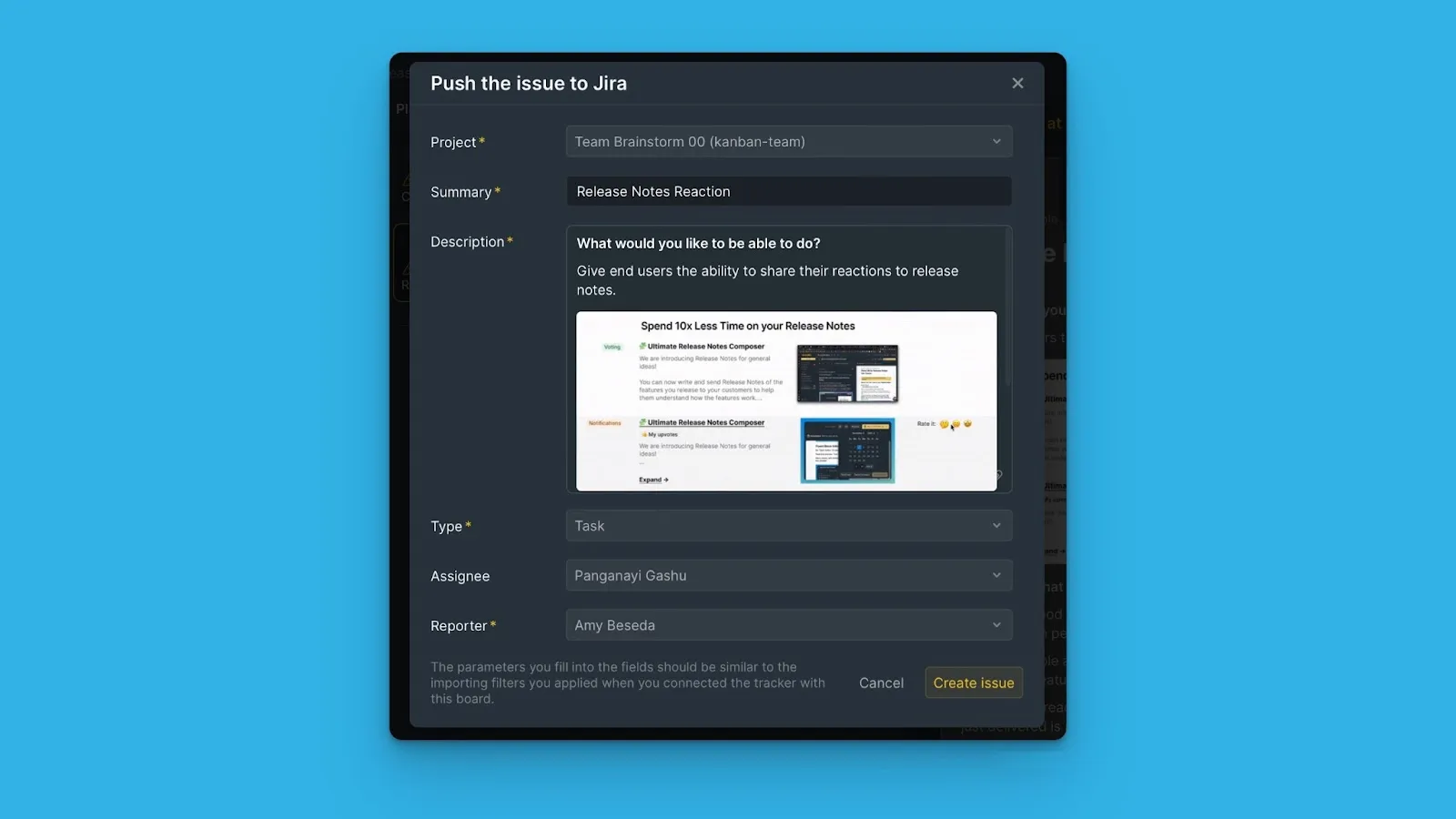
Ensure you fill in fields that match the filters you applied when you imported issues from Jira Cloud. This ensures the issues you create appear on the Ducalis Board.