Existing fields
If you already have many custom fields in Jira Cloud, you can map existing fields to Ducalis instead of creating new ones.
This is an alternative to the 2-way sync custom fields setup. Use this method if you prefer to reuse existing fields rather than create new ones.
Two ways to use existing fields:
- Rename an existing Jira Cloud field to match the Ducalis field name
- Map the Ducalis field to an existing Jira Cloud field with a different name
This guide shows how to rename an existing Jira Cloud field to match Ducalis field names.
Access custom field settings
-
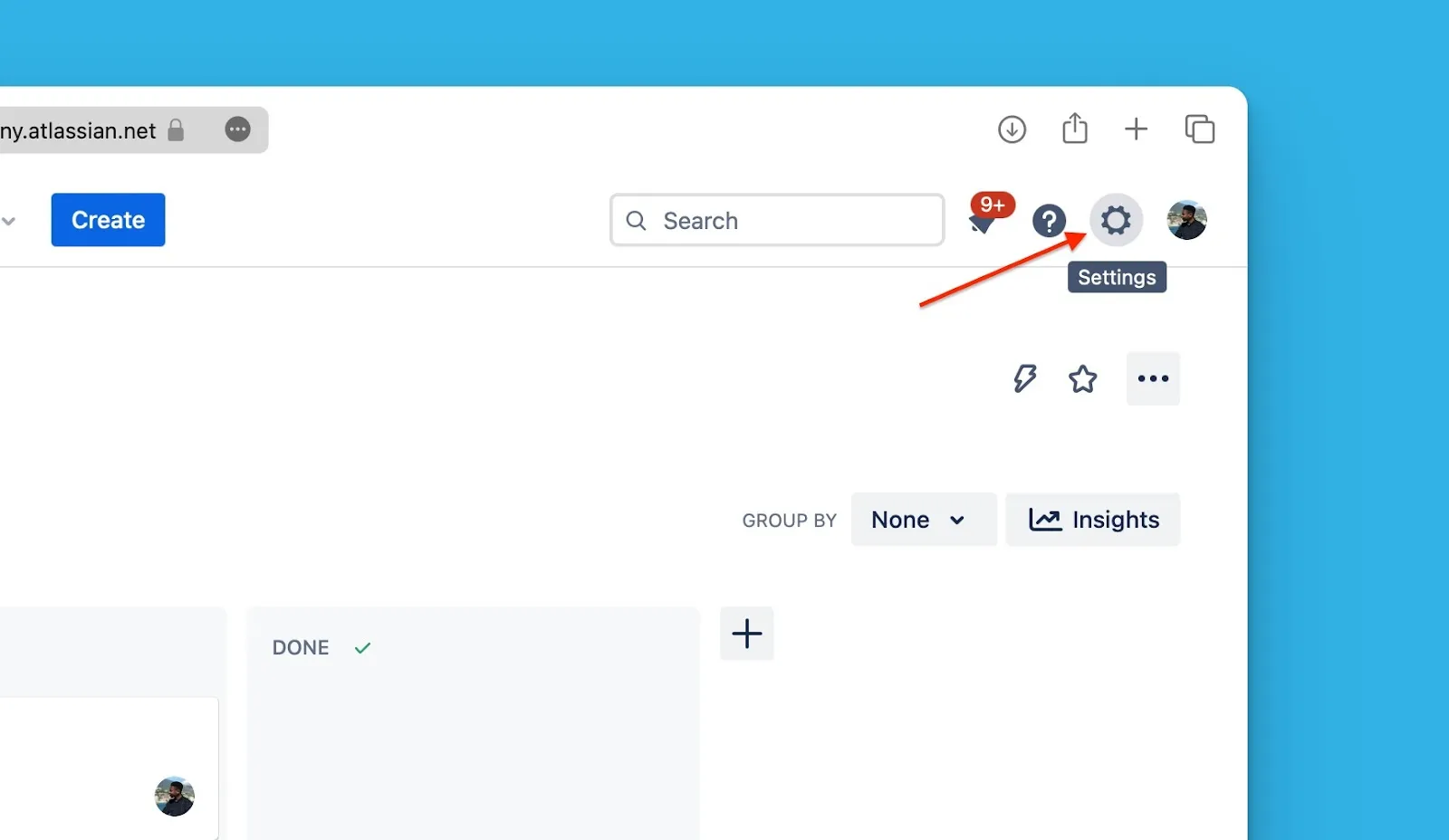
Click the Settings cogwheel.
-
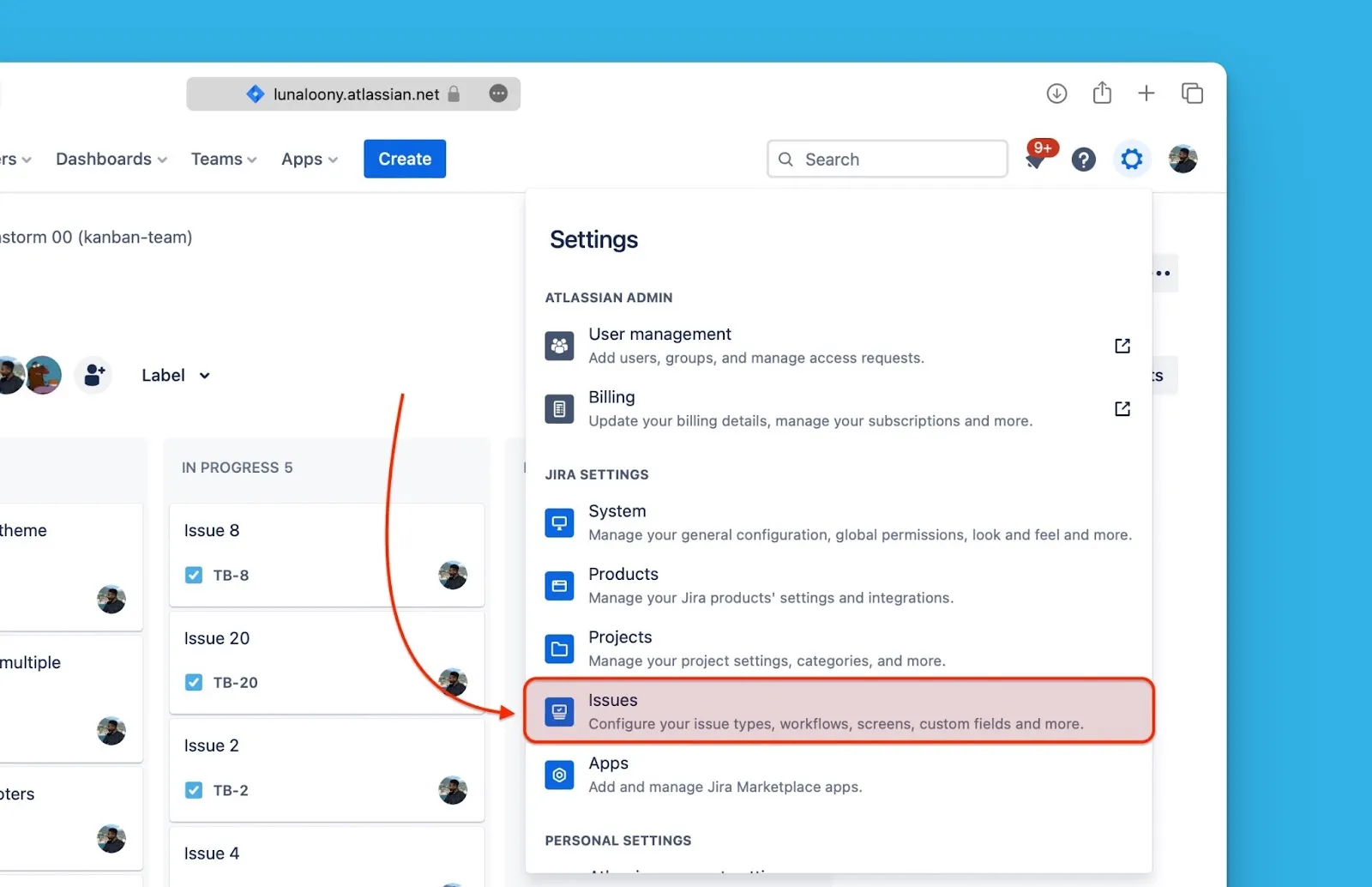
Select Issues from the dropdown menu.
-
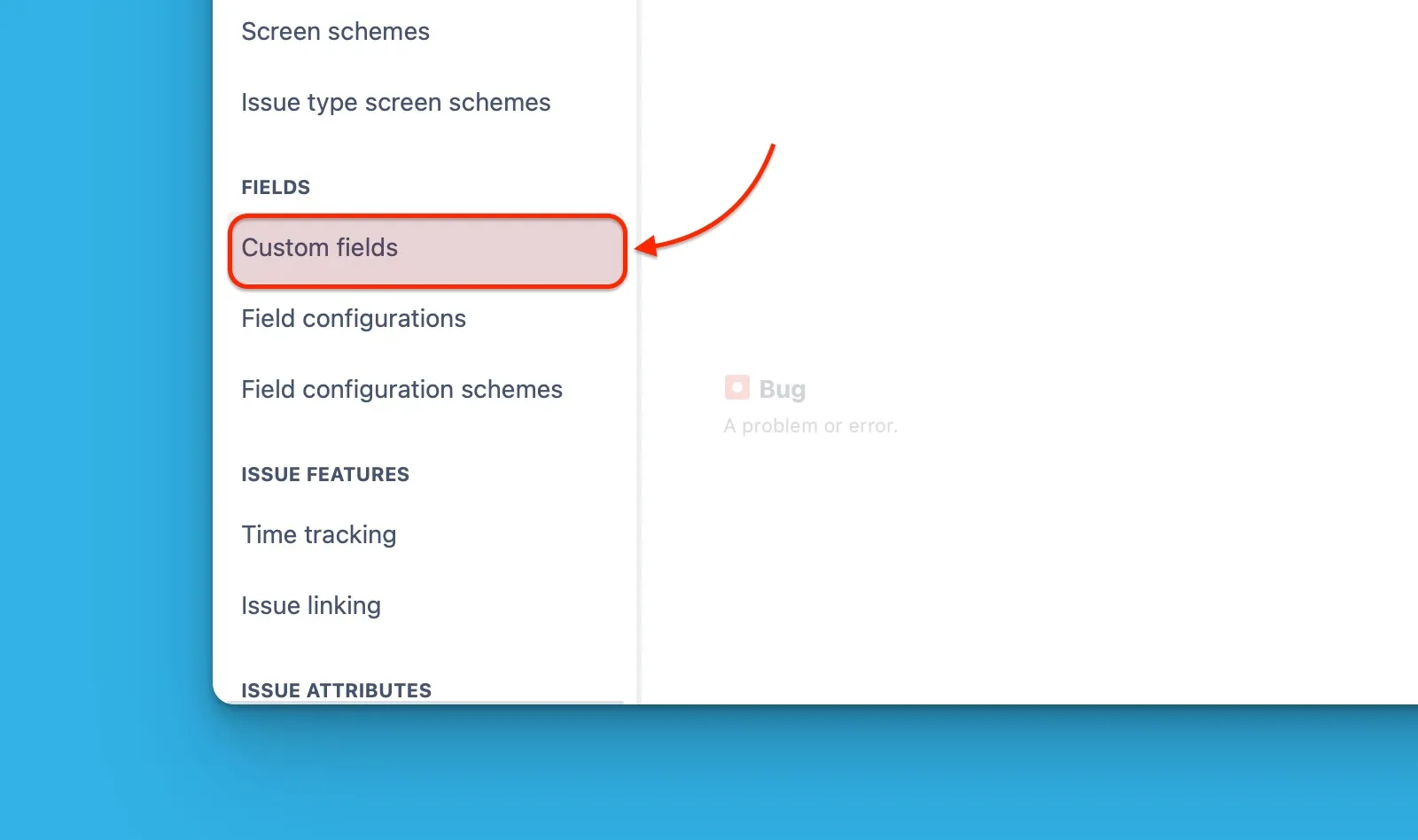
Select Custom Fields from the side menu.
-
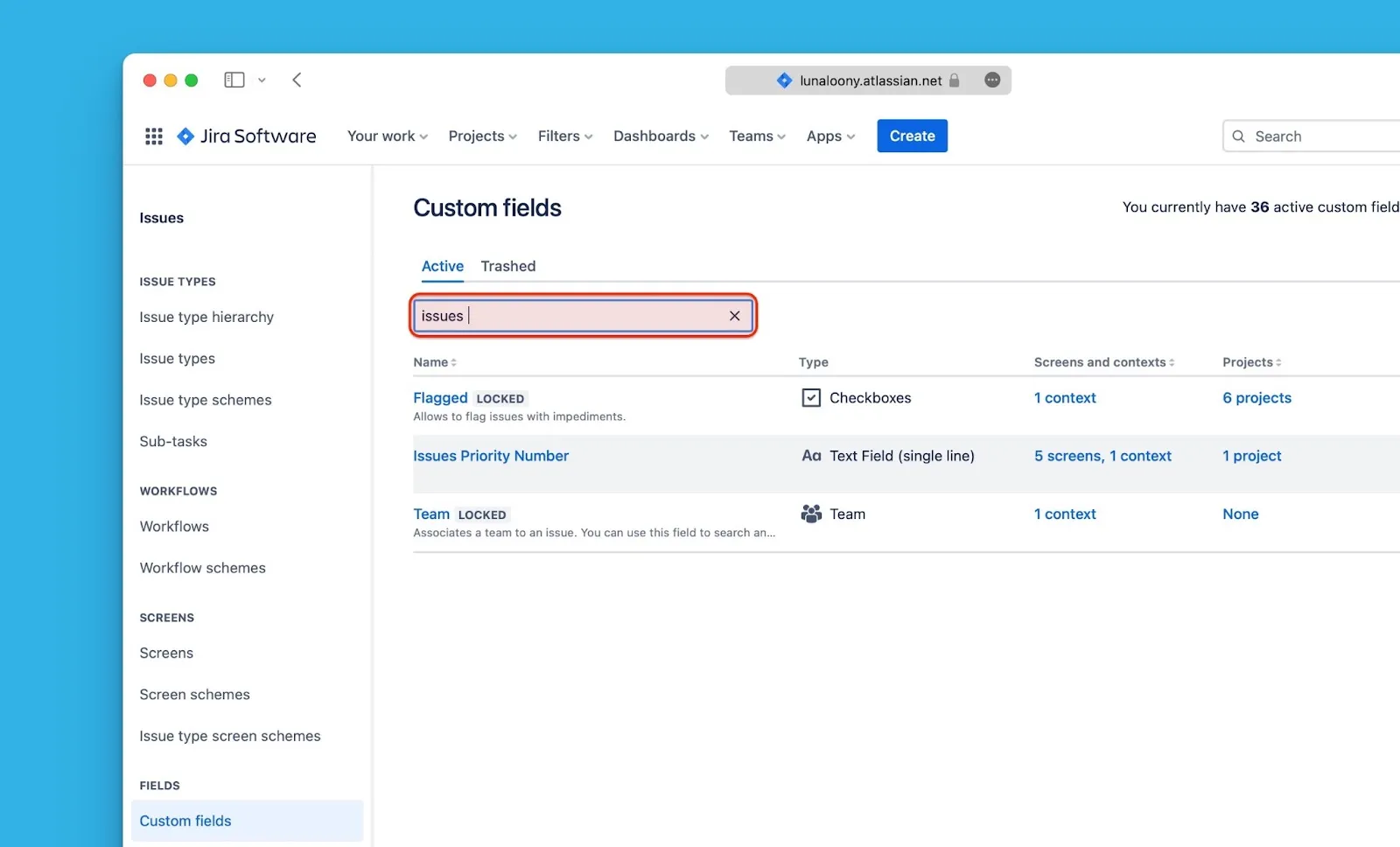
Find the custom field you want to use for Sync Back.
Rename the custom field
-
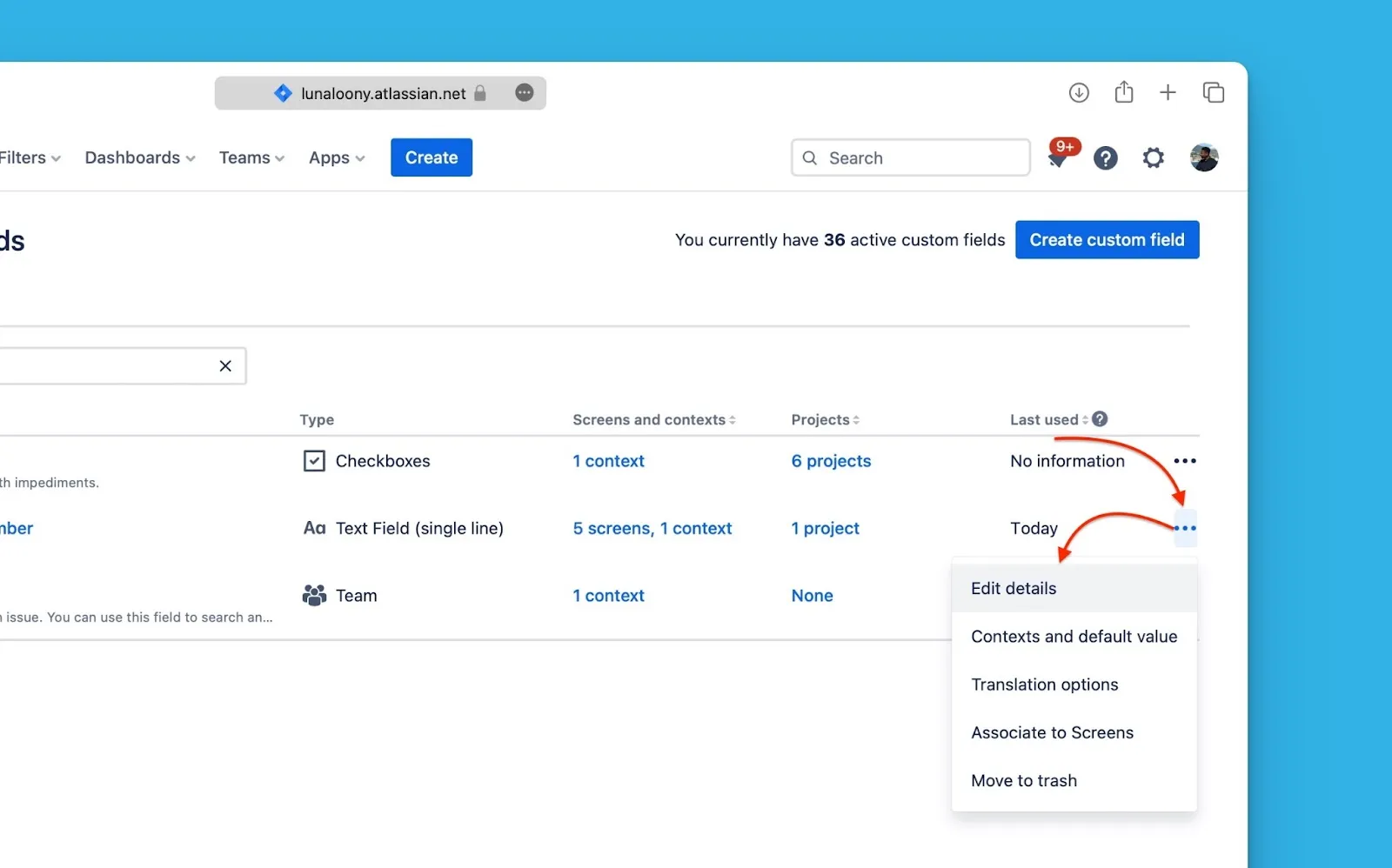
Click the ellipses (⋯) on the far right, then select Edit details.
-
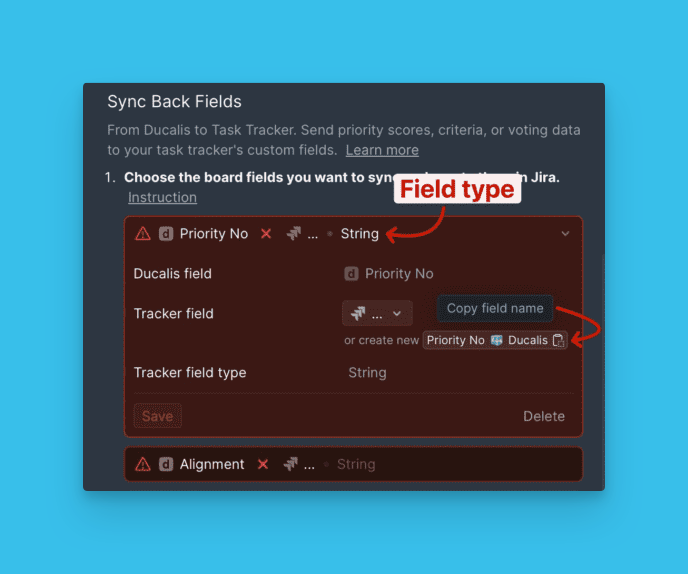
Go to Ducalis and copy the exact name of the field you want to sync.
-
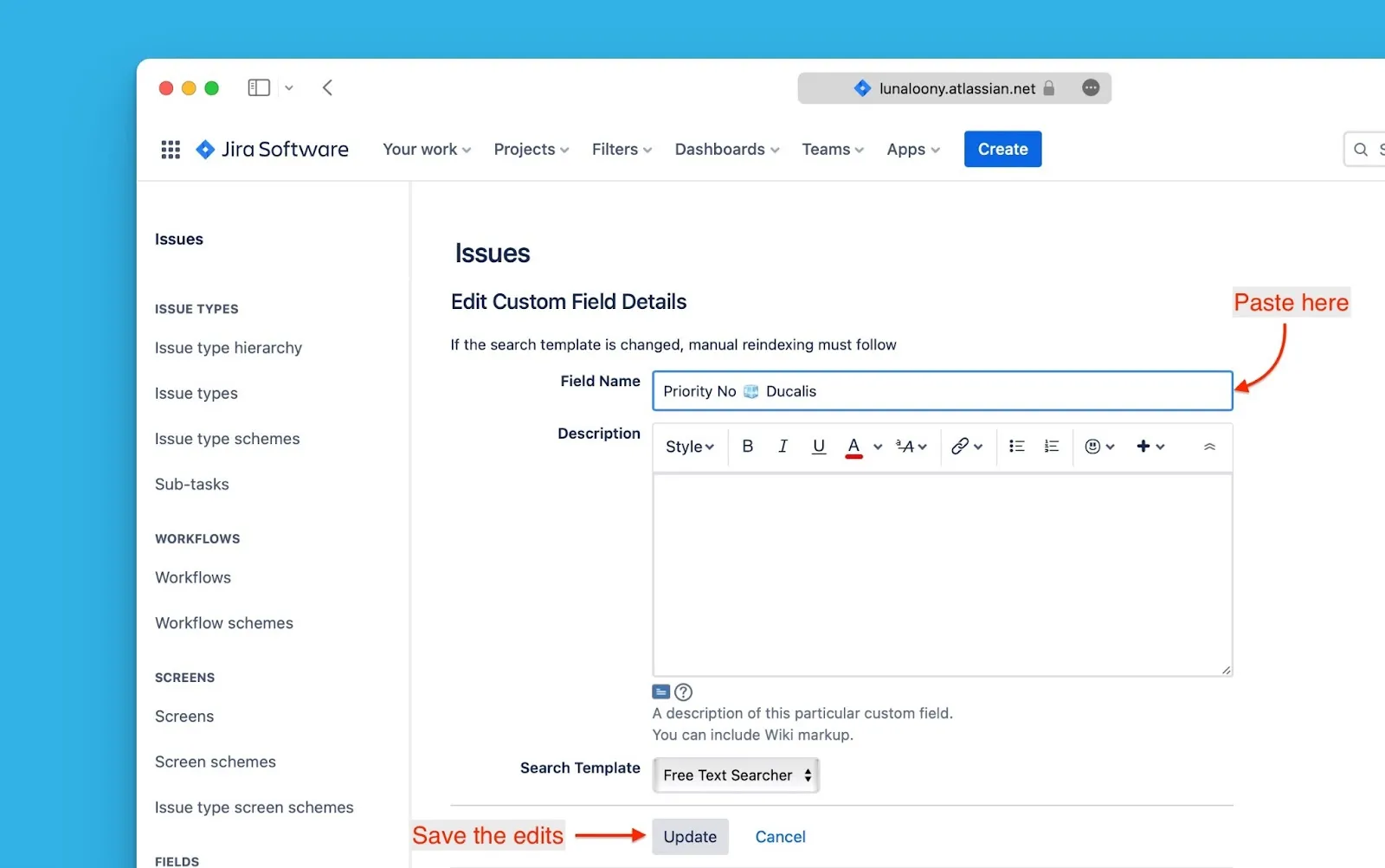
Paste the field name into the Name field in Jira Cloud. Fill in any other required details, then click Update.
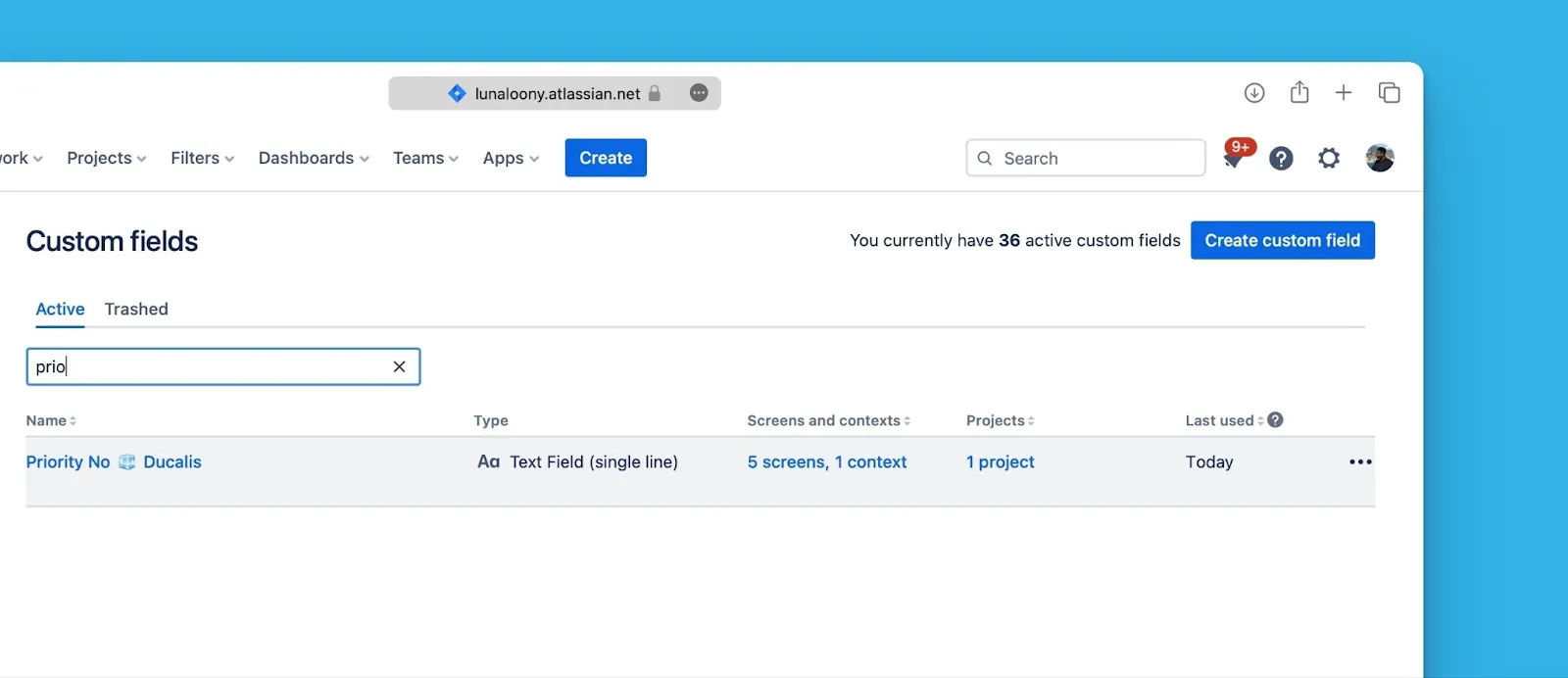
The field now appears with the updated name:
Activate Sync Back
-
Return to Ducalis and click Refresh to detect the renamed field.
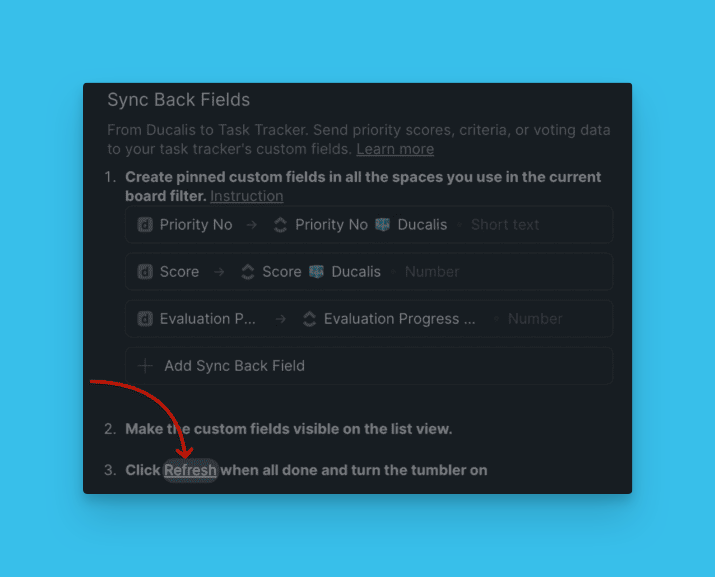
-
Toggle the switch to activate Sync Back.
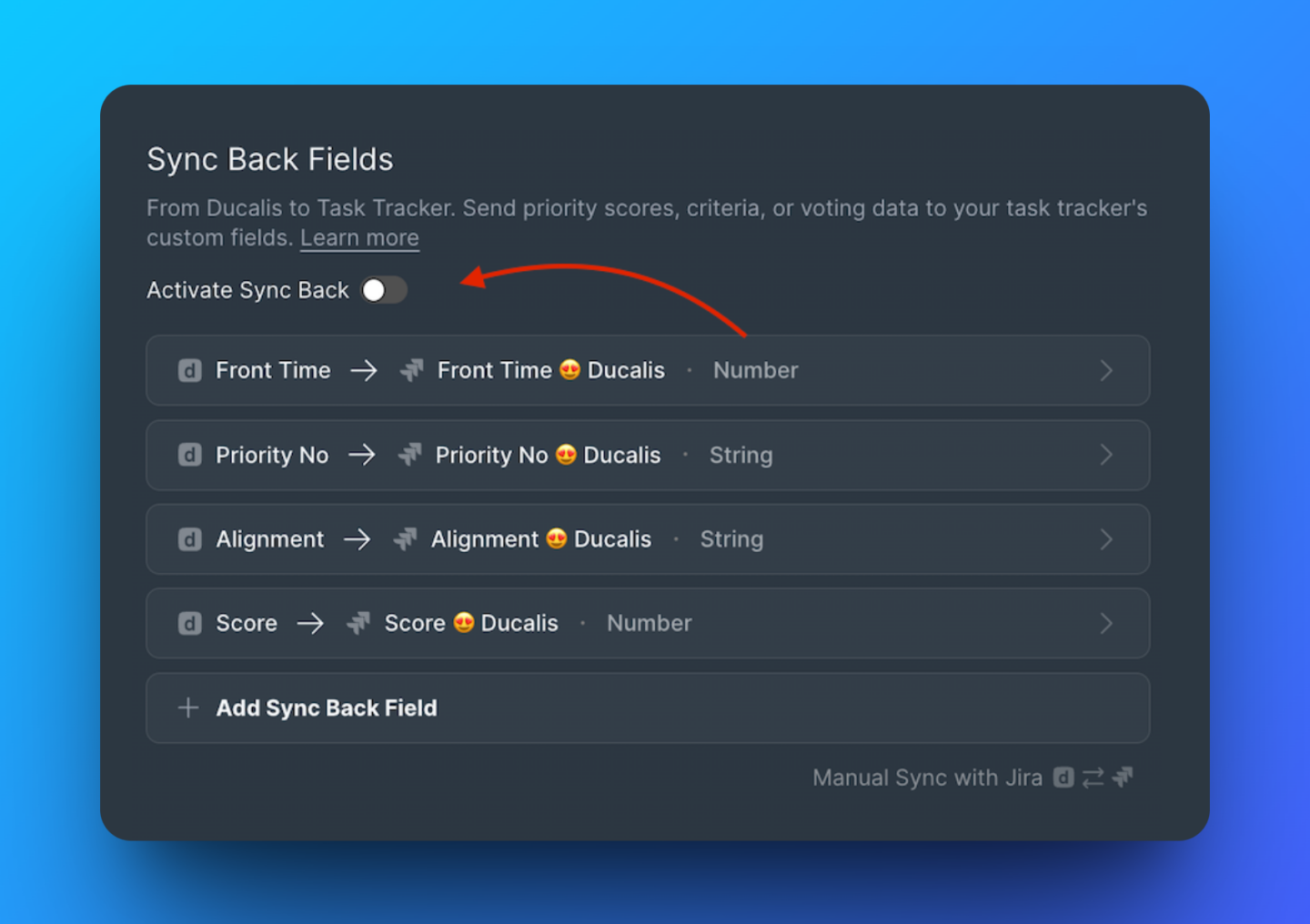
What's next
Learn more about 2-way sync setup in the 2-way sync overview.