Back Sync
After you connect Ducalis to Trello, you can sync issue rankings back to Trello custom fields. You can also auto-sort Trello cards by priority using Butler automation.
Activate 2-way sync
Enable bidirectional sync to push priority rankings from Ducalis back to Trello.
-
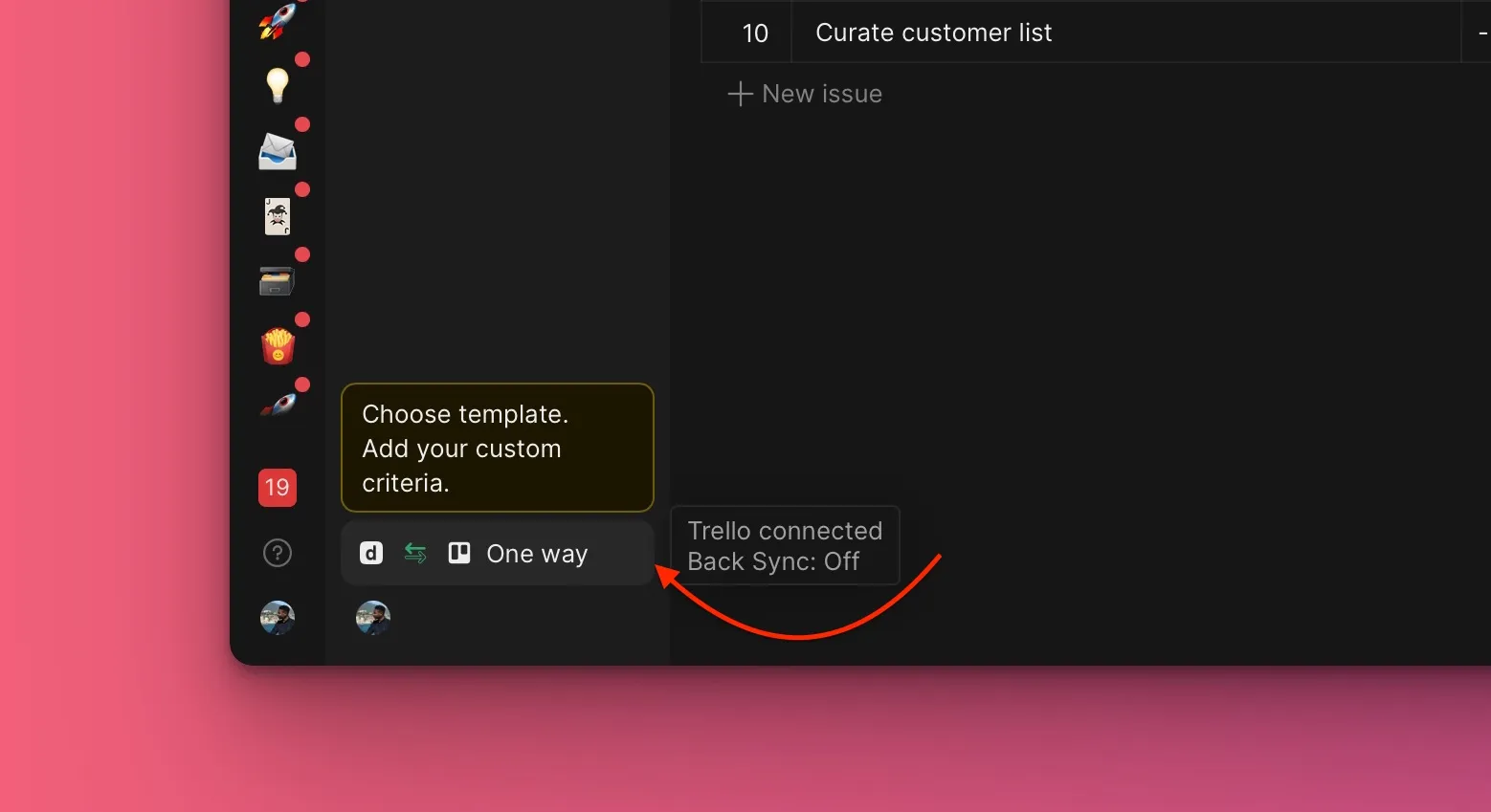
Go to Backlog Management settings.
-
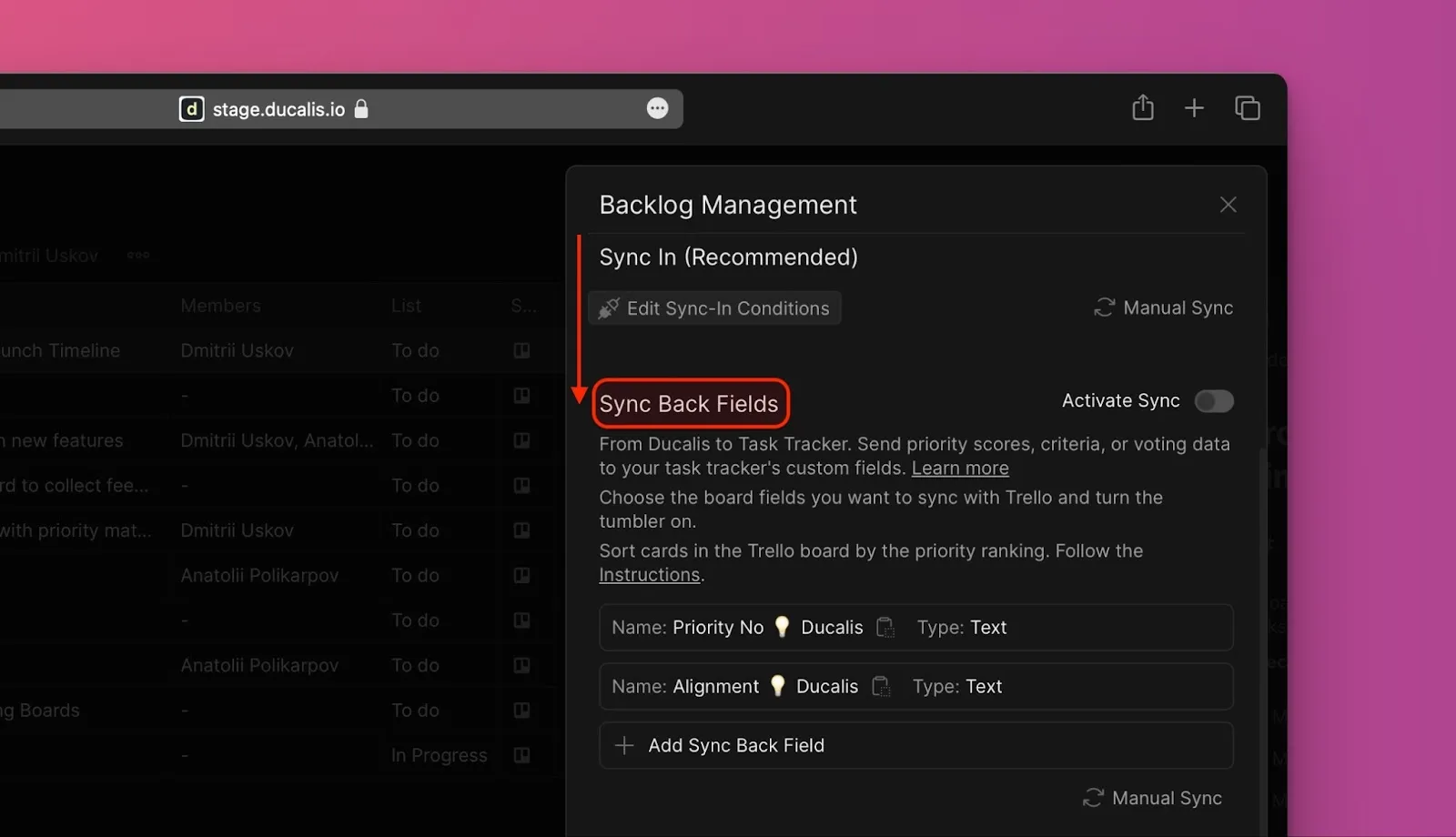
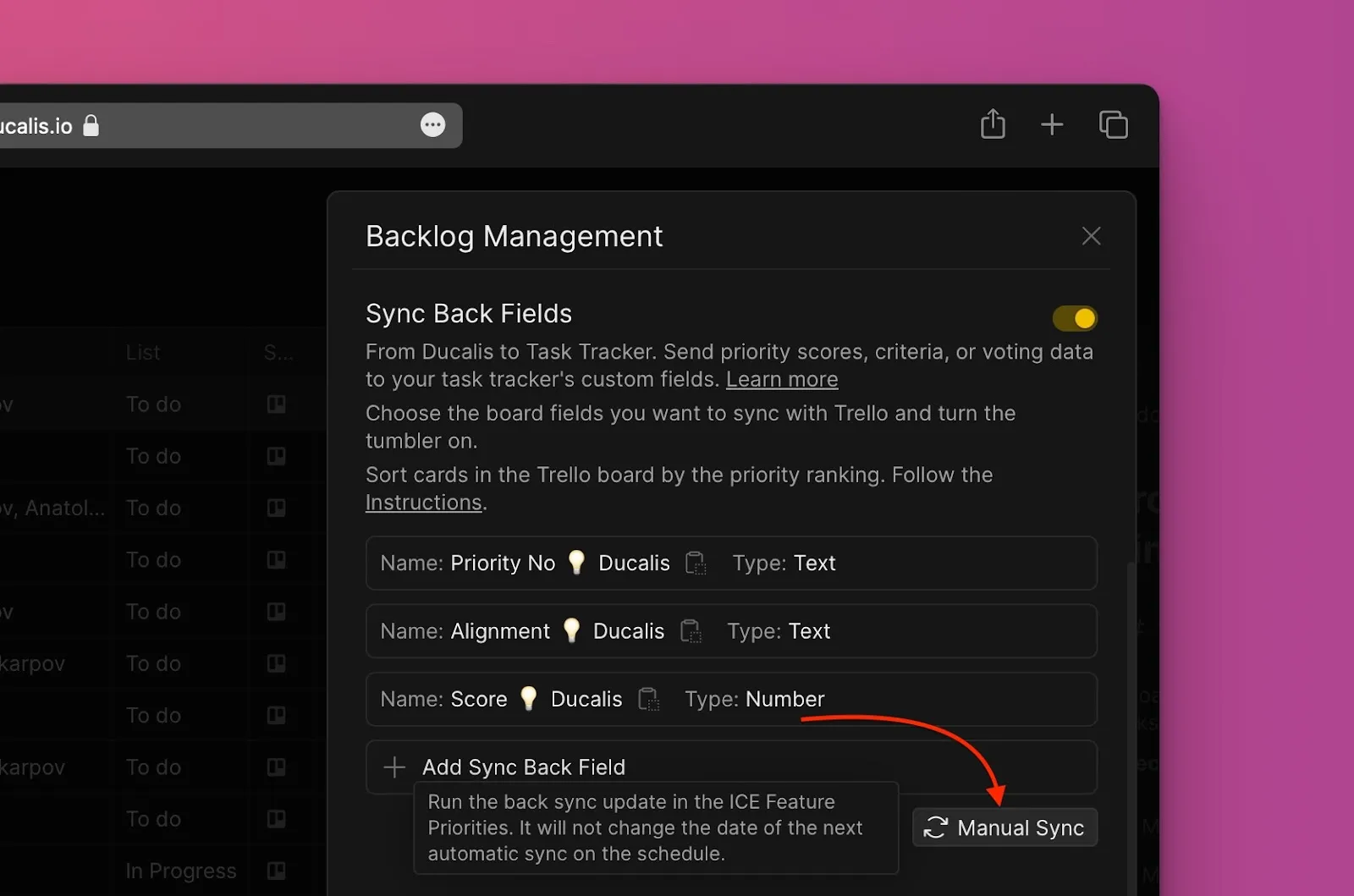
Scroll to Sync Back Fields.
-
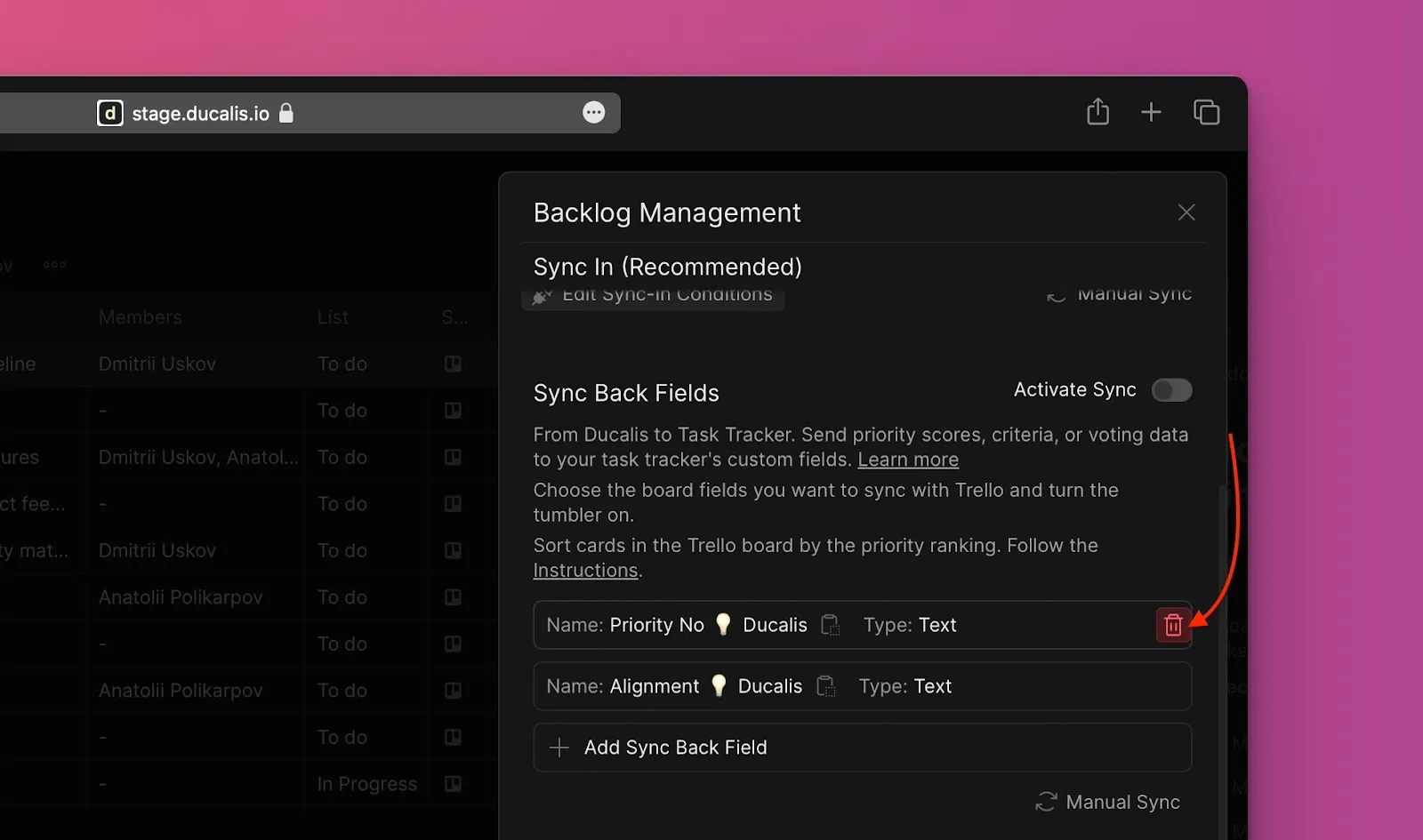
Remove default fields if you don't need them. Hover over Priority {emoji} Ducalis or Alignment {emoji} Ducalis and click the trash icon.
-
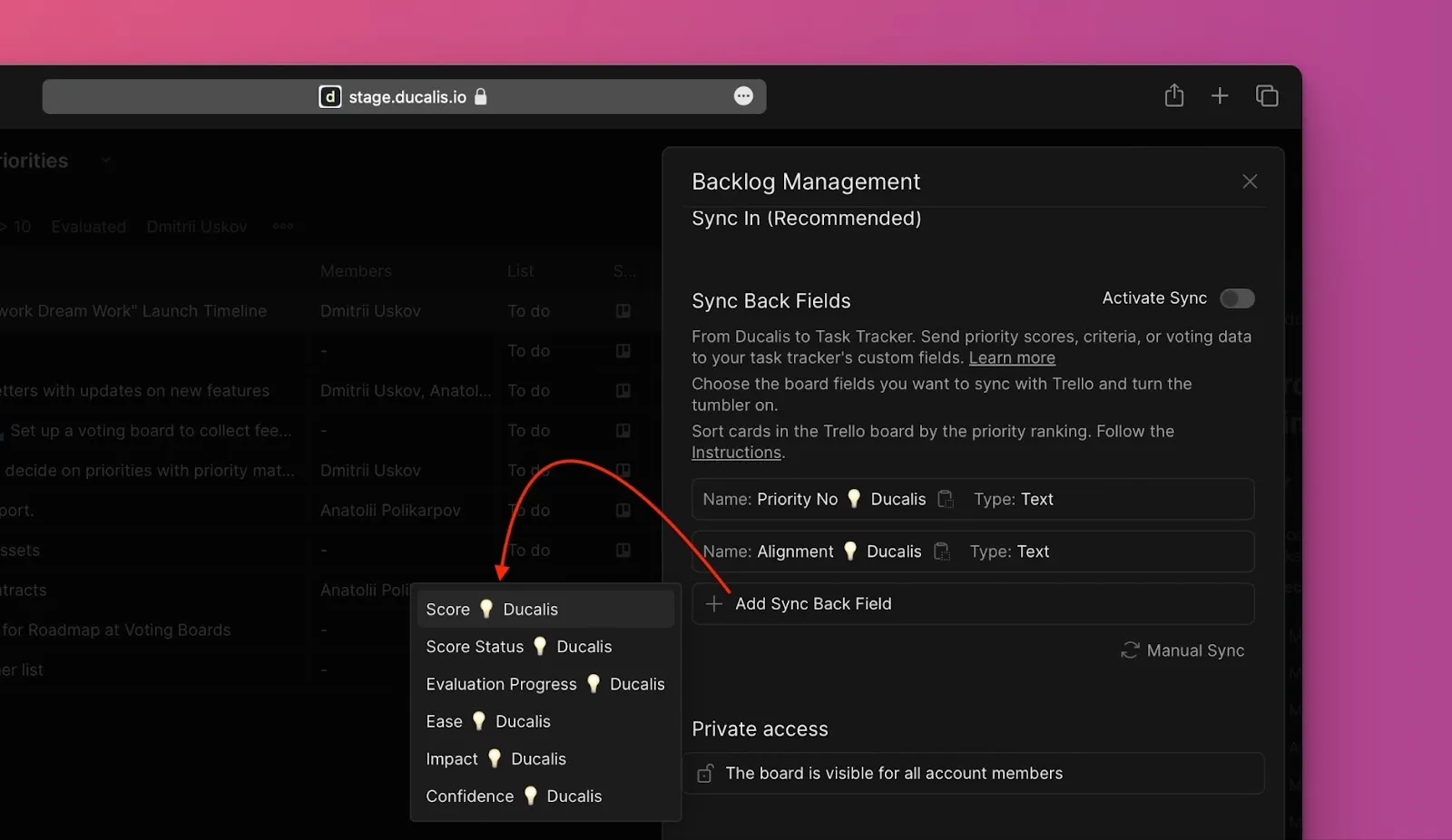
Click Add Sync Back Fields and select the fields you want to sync to Trello.
-
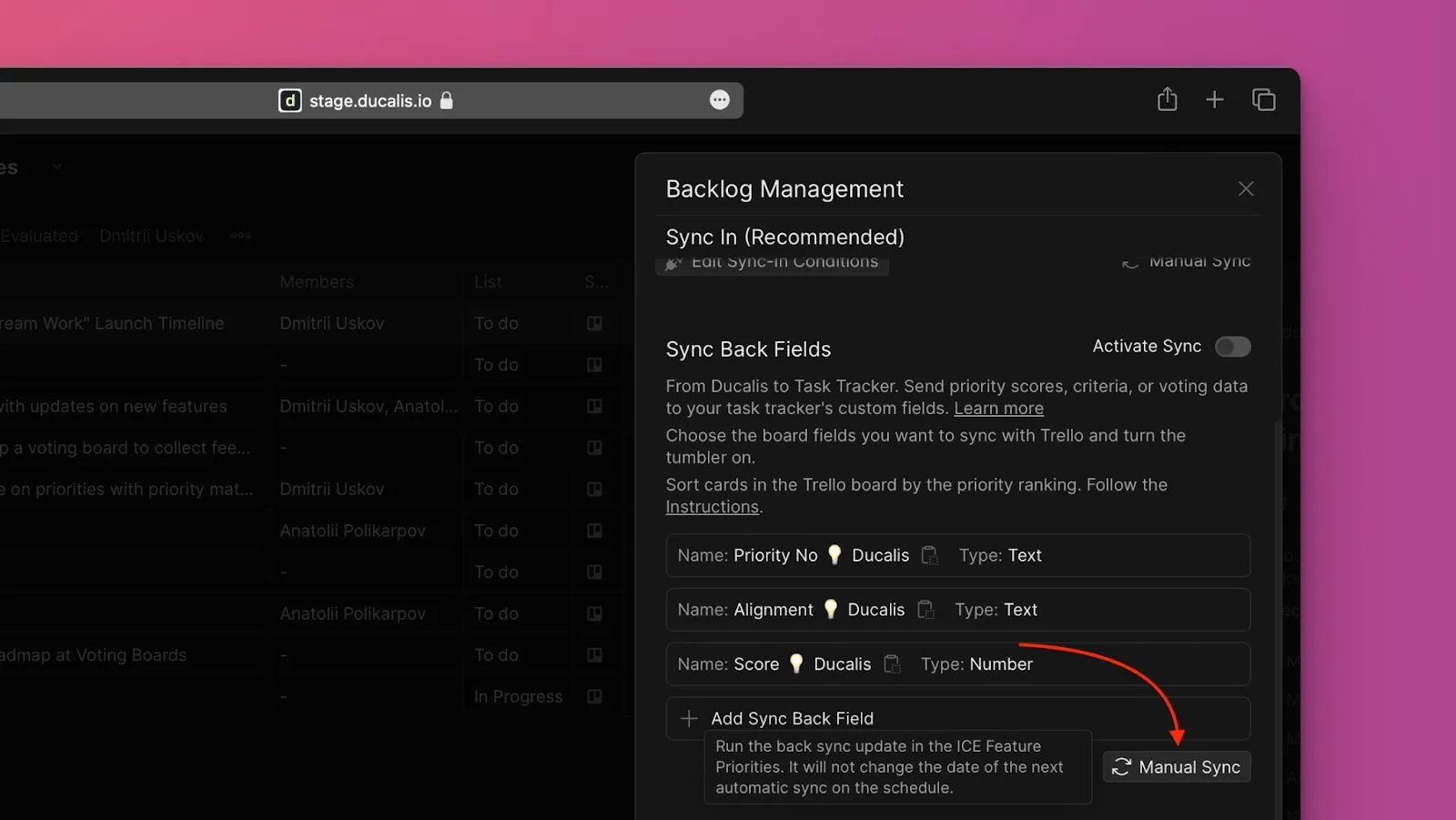
Click Manual Sync with Trello to refresh the field list.
-
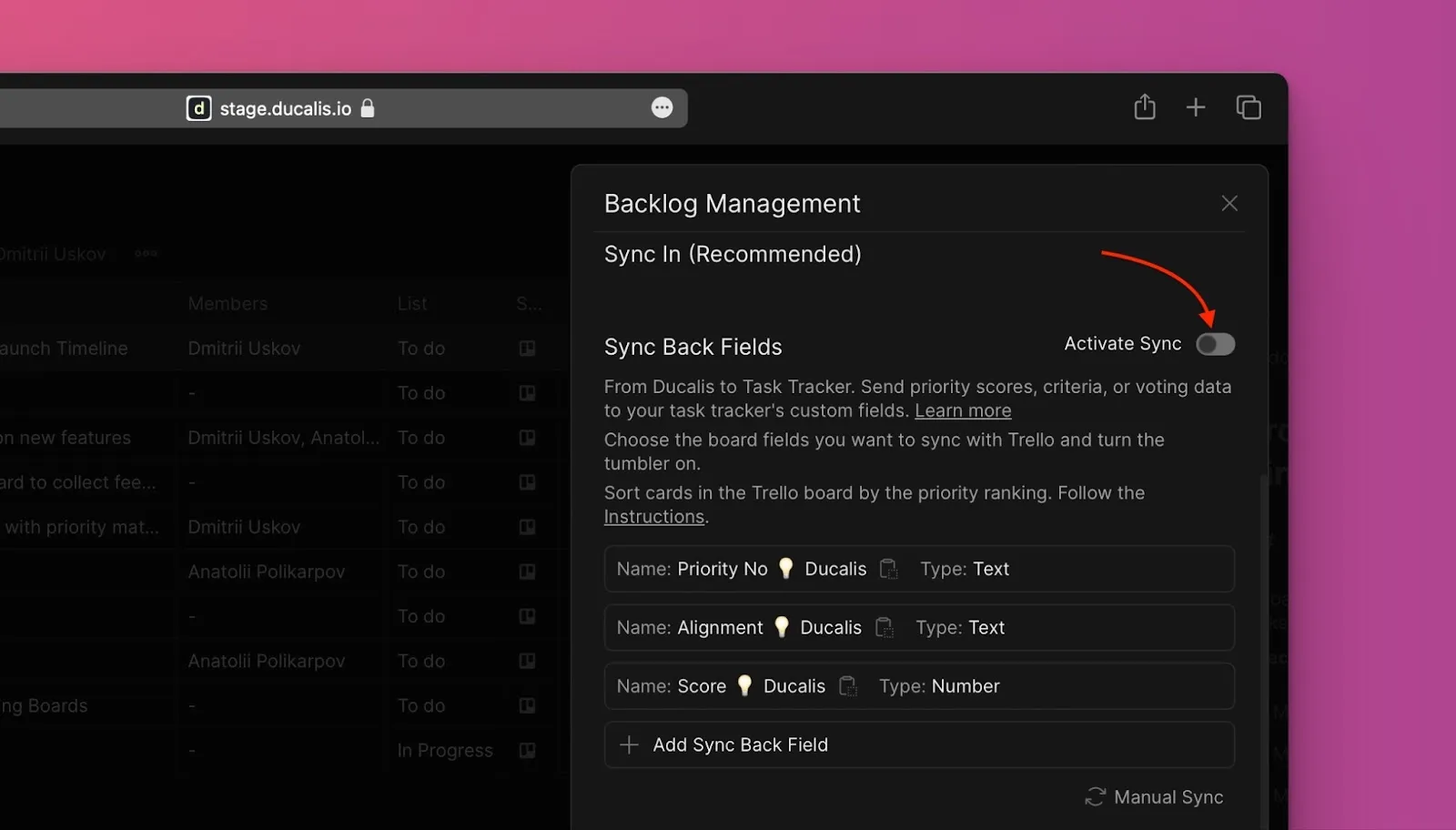
Enable the Activate Sync toggle.
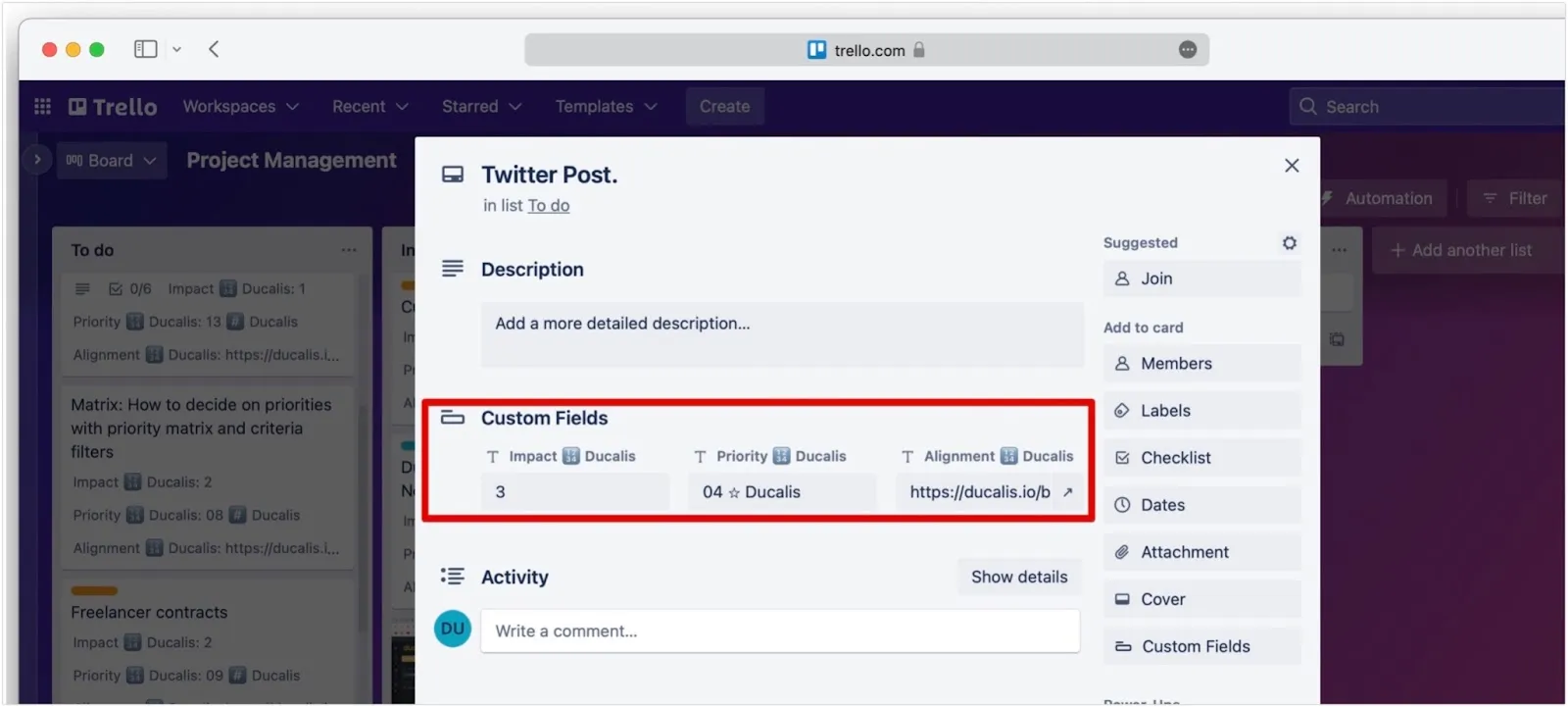
Custom fields are automatically created in your Trello board for all imported cards.
After enabling sync, you can't add more fields. To add fields, disable sync first, add your fields, then re-enable sync.
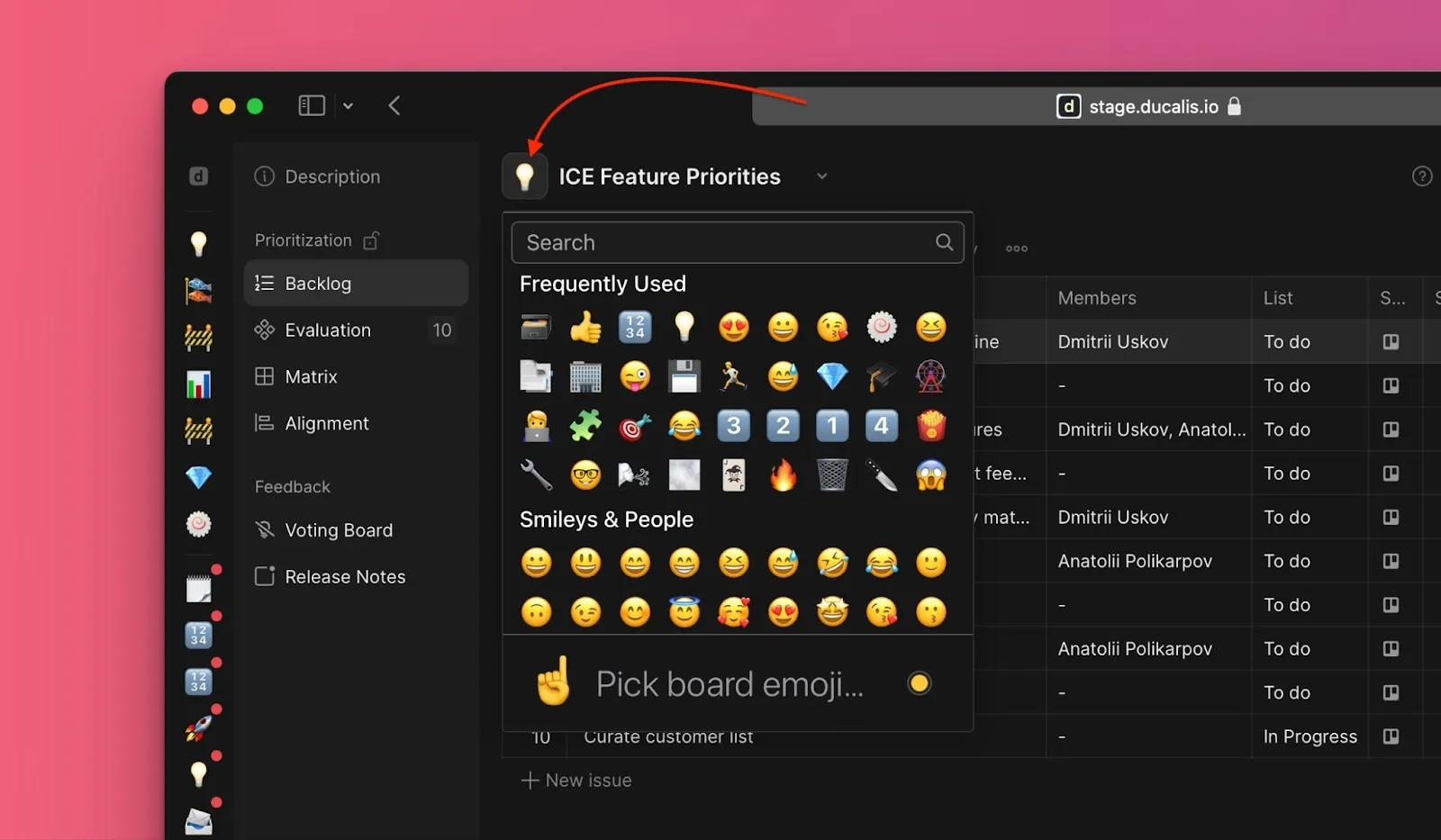
The emoji in custom field names is your Ducalis Board ID. If you change it, toggle sync off and on to apply the change.
Schedule sync
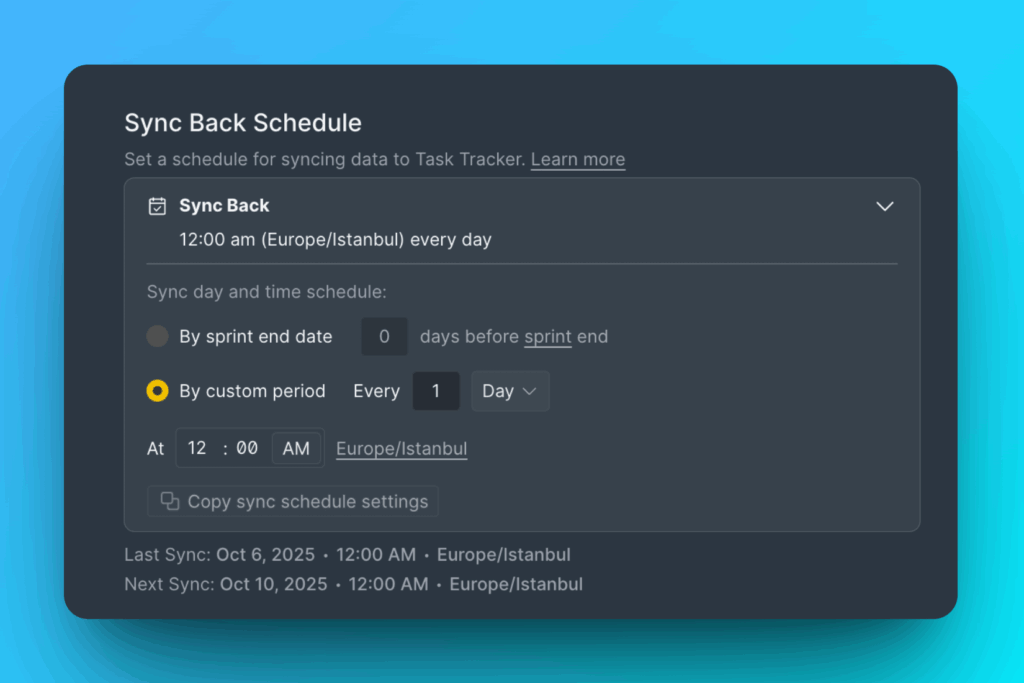
Choose when to sync priority rankings back to Trello—for example, before your sprint planning meeting.
-
Select a schedule option:
- By sprint end date - Syncs automatically when your sprint ends
- By custom period - Syncs on specific days and times you choose
-
To sync immediately instead, click Manual Sync with Trello.
Auto-sort cards with Butler
Use Trello's Butler automation to automatically sort cards by priority rankings synced from Ducalis.
-
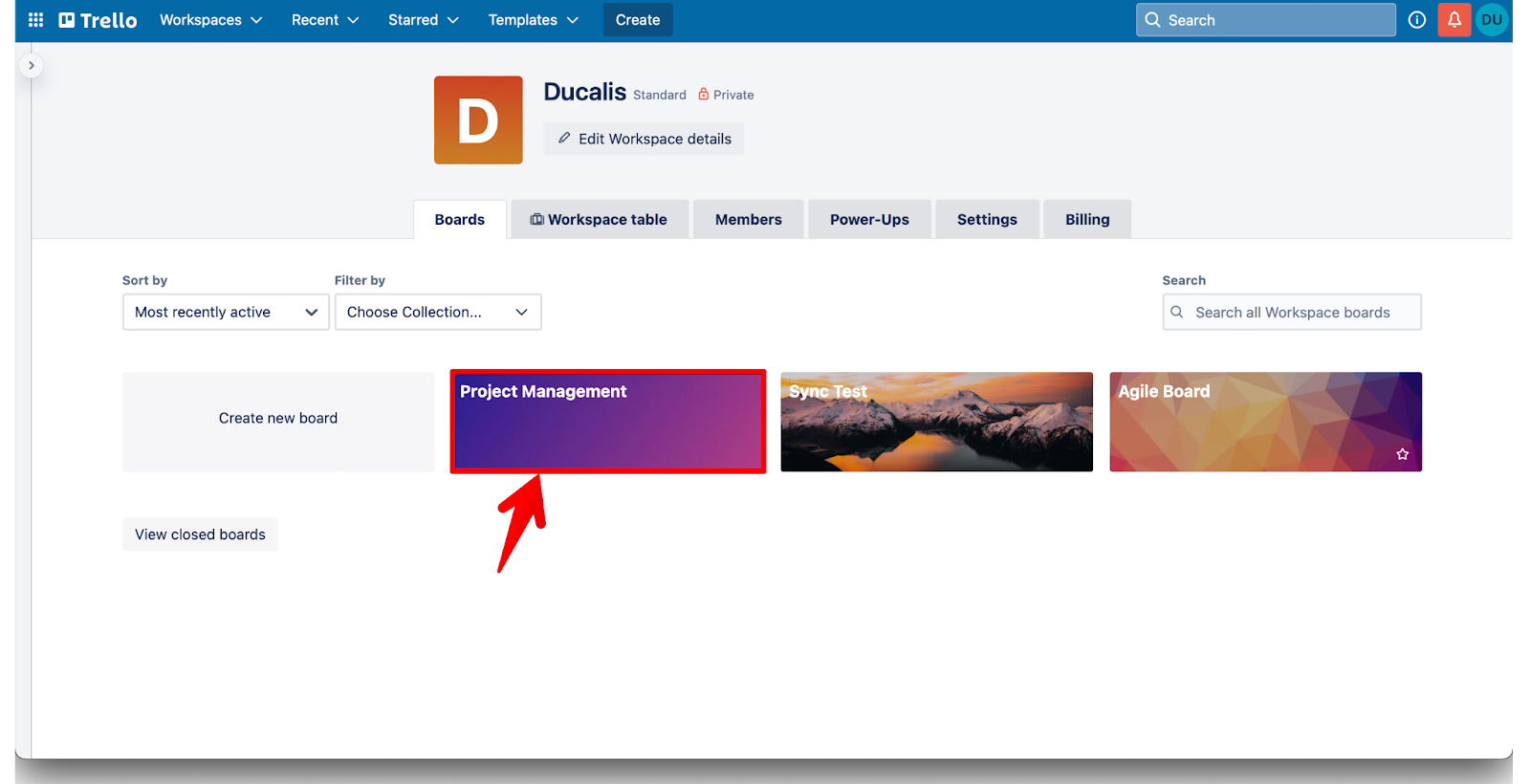
Go to your Trello board.
-
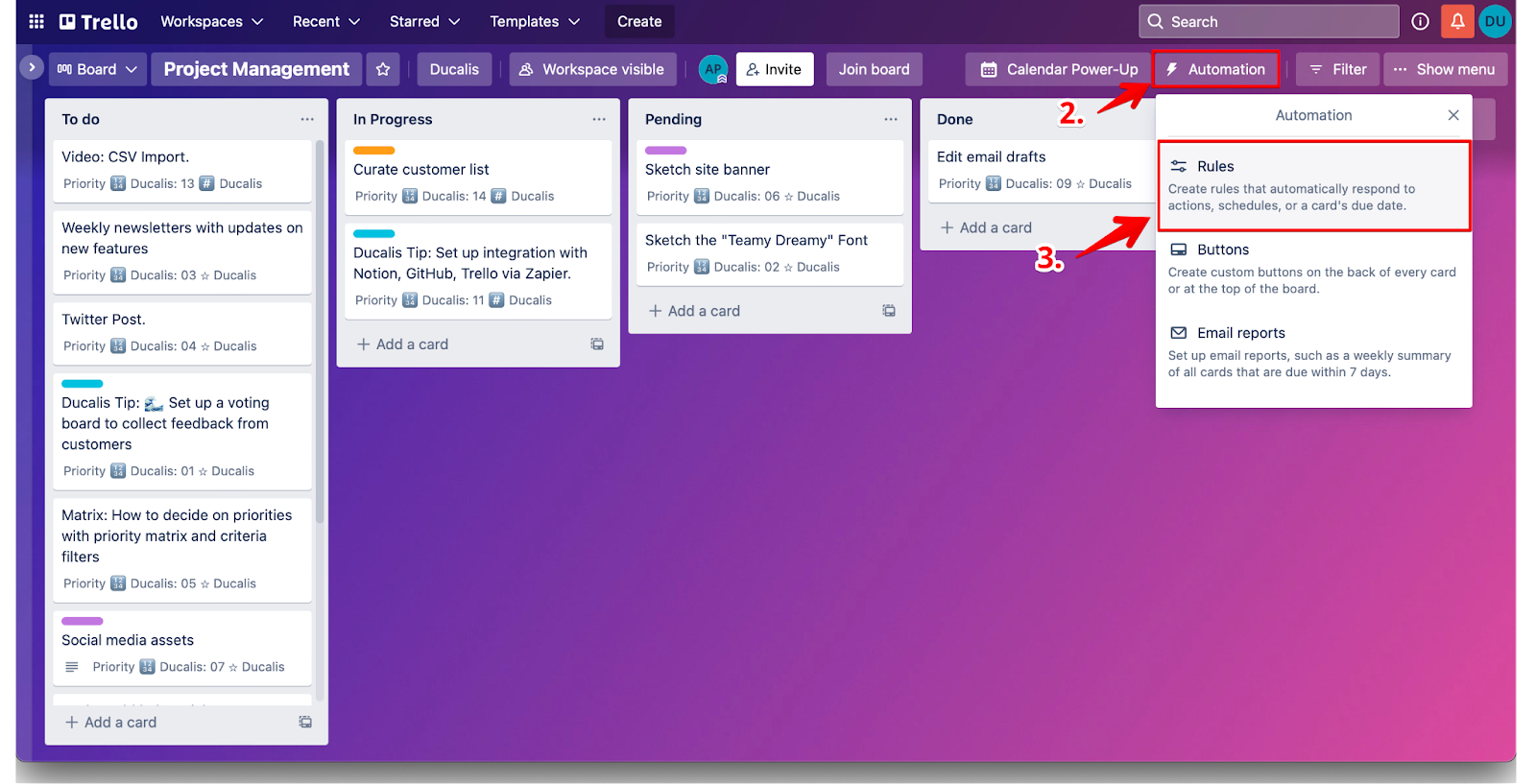
Click Automation in the top menu.
-
Select Rules from the dropdown.
-
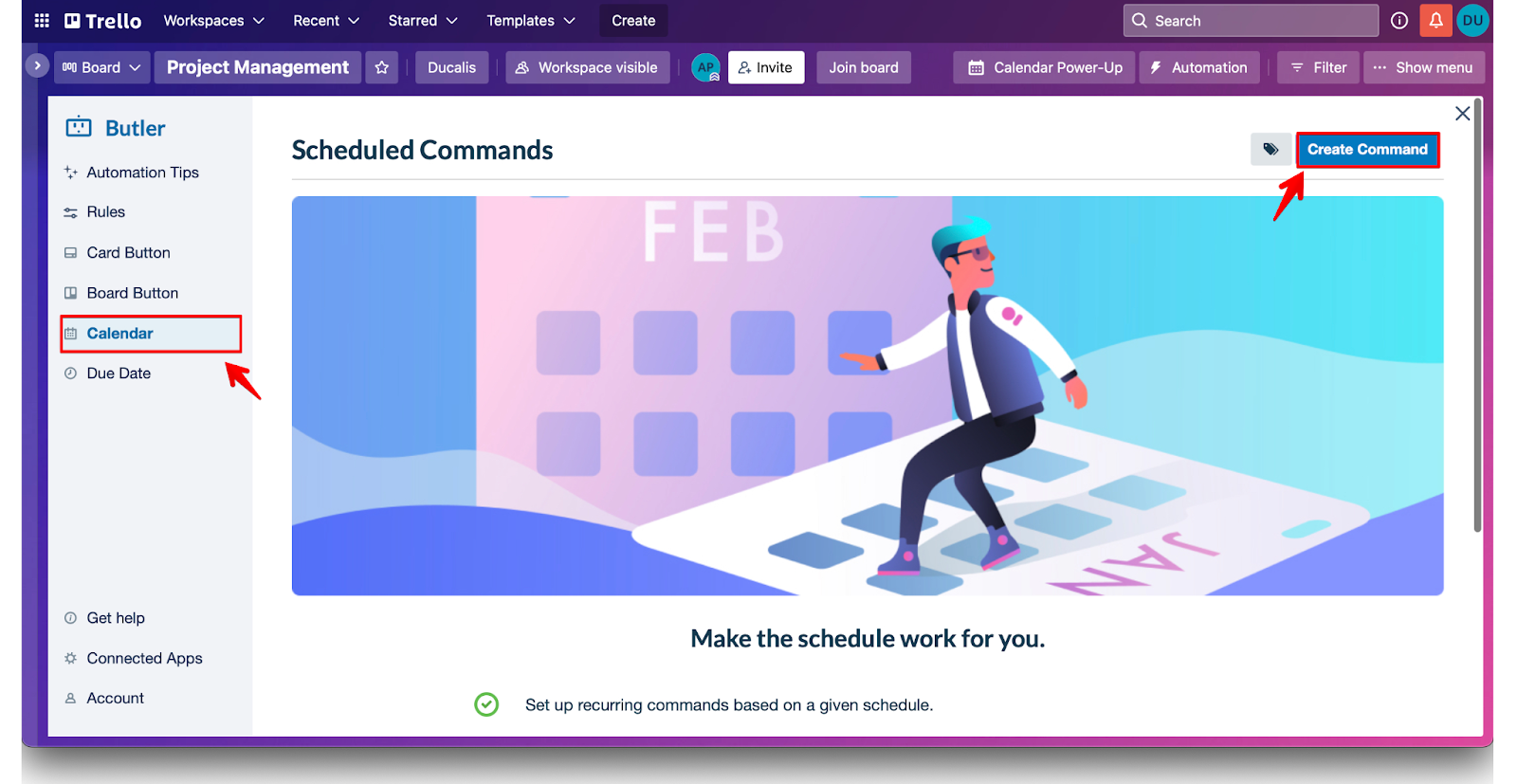
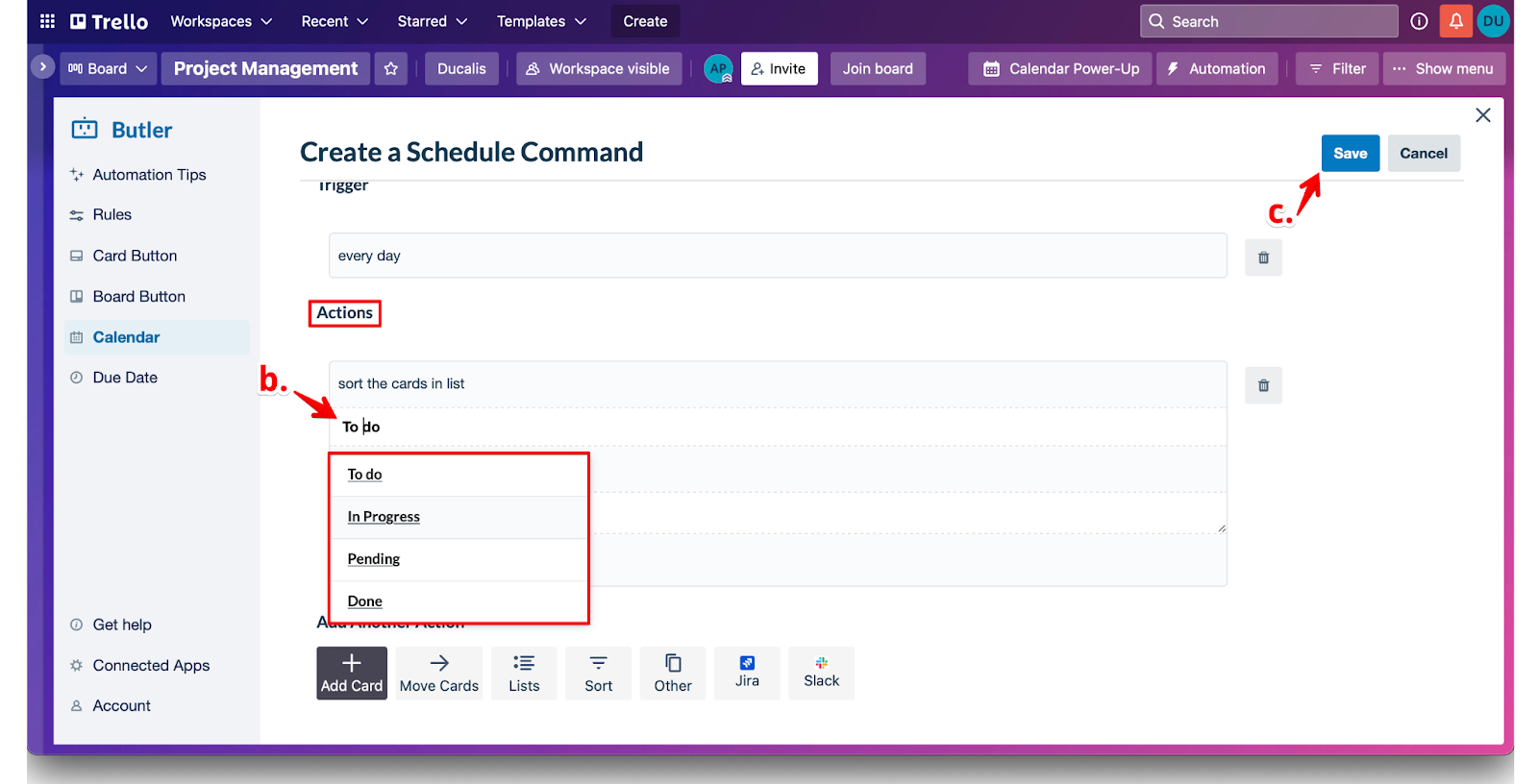
Click Calendar in the left sidebar, then click Create Command.
-
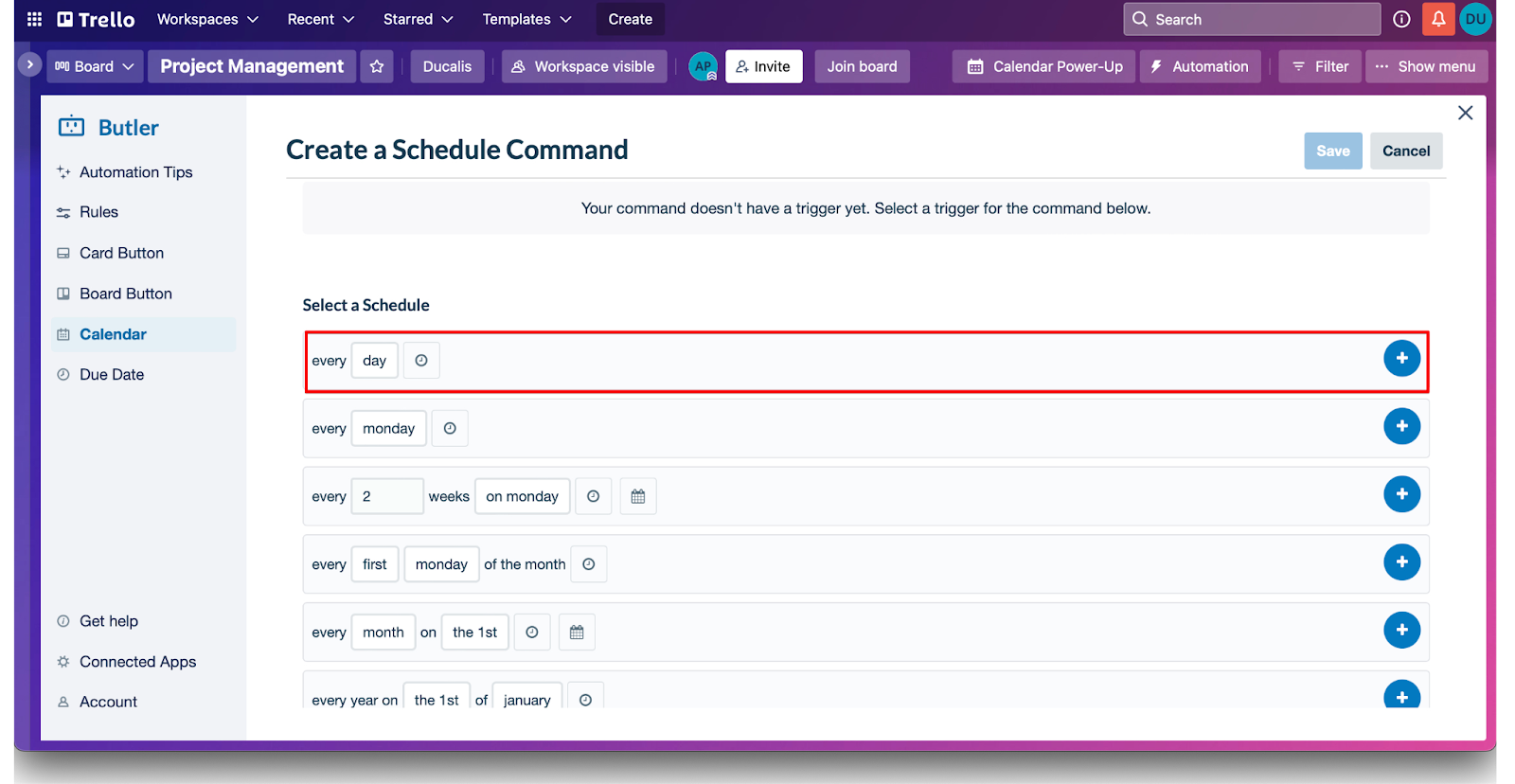
Set when cards should be sorted. Choose a schedule like:
- Every day
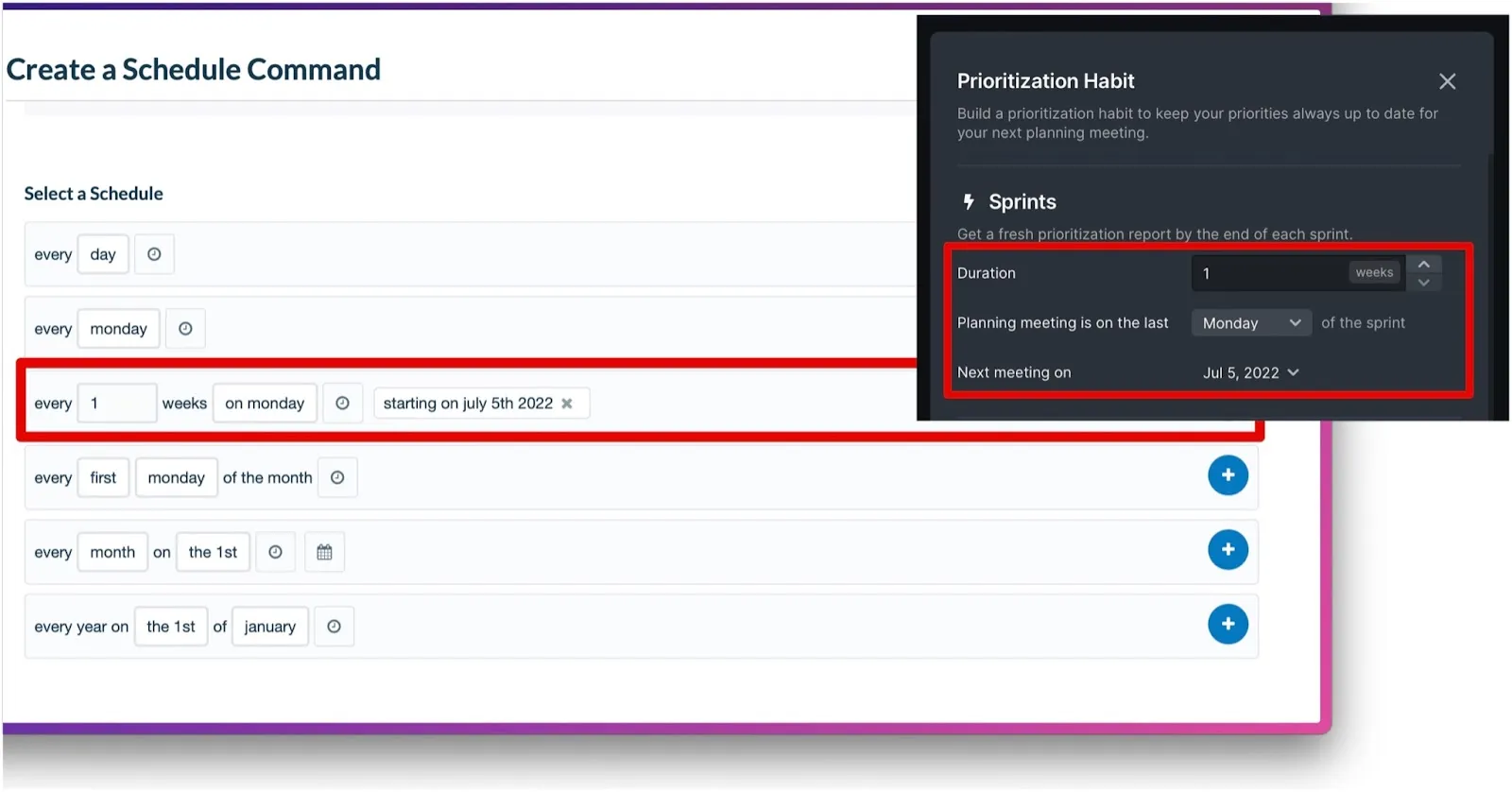
- Or match your Ducalis sprint schedule (e.g., every Friday)
- Every day
-
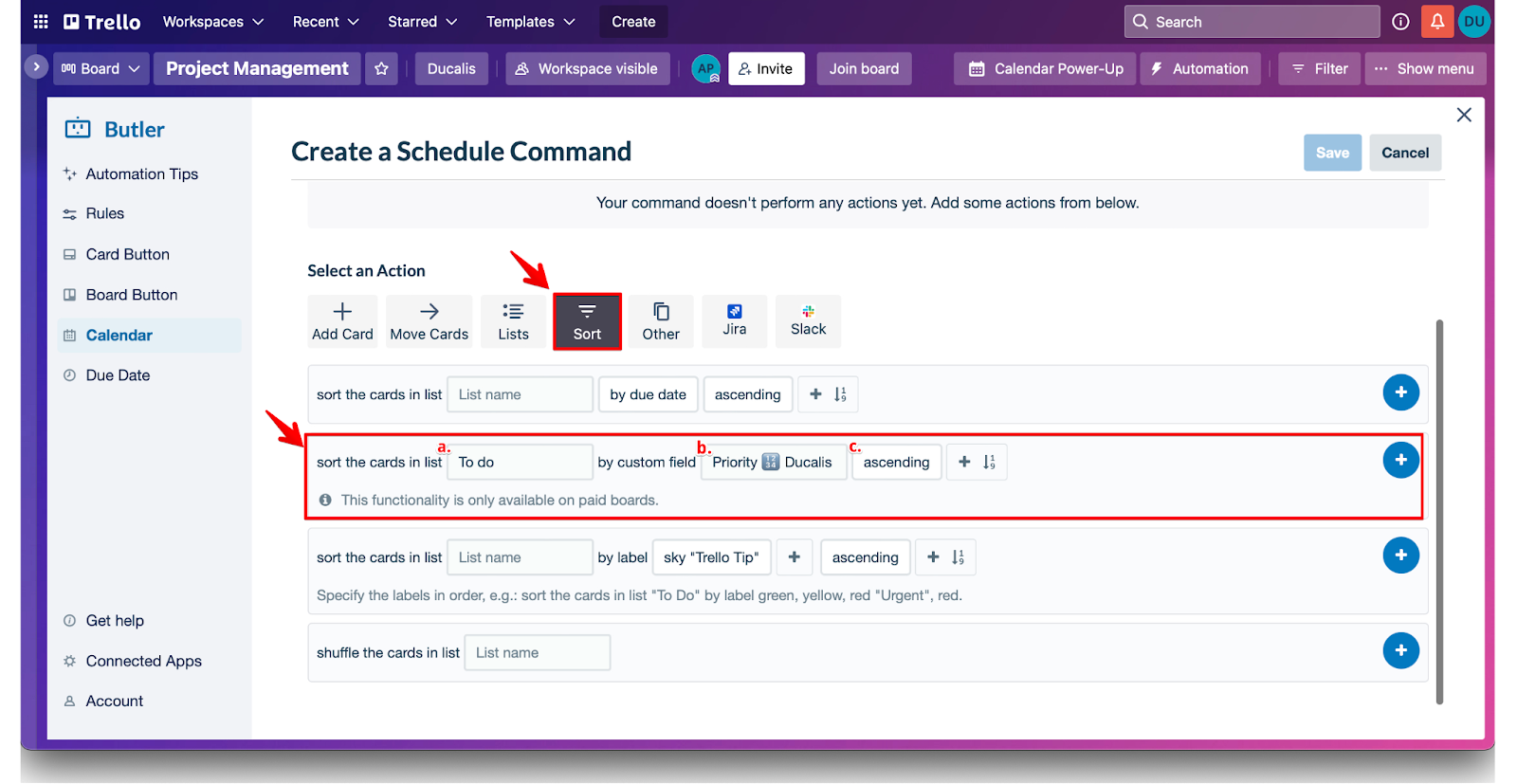
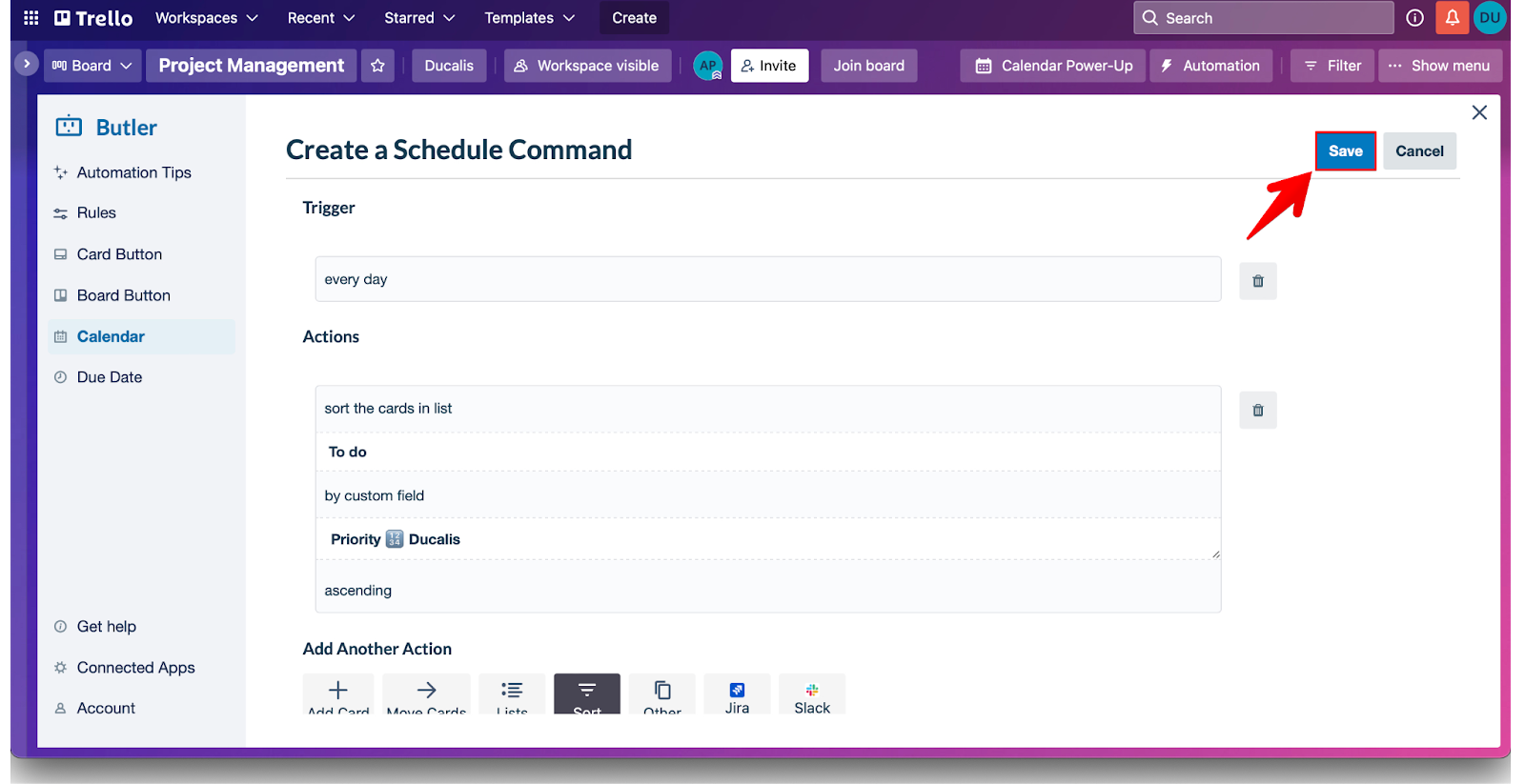
Configure the sort action:
- Select Sort as the action
- Choose the list name to sort
- Select the Ducalis custom field (e.g., Priority Ducalis)
- Set sort order to ascending
- Click + to add the action
-
Click Save.
-
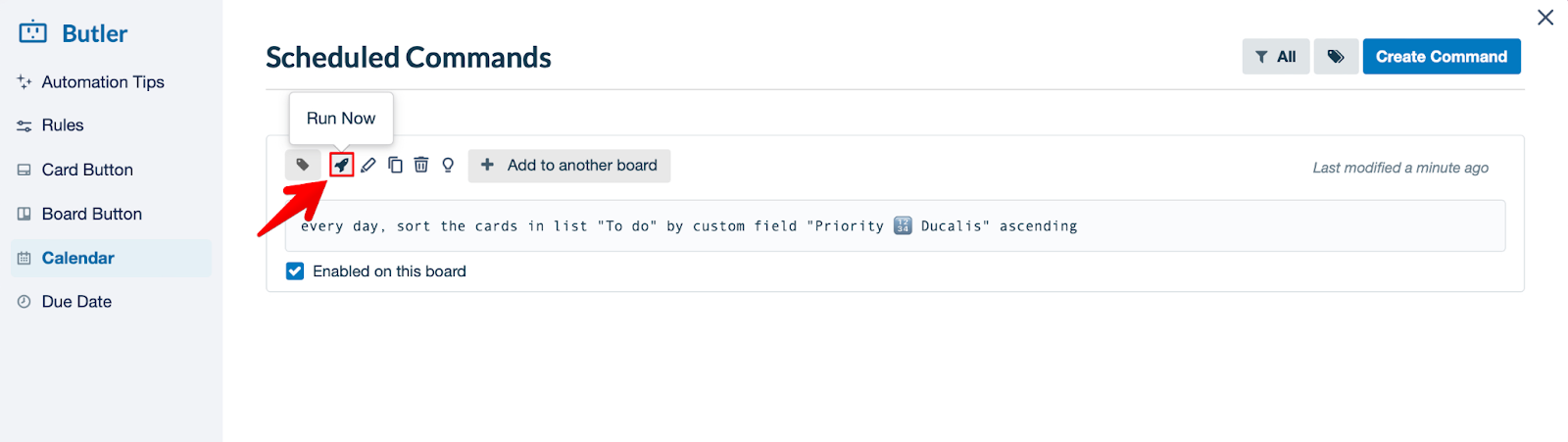
Test the automation to verify it works correctly.
-
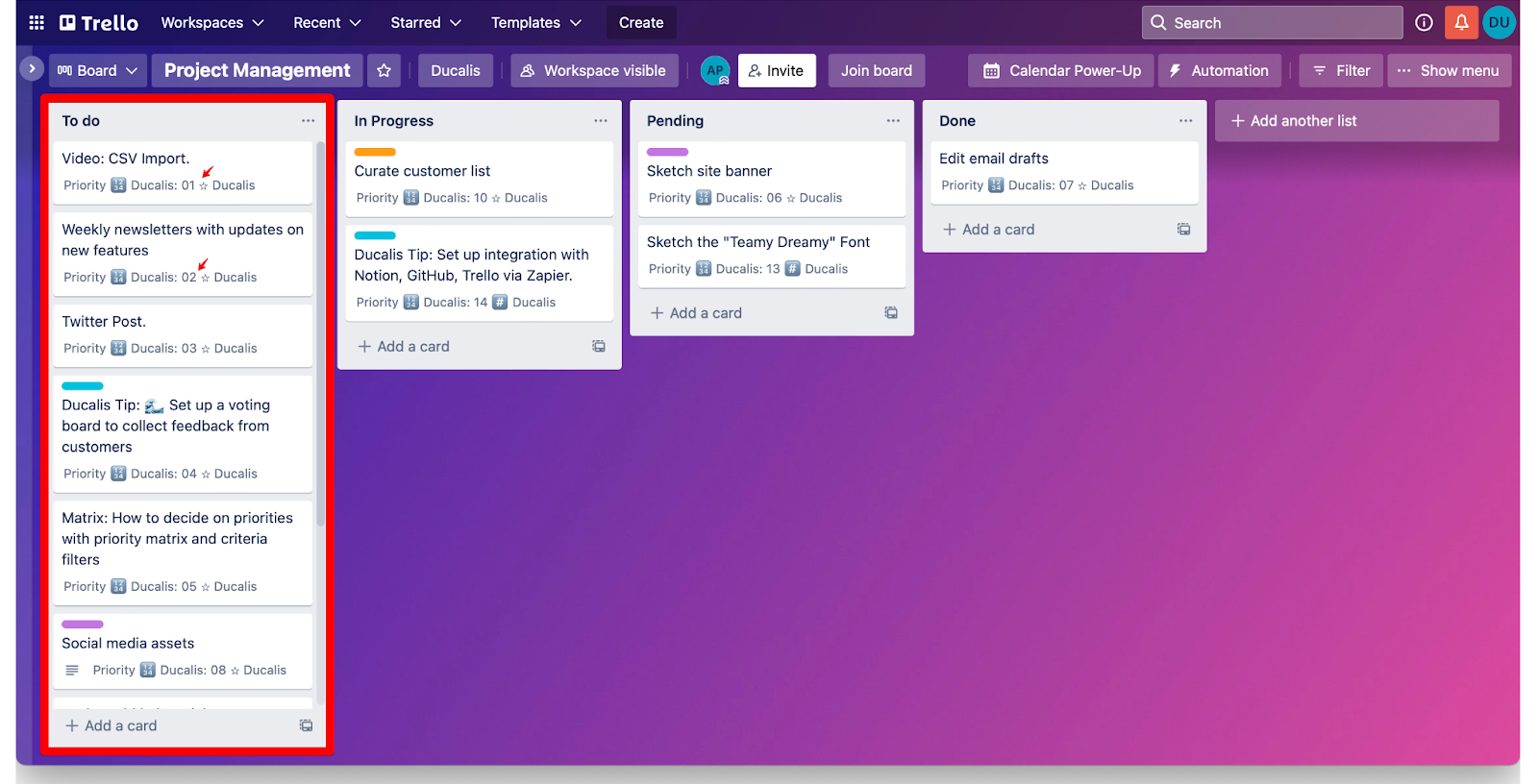
Cards are now sorted by priority ranking.
Apply automation to other lists
Copy the automation to other lists in the same board.
-
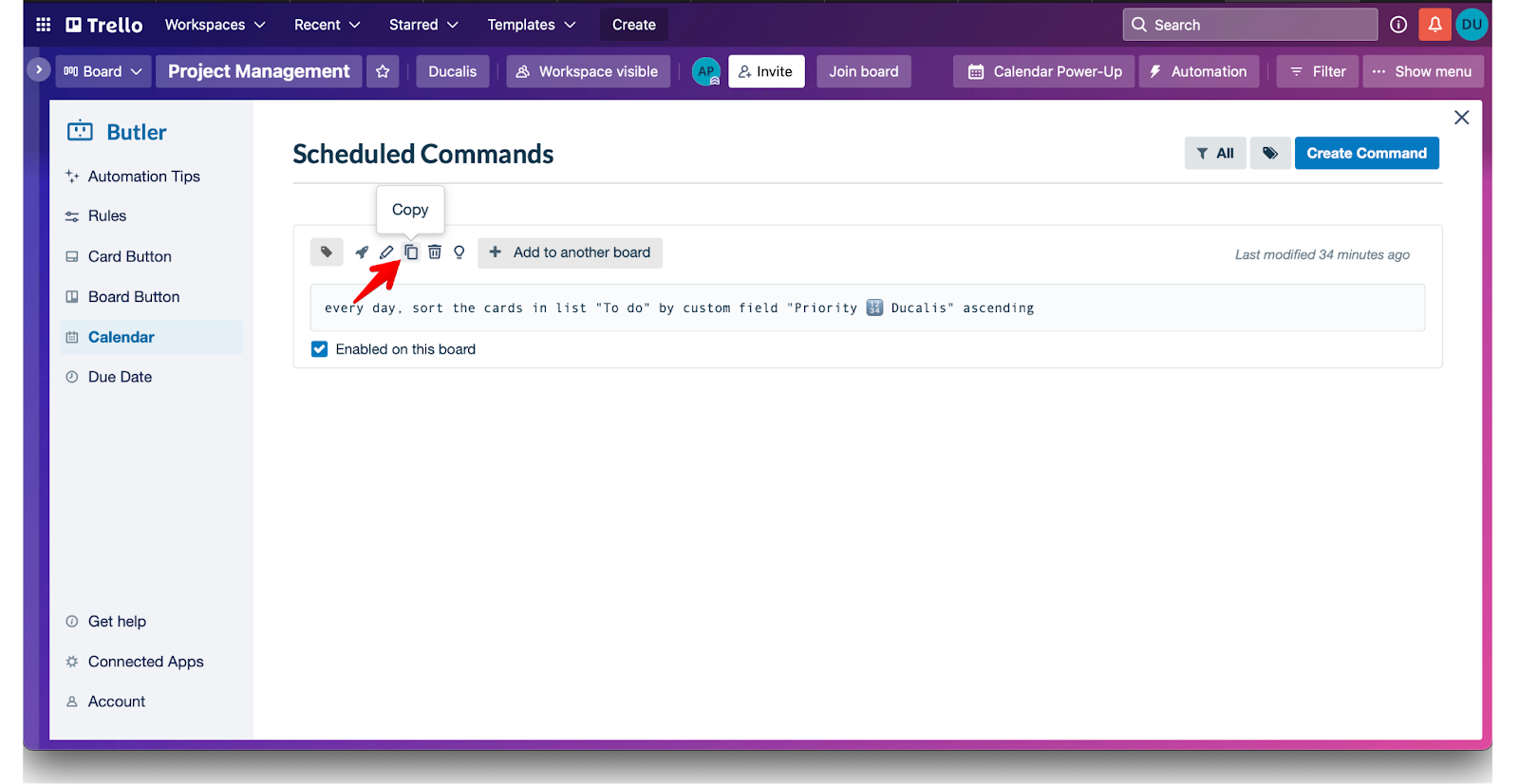
Click Copy on the automation you created.
-
Under Action, select a different list name from the dropdown.
-
Click Save.
Your cards will automatically sort by priority on your scheduled dates (e.g., every Friday).