Push issues
Push Issues from Ducalis directly to Trello without switching tools. Create Issues, Ideas and send them to your Trello backlog instantly.
Push an Issue from Backlog
-
Open the Board connected to Trello.
-
Identify the Issue source:
- Issues imported from Trello show the Trello icon
- Issues created in Ducalis show the Ducalis icon
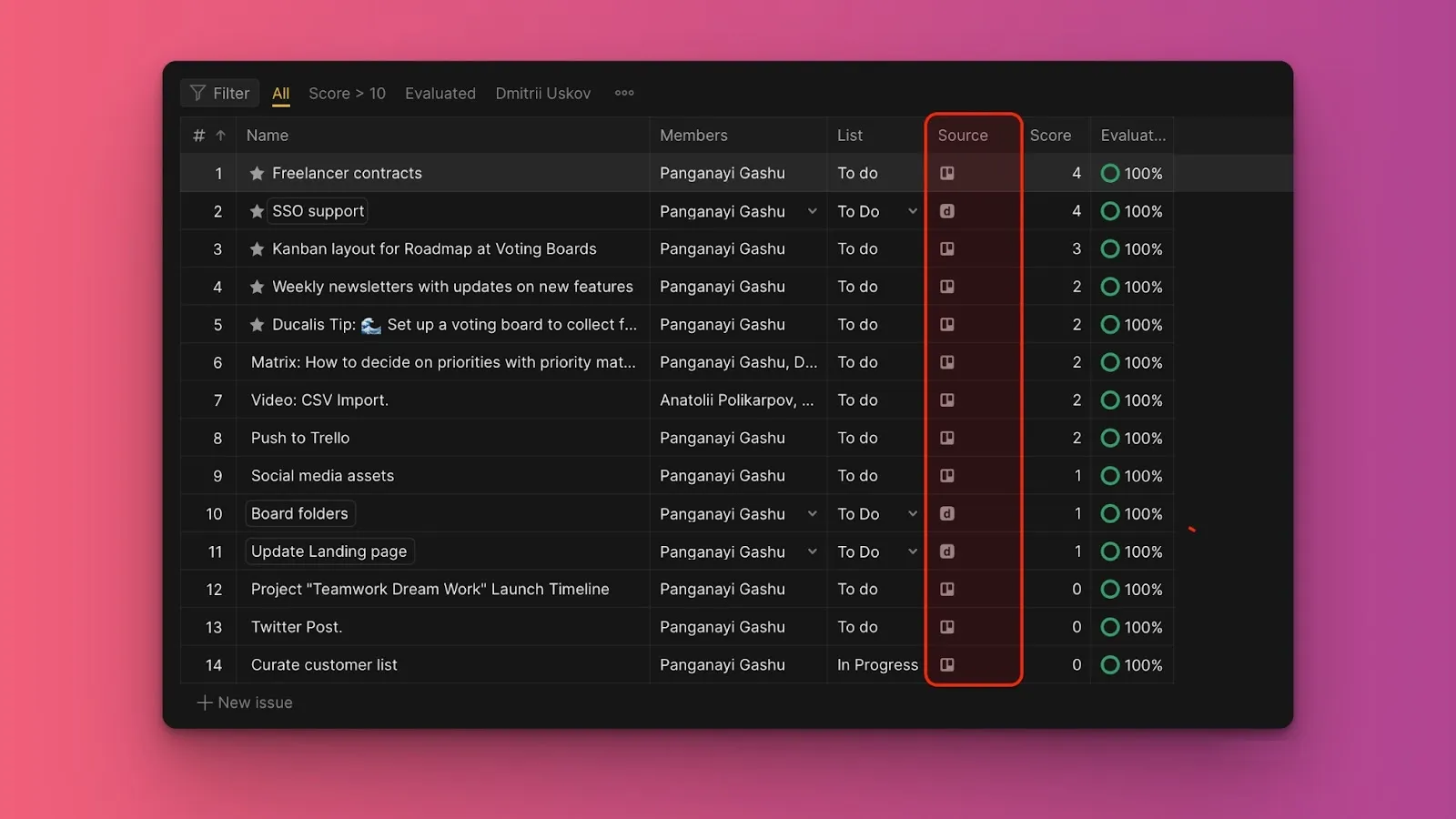
-
Click the Issue you want to push to Trello.
-
Click the ellipsis (...), then select Push to Trello.
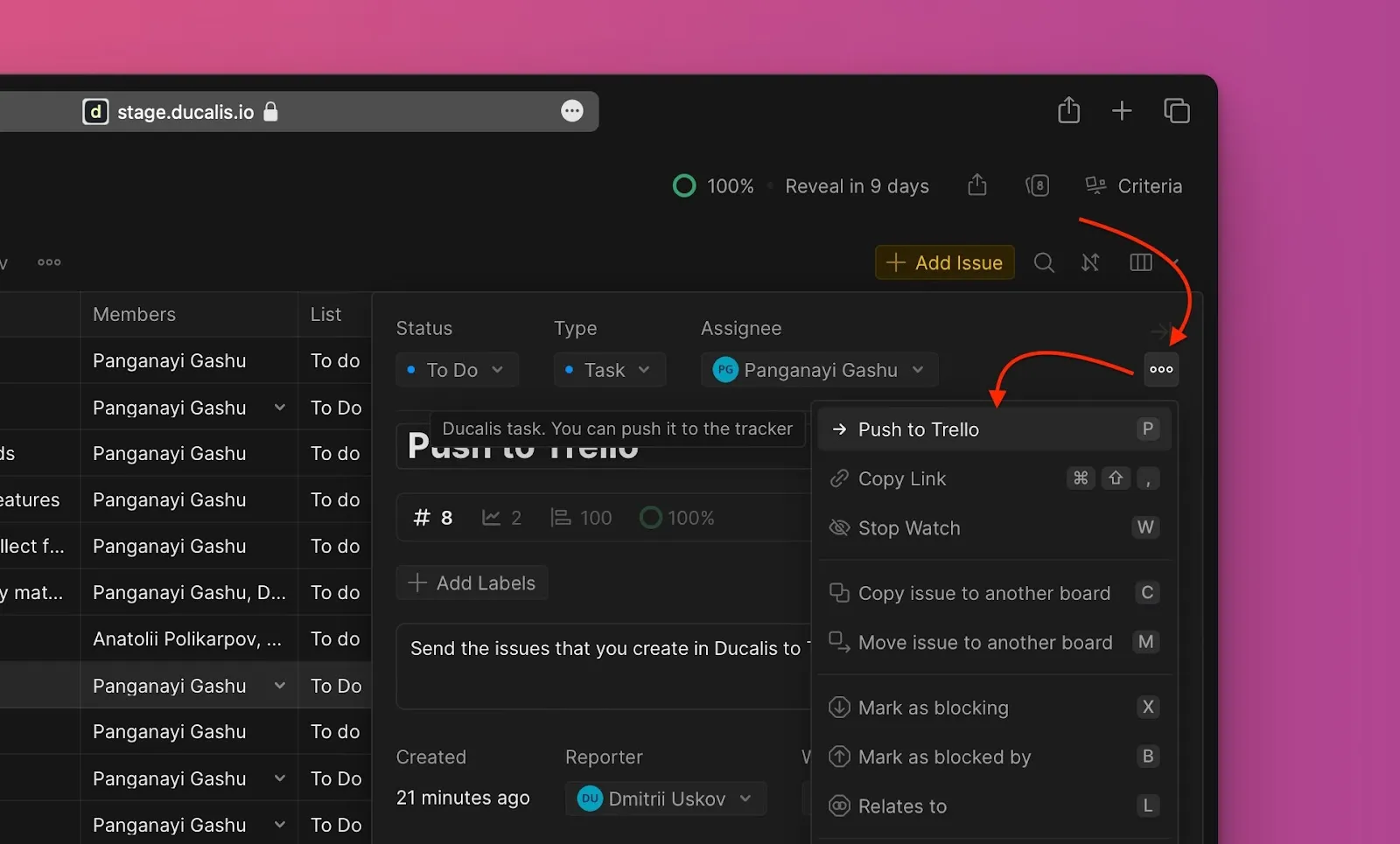
-
Configure the Trello card:
- Select the target list from your connected Trello lists.
- Edit the Issue name or description if needed.
- Assign a Trello member (only members from your Trello account appear in the dropdown).
- Add attachments if needed.
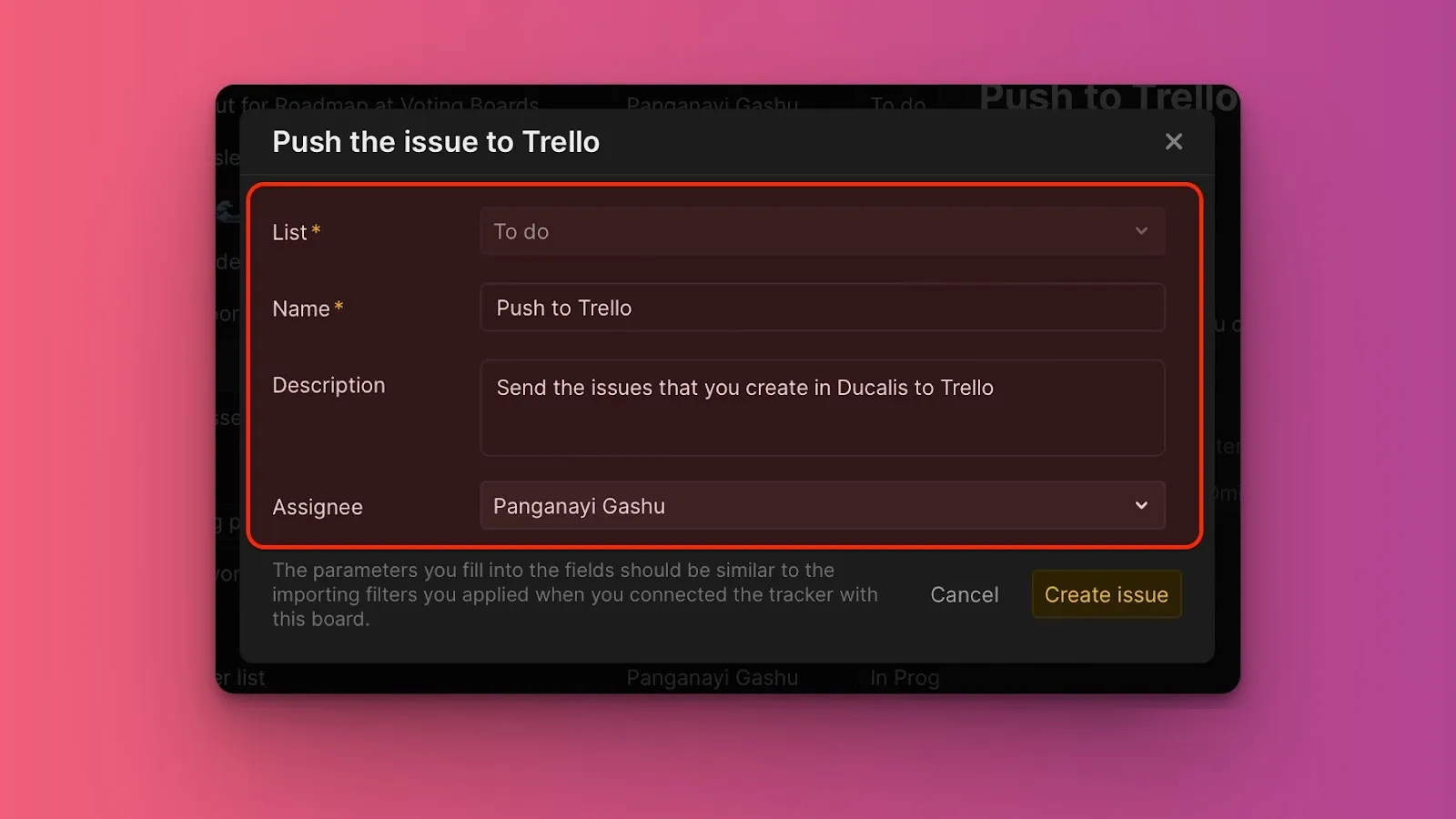
-
Click Create issue.
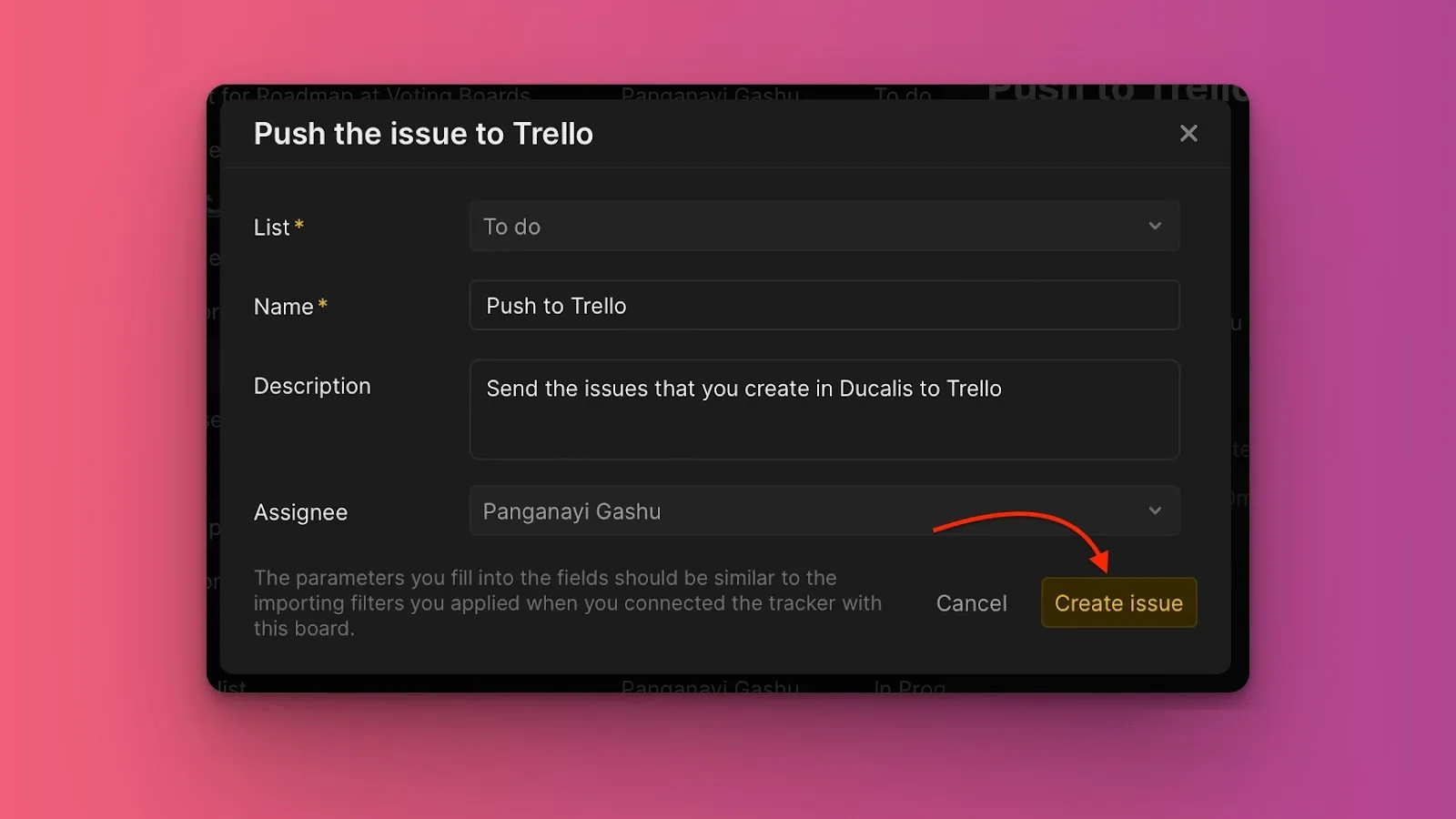
The Issue is now created in Trello as a card in the selected list.
Push an Ideas from Voting Board
Convert customer feedback from your Voting Board into Trello cards to track them alongside internal work.
-
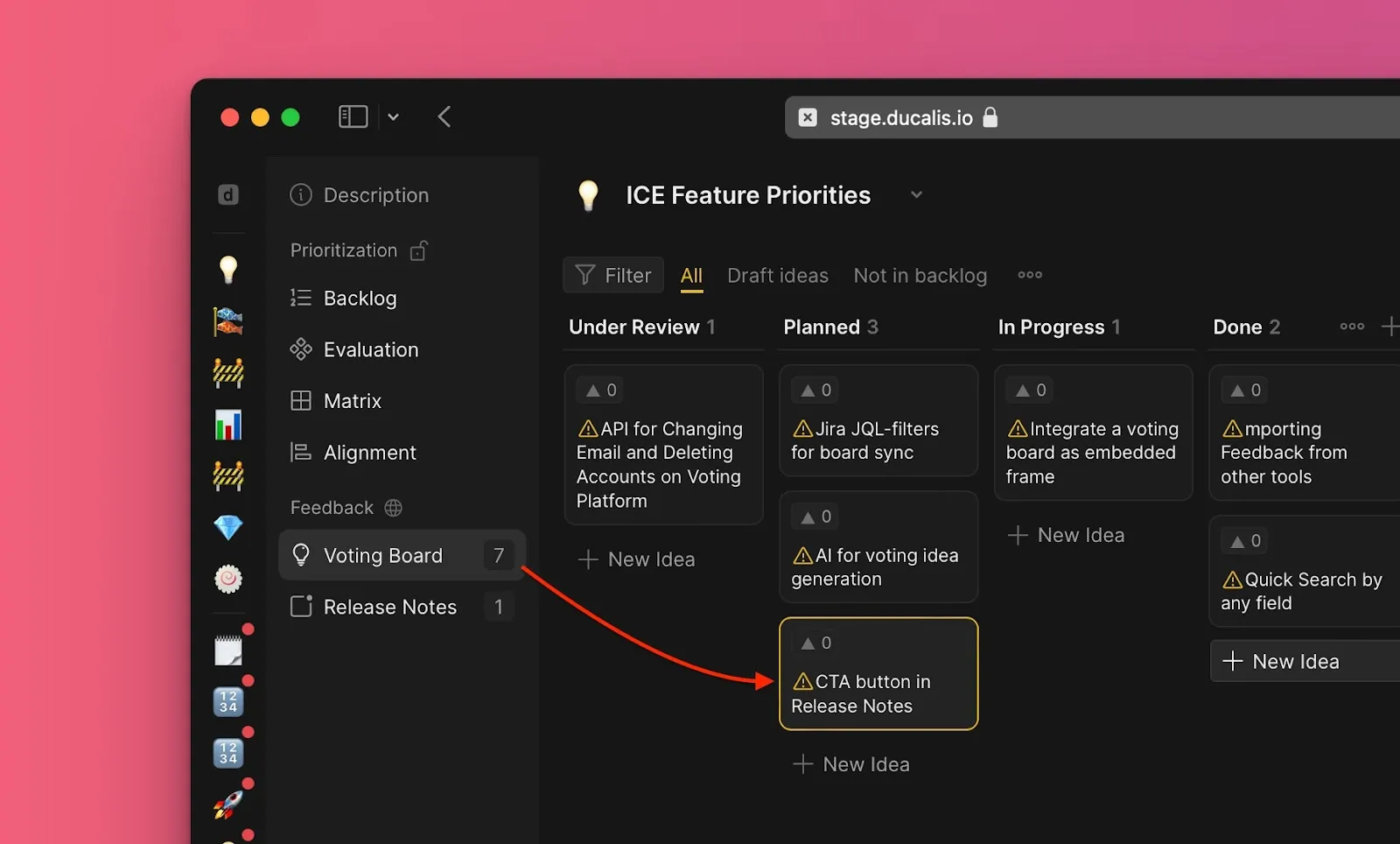
Navigate to Voting and find Ideas not yet added to your internal backlog.
-
Click the Idea to open its card.
-
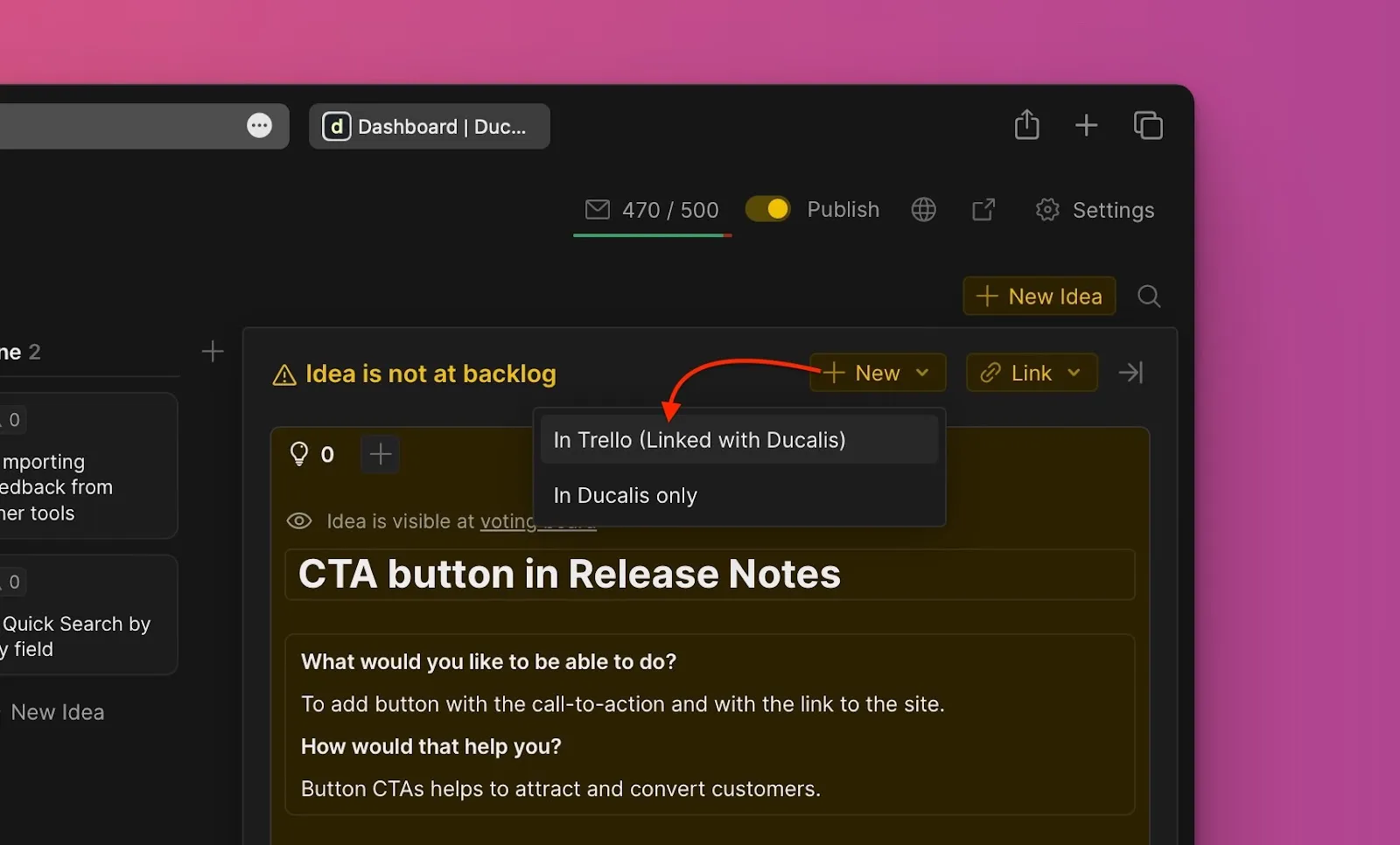
Click + New.
-
Select In Trello (Linked with Ducalis) from the dropdown.
-
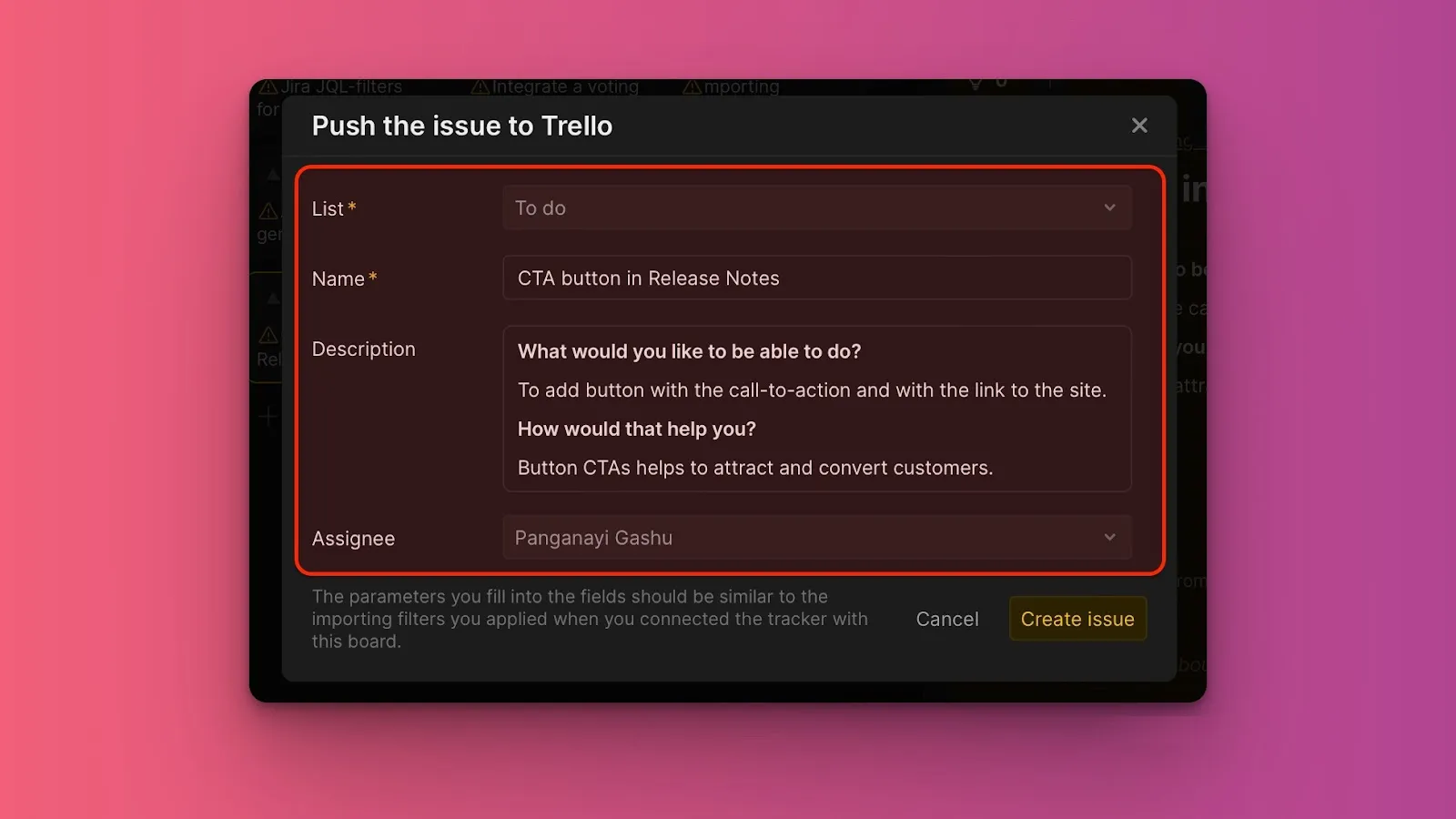
Configure the Trello card:
- Select the target list from your connected Trello lists.
- Edit the Issue name or description if needed.
- Assign a Trello member (only members from your Trello account appear in the dropdown).
- Add attachments if needed.
-
Click Create issue.
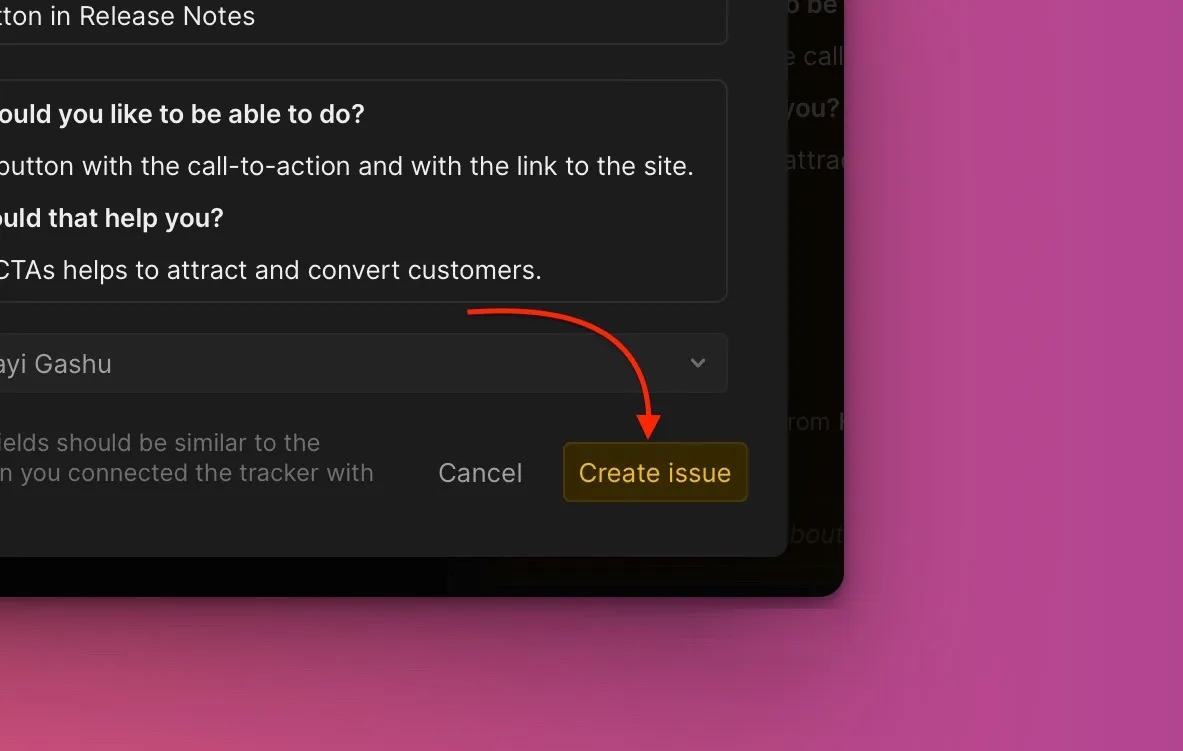
The Idea is now converted to an Issue in Ducalis and a card in Trello.