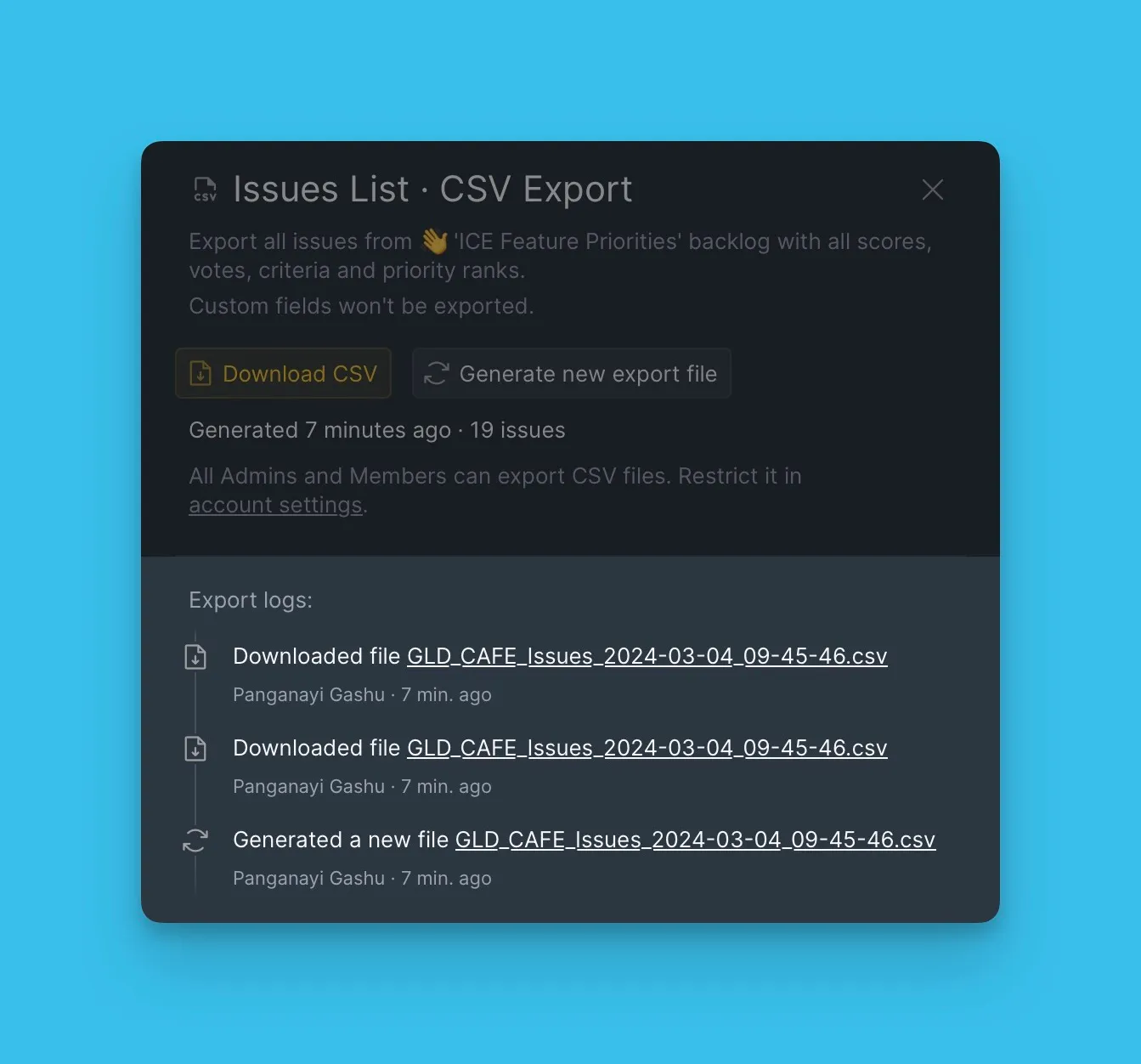
Export data
Export data from Ducalis as CSV files to analyze your backlog, user lists, Ideas, and Voters in external tools.
What you can export
- Issues from your Backlog
- Users from your Organization
- Ideas from your Voting Board
- Voters from your All Voters
Export Issues
-
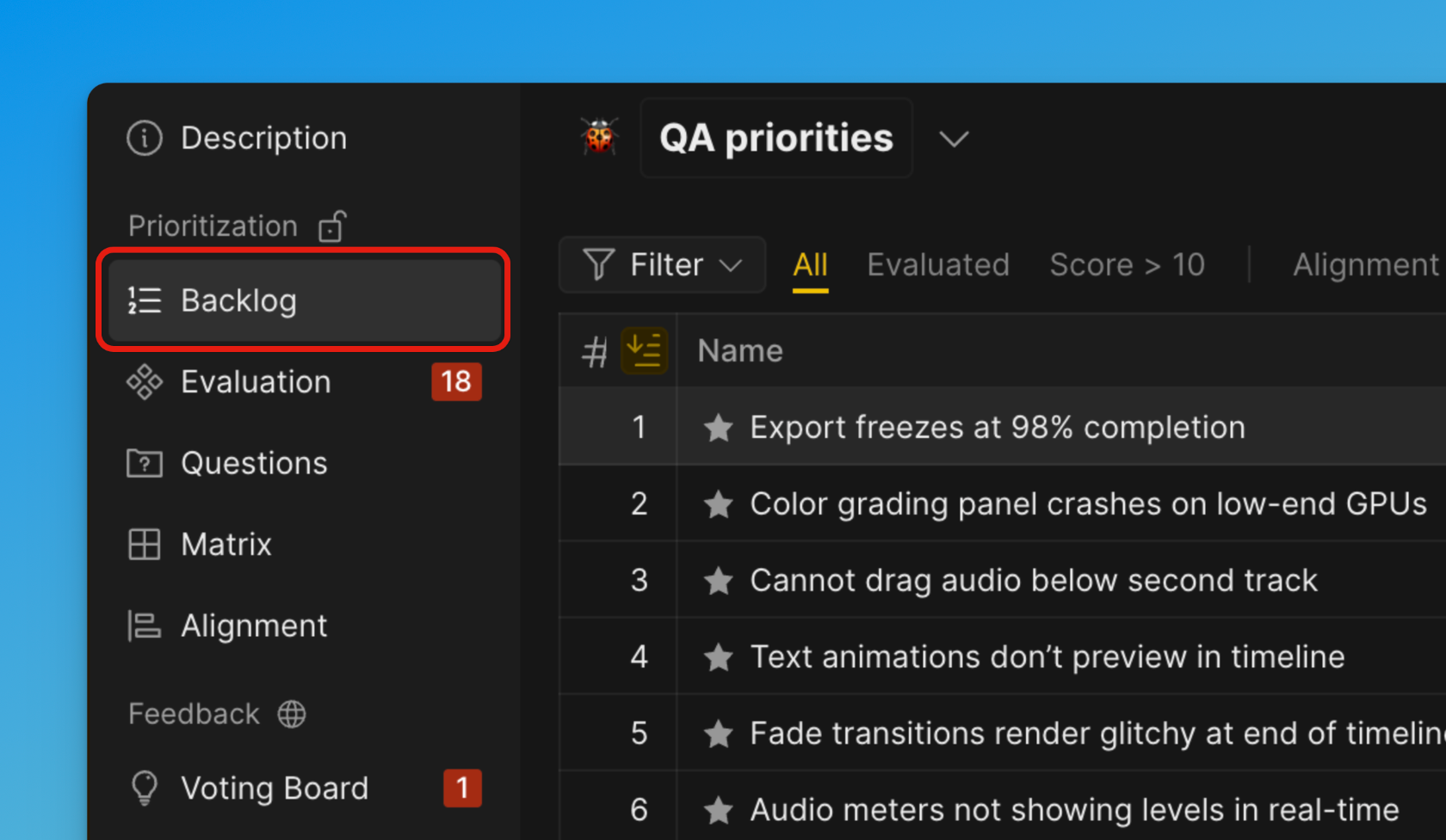
Open the Backlog page.
-
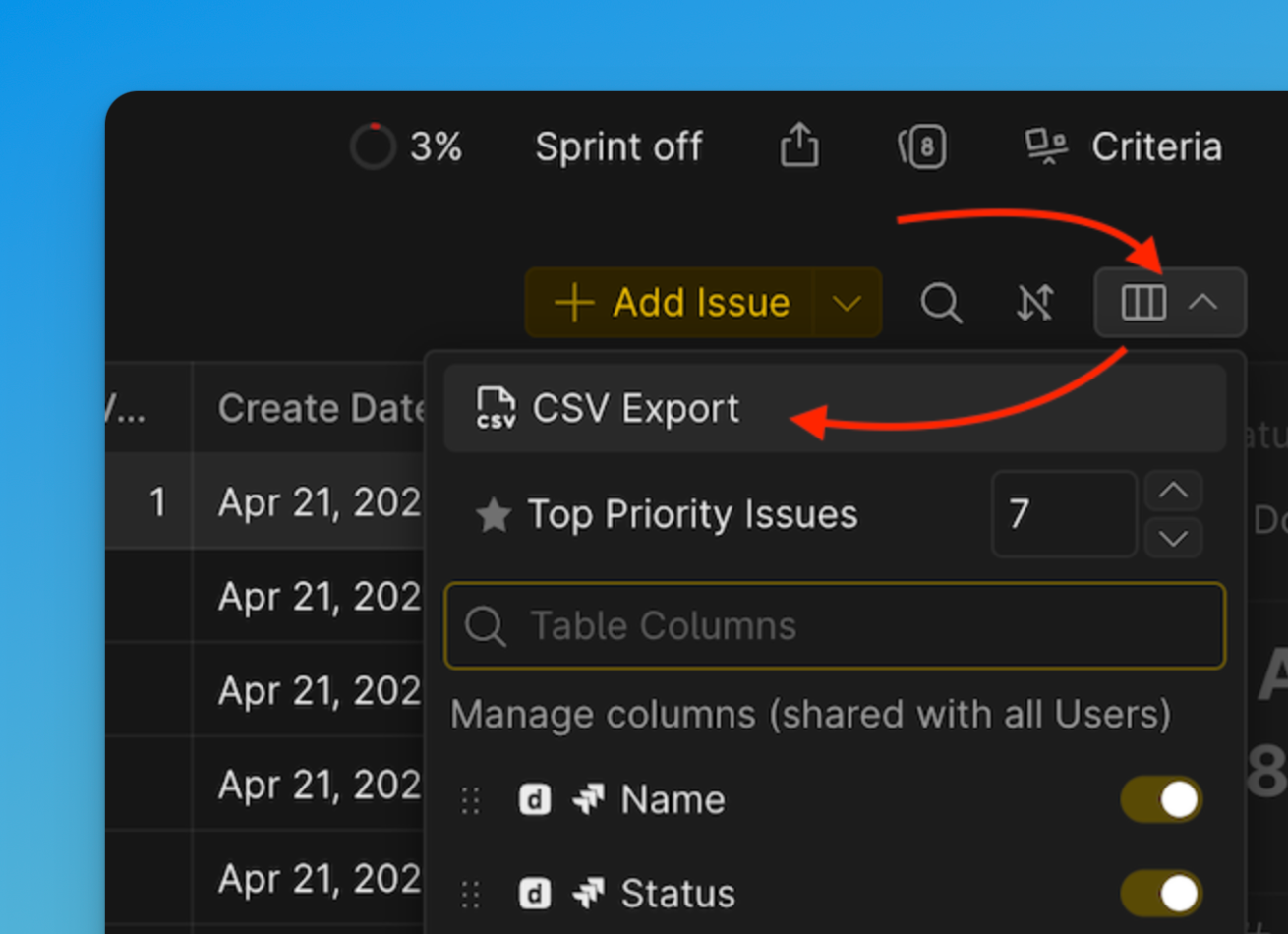
Click the table customization icon, then select CSV export.
-
A window will pop up giving you options to choose the Format of export.
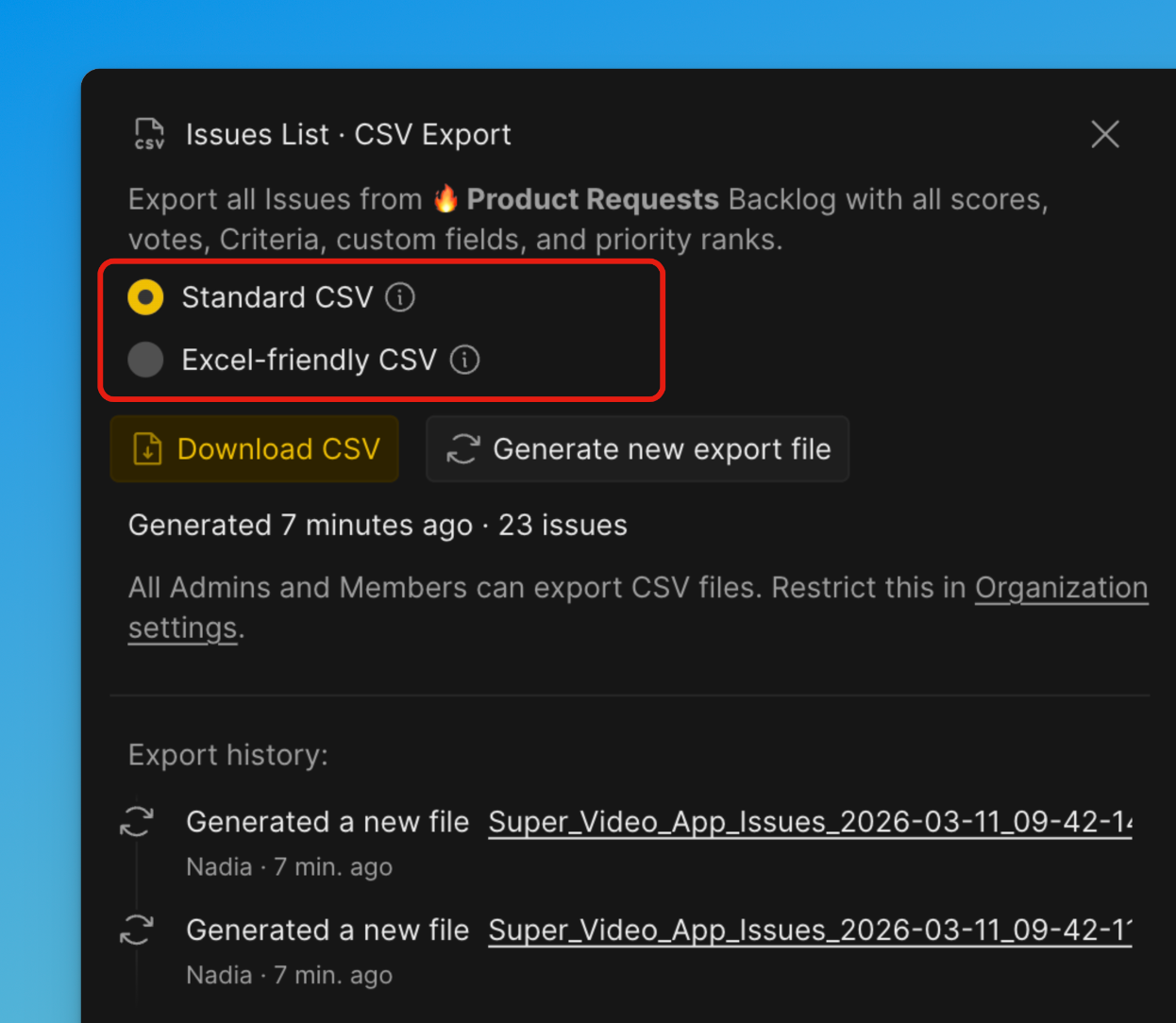
Excel-friendly CSV
Optimized specifically for opening in Microsoft Excel. Uses formatting that Excel recognizes automatically (for example, separators and encoding). Reduces issues with incorrect column separation, broken characters, or formatting when opened in Excel. Best if you plan to open the file directly in Excel.
Standard CSV
Uses a universal CSV format following common standards. Designed for compatibility with many tools, systems, and data processing pipelines. Best if the file will be imported into other software, databases, or scripts.
-
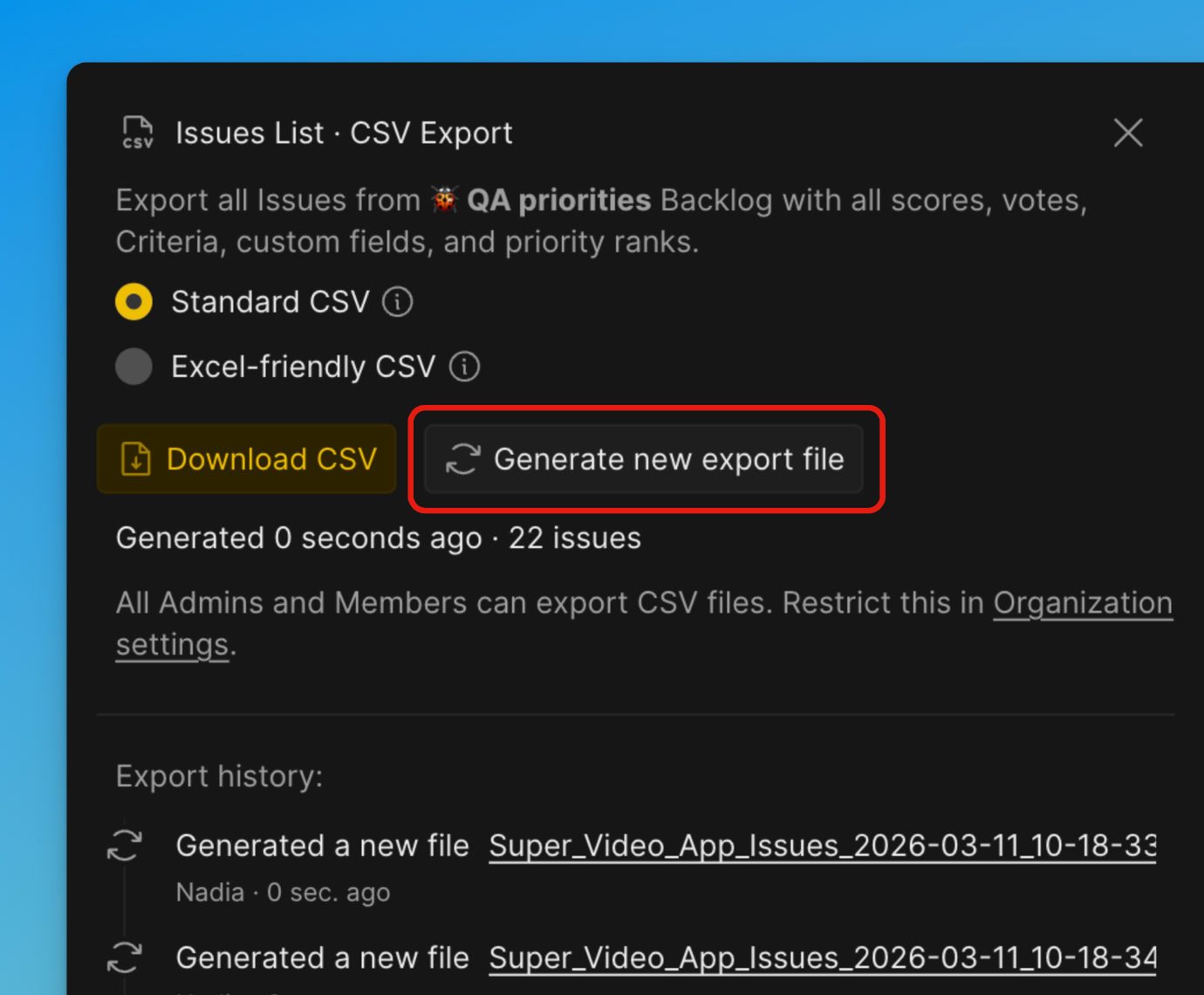
Click Generate new export file.
-
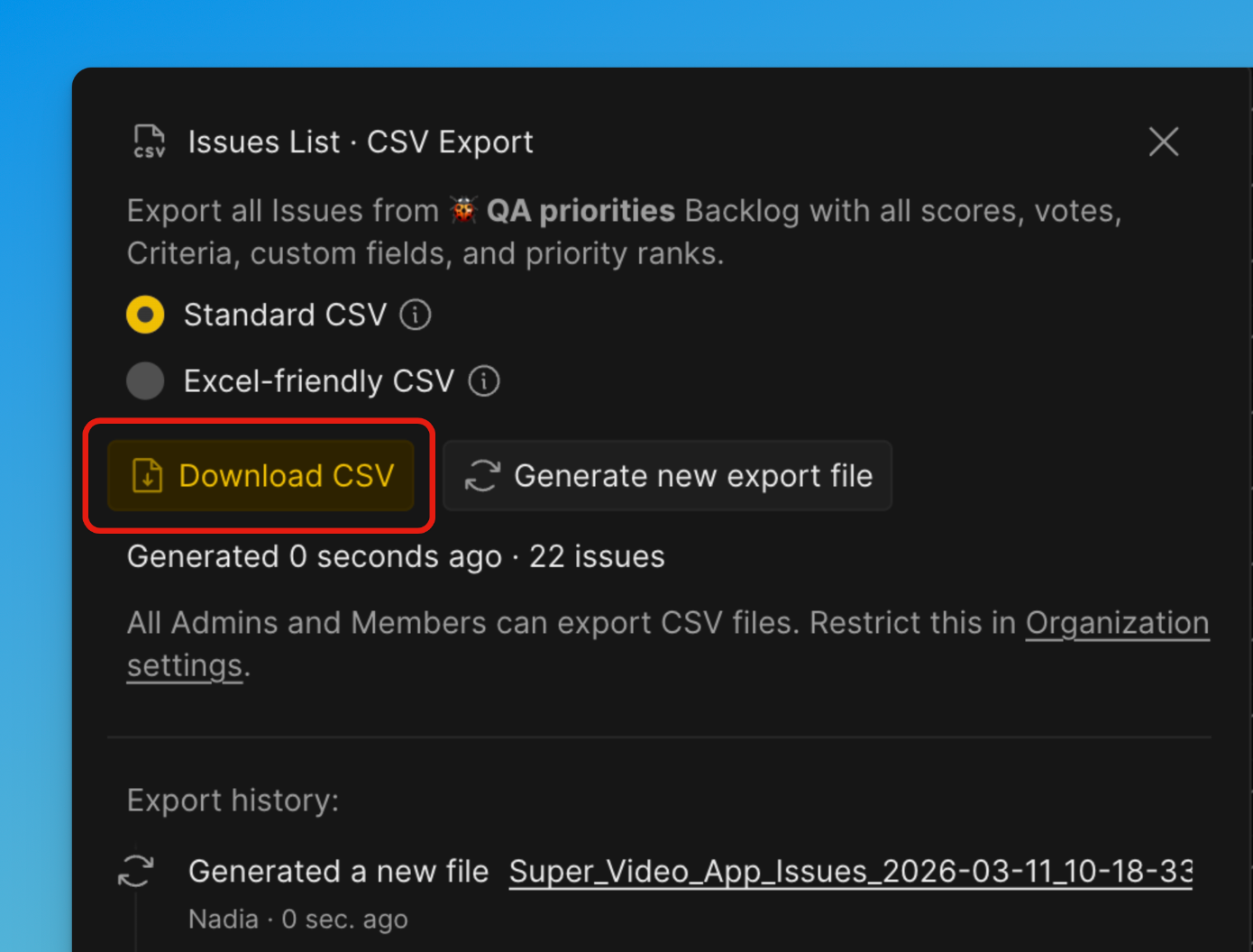
And then Download CSV.
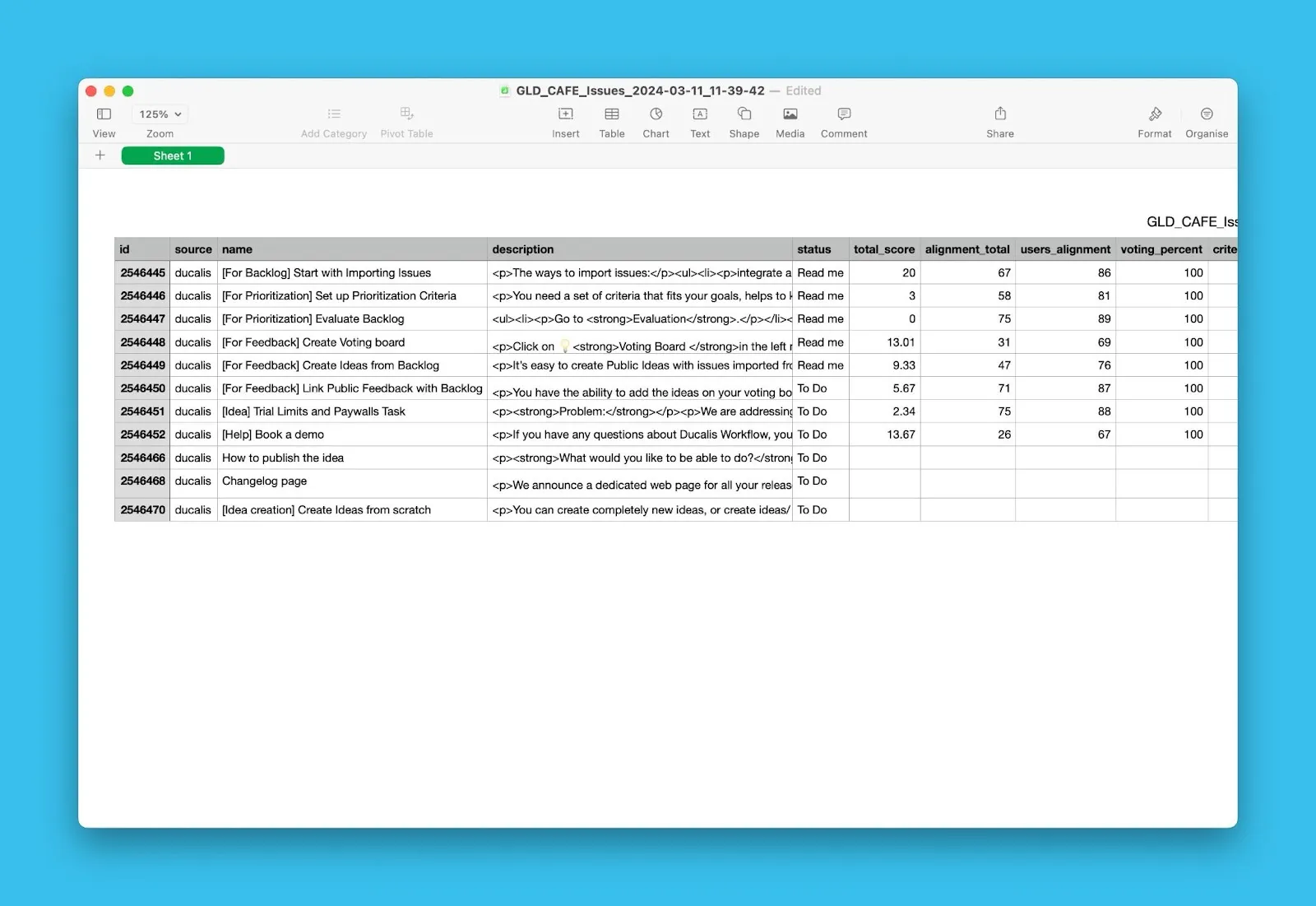
The CSV file includes Alignment scores, total scores, votes, and all visible table columns.
Export Users
-
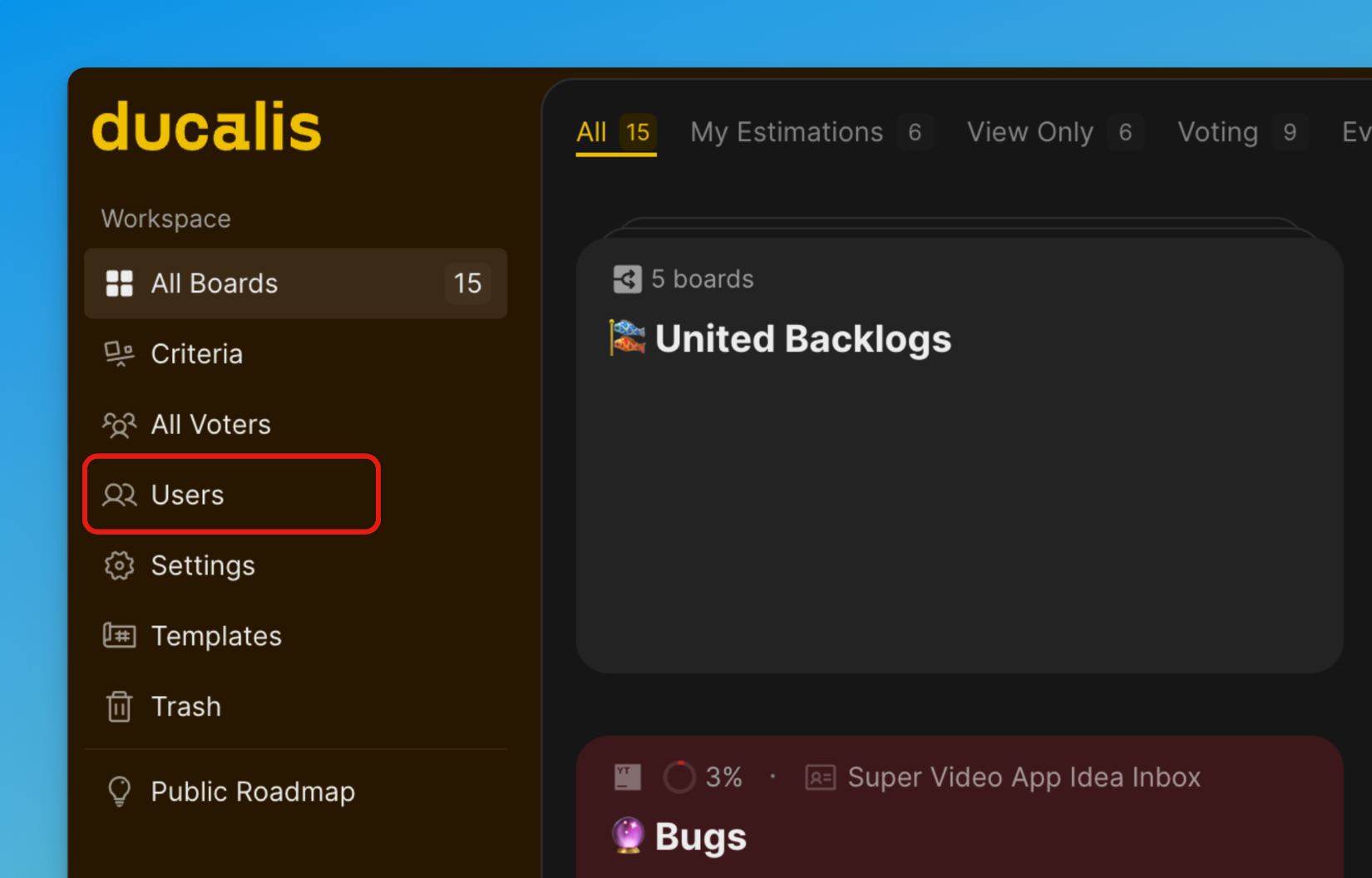
From the Dashboard, navigate to Users.
-
Click the CSV icon at the top right above the users list.
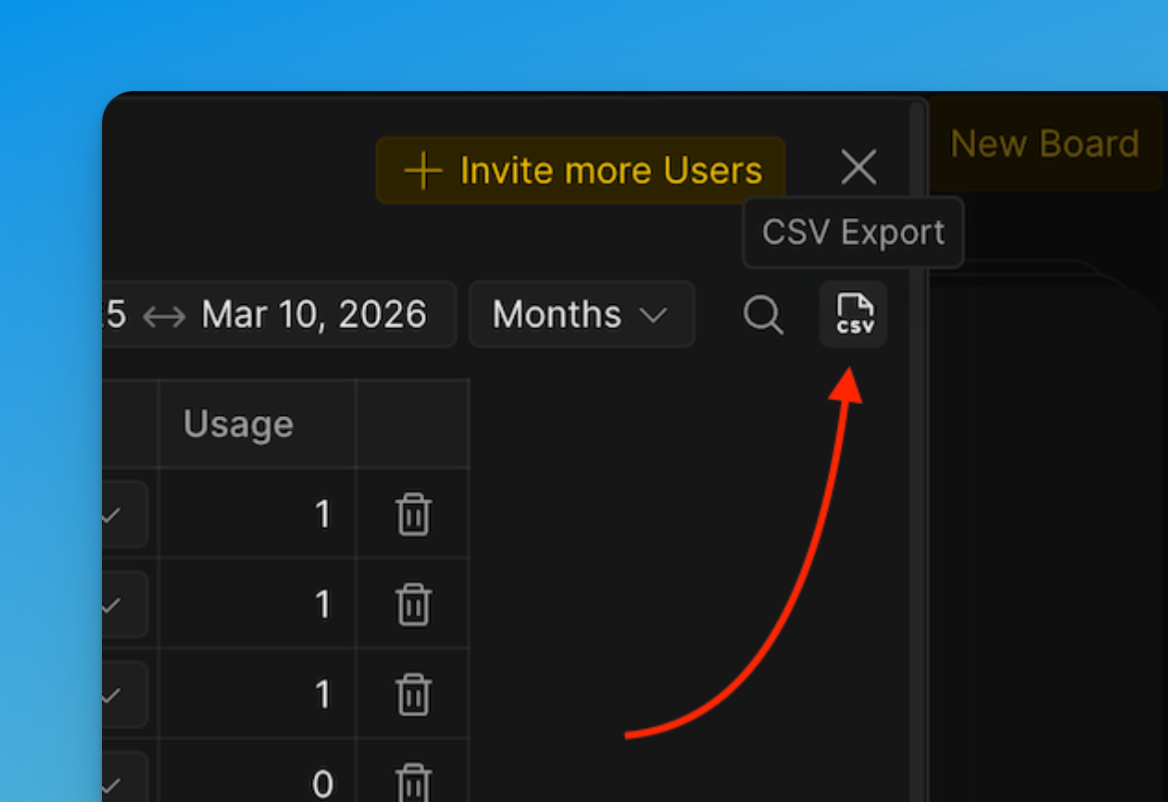
-
A window will pop up giving you options to choose the Format of export.
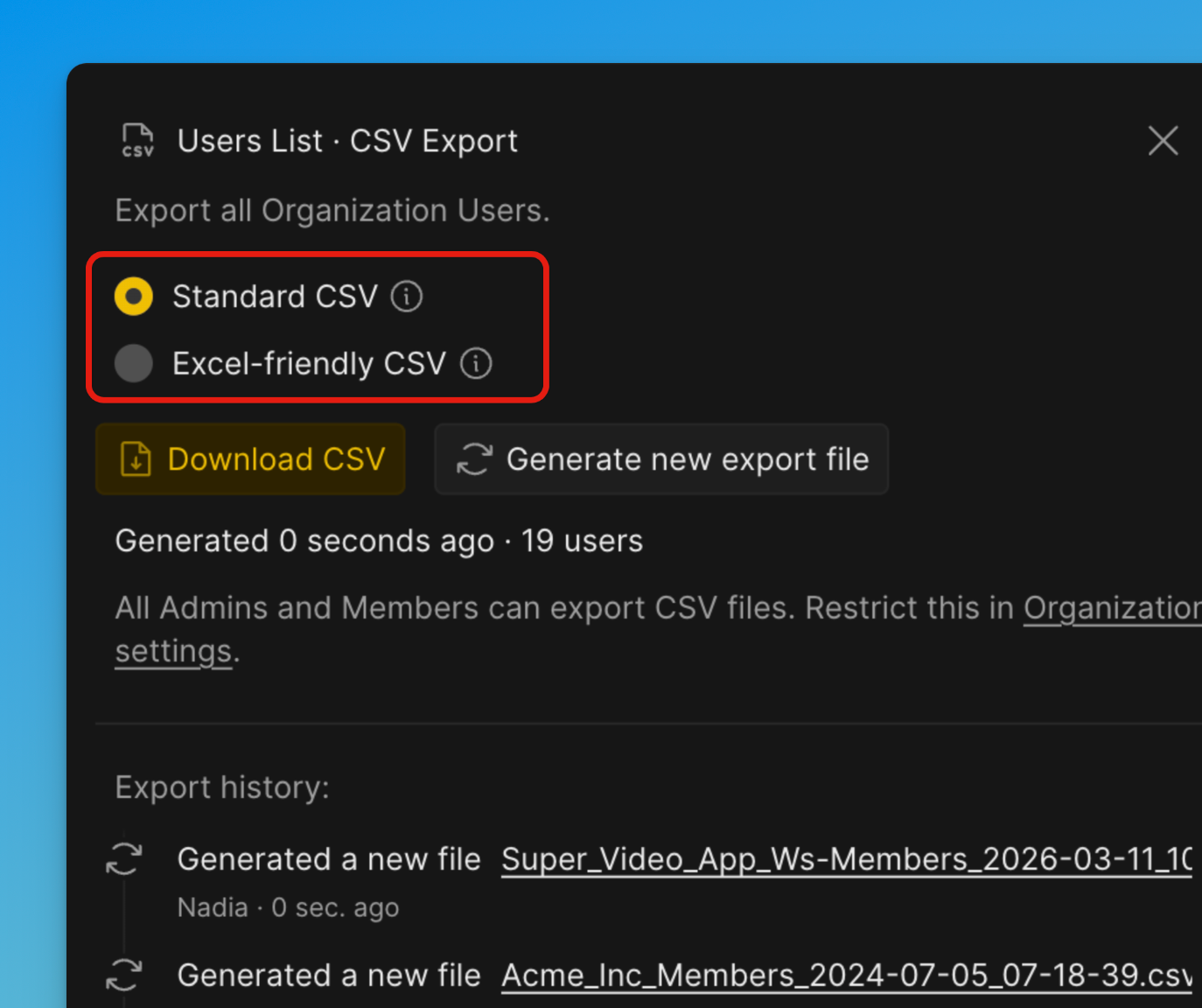
Excel-friendly CSV
Optimized specifically for opening in Microsoft Excel. Uses formatting that Excel recognizes automatically (for example, separators and encoding). Reduces issues with incorrect column separation, broken characters, or formatting when opened in Excel. Best if you plan to open the file directly in Excel.
Standard CSV
Uses a universal CSV format following common standards. Designed for compatibility with many tools, systems, and data processing pipelines. Best if the file will be imported into other software, databases, or scripts.
-
Click Generate new export file.
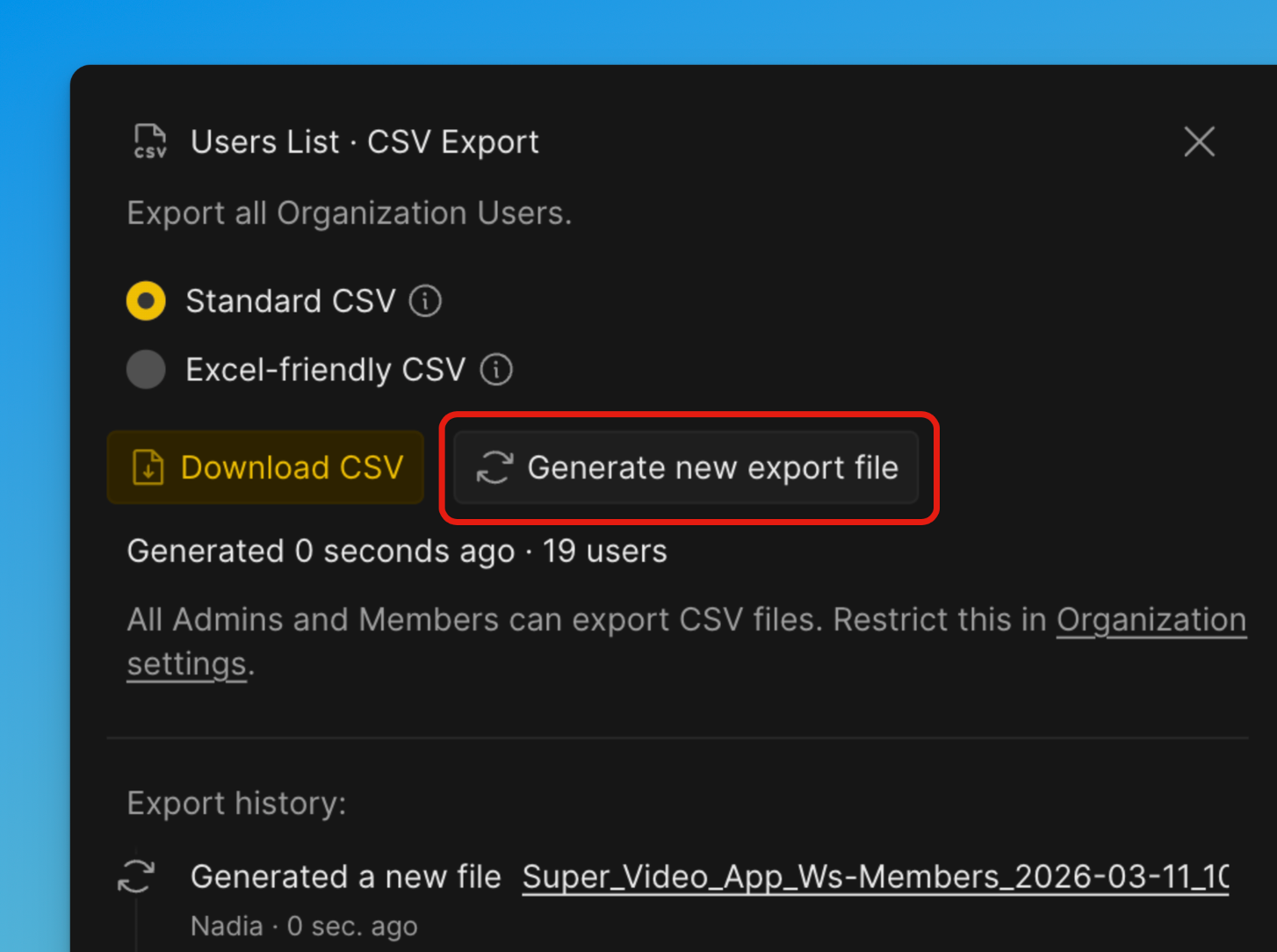
-
After generation completes, click Download.
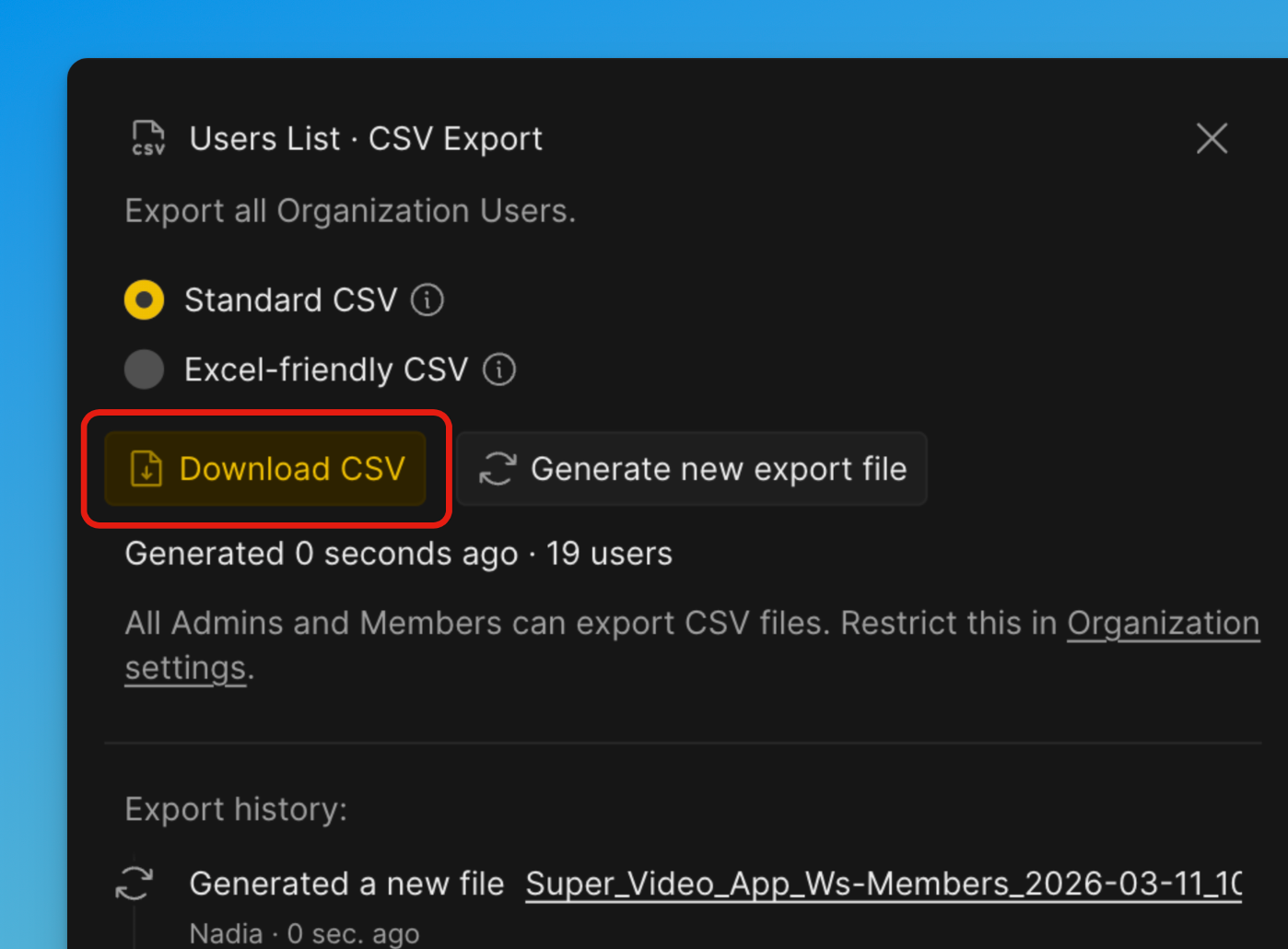
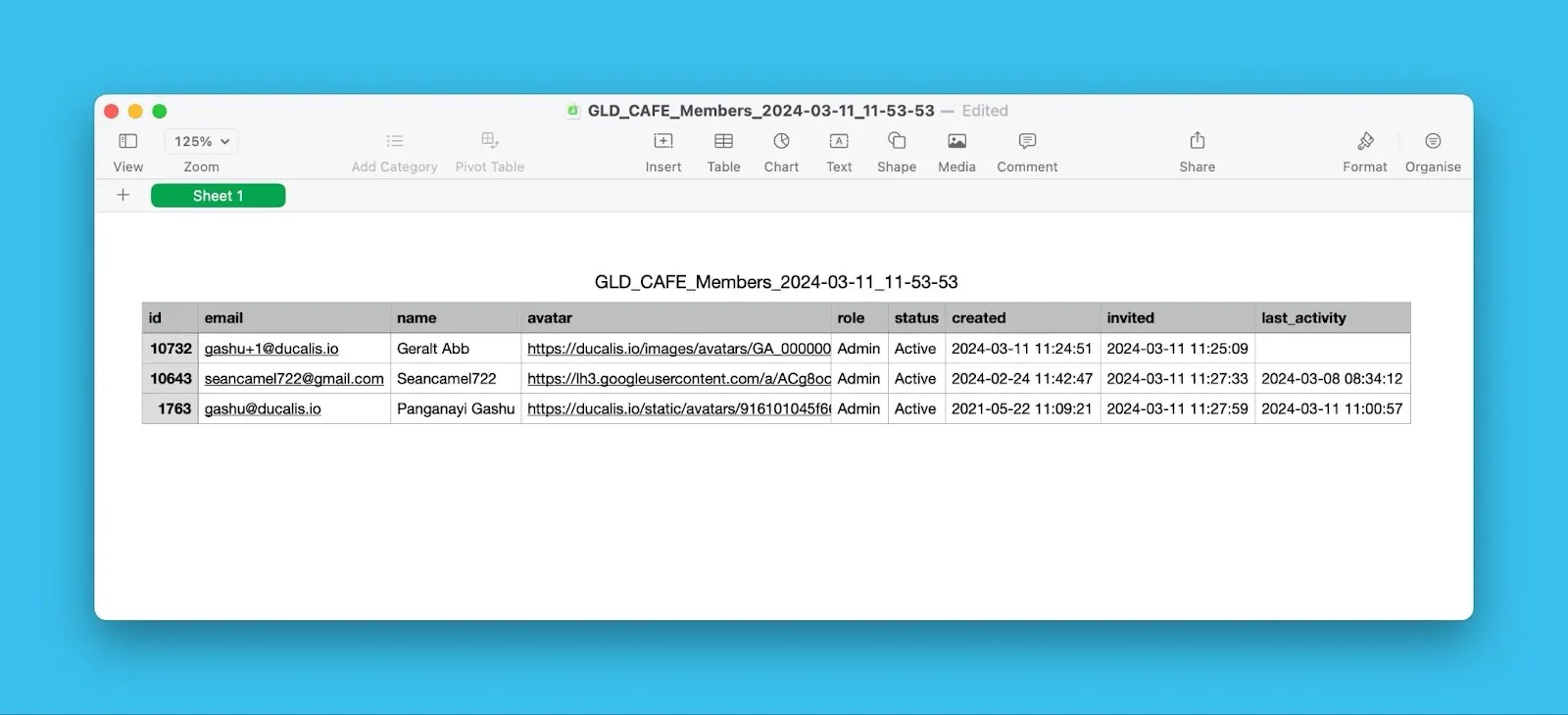
The CSV file includes user names, email addresses, roles, dates added to the Organization, active status, and other details.
Export Ideas
-
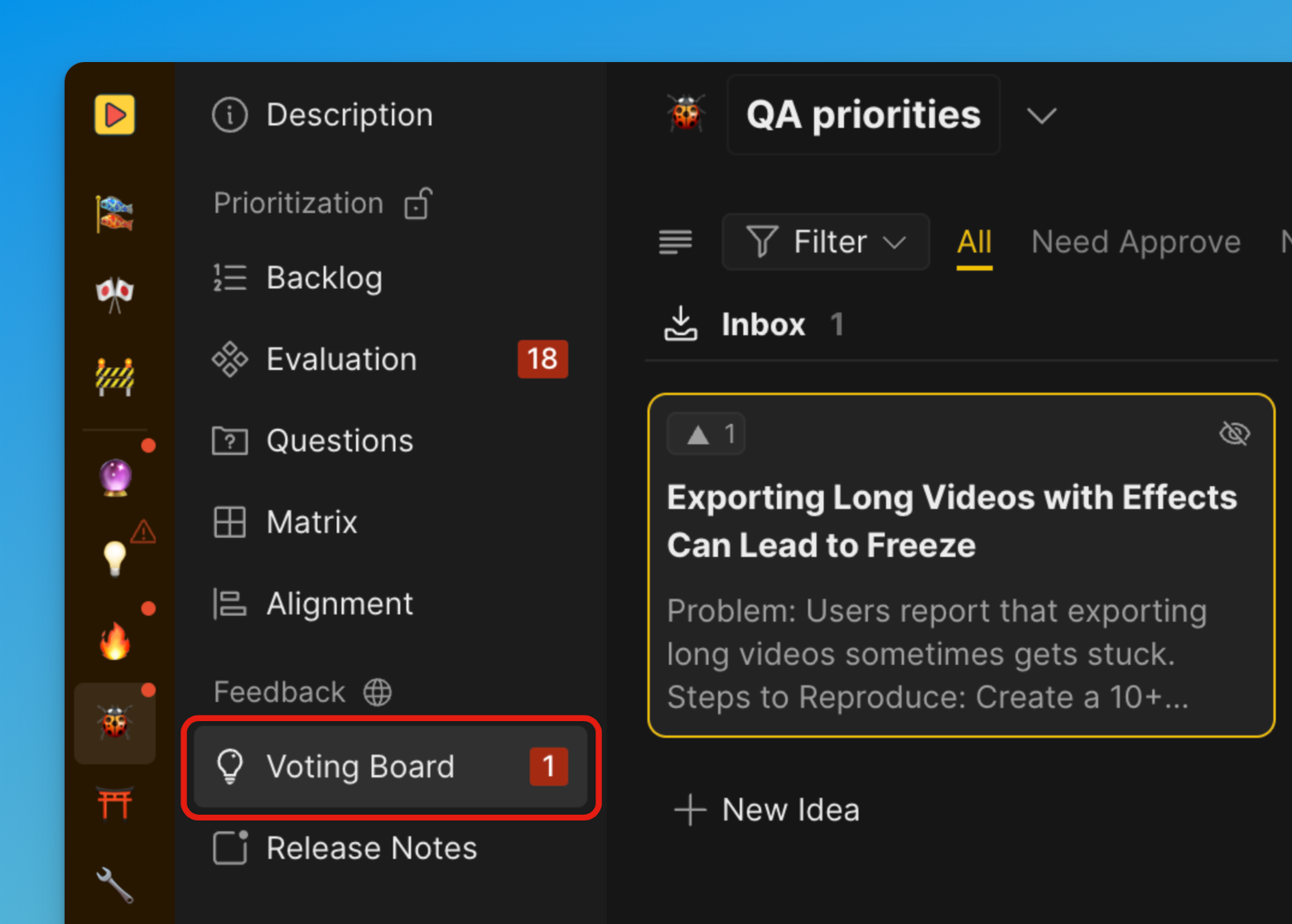
Open your Voting Board.
-
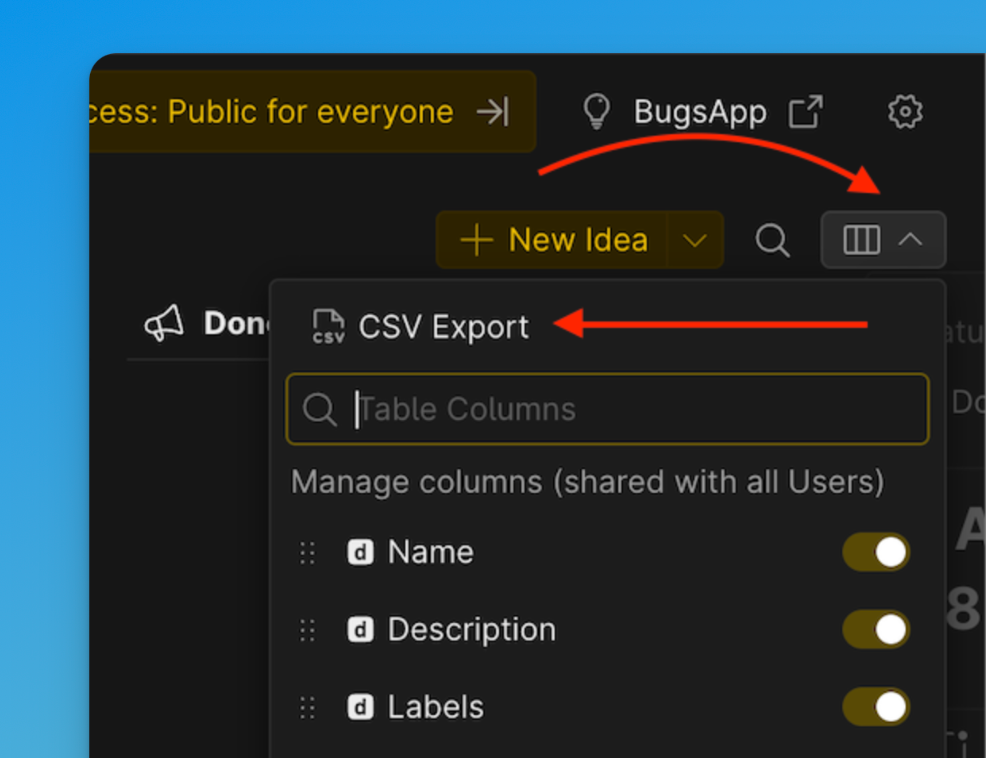
Click the table customization icon, then click the CSV icon.
-
A window will pop up giving you options to choose the Format of export.
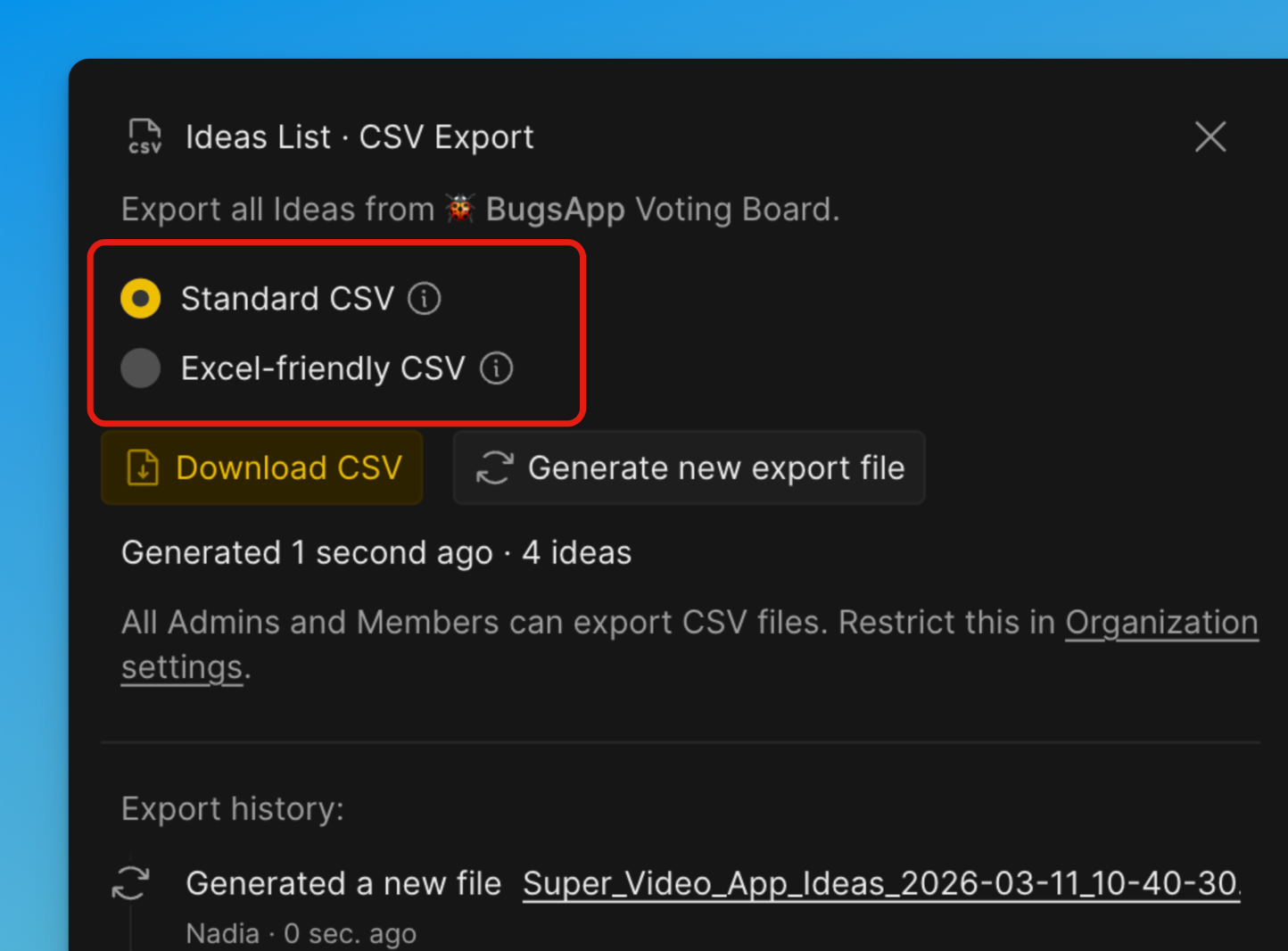
Excel-friendly CSV
Optimized specifically for opening in Microsoft Excel. Uses formatting that Excel recognizes automatically (for example, separators and encoding). Reduces issues with incorrect column separation, broken characters, or formatting when opened in Excel. Best if you plan to open the file directly in Excel.
Standard CSV
Uses a universal CSV format following common standards. Designed for compatibility with many tools, systems, and data processing pipelines. Best if the file will be imported into other software, databases, or scripts.
-
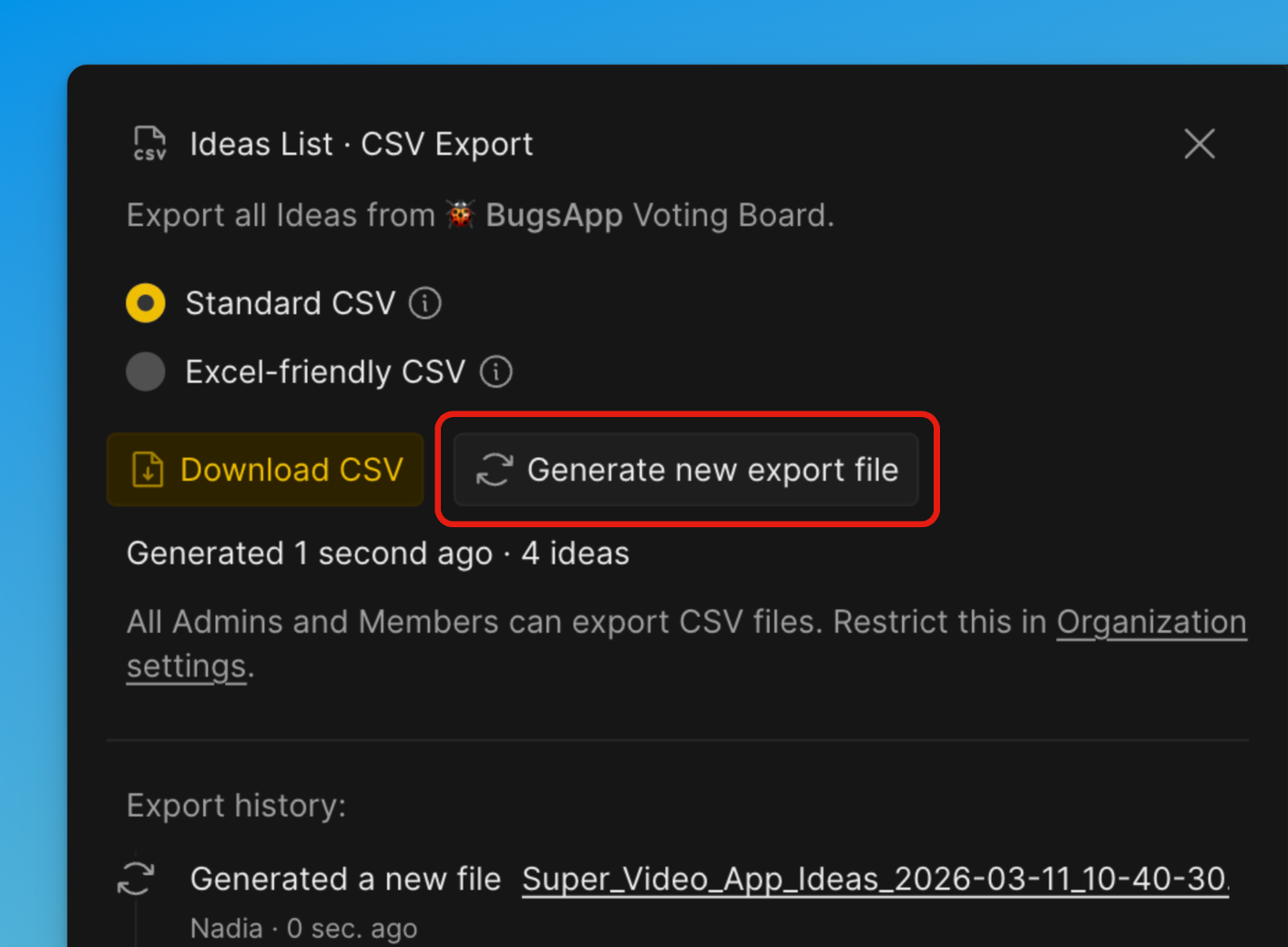
Click Generate new export file.
-
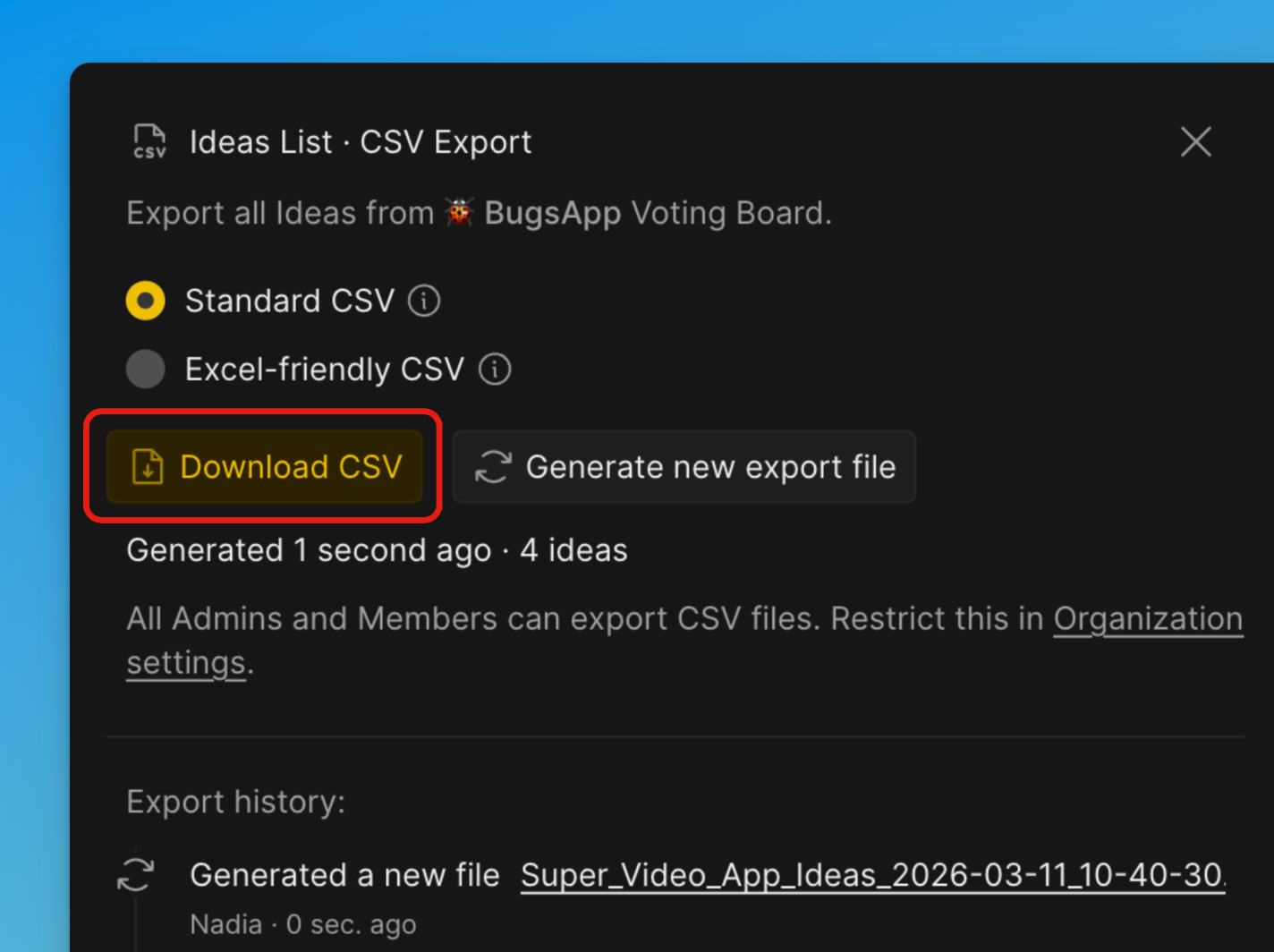
After generation completes, click Download CSV.
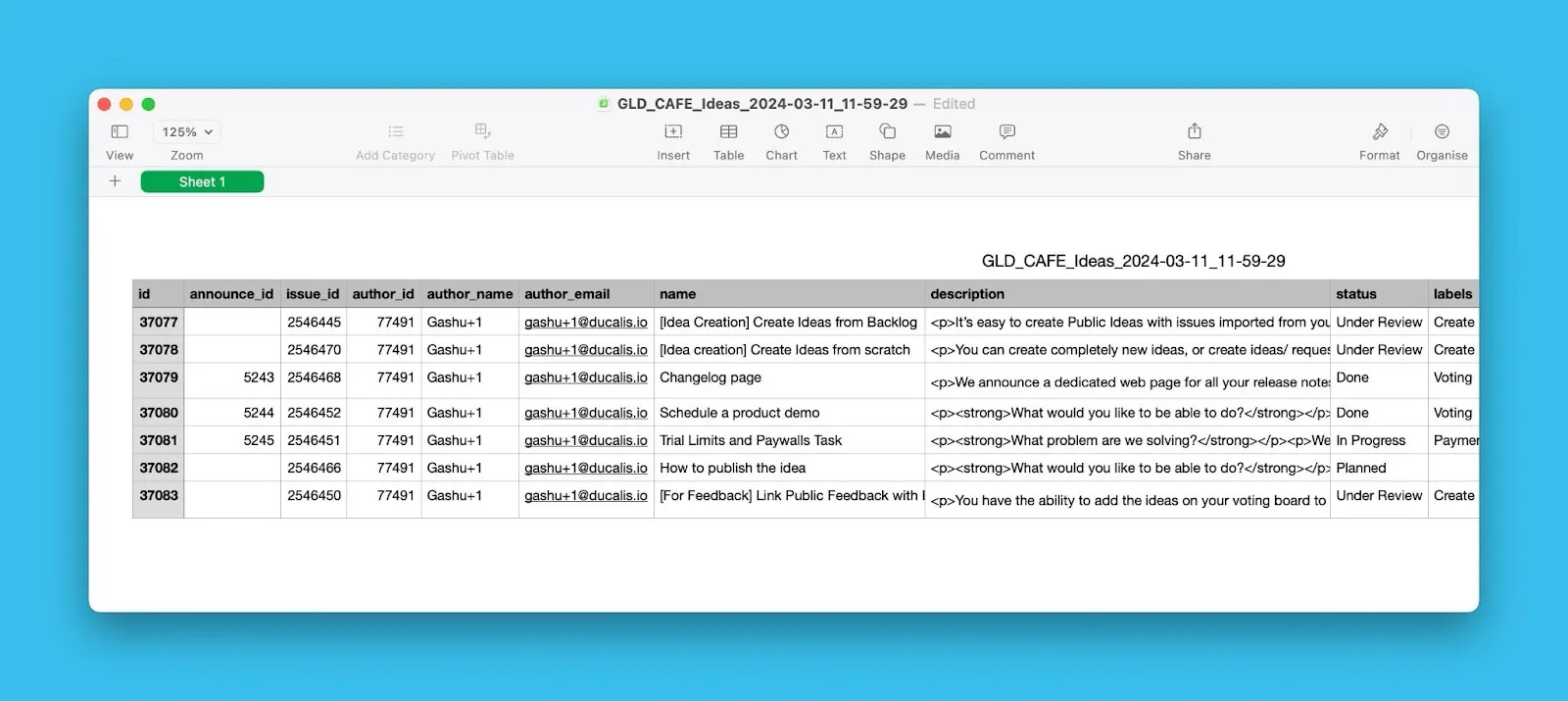
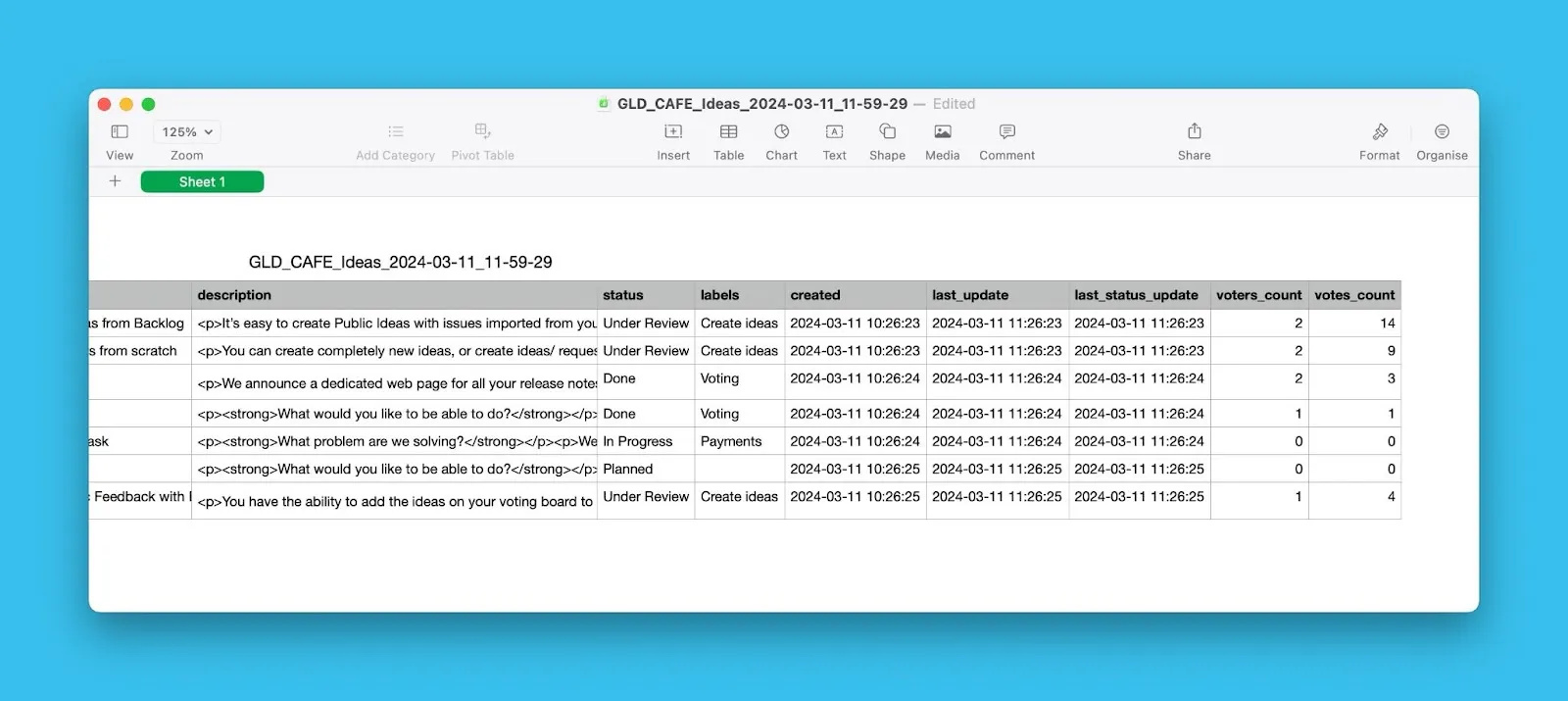
The CSV file includes Idea names, creation dates, authors, vote counts, Voter lists, and other details.
Export Voters
-
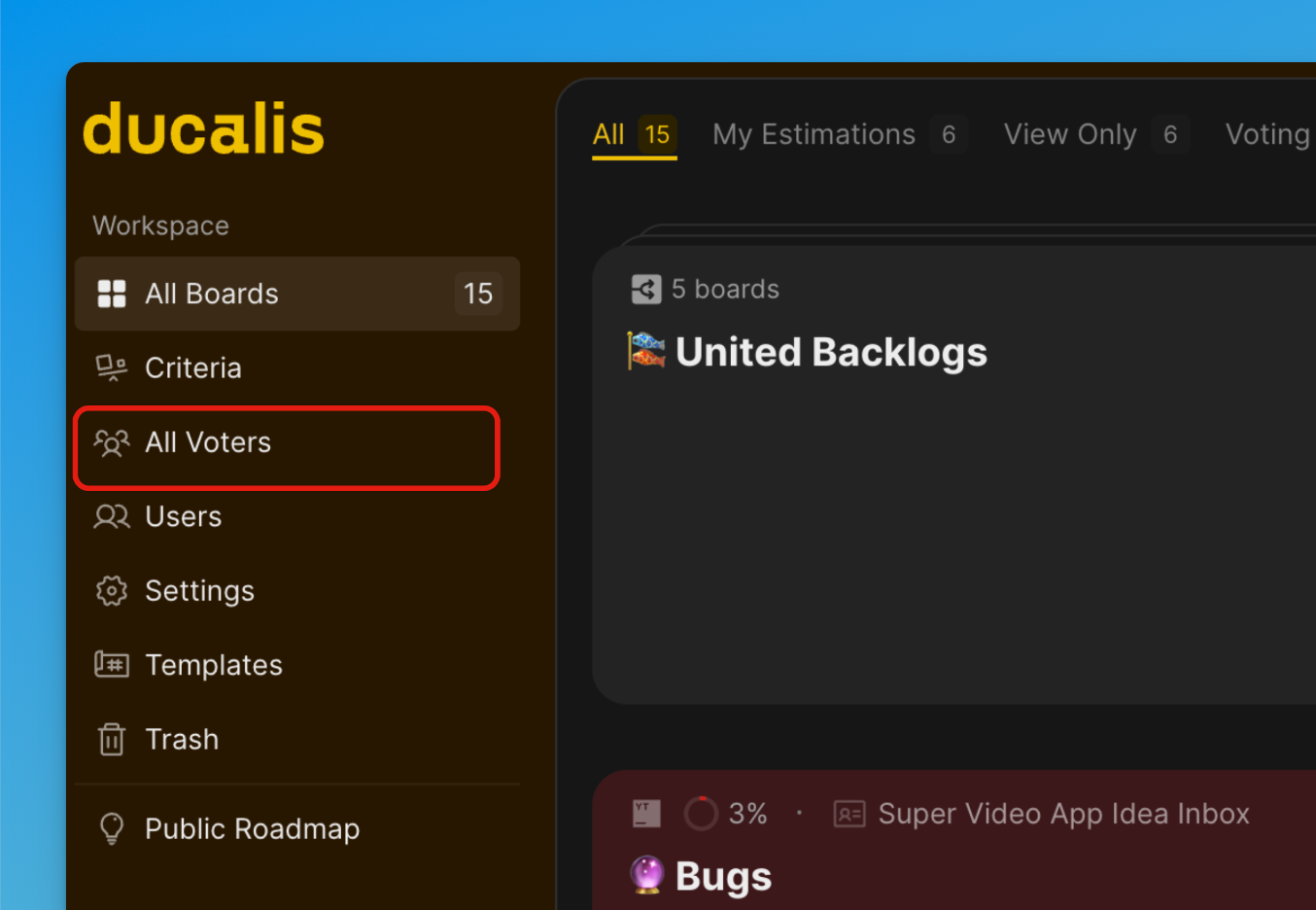
From the Dashboard open All Voters.
-
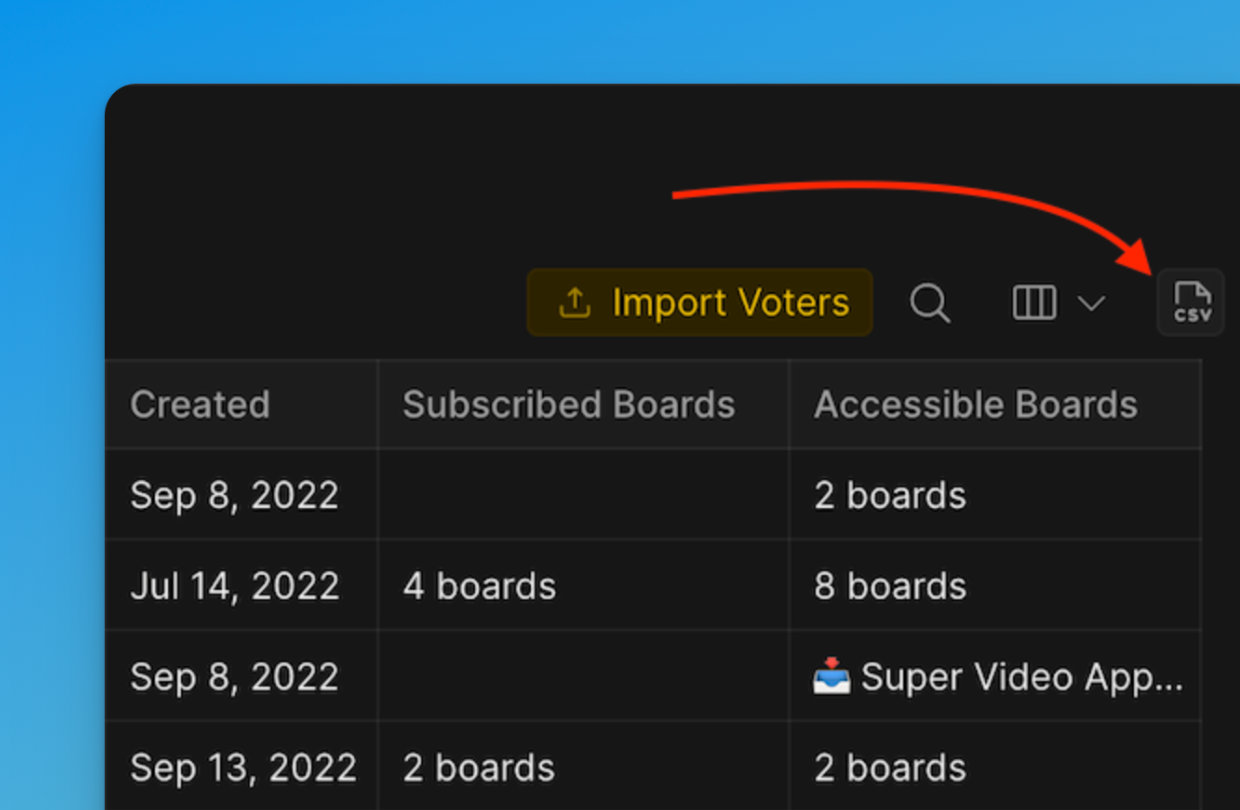
Click the CSV icon at the top right above the voters list.
-
A window will pop up giving you options to choose the Format of export.
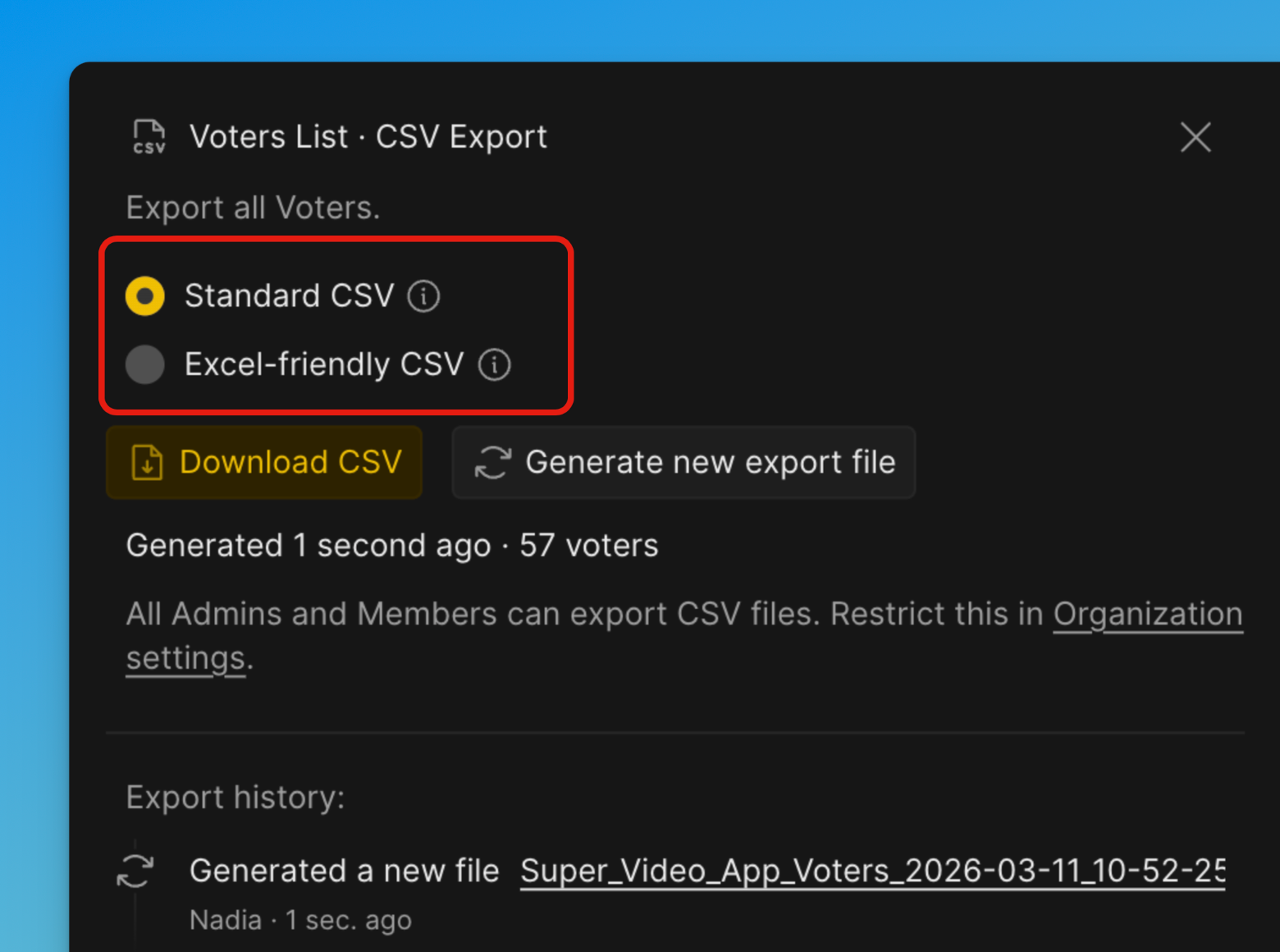
Excel-friendly CSV
Optimized specifically for opening in Microsoft Excel. Uses formatting that Excel recognizes automatically (for example, separators and encoding). Reduces issues with incorrect column separation, broken characters, or formatting when opened in Excel. Best if you plan to open the file directly in Excel.
Standard CSV
Uses a universal CSV format following common standards. Designed for compatibility with many tools, systems, and data processing pipelines. Best if the file will be imported into other software, databases, or scripts.
-
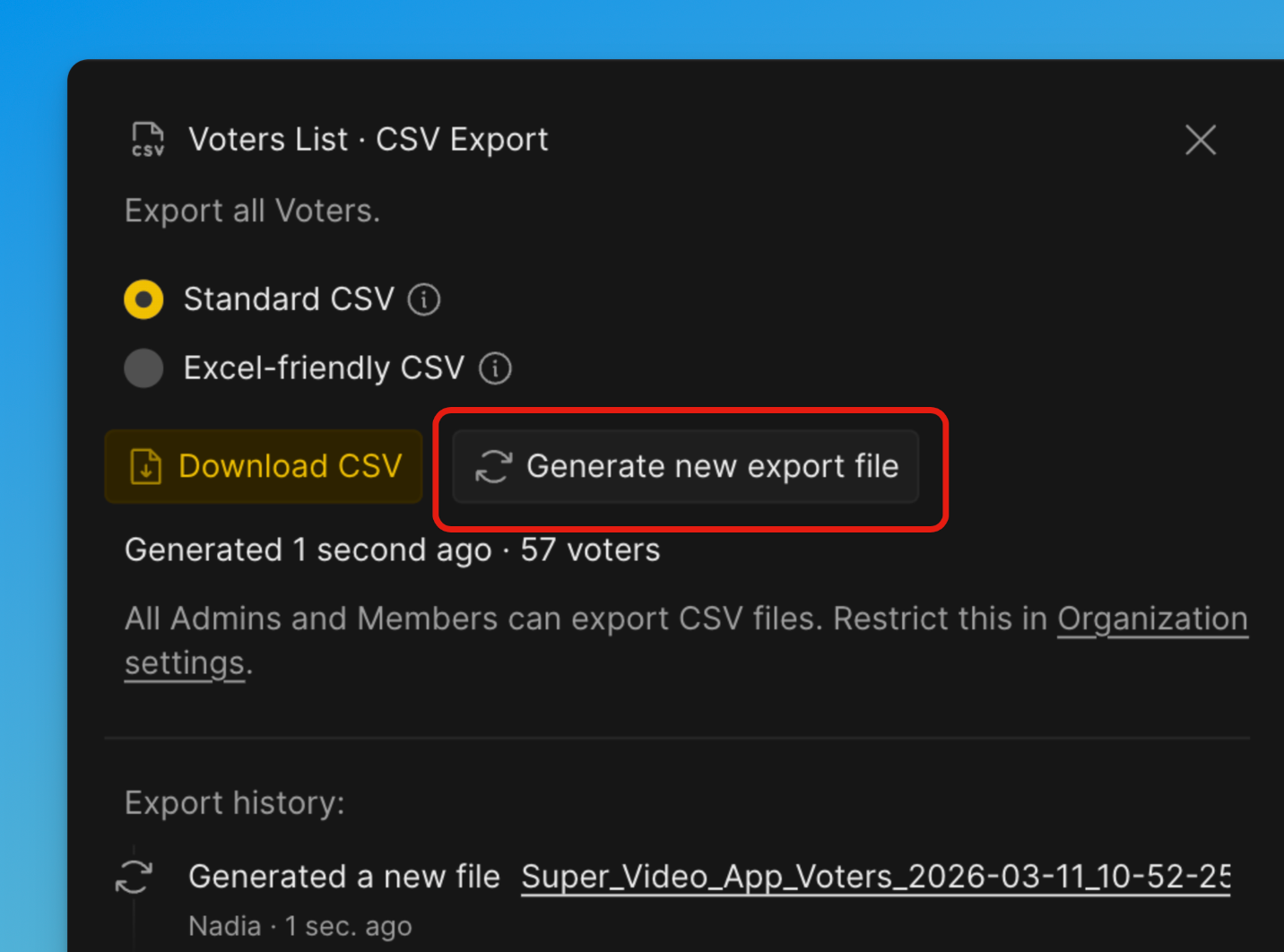
Click Generate new export file.
-
After generation completes, click Download CSV.
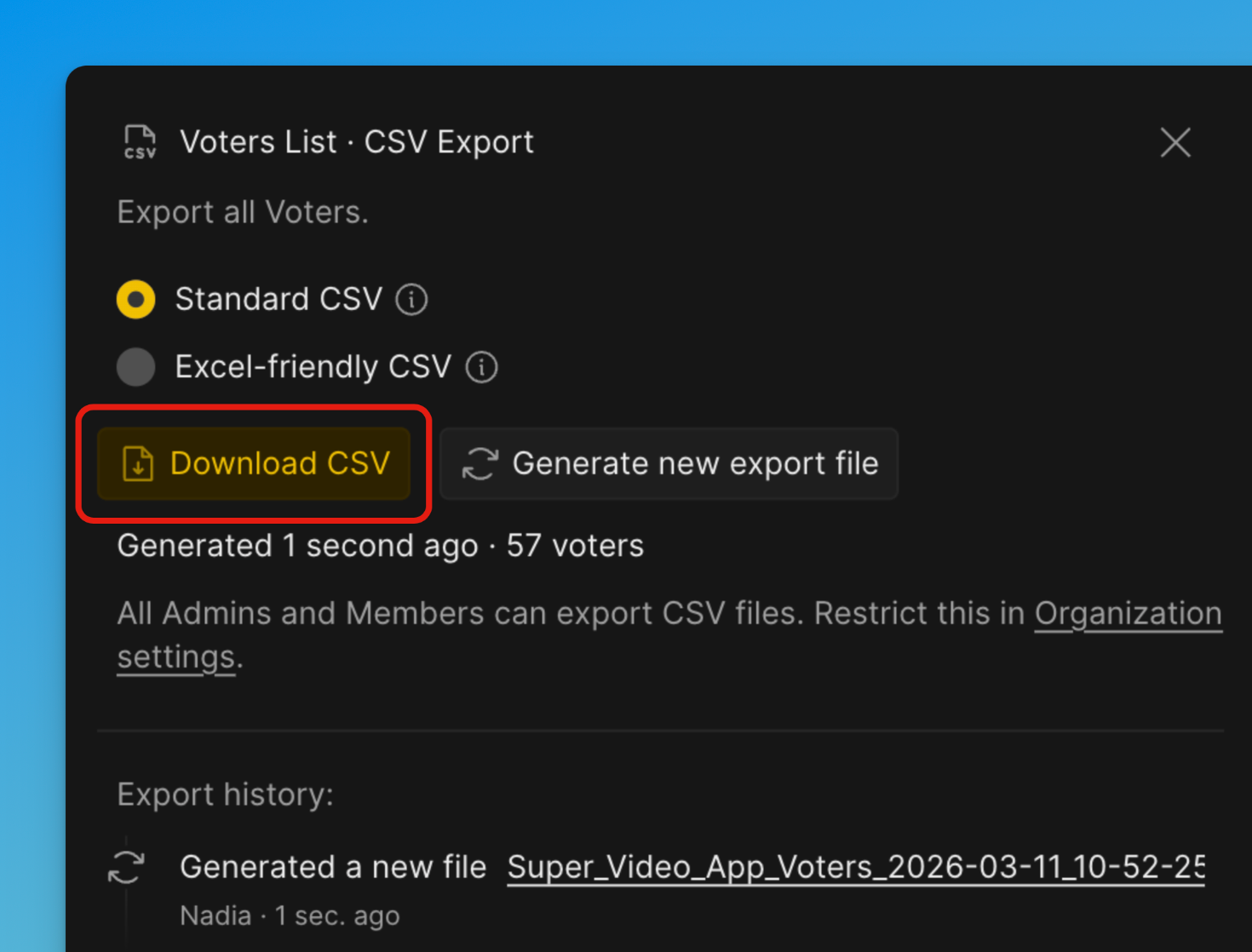
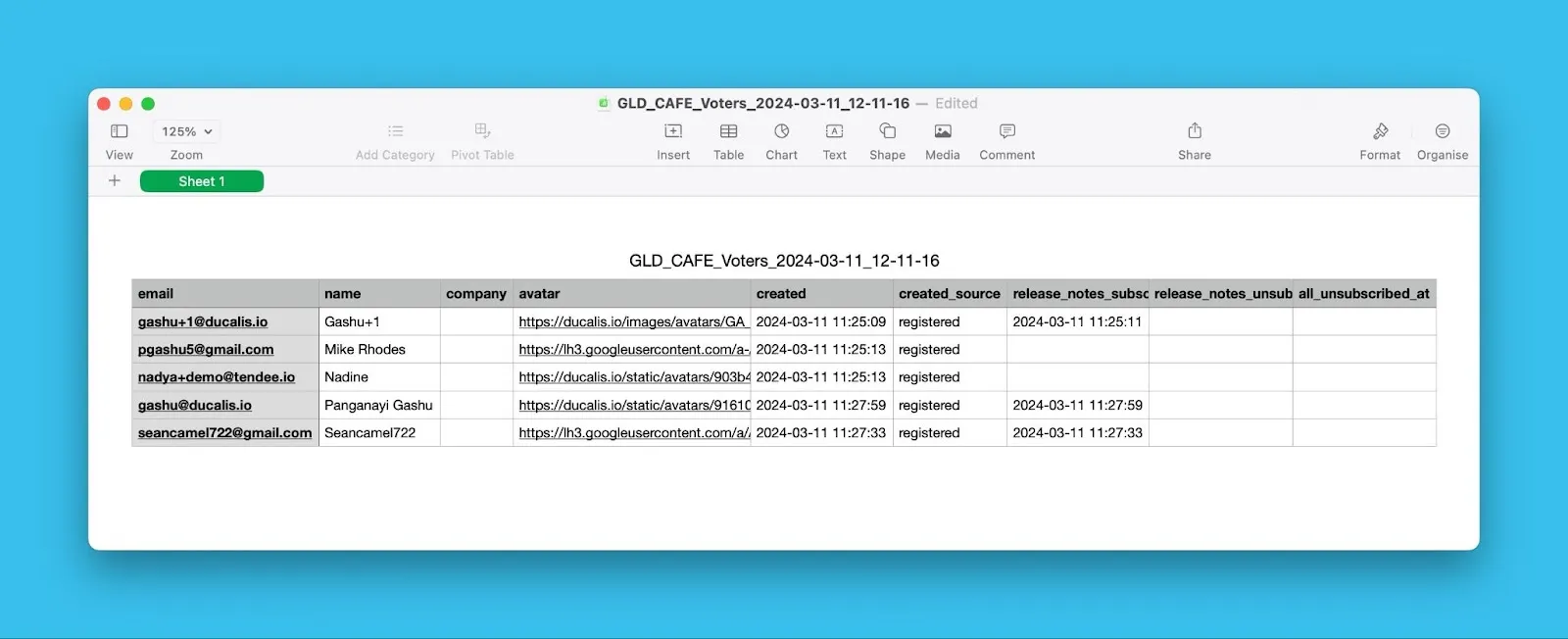
The CSV file includes Voter names, email addresses, Companies, Changelog subscription status, and other details.
Restrict export permissions
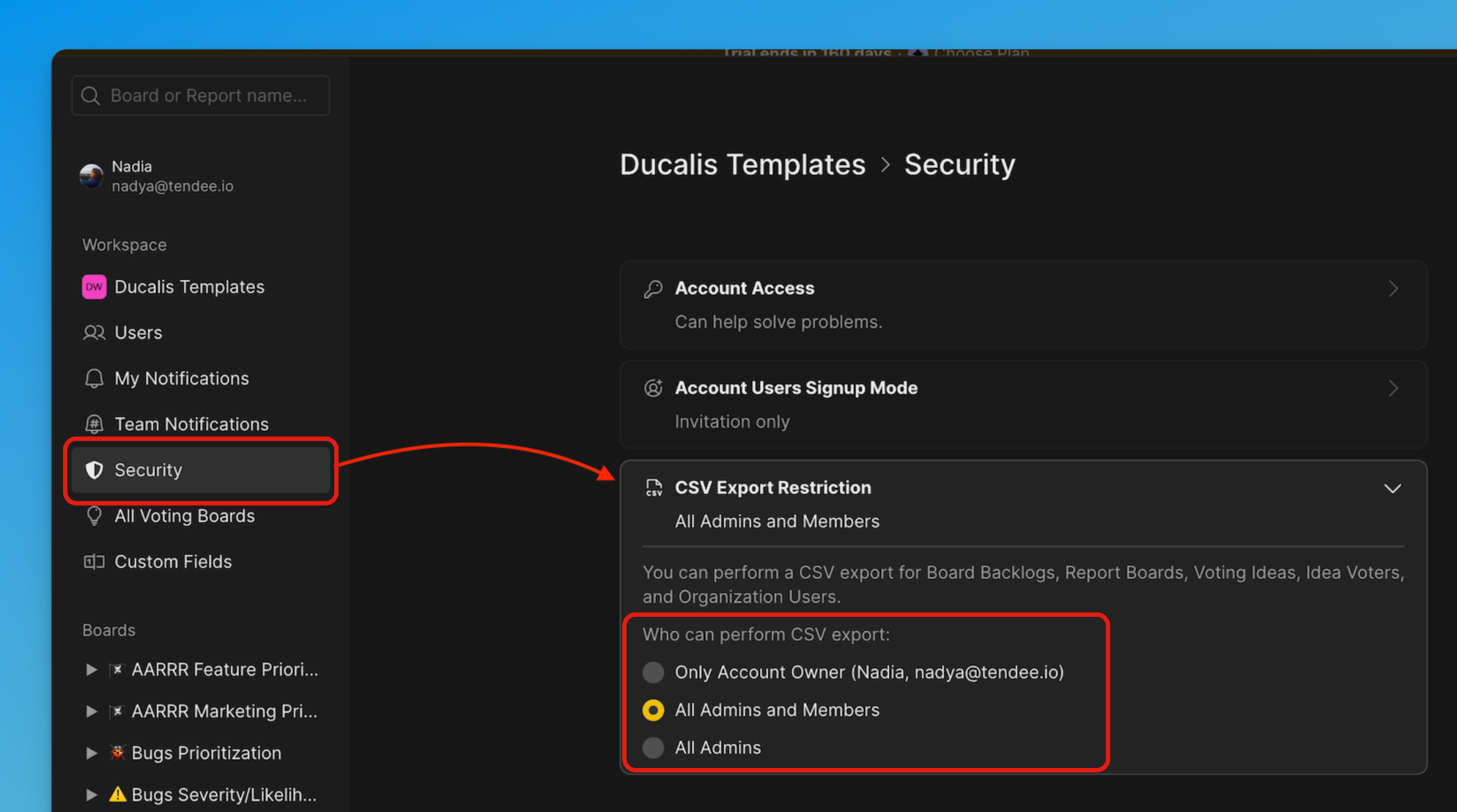
Control who can export data from your Organization.
-
Open Settings → Security → CSV Export Restrictions.
-
Select one of the following options:
- Account owner only
- All Admins and Members
- All Admins
Export history
View export history under Export log.
Each entry shows who exported data and when.