Invite from task tracker
After importing Issues from a connected task tracker, invite assigned users who aren't on the Board yet. This enables collaborative prioritization where everyone working on the backlog sees top priorities and understands how decisions are made.
Invite notification
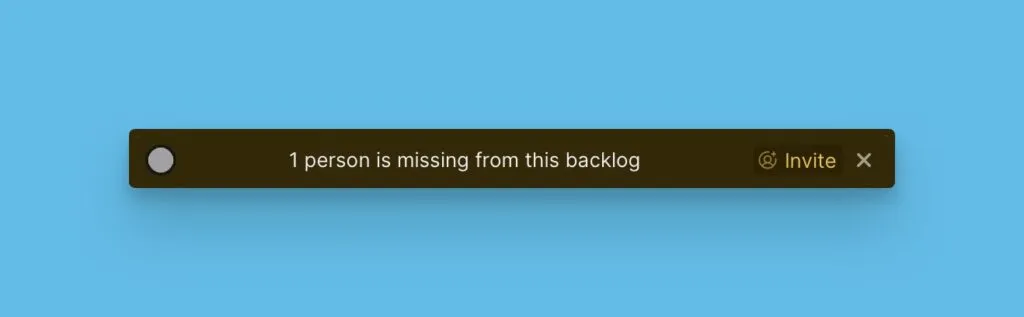
When you import Issues with assignees who aren't Board Users, a banner appears suggesting you invite them.
-
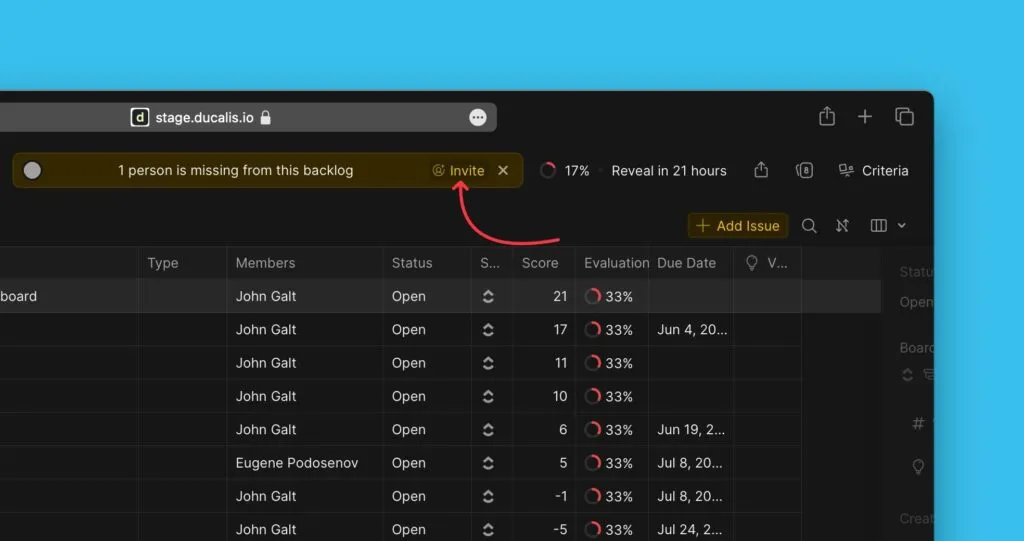
Click Invite in the notification banner.
-
Click Invite again on the confirmation prompt.
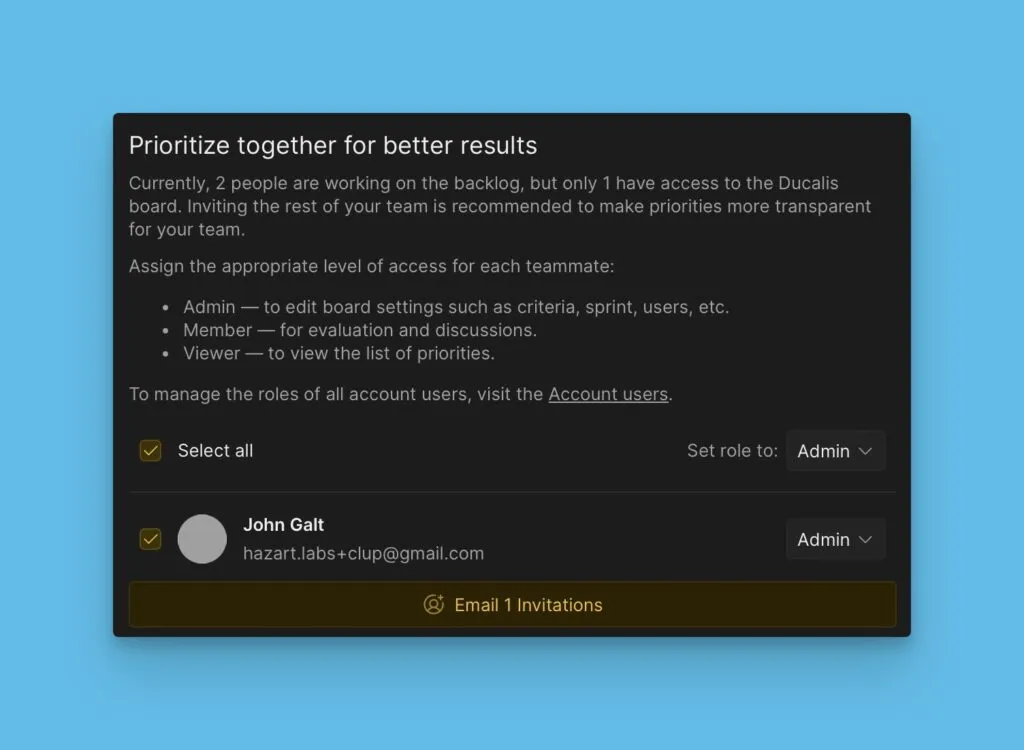
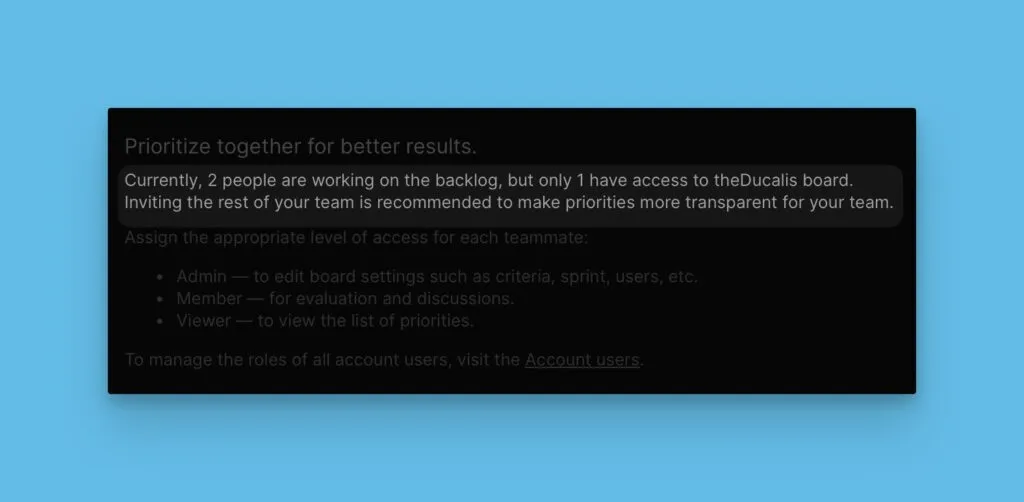
The invitation popup opens, showing the number of users working on the backlog compared to current Board Users.
Select users to invite
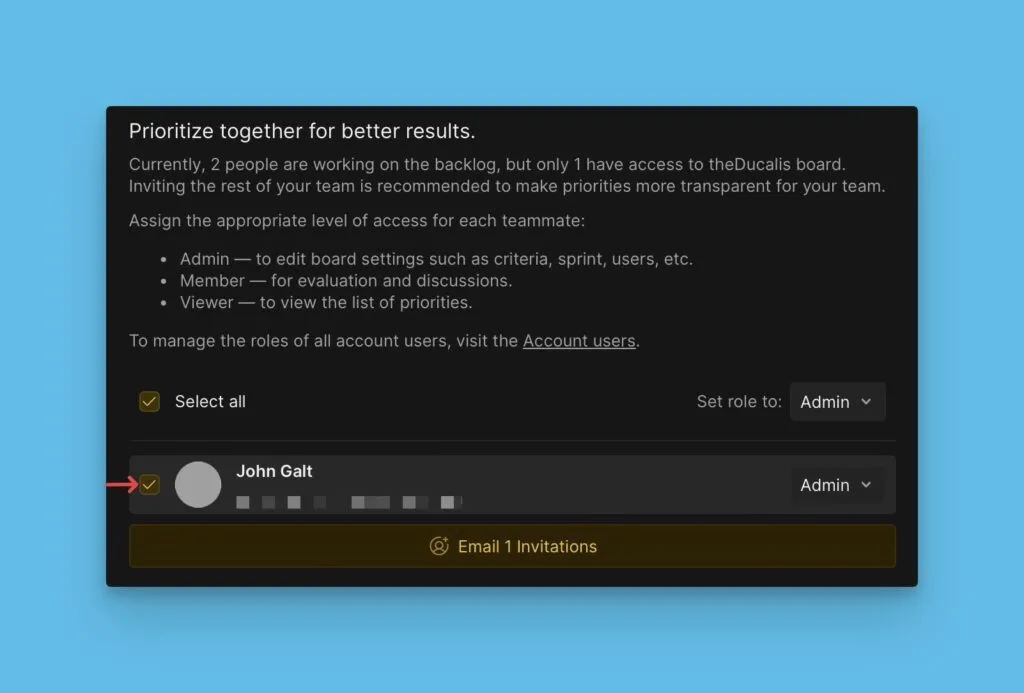
Scroll to the bottom of the popup to see all users who need invitations. Select the users you want to invite.
Assign roles
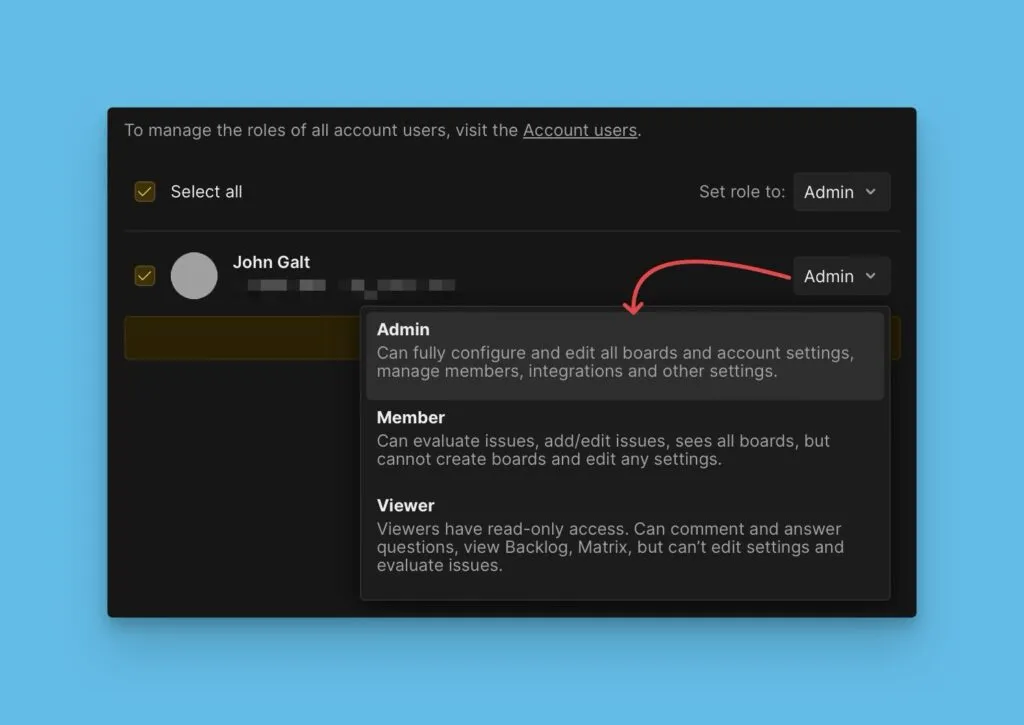
Each invited user needs a role (Admin, Member, or Viewer). Roles determine permissions for Board actions.
Bulk invite
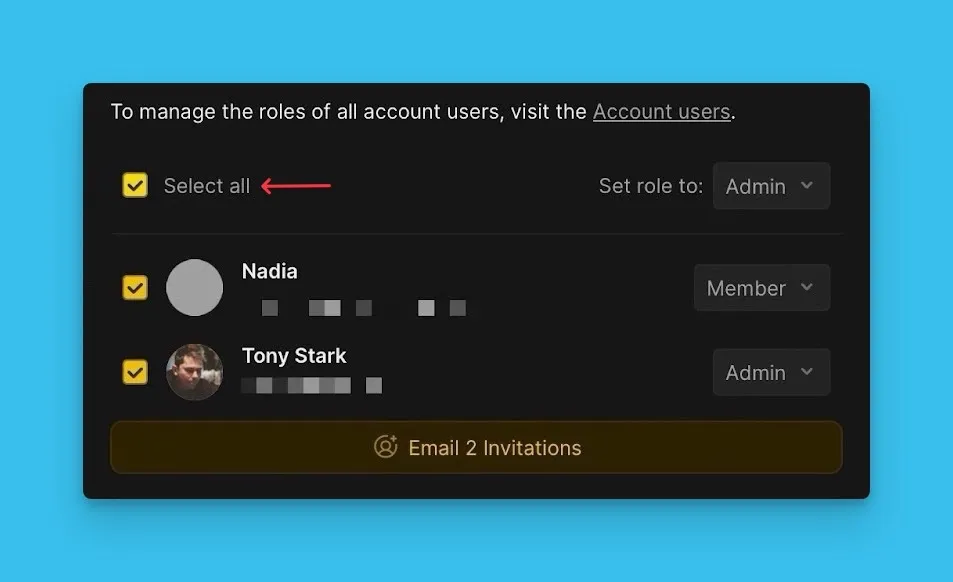
To invite multiple users at once:
-
Click Select All.
-
Choose a role to assign to all selected users.
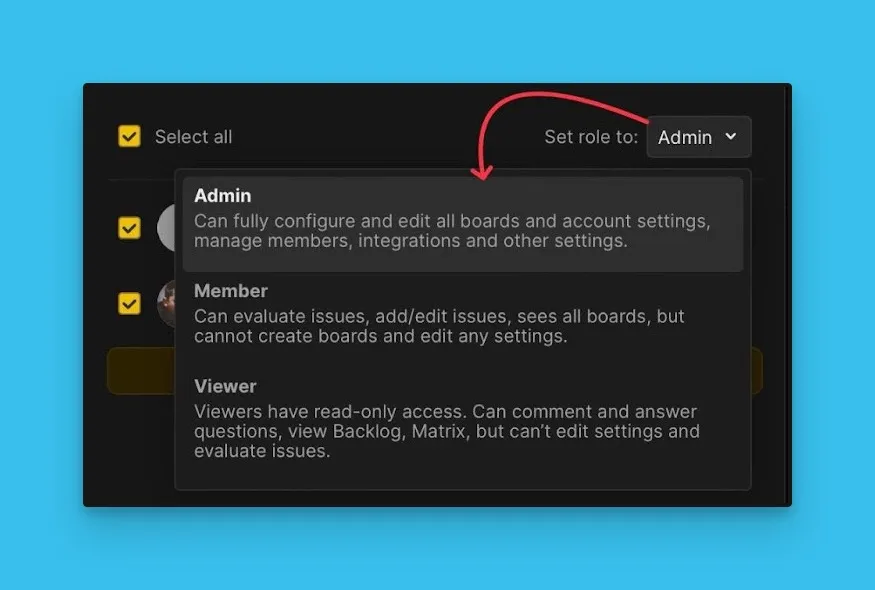
Send invitations
Click Send Invite to send all invitations.
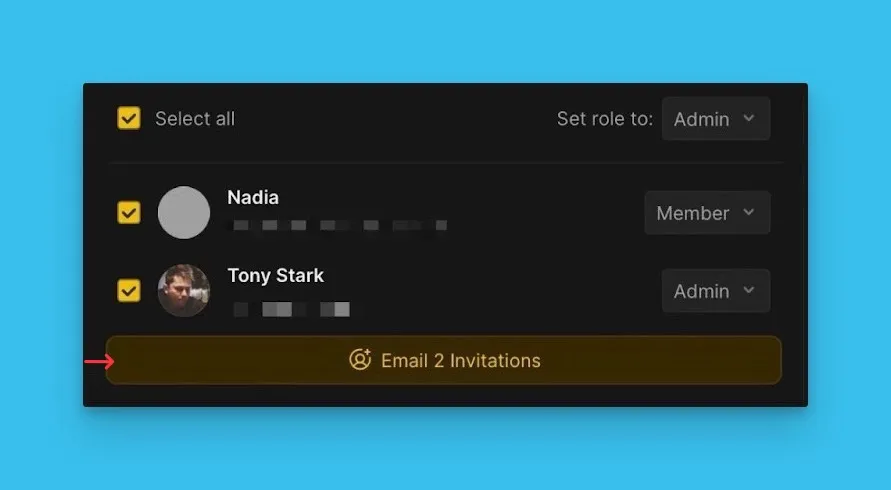
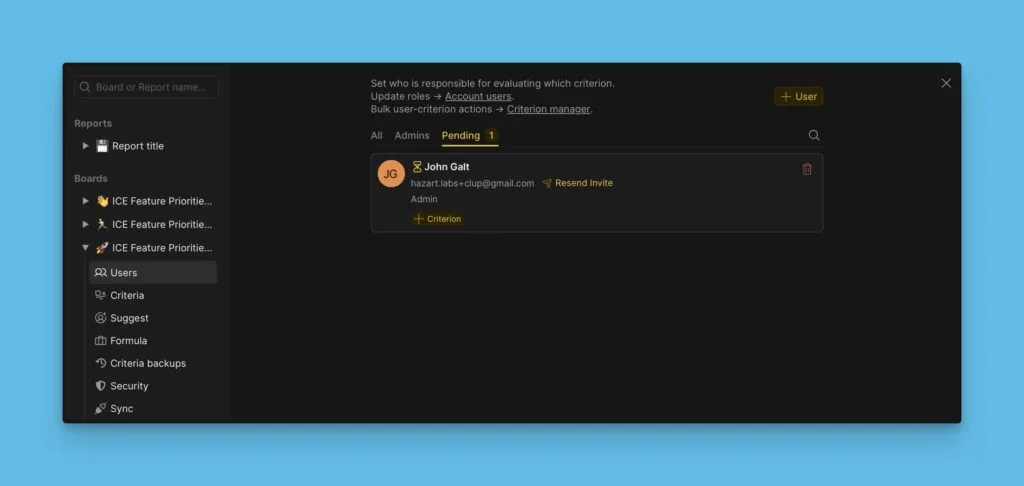
Sent invitations appear under Pending in Users settings until recipients respond.