Invite teammates
Prioritization works best when done collaboratively. Invite teammates to your organization to involve them in the evaluation process.
Invite users
-
On your Dashboard, click Users in the left sidebar.
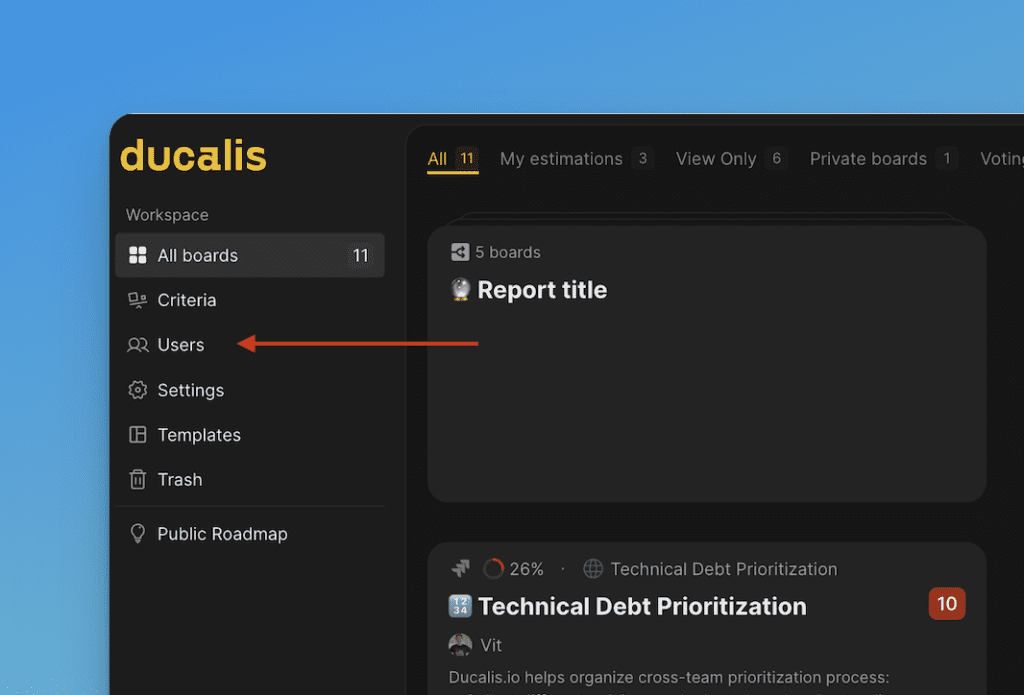
-
Click Invite.
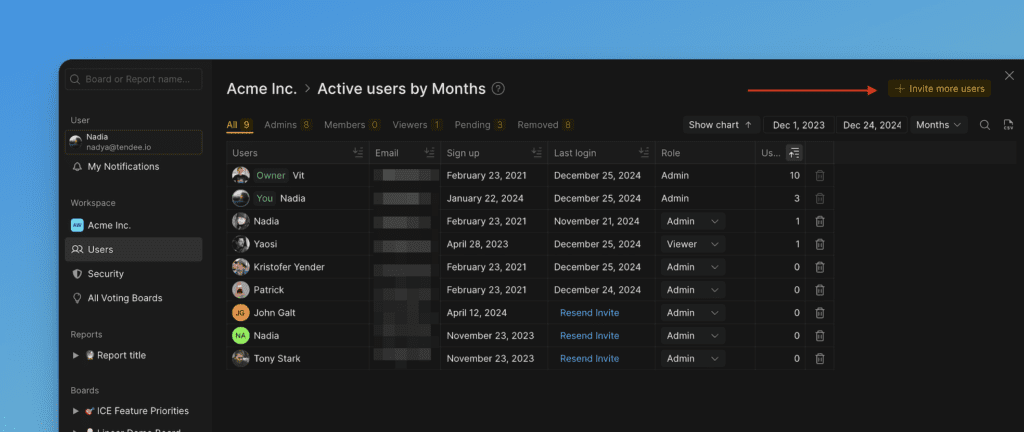
Share access link
-
Click Copy Link.
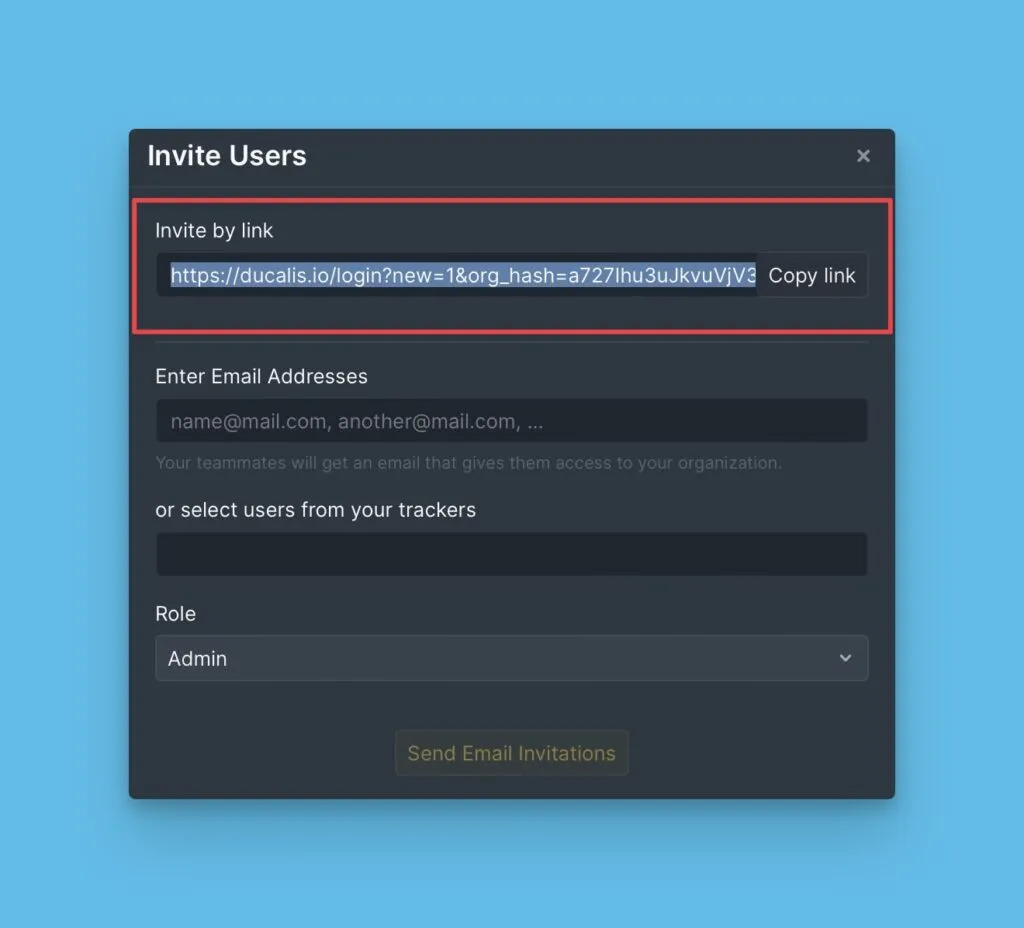
-
Share the link with the users you want to invite.
-
Ask them to sign up or sign in via the link.
Users who join via the link will appear as Admins in your organization. You can change their role after they accept the invitation.
Send email invitations
-
Enter the email addresses of the users you want to invite.
-
If you've integrated a task tracker, choose from the list of tracker users.
-
Choose their role: Admin or Member.
-
Click Send Email Invitations.
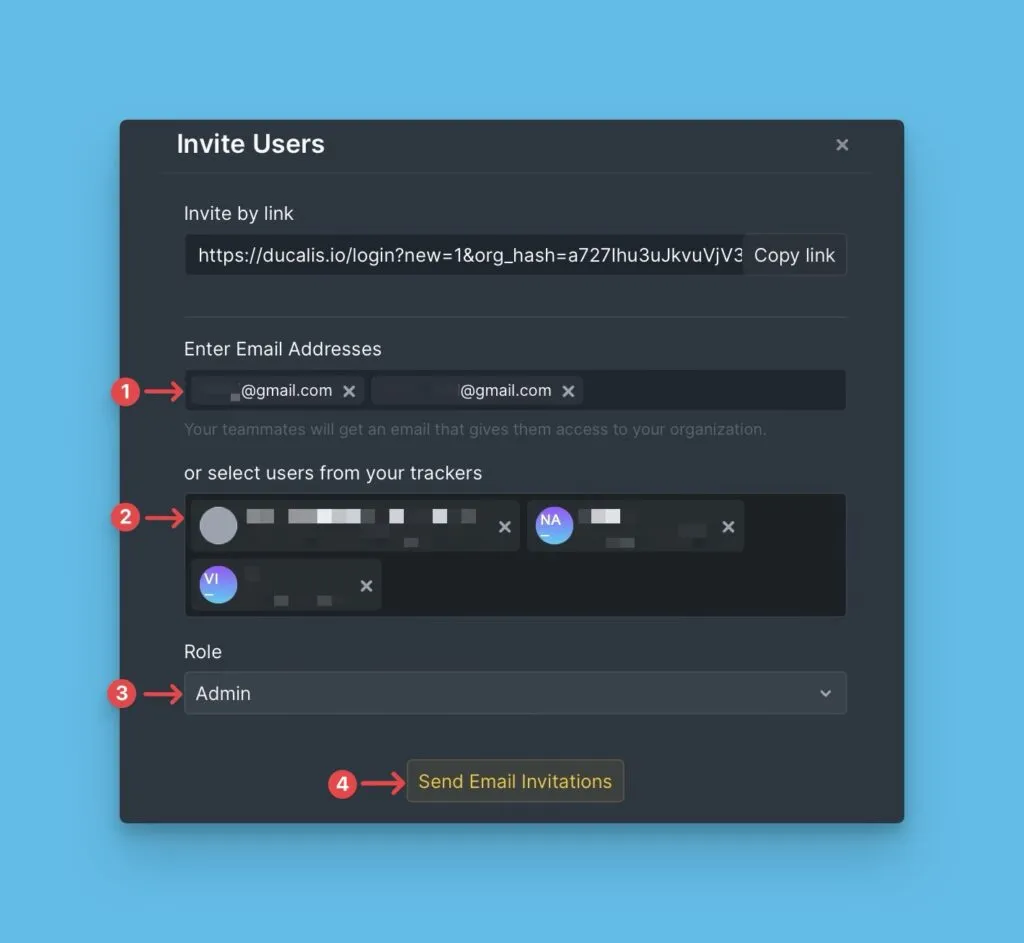
Users will receive an email with a link to sign up or sign in to your organization.
Join an organization
Ask the Owner or an Admin to share an invitation link with you. When you follow the link, you'll join the organization as an Admin.
Switch between organizations
-
On the Dashboard, click the arrow in the left sidebar.
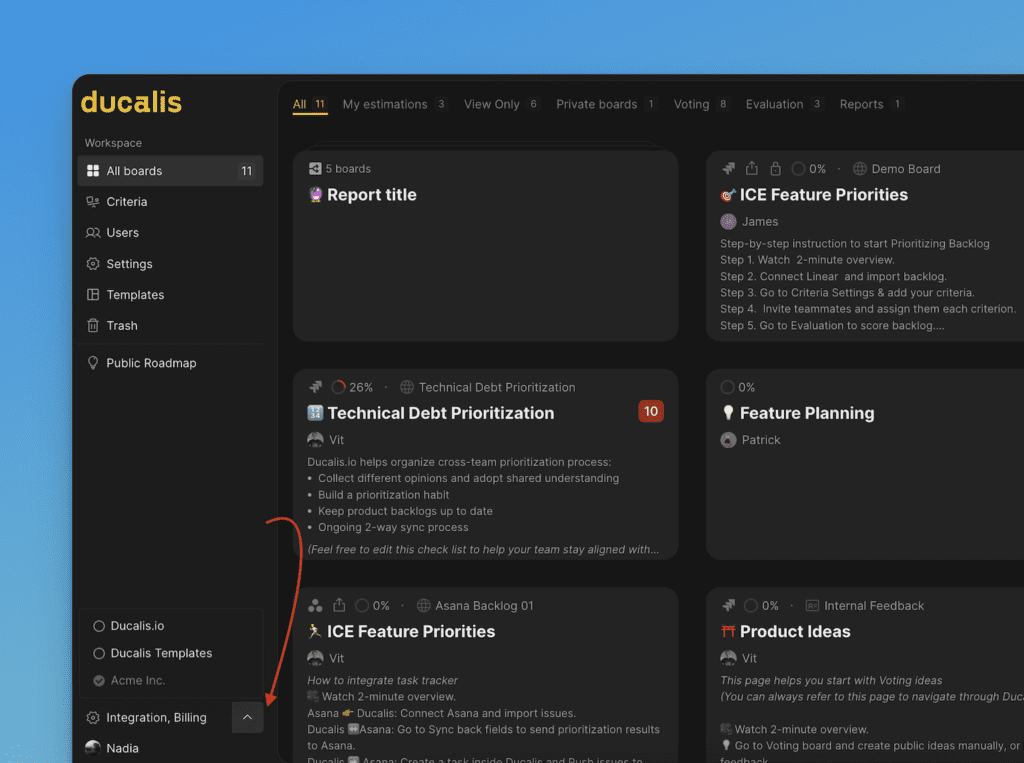
-
Select the organization you want to switch to from the dropdown.
Pending invitations
All invitations you've sent that haven't been responded to appear under Pending.
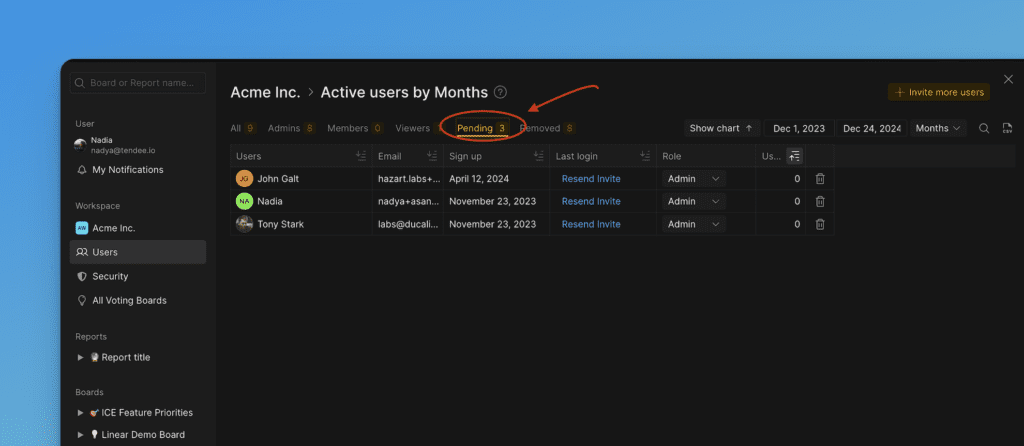
You can change the user's role before they accept the invitation.
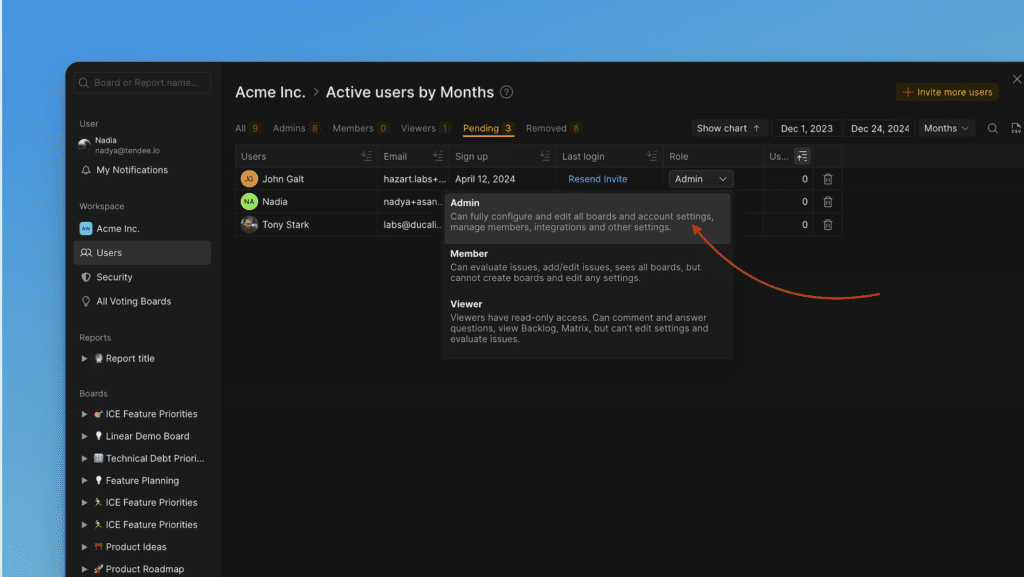
Filter users by role
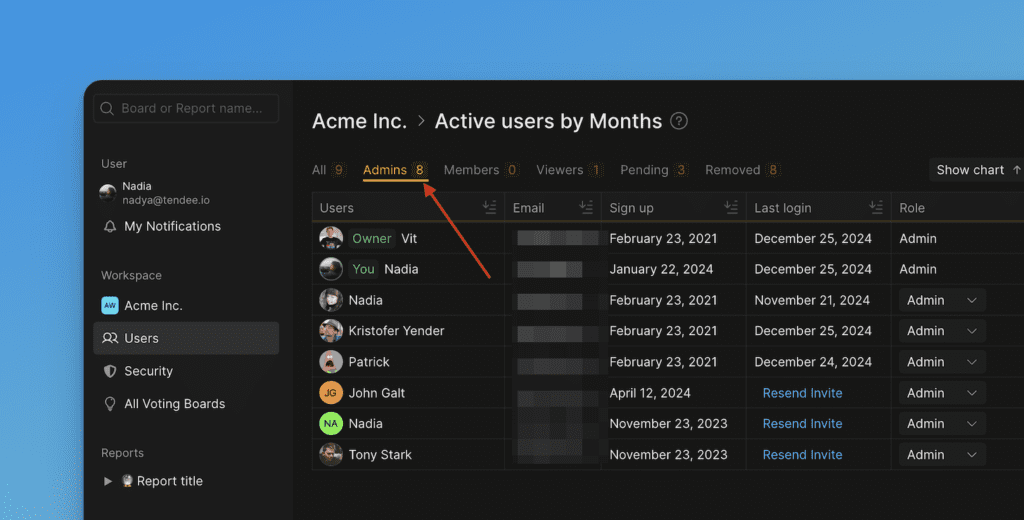
Use the filters at the top to view users by role. The number of users in each role appears next to the filter.
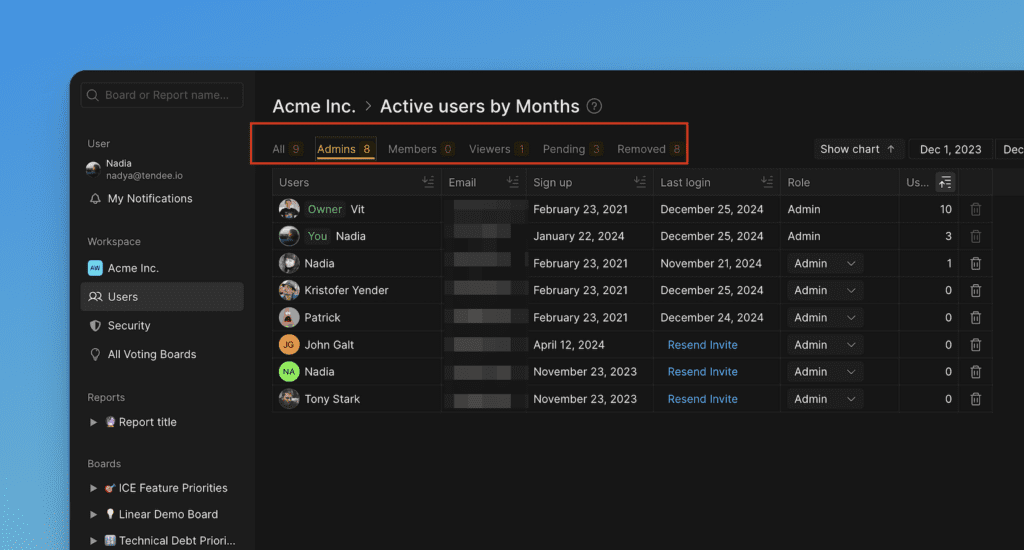
Delete users from an organization
-
Click Users in the left sidebar.
-
Click the Bin icon next to the user you want to remove.
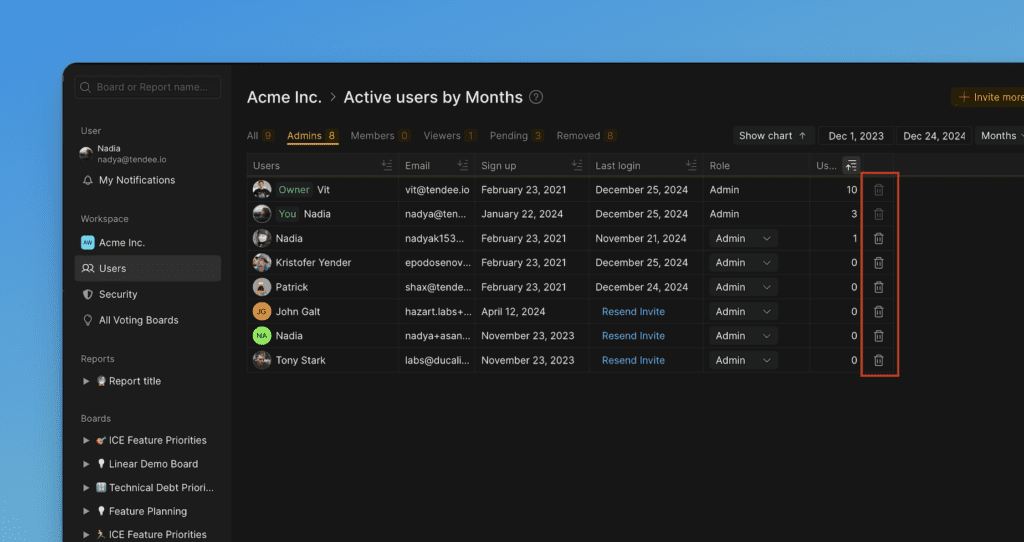
Users removed from the organization can't log in to it with the same email.