Focus mode
Focus mode displays each Issue separately on a full screen, helping you concentrate on one Issue at a time during Evaluation.
Using Focus mode
-
On the Evaluation page, click the Focus mode icon.
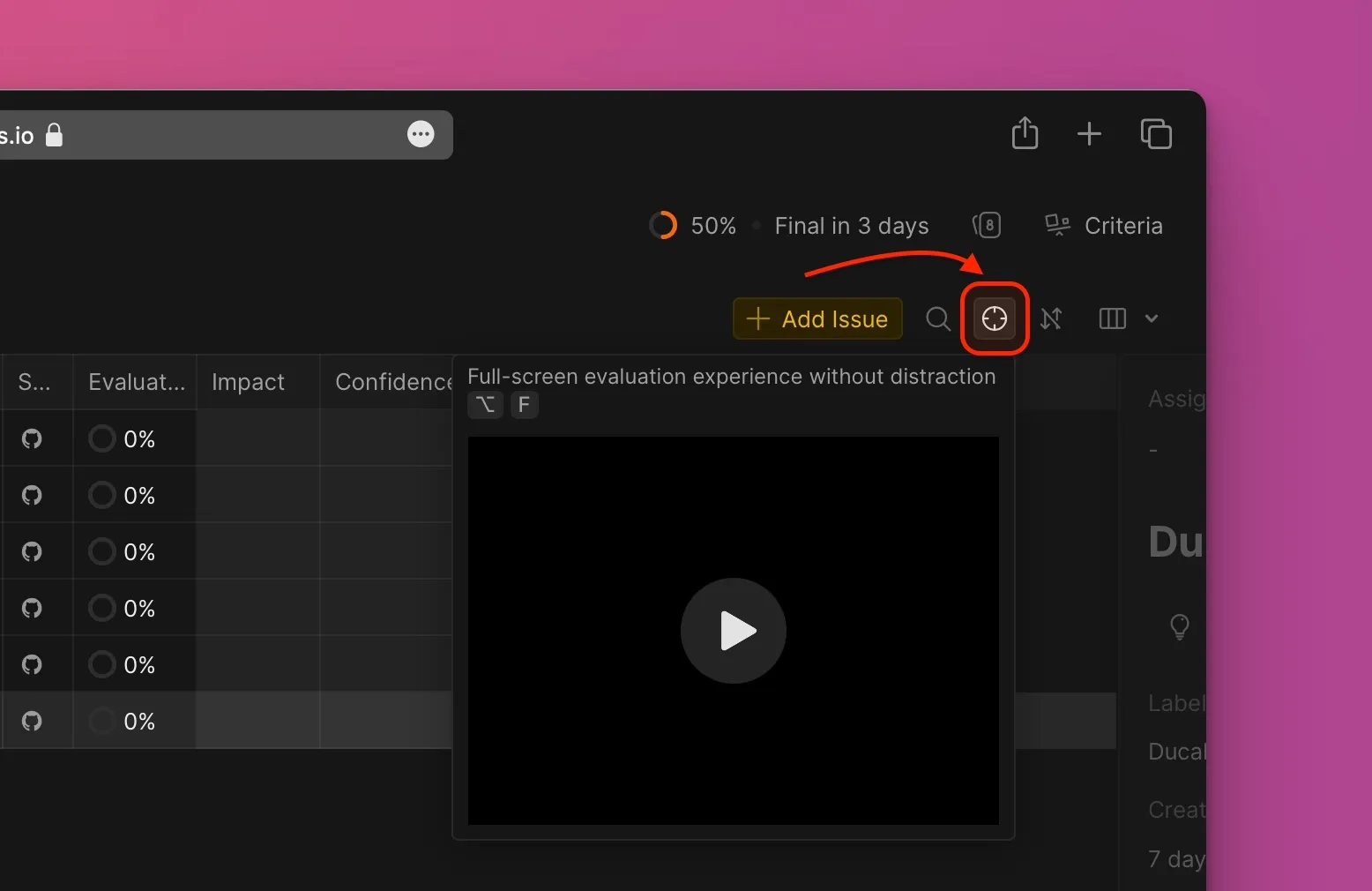
-
Click in the cell under the Criterion you want to score.
-
Enter a score from the Criterion's scale by typing a number.
-
Ask teammates a Question if you need clarification while evaluating.
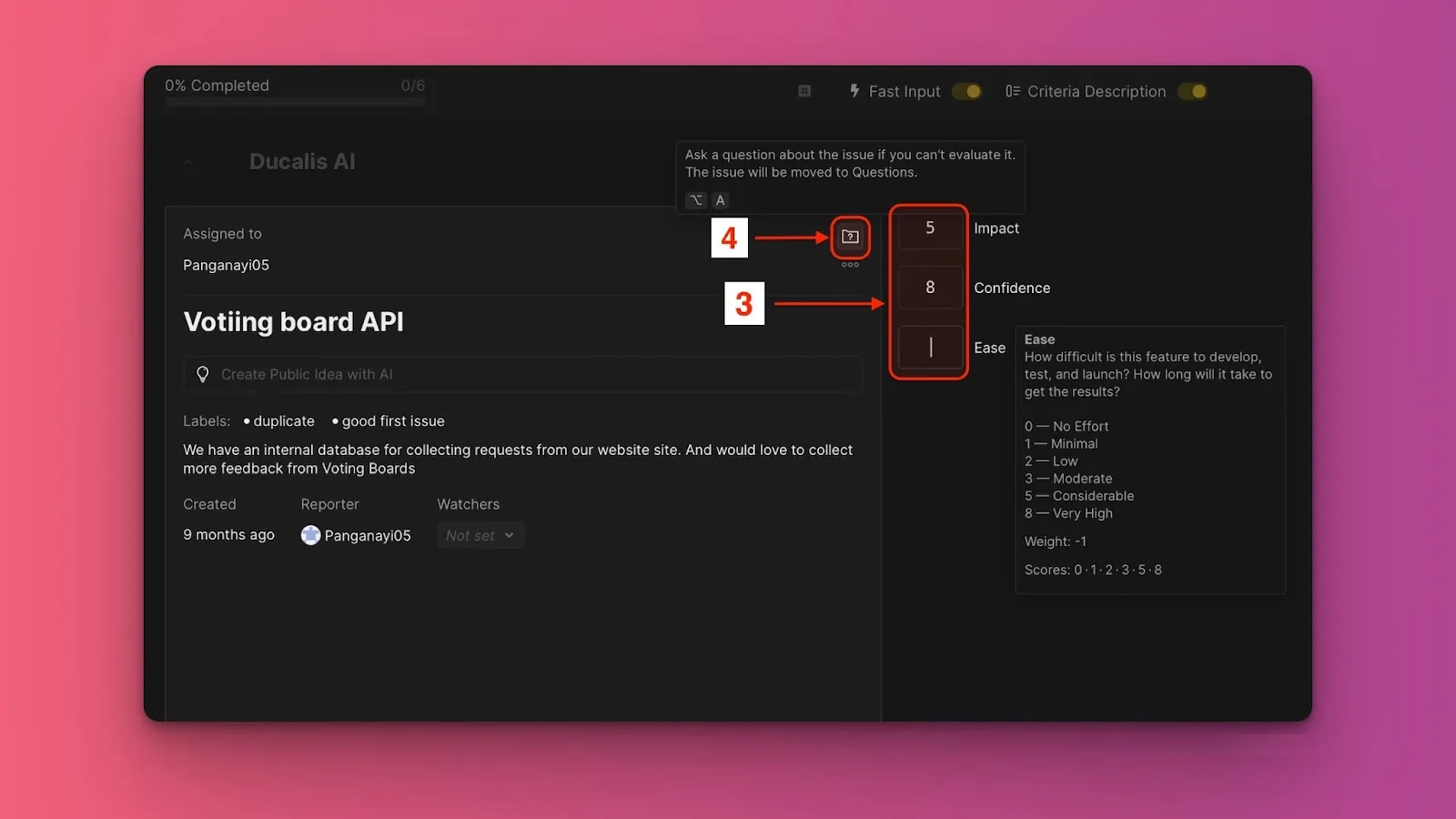
-
View evaluation progress in the progress indicator.
-
Toggle Fast Input on or off to control automatic cell navigation.
-
Toggle Criteria description on or off to show or hide details.
-
Exit Focus mode by clicking the X icon in the top right corner.
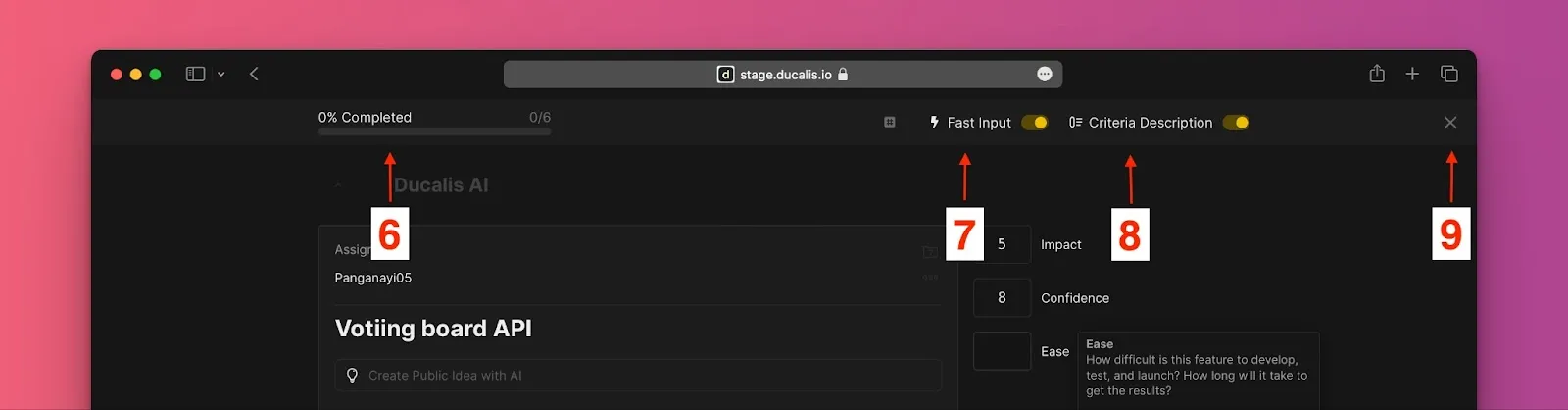
Fast Input
Fast Input automatically moves to the next cell after you enter a single-digit score (0-9), helping you evaluate faster.
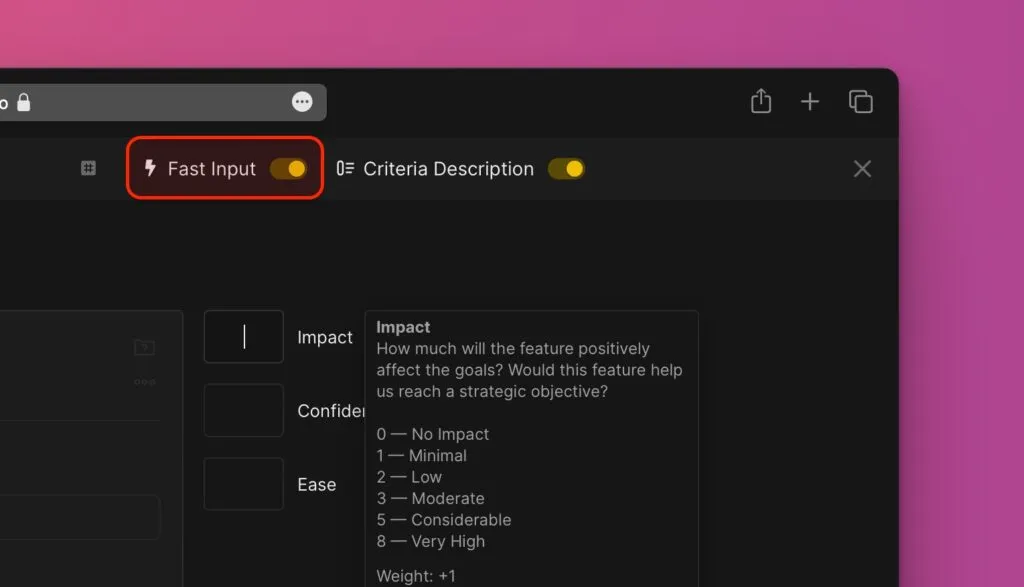
For multi-digit scores, press Tab, Enter, or right arrow → to move to the next cell manually.
Skip Issues and ask Questions
In Focus mode, you can skip Issue evaluations just like in the regular Evaluation view.
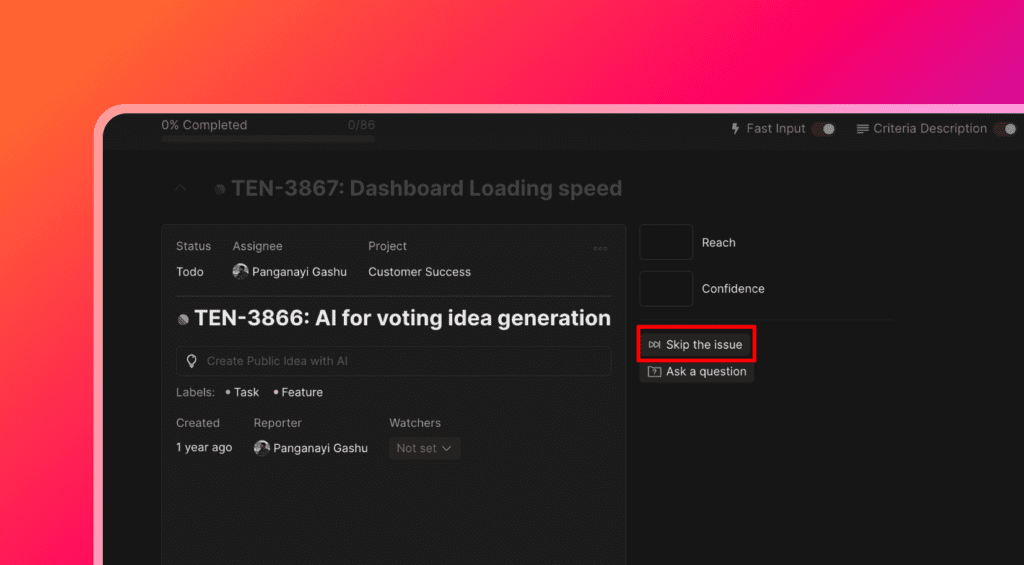
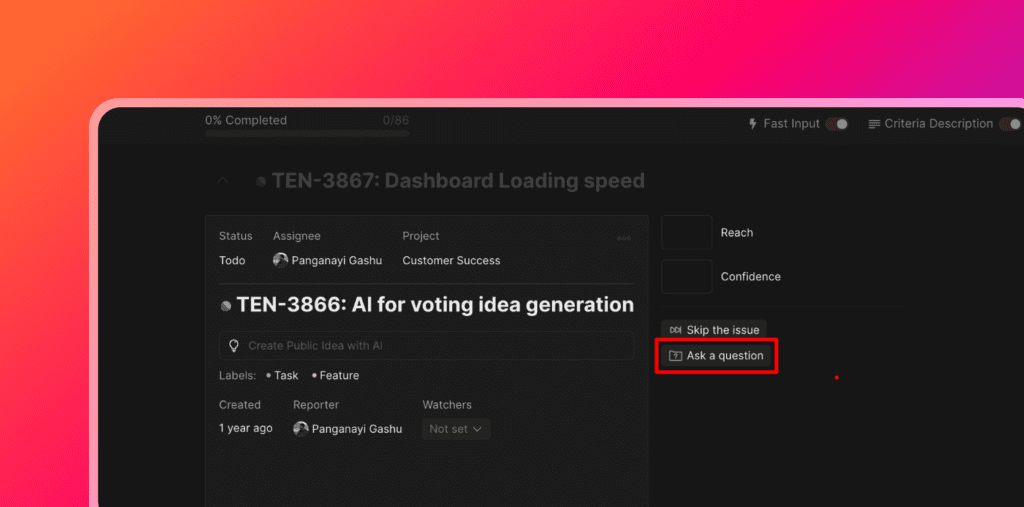
You can also ask Questions when descriptions, scales, or Criteria are unclear.
Keyboard shortcuts
Alt + F— Open Focus modeTab,Enter, or→— Move to next CriterionShift + Tabor←— Move to previous Criterion↑and↓— Browse between Issues?— Show or hide shortcuts reference