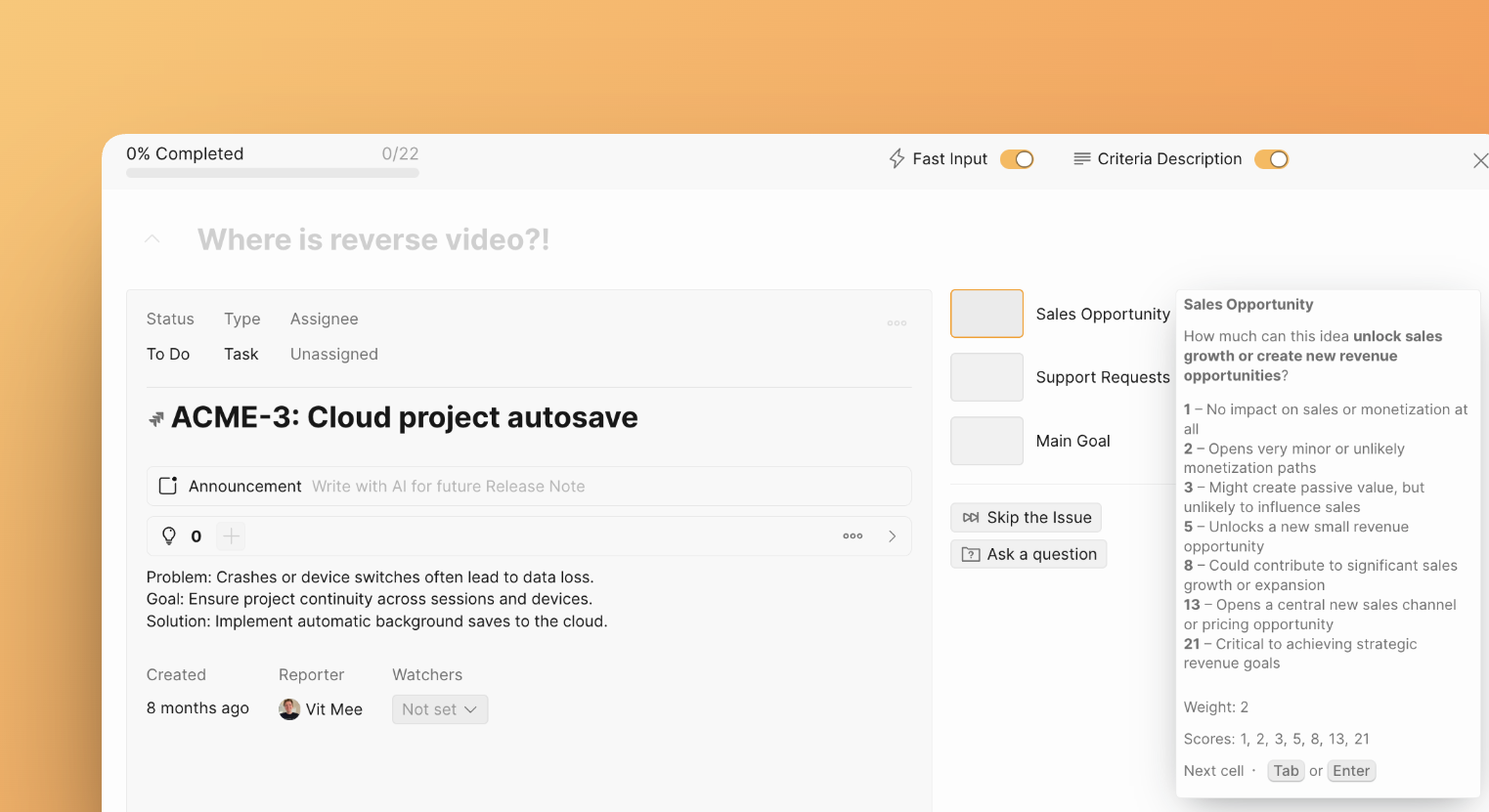
Hotkeys and Fast Input
Shortcuts for fast switching among boards and sections
You can use hotkeys instead of mouse clicking to accelerate the prioritization process.
In-Board Hotkeys:
You can use keyboard hotkeys for faster browsing among boards and in-board sections. They are highlighted by mouse hover.
To move among sections press:
-
alt + qfor Backlog -
alt + efor Evaluation -
alt + ifor Alignment -
alt + rfor Questions -
alt + ffor Focus Mode -
alt + wfor Matrix
To move among boards press:
-
alt + 1for the first board in the list -
alt + 2for the second board in the list -
alt + numberfor any next board.
Backlog Hotkeys:
-
Press
alt + qto open Backlog. -
Press
up ↑anddown ↓arrows on the keyboard to browse through your top priority tasks and read their descriptions. -
Press
/to start search.
Evaluation Hotkeys:
-
Press
alt + eto open Evaluation grid. -
Press
TaborEnterto switch to the next cell. -
Press
Shift + Tabto switch to the previous cell. -
Or use arrows
up ↑,down ↓,left ←, andright →to move across cells.
Fast Input:
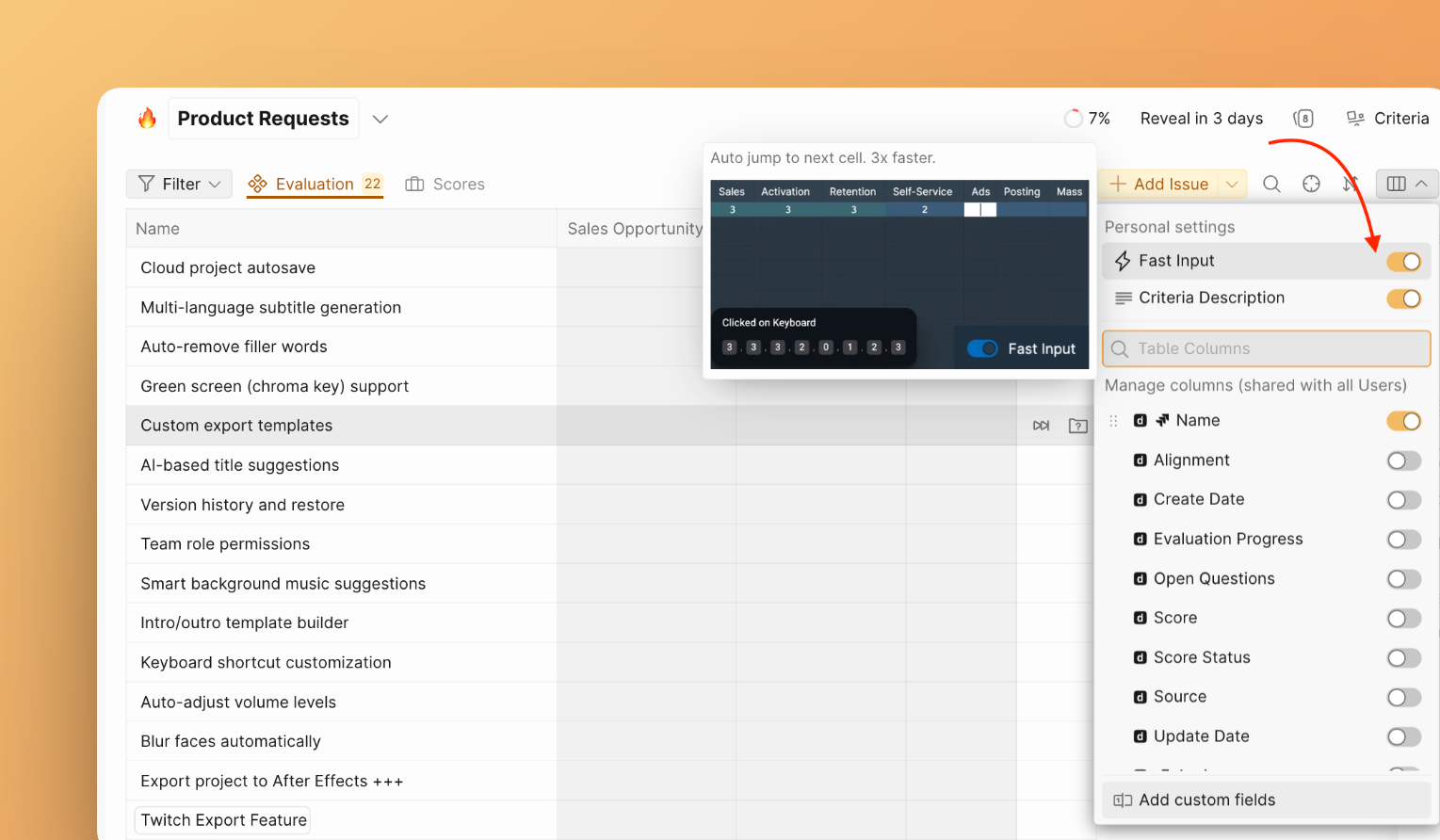
Fast input is a superpower that helps you evaluate your tasks with ultimate speed.
When you evaluate tasks with single-digit scores (from 0 to 9), focus jumps to the next cell automatically if Fast Input is enabled.
If you need to assign multi-digit scores, you can still use Tab, Enter, or right arrow → to switch to the next cell.
Use toggle to switch Fast Input on and off.
Focus Mode Hotkeys:
-
Press
alt + fto open Focus Mode. -
Press
Tab,Enter, orright arrow →to switch to the next criterion. -
Press
Shift + Taborleft arrow ←to switch to the previous criterion. -
Press
up ↑anddown ↓arrows to browse among tasks.
Don't forget to enable Fast Input in the Focus Mode for faster assessment.