Add to backlog
Add Ideas from your Voting Board to your internal backlog. This keeps your internal workflow in sync with Voter feedback.
You can add an Idea to your backlog in two ways:
- Create a new Issue – Convert the Idea into a new Issue
- Link to existing Issue – Connect the Idea to an Issue that already exists
Adding as a new Issue
-
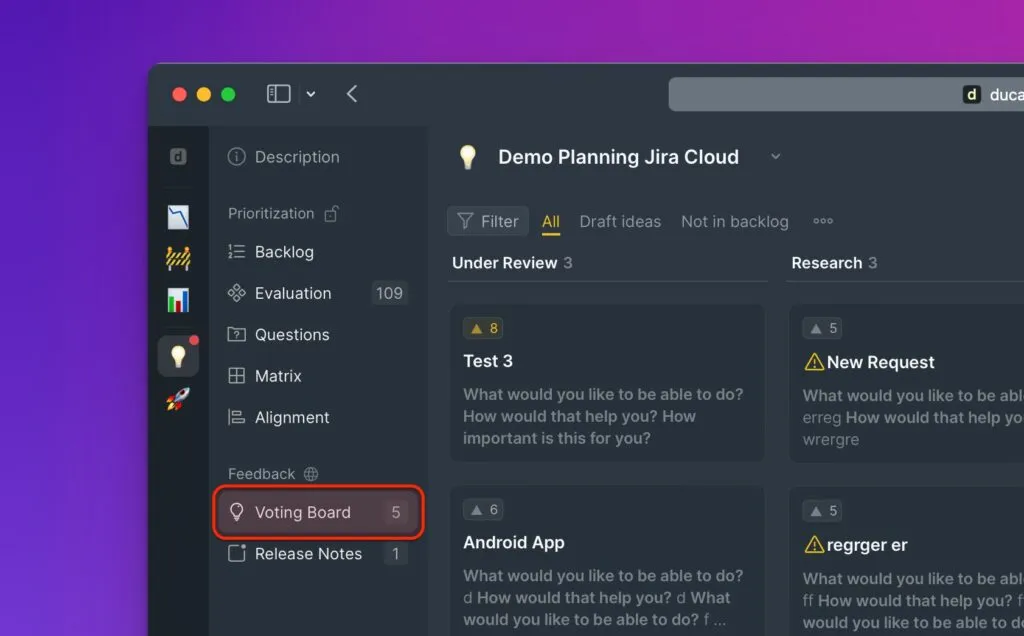
Go to Voting Board.
-
Select the Idea you want to add to your backlog.
-
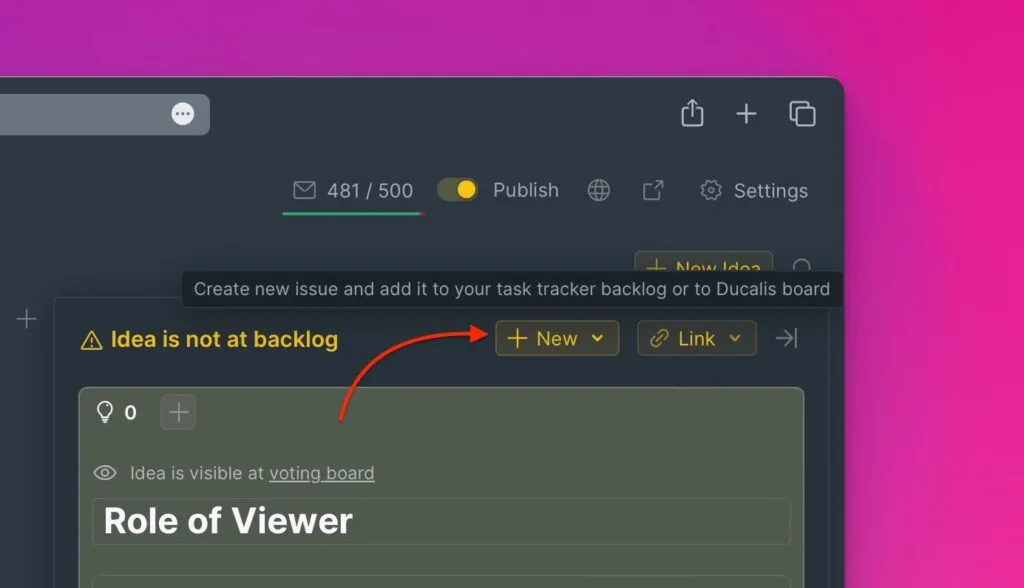
Click + New.
-
Add the Issue to your Ducalis backlog, or to your connected task tracker.
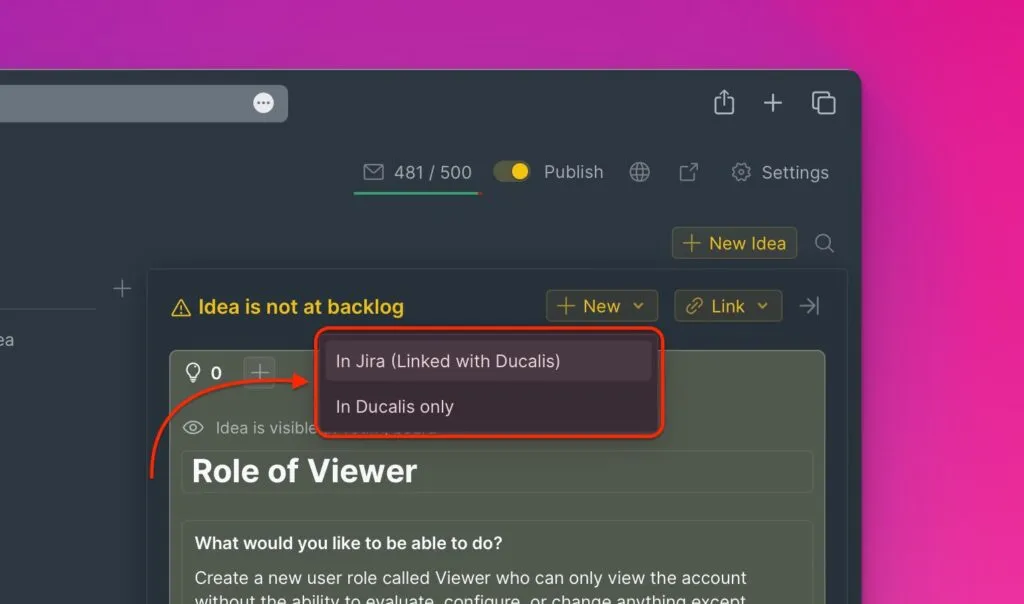
The Idea is now converted to an Issue in your backlog.
Linking with an existing Issue
Instead of creating a new Issue, you can link the Idea to an existing Issue that's similar.
-
Go to Voting Board and select the Idea.
-
Click 🔗 Link.
-
Type the name of the Issue you want to link in the search field.
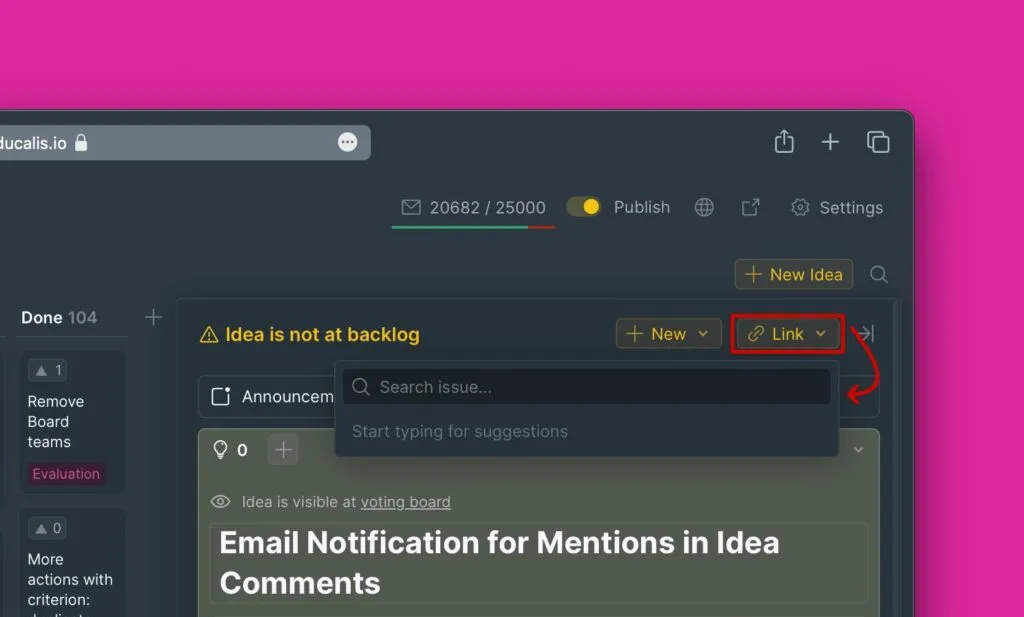
If you have a task tracker connected, you can link the Idea to any Issue in the task tracker—not just Issues imported into Ducalis.
The Idea is now linked to the existing Issue.