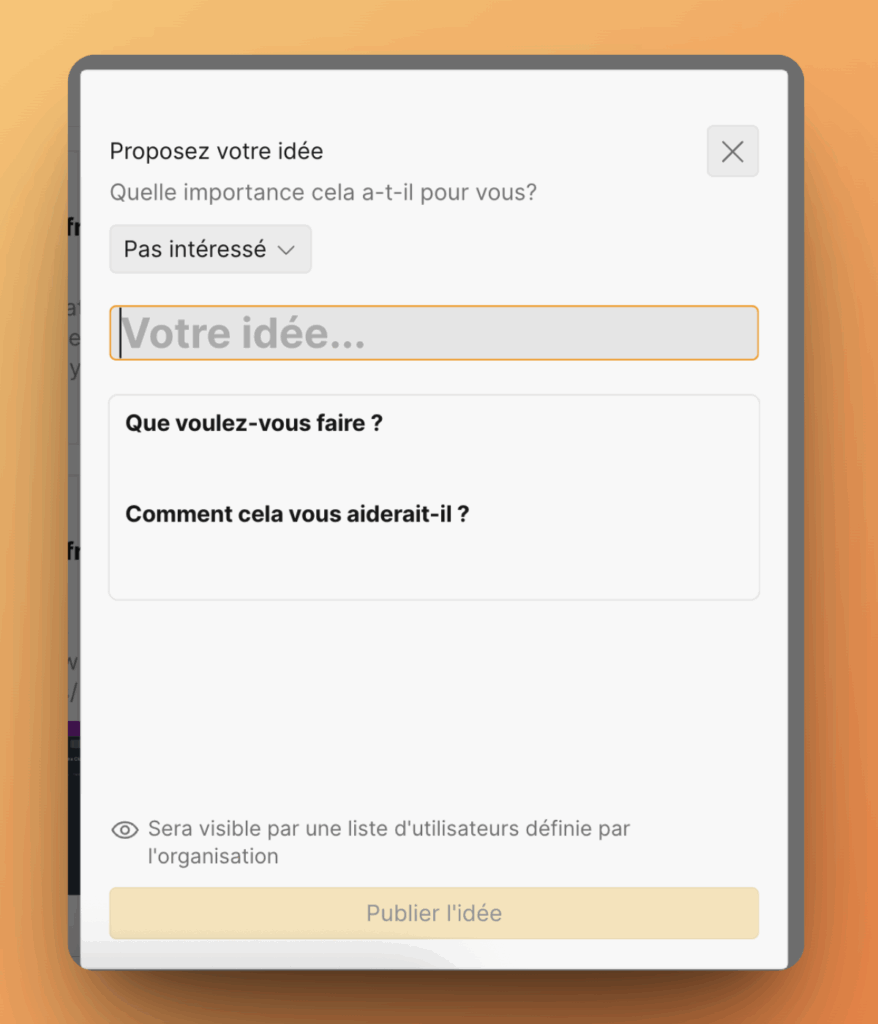
Card customization
Customize how Idea cards appear on your Voting Board and what information Voters can submit when creating Ideas. Control field visibility, display order, and which fields Voters can fill in.
Customize Idea card display
Control which fields appear on Idea cards and their display order.
-
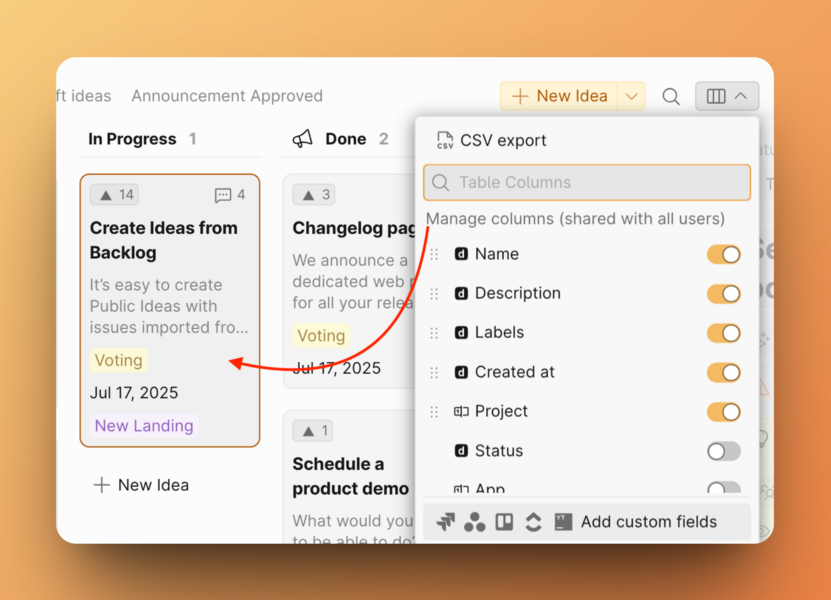
Open the Column Management menu.
-
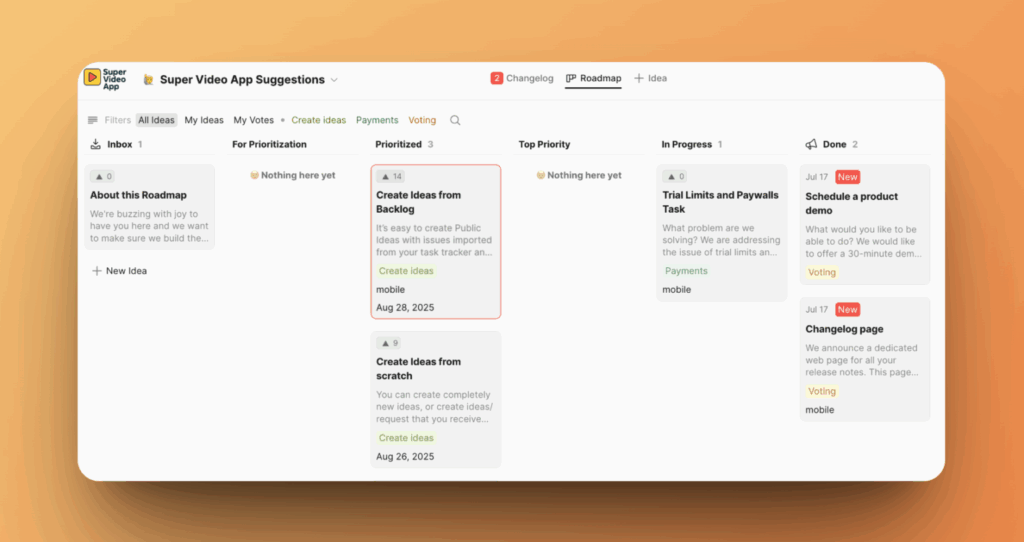
Select which fields to show on Idea cards.
Available fields:
- Idea name
- Idea description
- Labels
- Date of creation
- Idea status
- Custom fields
-
Drag fields to reorder them.
The order you set here determines how fields appear across the entire Voting Board.
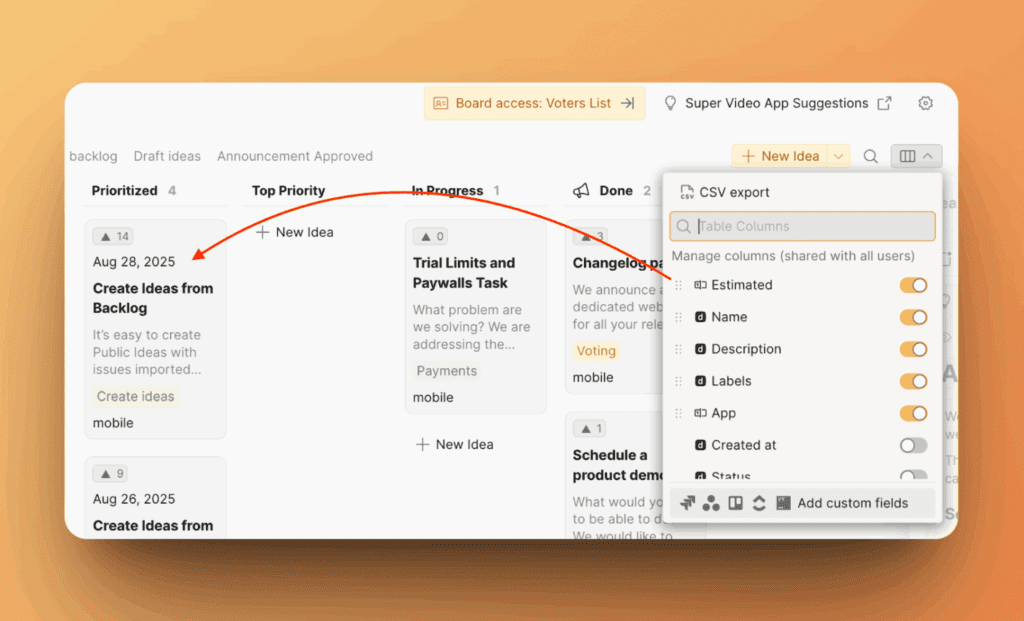
Voters see the fields in the order you configured:
Customize Create Idea form
Control what information Voters can submit when creating Ideas. Each board can have its own separate form configuration.
Set Idea template
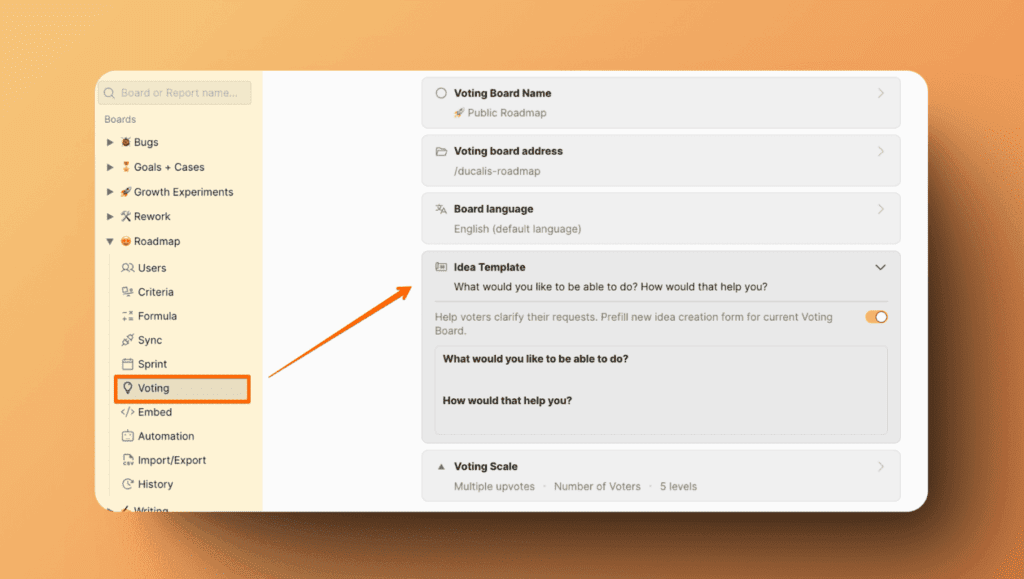
Configure the default content Voters see when creating Ideas.
Set up your Idea template as described in Template for new Ideas.
Configure fillable fields
Choose which fields Voters can fill when creating Ideas.
-
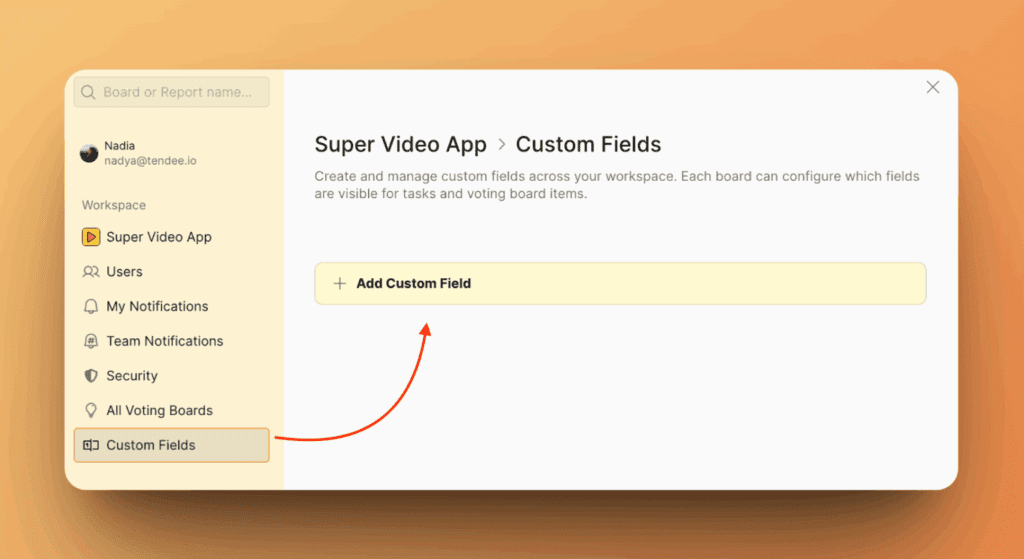
Go to Custom Fields.
-
Click Create Field and follow the steps in Creating a custom field.
-
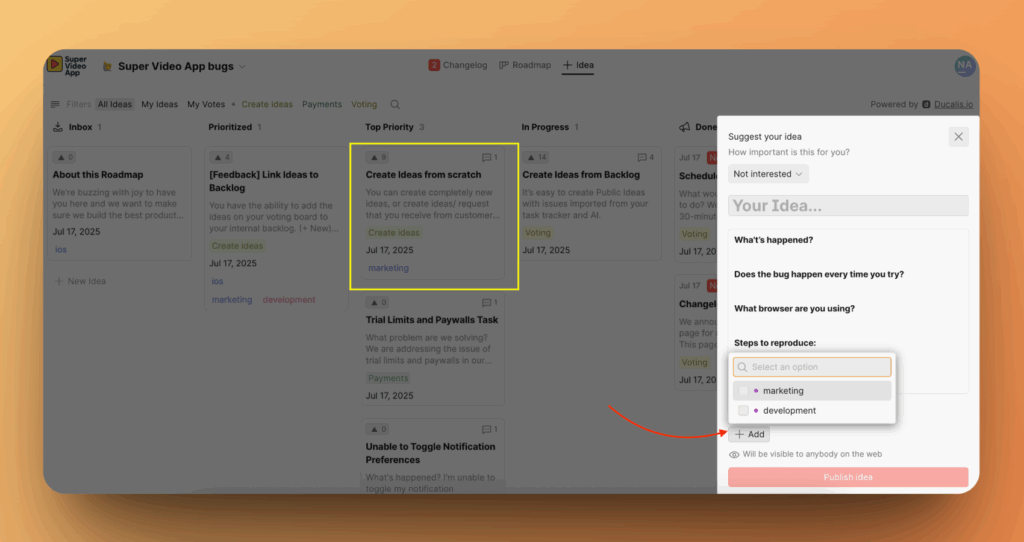
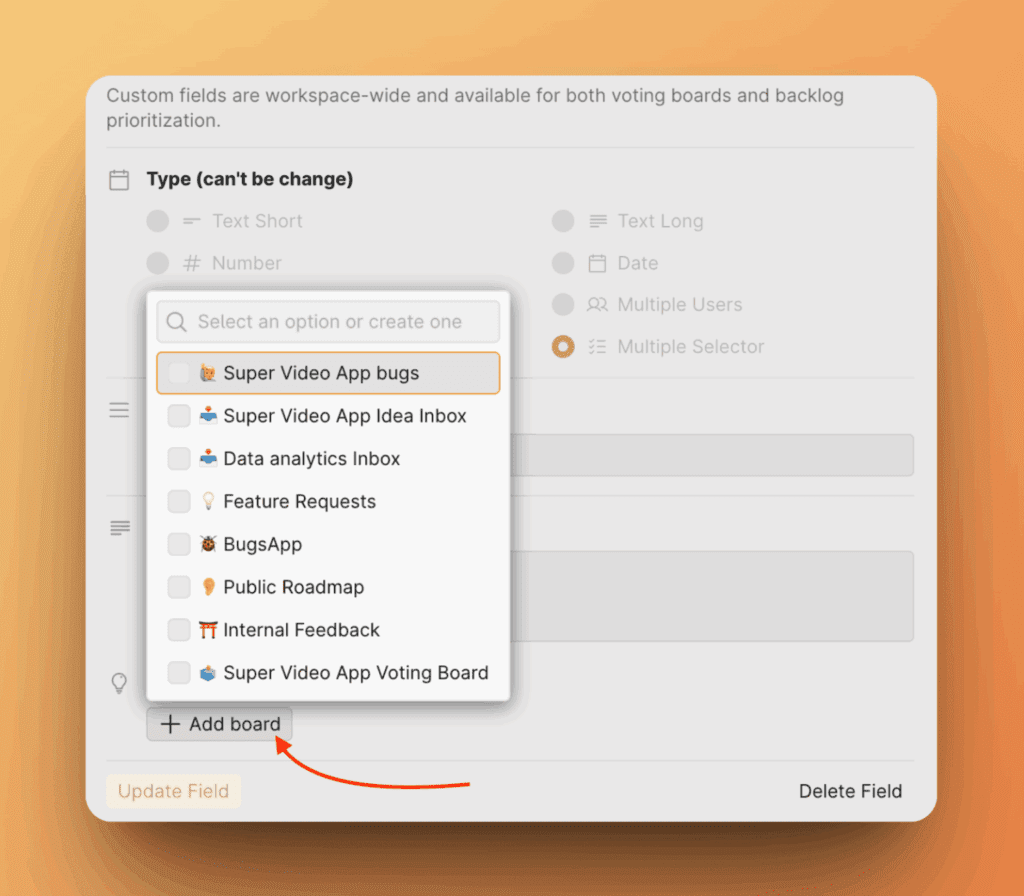
In the final step, select which Voting Boards should allow Voters to fill this field:
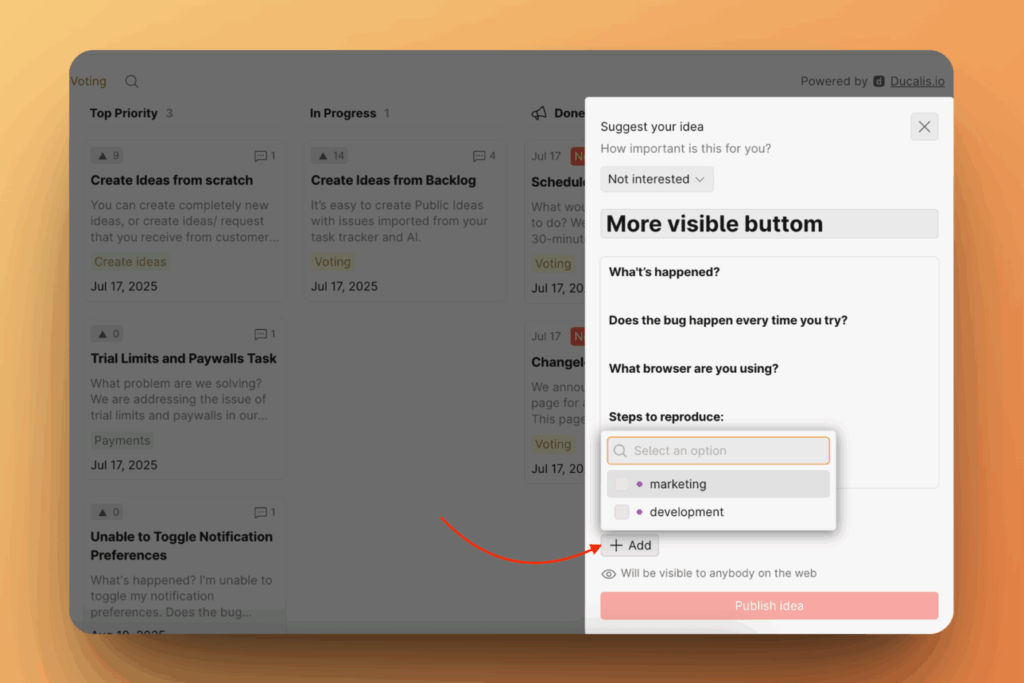
Voters see the configured fields when creating Ideas:
Translate the form
Display the Create Idea form in your Voters' language. See Translation for supported languages and configuration steps.