CSV import
Import existing Ideas from another feedback management tool or migrate data to your Ducalis Voting Board using CSV files. This lets you bulk-import Ideas instead of creating them manually or publishing Issues from your Backlog one by one.
Import Ideas via CSV
-
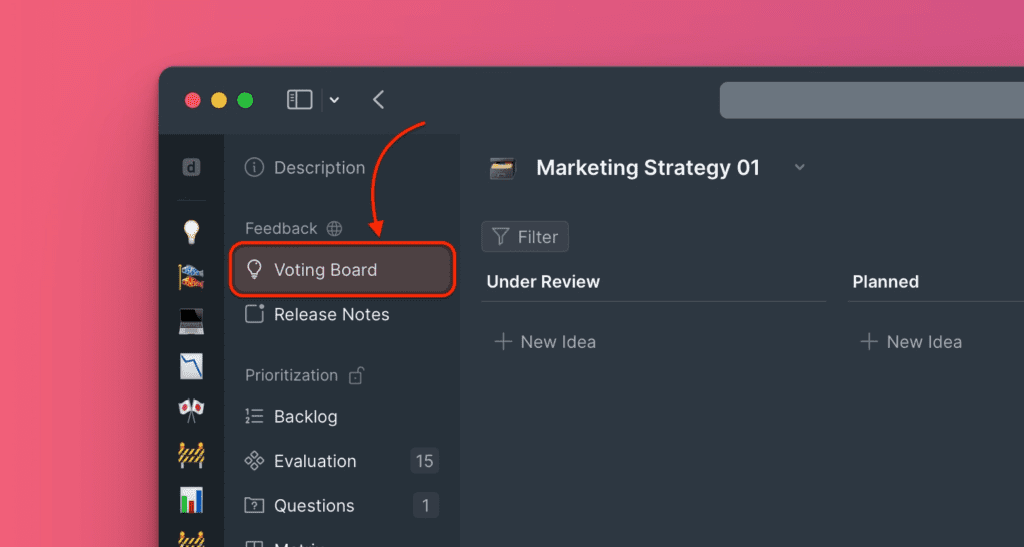
Navigate to the Voting Board section in your Board.
-
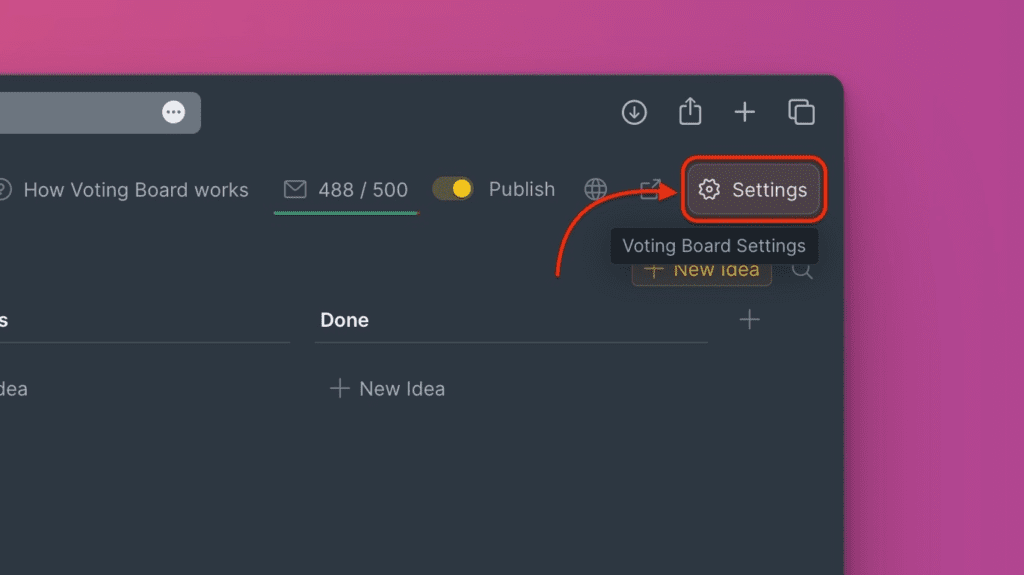
Click Settings in the top right corner.
-
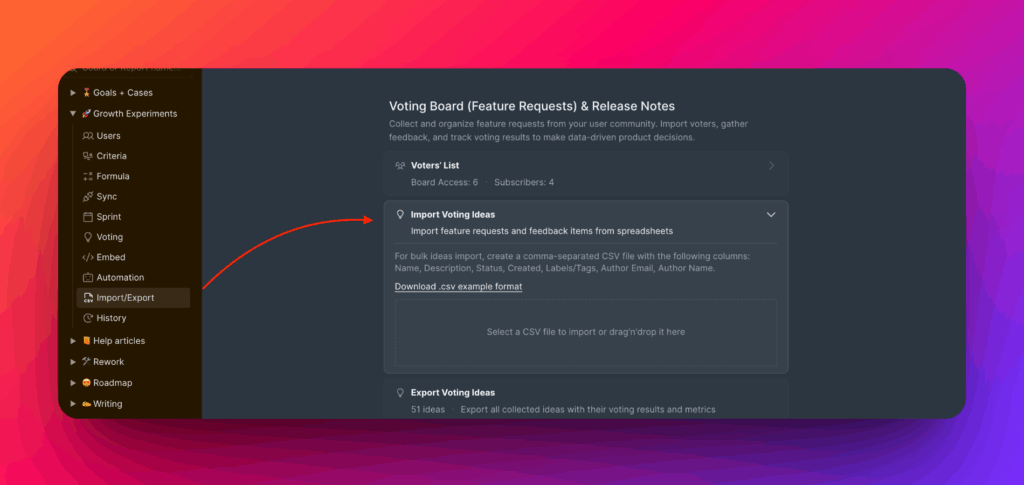
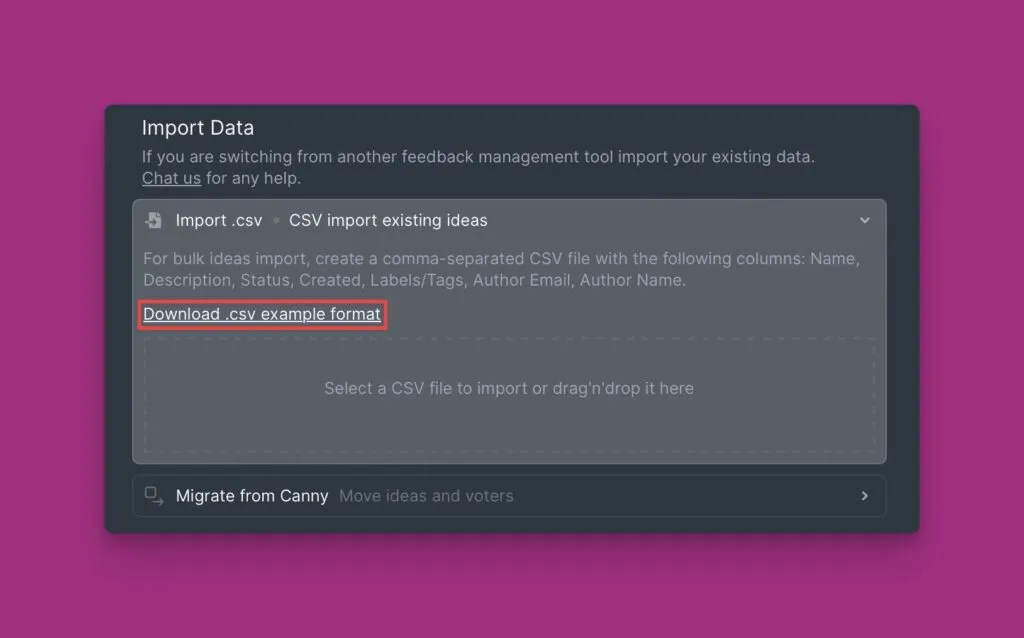
Navigate to Import/Export → Voting Board (Feature Requests) & Release Notes → Import Voting Ideas via CSV.
-
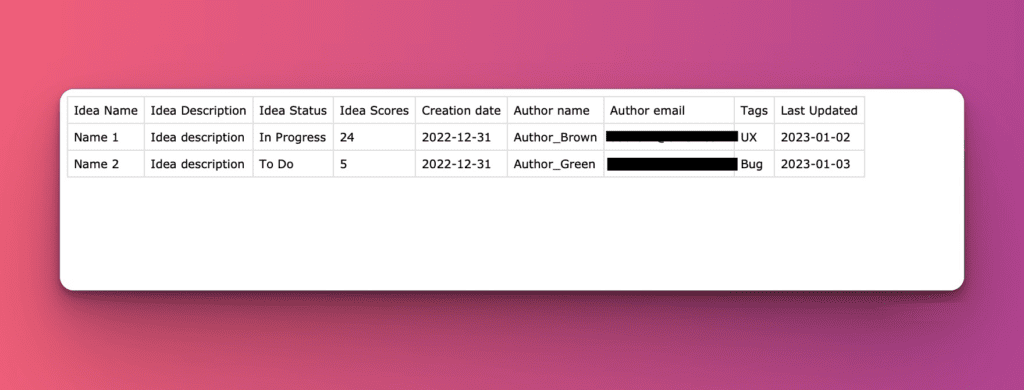
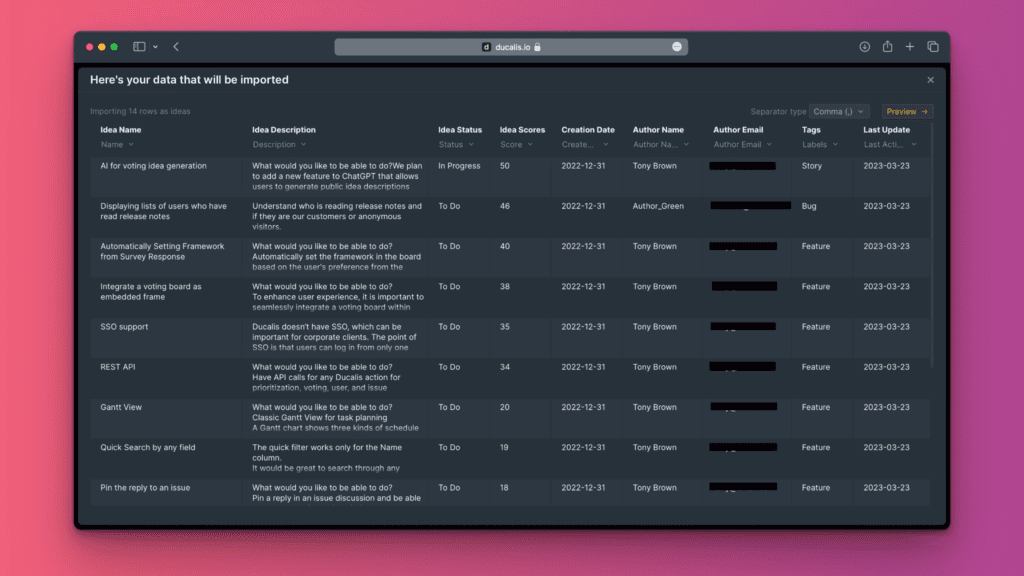
Review the CSV format example to see supported fields:
- Idea Name – Title of the Idea
- Idea Description – Detailed description
- Idea Status – Progress status in your workflow
- Creation Date – When the Idea was created
- Author Name – Creator's name
- Author Email – Creator's email address
- Tags – Labels like "feature" or "bug" for categorization
- Last Updated – Most recent edit timestamp
-
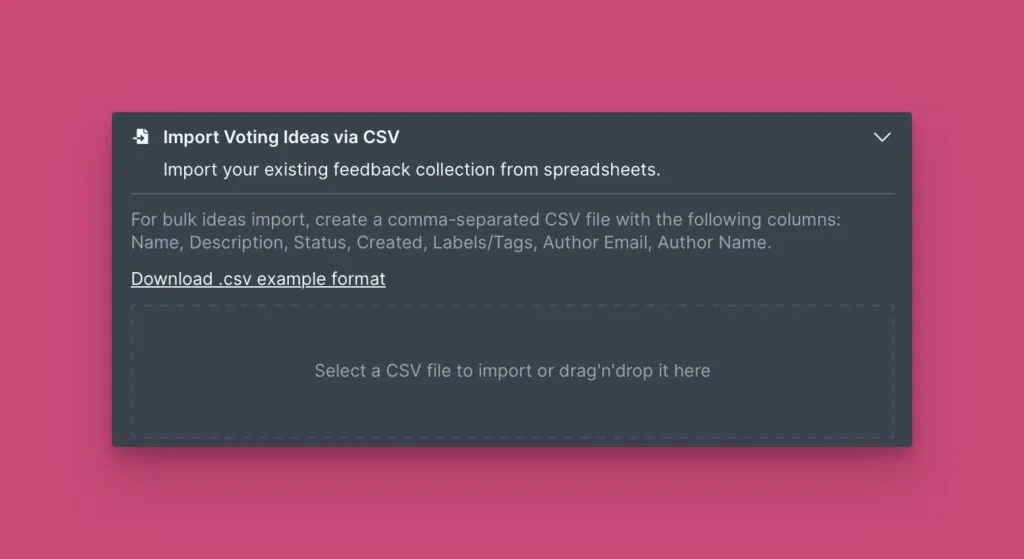
Click the upload area or drag and drop your CSV file.
-
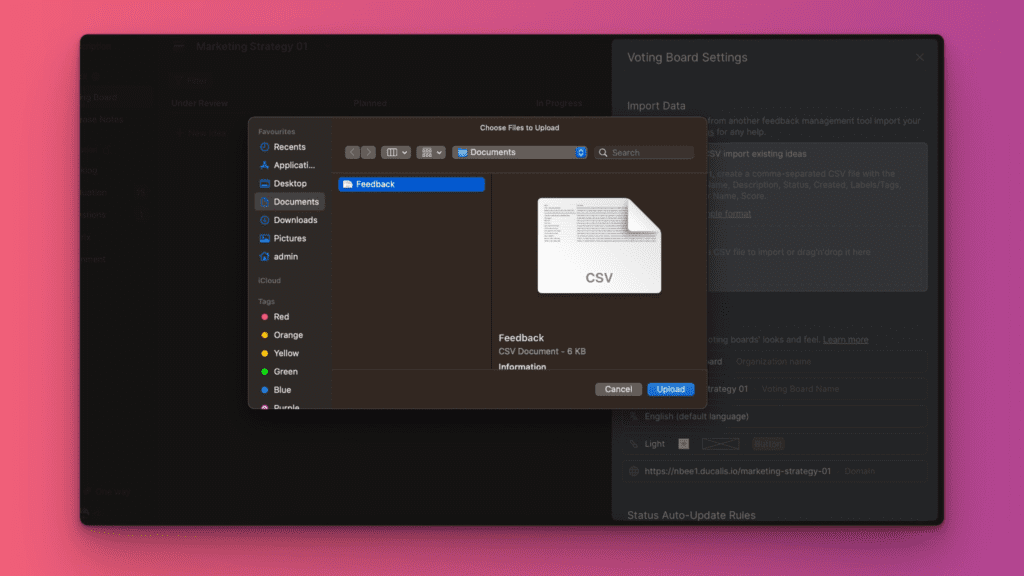
Select the file from your computer.
-
Review the automatic field mapping. For unmatched rows, manually assign them to the correct field.
-
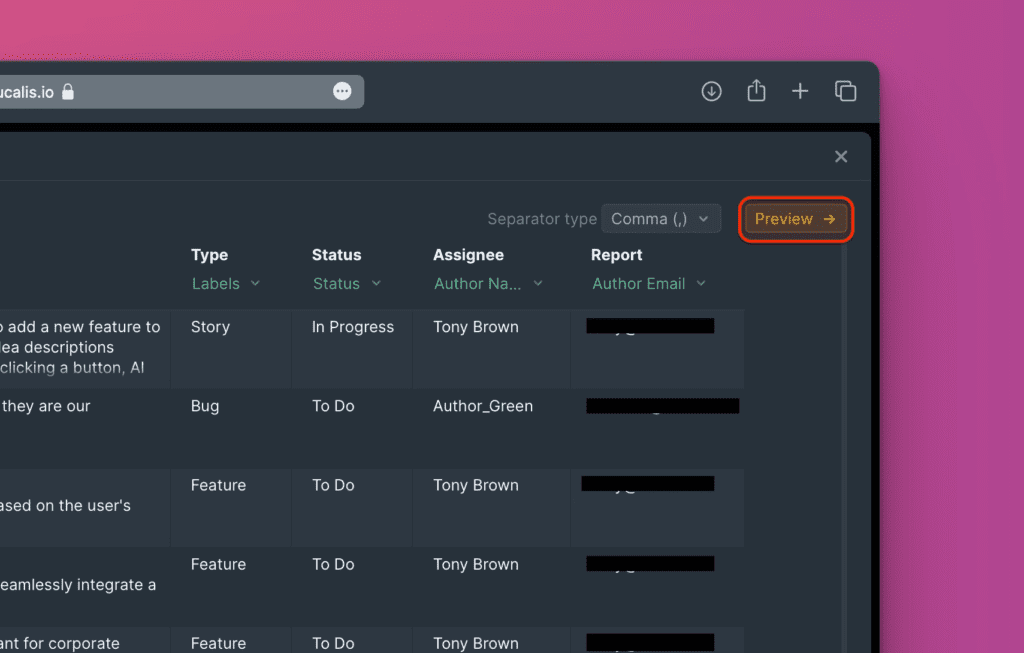
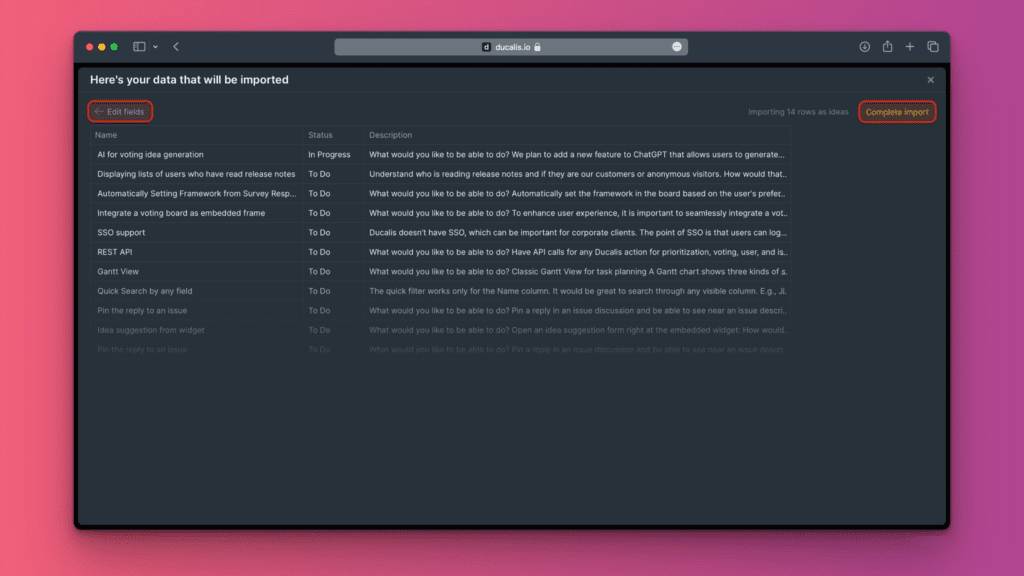
Click Preview to see how your imported data will appear.
-
Click Edit fields to make changes, or click Complete import if everything looks correct.
-
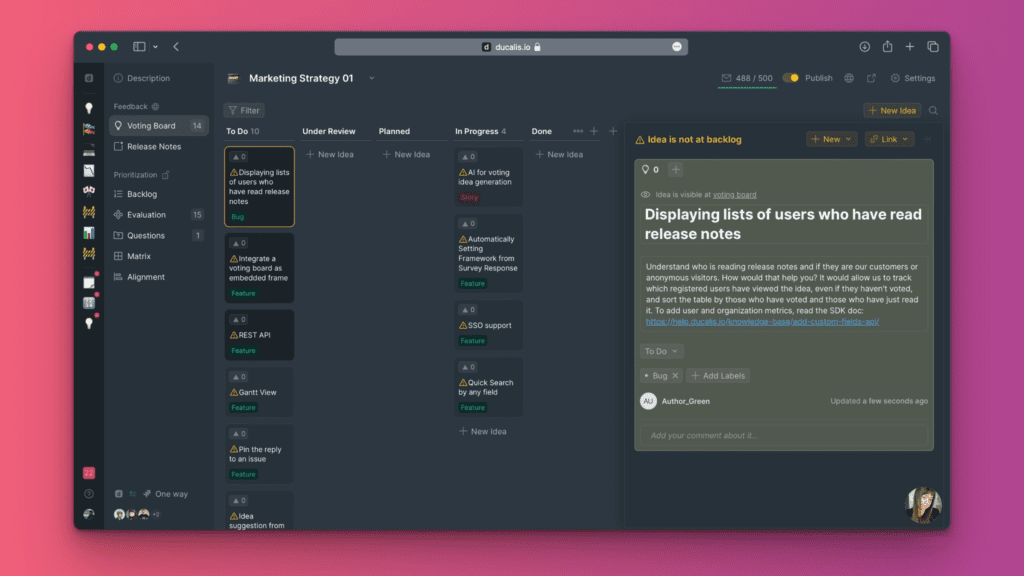
All imported Ideas are published automatically and visible on your public Voting Board.
Add Ideas to your Backlog
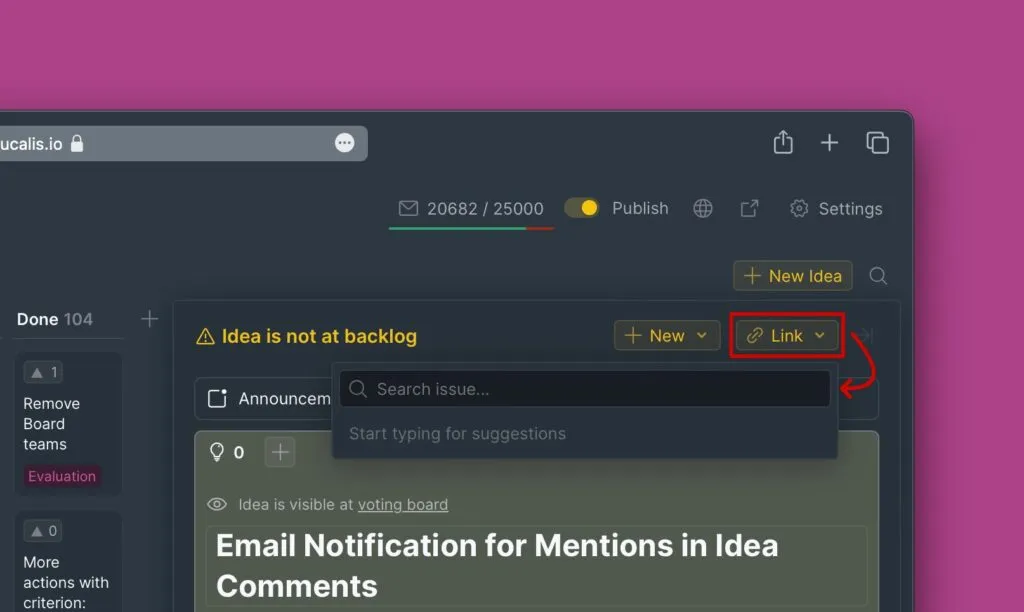
After importing, Ideas aren't automatically added to your internal Backlog. They appear with a warning indicator showing they need to be linked. You can:
Link Ideas to existing Issues
Connect imported Ideas to Issues already in your Board or task tracker. Type the Issue name in the search field to link them.
Push Ideas to your task tracker
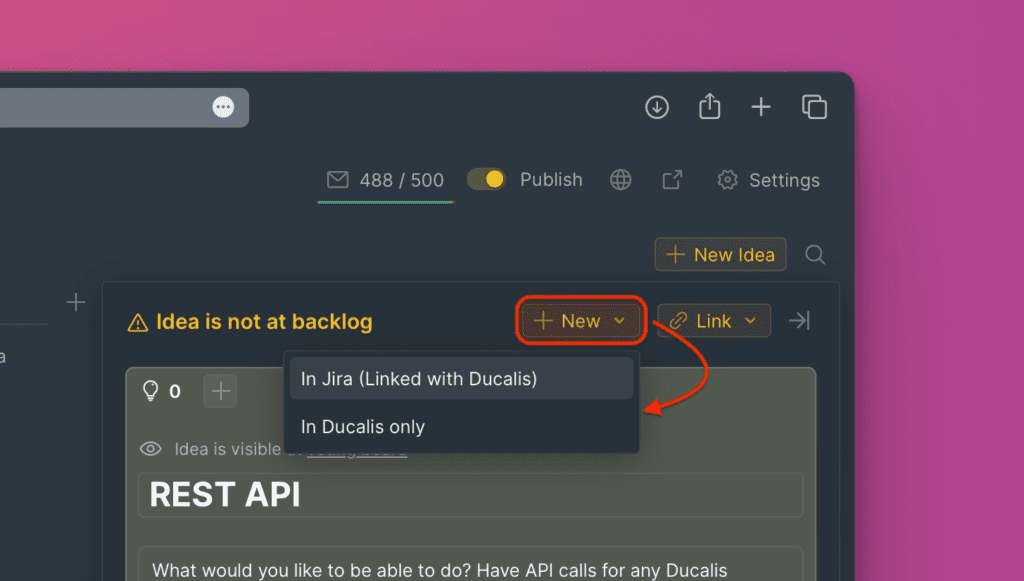
If you have a task tracker connected to Ducalis, you can push Ideas directly. They'll be created in your task tracker and added to your Ducalis Board.
Convert Ideas to new Issues
Add imported Ideas as separate Issues in your Backlog.
Once linked, Voters can upvote the Ideas they want you to prioritize.