Unsubscribed users
Manage users who've unsubscribed from email notifications. Import unsubscribed lists to prevent sending to opted-out users, or export lists to analyze unsubscribe patterns.
Import unsubscribed users via CSV
-
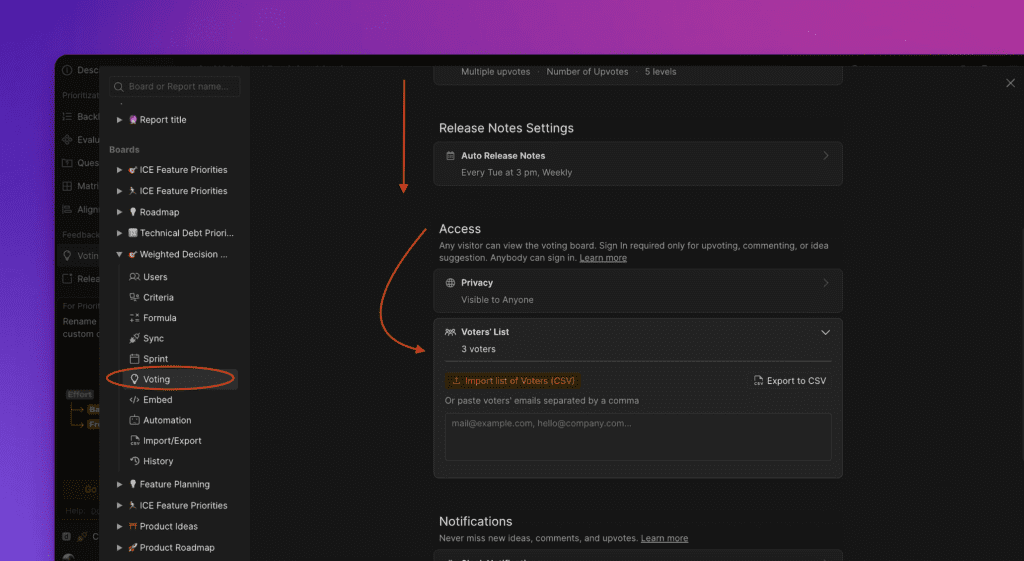
Go to Voting.
-
Scroll down to Access.
-
Open the Voters' list block.
-
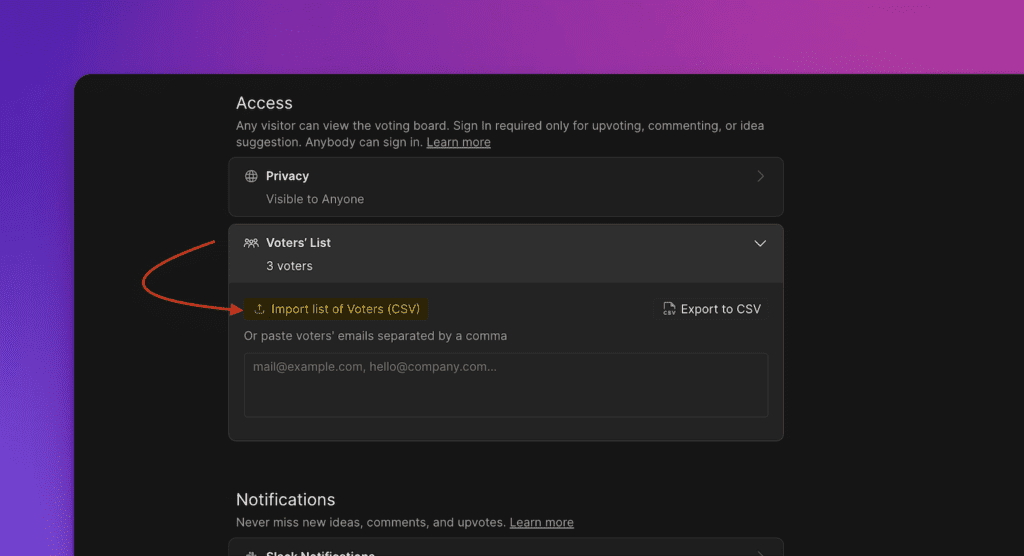
Click Import list of Voters (CSV).
-
Prepare a CSV file with three columns: Email, Name, and a third column with the value
1.
The third column with value 1 is currently required to mark users as unsubscribed. This format will be simplified in future releases.
CSV example:
hello@ducalis.io,Olivia Johnson,1
hello@ducalis.io,John Smith,1
Export unsubscribed users to CSV
-
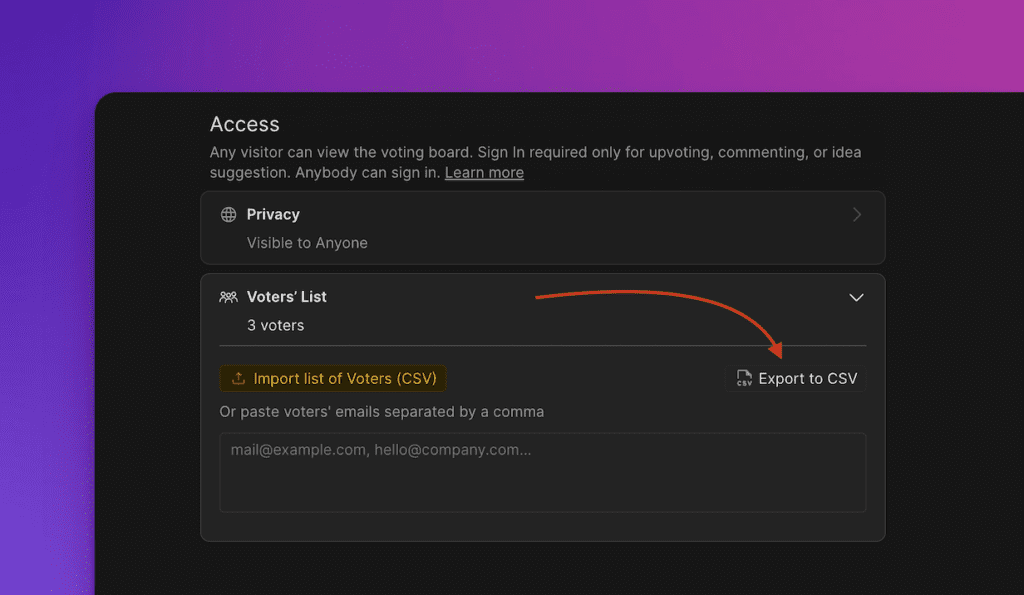
Under Voters' list, click Export to CSV.
-
Wait for the file to generate.
-
Download the generated file.
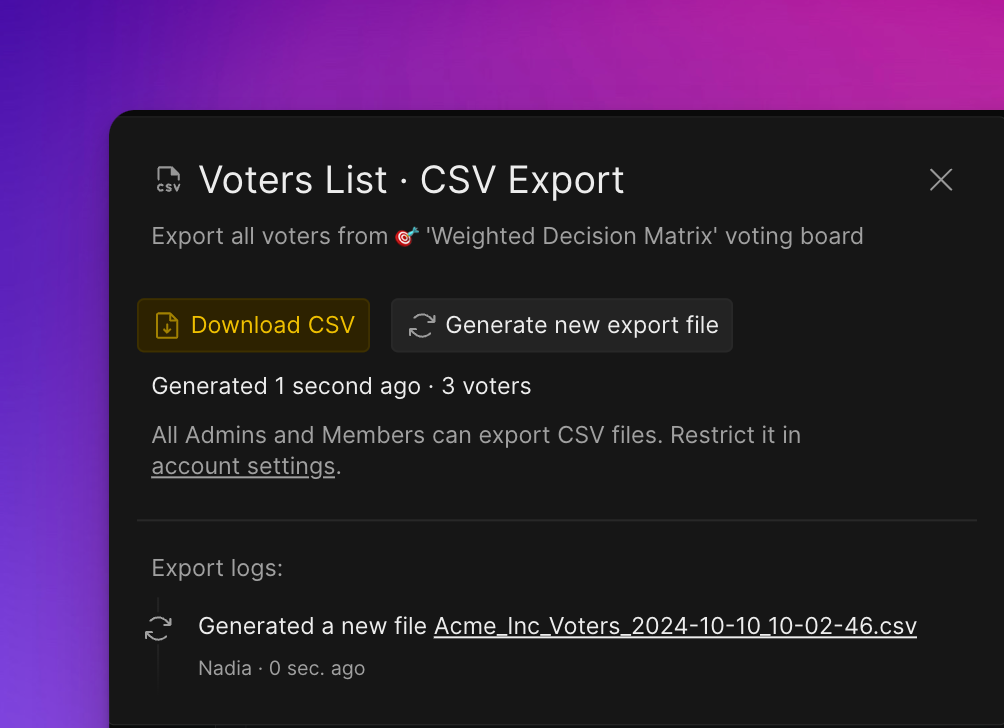
The exported CSV includes an all_unsubscribed_at field. Unsubscribed users have a date value in this field showing when they unsubscribed.
Import via API
For programmatic import, use the Open API.
See API documentation for details.