Custom email domain
Send Voting Board notifications from your own email address (like username@yourcompany.com) instead of the default Ducalis address. This builds trust and reinforces your brand with every message.
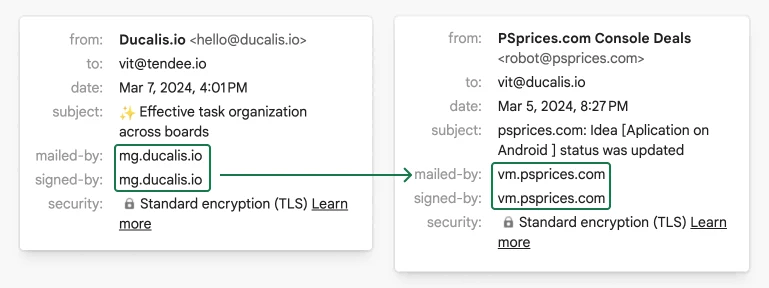
By default, voting emails are sent from hello@ducalis.io. Customize this to use your domain by adding DNS records and configuring settings in Ducalis.
Why customize your email domain
A custom email domain builds trust and credibility by presenting a consistent, professional brand to your users.
Configure your custom domain
Locate the settings
-
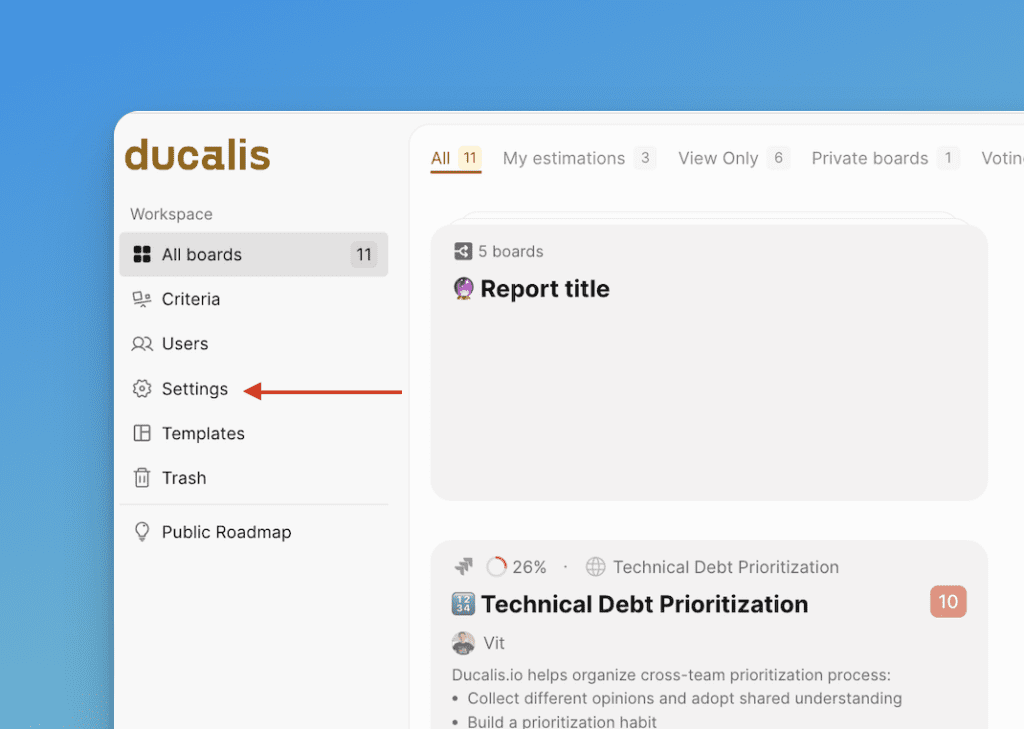
Go to global Settings.
-
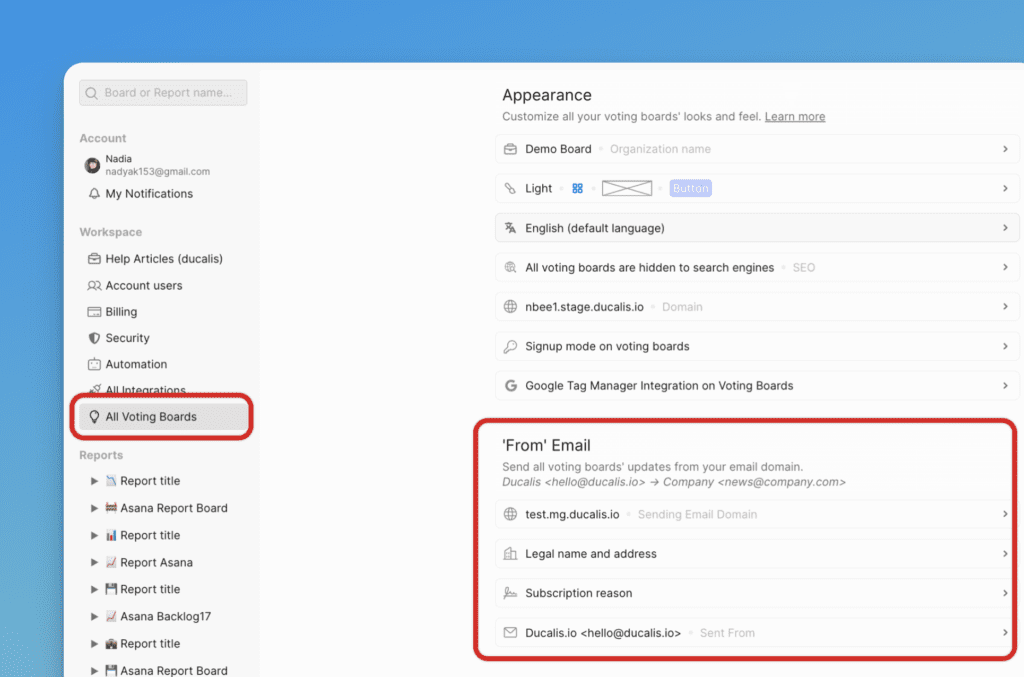
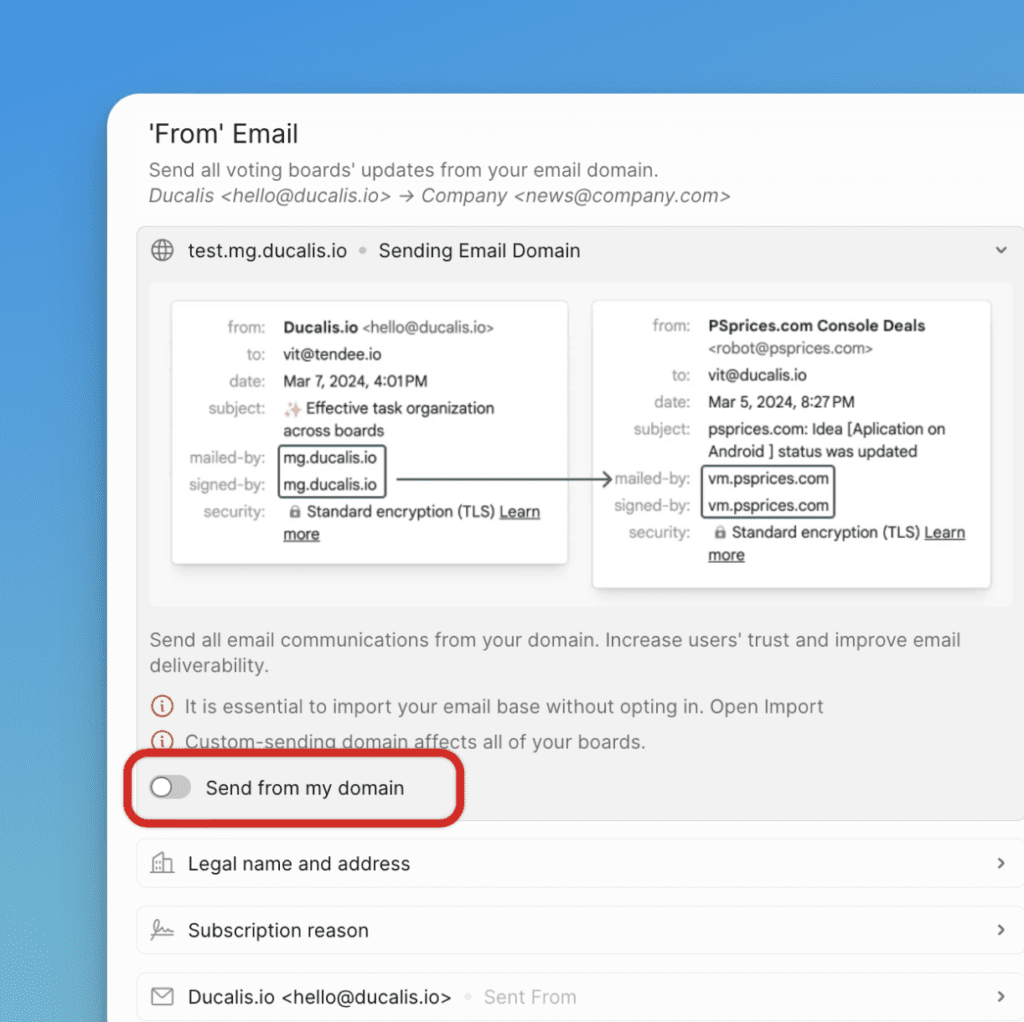
Select All Voting Boards. Find the 'From' Email block.
Add your domain
-
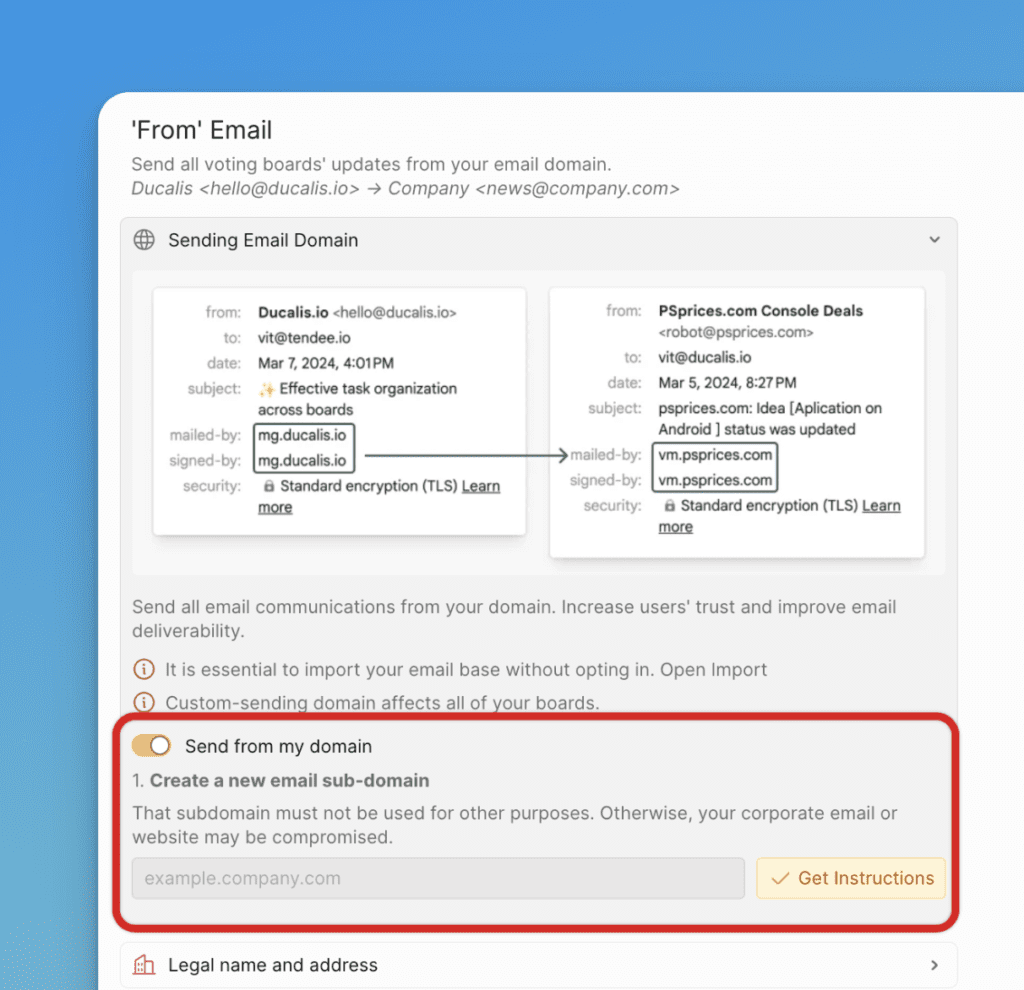
Turn on the custom email domain toggle.
-
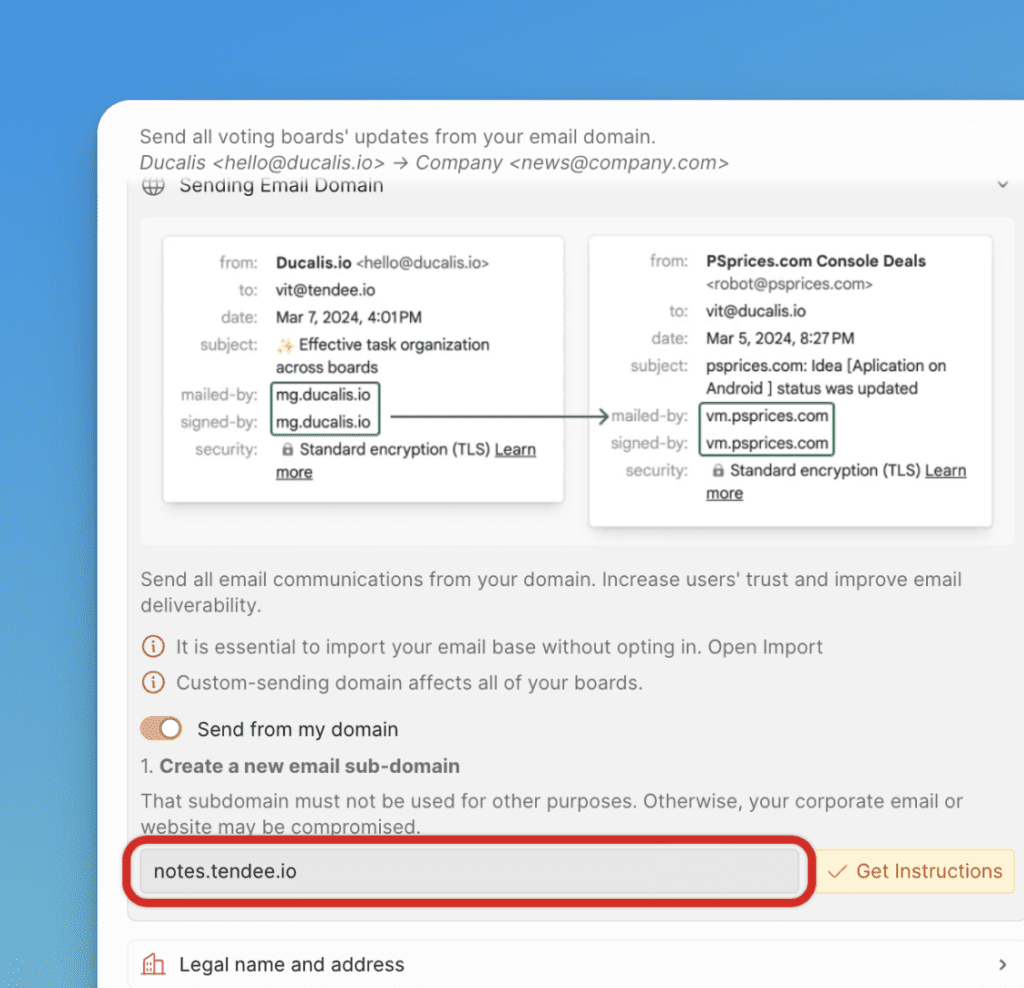
Enter the domain you want to send notifications from (for example, "mg.company.com").
-
Click Get Instructions.
Need help choosing a domain name? See Mailgun's guide: How Do I Pick a Domain Name for My Mailgun Account?
Configure DNS records
-
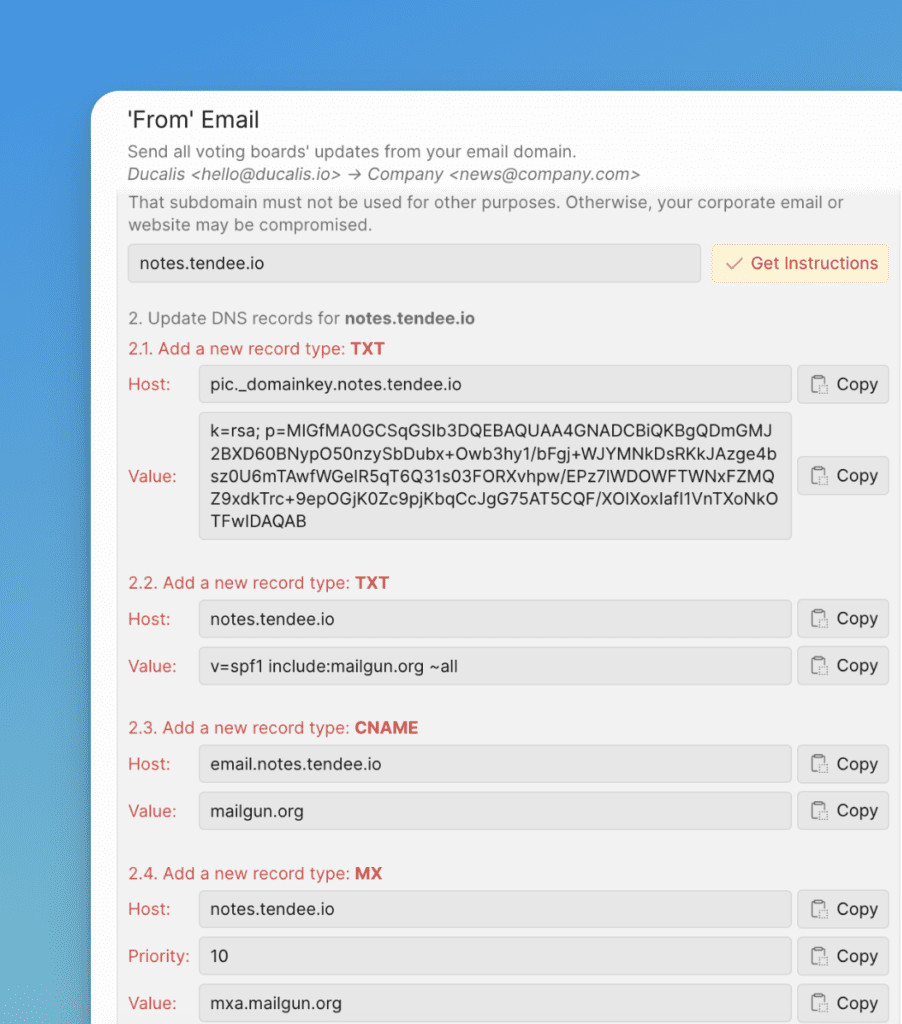
Add the DNS records shown in Ducalis to your domain provider's settings. These records verify domain ownership and enable reliable email delivery.
-
Click Check Settings in Ducalis to verify the DNS configuration.
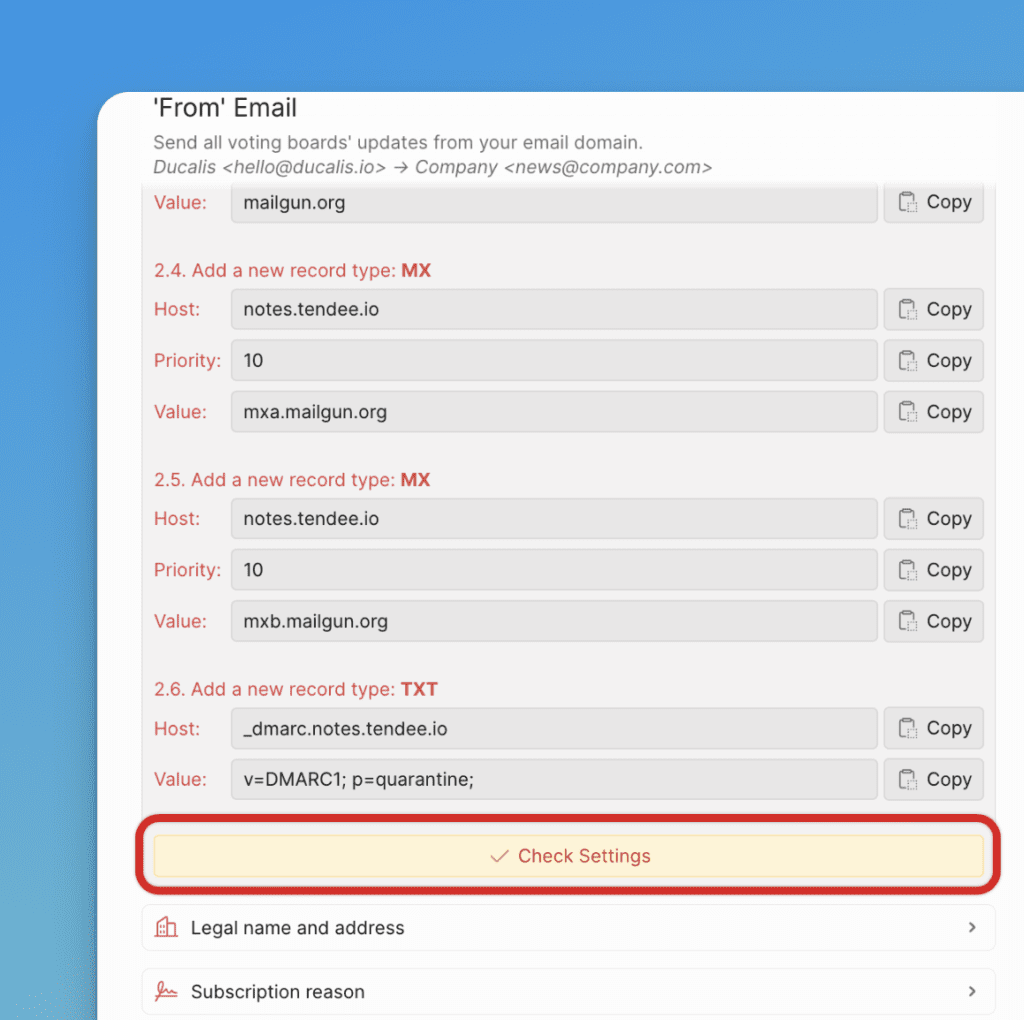
-
Wait for all DNS records to be verified (indicated by green status).
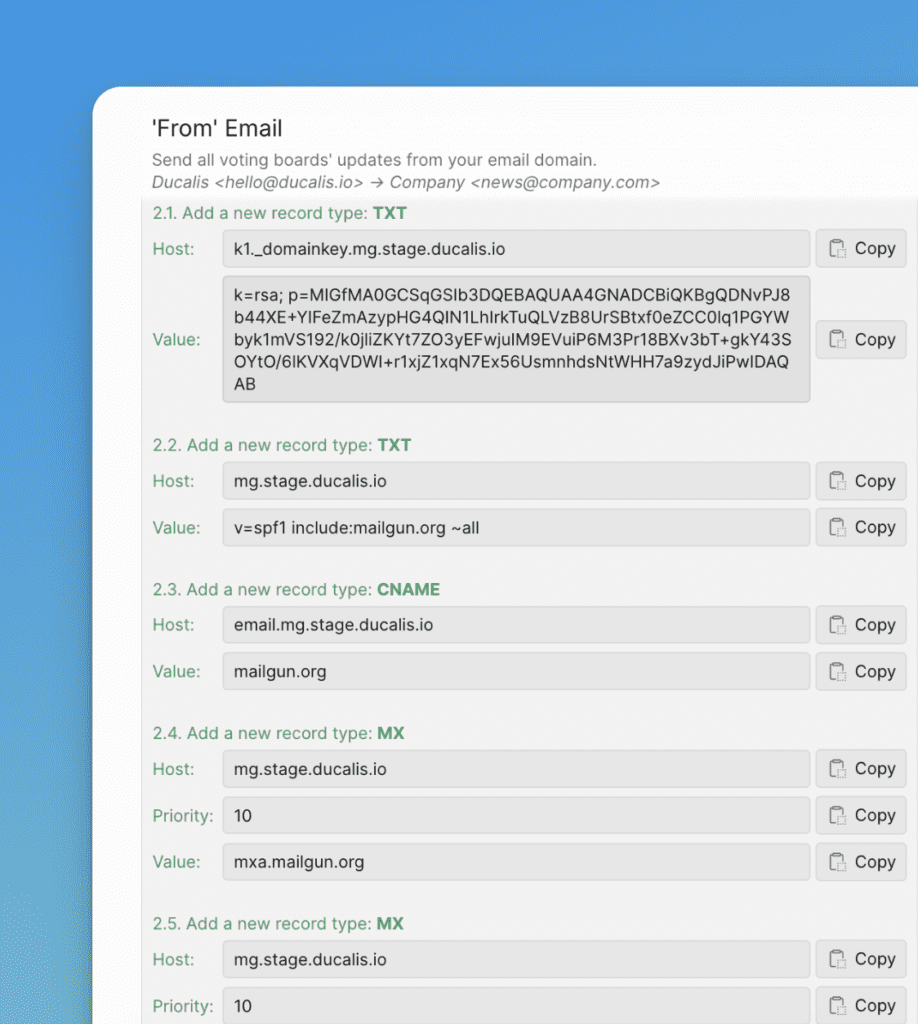
DNS record changes can take up to 72 hours to propagate. Verification may take a few minutes after propagation completes.
You'll receive an email notification when verification completes:
- "Your custom email sending domain is confirmed" (success)
- "There is a problem with your custom email sending domain" (needs attention)
Set sender information
Configure the sender details that appear in email headers and footers.
-
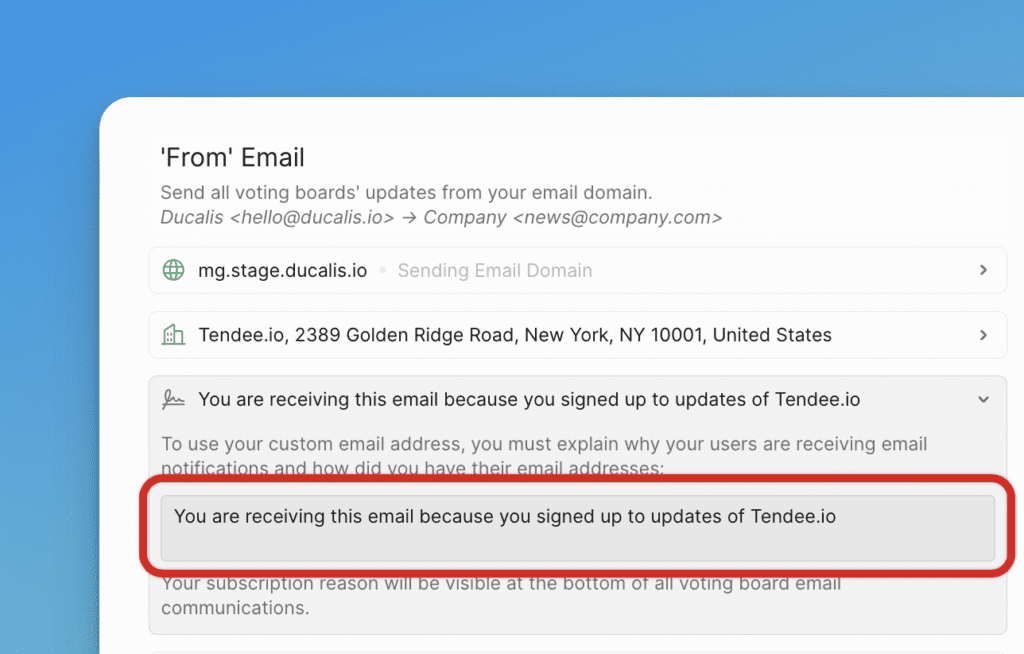
Enter your Company Name and Company Address in this format:
Tendee.io 2389 Golden Ridge Road New York, NY 10001 United States
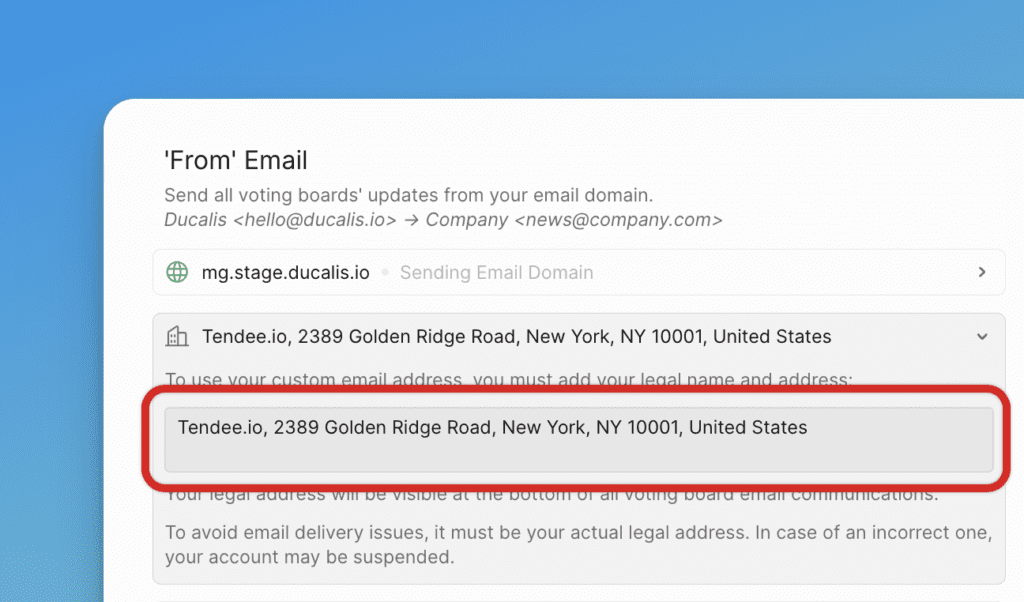
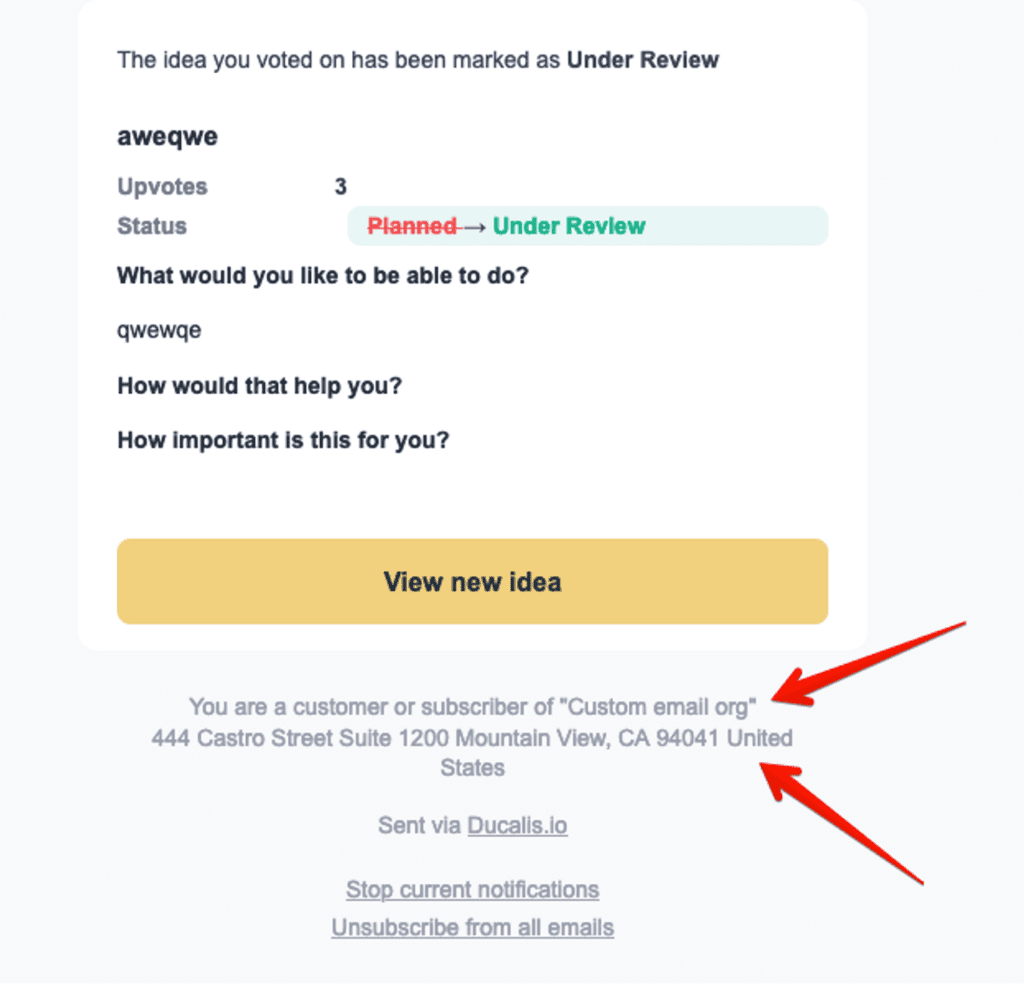
-
Enter Email Reason Text to explain why users receive your emails. For example: "You are receiving this email because you signed up to Company.com"
-
Configure the From details:
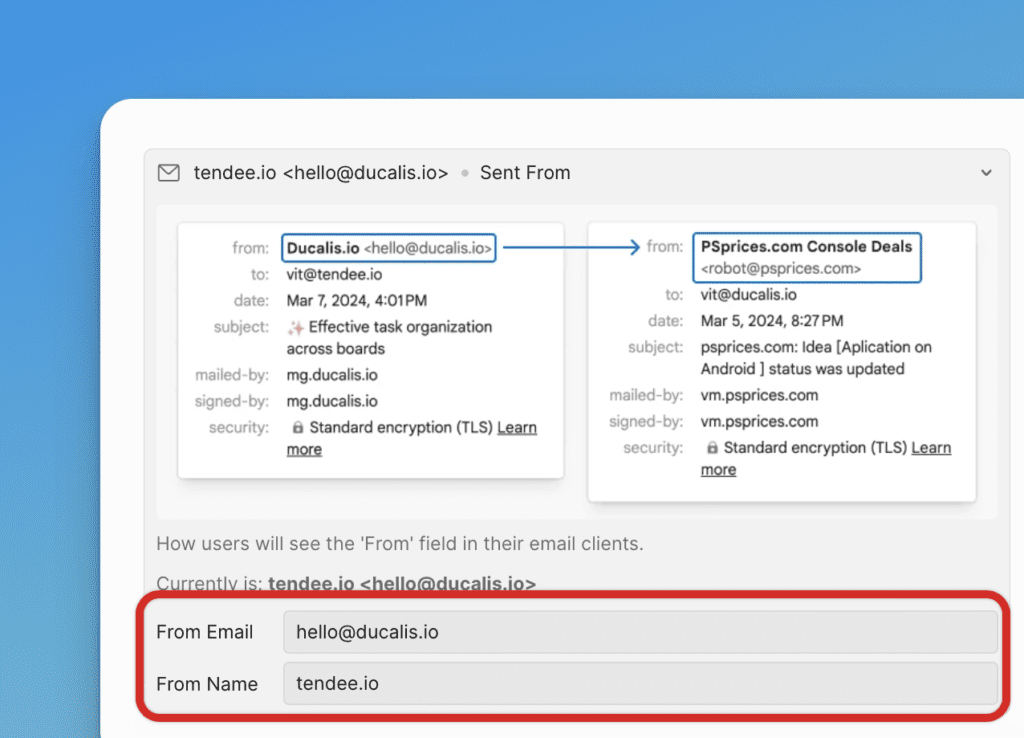
- From email: The email address shown to recipients (for example, support@company.com)
- From Name: The sender name shown to recipients (for example, Support)
Verify your configuration
Send a test email to confirm your custom domain is configured correctly and DNS records are valid. Ducalis will check the configuration and show you a preview.
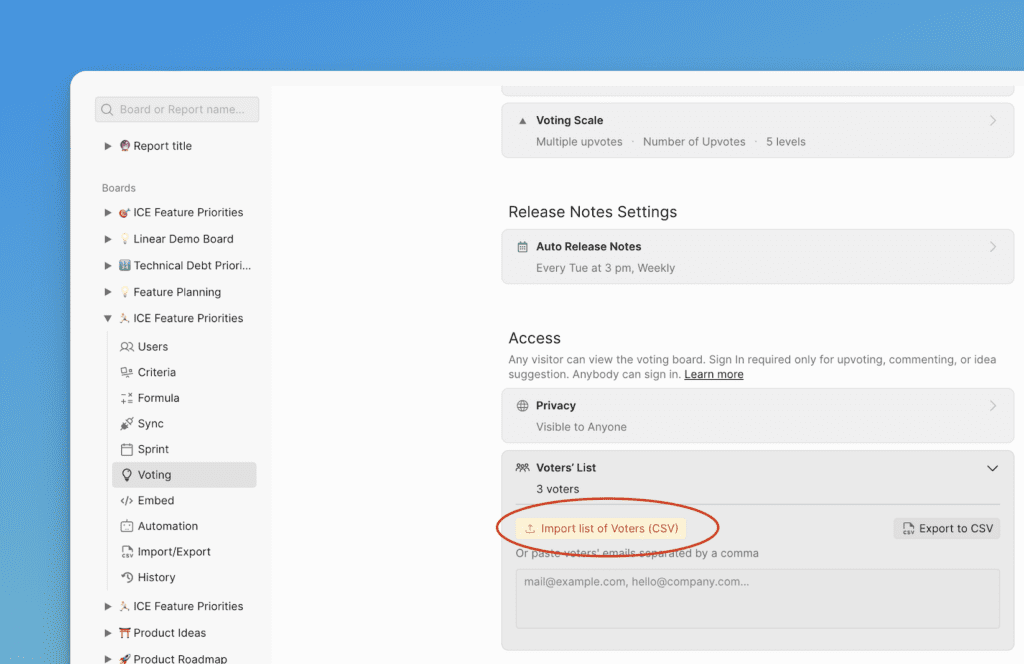
Import Voters to receive notifications
Import your user base to send release notes to existing customers.
-
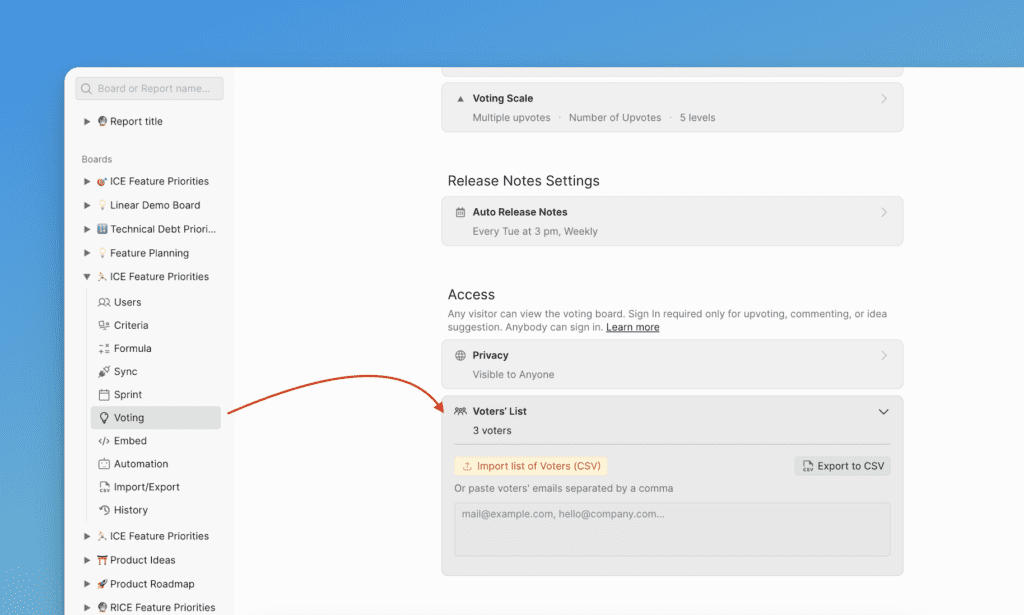
Go to Voting and scroll to Access.
-
Open the Voters' list block.
-
Click Import list of Voters (CSV) or paste email addresses manually in the field below.