Google Tag Manager
Integrate Google Tag Manager with Ducalis to track analytics on your Voting Boards. Learn more in Google's getting started guide or check common questions if you haven't set up GTM.
Add Google Tag Manager
When you integrate Google Tag Manager, it runs on all your Ducalis Voting Boards.
-
In the left sidebar menu, navigate to All Voting Board settings.
-
Scroll to Google Tag Manager.
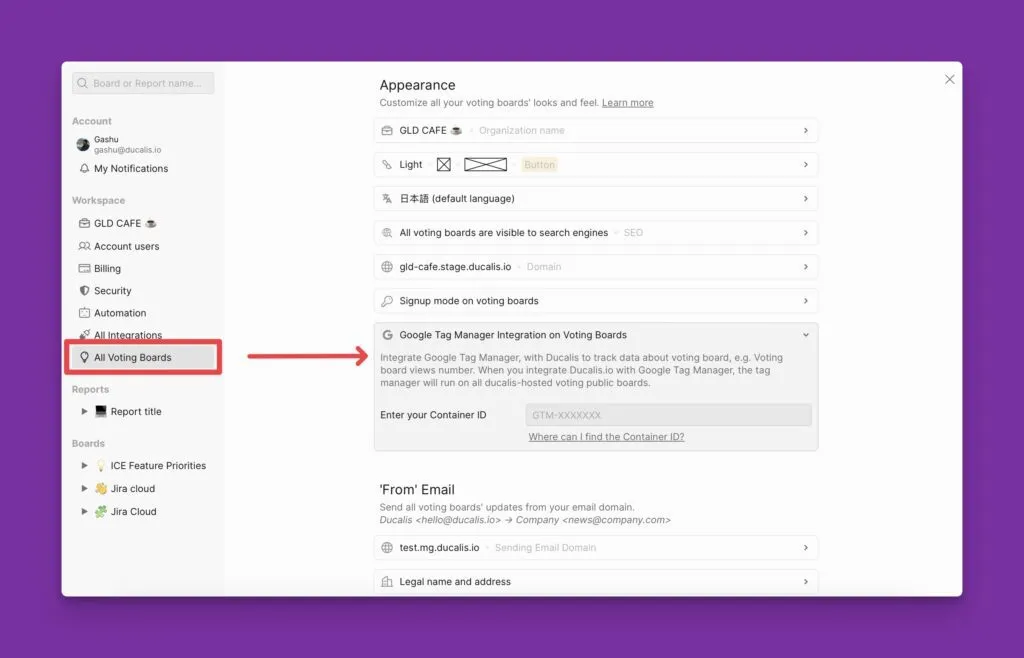
-
Enter your Container ID in the text field.
Find your Container ID
-
Go to your Google Tag Manager account.
-
Open the Tag Manager home page.
-
Choose the Account and Container.
-
On the right, find your Container ID formatted as "GTM-XXXXXX".
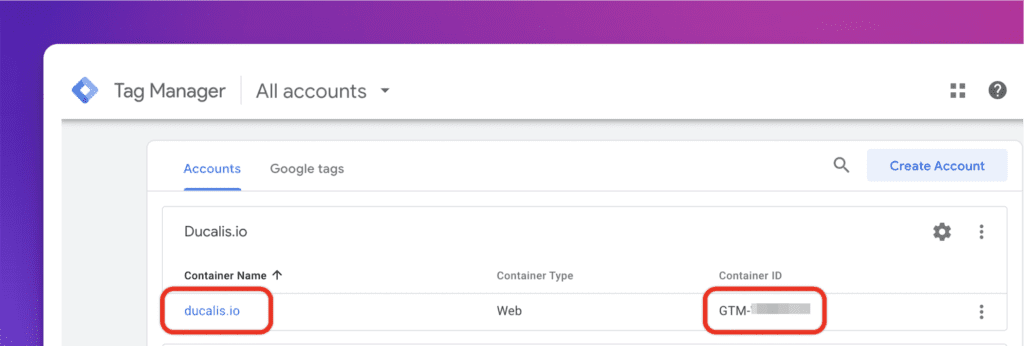
You can also find the Container ID at the top of the current workspace window.
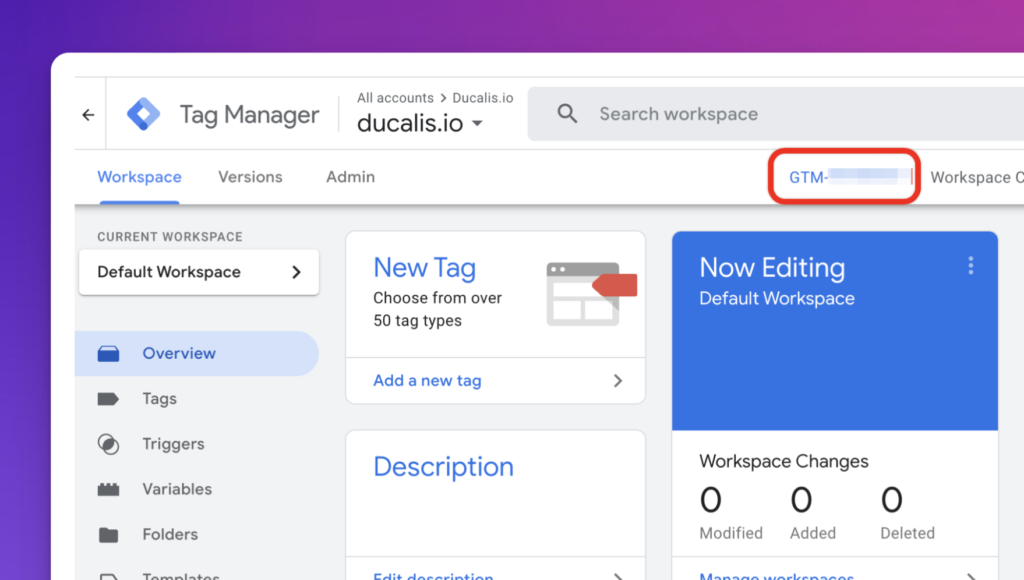
-
Copy the Container ID and paste it into the Ducalis text field.
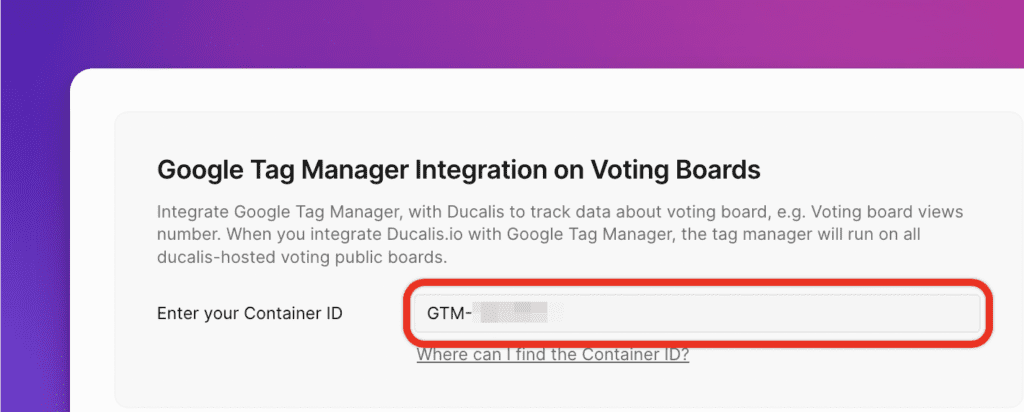
-
Click any space to apply your changes.
You'll see a message confirming successful integration.
Verify the integration
Make sure your tag configurations work as expected.
-
Go to your Google Tag Manager account.
-
Navigate to the Workspace.
-
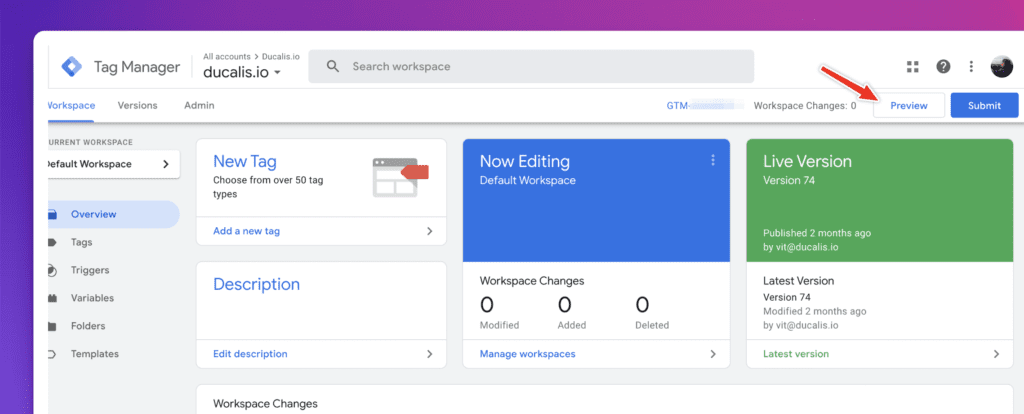
Click Preview in the top right of your workspace.
-
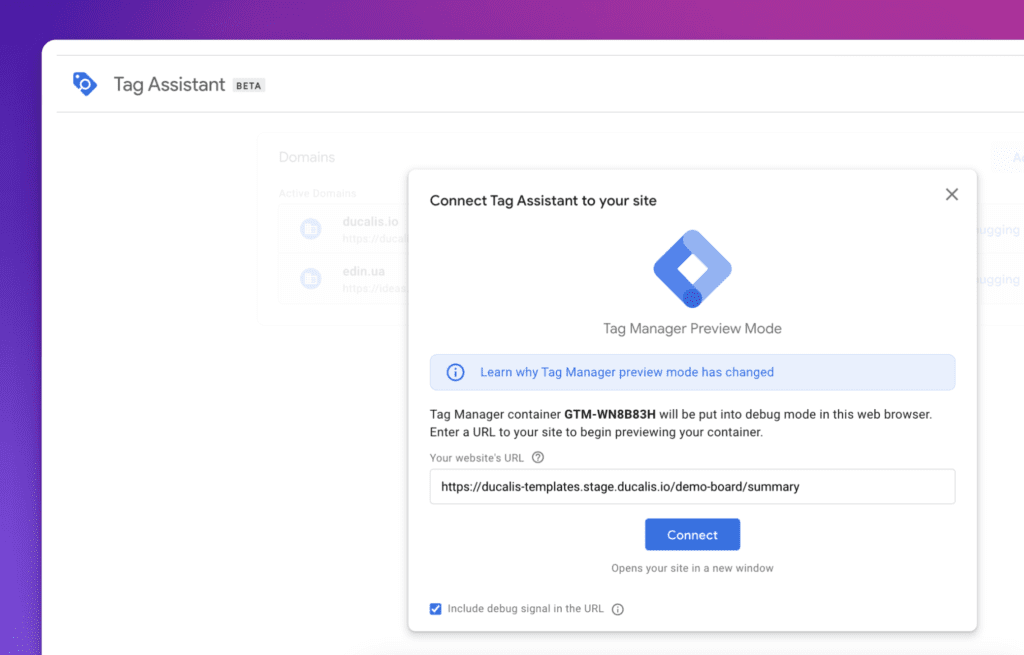
Enter your Voting Board public link in the site URL field.
-
Click Connect.
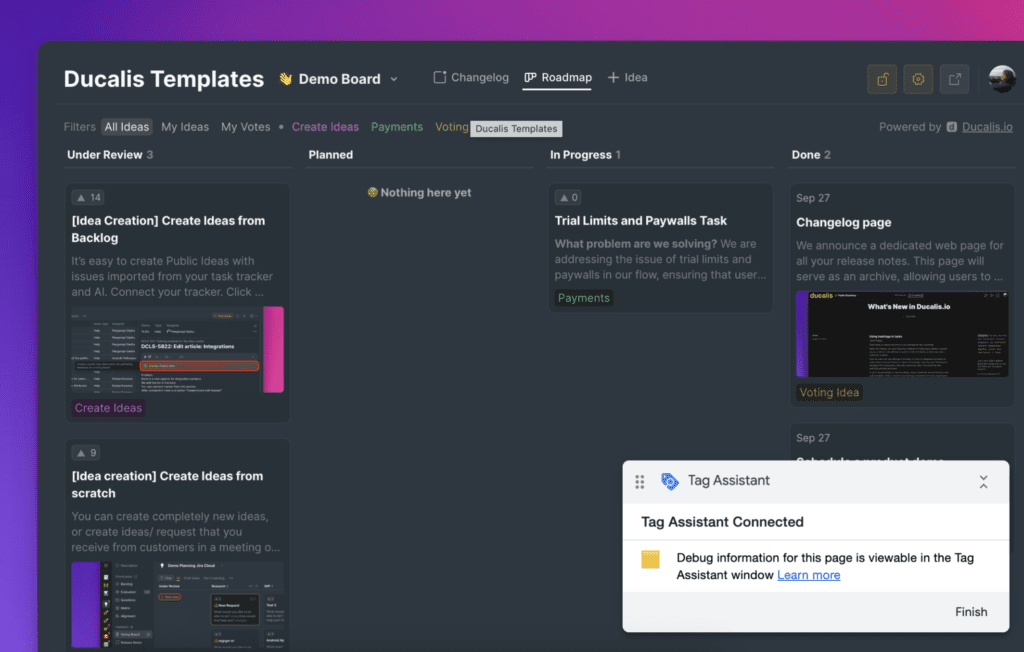
Your site opens in a new window and displays Connected in the bottom right.
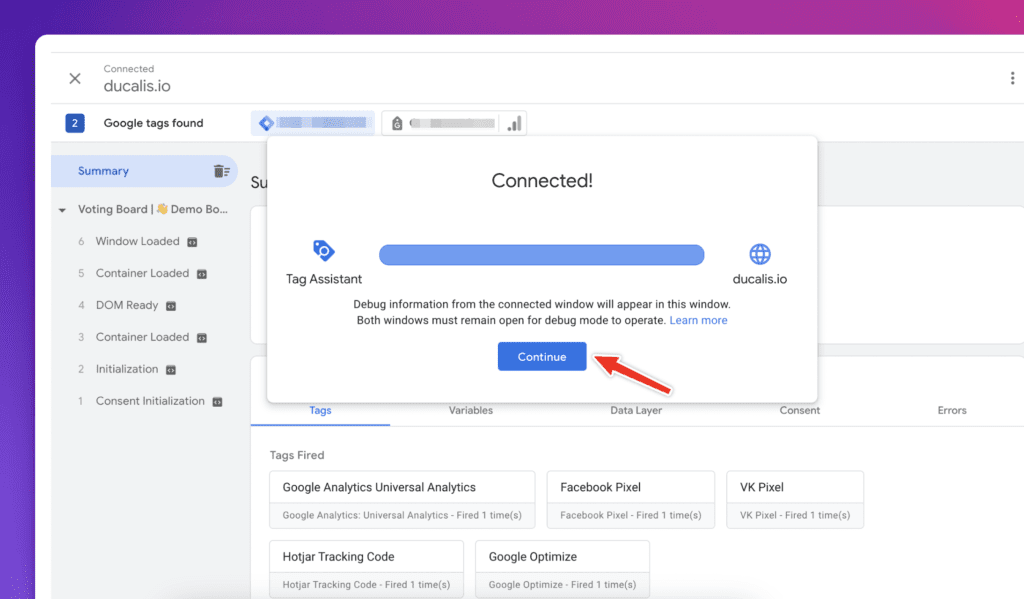
- Click back on the Tag Assistant tab and click Continue to access the debug interface.
Remove the integration
To delete the Google Tag Manager integration, erase the Container ID from the text field or replace it with a different one.