Push issues
Push Issues you create in Ducalis directly to ClickUp to add them to your task backlog. This is useful when prioritizing ClickUp tasks and you need to quickly create new tasks in ClickUp.
Push from Backlog
-
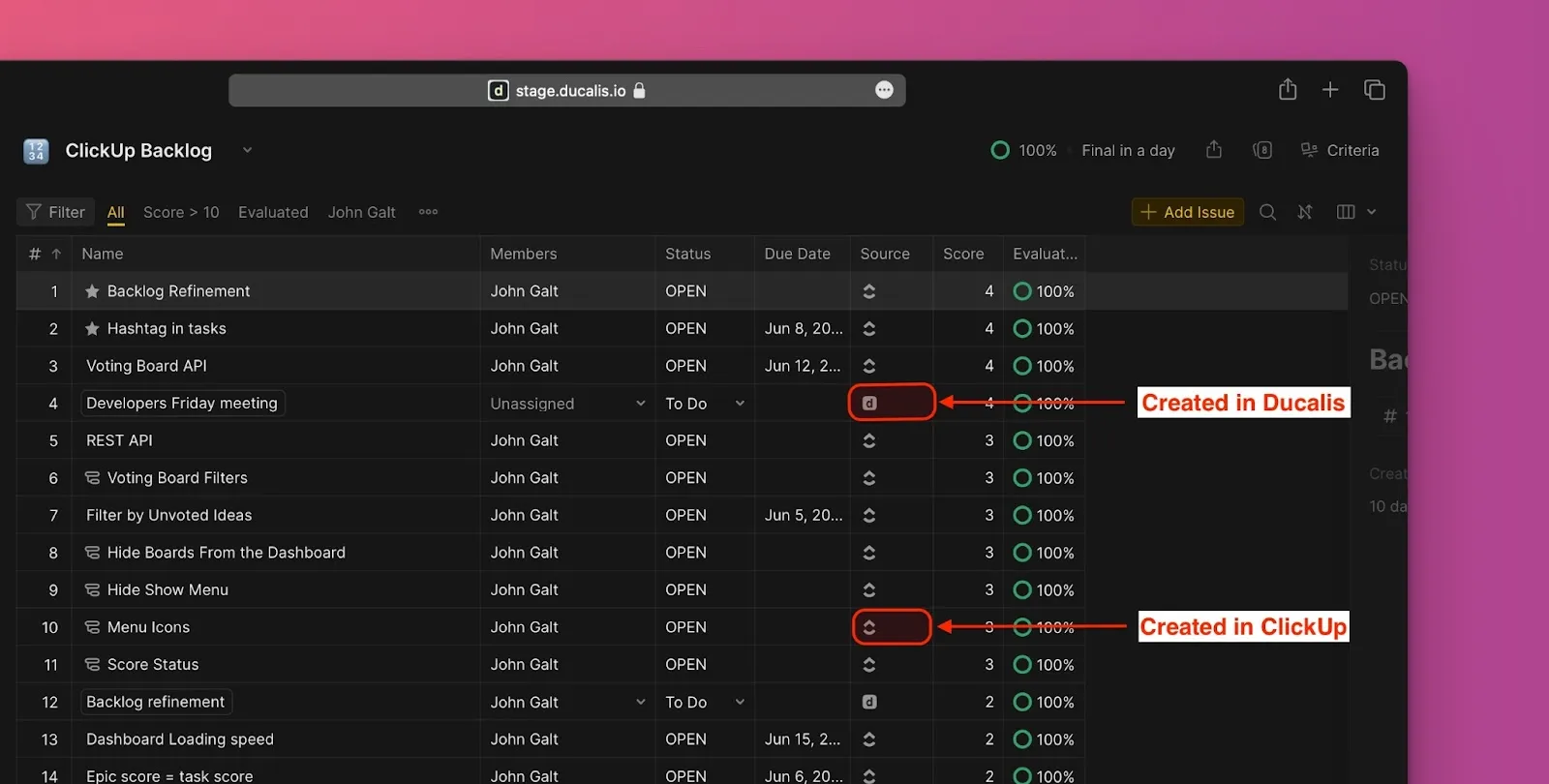
Open the Prioritization Board connected to ClickUp.
Issues imported from ClickUp display the ClickUp icon, while Issues created in Ducalis display the Ducalis icon.
-
Click the Issue you want to push to ClickUp to open the Issue card.
-
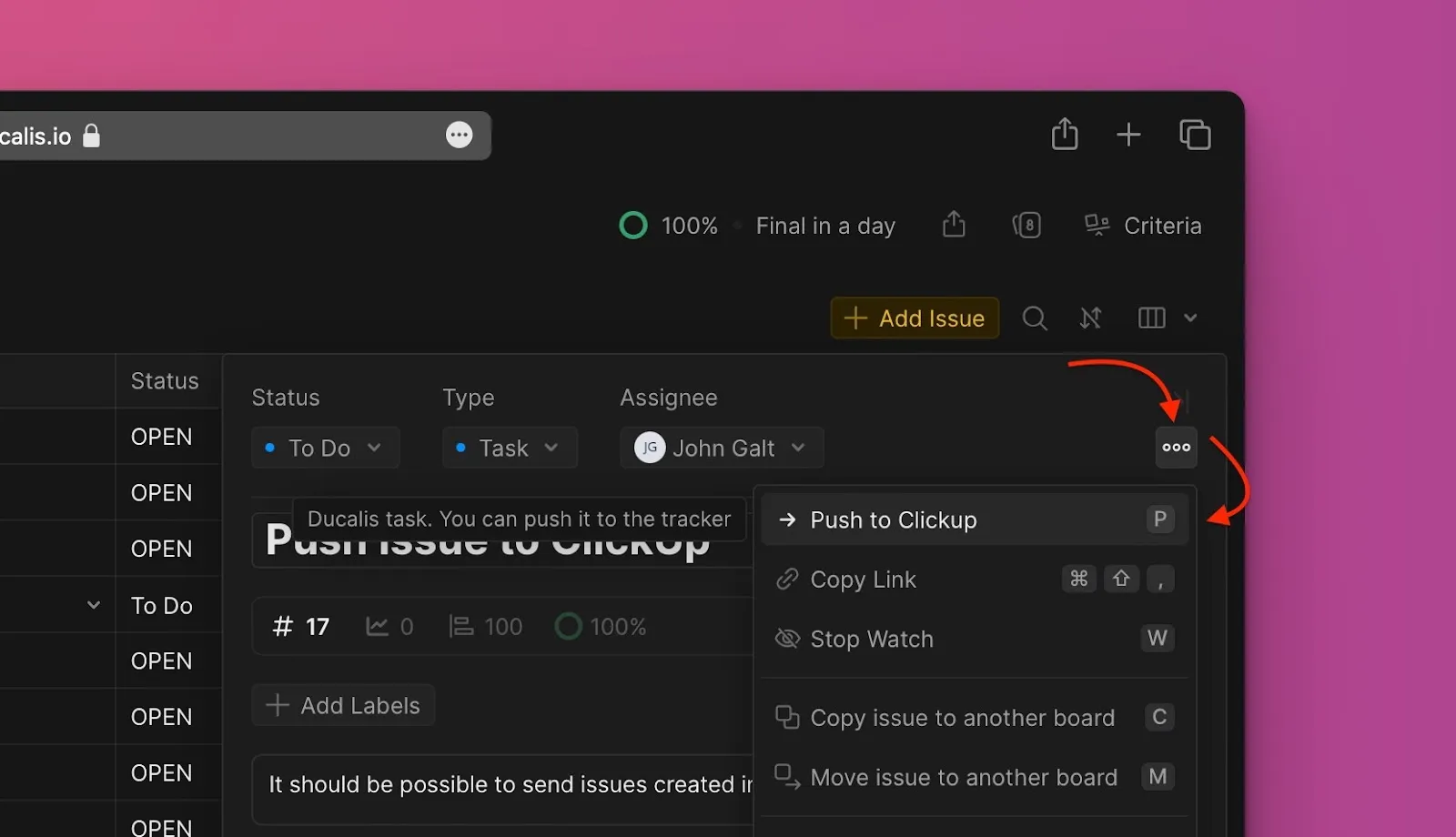
Click the ellipsis (⋯) in the top right corner to open the dropdown menu.
-
Select Push to ClickUp from the menu.
-
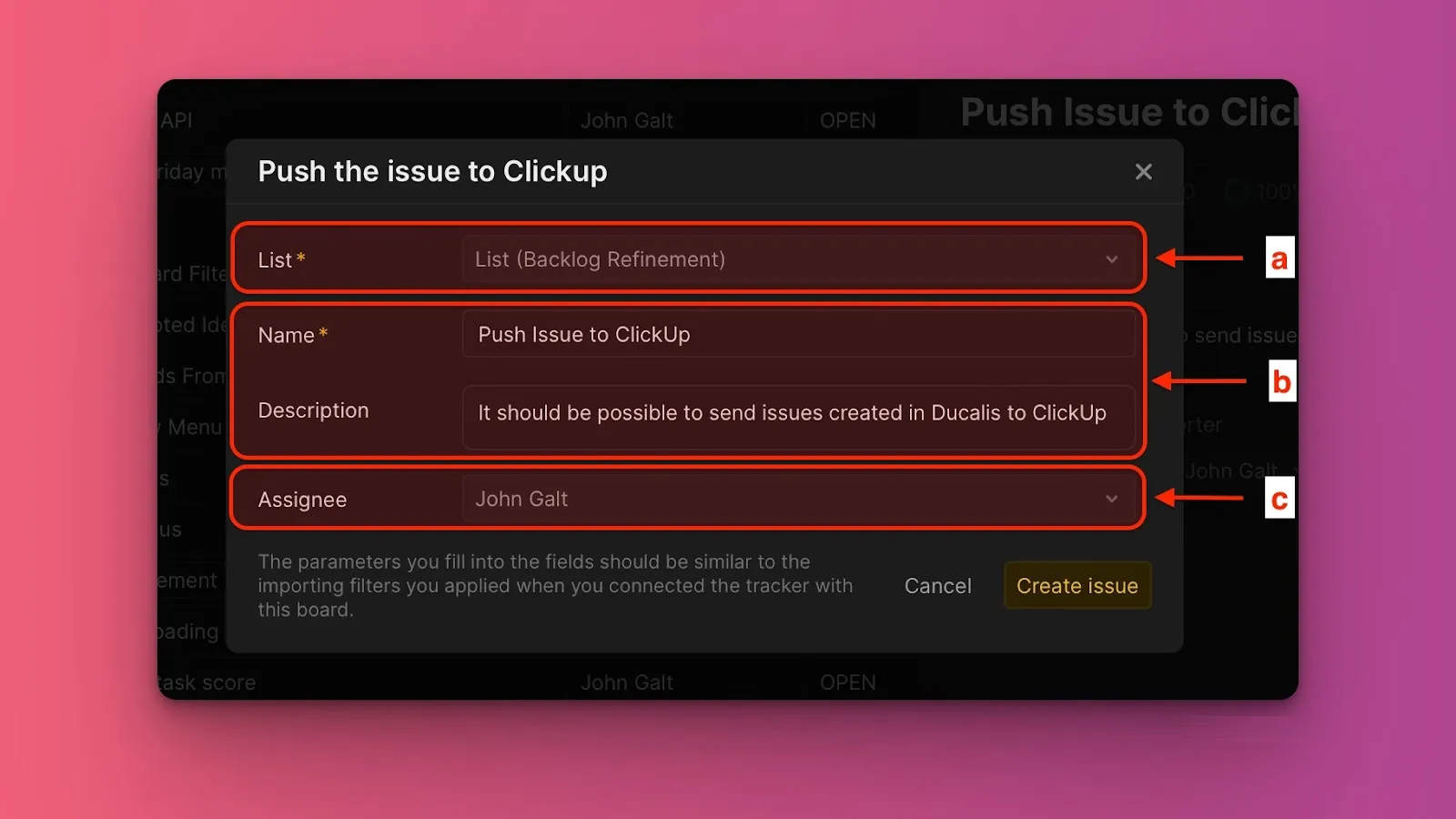
Fill in the required information:
- Project: Choose from projects selected during ClickUp integration setup.
- Name and Description: Edit if needed.
- Assignees: Choose from ClickUp users. Board users not in your ClickUp account won't appear in the list.
-
Click Create issue.
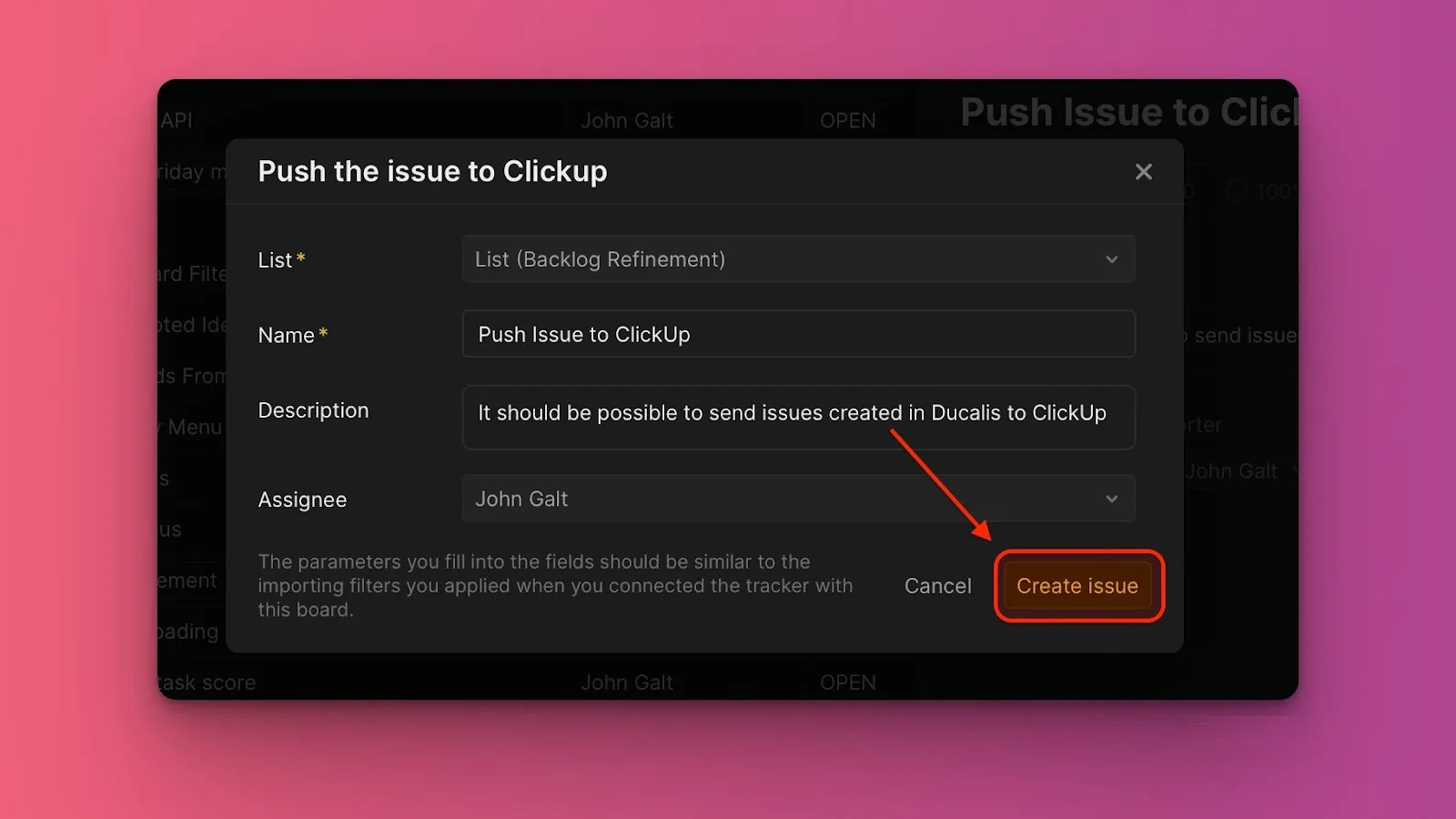
The Issue now exists in both Ducalis and ClickUp.
Push from Voting Board
Push customer feedback from your Voting Board to ClickUp by converting Ideas to Issues.
-
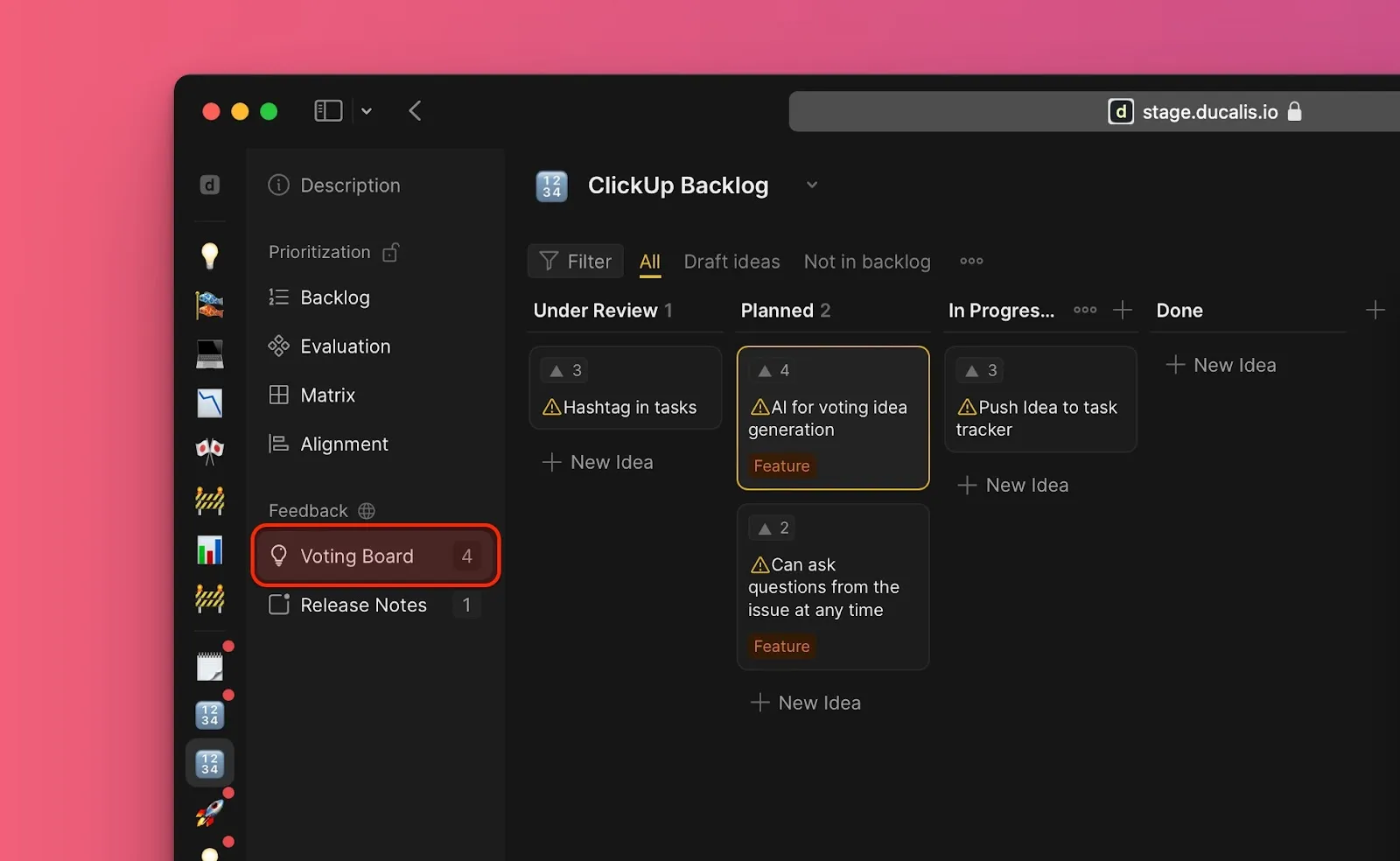
Go to the Voting Board.
-
Under All, select the Idea you want to add to your backlog.
Ideas not yet added to the internal backlog display a warning icon.
-
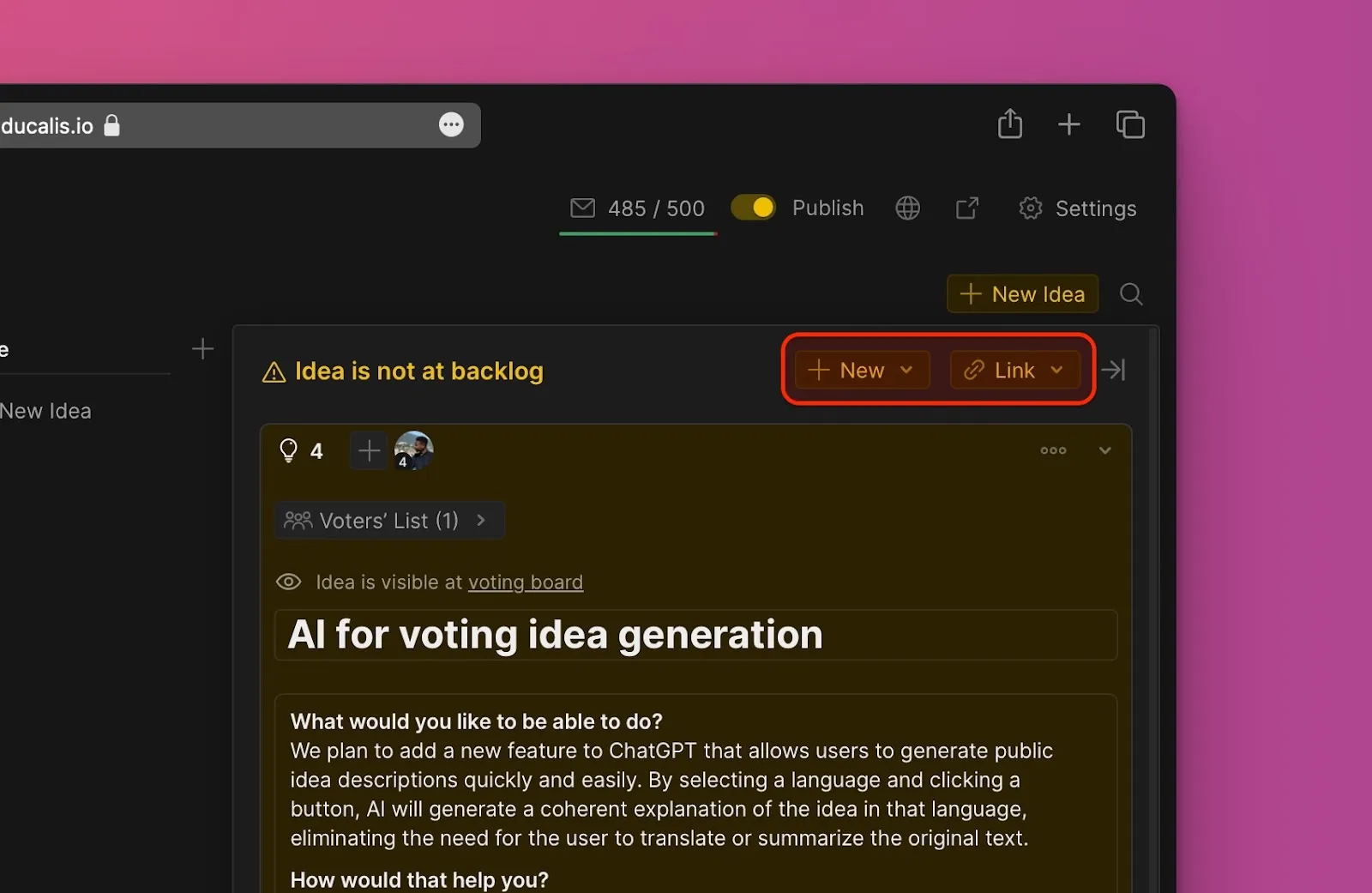
Open the Idea card and click the Add as new issue button in the top right corner.
-
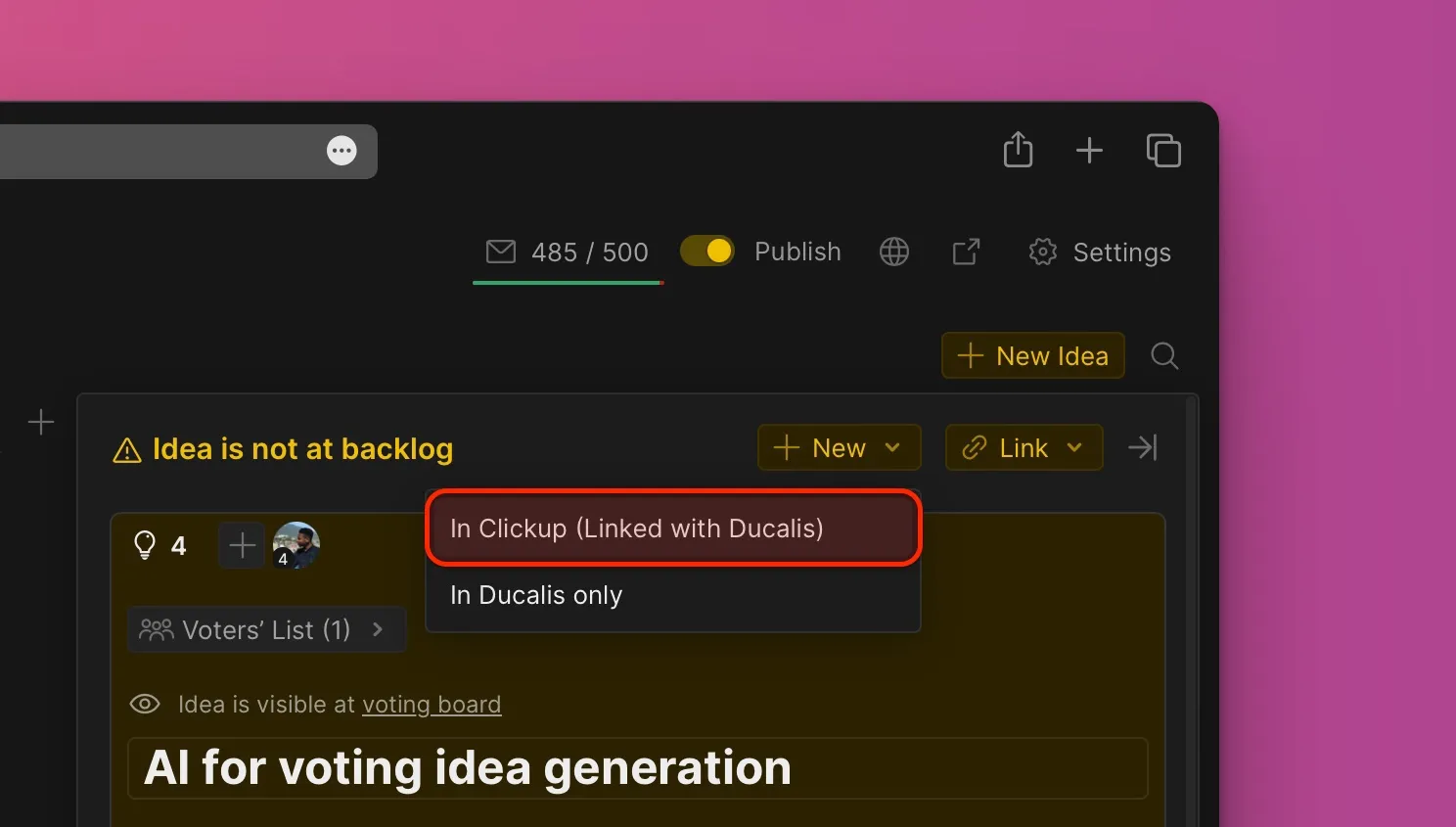
From the dropdown menu, select In ClickUp (link with Ducalis).
-
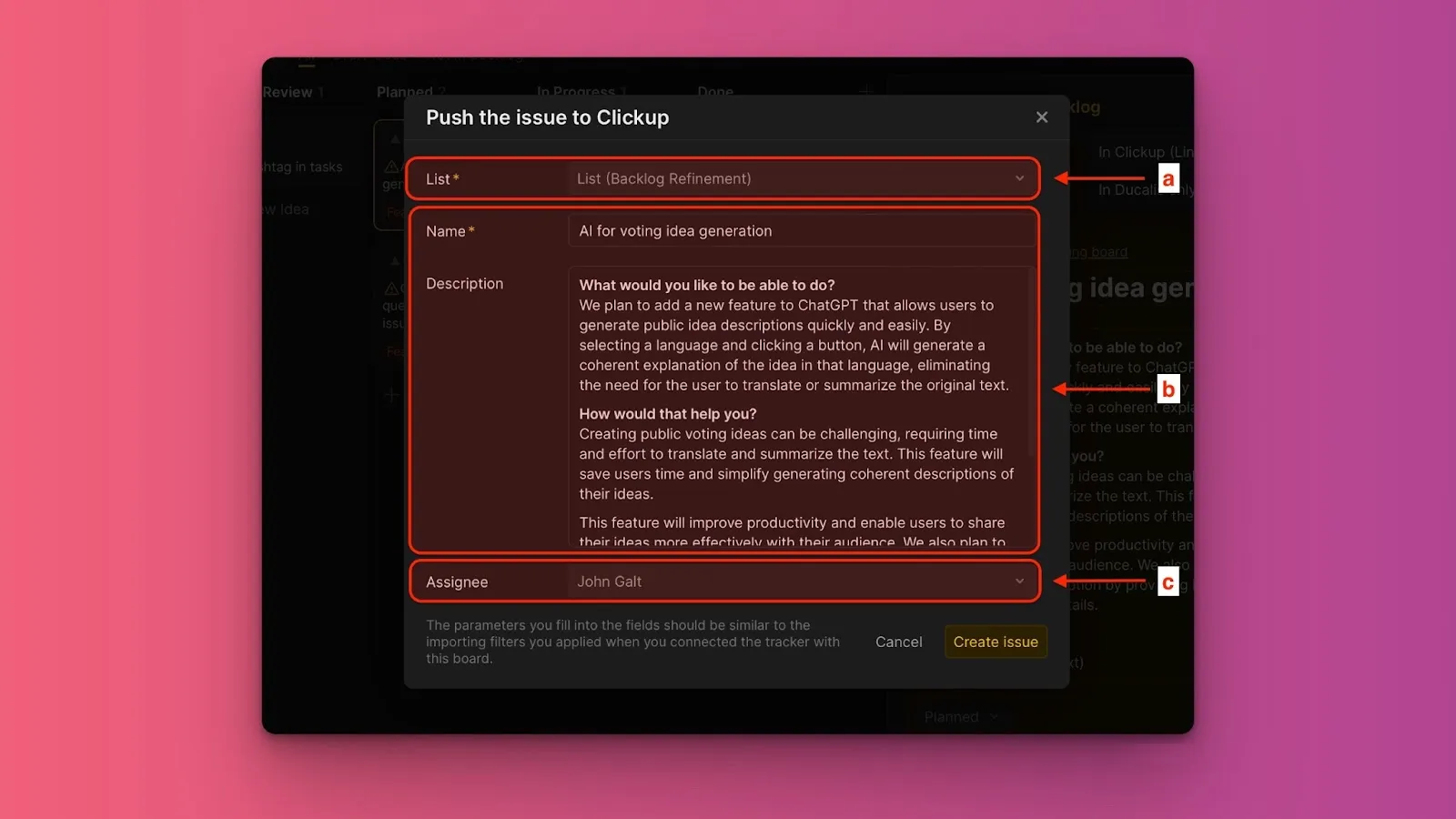
Fill in the required information:
- Project: Choose from projects selected during ClickUp integration setup.
- Name and Description: Edit if needed.
- Assignees: Choose from ClickUp users. Board users not in your ClickUp account won't appear in the list.
-
Click Create issue.
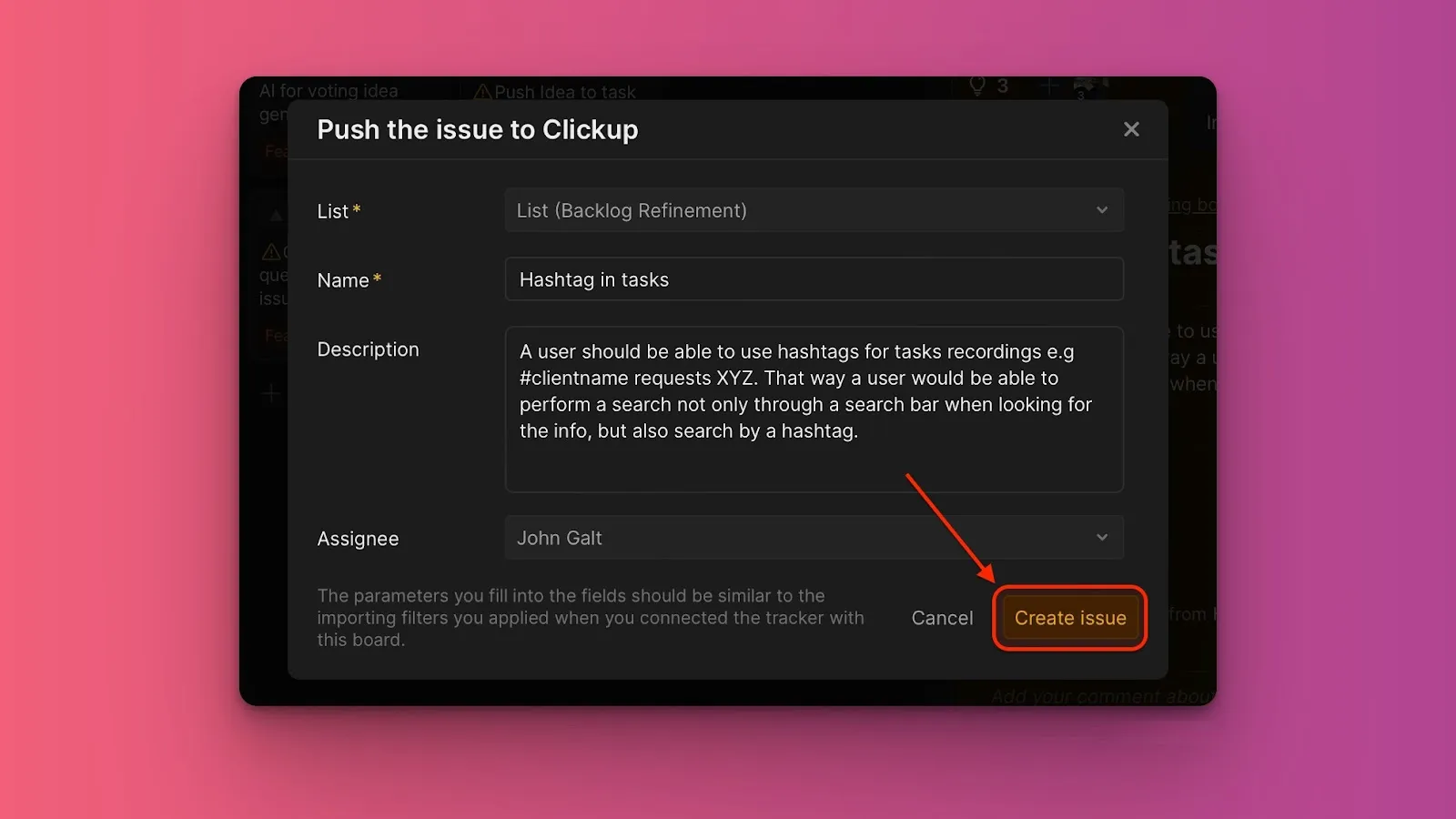
The Issue is created in both Ducalis and ClickUp, with the Idea linked to the new Issue.