Sync Back – Part 1
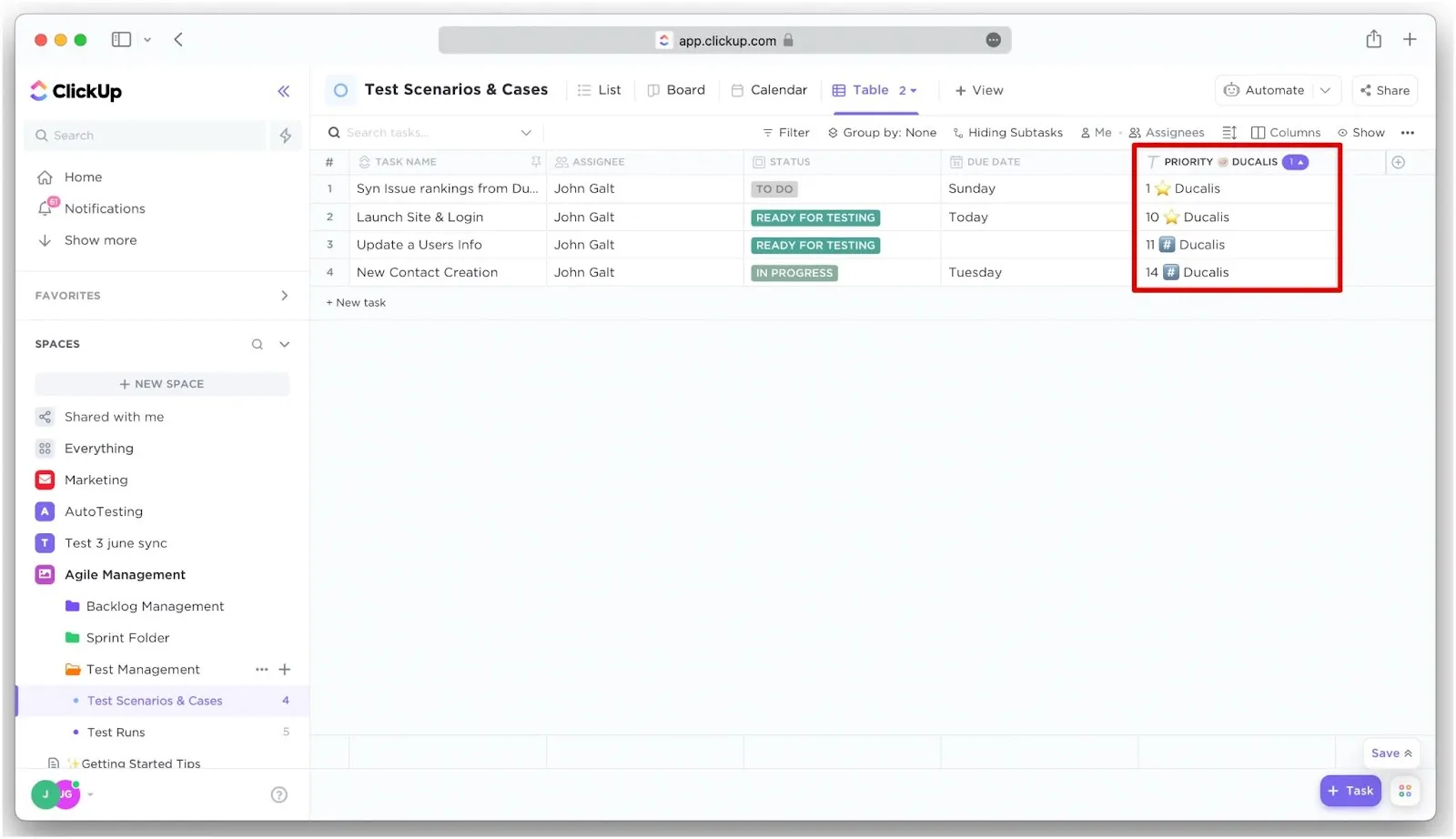
Sync Back sends your priority rankings and evaluation scores from Ducalis to ClickUp custom fields. This lets you sort tasks in ClickUp by priority ranking and quickly identify your highest-priority work.
Sync Back requires unlimited custom fields in ClickUp—not available in the Forever Free plan.
Step 1: Set up fields
Choose how to receive synced data in ClickUp:
- Field Mapping – Map to existing ClickUp fields
- Custom Fields Creation – Create new fields for the entire workspace (this article) or for individual spaces (Part 2)
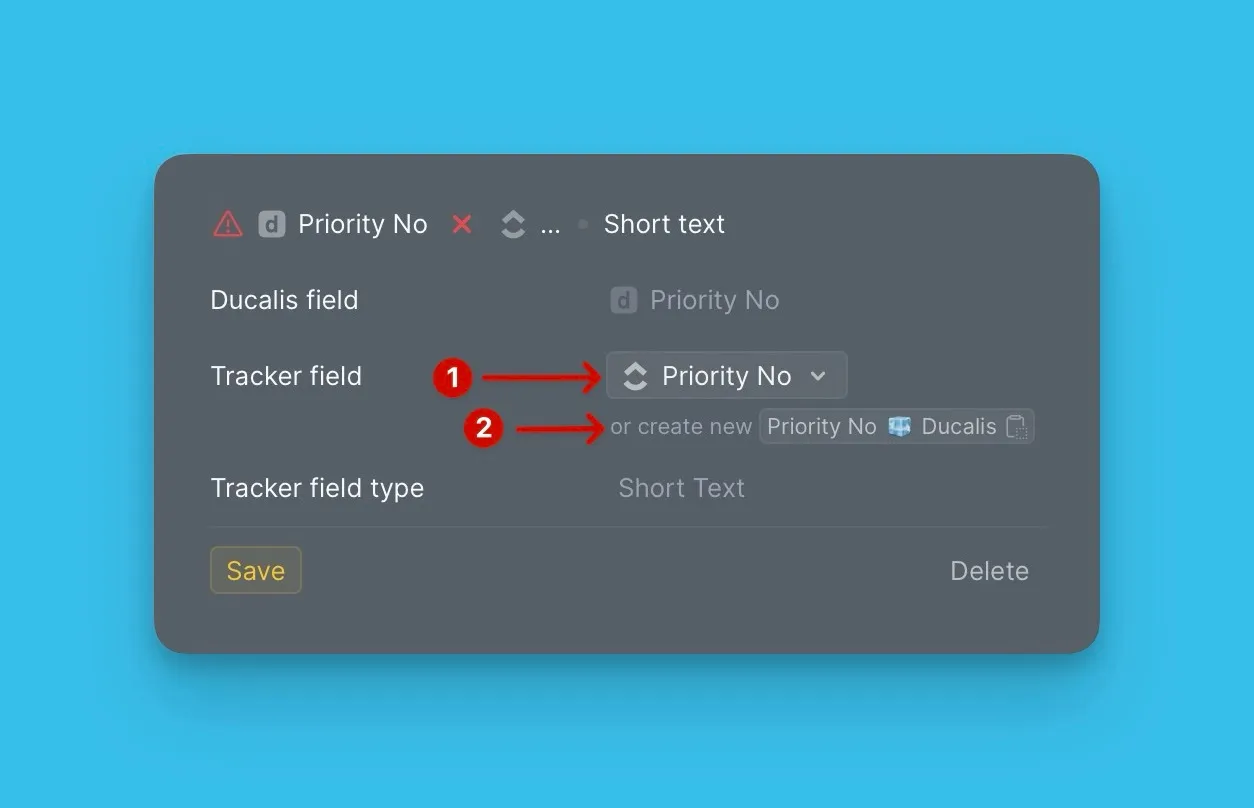
1st Option: Mapping Fields
If you already have custom fields in ClickUp, map them to Ducalis fields instead of creating new ones.
-
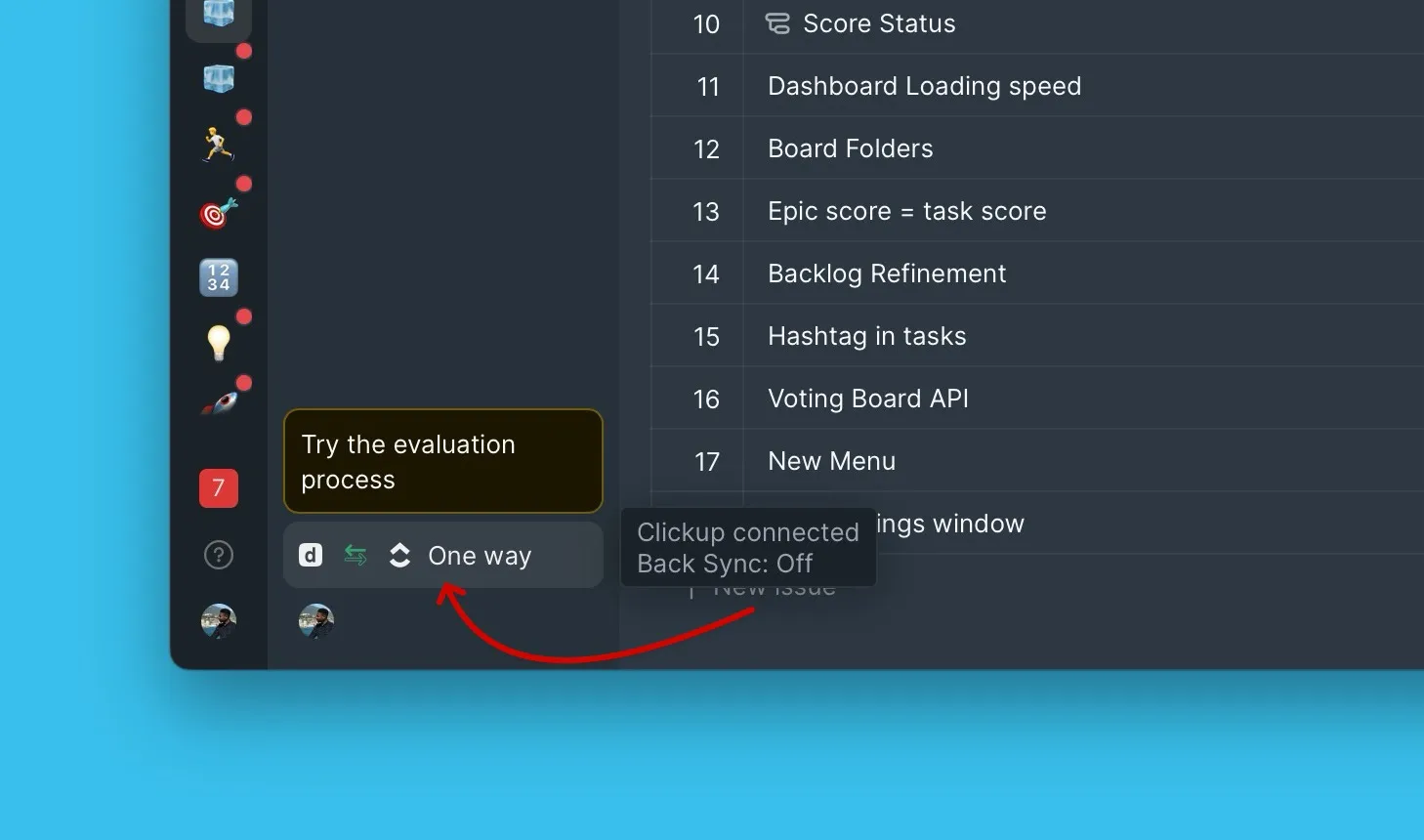
In Ducalis, open Sync settings to access the 2-way sync configuration.
-
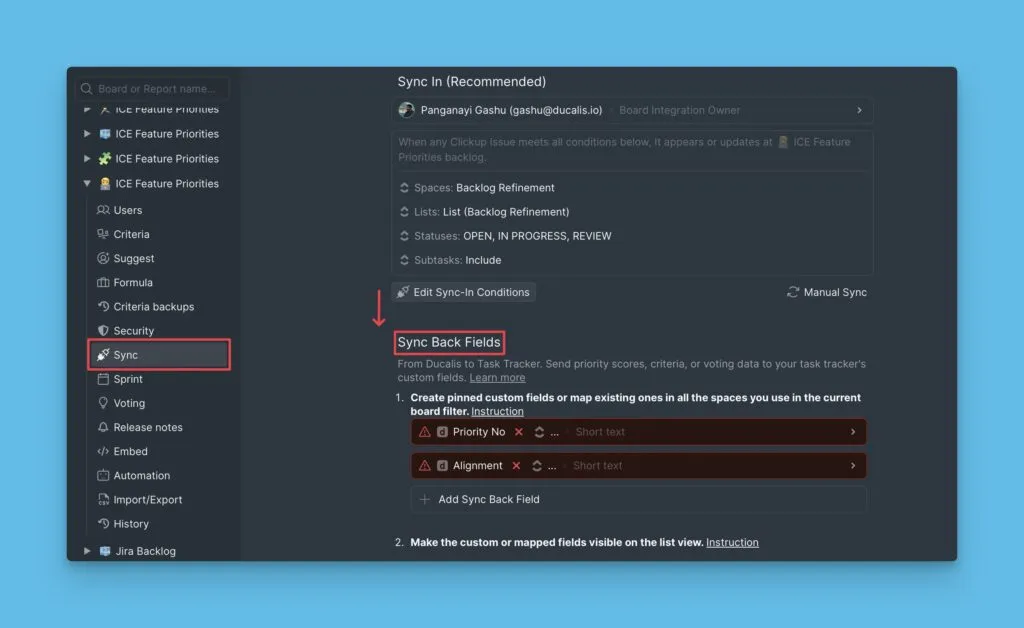
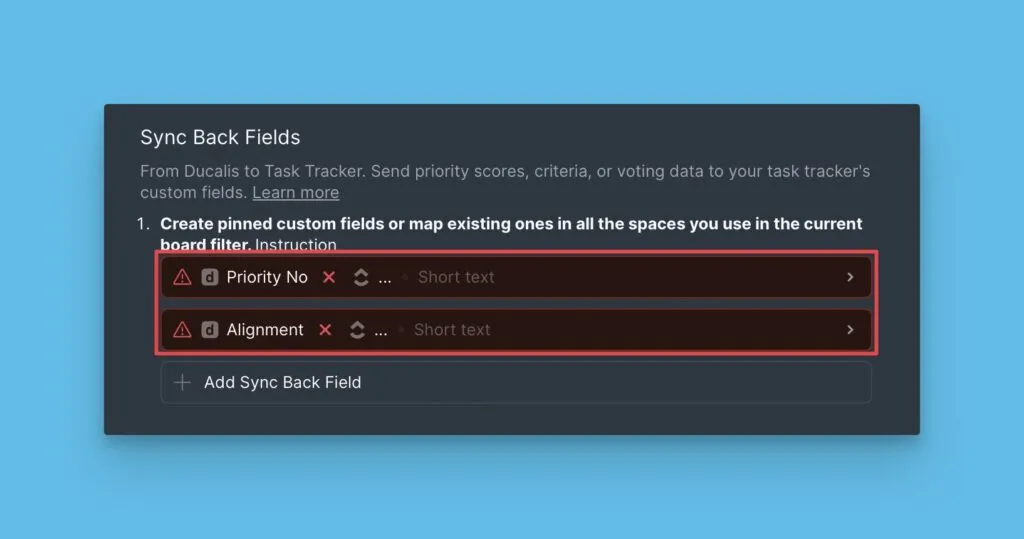
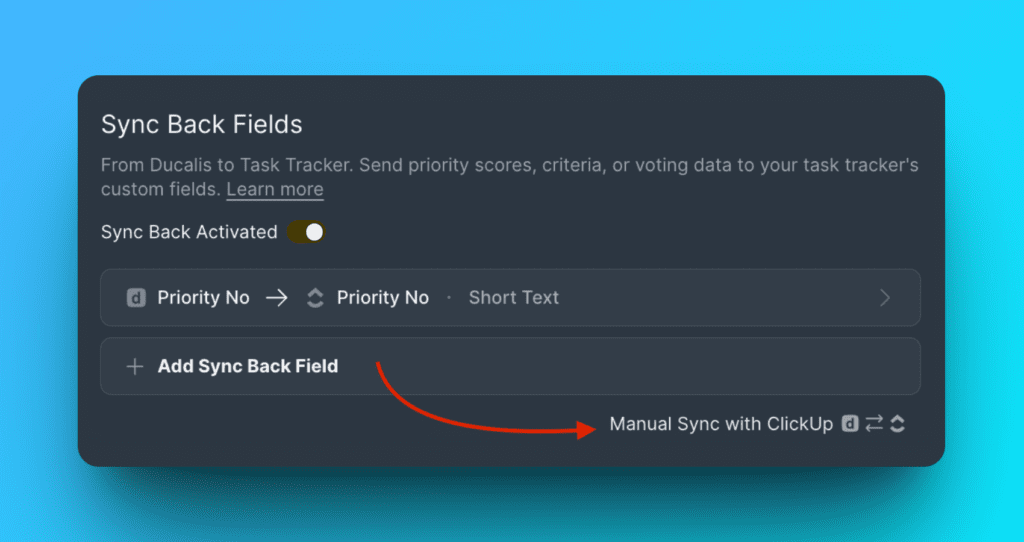
Scroll down to Sync Back fields and configure mappings.
-
Use the default Ducalis fields or delete them to add your own.
-
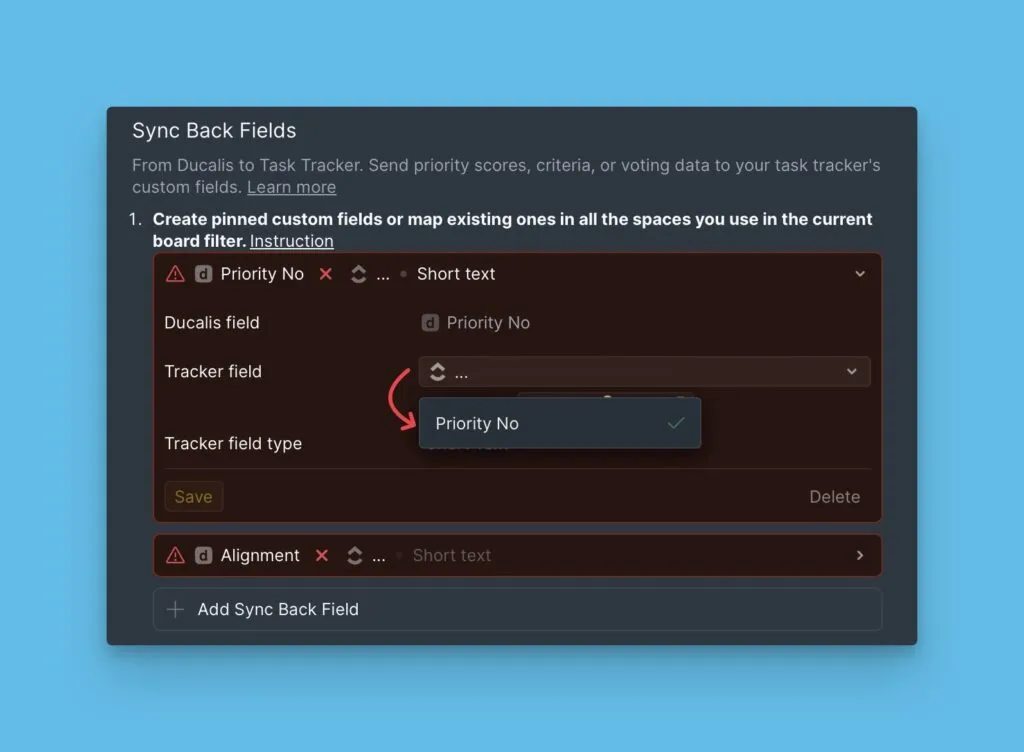
Click the dropdown next to Tracker field and select the ClickUp field to receive synced data. You can choose workspace-wide or space-specific custom fields.
-
Click Save.
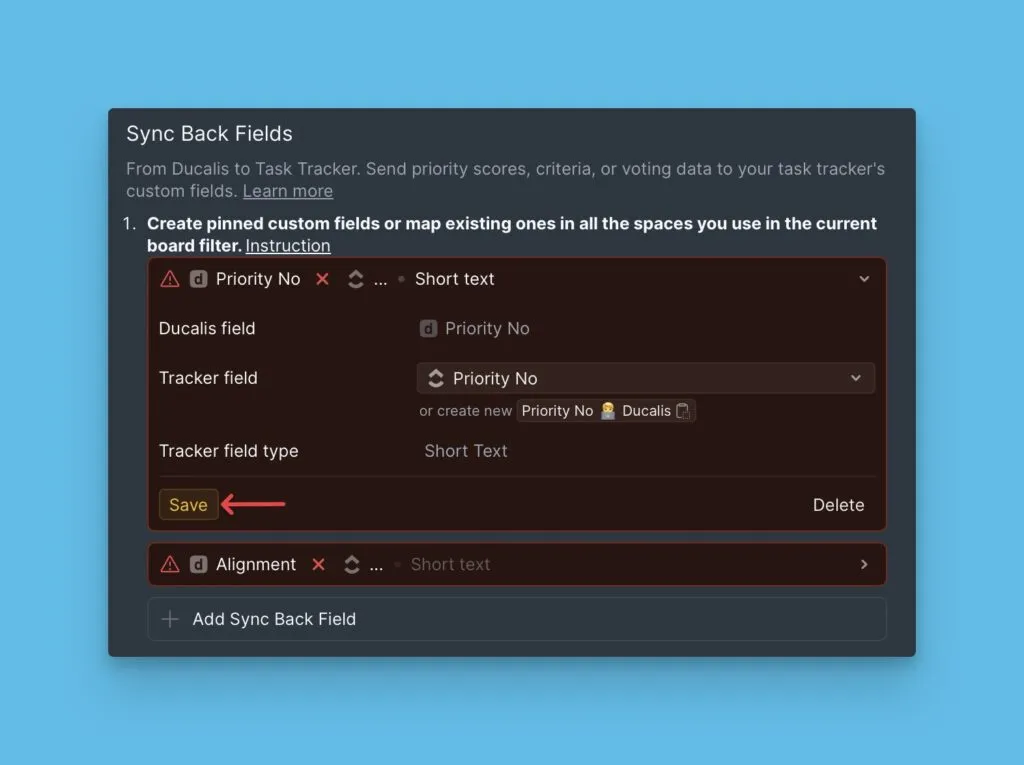
Each time Sync Back runs, data from the Ducalis field syncs to the mapped ClickUp field.
2nd Option: Creating Custom Fields in ClickUp For the Entire Workspace
Create new custom fields in ClickUp to receive data from Ducalis.
-
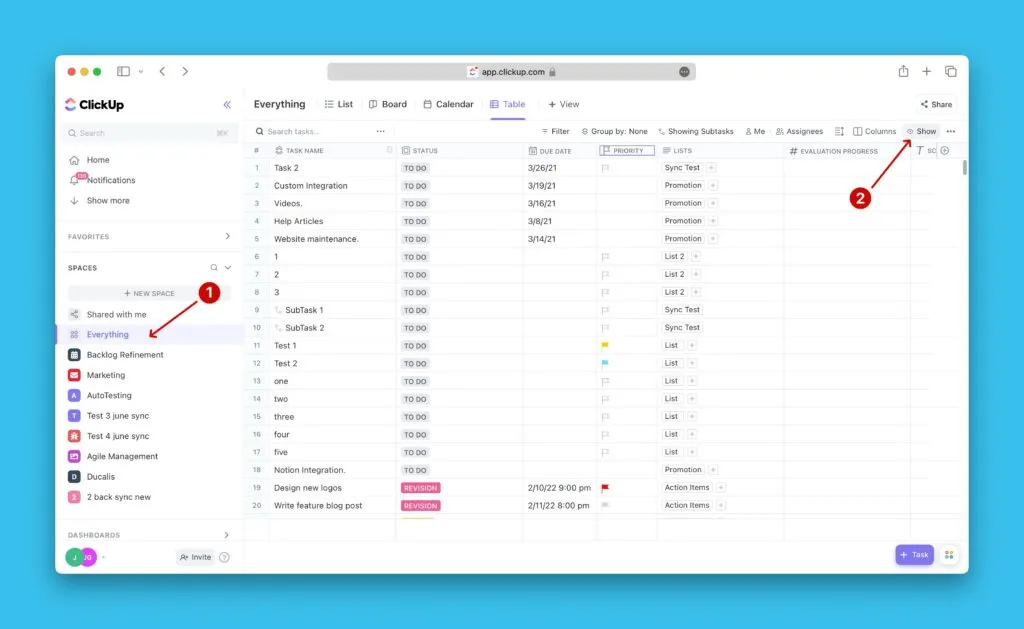
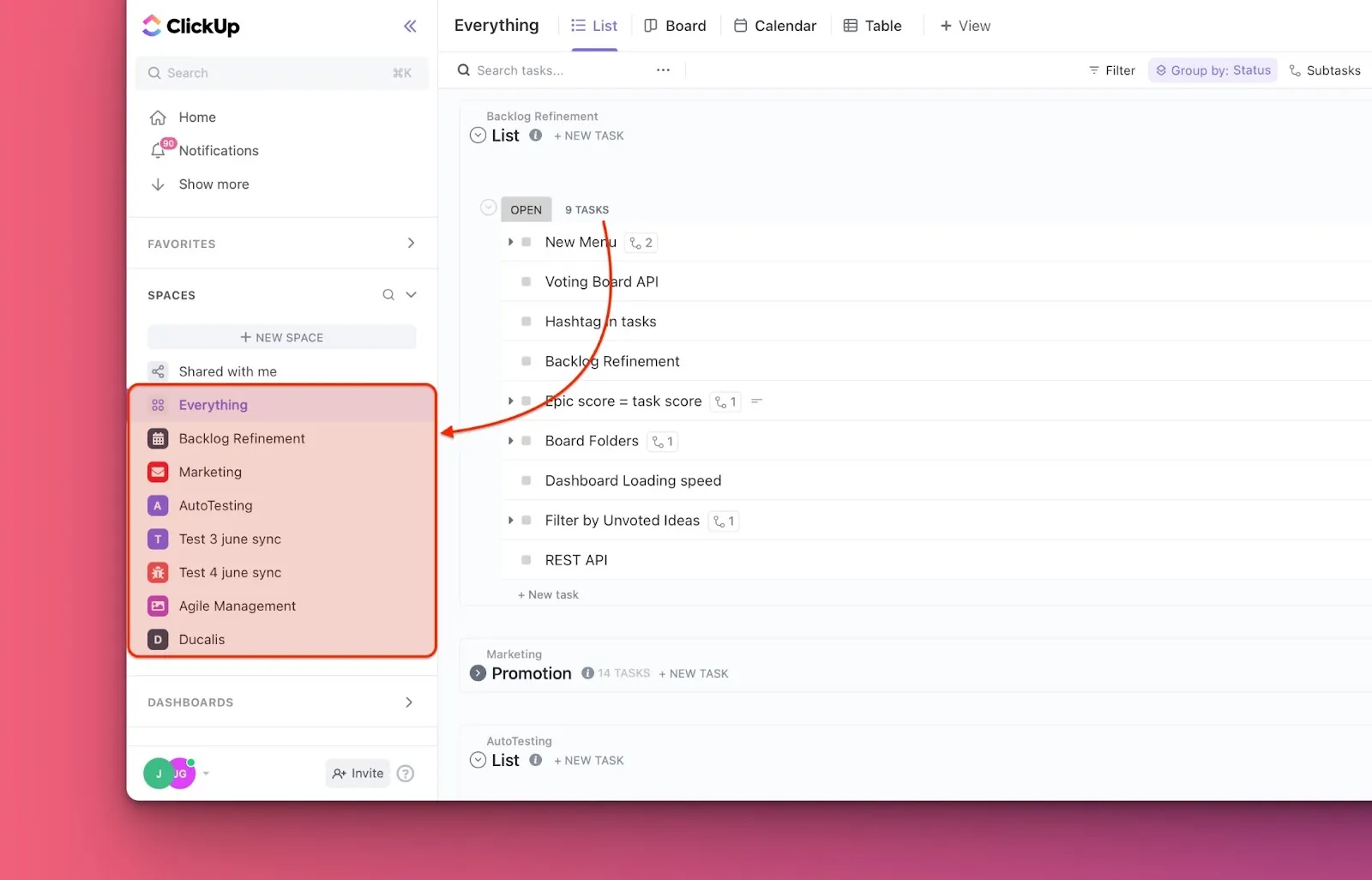
In ClickUp, go to Everything.
-
Click Show in the upper right corner.
-
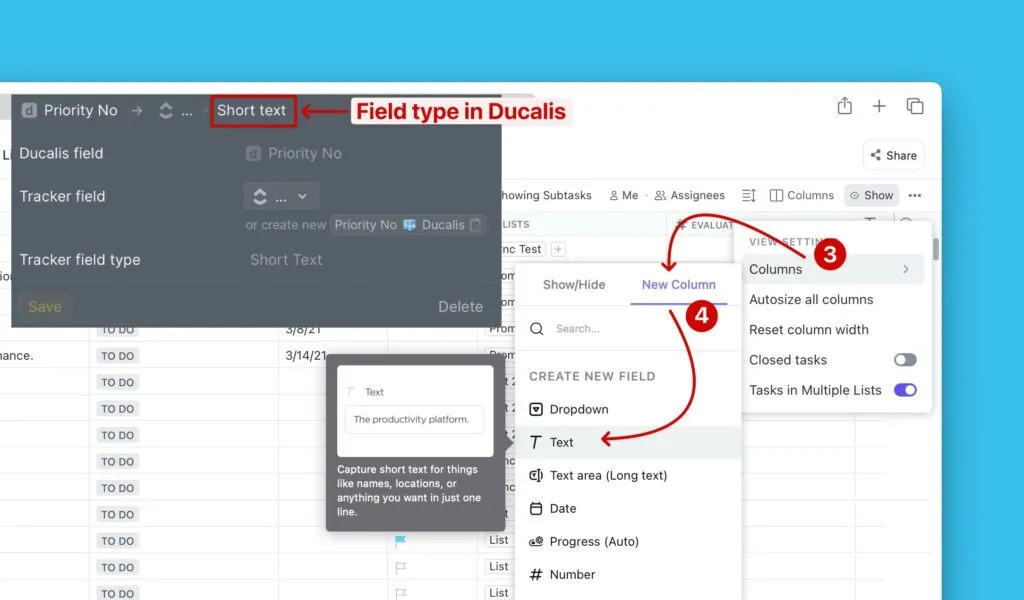
From the dropdown menu, select Columns.
-
Under New Column, select the field type that matches the Ducalis field type. For example, choose Text to create a text field.
-
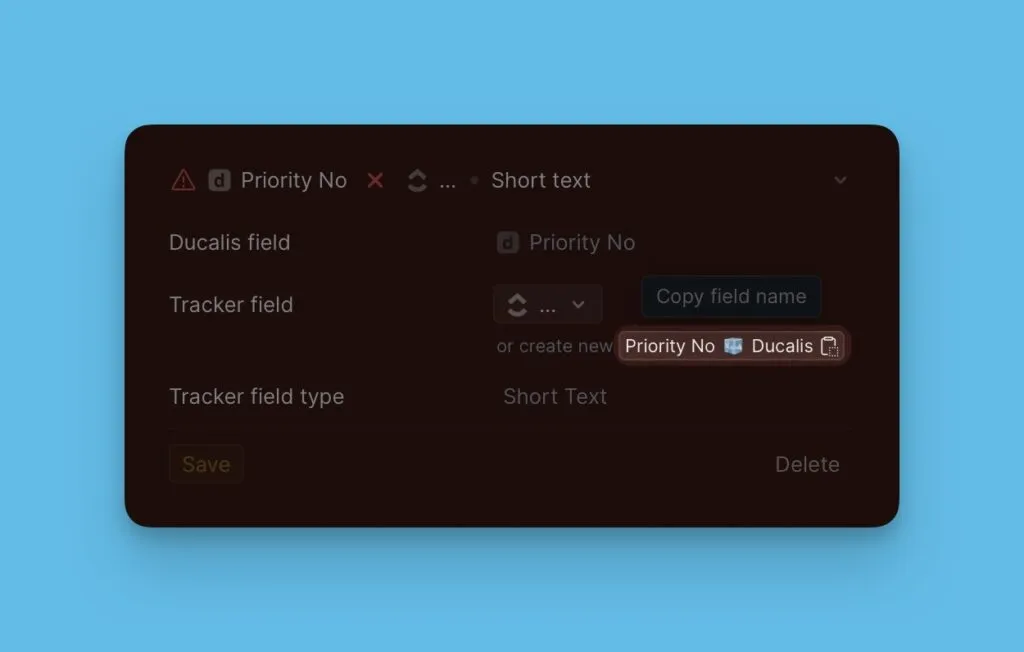
Copy the field name from Ducalis Sync settings.
-
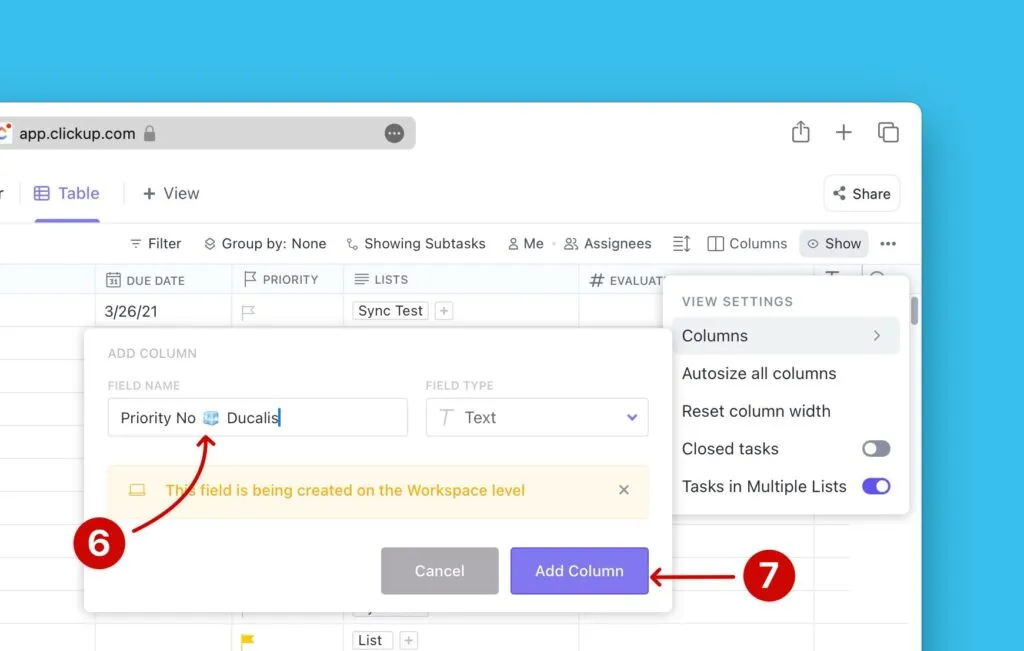
Paste the name into the ClickUp field creation popup.
-
Click Add Column.
-
Click Add to every task.
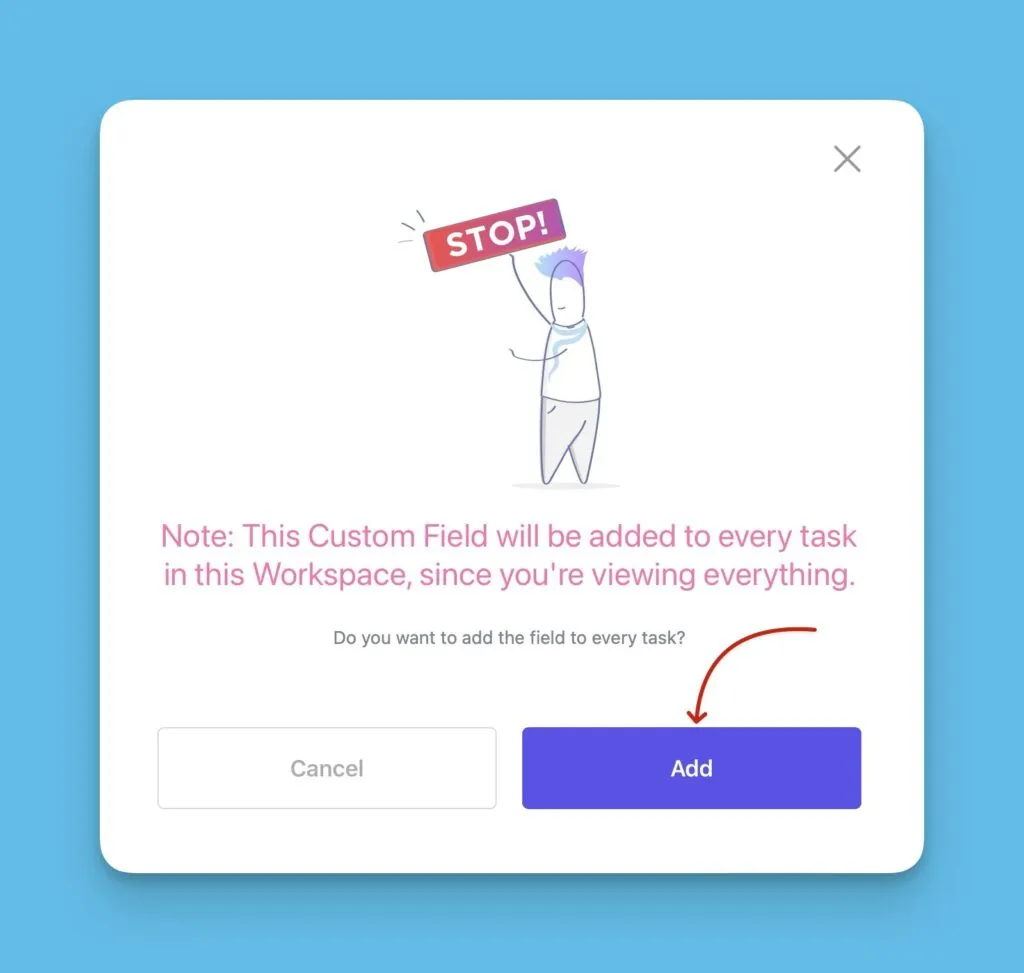
-
Repeat these steps for all remaining fields.
Step 2: Make custom fields visible
Custom fields aren't visible in the list view by default—add them manually.
If you're using field mapping, verify the mapped fields are visible in the list.
-
Click Show in the upper right corner, then select Columns from the dropdown.
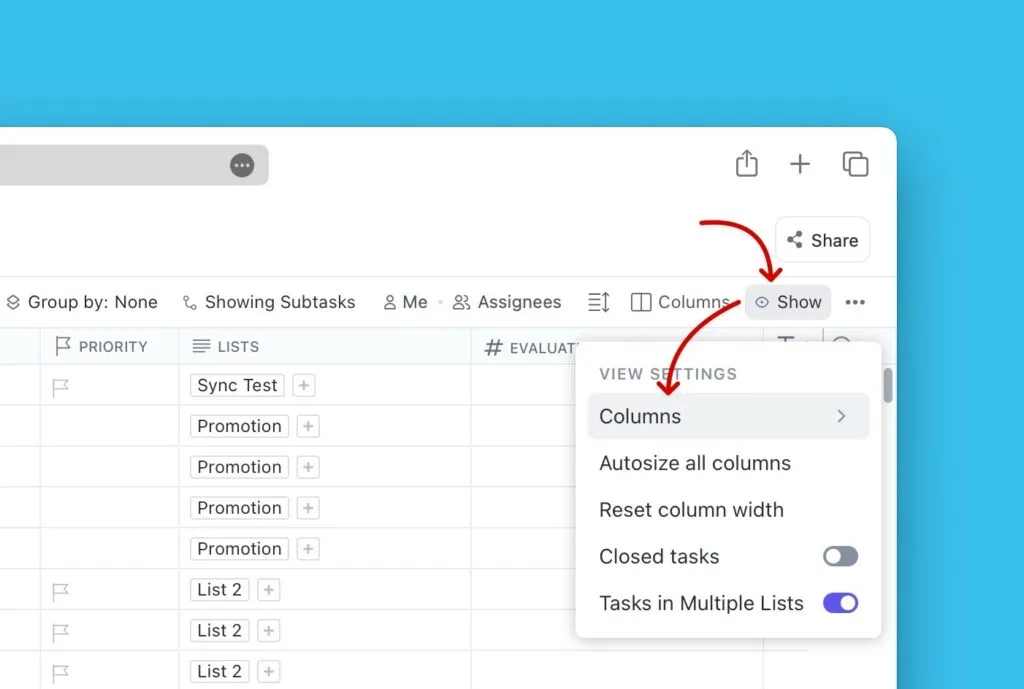
-
Under Show/Hide, scroll to the Ducalis custom fields and click each field name to add it to the list view.
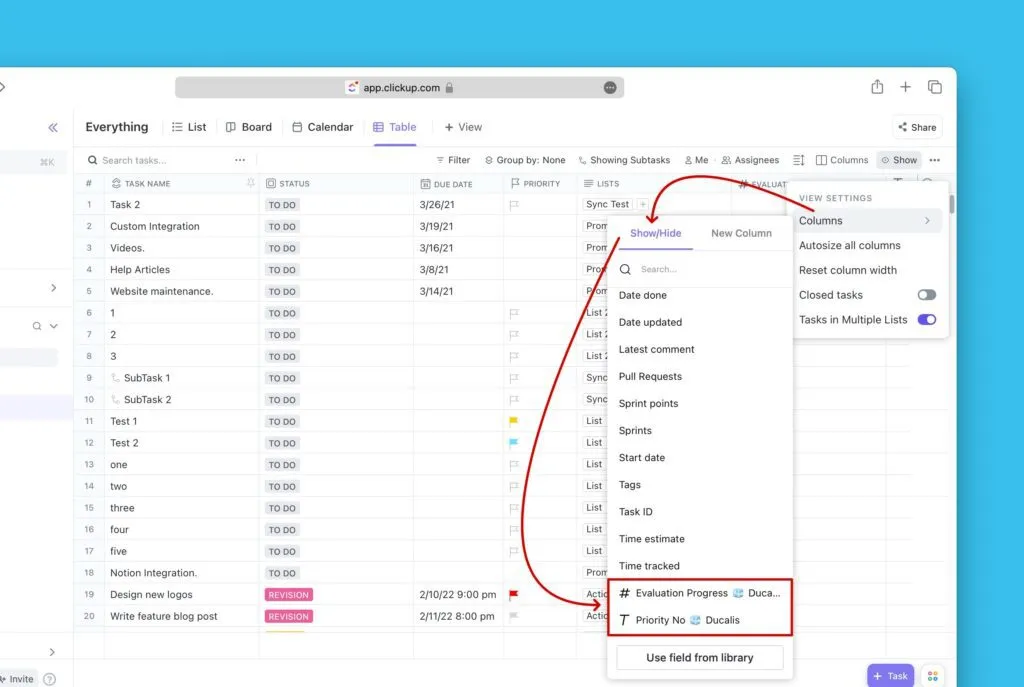
-
The Ducalis custom fields now appear in the list view.
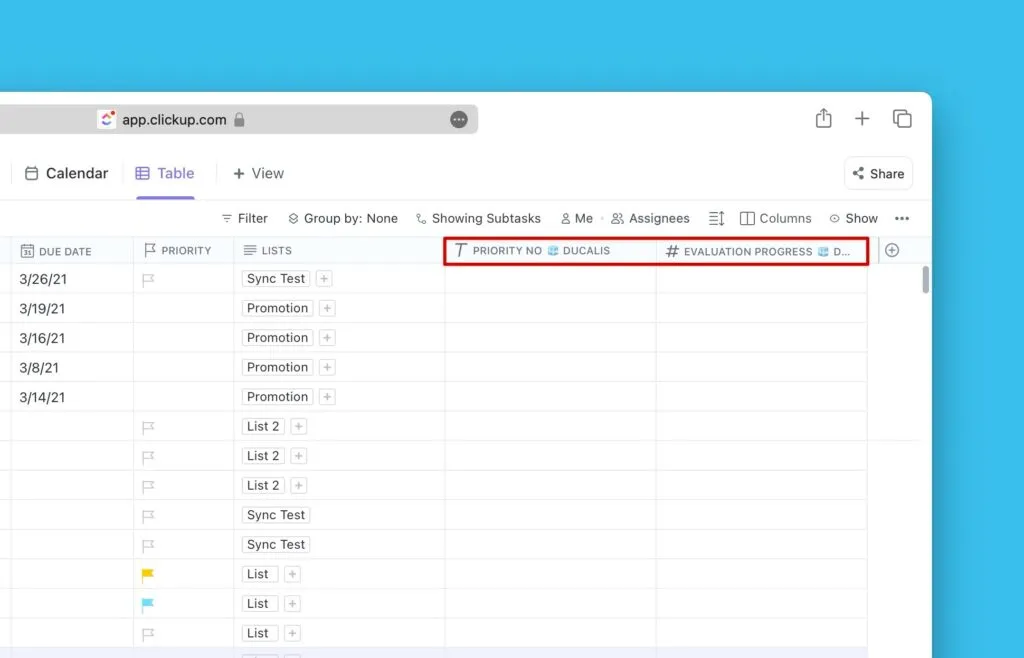
-
In Ducalis, click Refresh to detect the new fields.
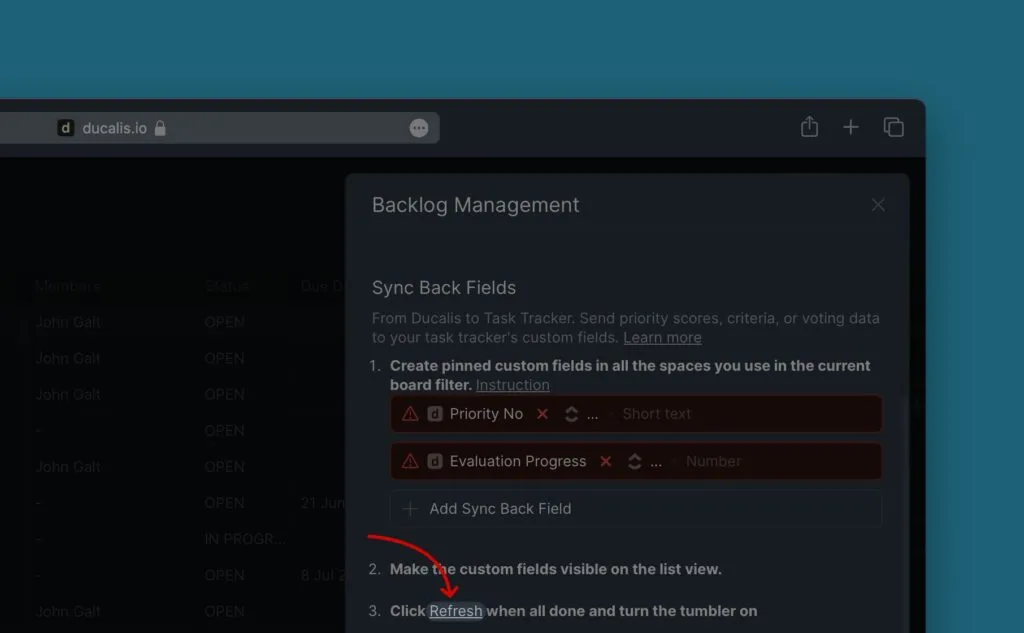
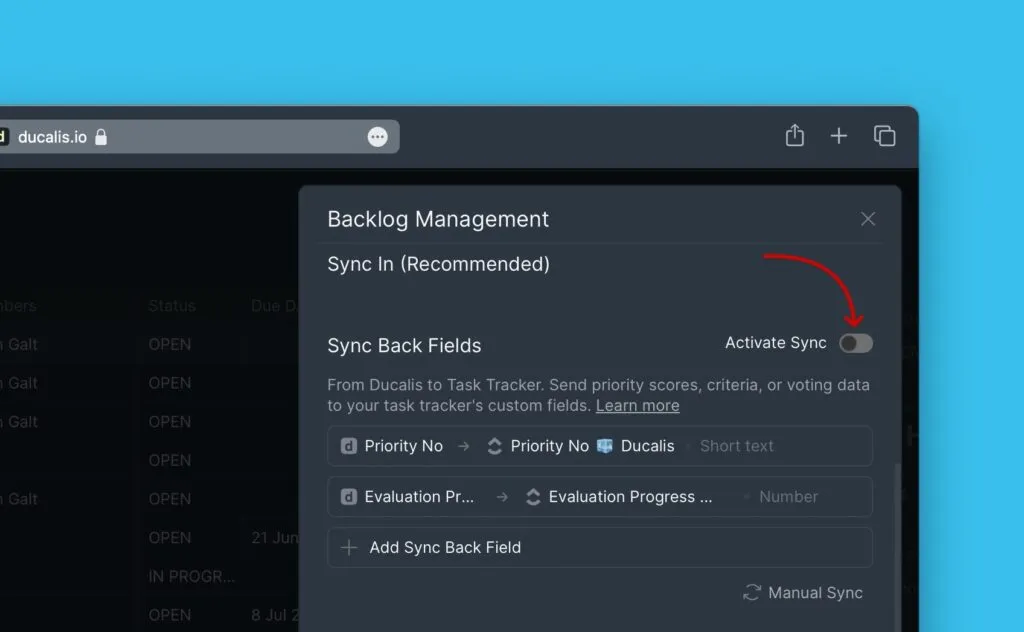
After your fields are ready, activate Sync Back.
Instead of creating new fields, edit existing ClickUp fields and rename them to match Ducalis field names. Learn more about using existing fields.
Step 3: Activate Sync Back
- After refreshing, switch on the Activate toggle to enable Sync Back.
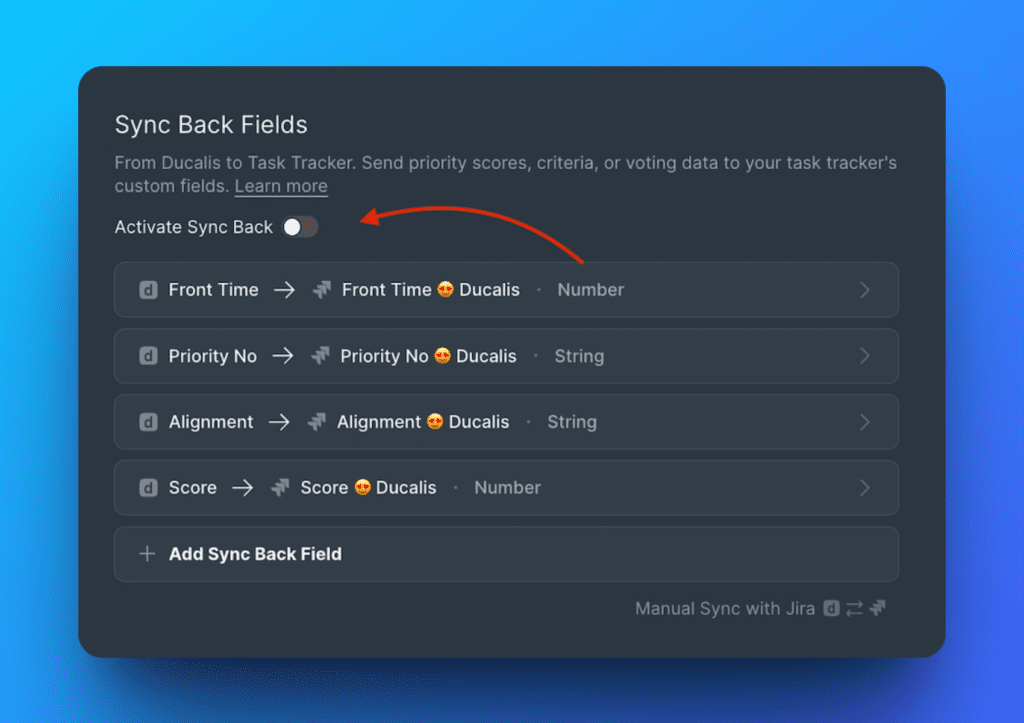
After you activate Sync Back, you can't add more fields. To add fields, deactivate Sync Back first, add your fields, then reactivate.
Step 4: Configure sync schedule
Choose when to sync priority rankings to ClickUp—for example, a day or few days before your sprint planning meeting.
Two schedule options:
- By sprint end date – Syncs on your planning day
- By custom period – Syncs on a custom schedule
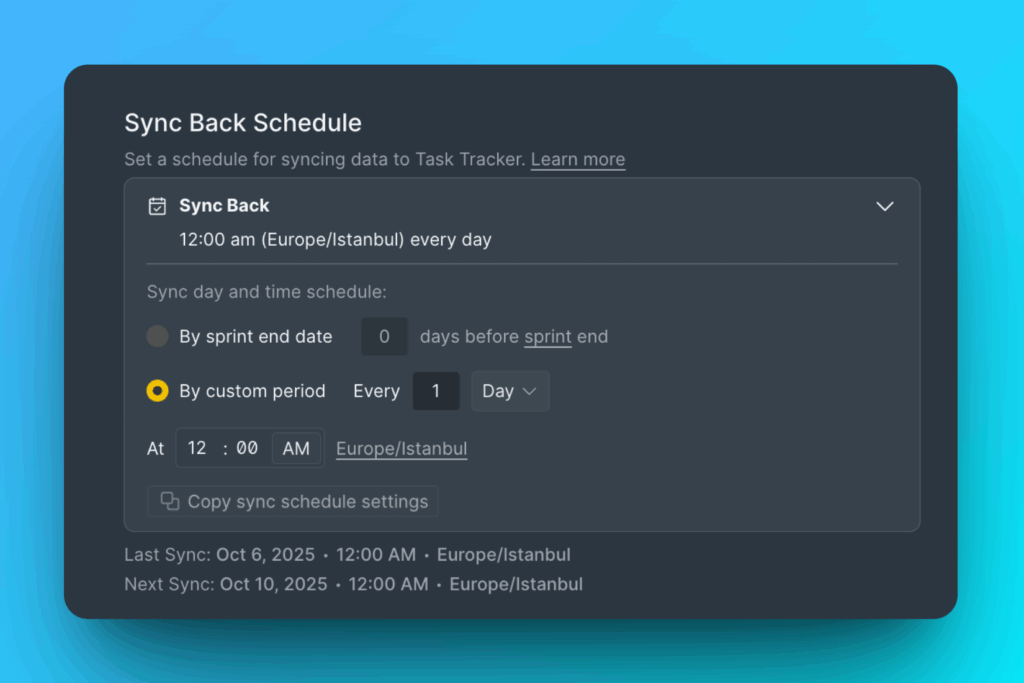
By default, sync runs automatically on your planning day. Learn more about planning day settings.
To sync immediately, click Manual Sync with ClickUp.
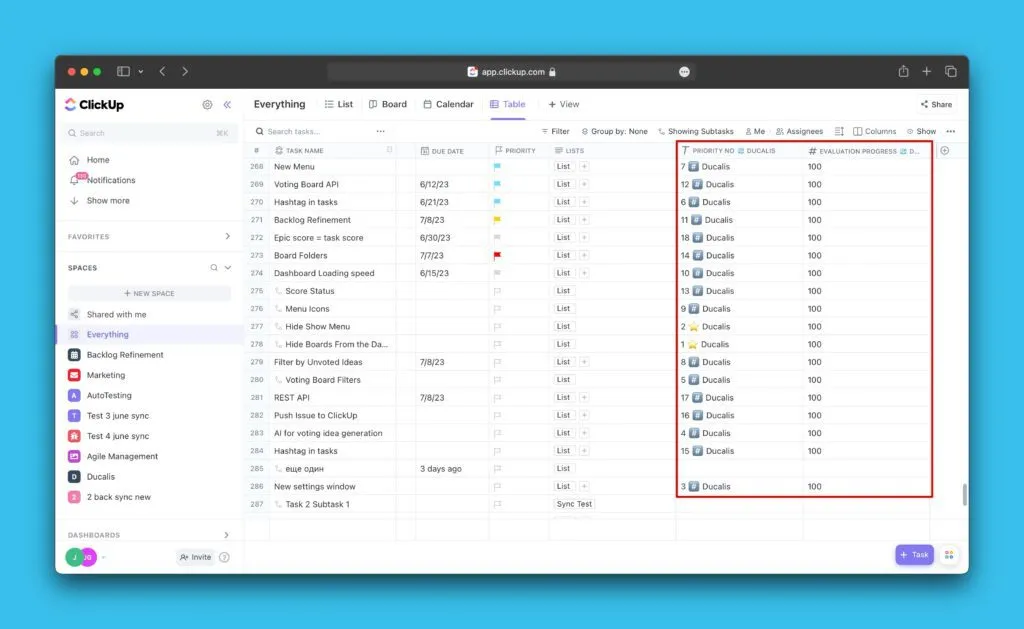
View synced data in ClickUp
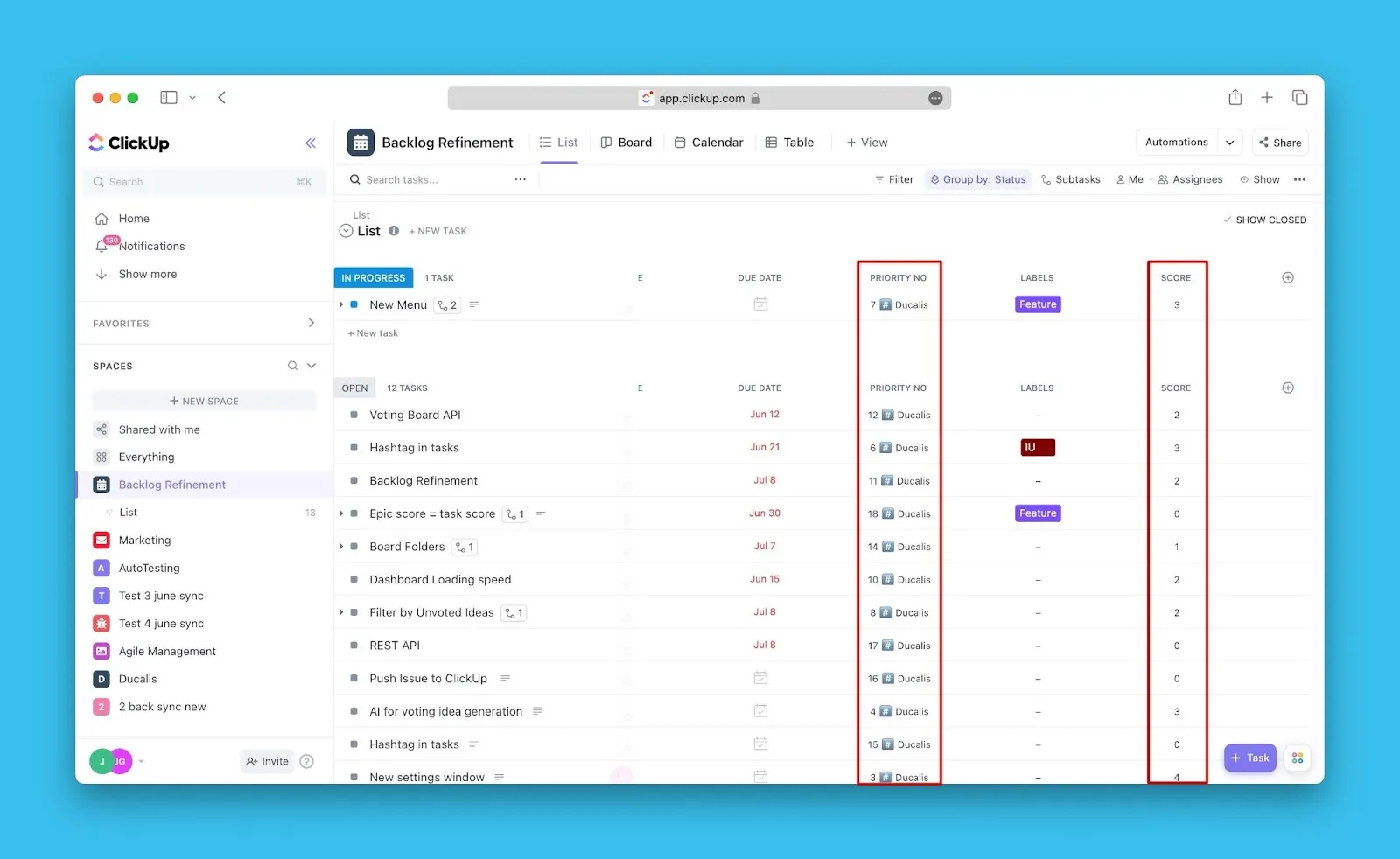
Synced data appears in the Everything view, where you can sort tasks by priority rankings, total scores, or criterion scores.
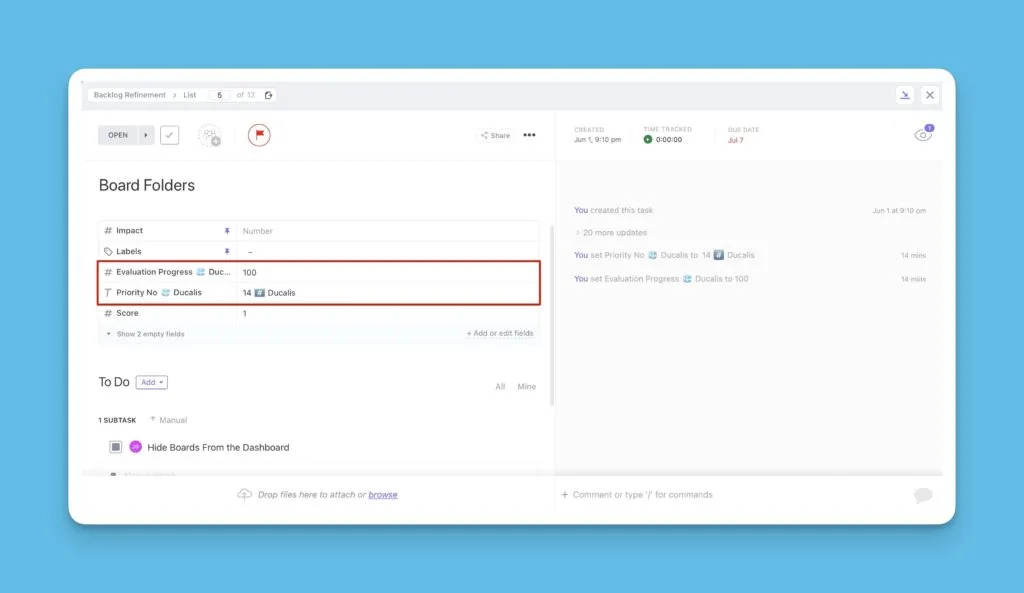
Data also appears inside every task card across your workspace.
Add custom fields to different views
First, select the space or list where you want to display the fields.
List view
-
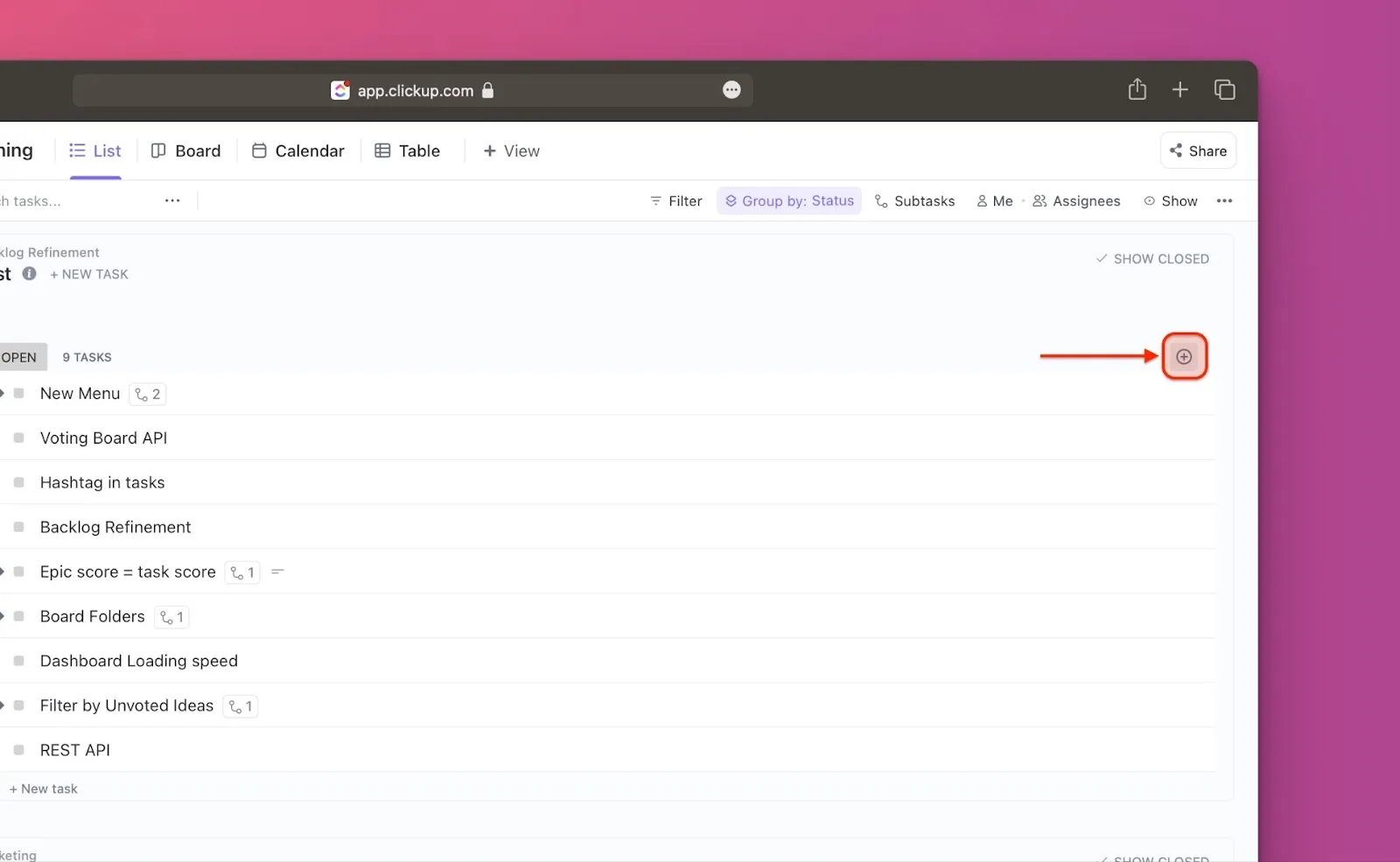
Click the Plus icon in the upper right corner.
-
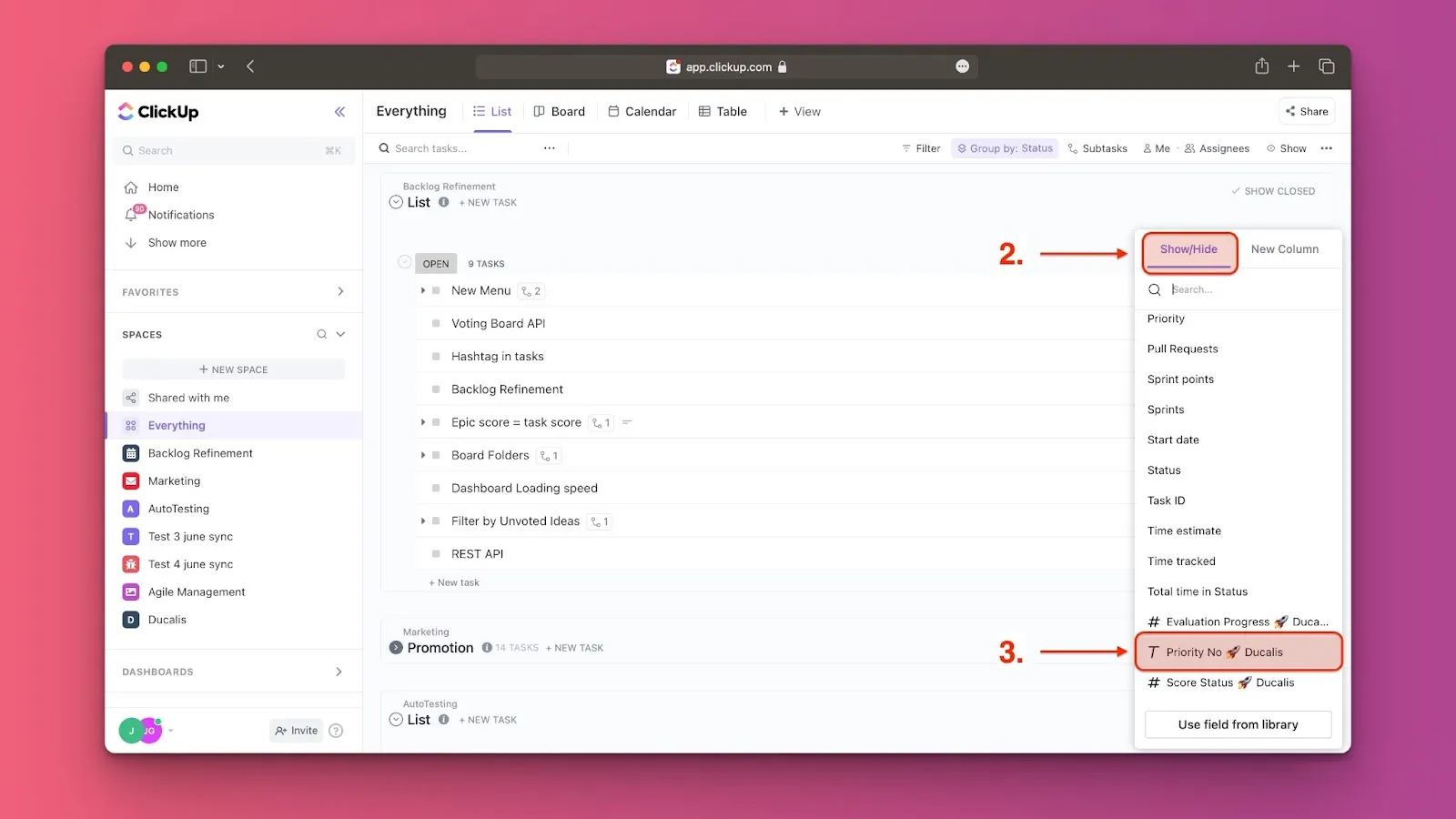
Under Show/Hide, scroll down or search for the Ducalis custom field (for example, Priority Ducalis).
-
Click the field name to add it.
-
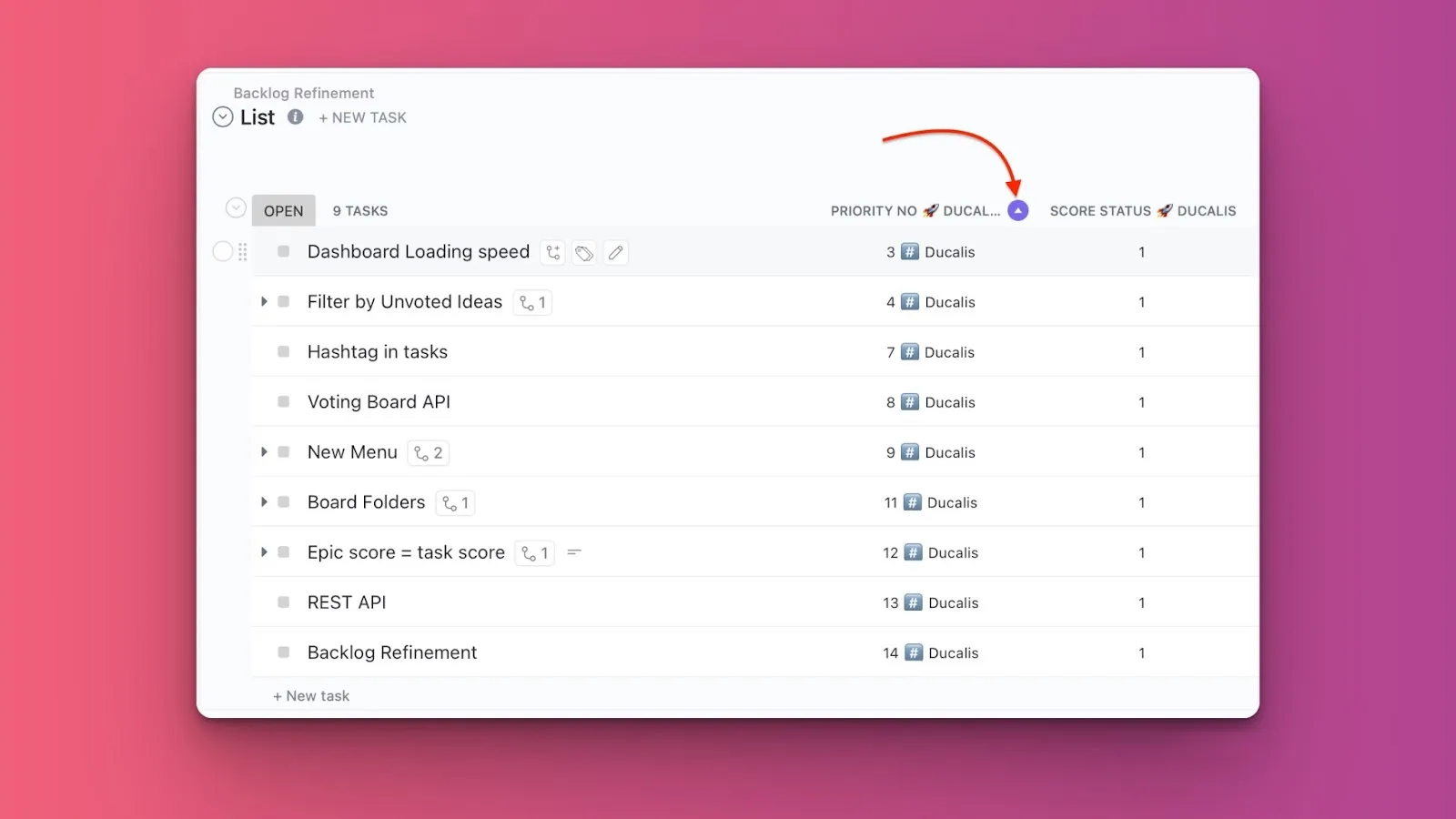
Click the Sort icon next to the field name to sort tasks by priority (or other synced data).
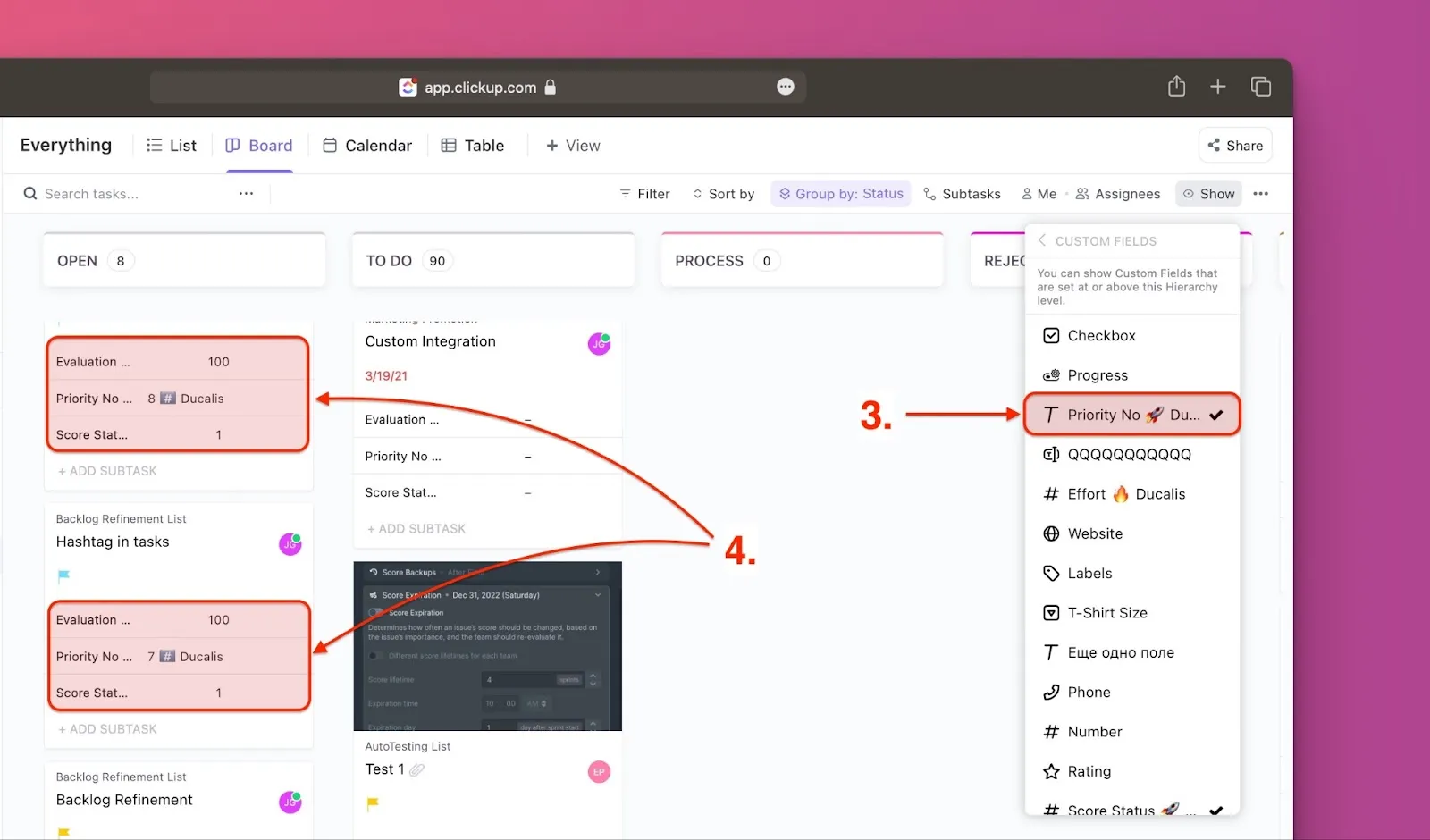
Board view
-
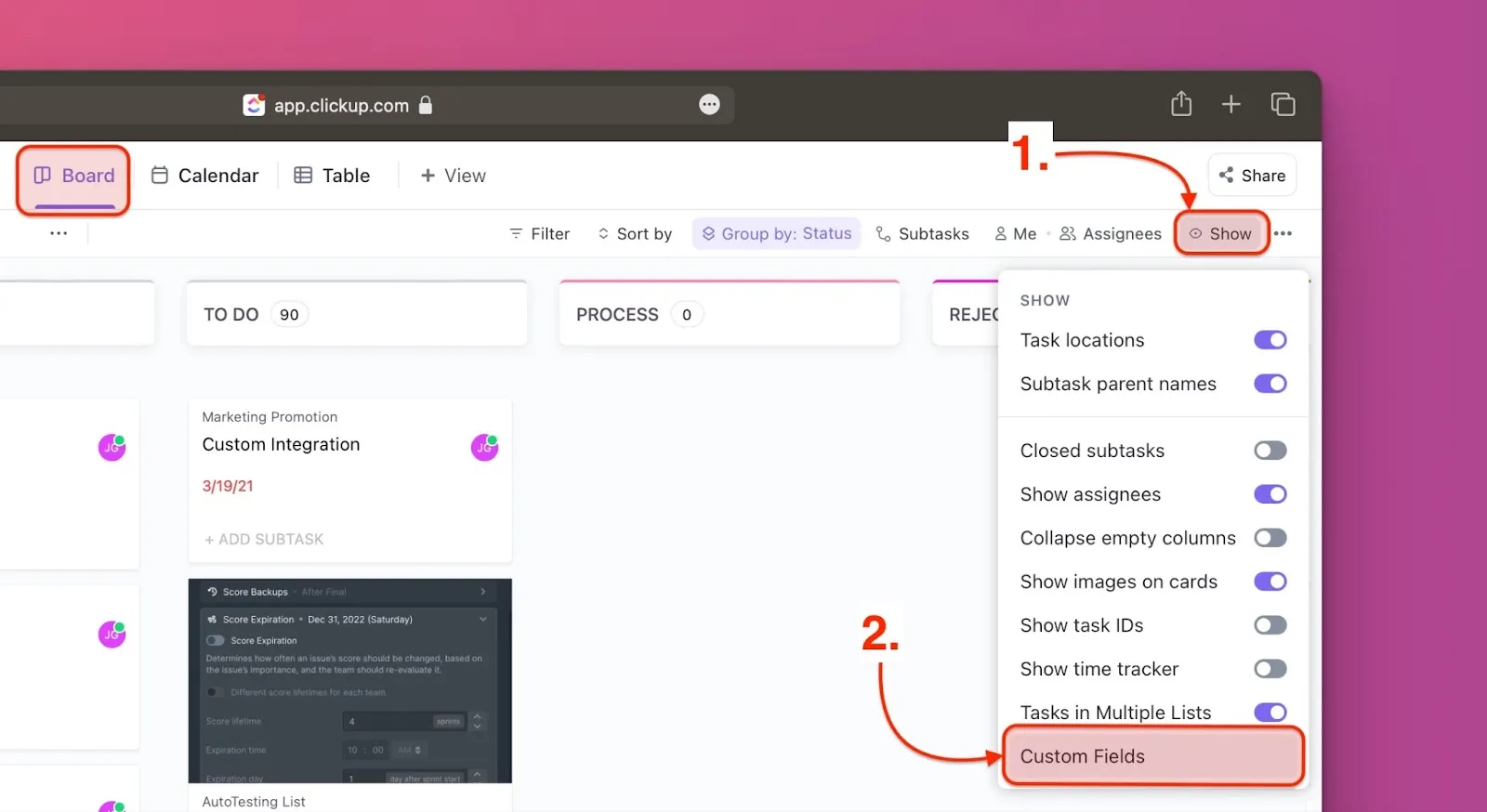
Click Show in the upper right corner.
-
Click Custom Fields.
-
Click the Ducalis custom field you want to display (for example, Priority Ducalis).
-
The priority rank now appears on each task card.
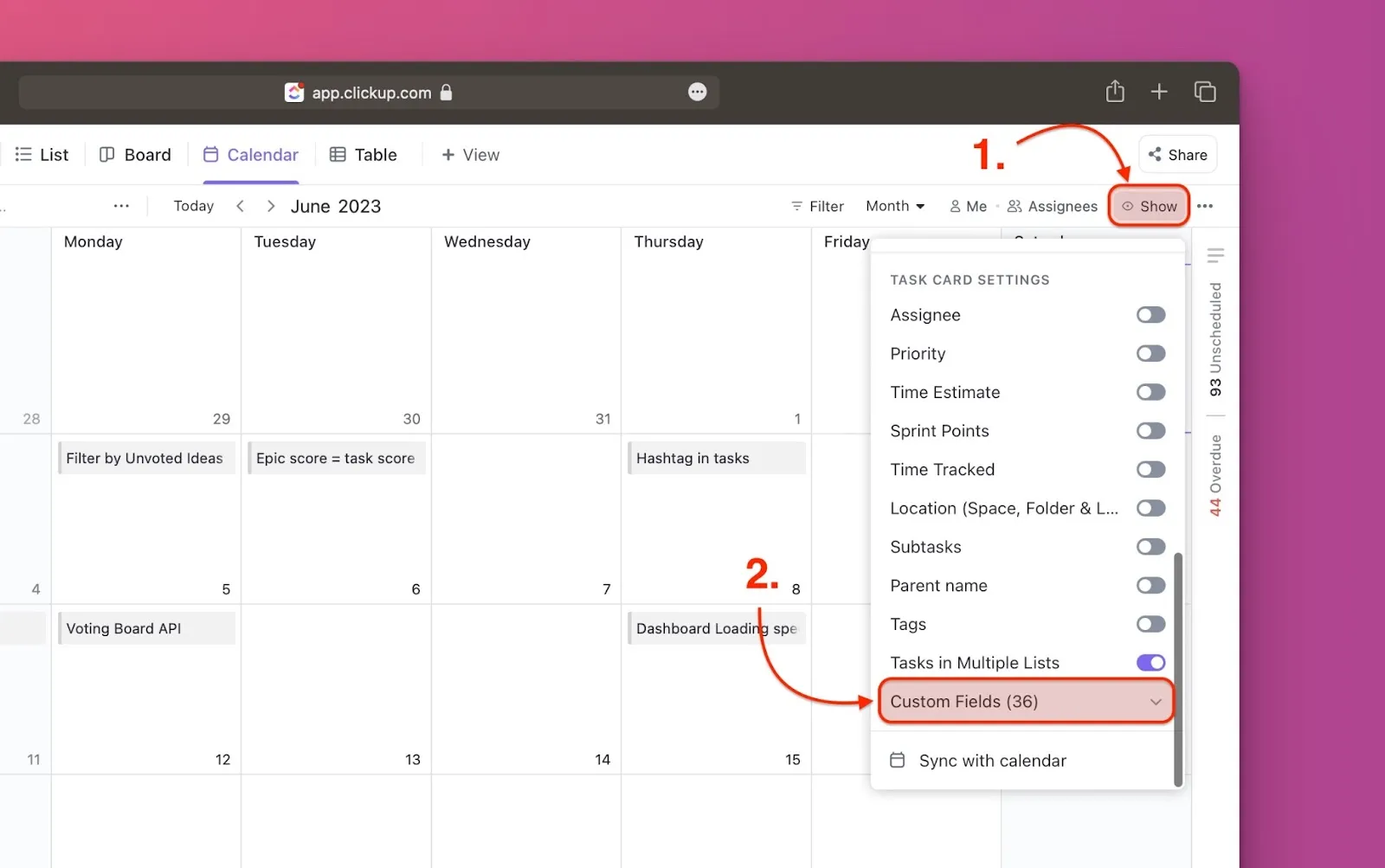
Calendar view
-
Click Show in the upper right corner.
-
Scroll to the bottom of the dropdown and click Custom fields.
-
Select the Ducalis custom field you want to add (for example, Priority Ducalis). The priority rank appears on each task card.
-
Click Save if Auto Save is disabled.
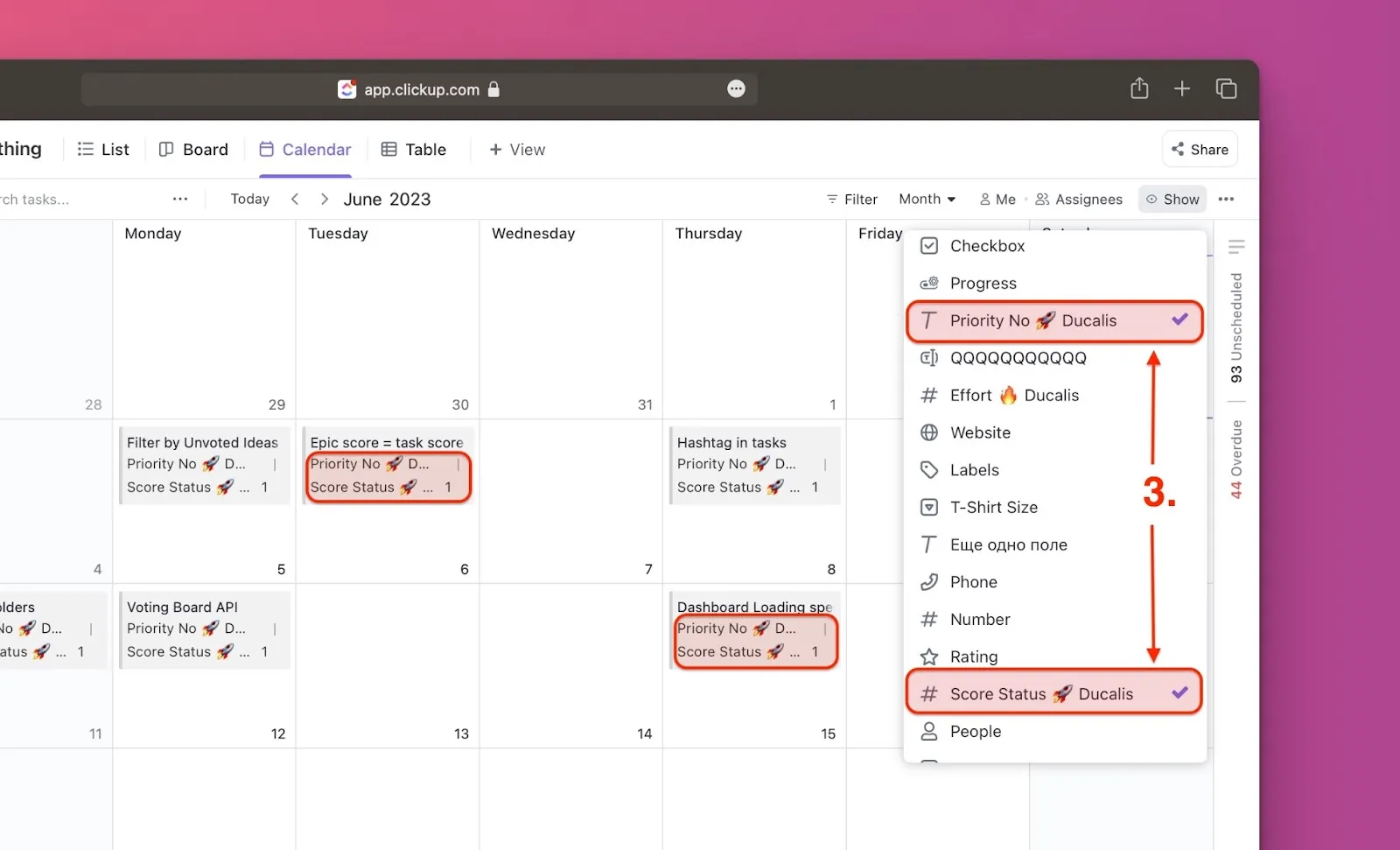
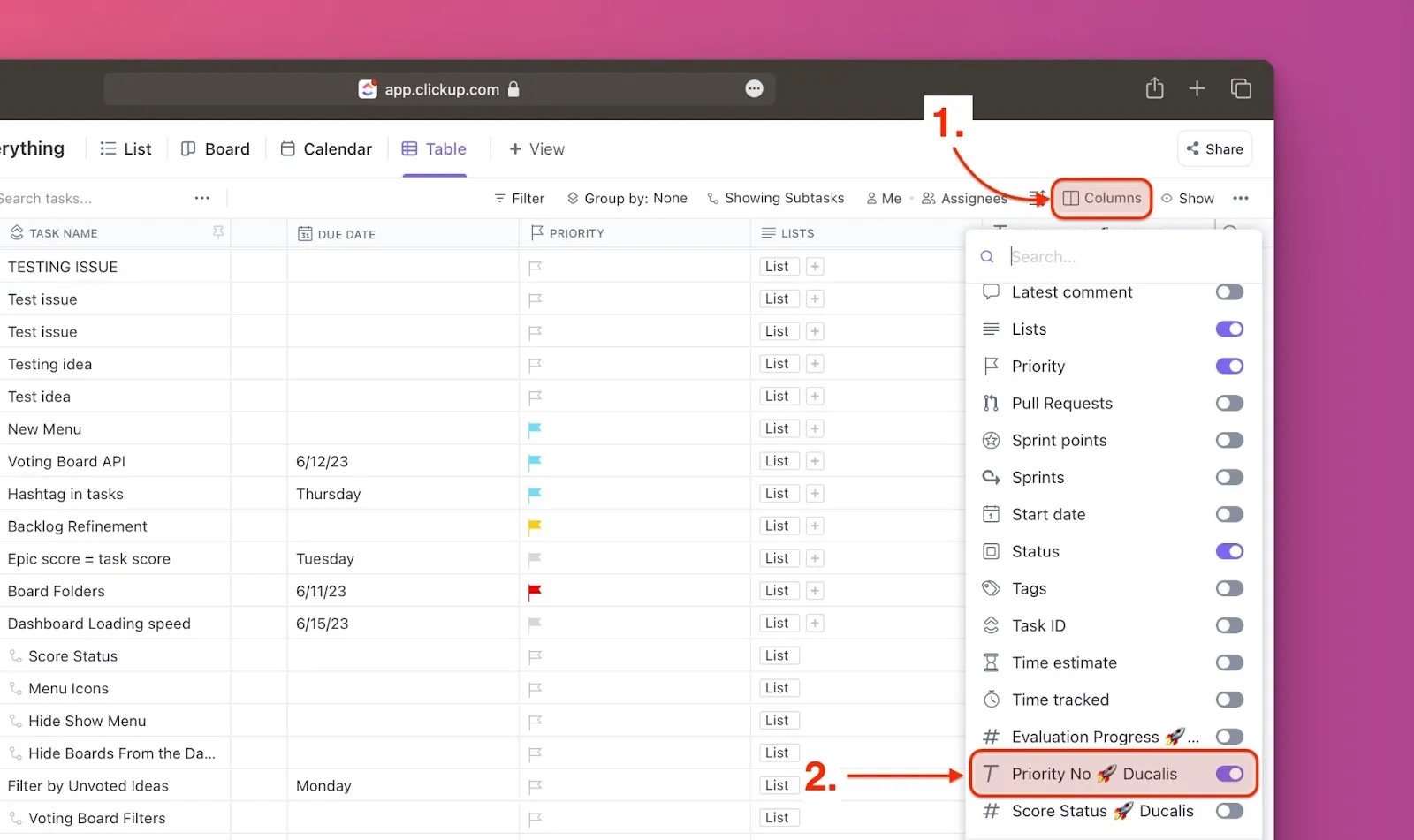
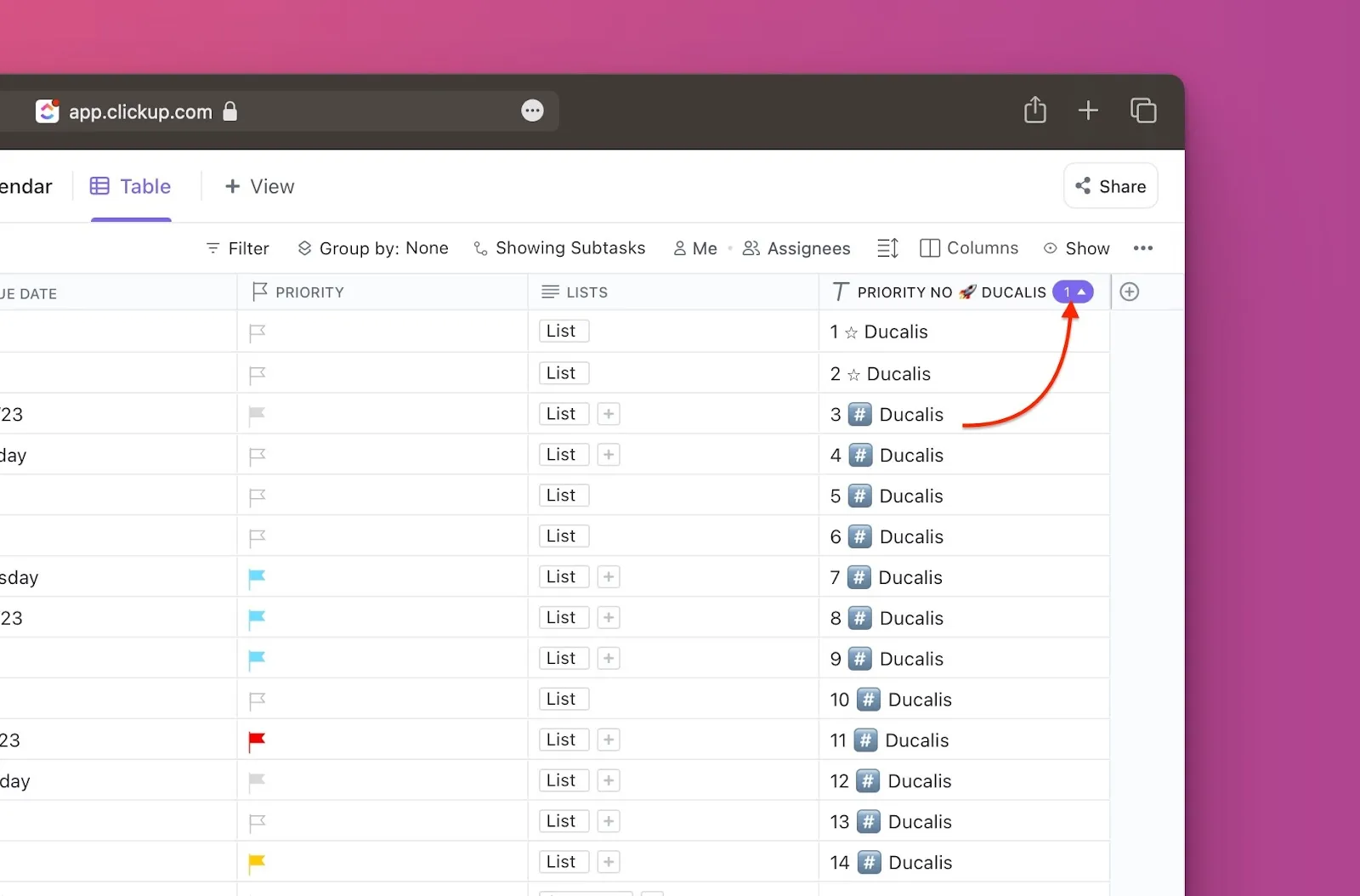
Table view
-
Click Columns.
-
Scroll down and enable the toggle for the Ducalis custom field you want to add (for example, Priority Ducalis).
-
Click the Sort icon next to the field name to sort tasks by priority.
What's next
Continue to Part 2: Add custom fields to individual spaces to learn how to create space-specific custom fields instead of workspace-wide fields.