Connect personal account
Integrate your GitHub personal account to import issues and keep them synchronized with your task tracker. Changes you make in Ducalis sync back to GitHub automatically.
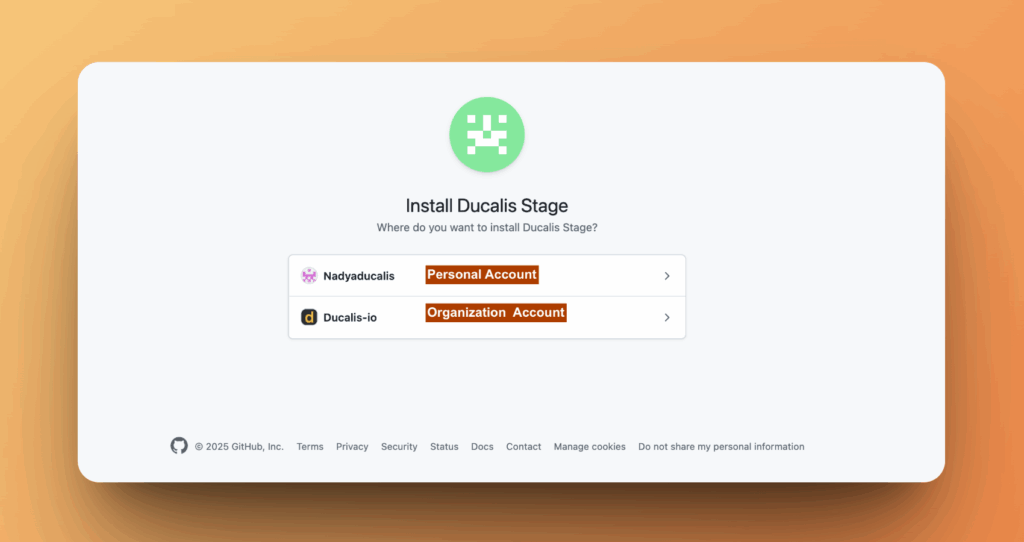
Connect GitHub personal account
-
In the Board, go to the bottom left corner and click Connect.
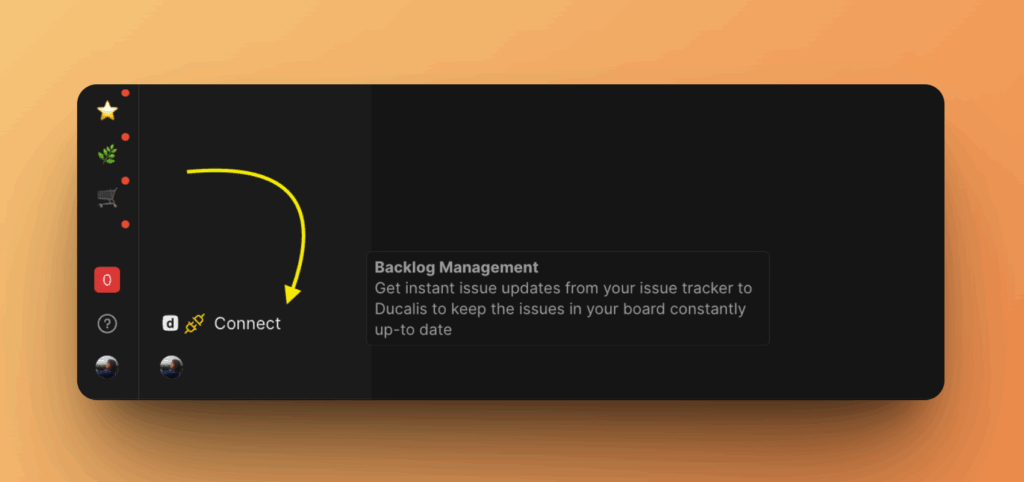
-
Click Connect Issue Tracker.
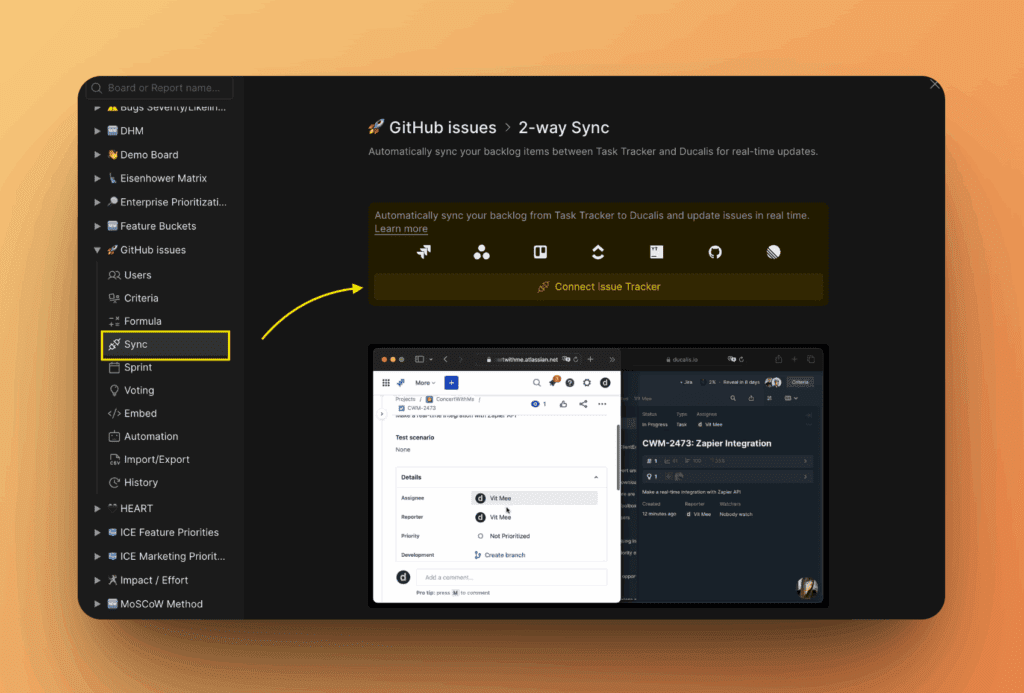
-
Select GitHub from the list of task trackers.
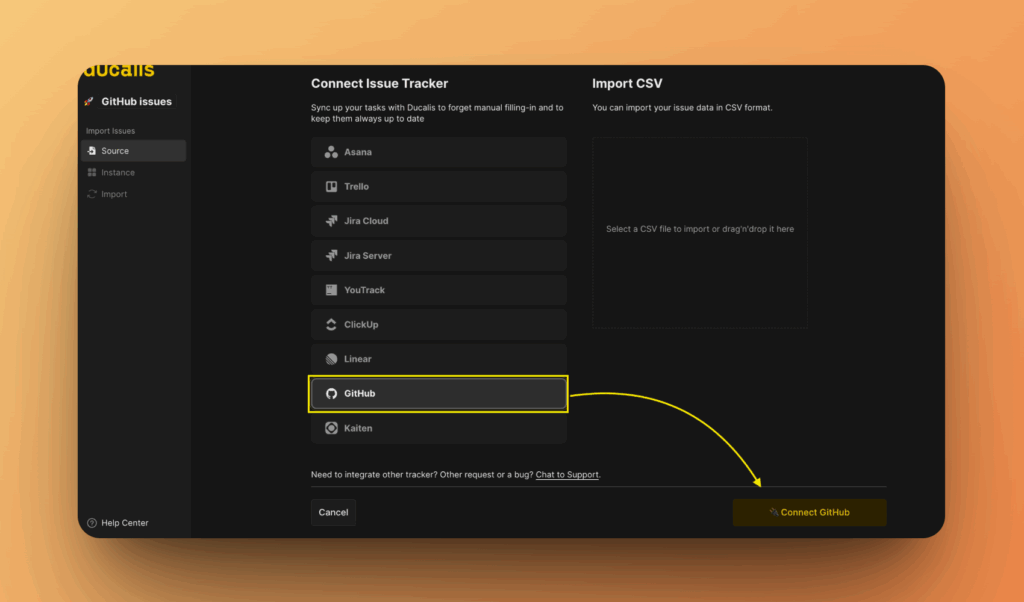
-
Click Connect GitHub.
-
Select the personal account you want to connect.
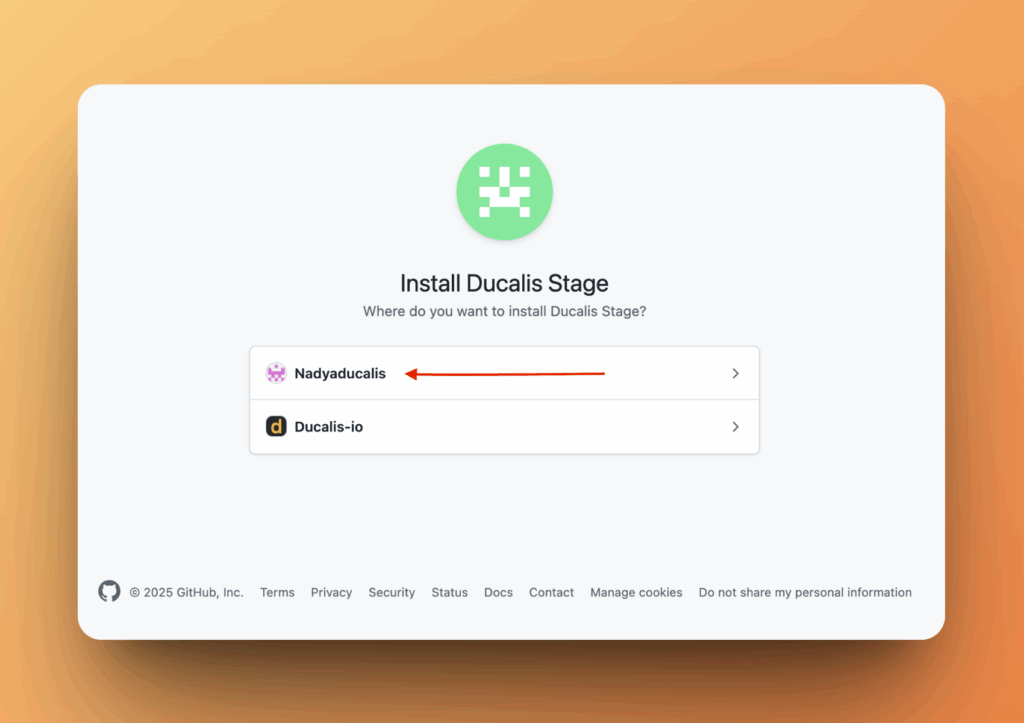
-
Install the Ducalis app by selecting repositories:
- All repositories – Install for all current and future repositories
- Only select repositories – Choose specific repositories to connect
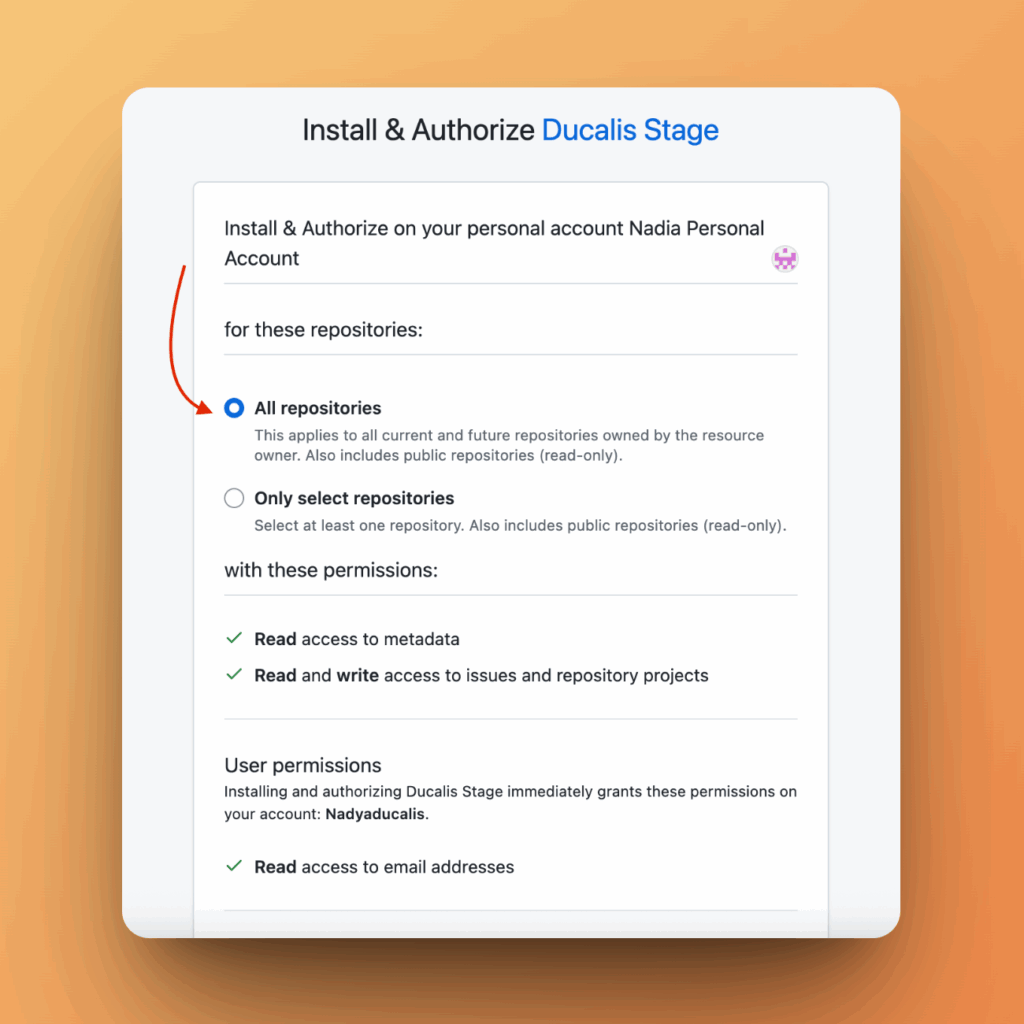
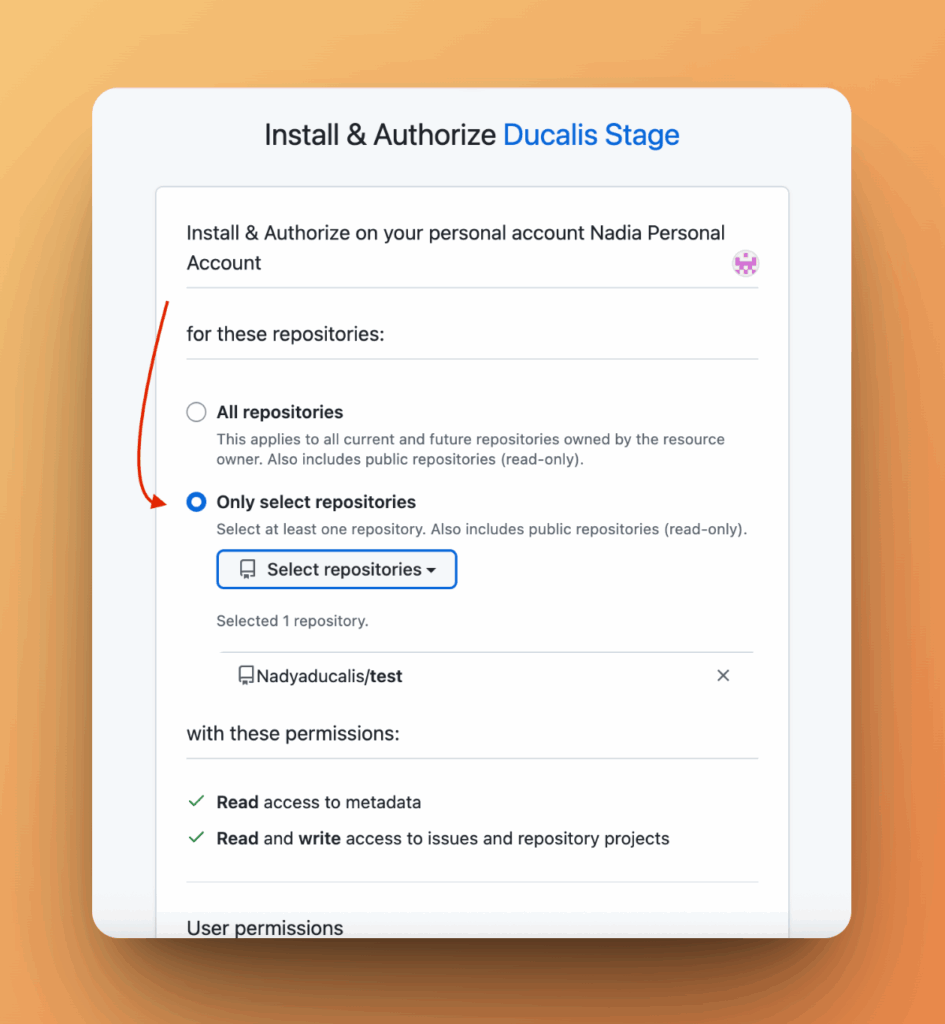
-
Click Install.
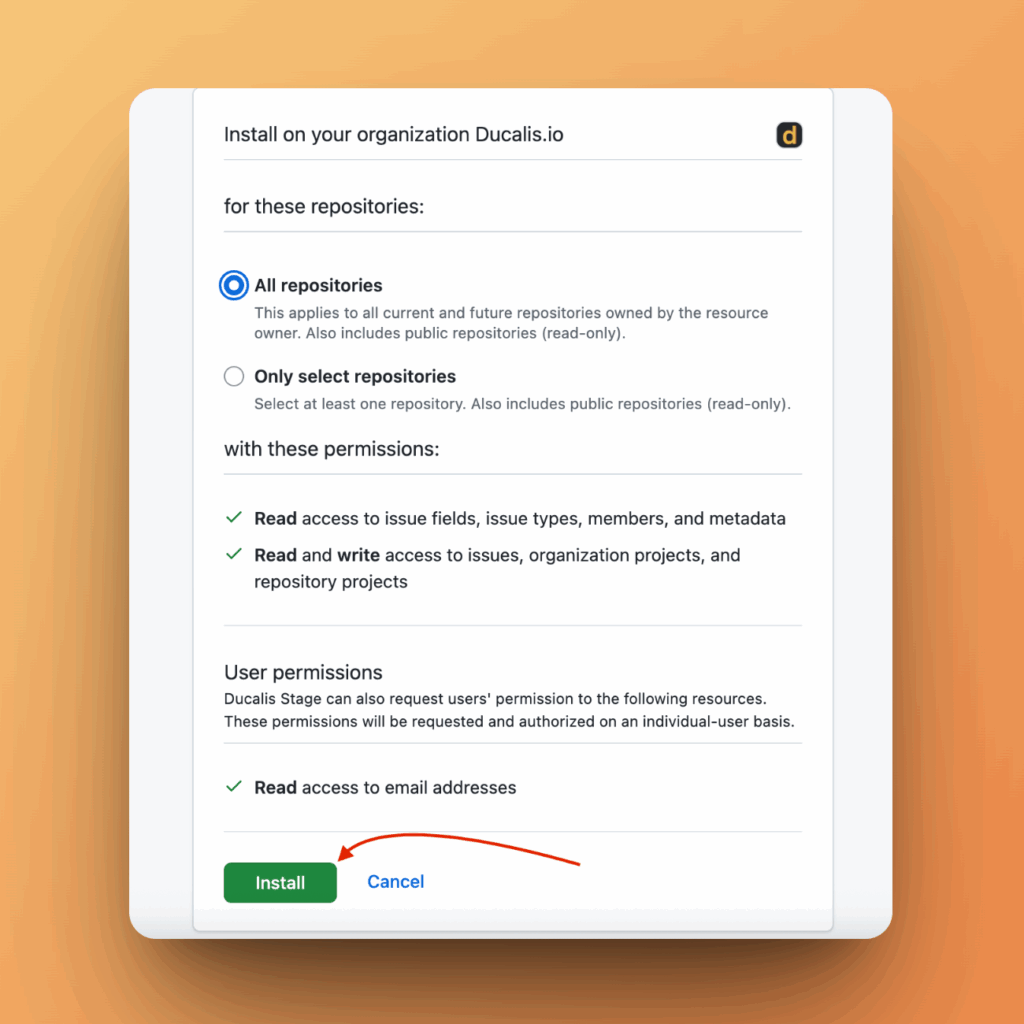
After installation, you'll be redirected to Ducalis to import issues.
Import issues
-
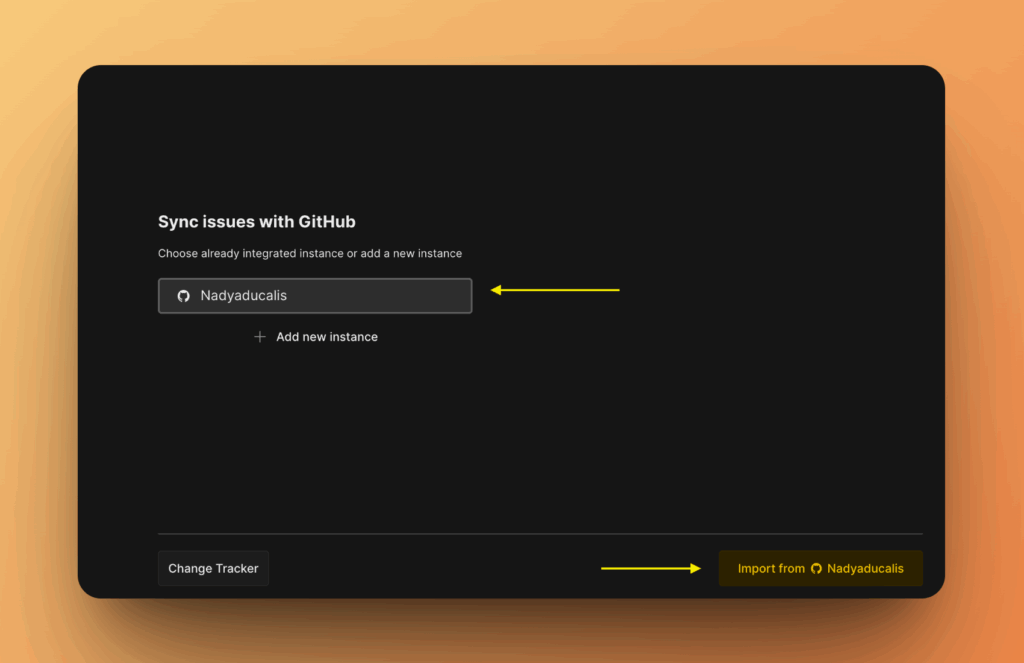
Select the instance you want to import issues from.
-
Click Connect [Instance].
-
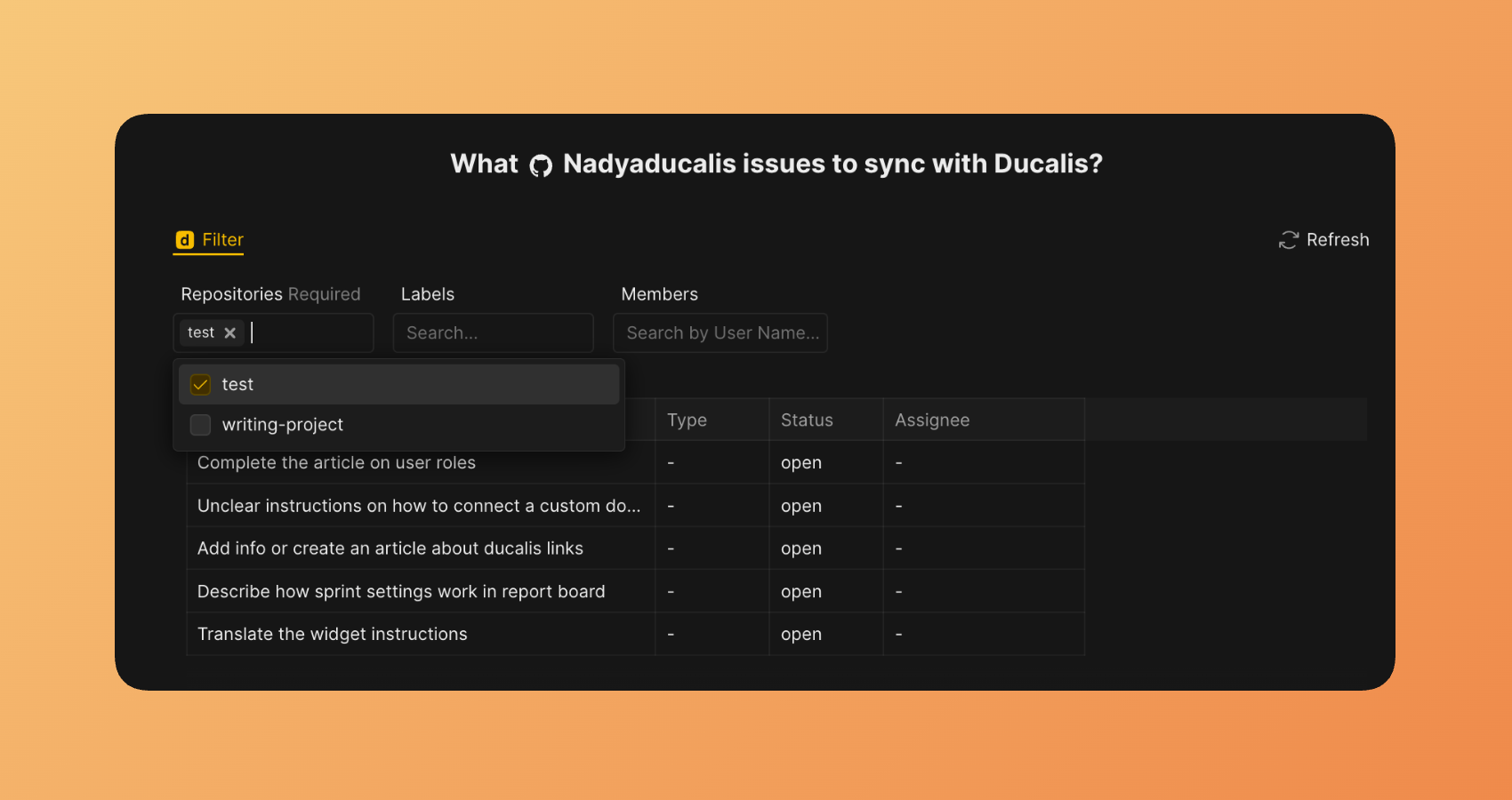
Filter the issues you want to import.
-
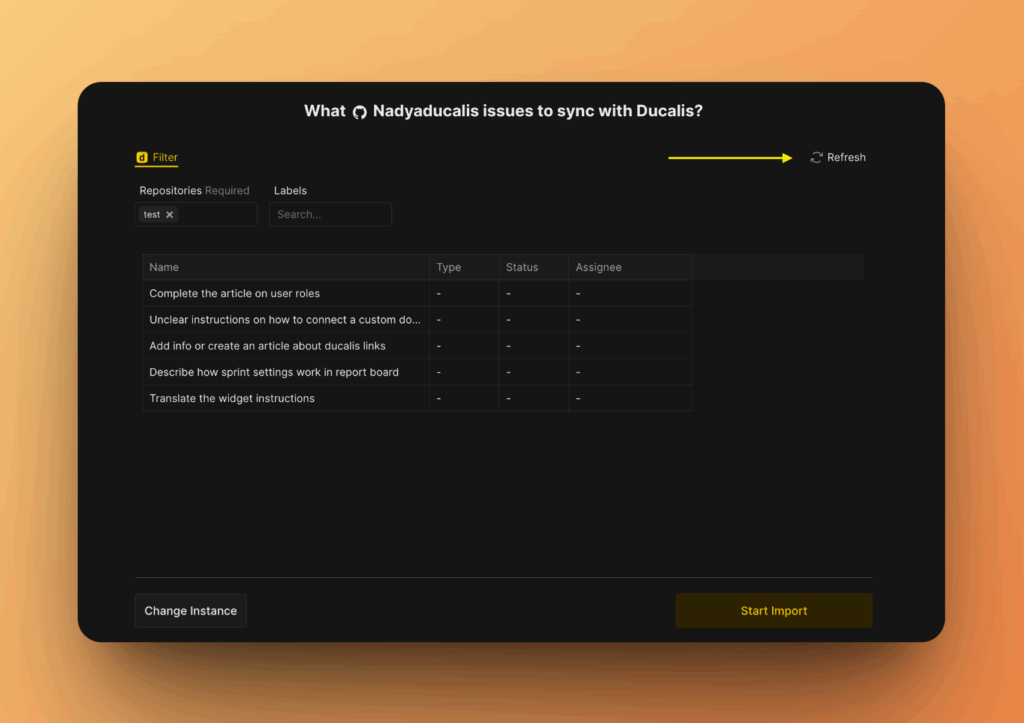
If filters don't appear, click Refresh to reload them.
-
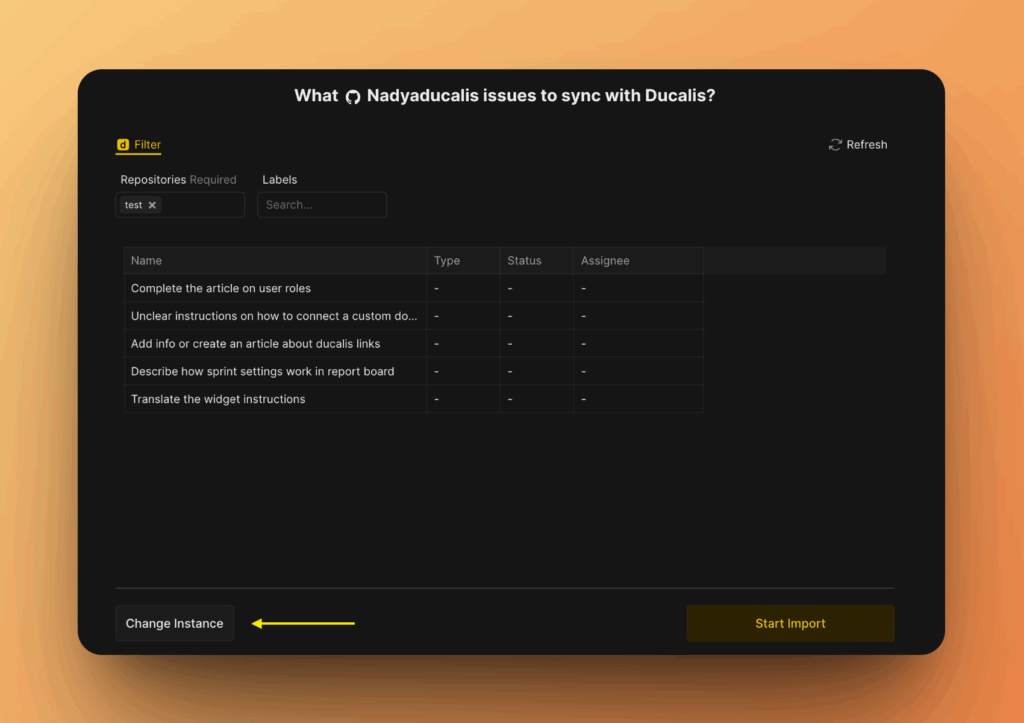
To change the instance, click Change Instance.
-
Click Start import.
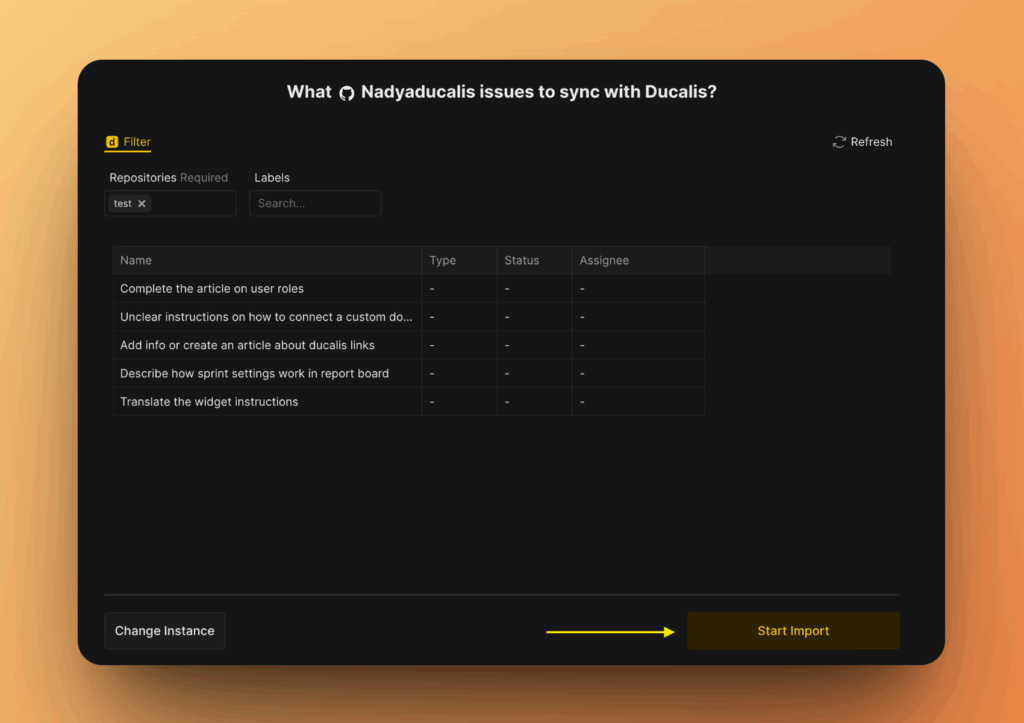
Your GitHub issues now appear in the Board and are ready to prioritize.
Edit import filters
Change import filters to add more issues or remove issues from the Board without disconnecting the integration.
-
Open Backlog Management settings.
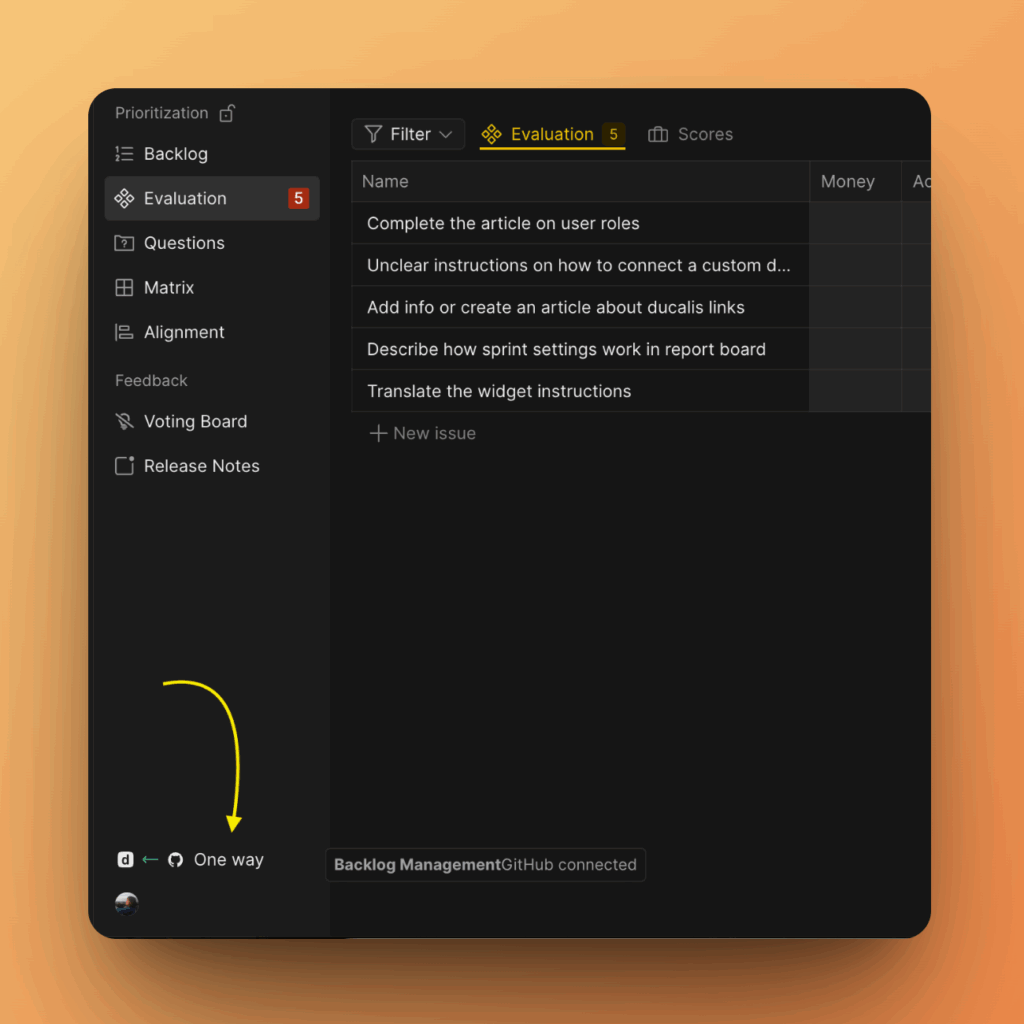
-
Go to Sync and click Edit Sync-In Conditions.
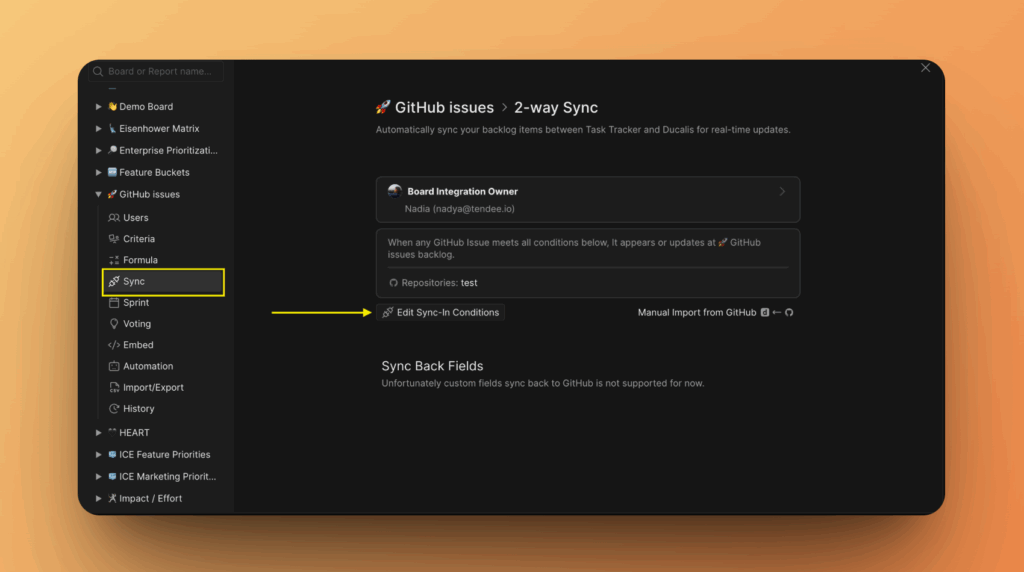
-
Modify filters:
- Add filters to import more issues
- Remove filters to exclude issues from the Board
-
Click Save.
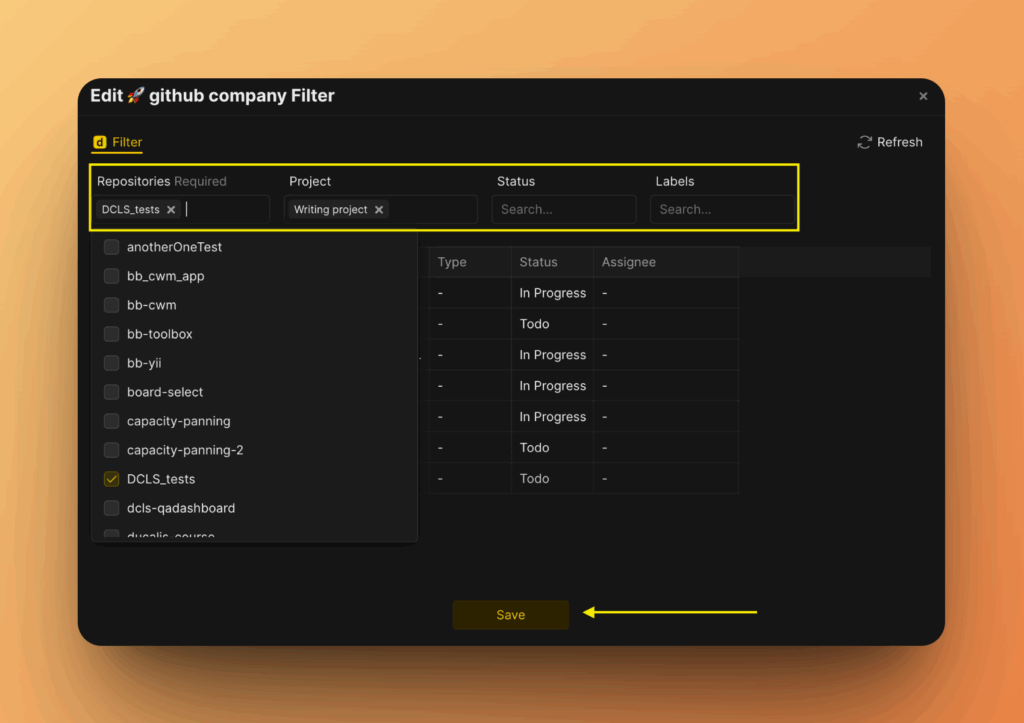
The Board updates to reflect your new filter criteria.
Remove integration
See Remove task tracker integration to disconnect GitHub from your Board.
Related articles
- Push to GitHub – Create GitHub issues directly from Ducalis
- Connect GitHub organization – Import from organization repositories