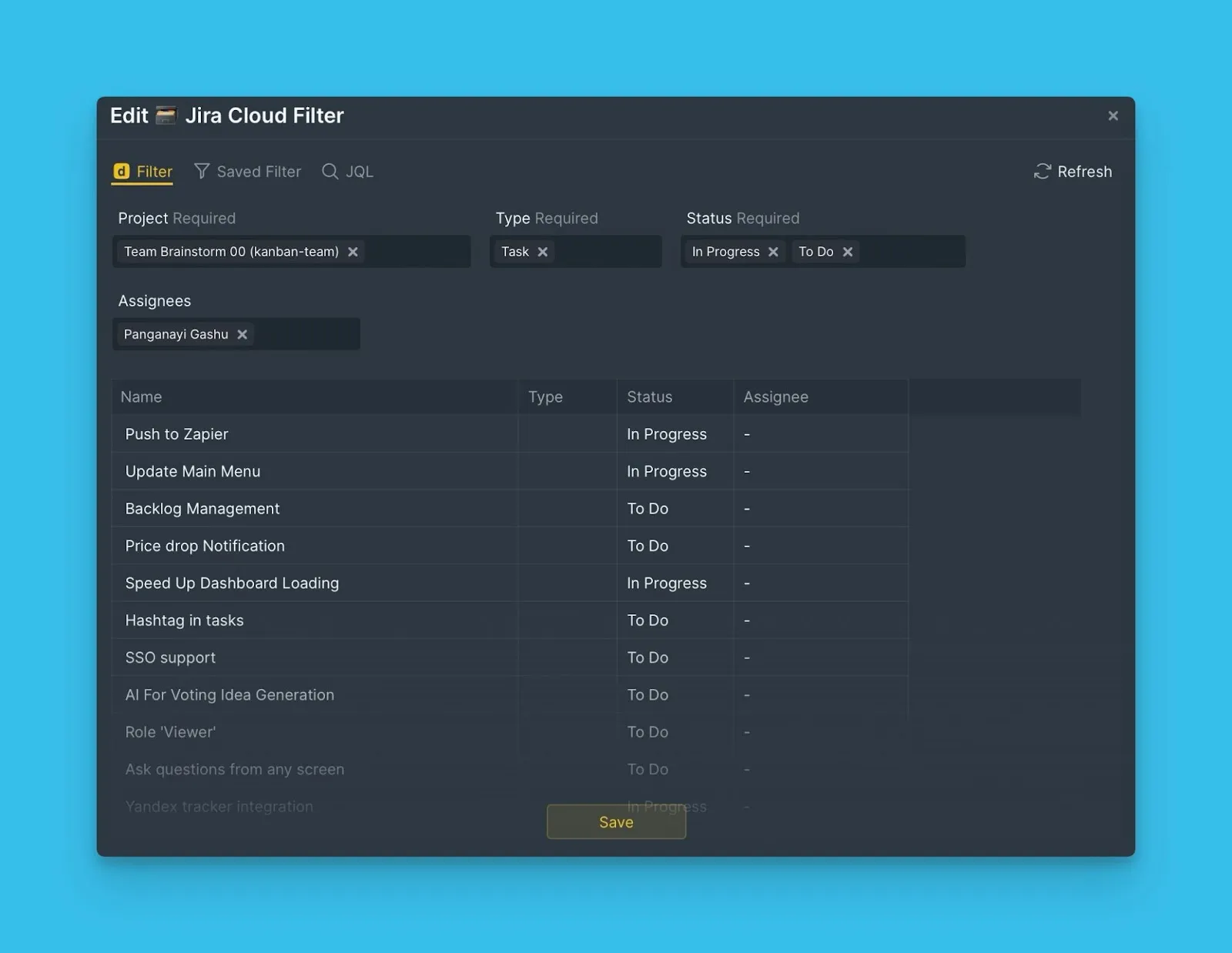
Import using filters
After integrating Ducalis with Jira Cloud, you can import Issues using three filter types:
- Jira saved filters – Use filters you created and saved in Jira
- JQL filters – Write custom Jira Query Language queries for advanced filtering
- Ducalis filters – Select Issues by project, status, assignee, and other fields
This article explains how to use each filter type to import the Issues you need.
Using Jira saved filters
Jira saved filters let you import Issues using filters you already created in Jira Cloud.
-
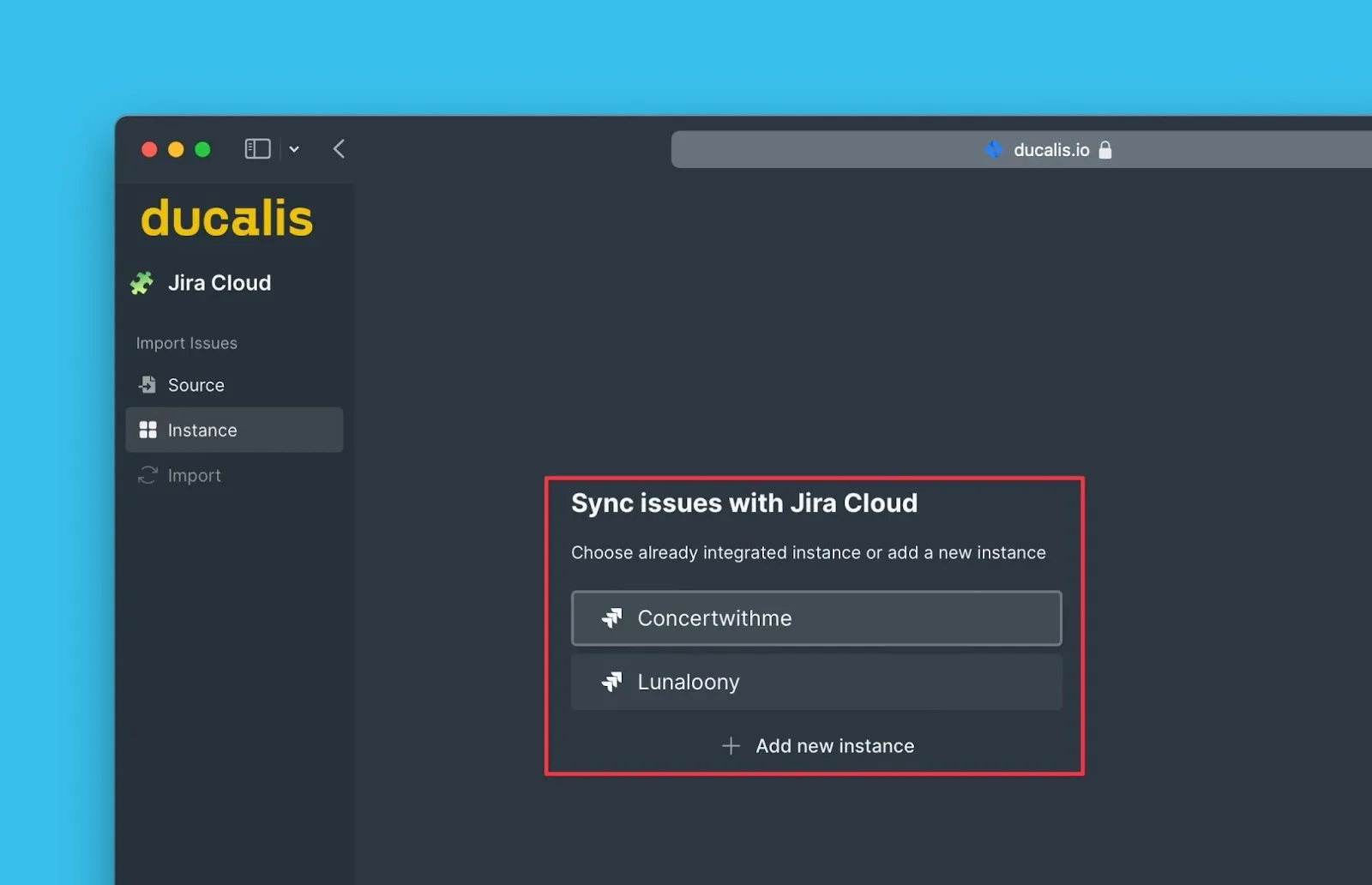
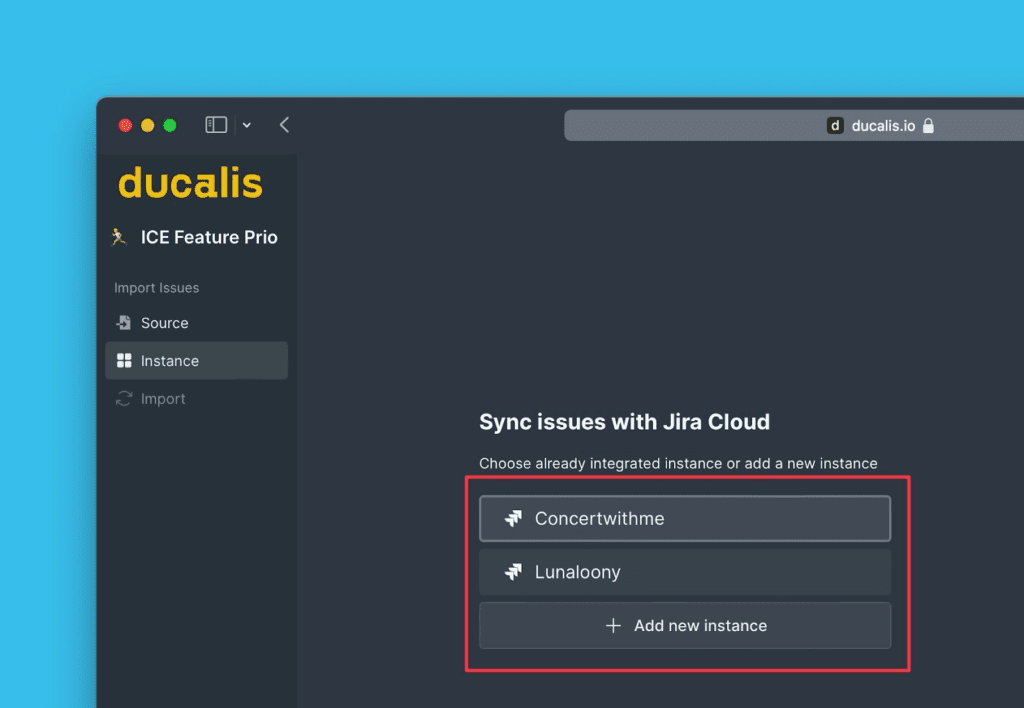
Select the instance you want to import from.
-
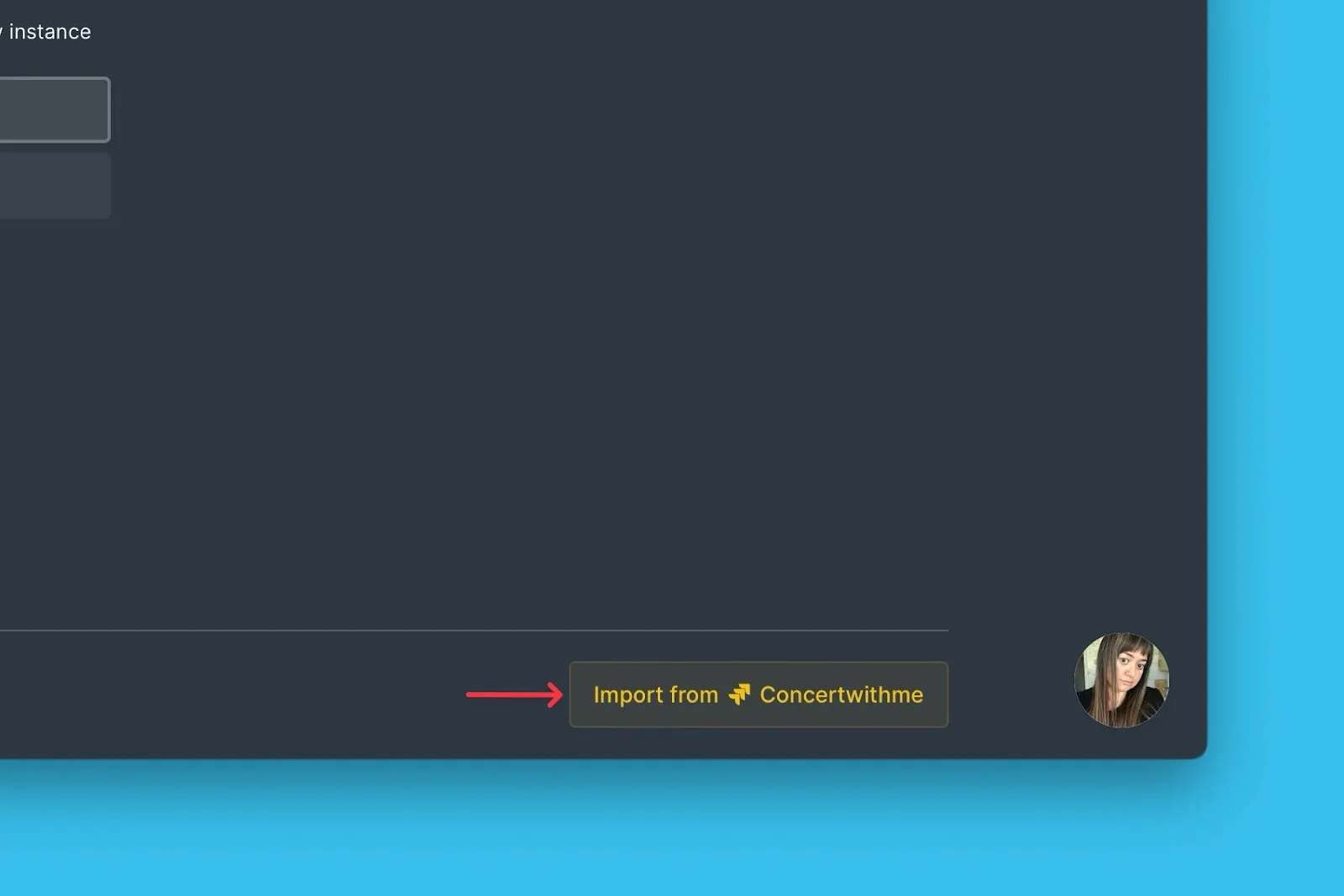
Click Import from [instance].
-
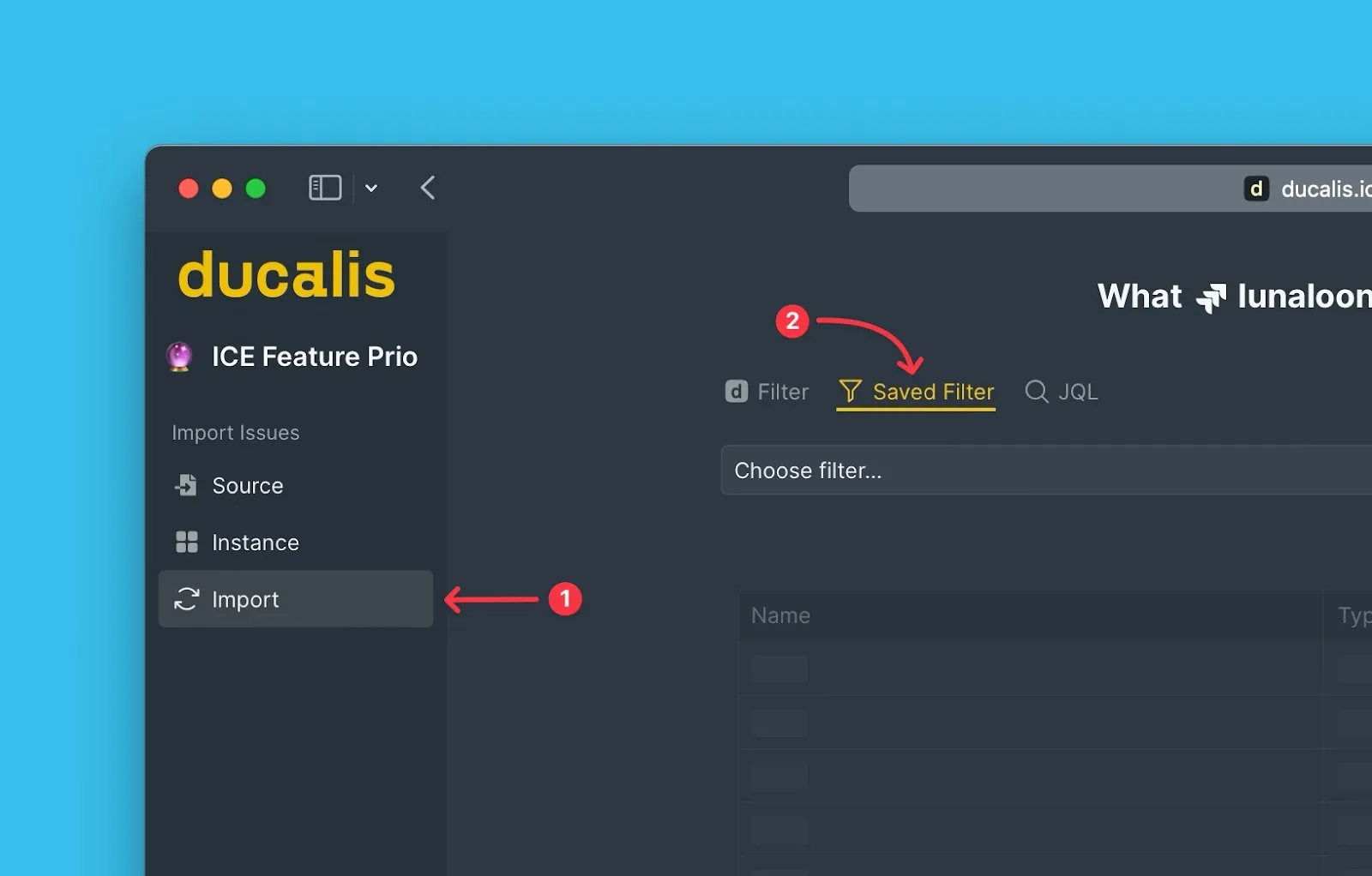
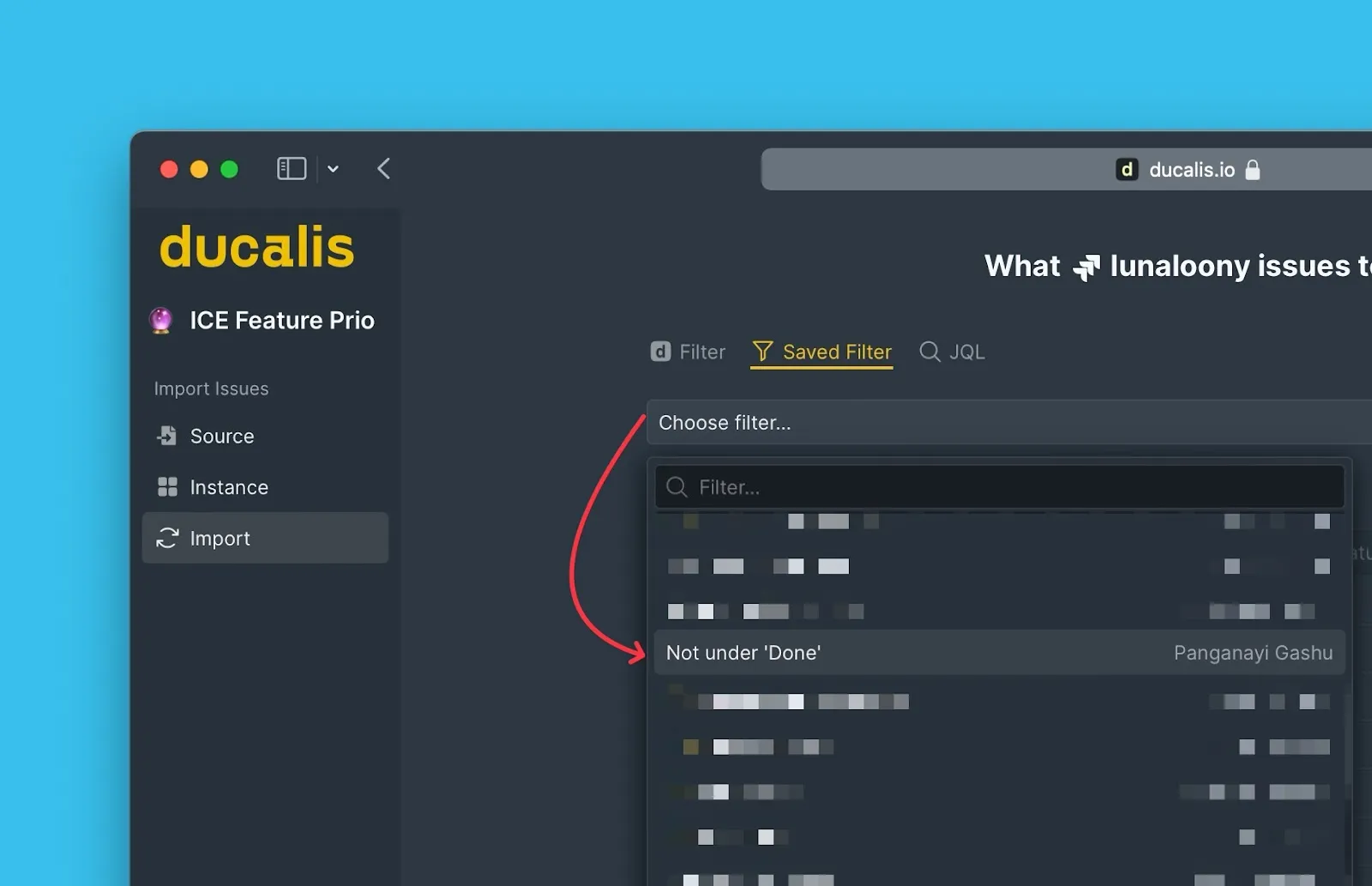
In the Import step, select Saved Filters.
-
From the dropdown list, select the filter with the Issues you want to import.
-
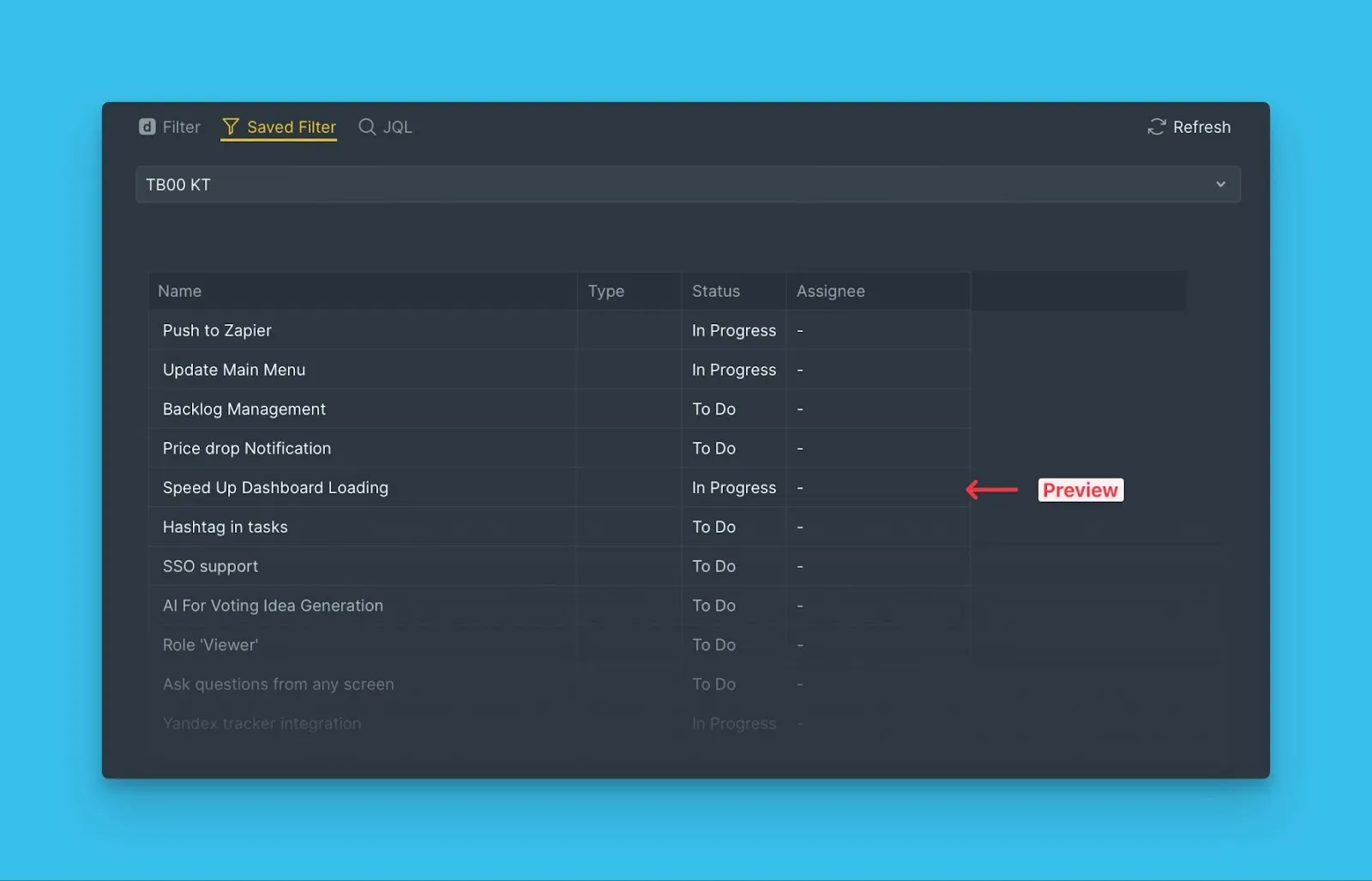
Review the real-time preview of Issues matching your filter.
-
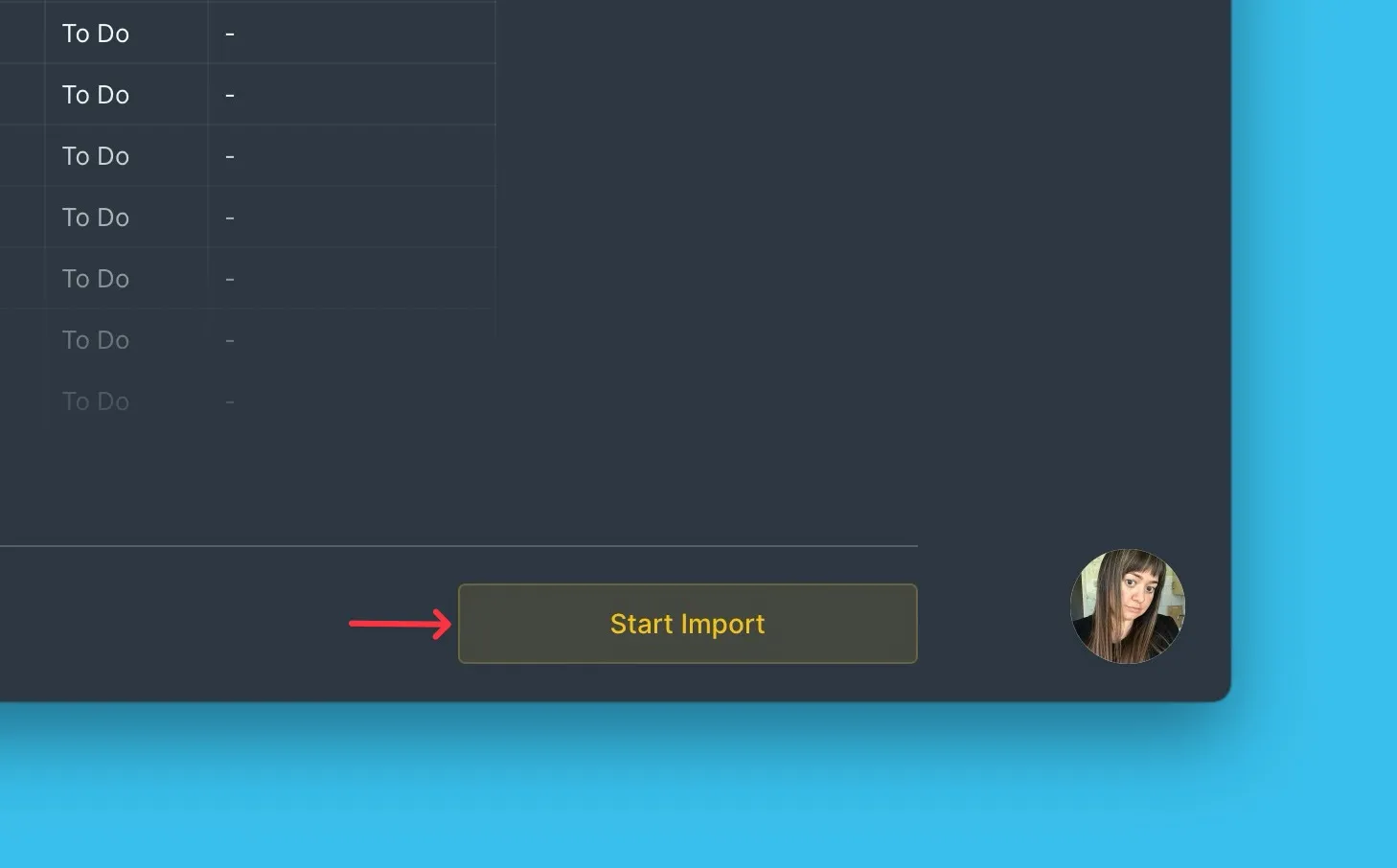
Click Start Import.
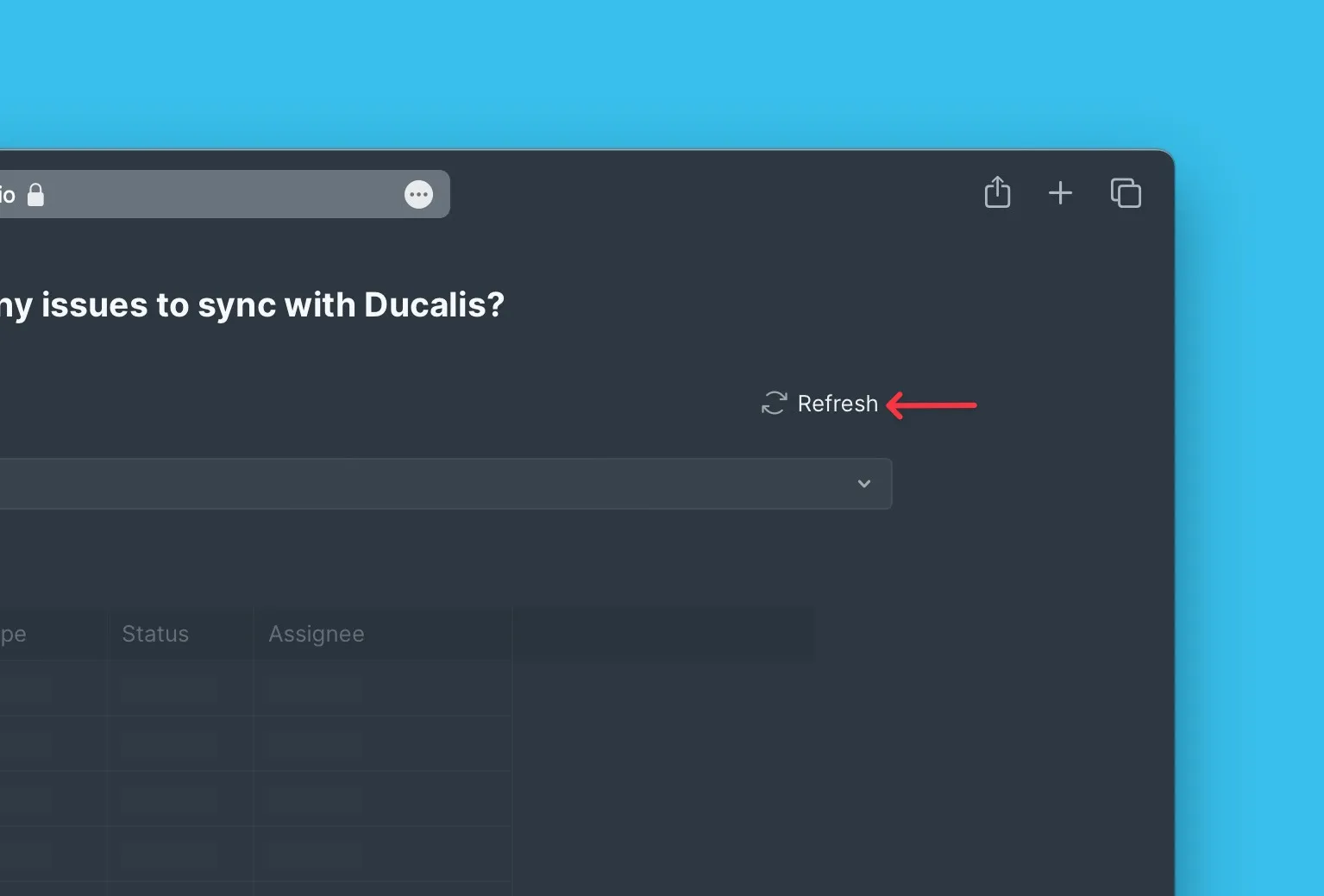
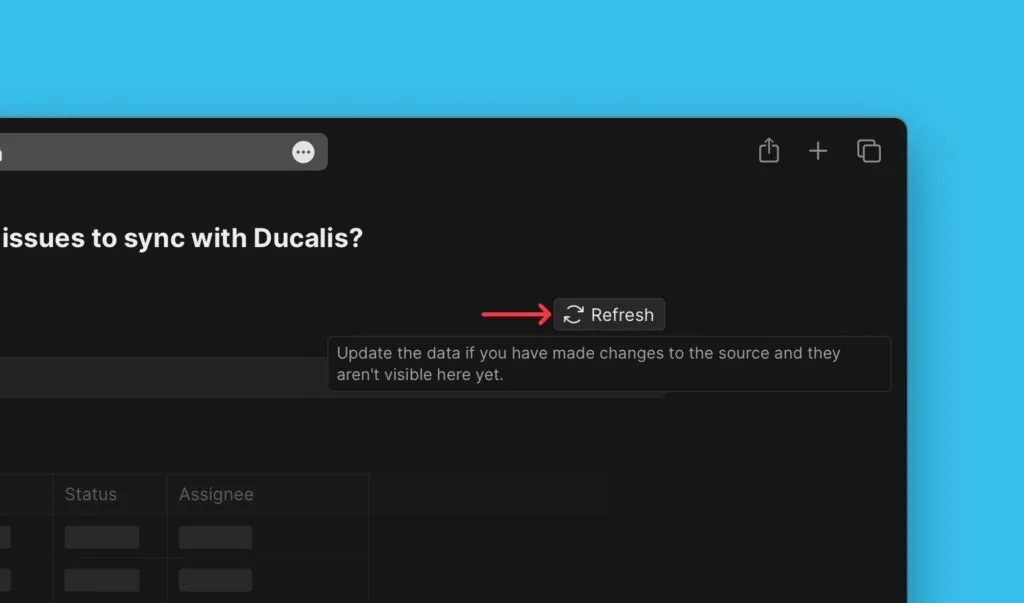
If you don't see a filter after making changes in Jira, click Refresh to update the filter list.
Fix missing filters
If a filter exists in Jira Cloud but doesn't appear in Ducalis, the filter permissions might be set to private.
Jira Cloud filters must have Public, Open, or My Organization access to appear in Ducalis.
To change filter permissions:
-
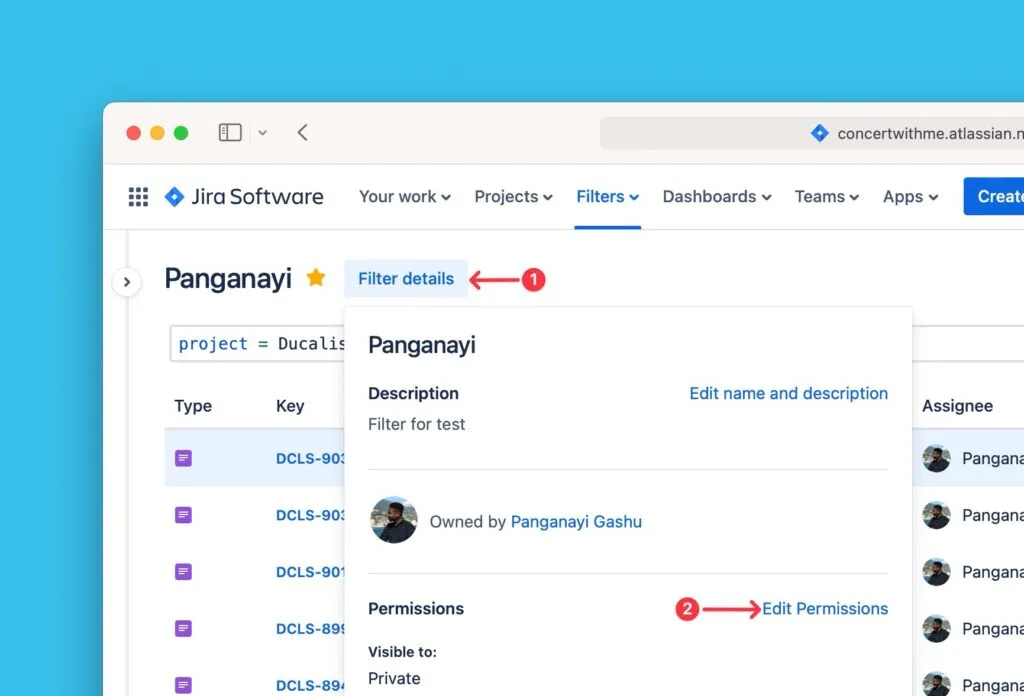
In Jira Cloud, open the filter and click Details.
-
Click Edit permissions.
-
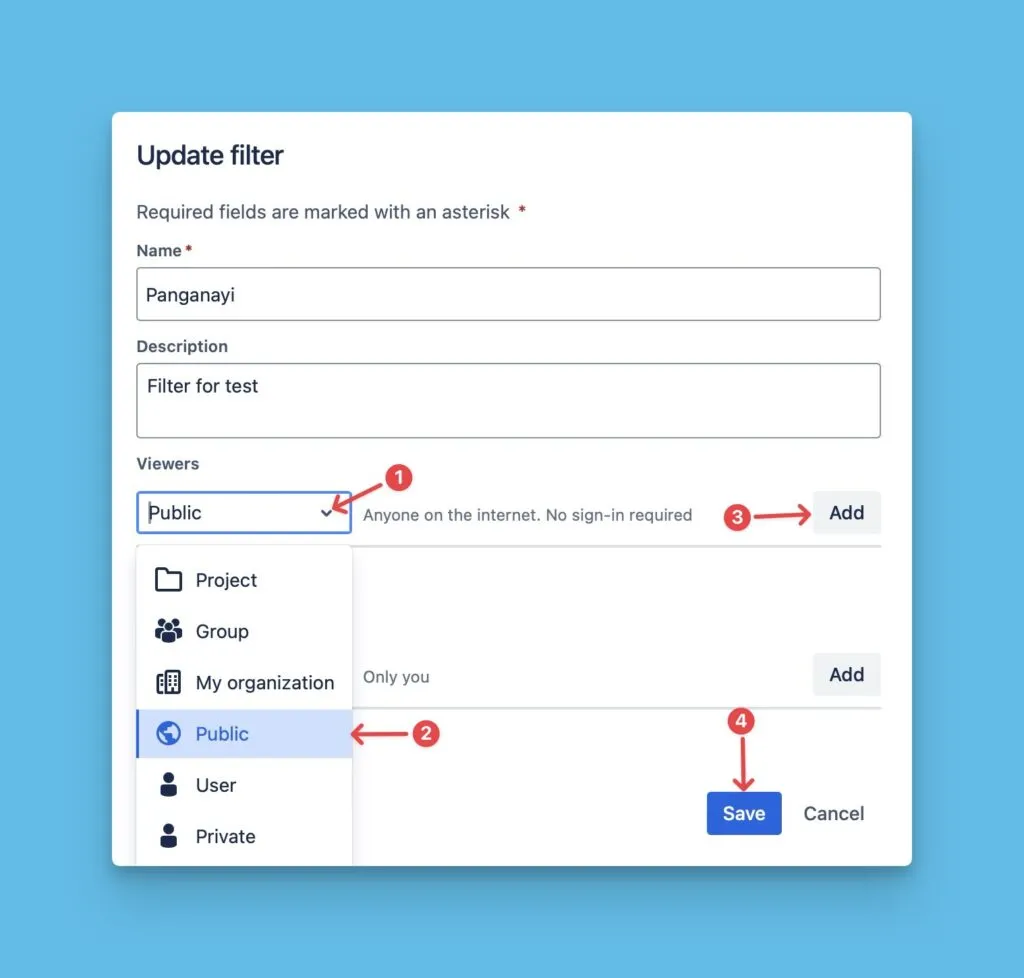
Change access to Public, Open, or My Organization.
-
Click Add.
-
Verify the access status appears in the permissions list.
-
Click Save.
-
Return to Ducalis and click Refresh Filter List.
-
Search for the filter by name—it should now appear.
If you still have problems, contact support using the chat in the bottom right.
Edit Jira saved filters
You can edit Jira saved filters to add or remove Issues from your Board without changing the integration.
-
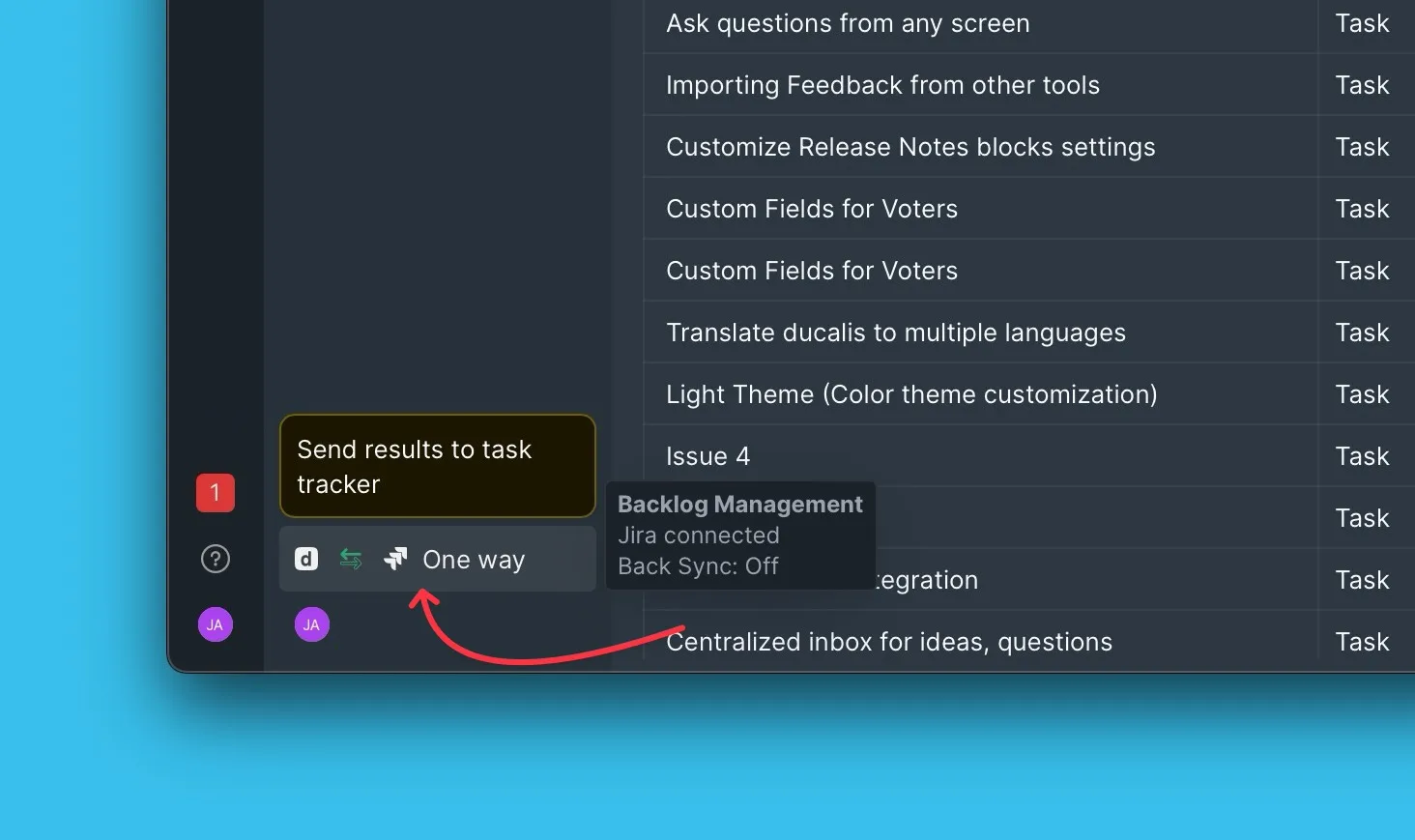
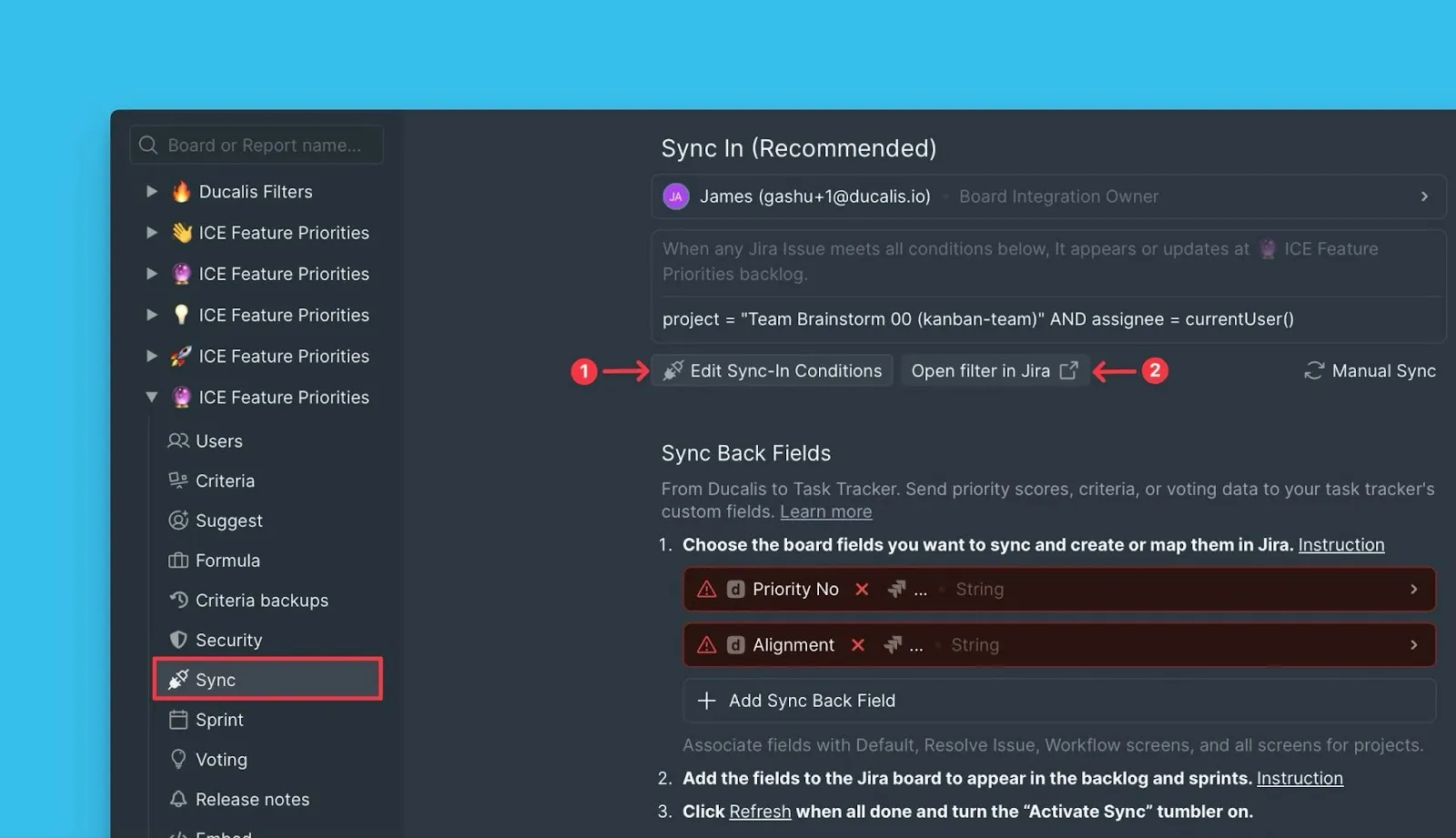
Open Sync settings from your Board menu.
-
Under Sync, click Edit Sync-In Conditions.
-
Click Open filter in Jira to edit the filter in Jira Cloud.
-
Edit the filter criteria in Jira Cloud to match the Issues you want.
-
Click Save in Jira.
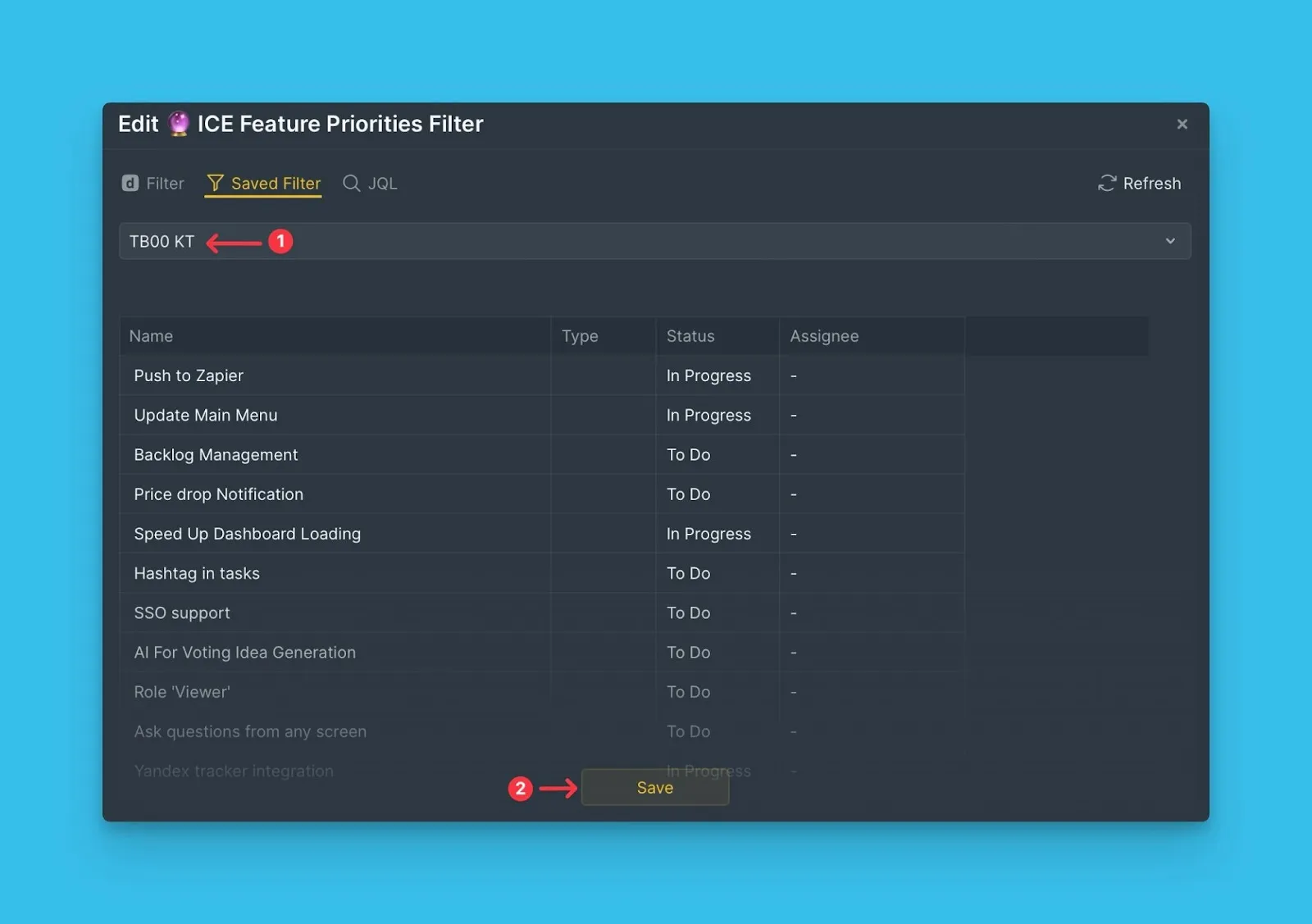
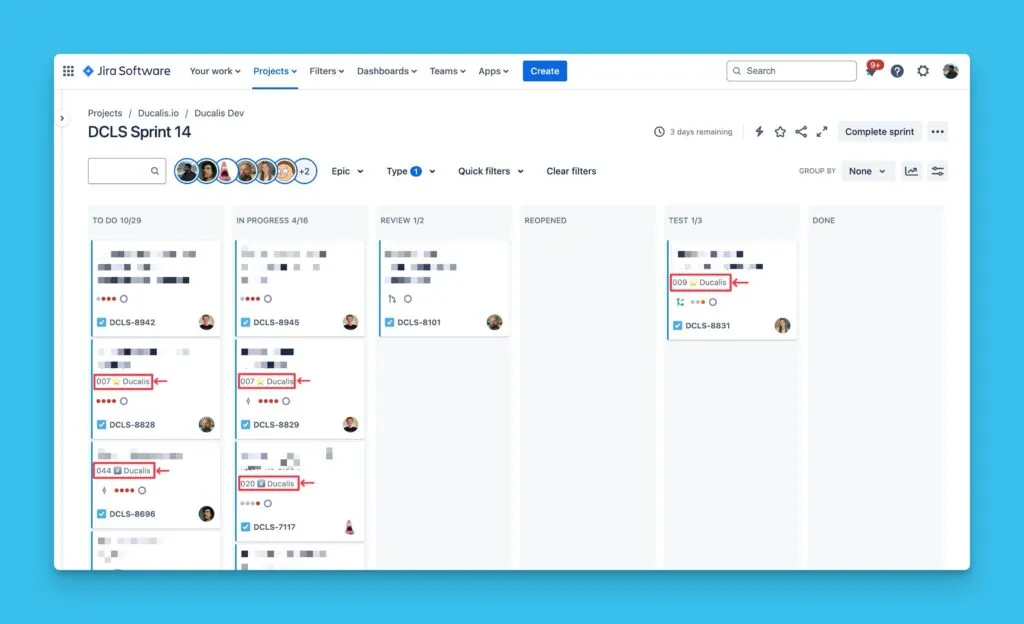
The updated filter criteria sync back to Ducalis.
Using JQL filters
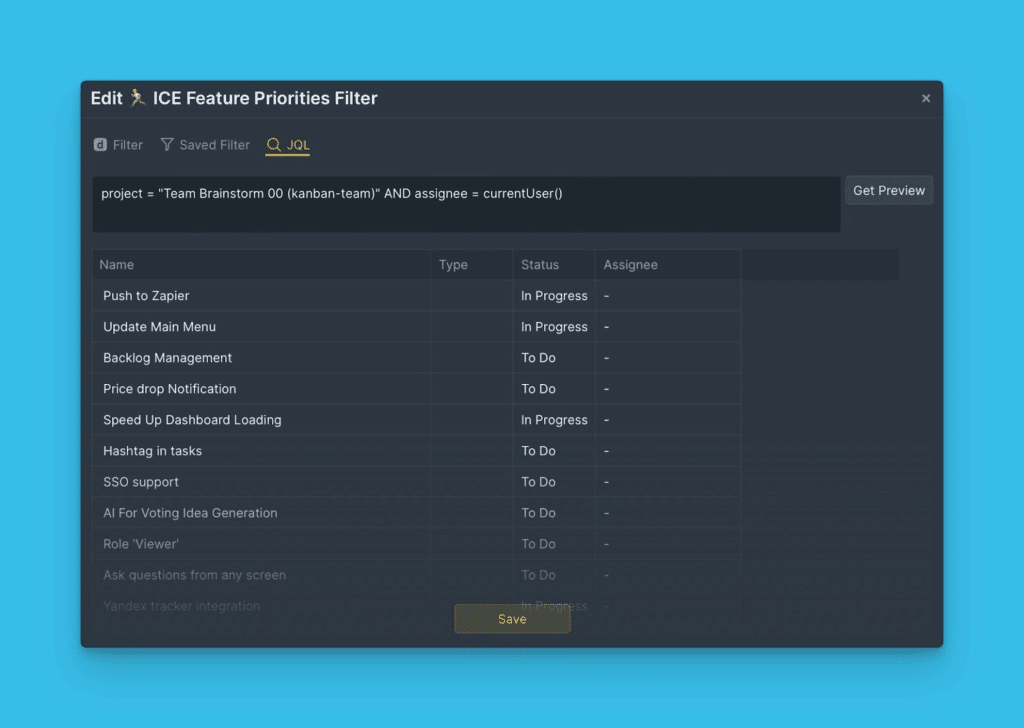
JQL (Jira Query Language) filters let you write custom queries to find Issues regardless of how they're structured in Jira.
-
Select the instance you want to import from.
-
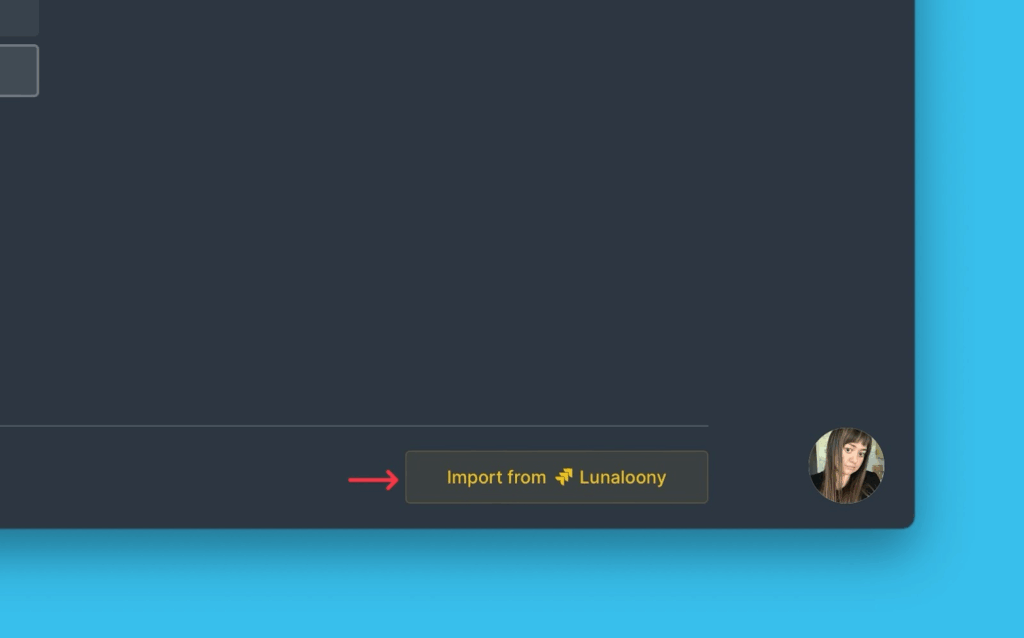
Click Import from [instance].
-
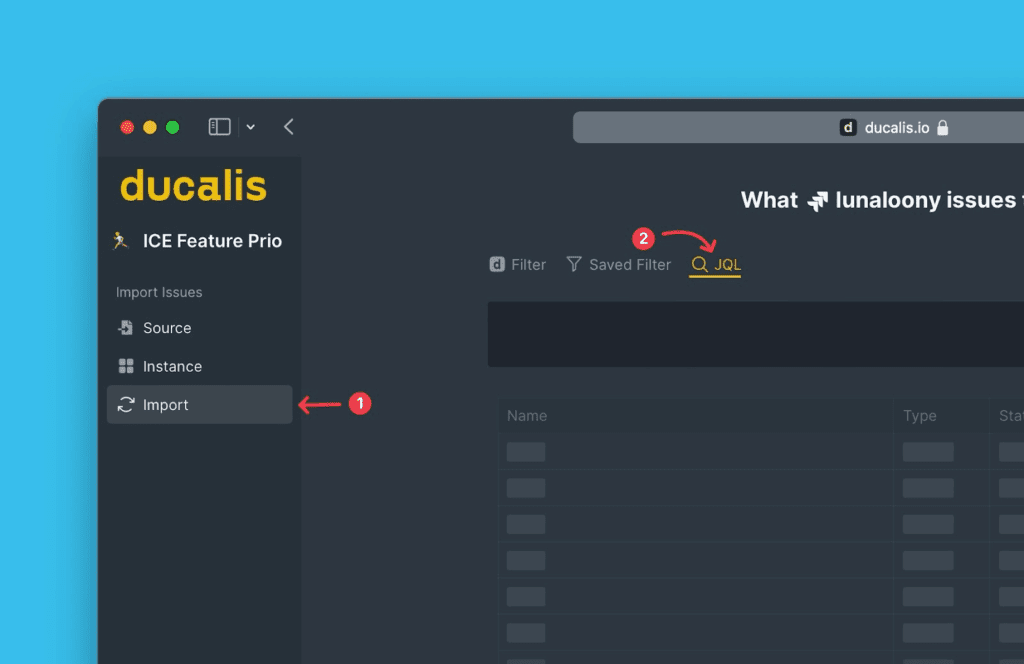
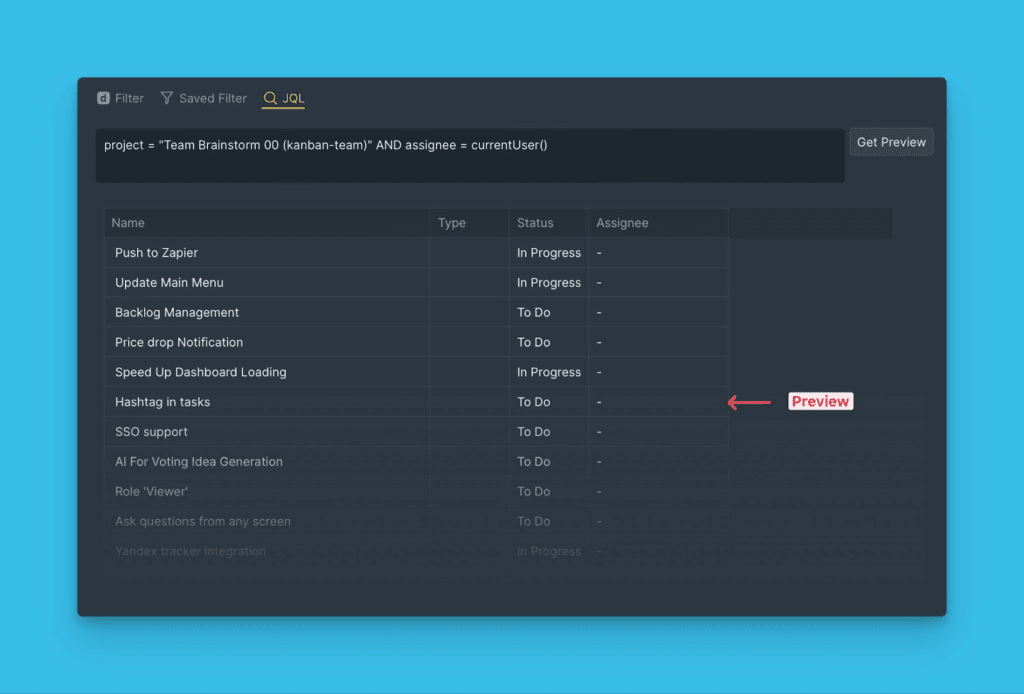
In the Import step, select JQL filters.
-
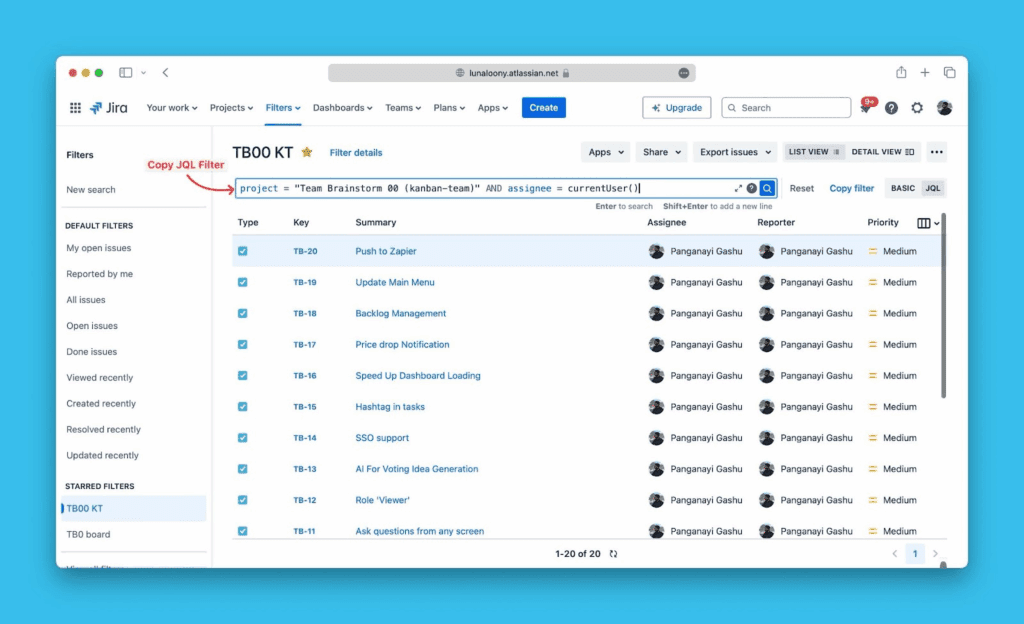
Copy your custom JQL query from Jira Cloud.
-
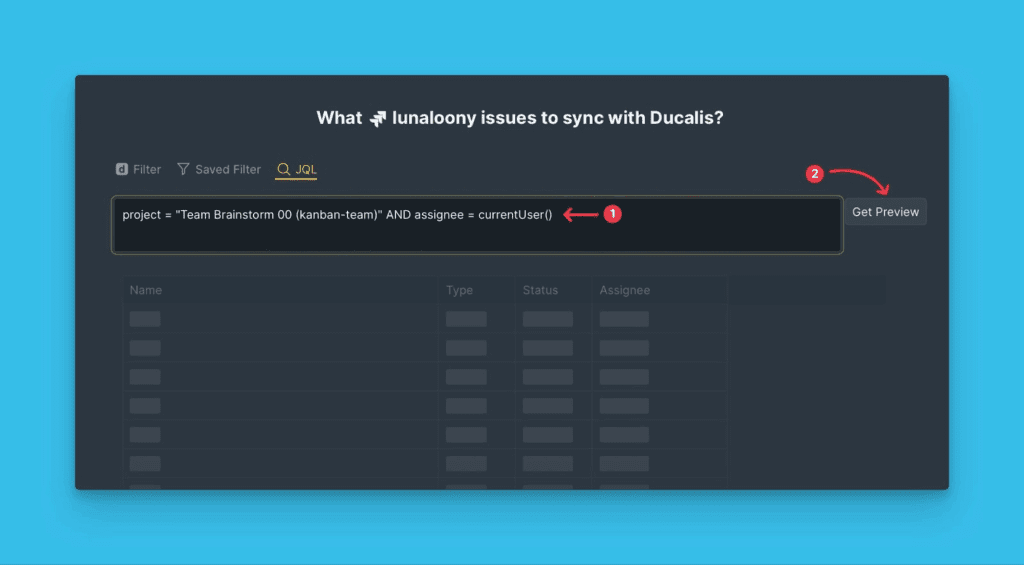
Paste the query into Ducalis and click Get Preview to see matching Issues.
-
Review the preview of Issues matching your JQL query.
-
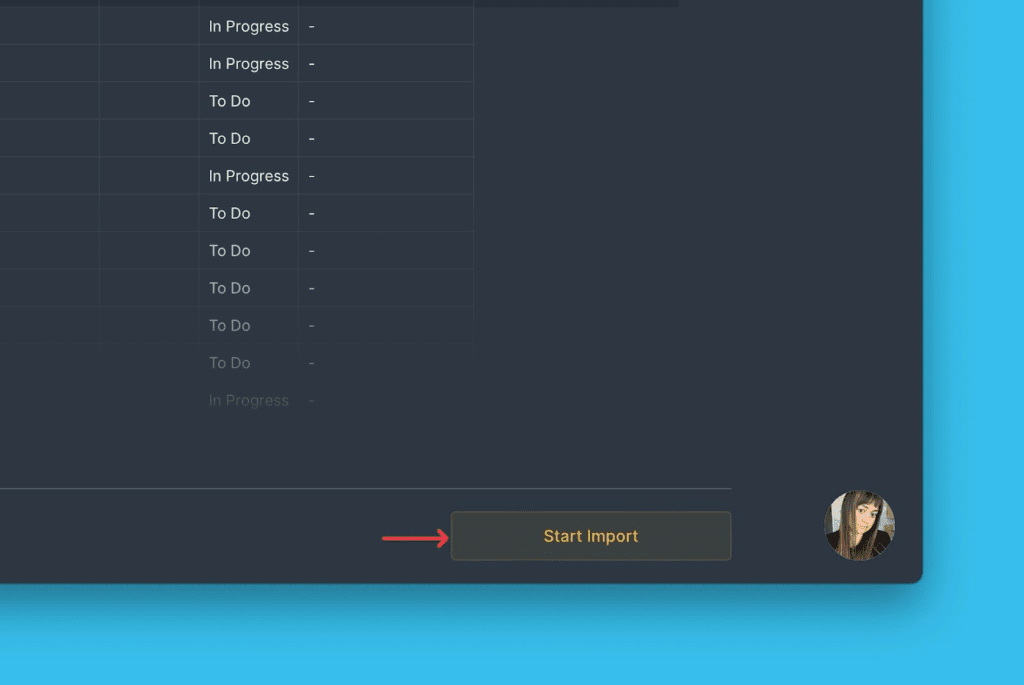
Click Start import.
Edit JQL filters
You can edit JQL filters to add or remove Issues from your Board without changing the integration.
-
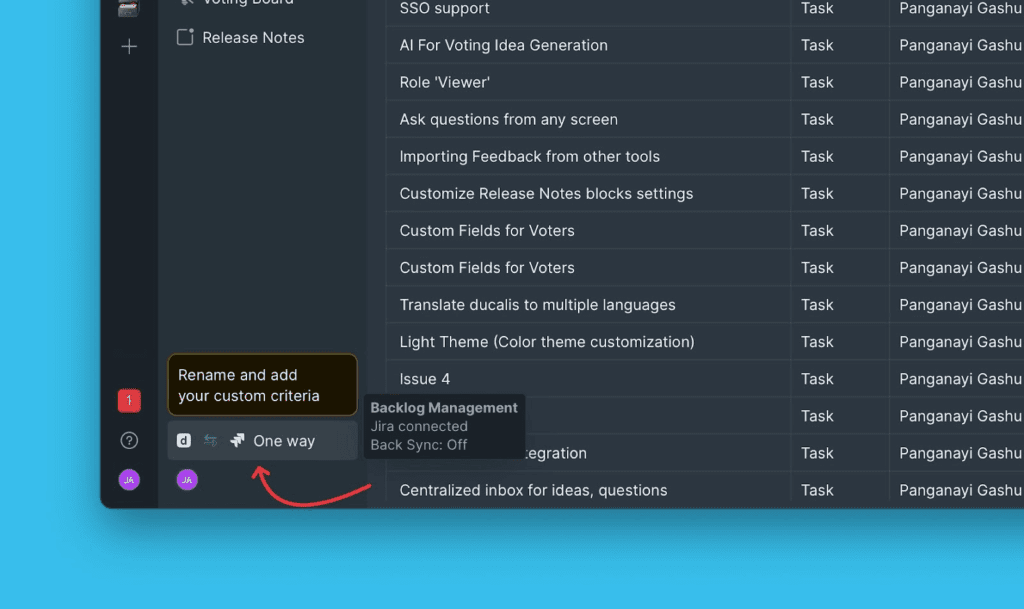
Open Sync settings from your Board menu.
-
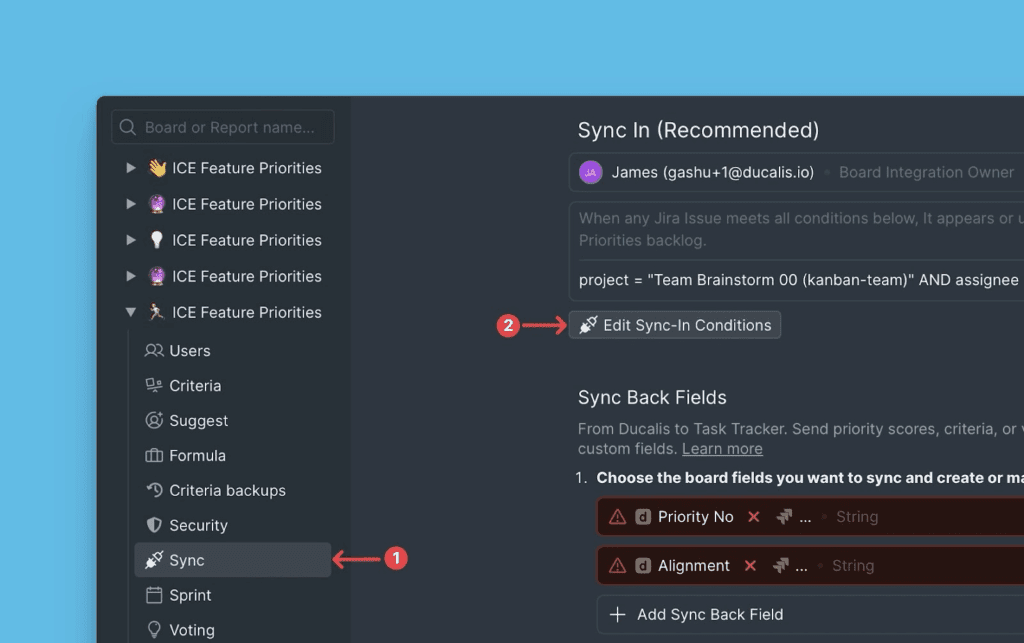
Under Sync settings, click Edit Sync-In Conditions.
-
Edit your JQL query and click Save to apply the changes.
Using Ducalis filters
Ducalis filters let you select Issues by project, status, assignee, and other Jira fields without writing JQL queries.
-
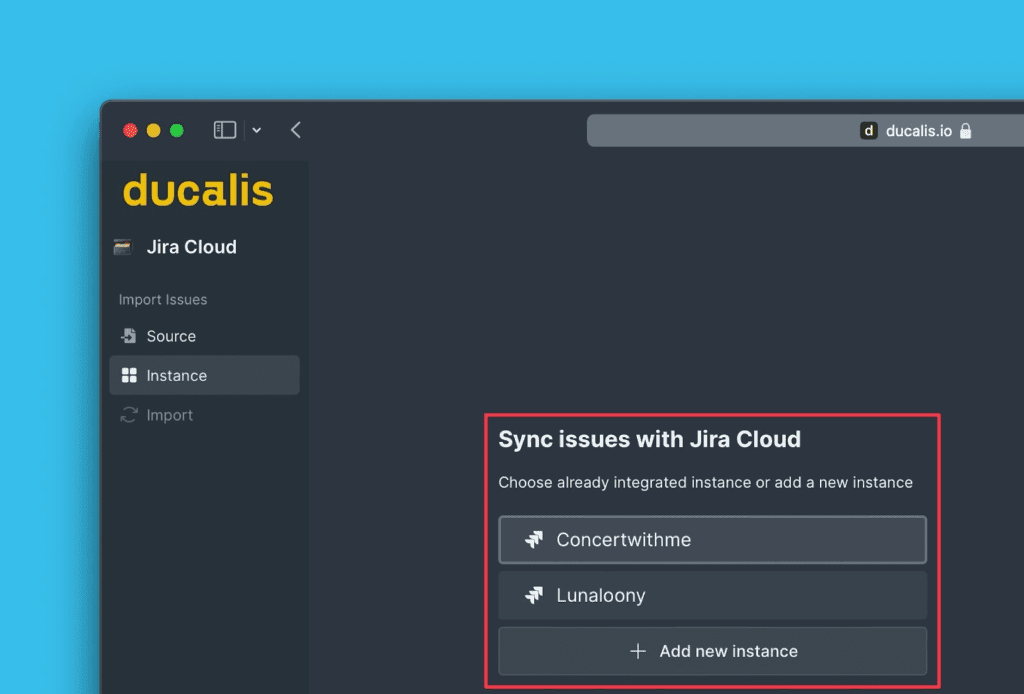
Select the instance you want to import from.
-
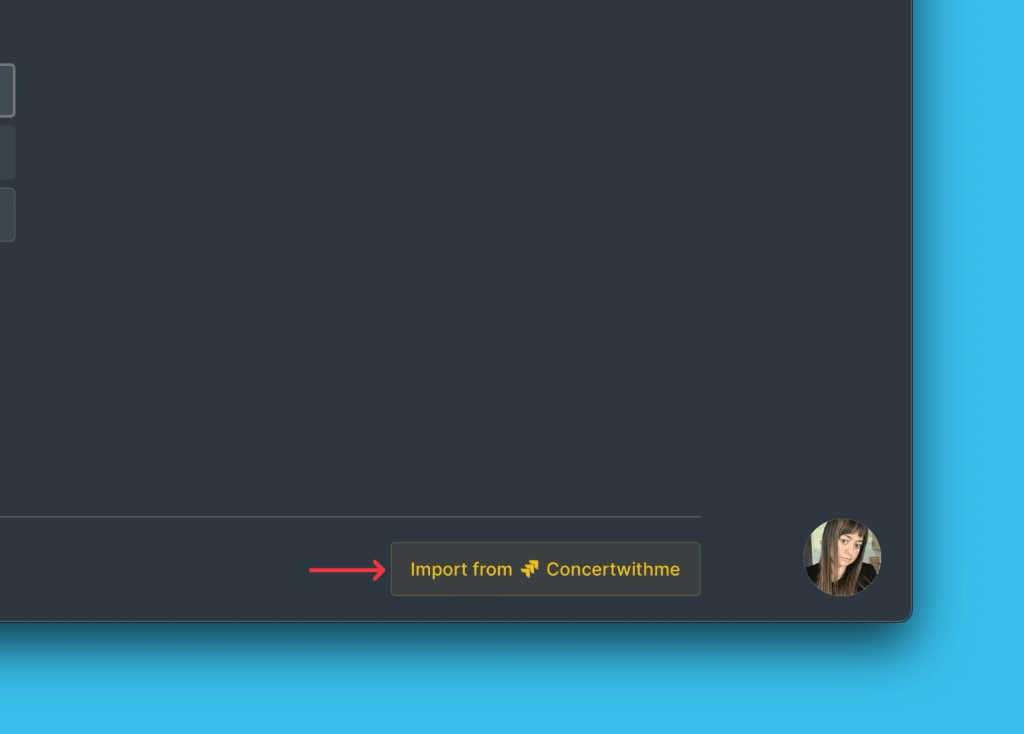
Click Import from [instance].
-
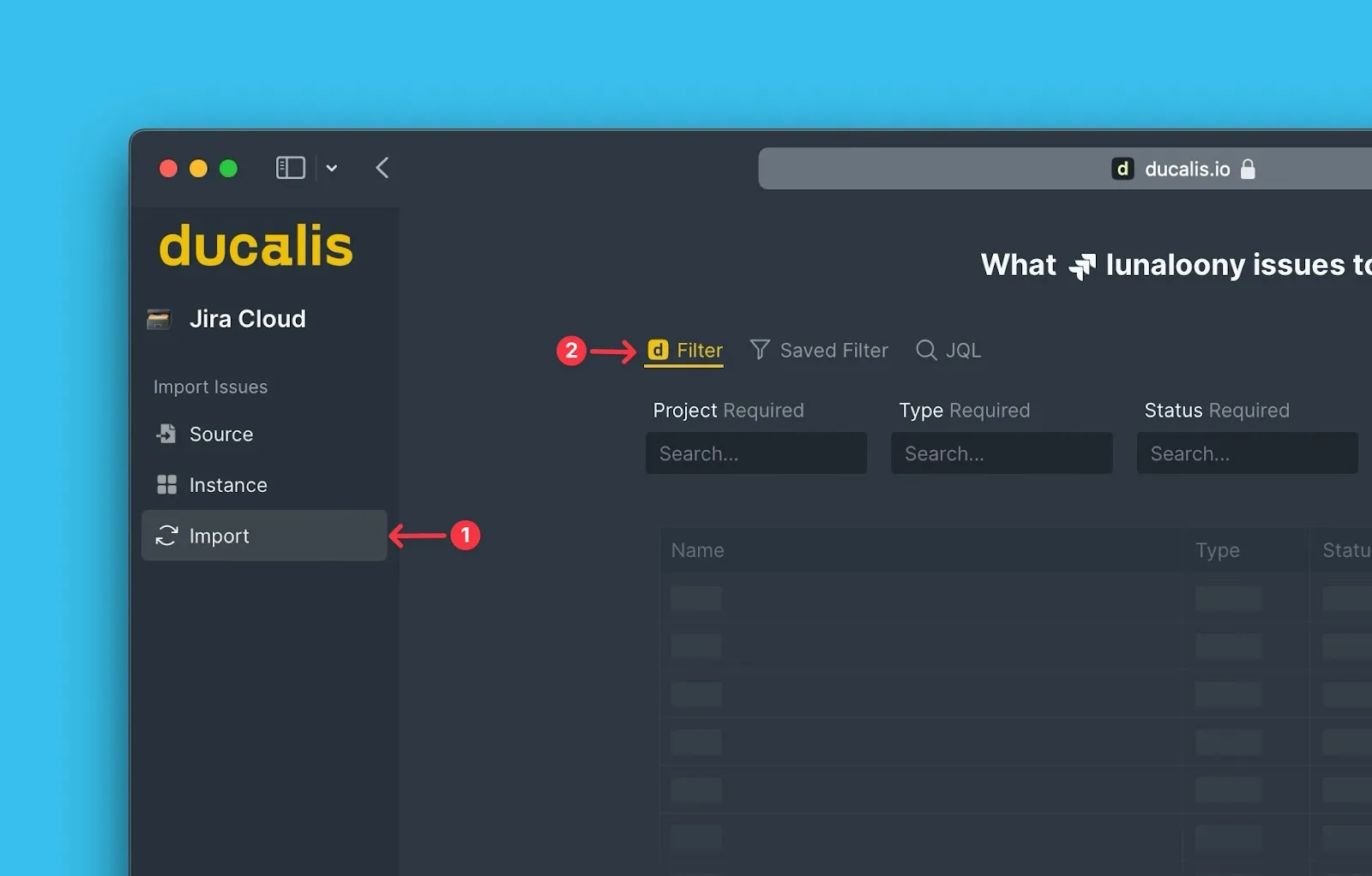
In the Import step, select Ducalis filters.
-
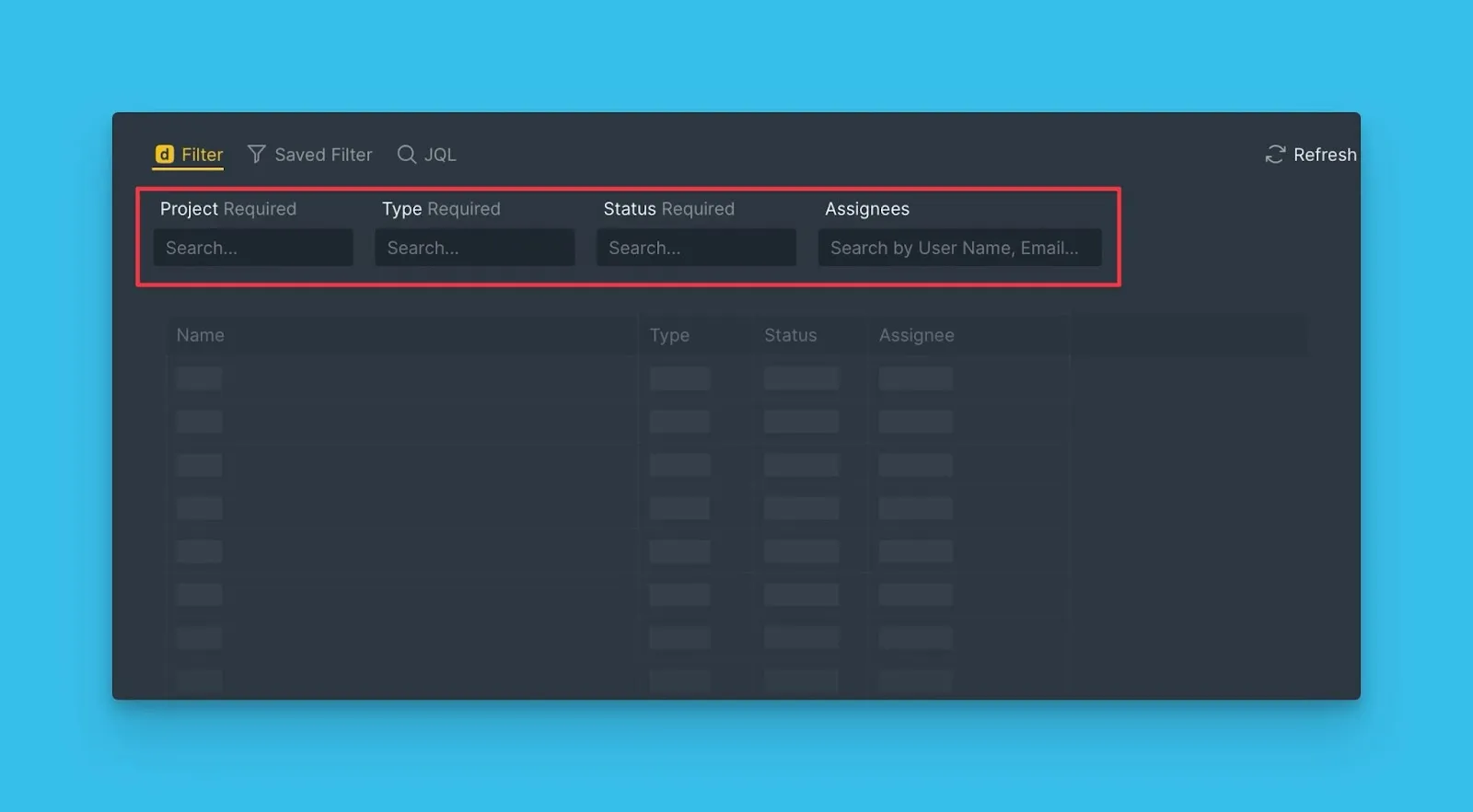
Select the filter parameters for the Issues you want to import. Required parameters are marked.
-
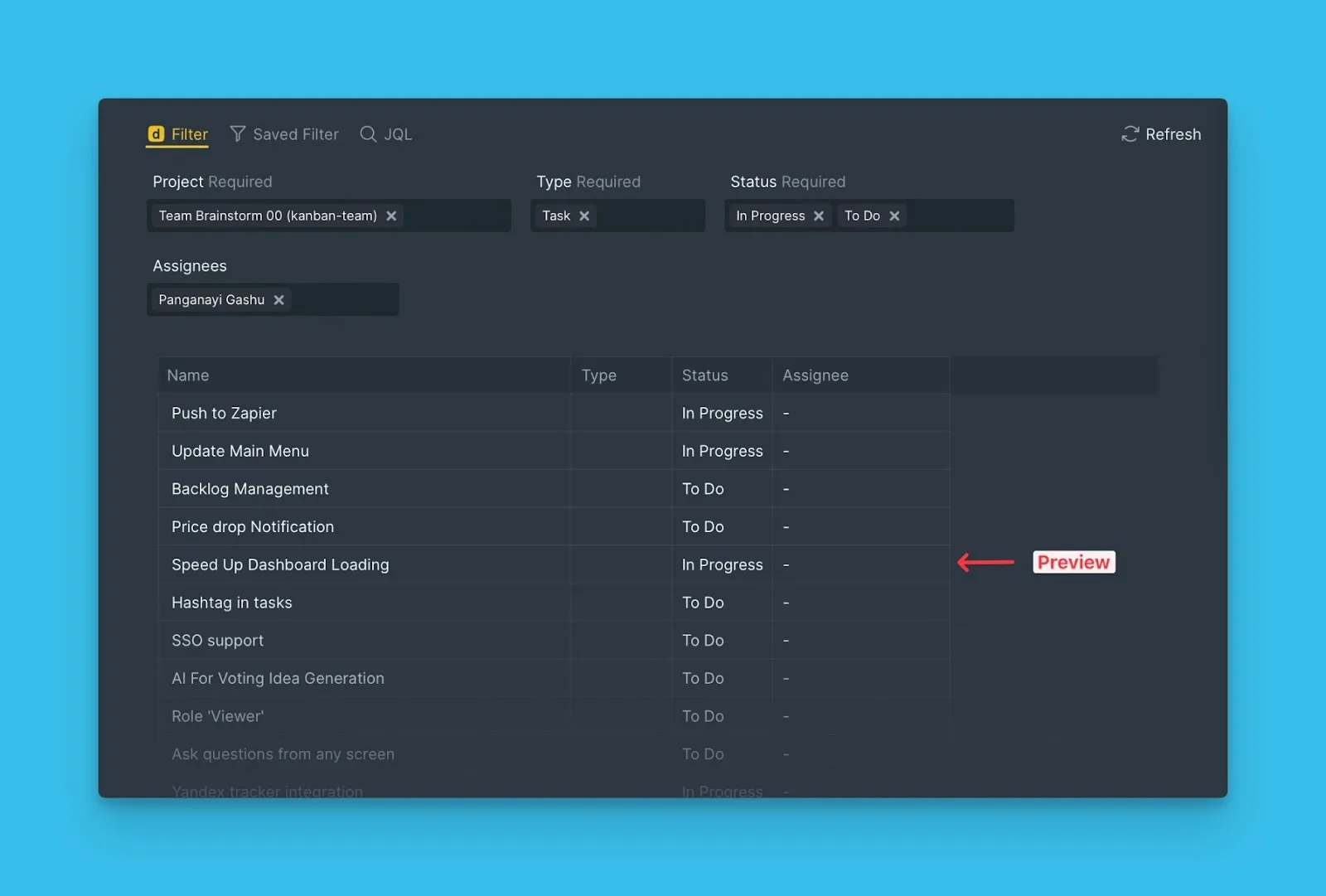
Review the real-time preview of Issues matching your filters.
-
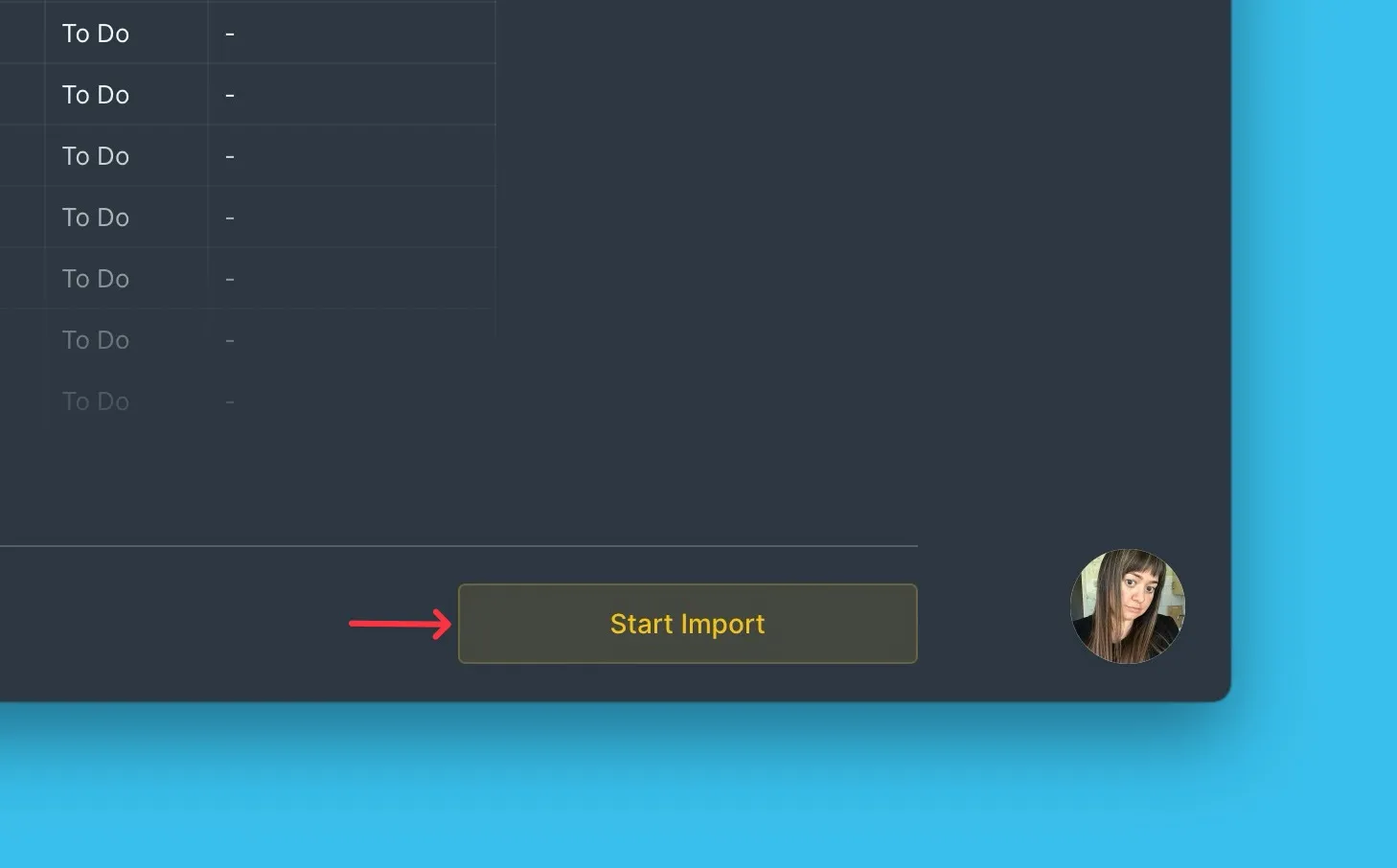
Click Start Import.
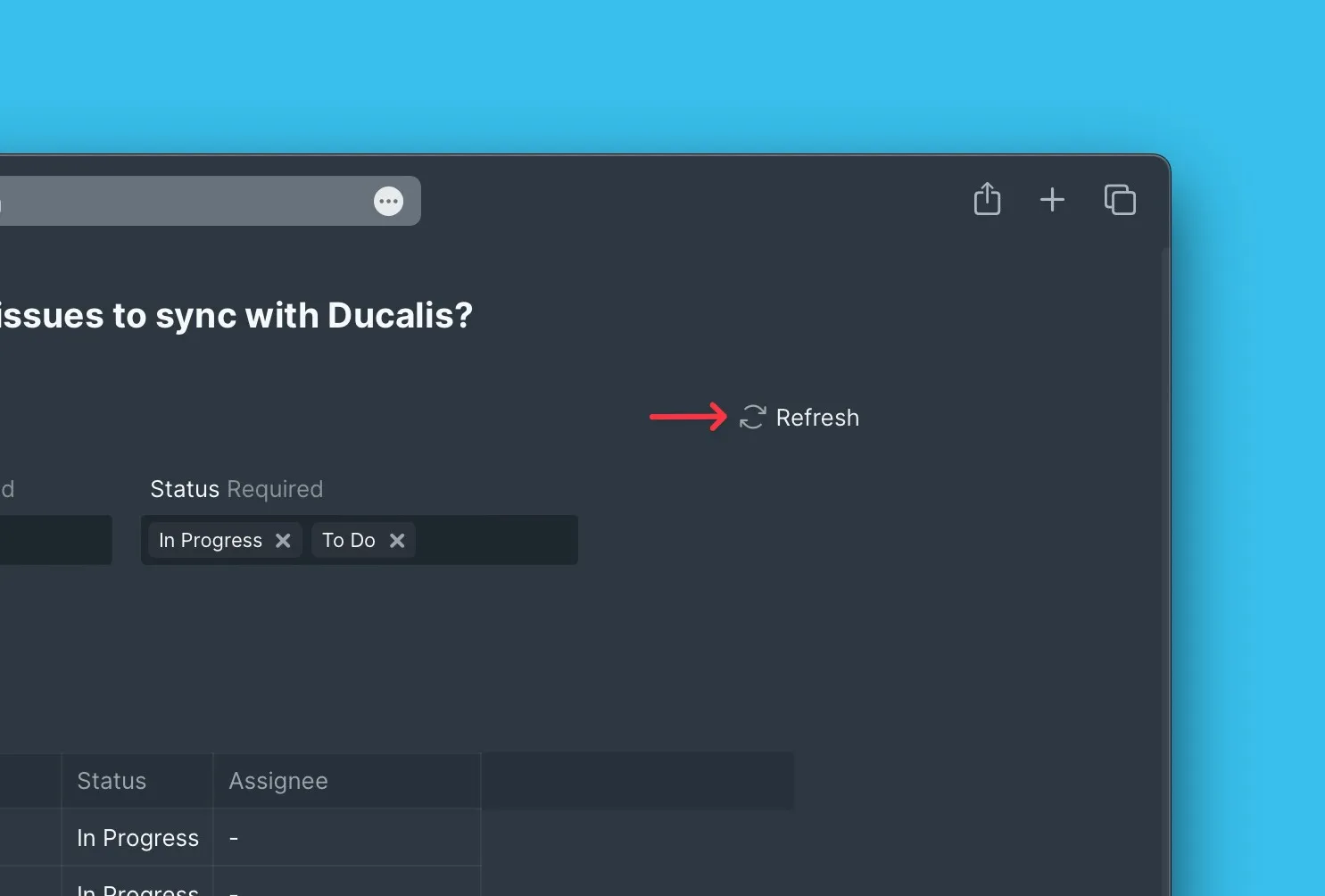
If you don't see certain parameters after making changes in Jira, click Refresh to update the list.
Your Board now shows the imported Issues from Jira Cloud.
Import sub-tasks
You can import sub-tasks from Jira Cloud along with their parent tasks.
-
When selecting import filters, choose the project containing the parent tasks.
-
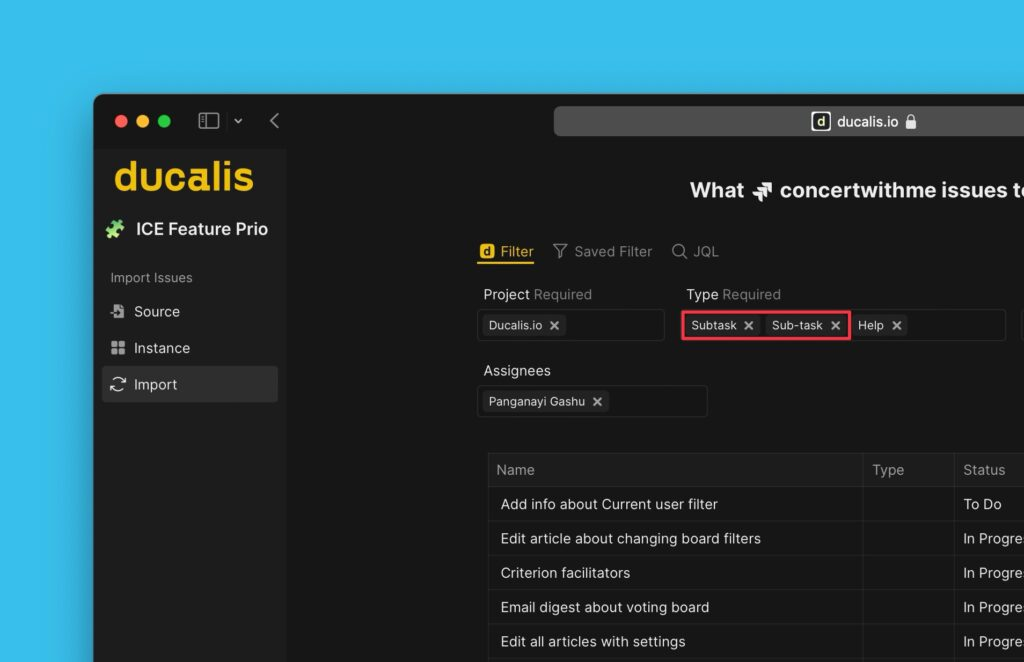
Under Issue type, select Sub-tasks.
-
Select any additional required or optional filters.
-
Review the preview of sub-tasks matching your filters.
-
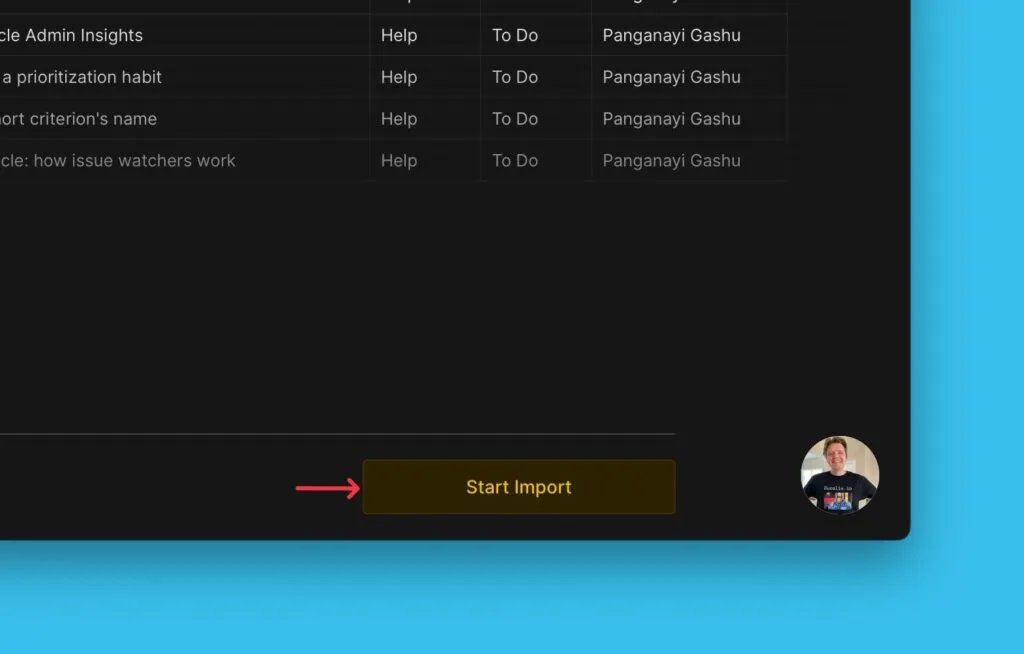
Click Start import.
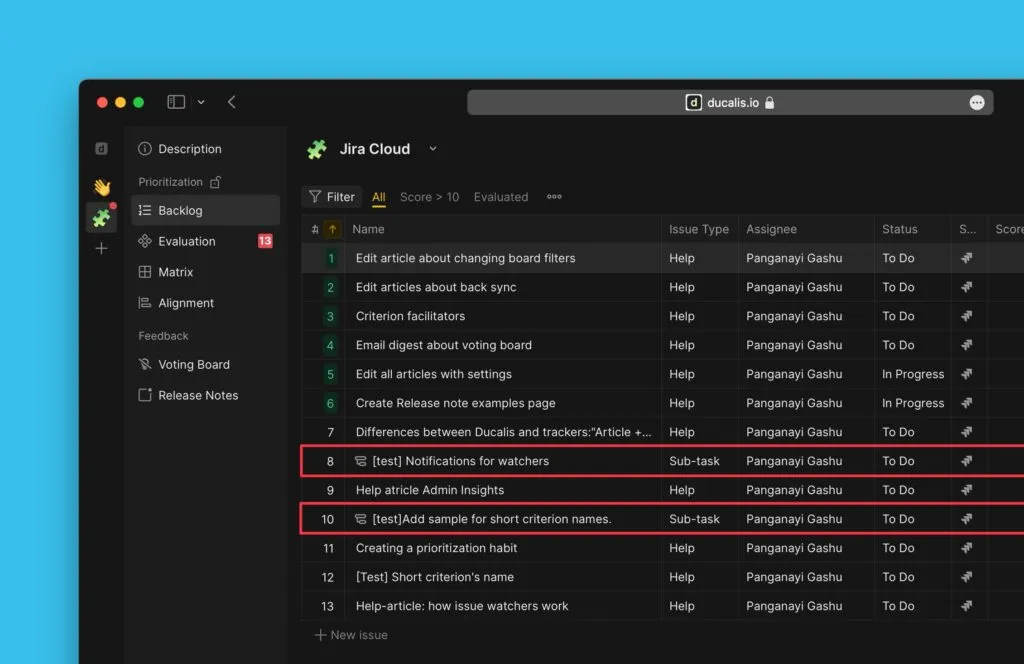
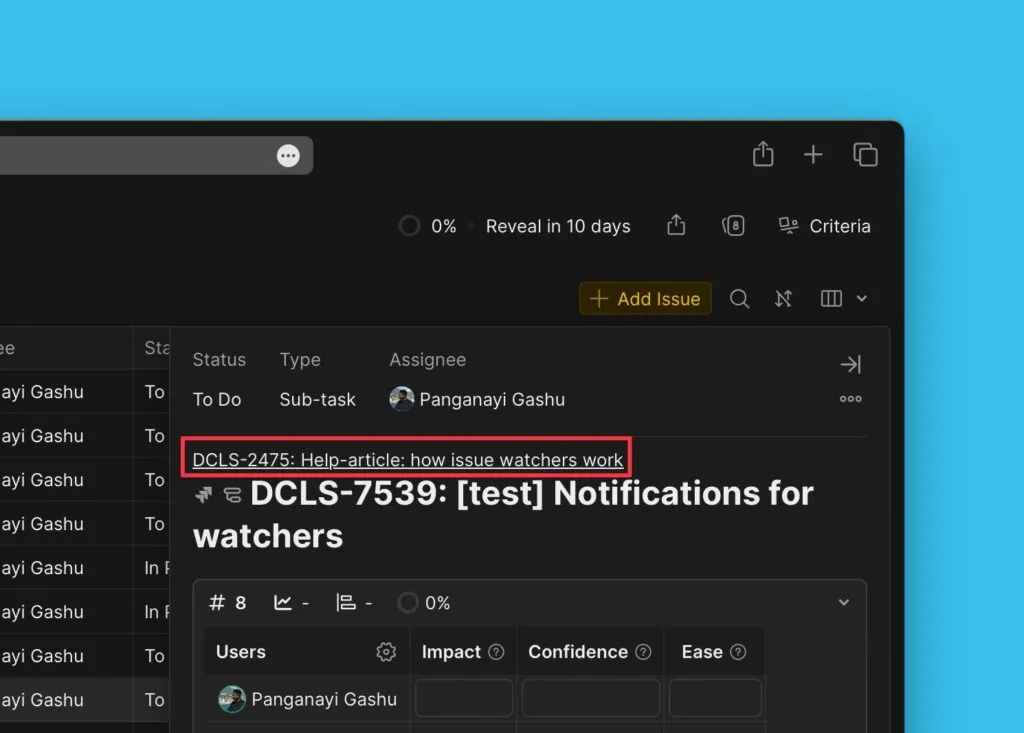
All parent tasks and their sub-tasks are imported. Sub-tasks display a sub-task icon in the Issues list.
When you open a sub-task, the parent task appears at the top. Click it to open the parent task in Jira Cloud.
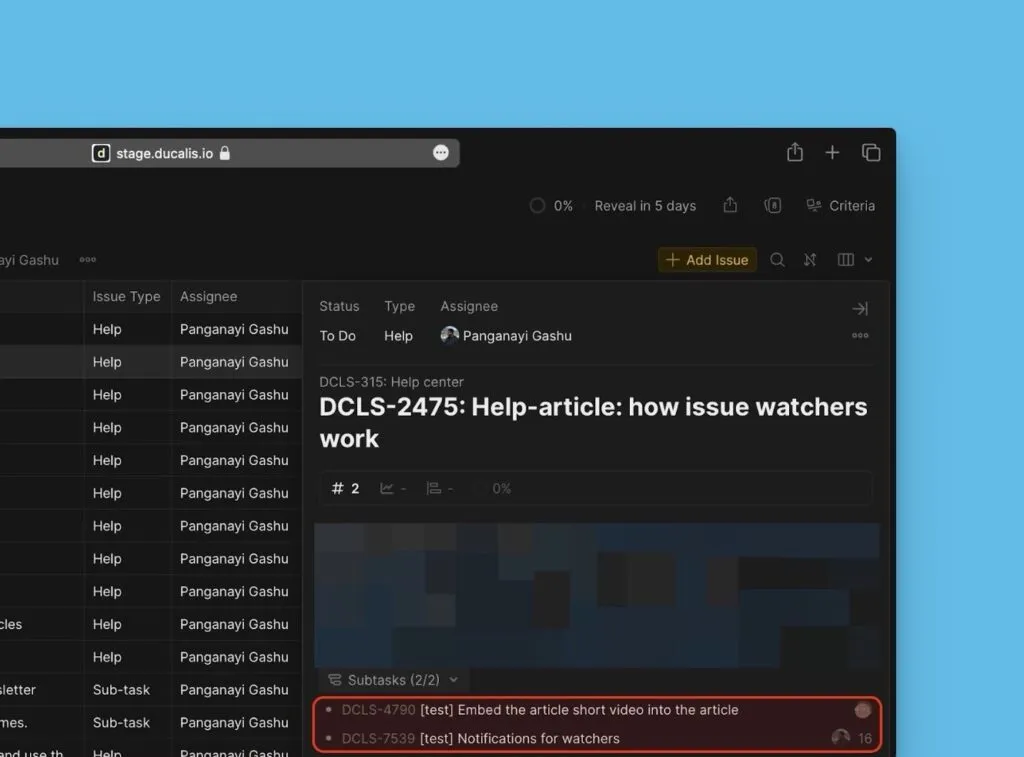
When you open a parent task, you can see all its sub-tasks (including completed ones) and their scores if they were imported and evaluated.
Edit Ducalis filters
You can edit Ducalis filters to add or remove Issues from your Board without changing the integration.
-
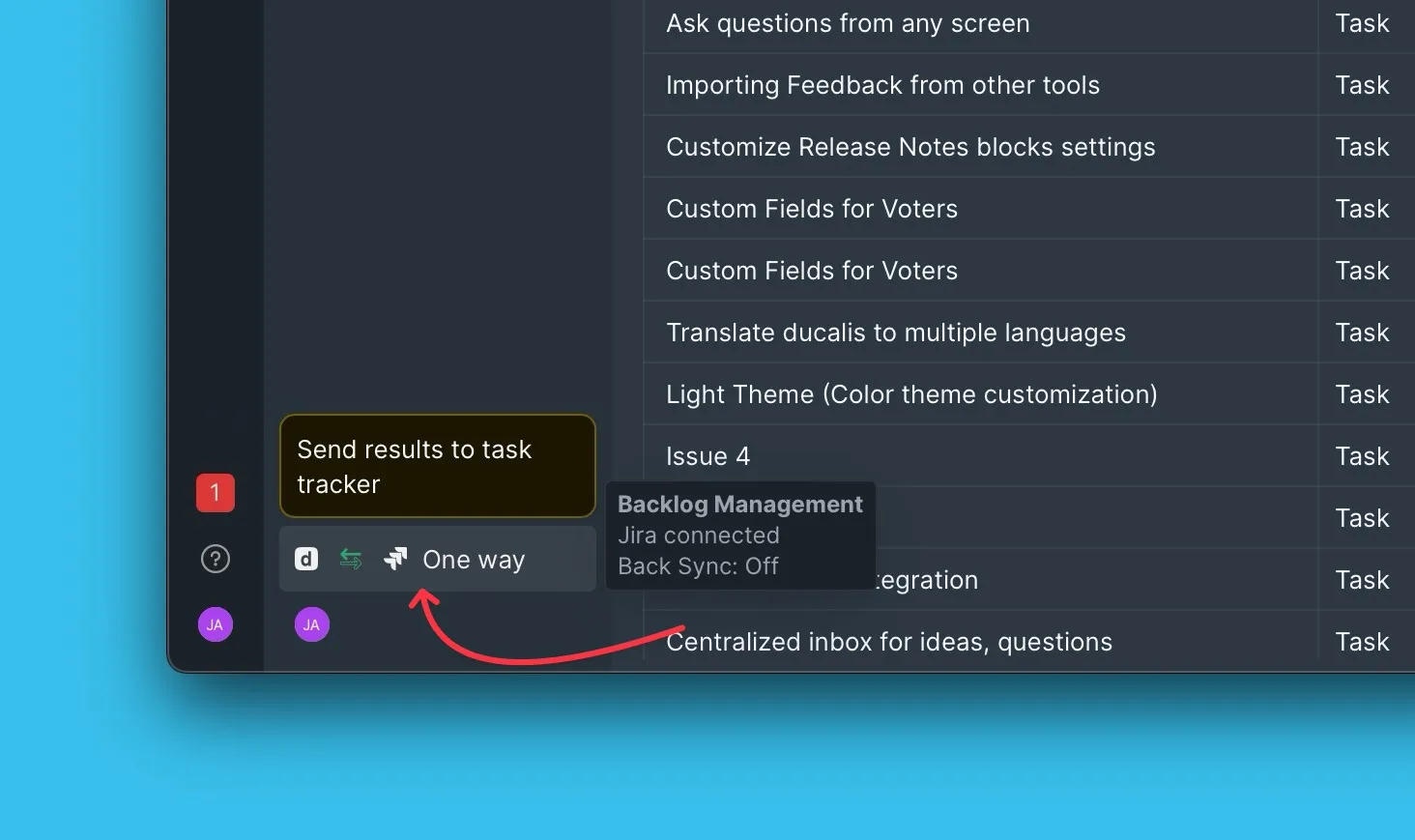
Open Sync settings from your Board menu.
-
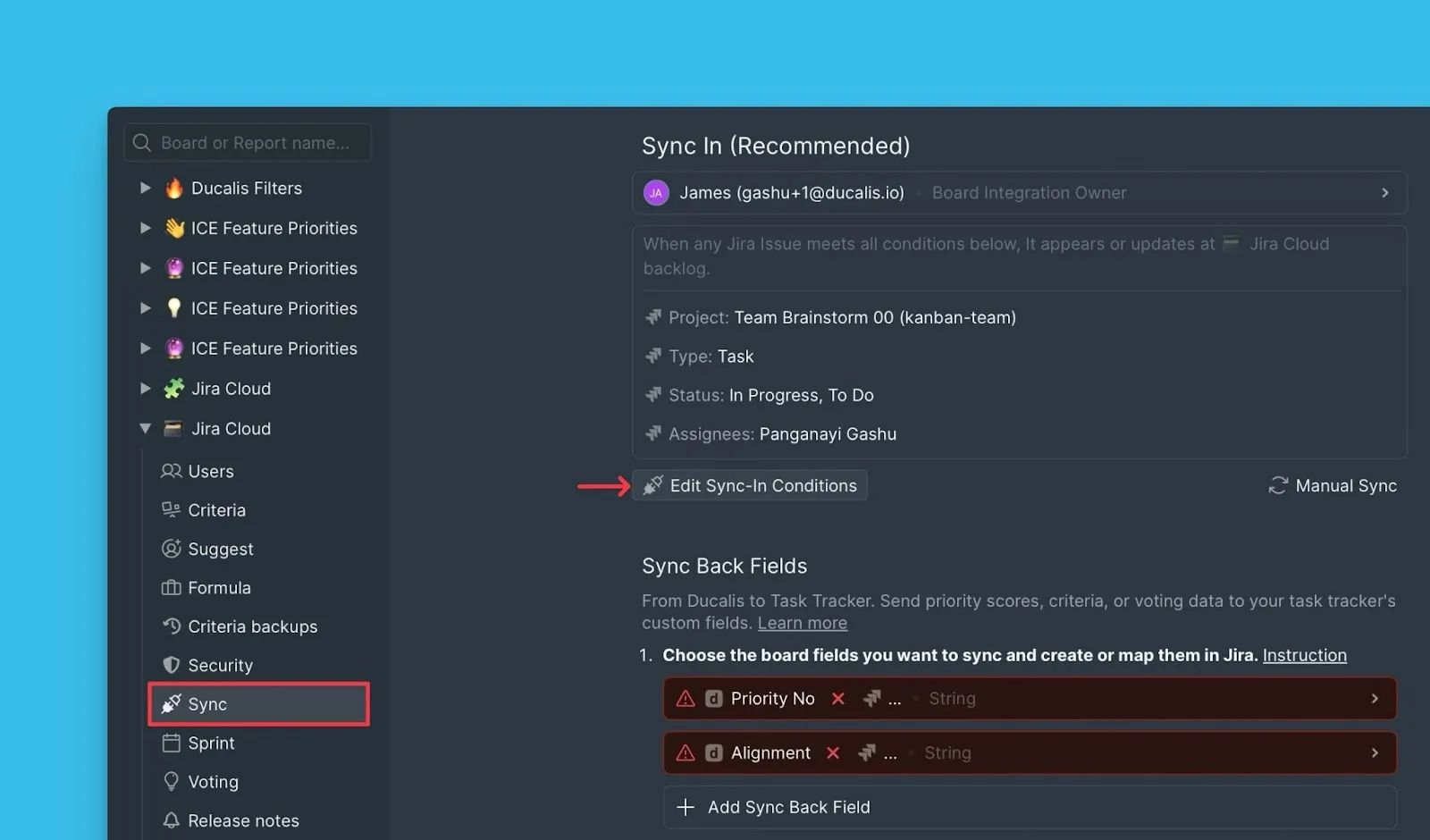
Under Sync, click Edit Sync-In Conditions.
-
Edit the filter parameters to match the Issues you want.
-
Click Save to apply the changes.