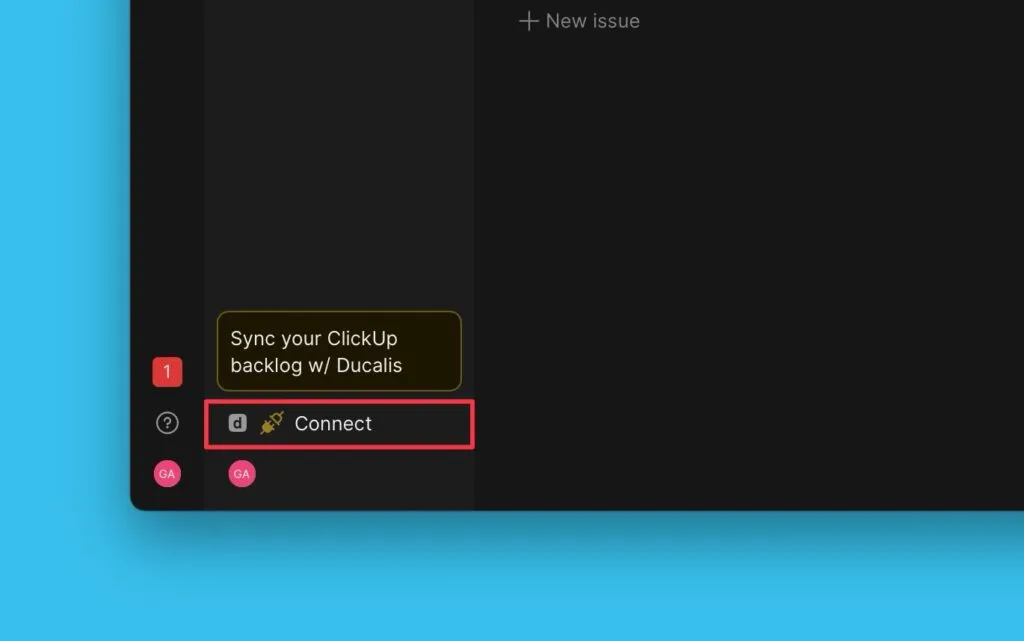
Manage Integrations
Manage all your task tracker integrations from one central page—the Integrations page. View connected trackers, add new connections, and manage existing instances.
Access the Integrations page
-
Open your Dashboard.
-
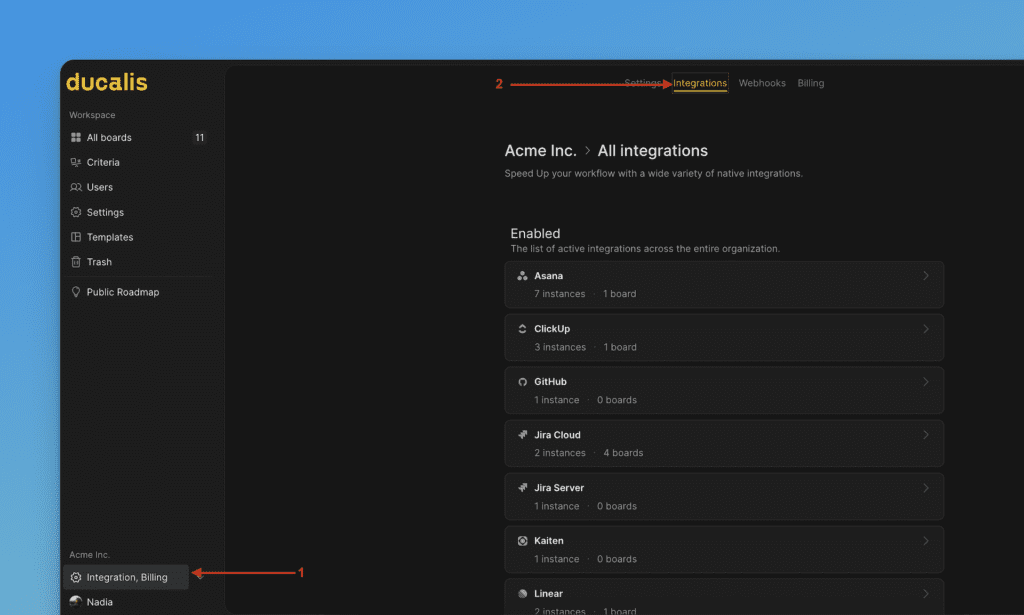
Click Integrations, Billing in the left sidebar.
-
Select Integrations.
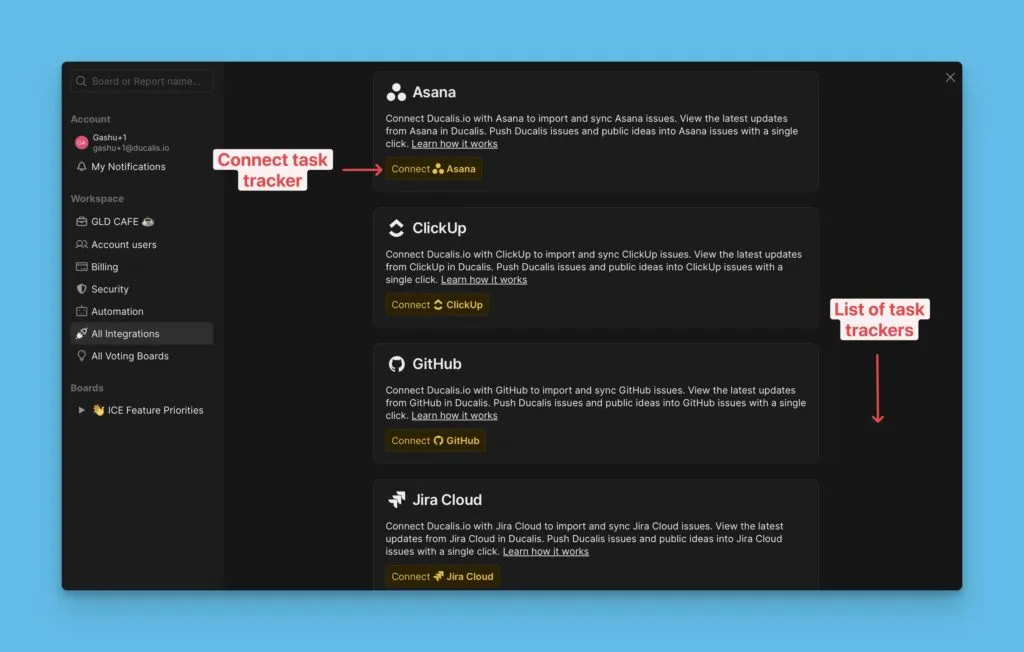
The page displays available task trackers in alphabetical order. Connected trackers appear at the top of the list.
Connect a new task tracker
-
Find the task tracker you want to connect.
-
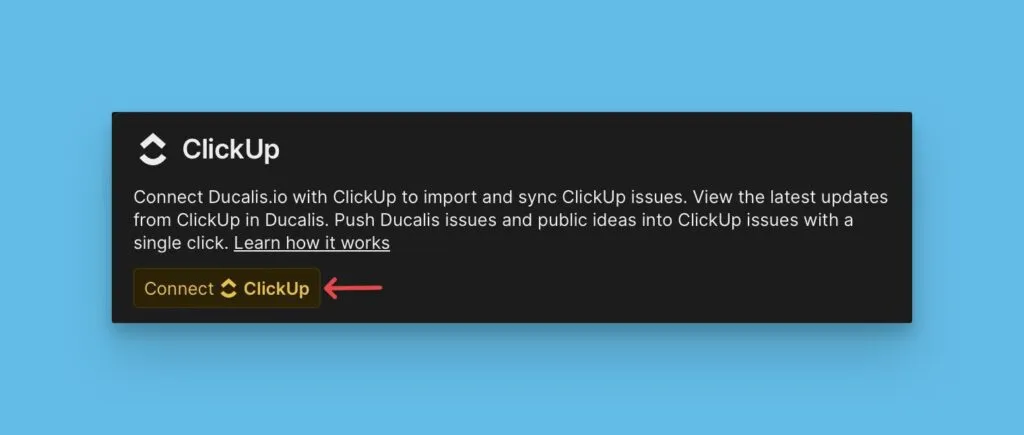
Click Connect [task tracker].
-
Follow the setup instructions for that specific integration.
Manage connected integrations
Each connected tracker displays its instances below the tracker name.
From this page, you can:
-
Remove an integration – Deletes all boards connected to this tracker instance along with their data.
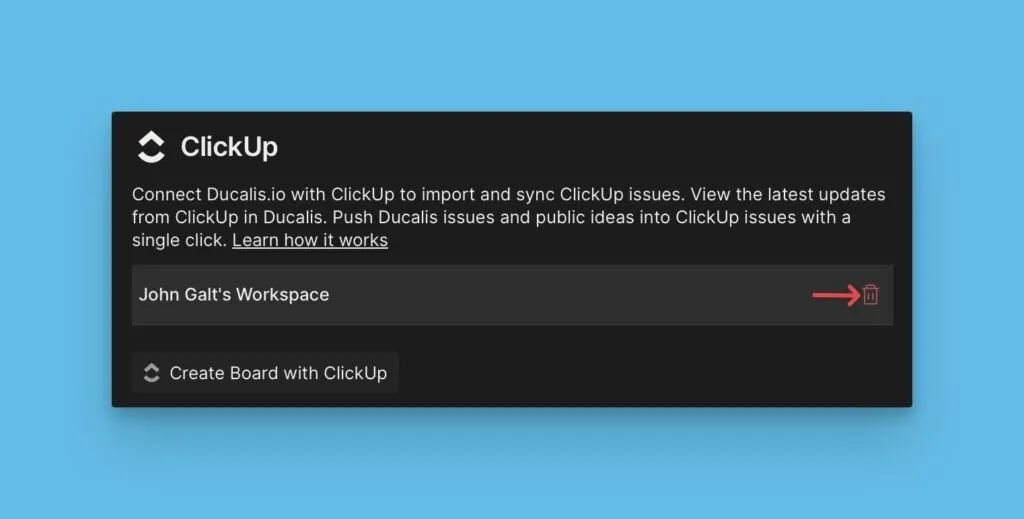
-
Create new boards – Set up additional boards using the connected tracker.